 MyRecover



Windows Update Not Working Windows 10? Try These Proven Solutions
If windows update not working windows 10 is driving you crazy, you're not alone. This article covers complete solutions for update failures, including specific fixes for situations where after update windows 10 keyboard not working, along with sound, Bluetooth, and desktop loading issues that often follow problem updates.

By Delores / Updated on March 4, 2026


Windows updates are supposed to keep your system secure and running smoothly (patching security holes, fixing bugs, and keeping your drivers compatible with new software), but let's be real—they're often the source of the headache they're meant to prevent. Whether it's stuck downloads, failed installations, or post-update chaos, these problems affect millions of users daily.
You might encounter these problems: check for updates, Windows 10 not working, after updating Windows 10, the sound, Bluetooth, or keyboard is not working. We're going to walk through every possible solution.
And most importantly, we will recover files after a Windows update not working.
Why Windows Update Not Working Windows 10 Happens
Some factors might cause Windows updates not to work in Windows 10.
- Corrupted System Files: Important system files act as the foundation for Windows. When these files are damaged or corrupted, they can prevent updates from installing correctly.
- Corrupted Update Components: The specific folders Windows uses to manage updates can become damaged. The SoftwareDistribution folder (where update files are temporarily stored) can get clogged with corrupted data, and the Catroot2 folder (which holds update signatures) may also be faulty, blocking new downloads.
- Insufficient Disk Space: Updates often require several gigabytes of free space to download and install. If your hard drive is too full, the update process cannot proceed.
- Driver Conflicts: After an update, new drivers may conflict with existing hardware. This is a common reason for issues like sound not working or a keyboard malfunctioning after a Windows 10 update.
How to Fix Windows 10 Update Not Workingin 5 Ways
Way 1. Try Windows Update Troubleshooter
Microsoft actually gave us a tool for this exact situation. The Windows Update Troubleshooter automatically detects and fixes common update issues. To run it:
1. Head to Settings > Update & Security > Troubleshoot > Additional troubleshooters.
2. Find Windows Update, click it, and select "Run the troubleshooter".
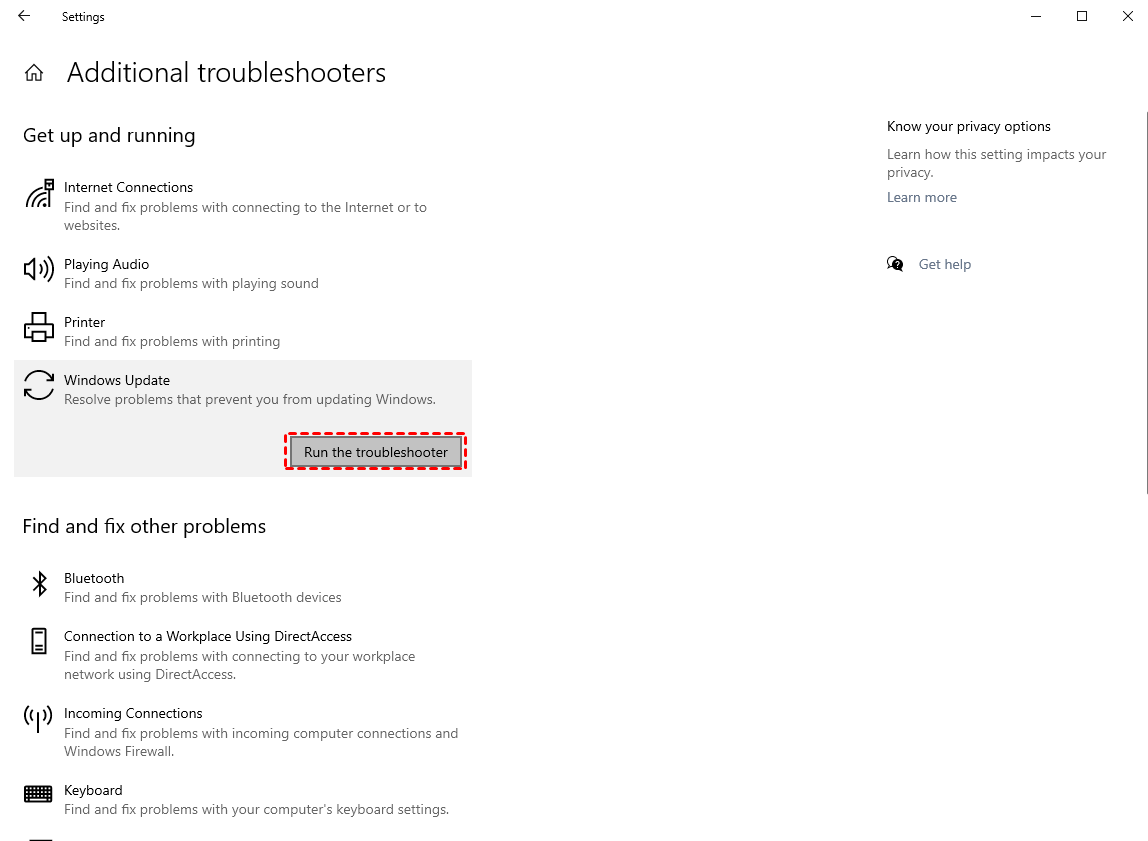
3. Let it do its thing—it'll check for problems like corrupted settings or services that aren't running properly and attempt to fix them automatically. Sometimes it works like magic.
Way 2. Check Your Internet Connection and Windows Services
If checking for updates on Windows 10 not working is your specific headache, verify you're actually connected to the Internet.
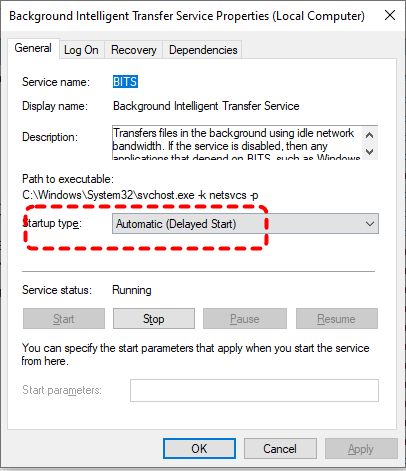
Then, check that critical Windows services are running. Press Windows + R, type services.msc, and hit Enter. Look for "Background Intelligent Transfer Service (BITS)" and "Windows Update". Both should be running and set to Automatic.
Way 3. Free Up Disk Space for Update Installation
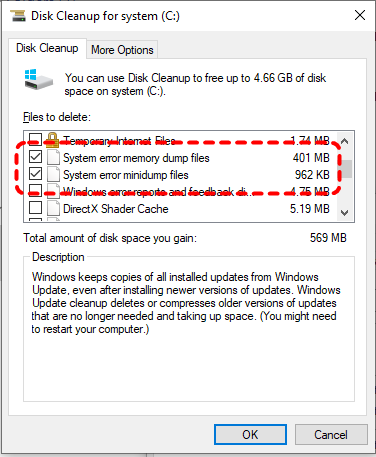
To free up disk spaceusing Disk Cleanup:
1. Open File Explorer, right-click your system drive (usually C:), and select Properties.
2. If the free space is looking tight, click "Disk Cleanup" and let it clear out temporary files, old Windows installations, and other junk.
Way 4. Clear the SoftwareDistribution Folder
This folder is where update files live temporarily. When it gets corrupted, new updates can't download. Here's the fix:
1. Open Command Prompt as administrator. Stop the update services by typing these commands one by one, pressing Enter after each:
net stop wuauserv
net stop bits
Now navigate to C:\Windows\SoftwareDistribution and delete everything inside—don't worry, Windows will rebuild it.
delete-softwaredistribution-folder.png
Then restart the services:
net start wuauserv
net start bits
Try checking for updates again. This clears out any corrupted download files that were blocking progress.
Way 5. Reset Windows Update Components Manually
For stubborn cases, a full reset of the update components often works. This is like giving the update system a complete reboot. In addition to stopping the services and clearing SoftwareDistribution as above, you'll also need to reset the BITS service and the cryptographic services. The full command sequence looks like this:
net stop bits
net stop wuauserv
net stop appidsvc
net stop cryptsvc
Ren C:\Windows\SoftwareDistribution SoftwareDistribution.old
Ren C:\Windows\System32\catroot2 Catroot2.old
net start bits
net start wuauserv
net start appidsvc
net start cryptsvc
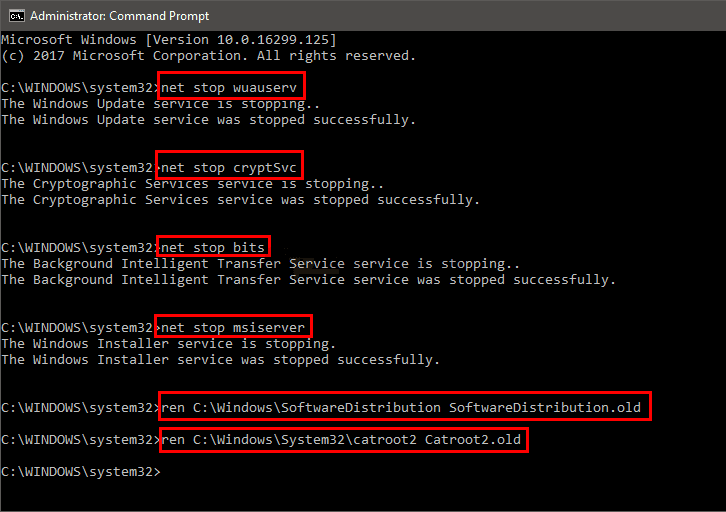
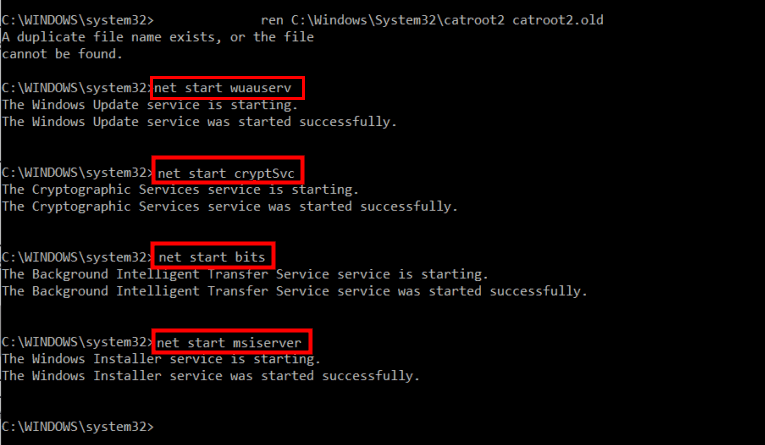
This renames the old SoftwareDistribution and Catroot2 folders, forcing Windows to create fresh ones.
What to Do When Windows 10 Desktop Doesn't Load After an Update
If your Desktop not showing in Windows 10, try the following solutions:
Way 1. Boot Into Safe Mode to Access Your System
Safe Mode loads only essential drivers and can bypass whatever's causing the boot failure. To get there:
1. Restart your computer and as it boots, press F8 repeatedly (or Shift + F8). If that doesn't work, you might need to interrupt the boot process three times—turn the computer off as Windows tries to start, do this three times, and it should trigger Automatic Repair.
2. From there, go to Advanced Options > Startup Settings > Restart, then press 4 for Safe Mode.
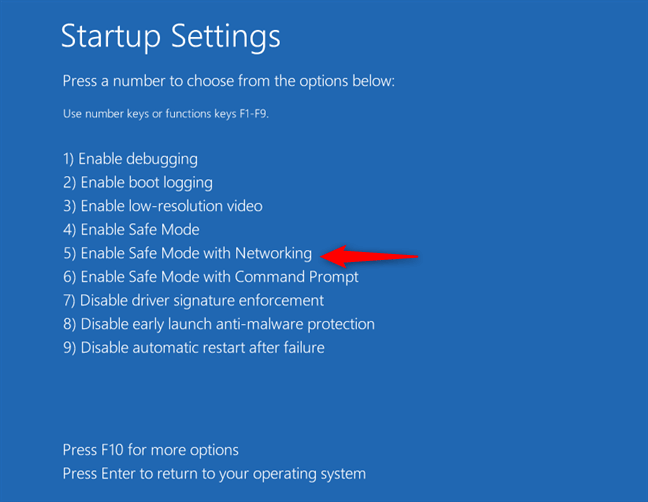
3. Once in Safe Mode, you can access your files, run System Restore, or troubleshoot drivers.
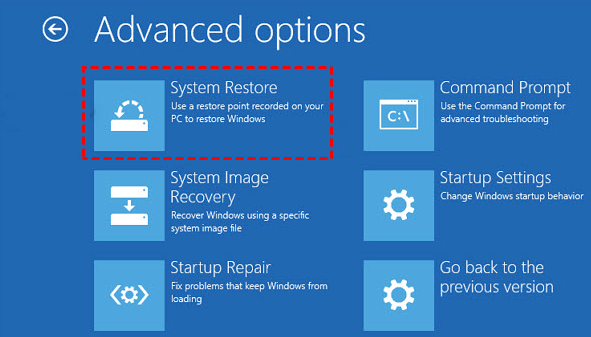
Way 2. Try System Restore to Roll Back the Update
If Safe Mode works, type "System Restore" in the Start menu and open it.
Choose a restore point from before the update—this rolls your system back to that earlier state without affecting your personal files.
It's like hitting undo on the problematic update.
Way 3. Perform Startup Repair From Recovery Environment
If you can't even get to Safe Mode, boot from a Windows installation USB or DVD. Select your language, click "Repair your computer", then Troubleshoot > Advanced Options > Startup Repair. This automatically diagnoses and fixes boot problems.
Fixed: After Windows 10 Update, Bluetooth Not Working
If, after updating Windows 10, Bluetooth not working is your reality, here's the fix.
Step 1. Check Bluetooth Driver Status in Device Manager: Right-click Start and select Device Manager. Look for "Bluetooth" and expand it. If you see a yellow exclamation mark, there's a driver problem. If Bluetooth is completely missing from Device Manager, the update may have wiped the driver entirely.
Step 2. Roll Back or Update Bluetooth Drivers: Right-click it and select Properties. Under the Driver tab, try "Roll Back Driver" if available.
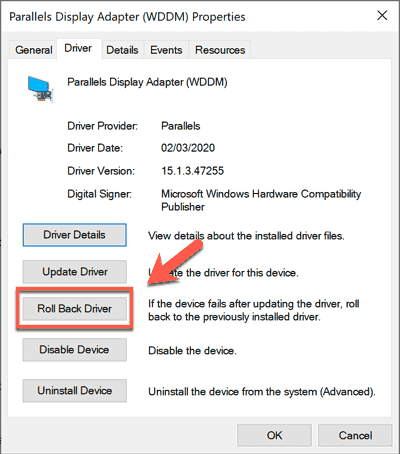
If not, select "Update Driver" and let Windows search automatically. Sometimes you need to visit your PC manufacturer's website to download the specific Bluetooth driver for your model.
Step 3. Ensure Bluetooth Service Is Running Properly: Press Windows + R, type services.msc. Find "Bluetooth Support Service", right-click it, and select Properties. Set Startup type to "Automatic", click Start if it's not running, and go to the Log On tab to ensure it's using the "Local System account". Restart your computer afterward.
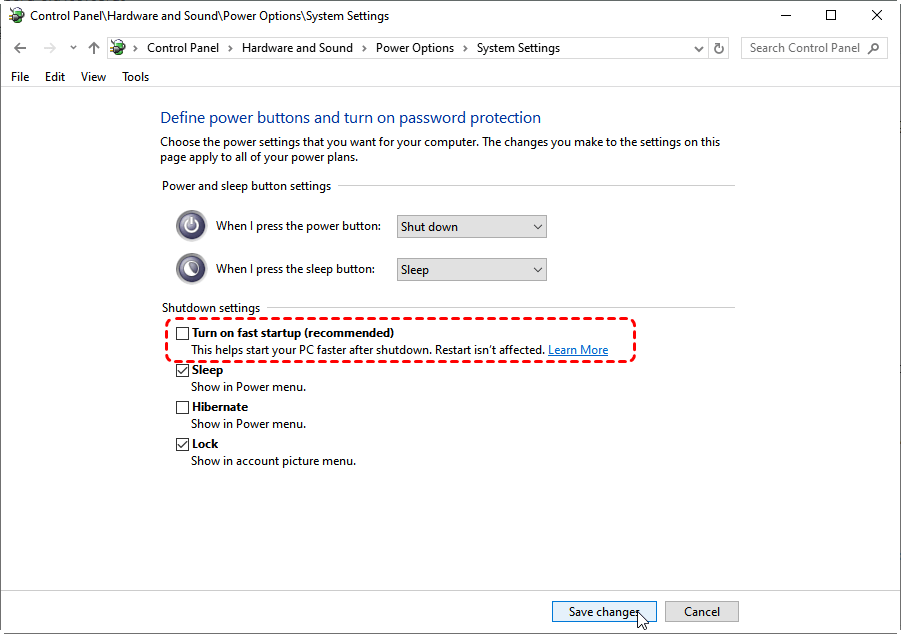
Step 4. Disable Fast Startup: In forum discussions, users reported that disabling Fast Startup fixed Bluetooth vanishing after updates. Go to Control Panel > Power Options > Choose what the power buttons do > Change settings that are currently unavailable, then uncheck "Turn on fast startup (recommended)". Restart and check Bluetooth.
Fixed: After updating Windows 10 Sound Is Not Working
Way 1. Verify Audio Output Device Selection
Sometimes Windows simply switches your output device. Click the speaker icon in your taskbar and make sure the correct playback device is selected—not "Digital Audio" when you're using speakers, or not speakers when you're using headphones.
Way 2. Update or Reinstall Sound Drivers
Head to Device Manager, expand "Sound, video and game controllers". Right-click your audio device and select Update driver.
If that doesn't work, right-click and Uninstall device, then restart your computer.
Way 3. Run the Audio Troubleshooter Tool
Settings > Update & Security > Troubleshoot > Additional troubleshooters > Playing Audio. Run it and let Windows diagnose common sound problems.
Fixed: After updating Windows 10 Keyboard Not Working
Way 1. Test Keyboard on External Devices
If you're on a laptop, try an external USB keyboard. If that works, the issue is likely with your laptop's built-in keyboard driver. If nothing works, it might be a system-wide problem.
Way 2. Use the On-Screen Keyboard as a Temporary Solution
While troubleshooting, use the on-screen keyboard. Type "On-Screen Keyboard" in the Start menu search (using your mouse) and open it. You can click keys to type while you work on fixes.
Way 3. Update or Reinstall Keyboard Drivers
In Device Manager, expand "Keyboards." Right-click your keyboard device and select Update driver.
Fast Recover Your Files After Windows 10 Update
Sometimes, despite our best efforts, updates can corrupt files or cause data loss. Maybe you had to reset your PC, or the update failed so badly that you lost documents. This is where MyRecover comes in.
MyRecover is a user-friendly data recovery tool designed for Windows that can restore deleted or lost files from various scenarios, including system crashes, virus attacks, and, yes, problematic updates. It supports over 1,000 file types and uses both quick and deep scanning to maximize recovery chances.
Here is how to recover files after a Windows 10 update with MyRecover:
1. Download and install MyRecover on your Windows PC. Ensure you install it on a different drive than the one where your missingfiles were originally stored.
 100% Secure
2. Select Deleted Files Recovery, choose the drive containing your lost files, and click Scan. Wait for the scan to finish.

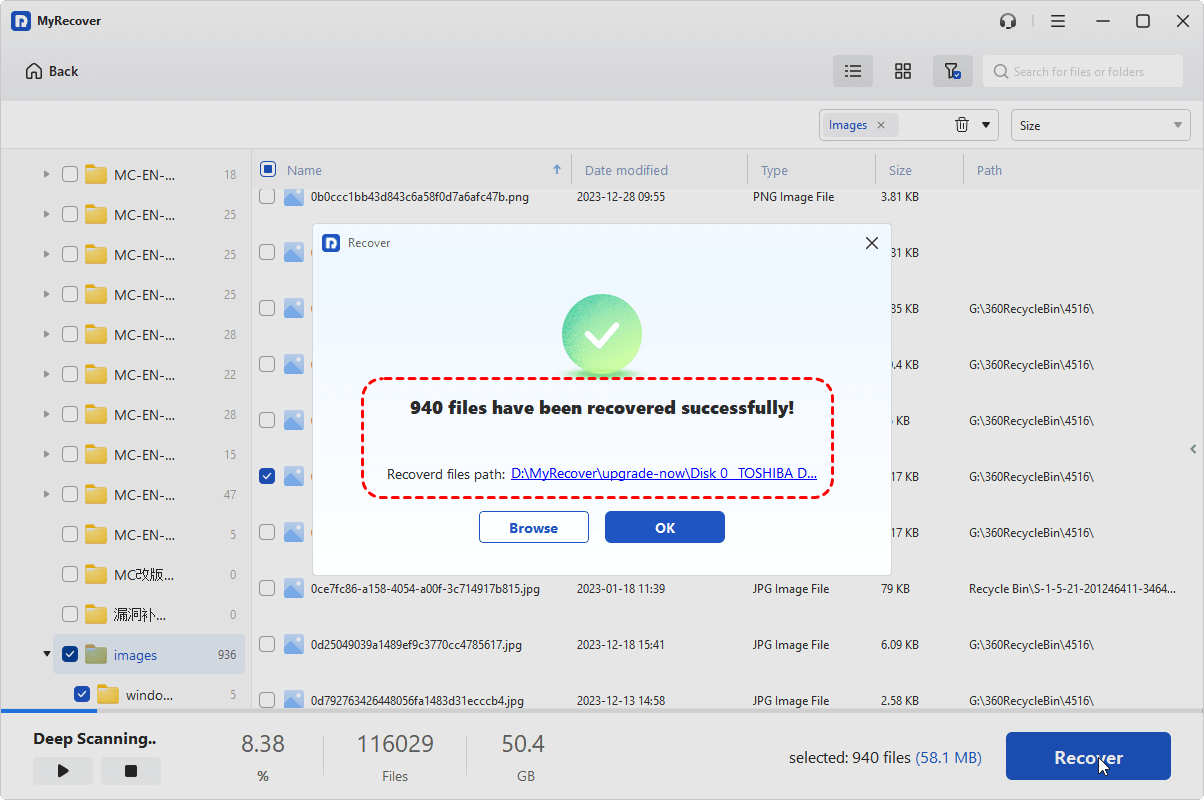
3. Preview your files, tick the ones you need, and click Recover.

4. Choose a new destination to save the recovered files.

- Notes:✎...
- After scanning, deleted files are sorted by type. You can also filter by folderpath, name, size, or date.
- This software can also recover data from an emptied Recycle Bin, a corrupted USB drive, a damaged partition, or an unbootable computer.
- For unlimited use on multiple computers, consider upgrading to MyRecover Technician.

 MyRecover
- Recover Deleted Files Easily with Simple Clicks
- 1000+ File Formats Supported
- Support HDD, SSD, External Hard Drive, USB Drive, SD Card, etc.
- Quickly Find Files Using File Types, Name, Size, etc.
- Preview Files Before Recovering
- Recover Unlimited Data
 100% Secure
FAQs About Windows 10 Update Problems
Why does Windows Update keep failing with error codes?
A: Error codes pinpoint the issue. For example, 0x80070070 means low disk space, while 0x800f0922 suggests a database problem. Running the Windows Update Troubleshooter or clearing the SoftwareDistribution folder often resolves them.
How long should I wait if Windows Update is stuck?
A: Wait 2-3 hours for major updates. If the progress bar hasn't moved for over 30 minutes, hold the power button to force a restart. Run the Windows Update Troubleshooter afterward.
Can I stop Windows 10 from updating automatically?
A: You can pause updates for up to 35 days in Settings > Windows Update. Setting your connection to metered also limits downloads, but security updates are mandatory for safety.
Will resetting my PC fix update problems?
A: Yes, as a last resort. Resetting reinstalls Windows and clears corruption while letting you keep your personal files. Always back up your data first.
Is it safe to force a restart during an update?
A: Avoid it if possible. Only do this if the screen is stuck for over two hours. Hold the power button for 10 seconds. Windows will usually try to undo the update on reboot.

Stay Updated With Our
Latest Tips
Add us as a preferred source on Google to never miss helpful guides.
 Add as preferred source >>