 MyRecover



Can't Write to SD Card on Samsung Phone? 7 Proven Ways
If your device says it can't write to SD card, this guide provides complete troubleshooting. We address Android can't write to SD card issues, explain why you can't write on SD card, and offer fixes for when an sd card is unable to write or shows as read-only.

By Delores / Updated on March 17, 2026


Can’t Write to SD Card!
Can't write to SD card
I have a Galaxy A04s, and for whatever reason, my SD card is stuck in read-only mode. It works fine on the computer, but it won't let me transfer things onto it while it's in my phone. Any ideas why that could be?
- Question from reddit.com
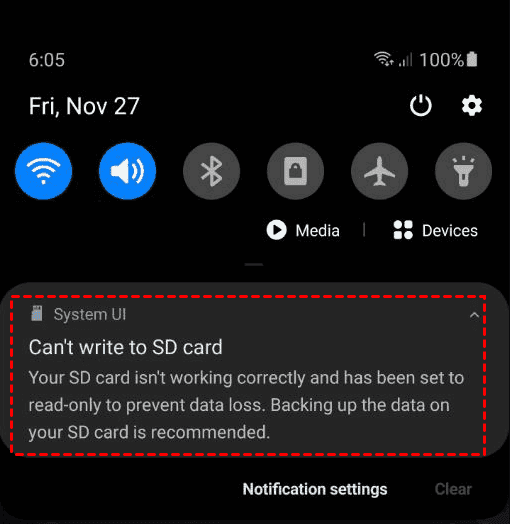
You're trying to save an important photo, download a file, or move some documents to your SD card, and it throws up an error: Can't write to SD card. Your SD card isn't working correctly and has been set to read-only to prevent data loss. Backing up the data on your SD card is recommended. It's frustrating, right? This issue affects countless Android users, Samsung owners, and nearly anyone who relies on expandable storage.
The thing is, when you can't write to an SD card, it can halt your workflow. But this problem is almost always fixable, and you don't need to be a tech wizard to do it.
Why You Can't Write to SD Card?
When your device says it can't write to an SD card, something's blocking data flow—a physical switch, software glitch, or corruption. Identifying the root cause prevents random, ineffective fixes.
Common Reasons for SD Card Write Failures
- Physical Lock Switch Enabled. For full-size SD cards or microSD cards in adapters, check the left side for a tiny sliding tab. If positioned down toward "Lock", your card is write-protected—no new files, deletions, or changes allowed. MicroSD cards themselves lack this switch, but adapters absolutely have one.
- File System Corruption or Errors. File system corruption scrambles the card's internal directory structure, often from improper ejection, sudden power loss during writes, or age. Your device may still read existing files, but write attempts fail because the card cannot organize new data.
- Permission Issues on Android Devices. Since Android 4.4 KitKat, Google has restricted app writing to external SD cards. Apps require specific permissions to access removable storage. If permissions weren't granted or were revoked during updates, saving fails—often visible when specific apps can't write to the file while the file manager works fine.
- Formatting Incompatibility Between Devices. File systems (FAT32, exFAT, NTFS) vary in device compatibility. Older Android phones often require FAT32 with its 4GB file limit. Newer devices prefer exFAT for cards over 32GB. Formatting a card as NTFS on a computer, then using it in a phone, typically causes write failures.
First, Recover Files from SD Card That Can’t Write
Before you format or perform any fixes, you absolutely need to recover your data. Formatting wipes everything clean, and you don't want to lose those vacation photos or important documents. This is where MyRecover comes in.
MyRecover is a data recovery tool designed to pull files from damaged, corrupted, or inaccessible storage devices—including SD cards that won't write properly. It also works when your computer or phone won't cooperate, giving you a fighting chance to save your data before attempting repairs.
Here is how to recover files from the problematic SD card with MyRecover:
1. Remove the SD card from your phone or other device. Insert it into a card reader and connect that reader to your computer. Download and install MyRecover on your computer.
 100% Secure
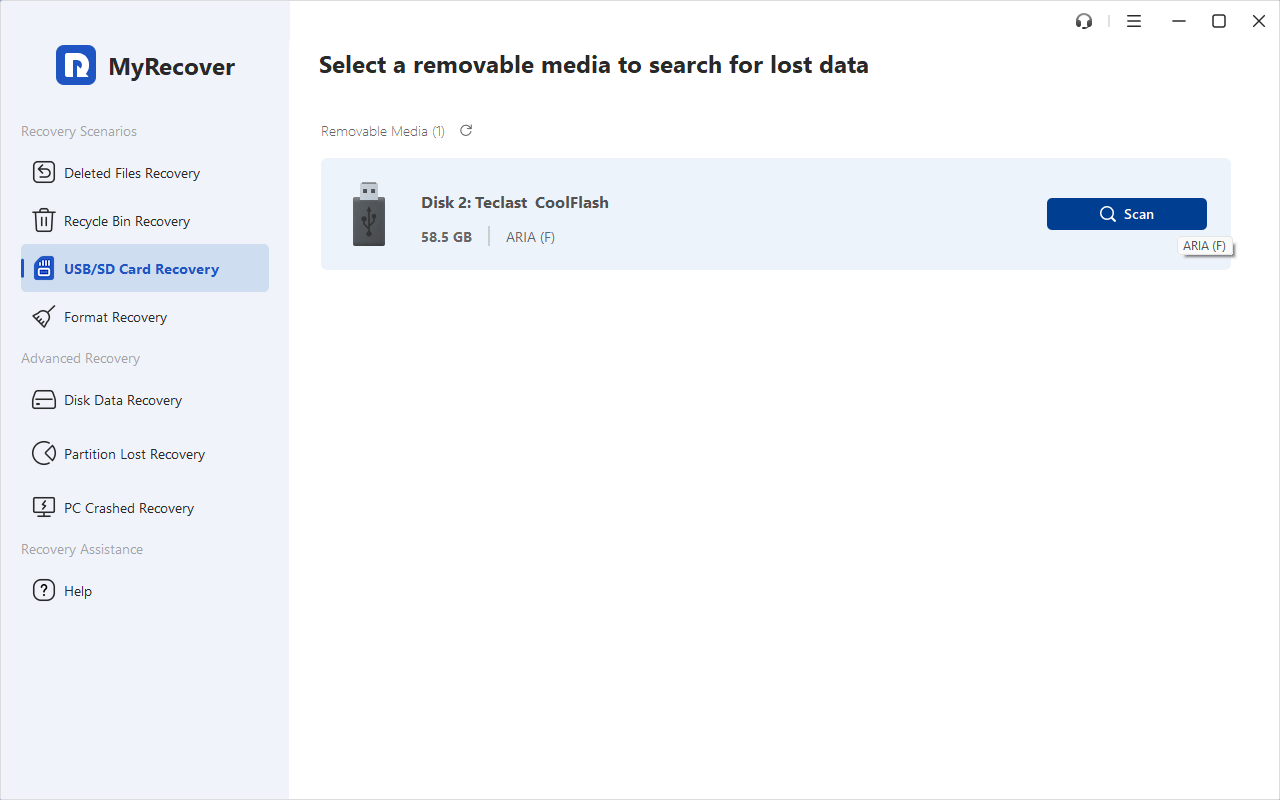
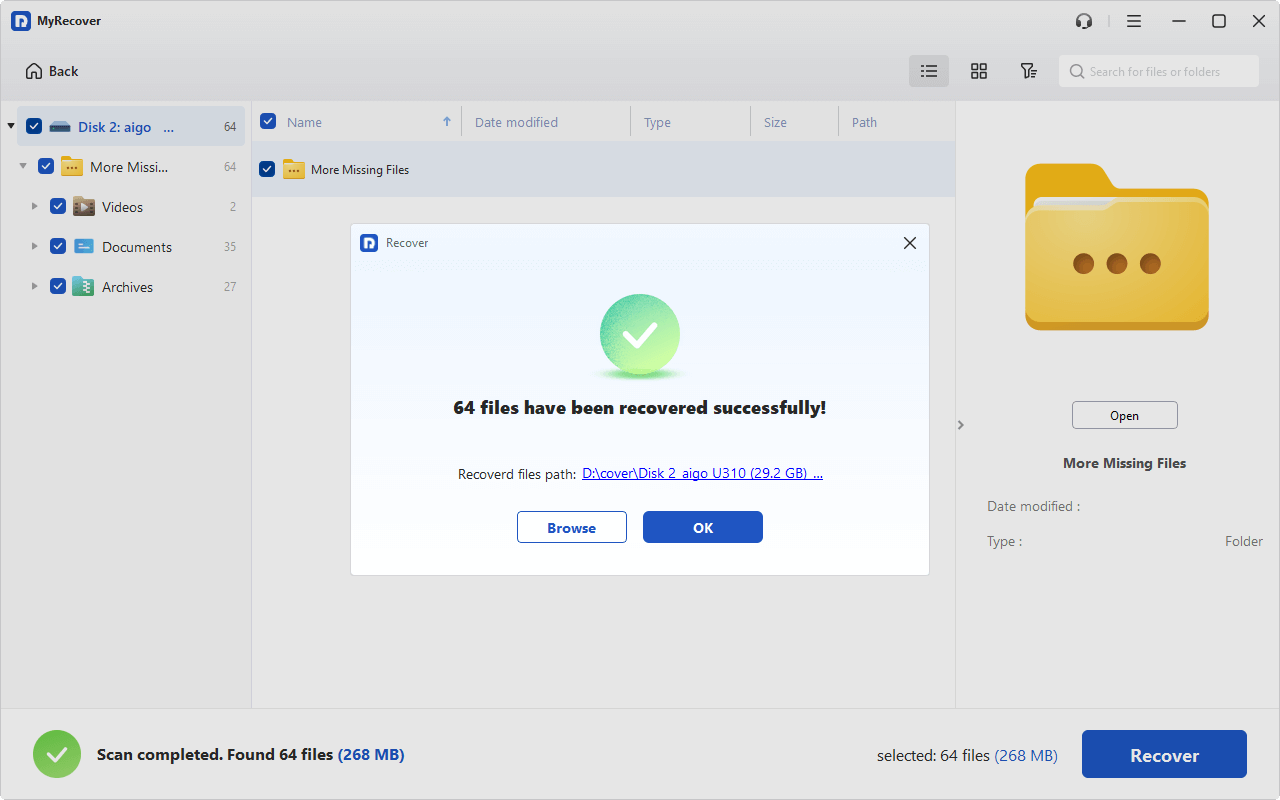
2. Tap USB/ SD Card Recovery, choose the SD card that has problems, and hit Scan while pointing to it. Hit OK when it’s done.
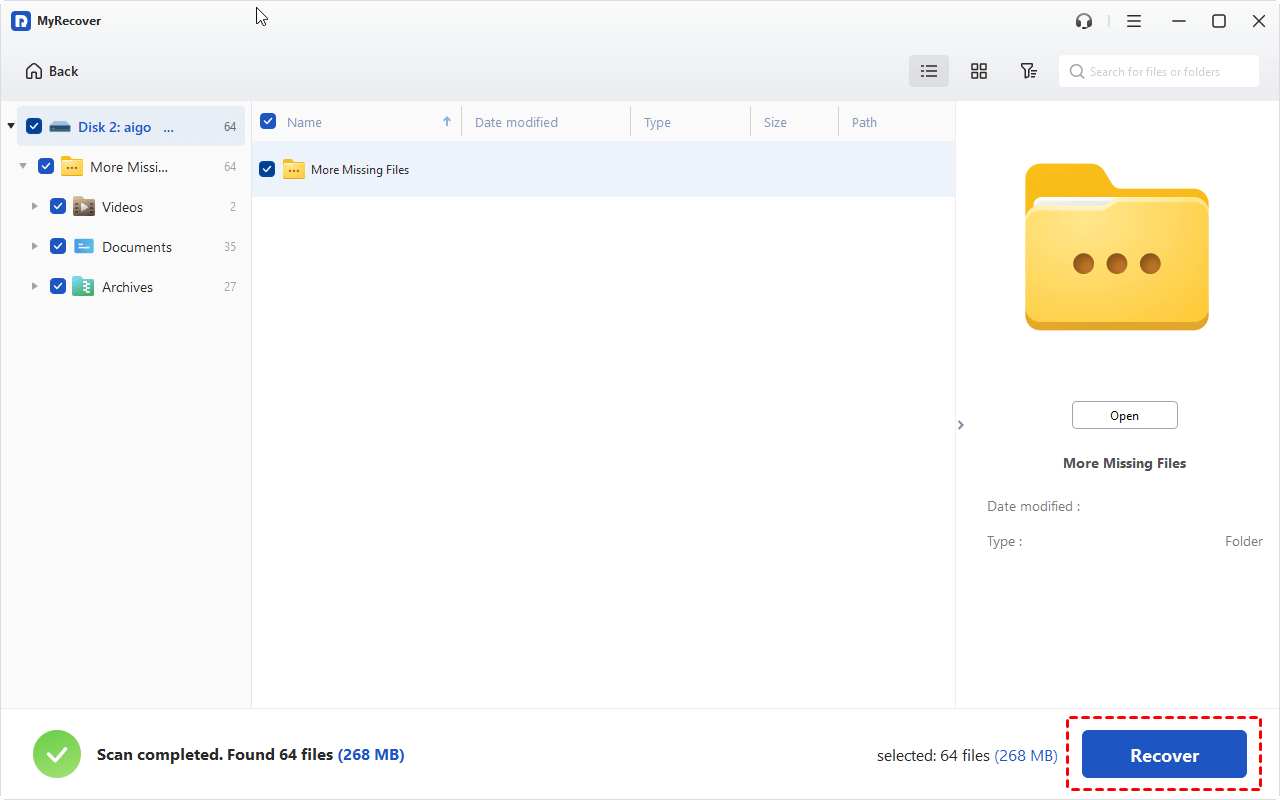
3. Double-click the files to preview them, then choose the files you need, and hit Recover.
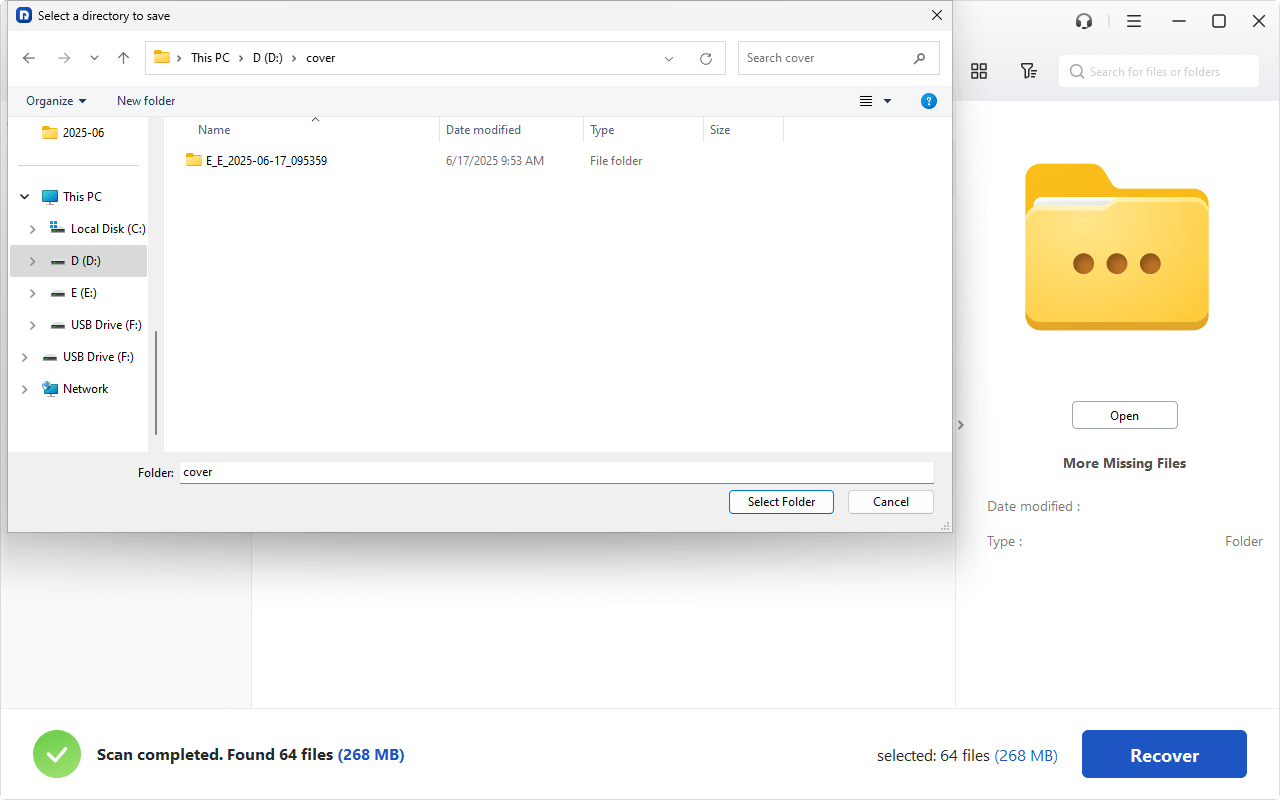
4. Select a target folder to keep them safe.
- Notes:✎...
- Try to search files quickly by file name, size, modified date, extensions, etc.
- You can also recover files from unlimited computers with MyRecover Technician.

 MyRecover
- Recover Deleted Files Easily with Simple Clicks
- 1000+ File Formats Supported
- Support HDD, SSD, External Hard Drive, USB Drive, SD Card, etc.
- Quickly Find Files Using File Types, Name, Size, etc.
- Preview Files Before Recovering
- Recover Unlimited Data
 100% Secure
2 Fixes for Can't Write SD Card on Samsung
Samsung users face unique challenges, but fortunately, Samsung's implementation of Android includes some helpful tools.
Way 1. Unmount and Remount SD Card
Sometimes the connection between your Samsung and the SD card just needs a reset.
1. Go to Settings > Battery and Device Care > Storage.
2. Tap on your SD card, and select "Unmount".
3. Wait about 30 seconds, then either reboot your phone or go back and select "Mount".
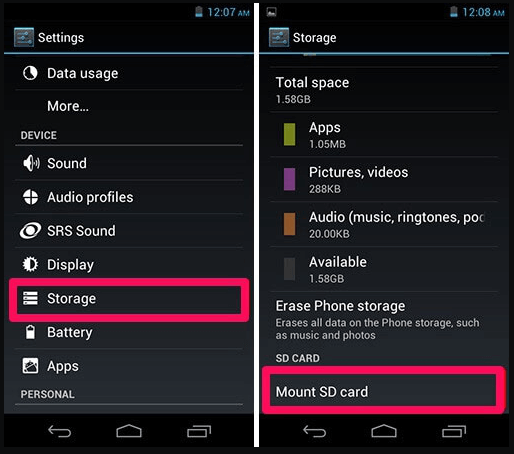
This forces the system to re-establish communication with the card, clearing any temporary glitches that were preventing writes.
Way 2. Clear Cache Partition on Samsung Devices
Samsung phones accumulate cache data that can sometimes interfere with hardware recognition. To clear the cache partition on most Samsung models:
1. Turn off your device.
2. Press and hold the Volume Up button and the Side button.
3. When the Samsung logo appears, release both buttons.
4. Use volume buttons to navigate to "Wipe cache partition" and press the power button to select.
5. Reboot your device.
This doesn't delete your personal data but clears system junk that might be causing storage conflicts.
How to Fix Can't Write to SD Card on Any Device | 4 Fixes
Now, the actual fixes those that work regardless of whether you're on Android, Windows, or dealing with a camera.
Way 1. Check and Disable the Physical Lock Switch
Let's start with the simplest fix. Remove your SD card and examine it carefully.
For full-size SD cards or microSD cards in adapters, look for the tiny switch on the left side. If it's slid down toward "Lock", gently push it up toward the unlocked position.
Reinsert the card and test. You'd be amazed at how often this solves the problem instantly.
For microSD cards without adapters, there's no physical switch, so move to software solutions.
Way 2. Run Error Checking and Repair Tools
Windows has built-in tools that can fix many SD card issues, CHKDSK. Connect your card to a computer via a card reader, then:
1. Open Command Prompt as Administrator
2. Type chkdsk X: /f /r (replace X with your SD card's drive letter) and press Enter.

3. This scans for file system errors and bad sectors, repairing what it can.
For Mac users, open Disk Utility, select your SD card, and click "First Aid" to run a similar check.
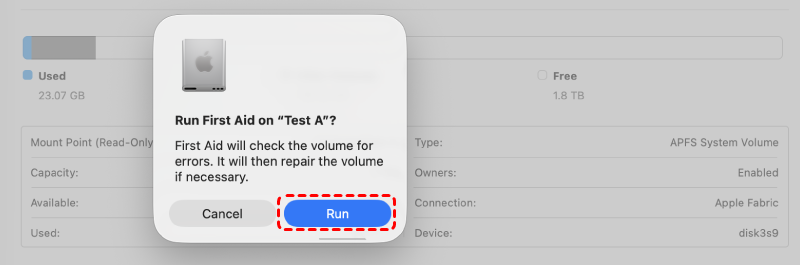
These tools often resolve the SD card unable to write problem without needing to format.
Way 3. Full Format the SD Card Correctly
When repair tools fail, formatting is your next option. But here's the thing—you need to format correctly.
Important: Formatting erases everything on your SD Card. Please back up files before formatting in case of data loss.
Choose the Right File System: FAT32 vs exFAT
- For cards 32GB and smaller, FAT32 is your safest bet—it's compatible with virtually every device.
- For cards larger than 32GB, exFAT is usually the right choice because it handles large files and capacities well while maintaining broad device compatibility.
- Android phones generally prefer exFAT for high-capacity cards.
When you format, uncheck "Quick Format". Yes, it takes longer—sometimes 30 minutes or more for large cards—but a full format scans for bad sectors and completely rebuilds the file system. Quick format just wipes the index, leaving potential problems lurking. Patience here pays off with a more reliable card afterward.
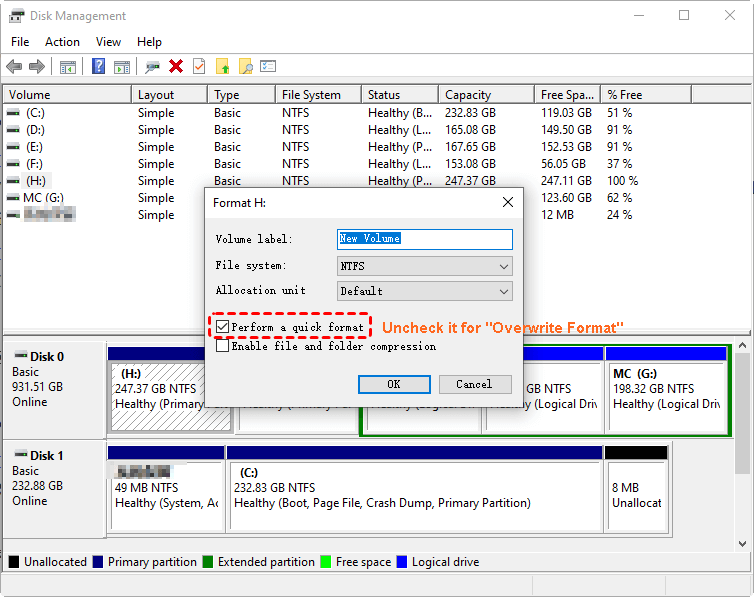
Way 4. Use Command Prompt to Repair SD Card
For stubborn corruption, DiskPart offers more powerful tools than standard formatting.
1. Open Command Prompt as Administrator.
2. Input the following commands one by one and followed by Enter after each:
diskpart
list disk
select disk X (replace X with your SD card's number—be certain you've selected the right disk!)
attributes disk clear readonly
clean
create partition primary
select partition 1
active
format fs=exfat quick (or fs=fat32 for smaller cards)
assign letter=Y (replace Y with your preferred drive letter)
exit
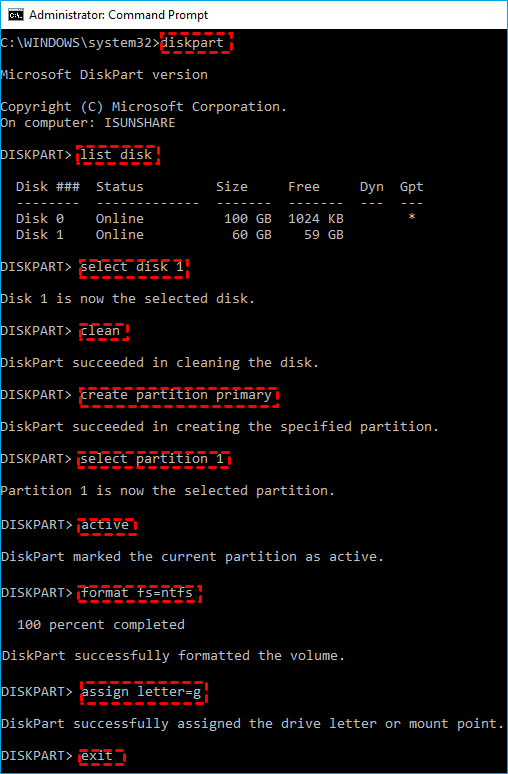
This completely wipes the partition table and rebuilds it from scratch, often reviving cards that seemed dead.
Determine If Your SD Card Is Beyond Repair
SD cards don't last forever. They have a limited number of write cycles, and eventually, they wear out. Signs that your card may be beyond software repair include:
- The card isn't detected on any device
- It shows significantly less capacity than marked (a sign of counterfeit cards)
- Formatting always fails at the same percentage
- The card runs extremely hot
If you suspect physical damage, professional data recovery services might still retrieve your files, but the card itself likely needs replacement.
FAQs About Can’t Write to SD Card
Why does my phone say can't write to SD card when there's plenty of space?
A: Space isn't the only factor. The card may be write-protected via physical lock or software. File system corruption can block writes regardless of free space. FAT32 cards also can't accept files larger than 4GB. Check these before assuming space is the issue.
How do I fix Android can't write to SD card after update?
A: Updates often reset app permissions. Check Settings > Apps > [App Name] > Permissions and grant storage access. Unmount and remount the SD card in Settings > Storage. If problems persist, back up data and reformat the card for compatibility with the new Android version.
Can't write on SD card but can read files—what gives?
A: This indicates write protection or permission issues. Check for a physical lock switch. Run CHKDSK on a computer to repair file system errors. On Android, unmount and remount the card to clear read-only flags triggered by minor corruption.
Can't write SD card Samsung specifically—is this different from other Androids?
A: Samsung's One UI includes unique tools like Device care for scanning storage conflicts and a cache partition that can be wiped to resolve glitches. Try these Samsung-specific fixes before general Android troubleshooting.
How to fix can't write to SD card without losing data?
A: First recover data using MyRecover or similar software. With files backed up, try non-destructive fixes like removing write protection, running CHKDSK, or updating drivers. If these fail, format the card—your data remains safe.
SD card unable to write on computer but works on phone—why?
A: Likely driver issues or file system incompatibility with your computer. Try a different card reader or USB port. Update SD card drivers in Device Manager. Run CHKDSK from an elevated command prompt to repair Windows-specific access problems.
How do I remove write protection from SD card without adapter?
A: Use DiskPart on a computer. Open Command Prompt as Administrator, type diskpart, then list disk, select your disk, and enter attributes disk clear readonly. If this fails, the card may have reached its failure threshold permanently.
Prevent Future SD Card Write Problems
Safely Ejecting SD Cards Every Time
Always unmount or safely eject your SD card before removing it from any device.
On Android, go to Settings > Storage and tap "Unmount" before physically removing the card.
On computers, use the "Safely Remove Hardware" icon.
This ensures all write operations complete and the file system is in a consistent state before disconnection.
Regular Backups to Avoid Data Loss
SD cards fail. It's not a matter of if but when. Set up regular backups of your SD card contents to cloud storage or your computer.
Choose High-Quality SD Cards from Reputable Brands
Stick with recognized brands like SanDisk, Samsung, Kingston, or Lexar. Beware of suspiciously cheap cards, especially from unknown sellers. A quality card from a reputable source costs more upfront but saves headaches (and data loss) down the road.

Stay Updated With Our
Latest Tips
Add us as a preferred source on Google to never miss helpful guides.
 Add as preferred source >>