 MyRecover



CCleaner Deleted Files Recovery: Try These Proven Solutions
Did CCleaner delete your important files by mistake? This guide provides proven solutions to recover deleted files after using CCleaner. Whether your files were mistakenly wiped by CCleaner or lost due to a system cleanup, we'll walk you through various methods to restore them.

By Aria / Updated on December 15, 2025


Does CCleaner Make Files Unrecoverable?
Hello, CCleaner accidentally deleted my data a few days ago, and I can't recover it. How do I undo this as I was very careless when using CCleaner when I knew nothing about it. I was using CCleaner because I had lag issues and I thought why not use CCleaner. I am so desperate because it cost me a while to get those files and data and saves to my games, I tried contacting their customer support but I got no response back, so please help me get those data back.
- Question from Leekay
CCleaner is one of the most popular tools for cleaning up and optimizing your computer, designed to remove unwanted files, clear up space, and improve system performance. However, many users find that after deleting certain files with CCleaner, these deleted files are not sent to Recycle Bin like those deleted in normally from the desktop or folders. They wonder whether CCleaner permanently deletes files or if they can still be recovered afterward.
Actually, the answer depends on how the files are deleted and the method used for cleaning. CCleaner uses two deletion modes: Normal file deletion and Secure file deletion. Notably, in CCleaner, files deleted via both modes are permanently removed without being sent to the Recycle Bin. However, this does not mean they are unrecoverable.
👉Normal File Deletion (Default)
The files will be removed from the file system, but the file data remains on the disk’s physical storage until it is overwritten by new data. Professional data recovery software can retrieve them.
👉Secure File Deletion
This is a much more through process. It overwrites the deleted files with random data several times. This makes it extremely difficult to recover those files. Secure deletion is designed to ensure that sensitive information is completely erased from the hard drive.
CCleaner Deleted Files Recovery: Top 5 Solutions
If you’ve accidentally deleted files using CCleaner, especially through normal file deletion, there’s still a chance you can recover deleted files by CCleaner. Since the deleted files are not in Recycle Bin, any backups you have will greatly help you recover data. You can try the following methods based on your actual situation.
Restore Previous Versions
Windows has a feature called File History that can automatically back up previous versions of your files. If you’ve enabled File History on Windows before deleting files with CCleaner, you may be able to recover earlier versions of the deleted files.
Step 1. Locate the folder where the deleted files were stored in File Explorer.
Step 2. Right click on it and choose "Restore previous versions" from the context menu. A list of versions will be displayed.
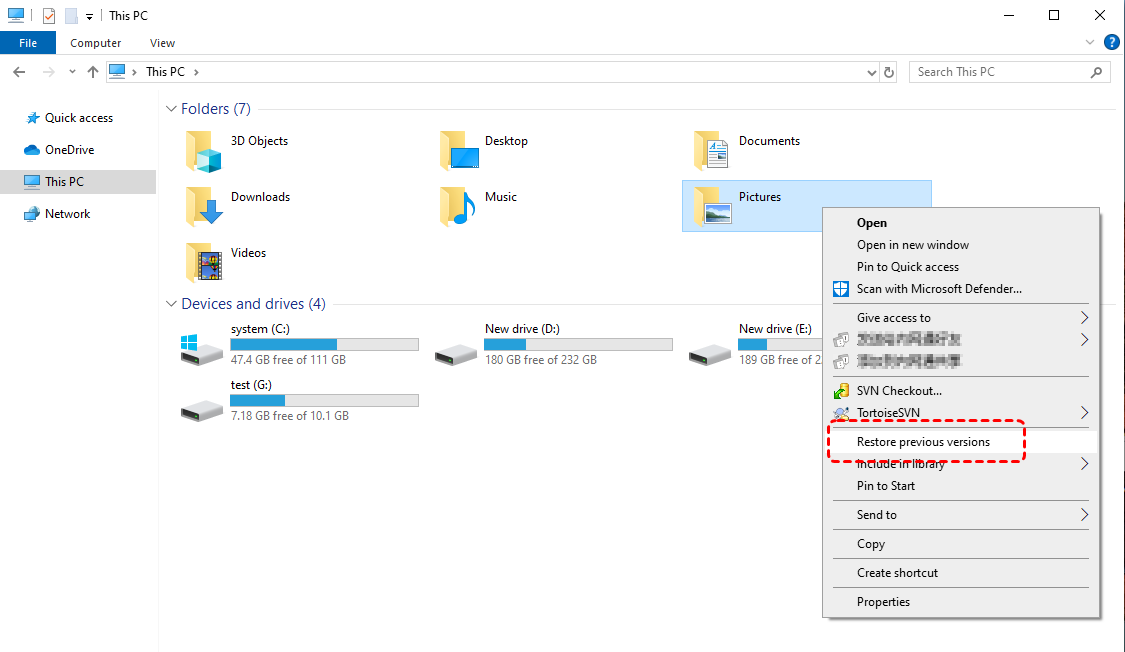
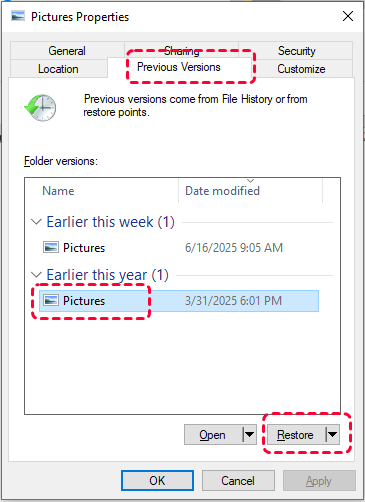
Step 3. Browse the list of available versions and choose the one you want to restore, then click "Restore" to return it.
Recover from Backup and Restore (Windows 7)
Backup and Restore (Windows 7) is a built-in data protection utility that helps users safeguard their personal files and system settings effectively. If you’ve set up a backup using it, you can simply restore deleted files by CCleaner within several steps.
Step 1. Open "Backup Settings" in the Start menu and click "Go to Backup and Restore (Windows 7).
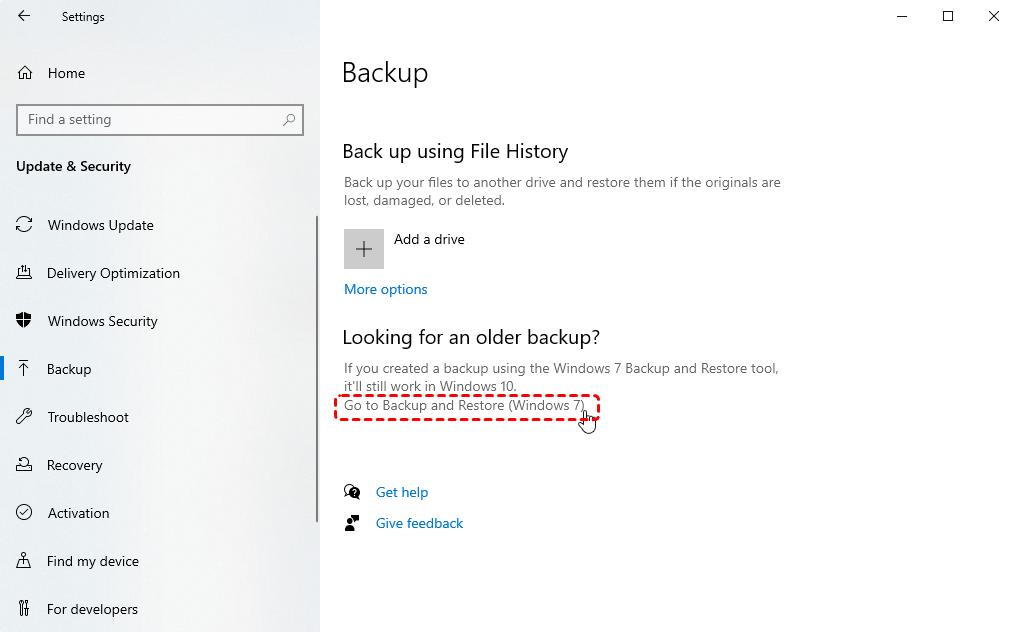
Step 2. Click "Restore my files" and "Browse for files/folders" to choose files to restore.
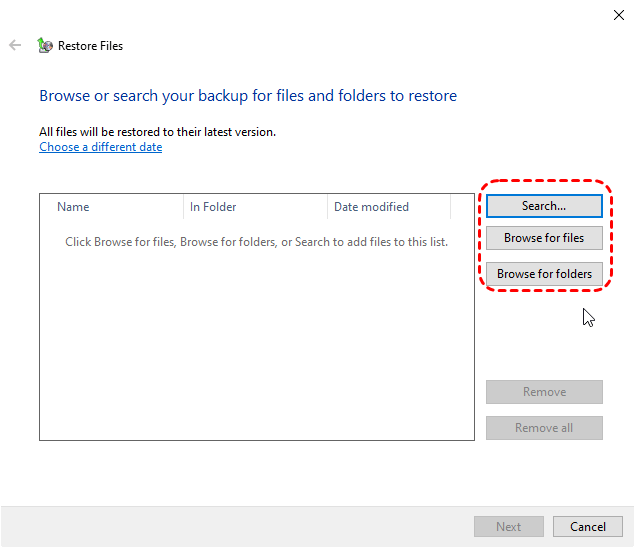
Step 3. Choose a destination folder to save the recovered files and click "Restore" to start the process.
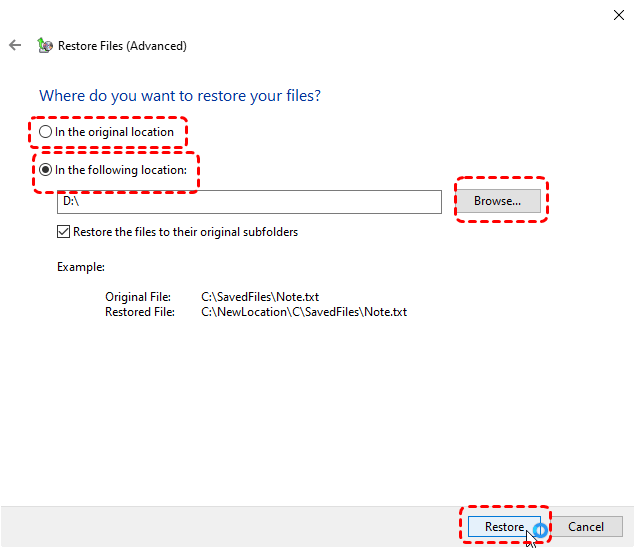
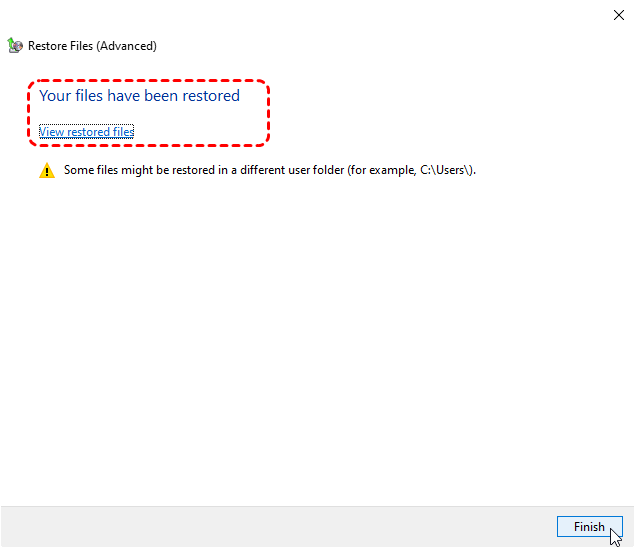
When the process is completed, the message "Your files have ben restored" will pop up. Then, you can check the recovered files by clicking on "View restored files".
Retrieve from OneDrive
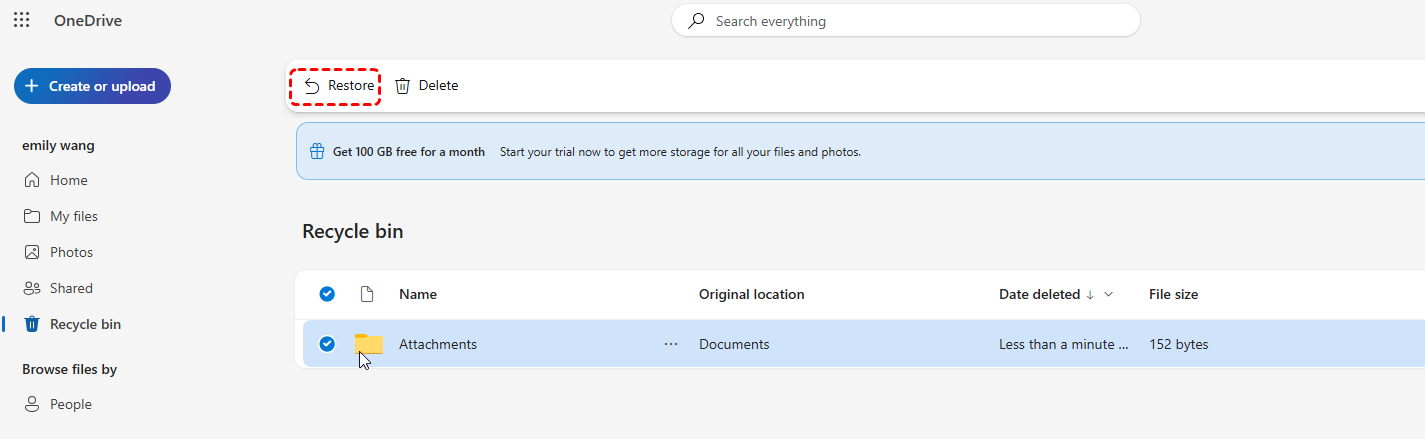
If you were using OneDrive to sync your files to the cloud, the deleted files might still be available online. OneDrive keeps deleted files in its Recycle bin for up to 30 days before they are permanently deleted. You can check the OneDrive Recycle bin to recover deleted files.
Step 1. Sign in OneDrive with your account.
Step 2. Locate the Recycle bin section, browse through the deleted files and choose the files you wish to recover, then click "Restore" to get them back.
Perform System Restore [For Deleted System Files]
If the deleted files are system files and have affected the computer’s normal operation, performing a System Restore might help. System Restore can revert your computer back to an earlier state, which might include restoring deleted files, especially if they were part of system files or settings.
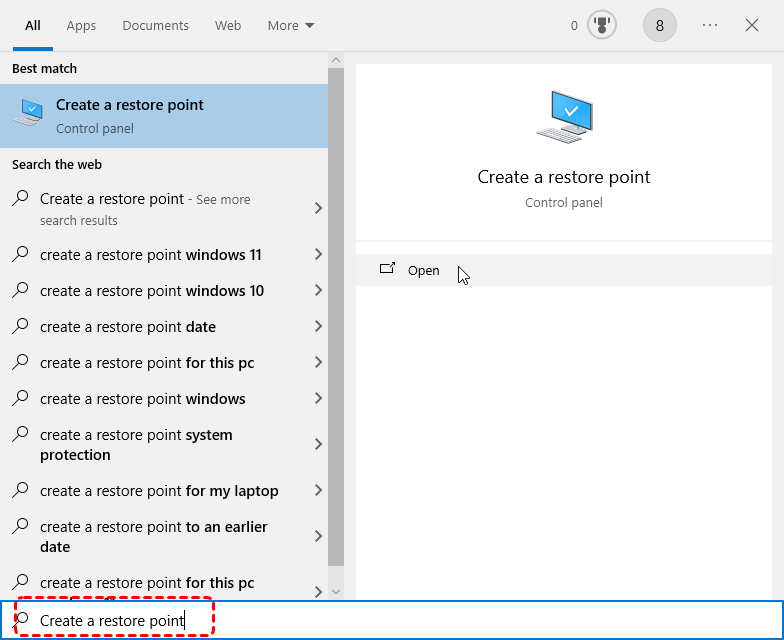
Step 1. Input "Create a restore point" in the Start menu and open it.
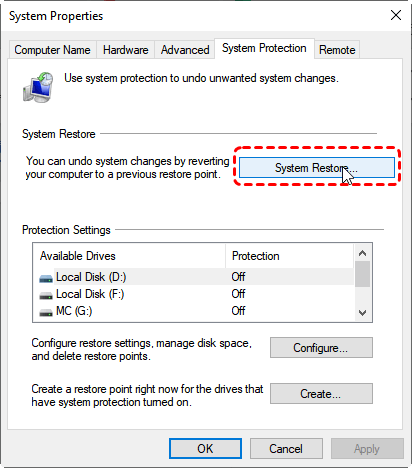
Step 2. Under the "System Protection" tab, click "System Restore".
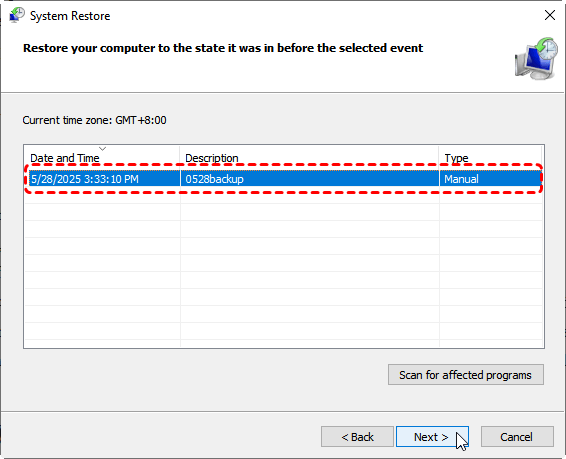
Step 3. Choose an earlier restore point and click "Next".
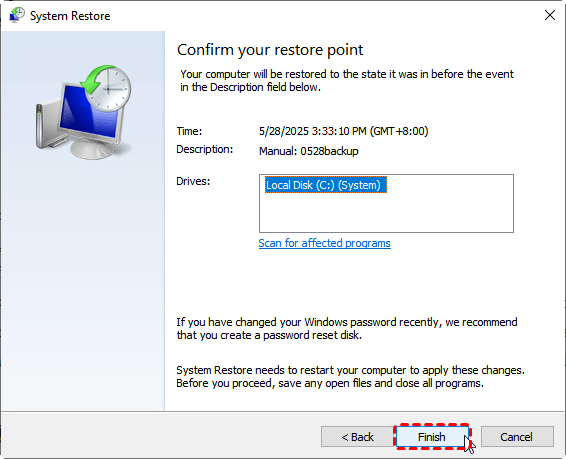
Step 4. Confirm the restore point and click "Finish" to start the process. You can also check the affected program by clicking on "Scan for affected programs".
Recover Deleted Files by CCleaner Using MyRecover
If the above methods don’t work, and you may need a more professional data recovery tool like MyRecover, which specializes in recovering lost or deleted files on Windows. MyRecover is capable of scanning your hard drive or external drives to recover files that were deleted by CCleaner or other means, even if you have emptied the Recycle Bin.
MyRecover's most impressive strengths include:
✅Supports 1000+ file types: Whether it’s documents, images, or videos, it can recover them all.
✅Quick and Deep Scan Options: If normal scanning doesn’t locate your files, try the deep scan feature to dig deeper.
✅Works with 500+ Devices: In addition to recovering files from your computer’s internal drives, it also supports recovery from USB drives, SD cards, camera's memory card, and other external devices.
✅Handle 500+ Data Loss Scenarios: Recover from deleted partition, formatted hard drive, emptied Recycle Bin, system crash, virus attack, etc.
Step 1. Download and install MyRecover on your computer from Microsoft Store, avoid installing it on the drive with deleted files.
Step 2. Launch the program and select a drive to scan for lost files, then click "Scan".

Step 3. Choose the files you would like to recover from the recoverable list and click "Recover".
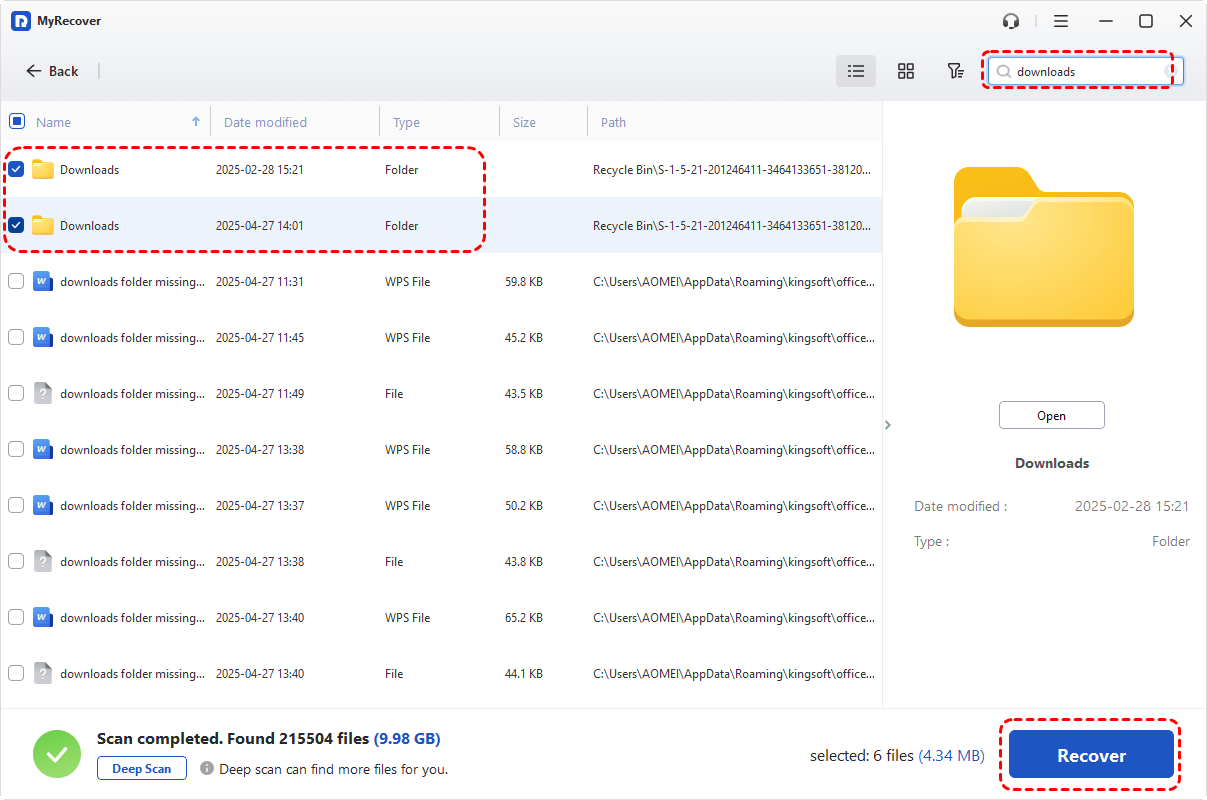
With MyRecover Free, you can recover up to 500MB of data for free, allowing you to test the recovery process. If you require unlimited recovery and file content previews, MyRecover Professional edition offers these advanced features to meet all your data recovery needs.
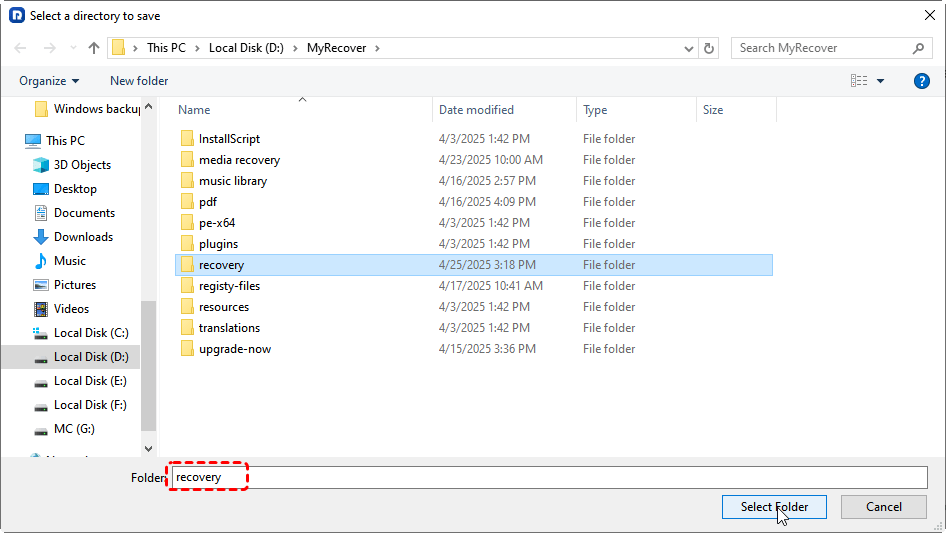
Step 4. Save the recovered files in a different drive to prevent from overwriting files on the original drive.
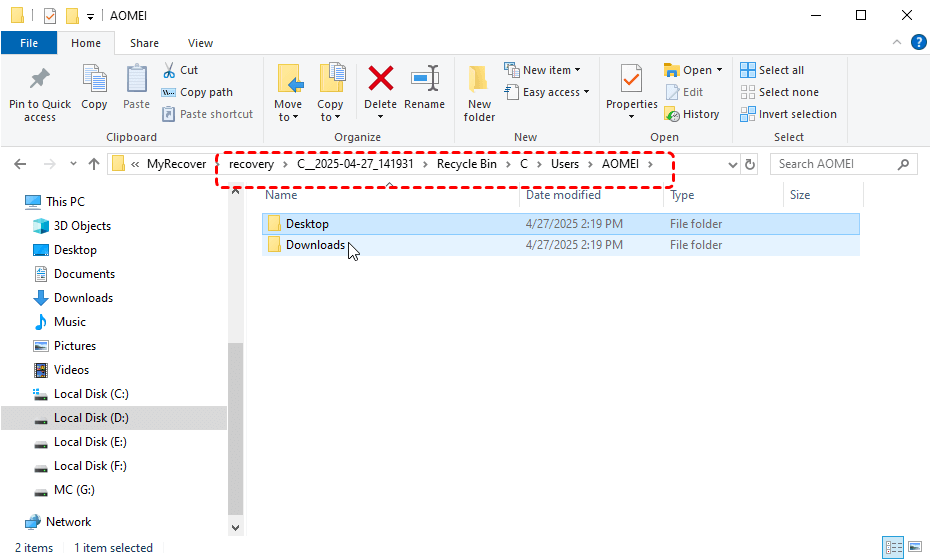
Once the process is done, the message "Files have been recovered successfully" will pop up. Then, you can check the recovered files by clicking on the "Browse" button.
How to Safely Clean Up Computer
For modern operating systems and most average users, CCleaner is no longer a necessity. While its permanent deletion feature improves cleaning efficiency, it also amplifies the risk of accidental deletion. Today, the built-in disk cleanup tools included with computers can safely remove unwanted files from your device.
Uninstall Unnecessary Programs
Unused programs take up space and can slow down your system. Removing them frees up disk space and reduces clutter. With this method, you’ll know exactly which programs were deleted, and you can re-download them if needed.
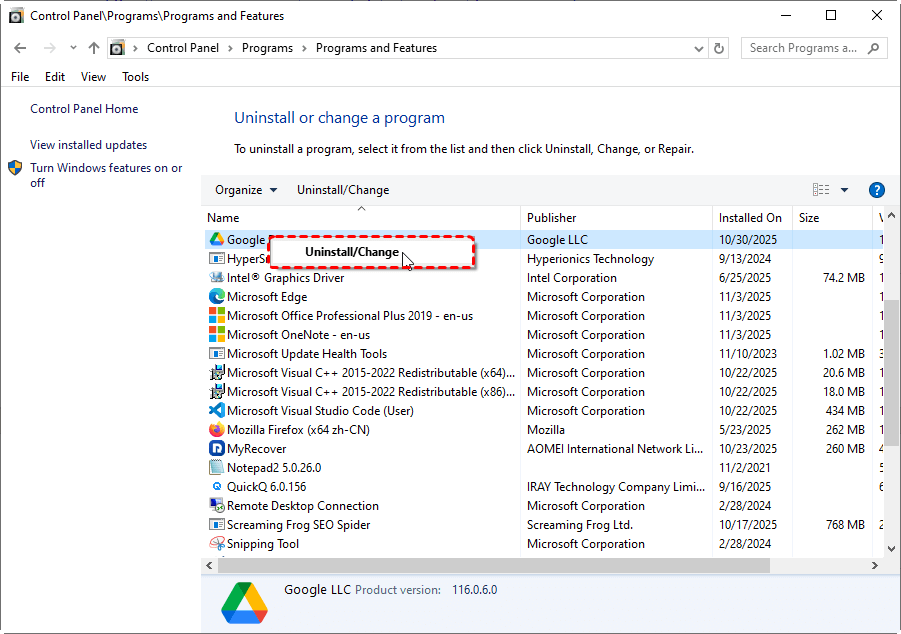
Step 1. Navigate to "Control Panel" > "Programs" > "Programs and Features".
Step 2. Review the list of installed programs and right click on the one you no longer use or need to uninstall it.
Clean Up Temporary Files
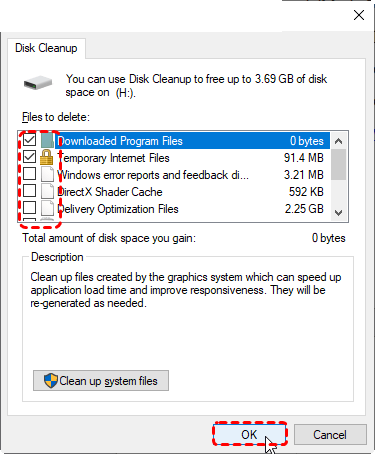
Temporary files (cache, logs, etc.) are created by the operating system and software, and they accumulate over time. These files can consume a significant amount of storage. You can run the built-in tool disk cleanup to remove them.
Step 1. Type "Disk Cleanup" in the Start menu to open it.
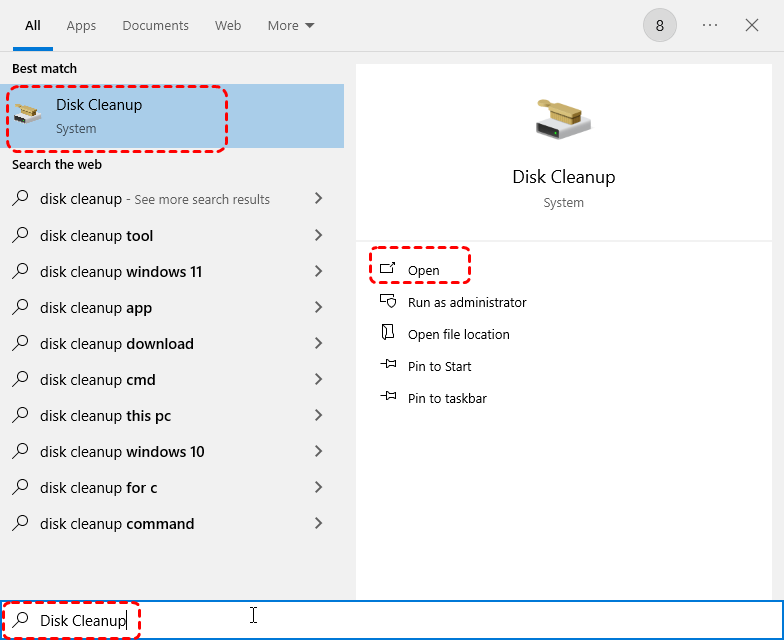
Step 2. Select the drive you want to clean.
Step 3. Check the types of files you want to delete (temporary files, system files, etc.), click "OK" to clean up your system.
Conclusion
CCleaner is an effective tool for cleaning up your system, but if you’ve deleted files unintentionally, it doesn’t necessarily mean those files are gone forever. As long as you act quickly, there are several methods to recover files deleted by CCleaner, including restoring previous versions, using backups, or leveraging the power of data recovery tools like MyRecover.
MyRecover provides a reliable solution to recover deleted files from CCleaner or any other data loss situation. When you're dealing with more complex data loss scenarios like recover from dead computer, MyRecover Professional edition ensures you have the best chance of getting your files back.

Stay Updated With Our
Latest Tips
Add us as a preferred source on Google to never miss helpful guides.
 Add as preferred source >>