 MyRecover



Solved: How to Fix CF Card Not Recognized on Canon & Windows 10/11
Is your device showing "cf card not recognized"? Our article covers all causes, from physical damage to driver issues, and delivers actionable solutions for "cf card not detected Windows 10" to regain access to your valuable photos and files.

By Delores / Updated on March 12, 2026


Please Help! CF Card Not Recognized!
SD and CF cards not detected
I just "safely removed" my CF card, and now my CF or my SD cards are not detected on my PC. I've tried rebooting, updating drivers, uninstalling programs, removing everything, and nothing; when I insert either card, nothing happens. I've never had this problem before and have been using both CF and SD cards in the same computer for almost three years now. Help?
- Question from learn.microsoft.com
It's a modern-day nightmare for photographers, videographers, and anyone who relies on CompactFlash cards for storage, while encountering the CF card not being recognized. But this error, while alarming, is often fixable. This comprehensive guide will walk you through exactly why this happens and, more importantly, provide a clear roadmap to recover your data and get your card working again.
Why Does Your CF Card Not Recognized?
Pinpointing the root cause is half the battle won. Let's break down the usual suspects behind this frustrating problem.
⭕ The CF card reader is not working. Those tiny pins inside the card reader or your camera's card slot are delicate. If they get bent, broken, or caked with dust and pocket lint, a solid connection becomes impossible.
⭕ File System Corruption. A file system is the structure that tells your device how to find and organize files. The corrupted file system prevents Windows from reading files. This can happen if you yank the card out of a reader while data is still being written, if the camera battery dies mid-save, or from sudden voltage fluctuations.
⭕ Formatted error. The card might also have been formatted in a system your current device doesn't understand, like using a Mac's HFS+ format and then trying to read it in a Windows PC. Your camera or OS gets confused and may simply report the card as unreadable or empty.
After getting the reasons why your CF card is not recognized, you have to fix it or recover files first, in case of data loss.
CF Card Not Recognized By Computer! 7 Fixes
When your computer is the device giving you the silent treatment, there's a logical sequence of troubleshooting steps to follow, moving from simple to more advanced.
Way 1. Restart Your Computer and Reconnect The Device
Power down your computer, remove the CF card and the USB reader, wait a moment, and reconnect everything before rebooting.
Way 2. Try A Different USB Port
Try a different USB port on your computer, preferably one directly on the motherboard (the ones on the back of a desktop) rather than a hub or front panel port, as these can sometimes lack sufficient power.
Way 3. Try A Different CF Card Reader
If you have access to a different card reader, test it. This simple swap can instantly tell you if the problem is with the reader or the card itself.
Way 4. Assign A Drive Letter or Update Drivers
For Windows users, a CF card not detected in Windows 10 problem can often be solved via Disk Management.
If your card shows up in Disk Management but not in File Explorer, a drive letter conflict is likely. Press Windows Key + X and select "Disk Management". See if your CF card appears here as a disk, even if it has no drive letter or shows as "Unallocated".
If it’s present, you can assign it a new drive letter (right-click on the volume and choose "Change Drive Letter and Paths").
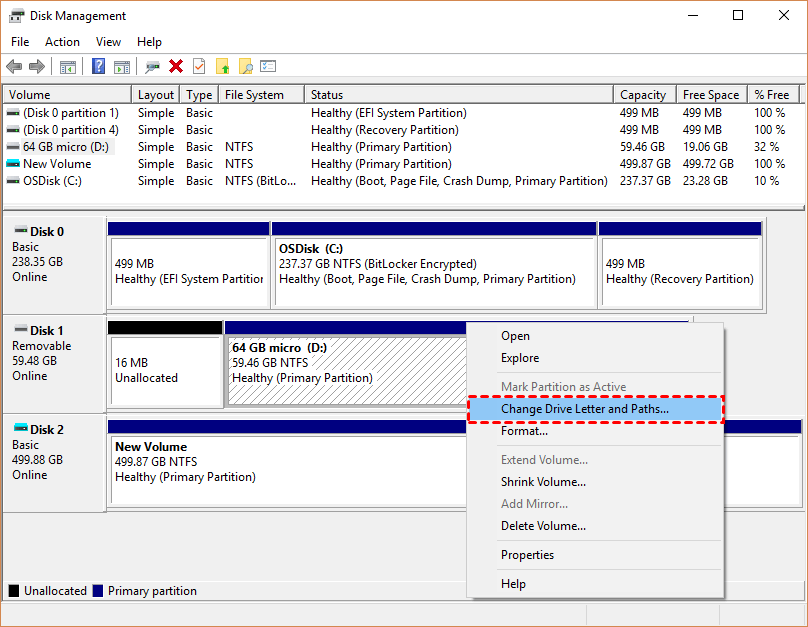
If it’s unallocated, do not initialize or format it yet, as that will complicate data recovery. Next, update your drivers. Go to Device Manager, find "Disk drives" and "Universal Serial Bus controllers", right-click on relevant devices, and select "Update driver". Then let Windows search automatically.
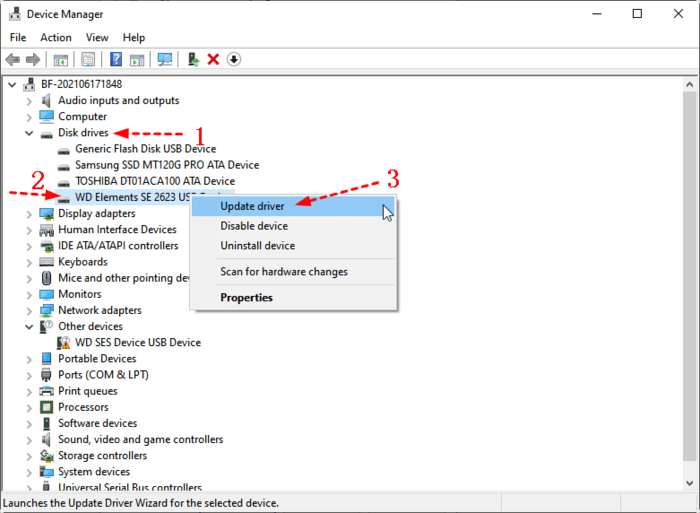
Way 5. Reinstall USB Controllers
If the card isn’t showing in Disk Management, a more nuclear option is to reinstall the USB controllers.
1. In Device Manager, under "Universal Serial Bus controllers".
2. Right-click on each host controller (e.g., "USB Root Hub") and select "Uninstall device".

Restart your computer, and Windows will automatically reinstall fresh, generic drivers. This can clear up deep-seated communication glitches.
Way 6. Run Hardware and Devices Troubleshooter
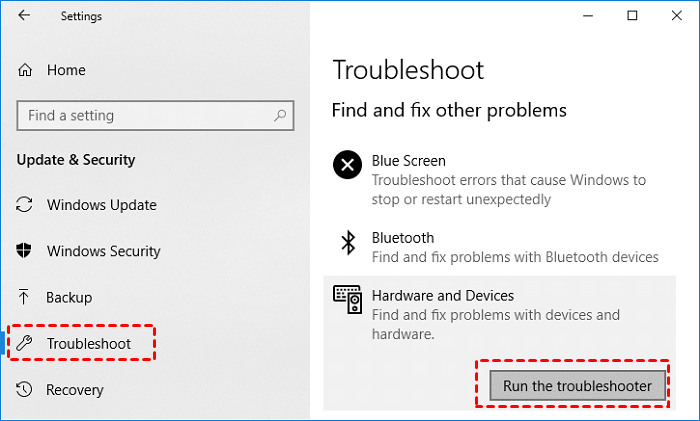
Beyond Disk Management, Windows 10 offers other utilities. The Hardware and Devices troubleshooter can automatically find and fix problems.
Search for "troubleshoot settings" in the Start menu.
Select "Hardware and Devices", and run the troubleshooter.
Way 7. Run CHKDSK to Repair Disk Errors
Another powerful tool is the Command Prompt. You can try CHKDSK to repair errors in your card.
As an administrator (search "cmd", right-click, "Run as administrator"), you can use the chkdsk commands.
For chkdsk, you would type chkdsk G: /f (where G is the drive letter of your card, if it has one).

This checks the file system for errors and attempts repairs.
Note: If you encounter the CF card not reading on a Mac, you can check Disk Utility to see if the card appears there, even as an uninitialized disk.
4 Fixes: CF Card Error on Canon
Canon users, you're not alone. This is a frequent hiccup with DSLRs and cinema cameras, and while the message is scary, the fixes can be straightforward.
Way 1. Reconnect Your CF Card
When your Canon camera flashes its own version of the CF card not recognized warning, your first action should be to power down the camera, remove the battery for a full two minutes, and then reinsert both the battery and the card. This performs a full reset of the camera's electronics.
Way 2. Format CF Card
Next, access your camera's menu and look for the "Format Card" option.
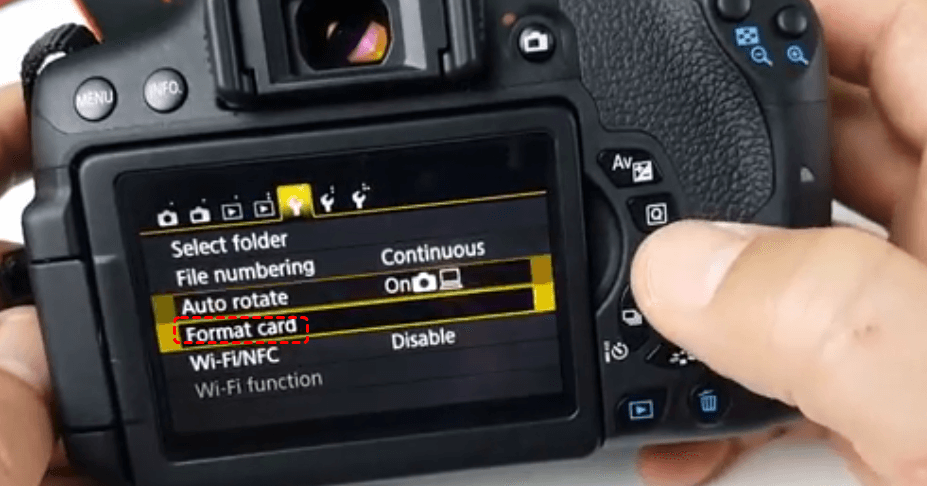
Crucial warning: Only do this if you have already recovered your files or have accepted their loss, as formatting will erase the card.
However, if the card is corrupt, a fresh format in the camera that will use it can often rebuild a readable file system.
Way 3. Check The Lock Switch
Also, check if you've accidentally locked the card. Many CF cards have a tiny physical lock switch on the side; make sure it's in the unlocked position.
Way 4. Clean the Card and Camera Contacts
This is a simple but remarkably effective step. Over time, the gold contacts on both the CF card and inside your camera's card slot can accumulate oxide, dirt, and oils from your fingers.
Grab a clean, dry cotton swab or a microfiber cloth lightly moistened with isopropyl alcohol (90% or higher). Gently wipe the card's contacts.
For the camera slot, use a can of compressed air to blow out any dust first, then very carefully wipe the internal pins with a dry swab—no liquid inside the camera! Allow everything to dry completely before reinserting the card.
Recover Your Files from A CF Card That Is Not Recognized
If your CF card can be detected in Disk Management, not in File Explorer, you can recover files first in case of data loss. To recover files fast and safely, you can try a professional Windows data recovery software, MyRecover.
MyRecover is particularly effective for recovering data from a CF card that Windows fails to detect, offering these key advantages:
- Recovers from Deep Corruption. It performs sector-by-sector scanning, bypassing the corrupted file system that causes the "not recognized" error. This allows it to find files even when the card shows as "Unknown" in Disk Management.
- Simple, Guided Interface. It uses a clear, step-by-step process ideal for non-experts. You simply select the undetected drive, start the scan, and review the found files.
- Preview Before Recovery. You can preview recoverable files (photos, documents) before recovery. This lets you verify your important data is intact, saving time and ensuring a successful outcome.
- Restore Original Structure. It often reconstructs the original file names and folder paths, unlike tools that return generic filenames. This makes organizing recovered photo sessions and projects much easier.
- Targeted File Search. You can filter scans for specific file types (like .CR2 RAW photos or .MP4 videos), speeding up the process of finding your most important files.
So, how to recover files from a CF card that is not recognized by Windows with MyRecover? Here is the simple guide:
1. Use a known-working USB card reader to connect the CF card to your PC. Download and install MyRecover on your computer's main internal drive.
 100% Secure
2. Open MyRecover. Tap USB/SD Card Recovery, select your undetected CF card, and hit Scan.
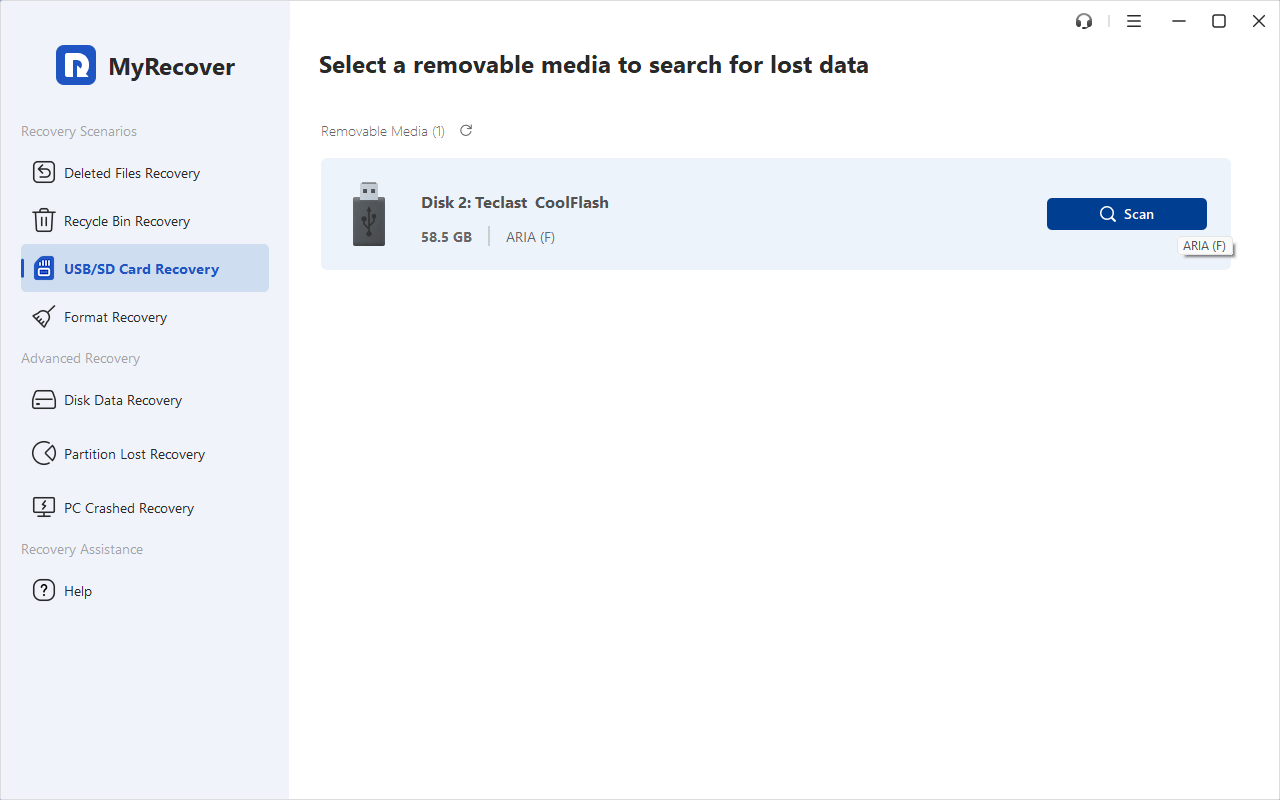
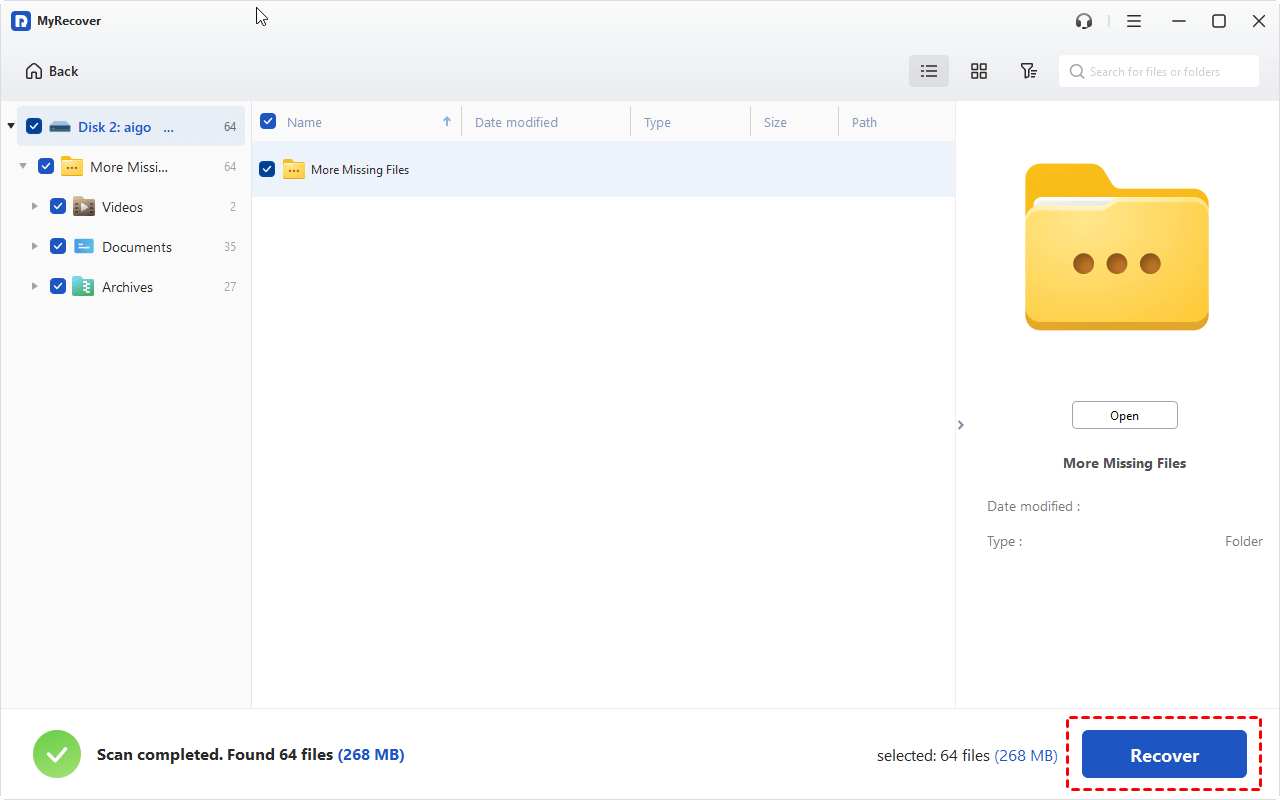
3. Wait for the process to complete, and hit OK.
4. Preview these files you need, select them, and then hit Recover.
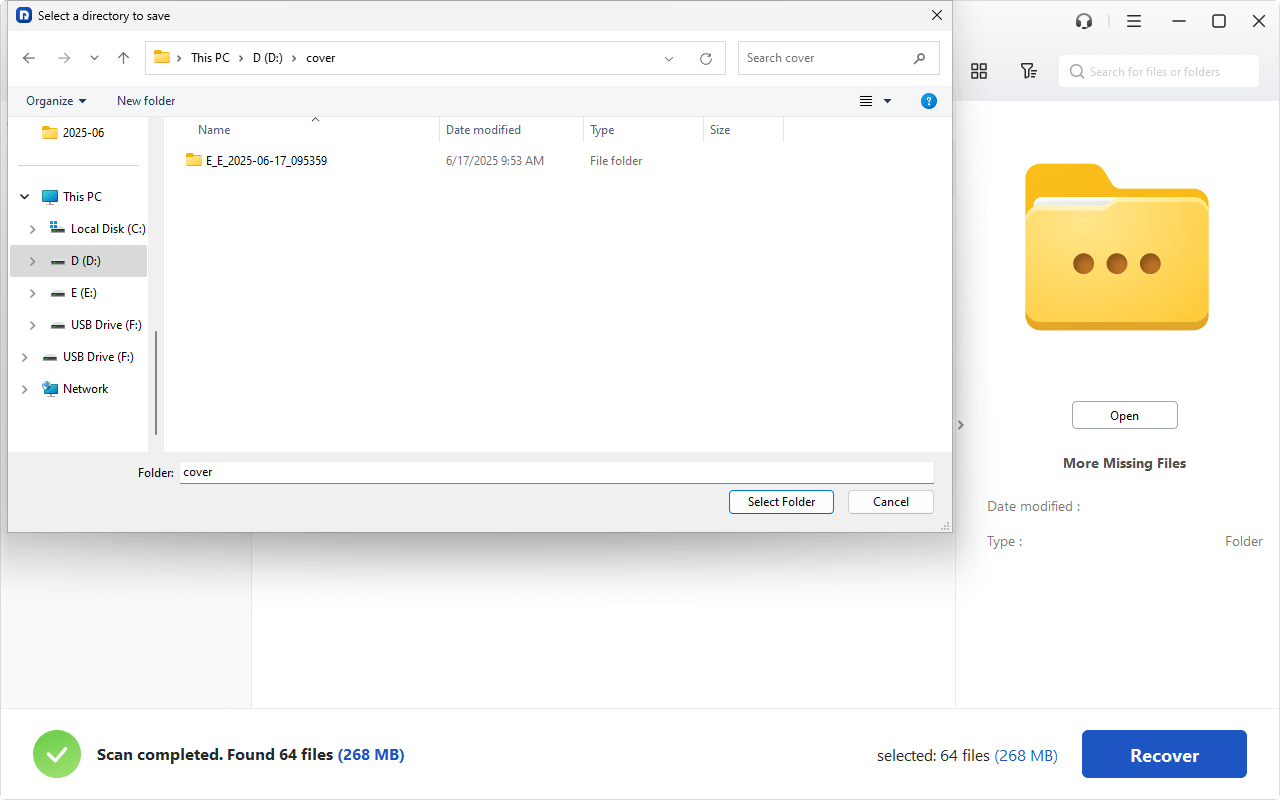
5. Opt for a safe location to keep files.
- Notes:✎...
- After scanning, browse files in the reconstructed folder tree view.
- Apply filters (e.g., Photos, Videos, Documents) and sort by date to quickly find your important data.
- Besides, you can also recover files from unlimited computers with MyRecover Technician if necessary.

 MyRecover
- Recover Deleted Files Easily with Simple Clicks
- 1000+ File Formats Supported
- Support HDD, SSD, External Hard Drive, USB Drive, SD Card, etc.
- Quickly Find Files Using File Types, Name, Size, etc.
- Preview Files Before Recovering
- Recover Unlimited Data
 100% Secure
FAQs about CF Card Not Recognized
Q: My camera says "CF card not recognized" but my computer reads it fine. What gives?
A: Usually, it's a slightly corrupted file system your PC can handle, but your camera's firmware can't, or more commonly, dirty contacts in your camera's card slot. Clean the slot with compressed air and a dry swab, then format the card in the camera after backing up your data on the PC.
Q: Can a "CF card error cannon" message mean my card is permanently dead?
A: Not always. It's a generic error. First, try cleaning the card, testing it elsewhere, and formatting it in the camera. True death involves physical damage or the card being completely undetectable by any device. If it's detectable, recovery is often possible.
Q: Why does my "Compact flash card not recognized by Windows 10" only sometimes?
A: This points to a failing connection or a dying card. The likely cause is a bad USB port, a worn-out card reader, or, most seriously, deteriorating internal contacts on the CF card itself. Test with a different reader/port. If the issue follows the card, replace it immediately.
Q: I formatted the card after the error, and now it works. Did I lose my files?
A: Not necessarily. Formatting deletes the "table of contents", not the data. If you haven't saved new files since formatting, recovery is likely possible. If you've used the card a lot, data may be overwritten. Stop using the card if you need the old files.
Q: How can I prevent "CF card not recognized" errors in the future?
A: Follow best practices: always eject safely from your PC; never remove the card from the camera while it's writing; format cards in the camera you'll use them in; invest in quality cards and readers; use multiple smaller cards; and back up your photos immediately after shooting.

Stay Updated With Our
Latest Tips
Add us as a preferred source on Google to never miss helpful guides.
 Add as preferred source >>