 MyRecover



[How to Fix] Computer Freezes When Playing Games
Tired of sudden lockups? Learn what causes computer freezing when playing games, including outdated drivers, thermal throttling, failing hardware, and background apps, and follow step-by-step solutions to stop freezes, reduce stutter, and play reliably.

By Vera / Updated on March 12, 2026


Introduction to Gaming Freezes
PC hard freezing while gaming
Hi I bought a prebuilt PC in May and have been having almost constant issues when I'm trying to game on it.
It seems to vary in how long it takes to happen but the game while freeze, and the PC will be completely unresponsive and I'll have to manually turn the PC off and on again. There are no blue/green screens and the screens stay on showing whatever was visible when it froze.
- Question from Reddit
Gaming is one of the most demanding tasks you can throw at a computer. Unlike browsing or watching videos, games hit CPU, GPU, RAM, storage, and cooling systems all at once. Think of your PC like a restaurant kitchen. If every chef is slammed at the same time and one slips up—everything stops. That’s exactly what happens during a freeze.
What Actually Happens When a Game Freezes Your PC
When your computer freezes during gameplay, one or more components fail to keep up. The system stops responding to prevent further damage. Common freeze behaviors include:
- Total system lockup.
- Screen frozen on last frame.
- Audio looping endlessly.
- Forced reboot required.
In worst cases, freezes can even corrupt files or cause data loss.
Why Computers Freeze When Playing Games
Let’s look at the most common technical reasons.
1. High CPU Usage
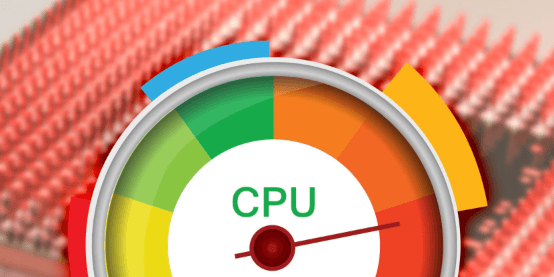
Your CPU handles game logic, physics, AI, and background tasks. When usage hits 100% for too long, the system chokes. This often happens when:
- Running demanding games on older CPUs.
- Background apps are eating resources.
- Games aren’t optimized for multi-core CPUs.
2. GPU Overload
Your GPU renders everything you see. If it can’t keep up, freezes are inevitable—especially with modern AAA titles. Triggers include:
- Ultra graphics settings.
- High resolution (1440p or 4K).
- Ray tracing enabled on mid-range GPUs.
3. Insufficient RAM
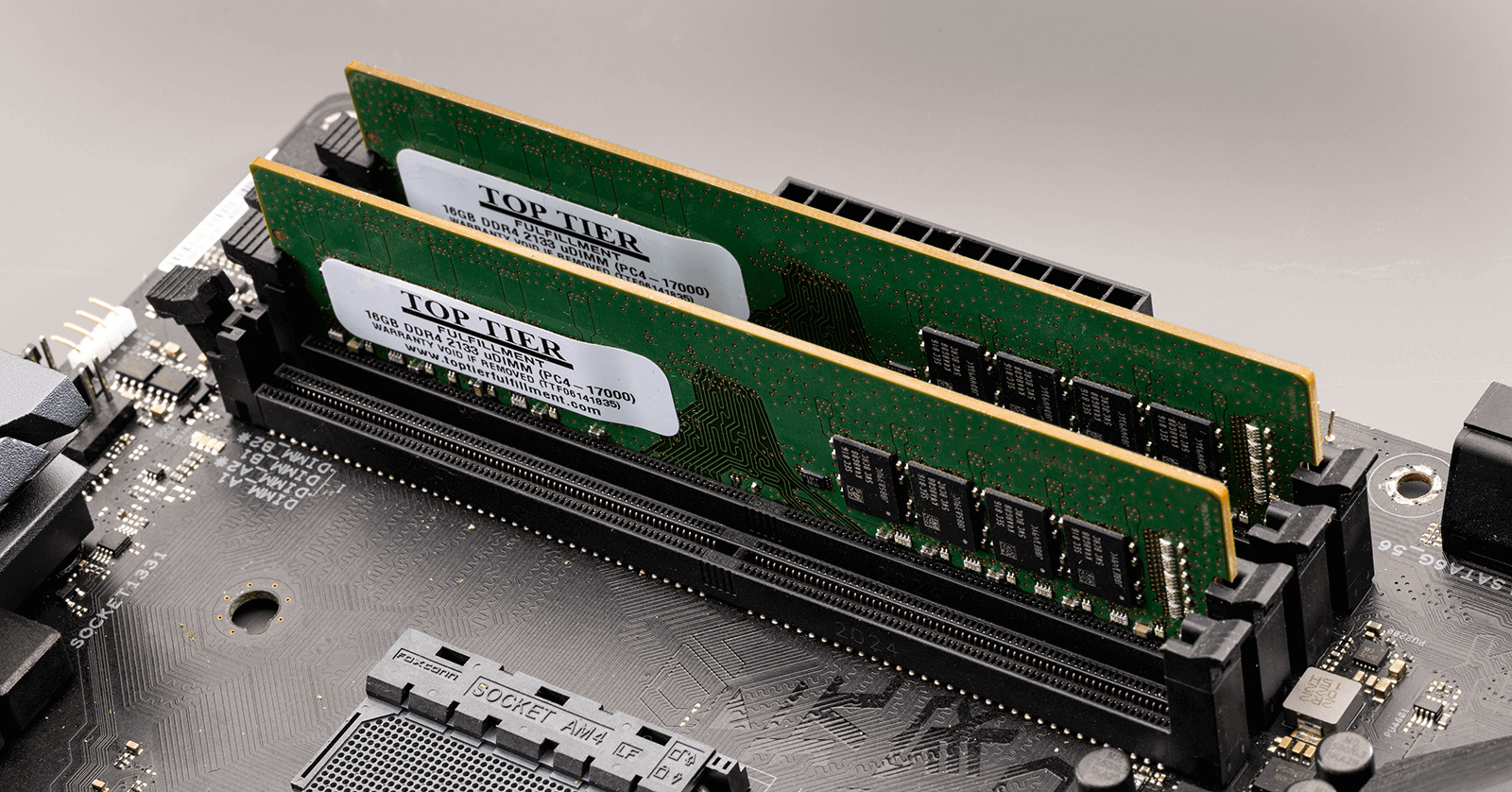
RAM is like desk space. Too little, and your system starts stacking papers on the floor.
Most modern games require:
- 8GB (absolute minimum)
- 16GB (recommended)
Anything below that? Freezes are just a matter of time.
Deep Reasons Why Computers Freeze When Playing Games
Besides the basic reasons mentioned above, there are some deeper reasons that lead to this problem.
1. Overheating Issues
Heat is a silent performance killer—and gaming generates a lot of it.
👉 CPU Overheating
If your CPU overheats, it automatically throttles or freezes to protect itself. Causes include:
- Dust buildup
- Old thermal paste
- Poor airflow
👉 GPU Overheating
GPUs work hardest during gaming. Without proper cooling, they hit thermal limits fast. You can watch for the warning signs of overheating:
- Fans suddenly ramping up
- FPS drops after 10–20 minutes
- Hot air blasting from vents
- Freezes during intense scenes
2. Outdated or Faulty Drivers
Drivers act as translators between software and hardware. Bad translation? Total chaos.
👉 Graphics Drivers
Outdated GPU drivers are a top cause of gaming freezes. New games often require the latest driver optimizations.
👉 System and Chipset Drivers
Chipset, audio, and storage drivers also matter—especially for system stability.
3. Software Conflicts and System Instability
Sometimes your PC freezes because software is fighting behind the scenes.
👉 Background Applications
Apps like browsers, launchers, overlays, and screen recorders steal system resources.
👉 Antivirus and Firewall Conflicts
Some antivirus programs scan game files in real time, causing lag spikes and freezes.
4. Hardware-Related Causes
Hardware doesn’t last forever—and gaming exposes weaknesses fast.
👉 Aging or Failing Storage Devices
If your HDD or SSD struggles to load game assets, freezes and stutters are unavoidable—especially in open-world games.
👉 Power Supply Problems
An underpowered or failing PSU can’t deliver stable power under heavy load, leading to sudden freezes without warning.
5. Game-Specific Issues
Sometimes, the problem isn’t your PC—it’s the game.
👉 Poorly Optimized Games
Some games are poorly optimized at launch and freeze even on high-end systems.
👉 Corrupted Game Files
Corrupted or missing files can cause freezes at specific points—menus, cutscenes, or loading screens.
Can Game Freezes Cause Data Loss?
Short answer? Yes. Absolutely.
How Sudden Freezes Lead to File Corruption
When a game freezes and forces a hard reboot:
- Save files may not finish writing.
- Game data can become corrupted.
- System files may be damaged.
This is especially risky if the freeze happens while:
- Saving a game.
- Installing updates.
- Writing system cache.
Recovering Lost Data with MyRecover
If a freeze leads to lost or corrupted files, this is where MyRecover becomes incredibly useful.
MyRecover is a professional data recovery tool designed to:
- Recover deleted or lost files after crashes.
- Restore corrupted game saves.
- Retrieve data from HDDs, SSDs, and external drives.
- Handle data loss caused by sudden system freezes or forced shutdowns.
 100% Secure
The best part? You don’t need advanced technical knowledge—just scan, preview, and recover.
1. Install MyRecover on your computer.
2. Open the software and select the drive where files were lost.
3. Click Scan to search for deleted data.

4. Preview and select the files you want back.
5. Click Recover and save them to a different location.

For gamers who’ve lost save files or important data due to freezes, MyRecover can be a lifesaver.
How to Fix Computers Freeze When Playing Games
Let’s turn frustration into smooth gameplay.
1. Update Drivers and System
Always keep:
- GPU drivers updated
- Operating system fully patched
This alone resolves a huge number of freezing issues.
2. Optimize In-Game Settings
Lower:
- Shadows
- Texture quality
- Anti-aliasing
Smooth gameplay beats pretty screenshots.
3. Improve Cooling and Airflow
Simple fixes:
- Clean dust regularly
- Improve case airflow
- Replace thermal paste
- Use cooling pads for laptops
4. Repair Corrupted Files
Verify game files through:
- Steam (Steam Game Recovery)
- Epic Games Launcher
- Xbox App
This fixes crashes caused by missing or damaged files.
5. Upgrade Hardware When Necessary
If freezes persist:
- Upgrade RAM
- Switch to SSD
- Upgrade GPU
Sometimes hardware is the real bottleneck.
How to Prevent Computer Freezes in the Future
Make these habits part of your routine:
- Monitor temperatures
- Close background apps
- Keep drivers updated
- Back up important data
- Use data recovery tools like MyRecover as a safety net
Conclusion
When your computer freezes while playing games, it’s never random. It’s your system telling you something isn’t right—whether that’s overheating, outdated drivers, weak hardware, or software conflicts.
The good news? Most freezes are fixable—and even if they cause data loss, tools like MyRecover ensure you’re not starting from scratch.
Gaming should be smooth, immersive, and stress-free. Fix the freezes, protect your data, and get back to winning where it matters.

Stay Updated With Our
Latest Tips
Add us as a preferred source on Google to never miss helpful guides.
 Add as preferred source >>