 MyRecover



Deleted Files Recovery on Windows | Proven Methods, Tools, and Limitations
Accidentally deleting files on Windows does not always mean they are gone forever. This article provides a clear, practical overview of deleted files recovery on Windows. It will walk you through how to choose the right approaches to restore your data safely and efficiently by understanding their constraints.

By Aria / Updated on December 30, 2025


Can I Recover a File I Accidentally Deleted?
Accidentally deleting an important file is a common experience for Windows users. Take it easy, it's not a hopeless situation. The good news is that, in many cases, deleted files recovery is entirely possible. Whether the file was removed moments ago or disappeared some time back, this guide will provide several proven options to help you restore deleted files as long as the data has not been permanently overwritten.

Before diving into recovery methods, it is important to understand what actually happens after a file is deleted, as this determines which solution is most effective.
What Really Happens After Files are Deleted
Actually, when you delete a file on Windows, the system does not immediately erase the data itself. Instead, it marks the storage space as "available", meaning the file remains recoverable until new data overwrites it. This is why acting quickly is critical for successful deleted file recovery.
In most cases, files deleted on Windows are moved to the Recycle Bin, where you can easily recover them. However, if files are deleted using "Shift" + "Delete", or via actions like emptying the Recycle Bin, formatting a drive, or deleting a partition, the recovery process may be more complex, but it is not impossible. Additionally, regardless of the deletion method used, you should immediately stop using the drive after discovering file loss to prevent the files from being overwritten.
Top 6 Proven Windows Deleted Files Recovery Methods and Limitations
Windows offers multiple recovery paths depending on how and when the file was deleted. This section will offer 6 effective solutions to recover deleted files on Windows along with their respective limitations, allowing you to choose the most suitable method based on actual circumstances of your file loss. Let's explore them each one.
Restore from Windows Recycle Bin
Recycle Bin is the first place to check when a file goes missing. This is the fastest and safest way to restore deleted files if they were not permanently removed. Follow these steps to restore them:
Step 1. Double click on the Recycle Bin icon on your desktop to open it.
Step 2. Browse through the deleted files and select the ones you wish to recover.
Step 3. Right click on it and click "Restore". Then, the file will be returned its original location.
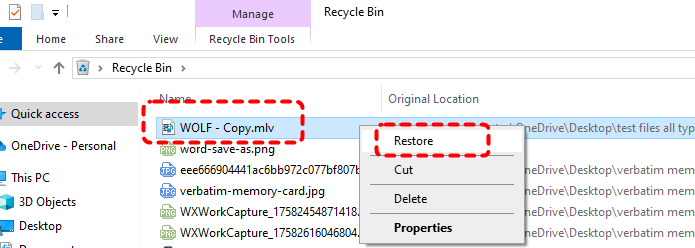
- Some deleted files will not go to the Recycle Bin, such as too large files or deleted from external hard drives.
- Once a file is emptied from the Recycle Bin or permanently deleted, it can no longer be recovered from the Recycle Bin.
Restore Your Files with File History
File History automatically backs up versions of files stored in key folders such as Documents, Desktop, and Pictures. If the Recycle Bin does not contain your file, the next logical step is checking previous versions, provided File History was enabled on Windows before data loss.
Step 1. Navigate to the drive or folder where the deleted files were stored in File Explorer.
Step 2. Right click on it and choose "Properties" from the context menu.
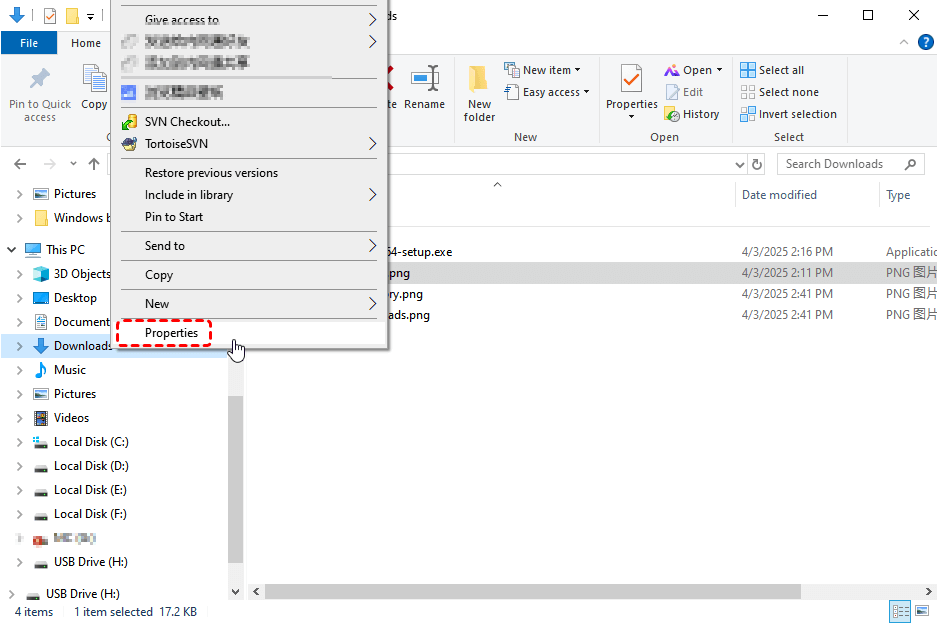
Step 3. Select the "Previous Versions" tab and choose a desired version before deletion, then click "Restore".
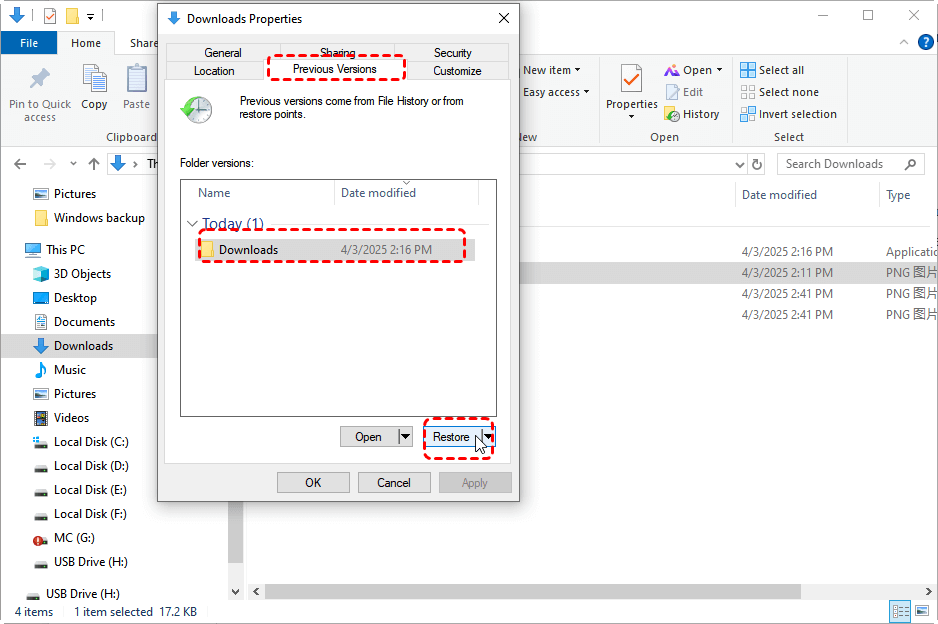
- File History can only recover files in the folders that have been added to the recovery plan (typically Documents, Desktop, etc.).
- It relies on an external backup drive long-term, and file backups consume a significant amount of disk space.
- If your system crashes or the backup drive stops working, you won’t be able to get your files back.
Recover Files via Backup and Restore (Windows 7)
Another built-in option is Backup and Restore (Windows 7), commonly used on Windows 10 and earlier setups. If you have ever regularly created system backups using this feature, this method provides a reliable deleted files recovery path.
Step 1. Open "Backup Settings" in the Start menu and click on "Go to Backup and Restore (Windows 7)".
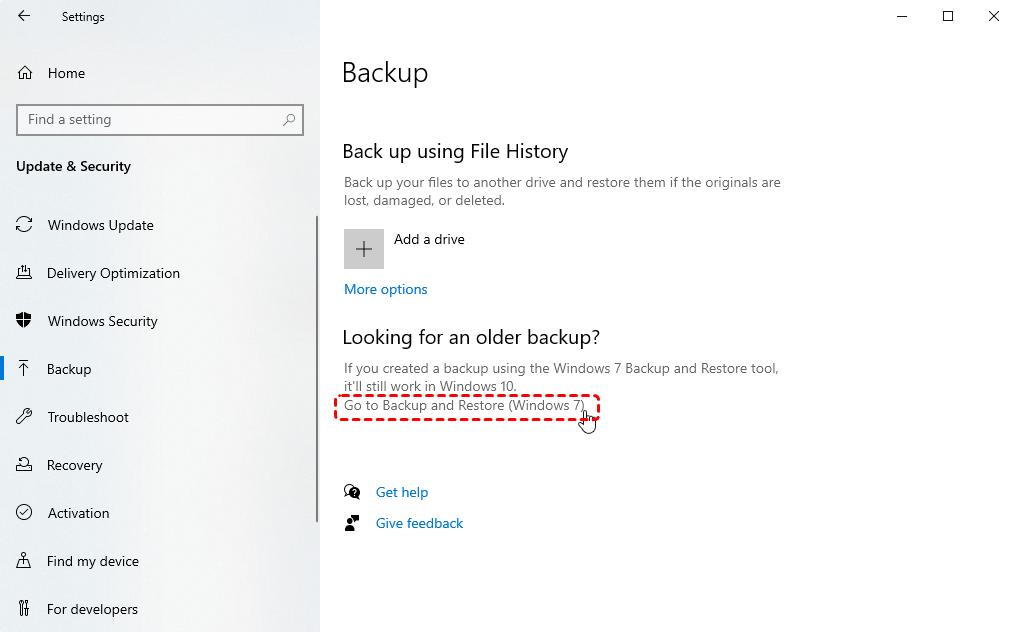
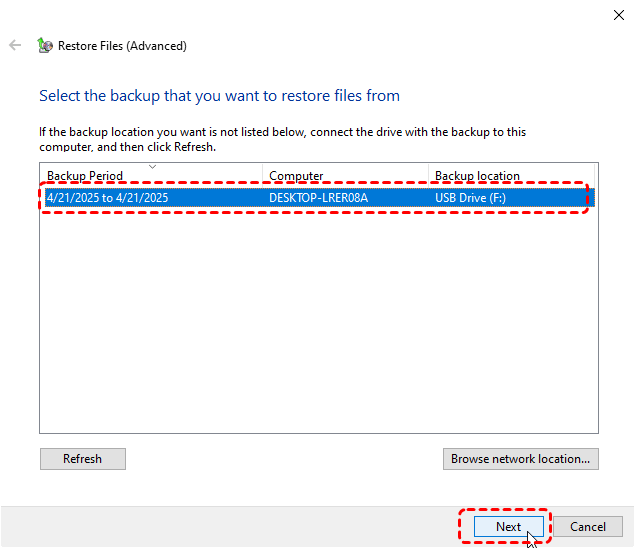
Step 2. Select "Restore my files" and select a created backup to restore files from, then click "Next".
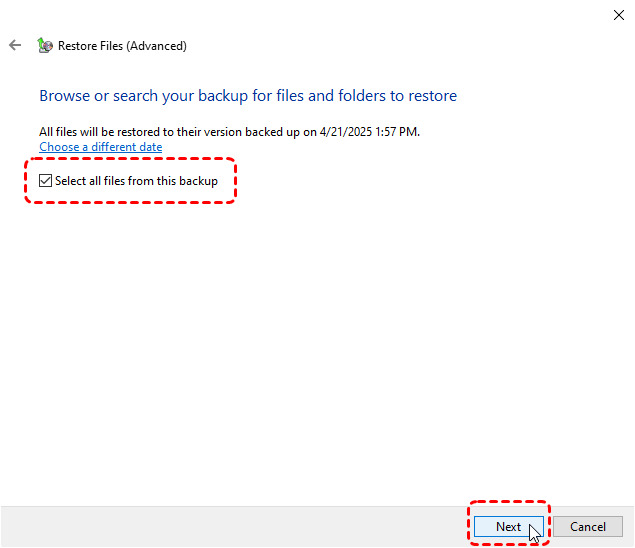
Step 3. Choose files you want to recover by clicking on "Browse for files/folders" or checking the "Select all files from this backup" option.
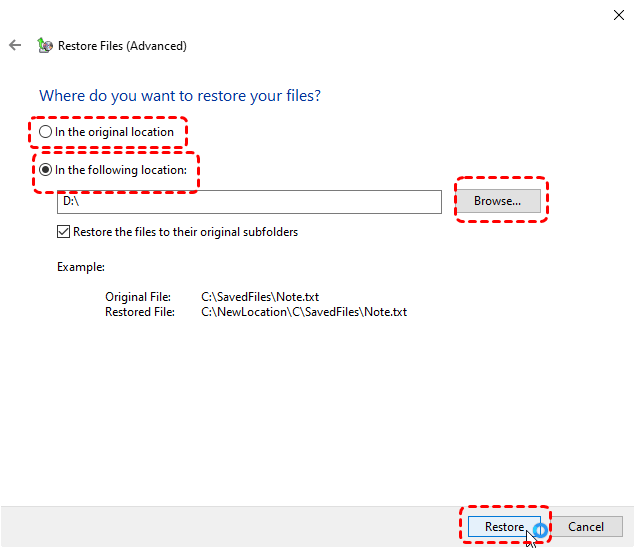
Step 4. Select a location to save the recovered files and click "Restore" to begin the process.
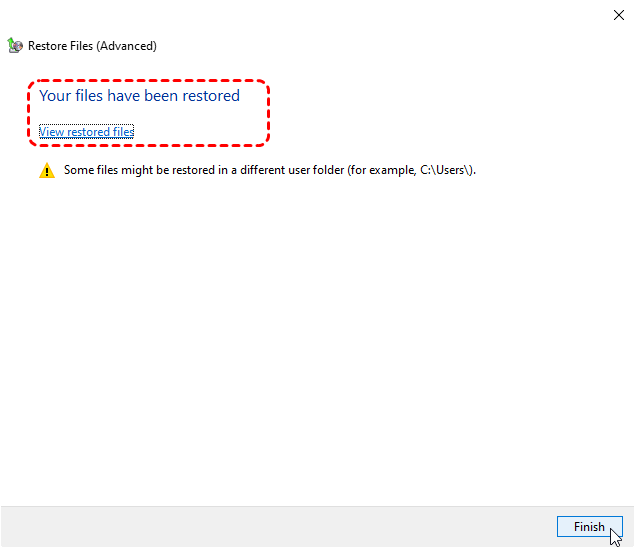
Once the process is complete, the message "Your files have been restored" will pop up. You can access the recovered files by clicking on "View restored files".
- Files that are newly added or changed often won’t get updated right away.
- System images take up a lot of disk space.
- Recovering a single file is a complicated process.
Restore Deleted Files from Cloud Backup
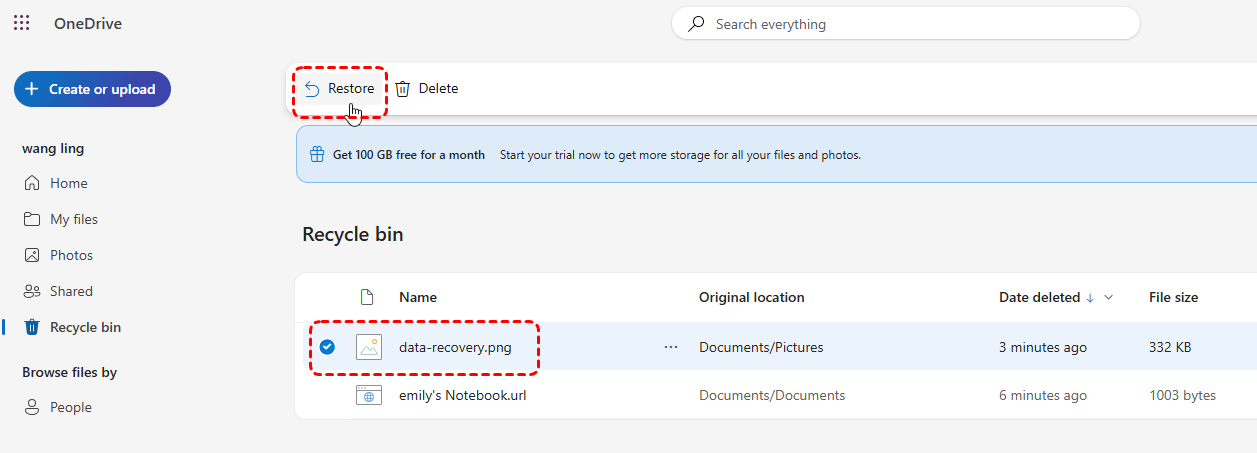
If you use cloud storage services such as OneDrive, Google Drive, or Dropbox, your deleted files may still be recoverable online. Even if you permanently delete files locally, the cloud Recycle Bin will retain them for approximately 30 days. If you have synced your files to the cloud, act promptly to retrieve the lost files. Here takes OneDrive as an example:
Step 1. Sign in to OneDrive with your account.

Step 2. Locate the Recycle bin section, browse through the deleted items.
Step 3. Choose the files you would like to recover and click "Restore" in the left upper corner.
- You’ll need an internet connection and cloud storage space for this.
- Files saved in the cloud could be at risk of security issues or privacy leaks.
Use Windows File Recovery Tool
As you’ve noticed, the main problem with these three methods is that you have to set up backups beforehand to get your data back. What if you lose files and have no backups at all? Don’t worry, you can still recover them. If you don’t have any backups, Windows has a built-in recovery tool called Windows File Recovery which allows you to get back permanently deleted files from any storage device on your PC.
Step 1. Download and install Windows File Recovery on your computer from Microsoft official website.

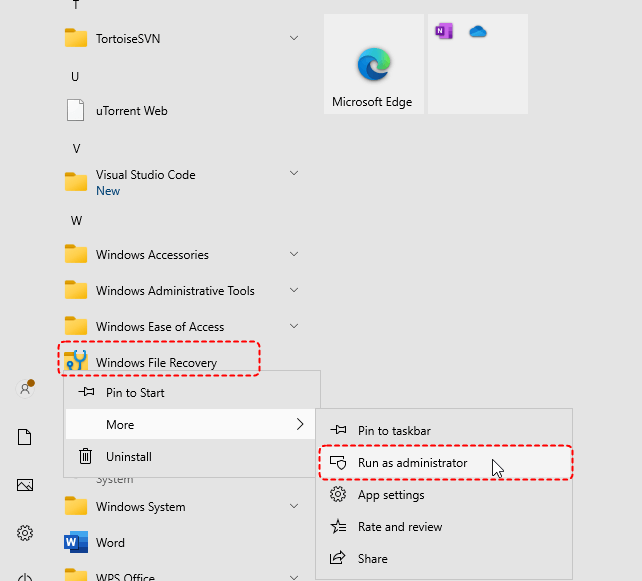
Step 2. Locate Windows File Recovery in the Start menu and right click on it, then click "Run as administrator".
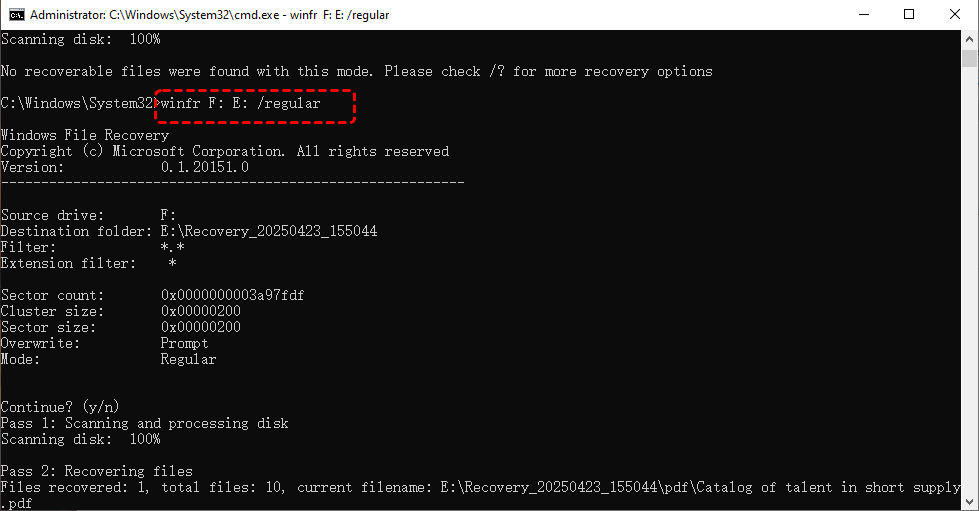
Step 3. Type the following command "winfr F: E: /regular" and hit the "Enter" key. Replace the drive letters "F" and "E" with your actual drive letters.
- ★Tips:
- F: the source drive letter.
- E: the destination drive letter.
- Regular: the quick scan mode. You can switch to "extensive" mode to perform a more comprehensive scan.
When the process is done, you can access the recovered files in the destination folder by pressing "y".
- Windows File Recovery only works on Windows 10 and 11.
- The interface isn’t easy to use, and you need to know how to use command lines.
- Getting back lots of files takes a long time.
- Even a small typo or missing space can make file recovery fail or even pop up an error message like "Failed to create destination folder".
A More User-Friendly Deleted Files Recovery Tool: MyRecover
For folks who aren’t tech-savvy, Windows File Recovery is pretty tough to use. If you want something easier and more straightforward, go for a professional deleted files recovery tool like MyRecover. It’s incredibly beginner-friendly. It has a simple clickable interface, so you don't need to mess with any command lines. Even if you’ve never done data recovery before, you can get back permanently deleted files in just a few steps.
MyRecover works with all kinds of storage (hard drives, USB sticks, memory cards, etc.) and keeps your files’ original names and folders, so you won’t have to sort through a mess after recovery. Follow these steps to recover lost files with MyRecover:
Step 1. Download and install MyRecover on your computer from Microsoft Store, avoid installing it on the drive with lost files.
Step 2. Launch the app and select the drive where the deleted files were stored, then click "Scan".

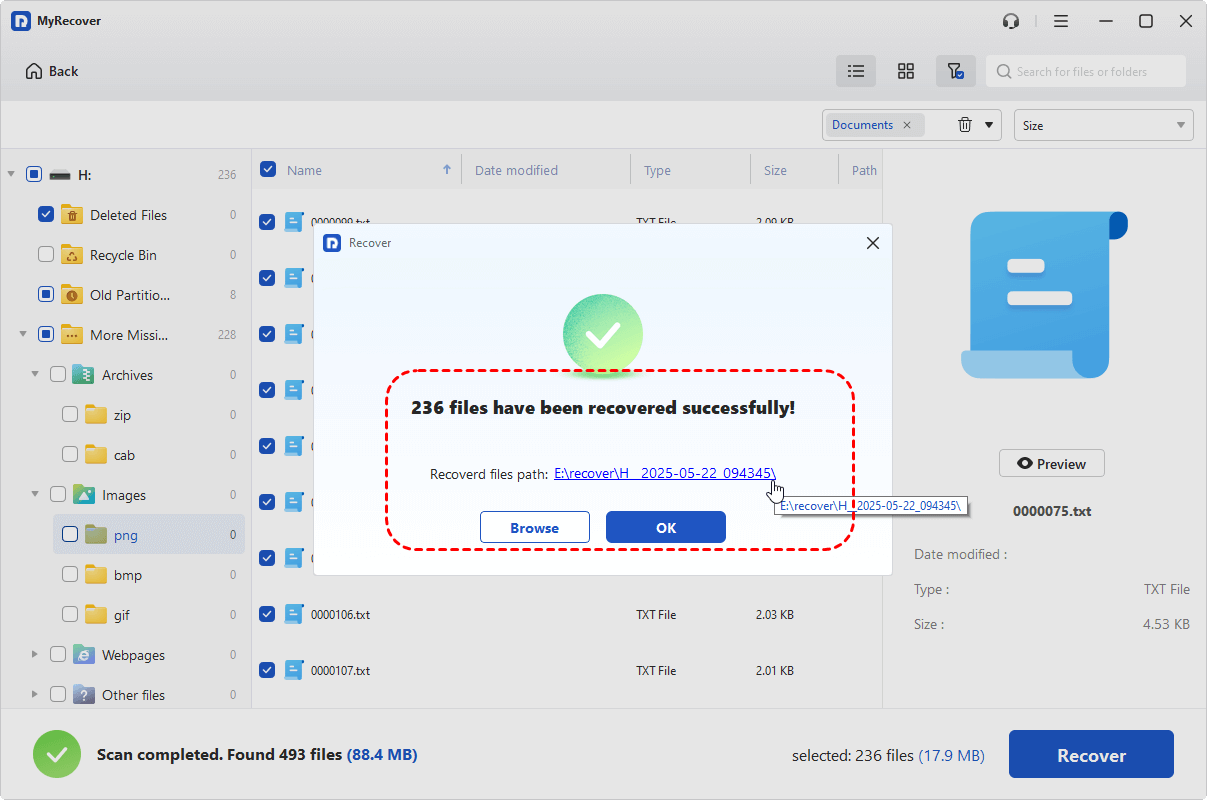
Step 3. After the scan is finished, choose the files you wish to recover from the recoverable lists and click "Recover".

Step 4. Select a safe location to save the recovered files.

When the process concludes, the message "Files have been recovered successfully" will pop up. You can verify the recovered files by clicking on the destination folder path or "Browse" button.
- MyRecover is designed for Windows PCs and Windows Server environments. It is not intended for macOS systems.
When to Seek a Professional Data Recovery Service
Even though all the recovery methods above work in their own way, none of them are a one-size-fits-all solution. If you run into any of these scenarios, it’s time to turn to professional data recovery services:
- When data has been fully overwritten again and again,
- SSDs where TRIM has wiped the data,
- Storage devices that are badly physically damaged.
Professionals use specialized equipment in clean-room environments to retrieve data safely when standard deleted file recovery methods fail.
Summary
While certain recovery limitations are unavoidable due to how storage devices work, the right tool can still make a meaningful difference in real-world scenarios.
Because recovery chances often decrease once data is overwritten, acting early matters. MyRecover Professional edition supports unlimited recovery, file preview before restoration, and data recovery from crashed Windows systems, making it a practical next step when built-in tools are no longer sufficient.

Stay Updated With Our
Latest Tips
Add us as a preferred source on Google to never miss helpful guides.
 Add as preferred source >>