 MyRecover



8 Solutions to Windows Computer Stuck on 'Diagnosing Your PC'
If your Windows computer is stuck on 'Diagnosing your PC,' it can prevent you from accessing your system. This guide explains the common causes why your PC freezes during startup or continuously loops in the diagnostic phase, and provides step-by-step solutions to fix it on Windows computers.

By Emma / Updated on December 17, 2025


What Does "Diagnosing your PC" Mean?
When a Windows computer displays the message "Diagnosing your PC", it is performing an automatic troubleshooting process to identify and fix issues that are preventing Windows from starting normally. This process is part of the Windows Recovery Environment (WinRE) and typically runs when the system detects boot failures, corrupted system files, or failed updates.
During this phase, Windows checks for hardware errors, system file corruption, driver issues, and other problems that could affect normal operation. Essentially, it’s your computer’s way of saying: "Something isn’t right, and I’m trying to figure out what it is so you can boot safely."
Why Does Computer Stuck on "Diagnosing Your PC"?
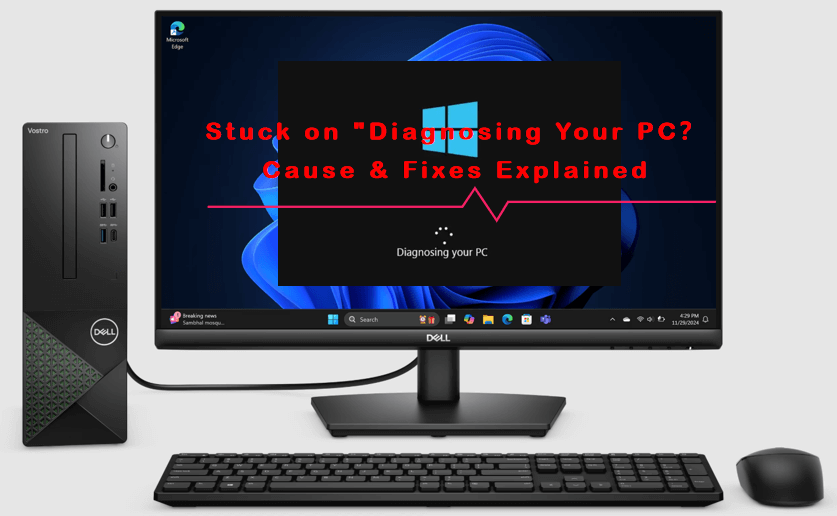
However, sometimes the "Diagnosing your PC" process can take an unusually long time, preventing you from accessing Windows. Even worse, in some cases, your computer may become stuck in the "Diagnosing your PC" loop, making it impossible to boot normally. Why does this happen? The following reasons may be the culprits:
- Corrupted System Files: Critical Windows files required for booting may be damaged due to malware, improper shutdowns, or failed updates.
- Failed or Incomplete Windows Updates: If an update was interrupted or installed incorrectly, the system may fail to boot properly.
- Hardware Issues: Faulty RAM, a failing hard drive/SSD, or loose hardware connections can trigger the diagnostic process repeatedly.
- Driver Conflicts: Incompatible or corrupted drivers can prevent Windows from starting normally.
- Boot Configuration Errors: Problems in the Master Boot Record (MBR) or Boot Configuration Data (BCD) may cause the system to loop in diagnostics.
- External Devices or Peripherals: Sometimes USB drives, external hard drives, or other connected devices can interfere with the startup process, causing the PC to hang on diagnostics.
Solutions to Windows Stuck on "Diagnosing Your PC"
If your computer is frozen on the "Diagnosing your PC" screen or keeps looping through it, there are several effective methods you can try to restore normal startup.
Solution 1. Restart the Computer and Disconnect External Devices
Sometimes, the diagnostic loop is triggered by conflicts with external hardware.
1. Press and hold the Power button for 10 seconds to force shut down the PC.
2. Remove all external devices, including USB drives, external hard drives, printers, and SD cards.
3. Wait a few seconds and restart the computer.
If the issue was caused by a peripheral, your PC should boot normally.
Solution 2. Boot Into Safe Mode
Safe Mode loads only the essential drivers and services required for Windows to run, which helps isolate and bypass problematic software, corrupted drivers, or startup programs that might be causing the diagnostic loop. By entering Safe Mode, you can determine whether the issue is related to non-essential components and take corrective actions more easily.
1. Interrupt the boot process 3 times (power off when the Windows logo appears).
2. Windows will enter WinRE (Recovery Environment).
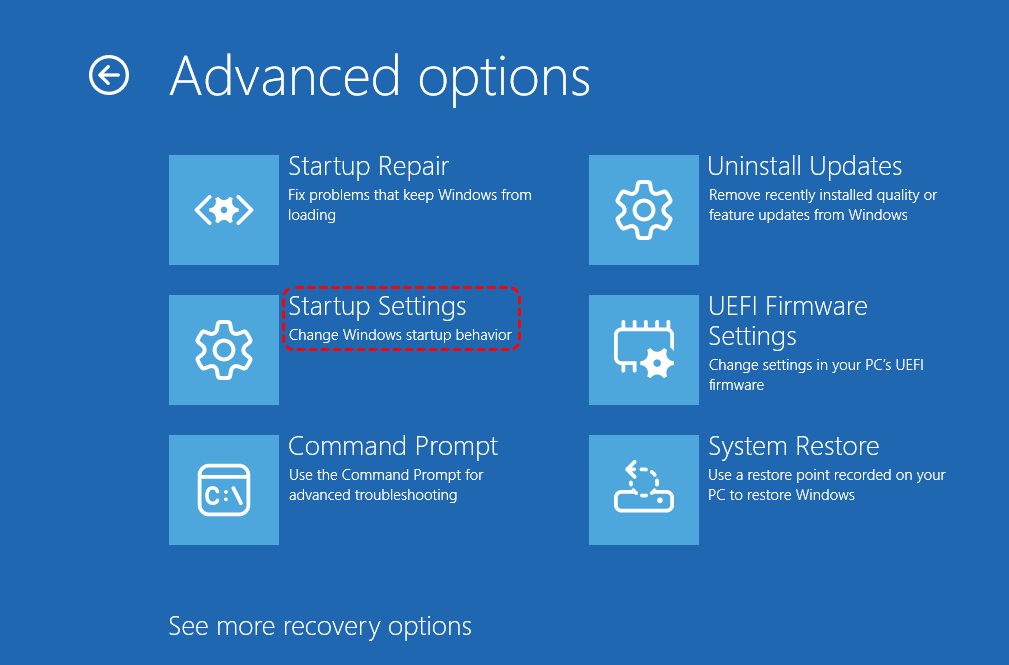
3. Go to "Troubleshoot > Advanced options".

4. Then click on "Startup Settings".
5. When the menu appears, press F4 to select "Enable Safe mode".
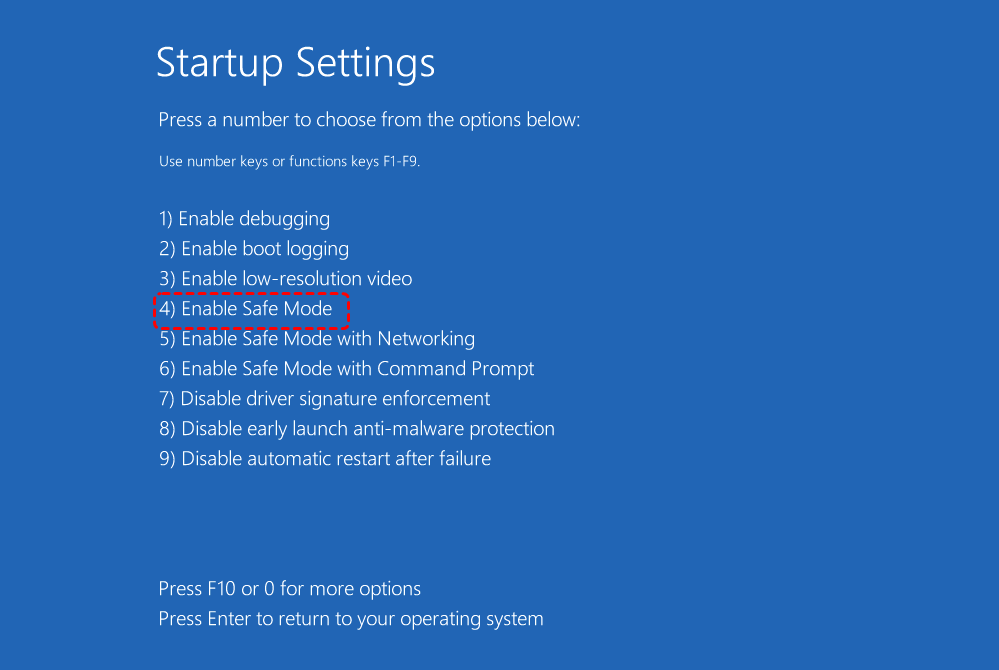
Once in Safe Mode, restart Windows normally and check whether the issue is resolved.
Solution 3. Use Startup Repair in WinRE
Startup Repair is a built-in Windows tool designed to automatically detect and fix issues that prevent your PC from booting normally. If your system is stuck on "Diagnosing your PC," running Startup Repair can help resolve corrupted boot files, misconfigurations, or problems introduced by failed updates.
1. Enter WinRE like you do in the solution 2(interrupt boot 3 times).
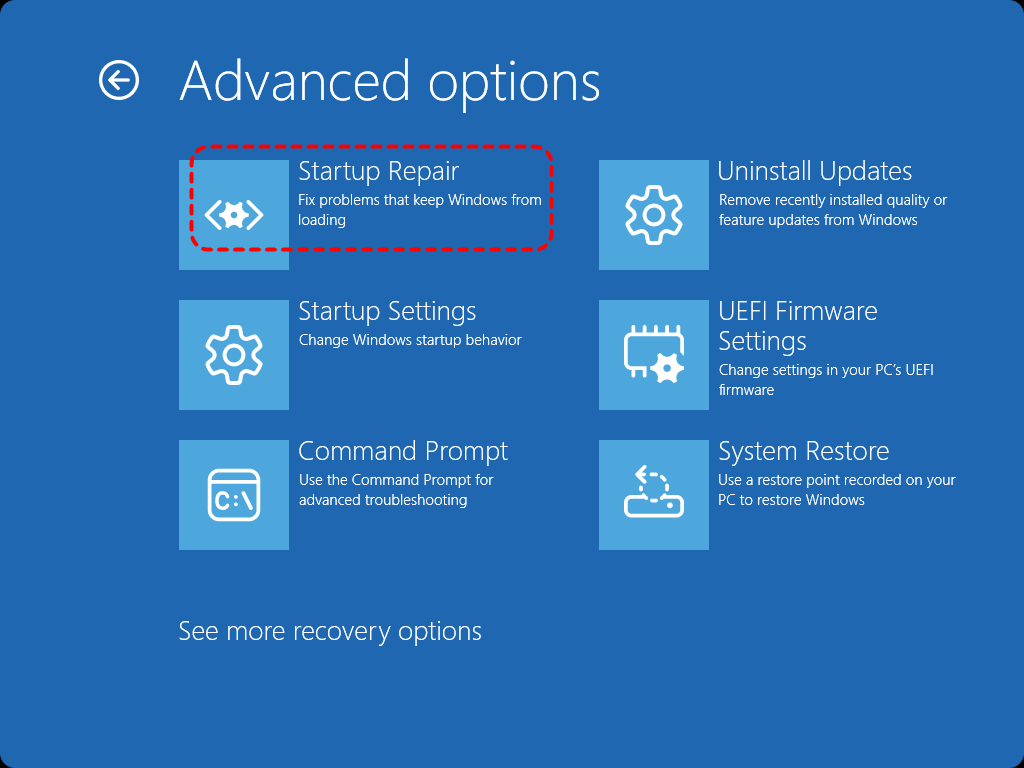
2. Select "Troubleshoot > Advanced options."
3. Then choose "Startup Repair".
4. Choose your account and enter your password if needed.

Let Windows scan and repair the startup files. Then restart and see if Windows boots properly.
Solution 4. Run CHKDSK to Repair Disk Errors
Disk errors—such as bad sectors, corrupted file indexes, or damaged metadata—can cause Windows to hang on the "Diagnosing your PC"screen. Running CHKDSK (Check Disk) helps locate and repair these issues, improving the chances of a successful boot.
1. Enter WinRE, then choose "Troubleshoot > Advanced options > Command Prompt".

2. In the Command Prompt window, type the command and press Enter: chkdsk c: /f /r
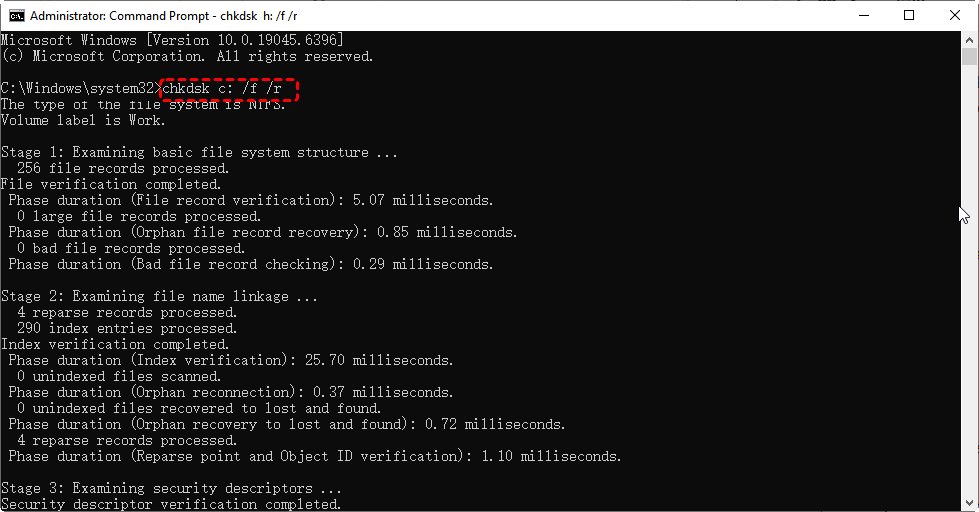
Make sure to replace C: if your system drive is located on a different partition.Wait for the scan to complete. CHKDSK will attempt to fix file system errors and recover readable information from bad sectors. After the scan finishes, restart your PC to see if Windows can boot normally.
Solution 5. Repair System Files via SFC and DISM
Corrupted or missing system files are one of the most common causes of a computer getting stuck on "Diagnosing your PC." Windows provides two powerful repair tools—SFC (System File Checker) and DISM (Deployment Imaging Service and Management Tool)—to fix these issues. Running both tools ensures that damaged files are identified, repaired, and replaced with healthy versions.
1. In WinRE Command Prompt, runDISM repair commands: DISM /Online /Cleanup-Image /RestoreHealth
2. After it completes, run: sfc /scannow

These tools will replace corrupted Windows components.
Solution 6. Rebuild Boot Configuration (BCD + MBR)
If the Boot Configuration Data (BCD) or Master Boot Record (MBR) becomes corrupted, Windows may fail to load correctly and get stuck on the "Diagnosing your PC"screen. Rebuilding these critical boot components can restore normal startup.
In the Command Prompt window from WinRE, run the following commands one by one, pressing Enter after each:
bootrec /fixmbr
bootrec /fixboot
bootrec /rebuildbcd
bootrec /scanos
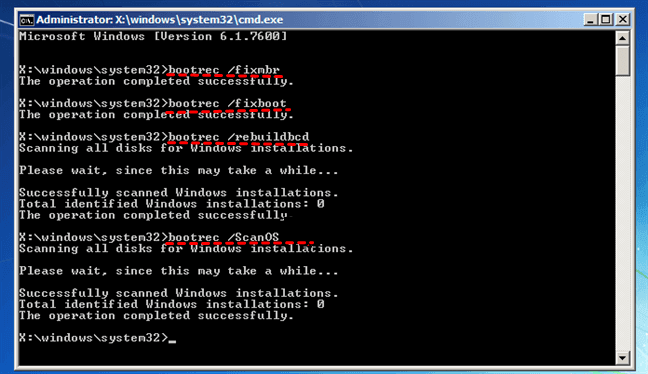
These commands repair the MBR, rewrite the boot sector, scan for installed Windows systems, and rebuild the BCD file. Once all commands finish successfully, close the Command Prompt and restart your computer. If the boot configuration was the source of the problem, your PC should now start normally.
Solution 7. Perform a System Restore
If your PC became stuck on "Diagnosing your PC" after installing new software, drivers, or Windows updates, a System Restore can roll your system back to a previous, healthy state. This is one of the safest repair methods because it restores system settings and configuration files without affecting your personal data.
1. In WinRE, select "Troubleshoot > Advanced options > System Restore".
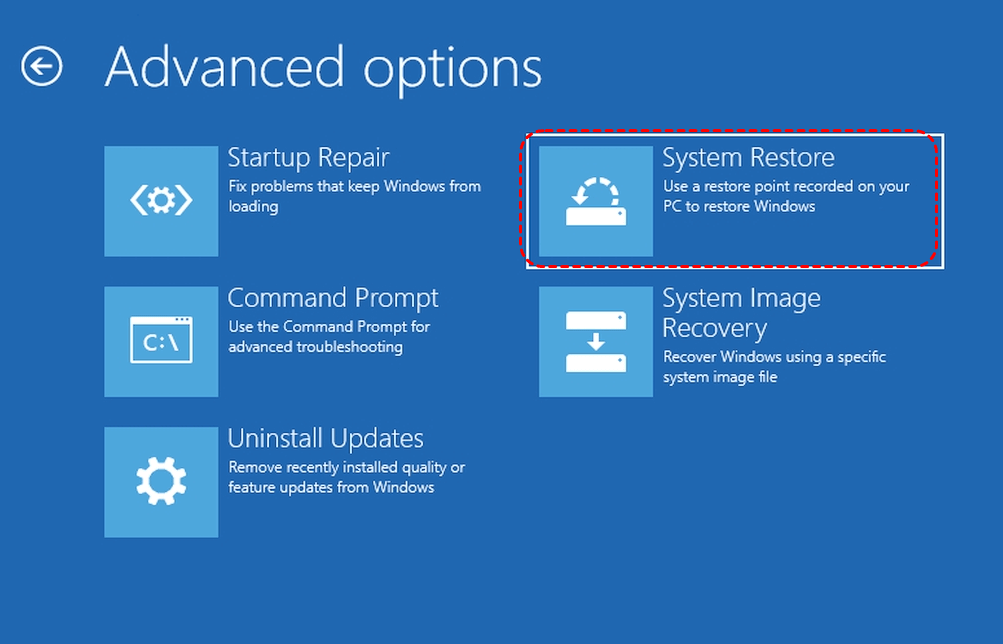
2. Pick a restore point created before the problem started.
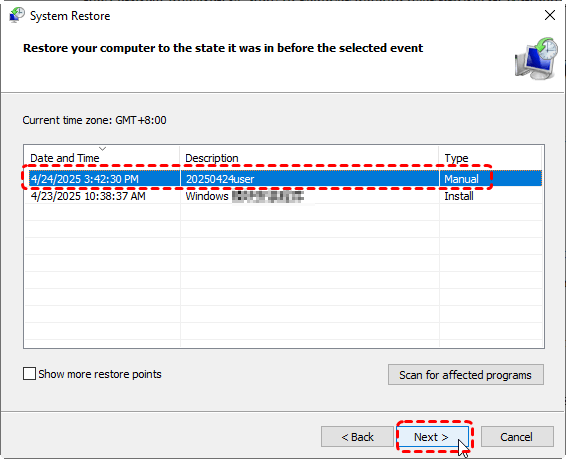
3. Follow the prompts to restore Windows.
- Further Reading: can System Restore Point recover deleted files
Solution 8. Reset Windows (Keep or Remove Files)
If none of the previous methods resolve the issue, performing a "Windows Reset" may be the most effective way to fix a system stuck on "Diagnosing your PC." This feature reinstalls Windows and removes corrupted components, startup conflicts, or persistent system errors. You can choose to keep your personal files or perform a completely clean reset.
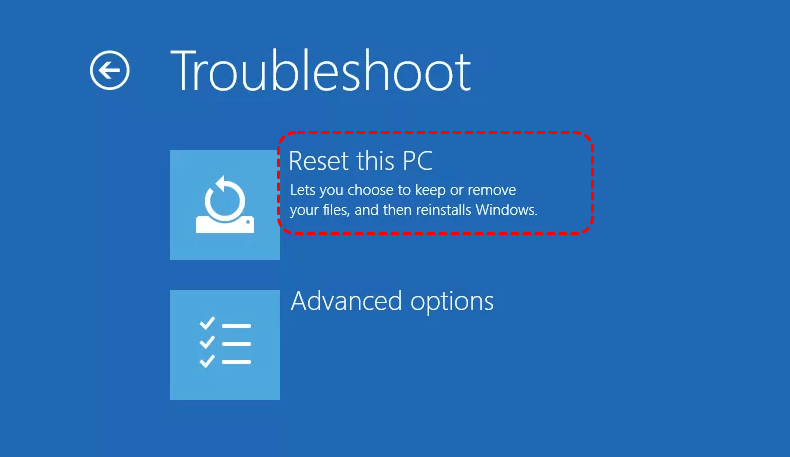
1. Enter WinRE, then go to "Troubleshoot > Reset this PC".
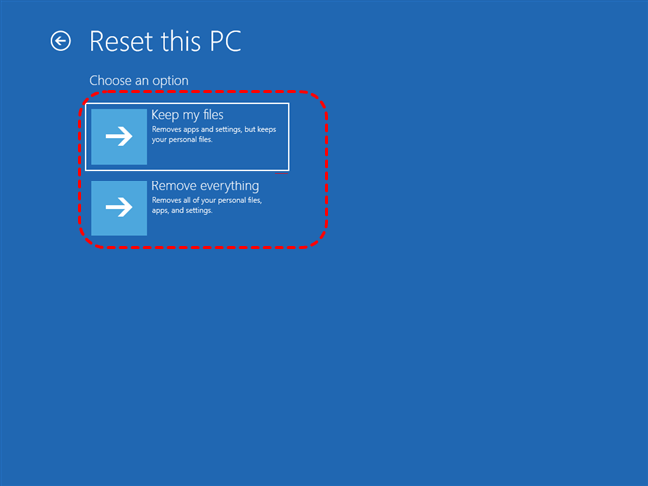
2. Select one of the following options:
- Keep my files – Reinstalls Windows while preserving your personal data, but removes apps and settings.
- Remove everything – Performs a full reset, erasing all files, programs, and settings for a fresh start.
3. Follow the on-screen prompts to confirm and complete the reset process. Windows will reinstall itself, which may take some time.
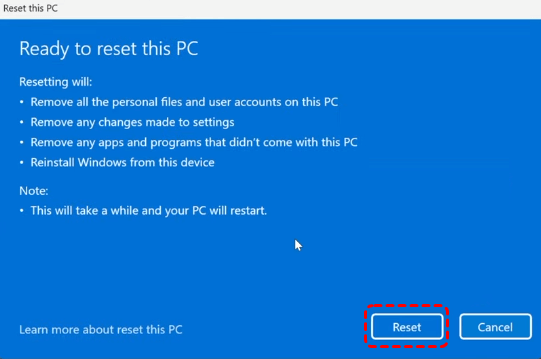
Once the reset is finished, your computer should reboot into a clean, working version of Windows, free from the issues that caused the diagnostic loop. If the problem persists even after a reset, hardware failure may be the root cause.
Recover Personal Data After Resetting PC or Performing System Restore
Resetting your PC or performing a System Restore can help fix stubborn startup errors like Default Boot Device Missing or Boot Failed,no bootable device insert boot disk and others, but these operations may also result in missing files—especially if you selected "Remove everything"during a reset or if certain user folders weren’t preserved properly.
Even though these actions change system settings and reinstall Windows, your personal data may still be recoverable. To get them back easily, you can use professional Windows data recovery software such as MyRecover, which scans your hard drive for data that were removed during a reset, lost in the System Restore process, or disappeared due to corruption.

 MyRecover
- 🌟Recover Without Backup: Restore lost files even if no Windows backup exists.
- 🌟High Success Rate: AI-powered file recognition and recovery algorithms ensure easy use and zero file omission.
- 🌟Wide File Support (1000+): Recover photos, documents, videos, audio, archives, and more.
- 🌟Supports Multiple Devices (500+): Works on HDDs, SSDs, USB drives, SD cards, cameras, and other storage devices.
- 🌟Covers 500+ Data Loss Scenarios: Handles accidental deletion, formatting, system crashes, virus attacks, emptied Recycle Bin, partition loss, and more.
 100% Secure
For data recovery, you just need to scan the target drive, choose what you need and click "Recover" button.

Summary
No matter your Dell, Asus, HP computer stuck on "Diagnosing your PC", you can apply the above methods to systematically identify and resolve the problem. Even if a reset or system restore is necessary, tools like MyRecover can safely recover personal data without backup. With patience and the right approach, your PC can be restored to normal operation, ensuring both your system and important files are protected.

Stay Updated With Our
Latest Tips
Add us as a preferred source on Google to never miss helpful guides.
 Add as preferred source >>