 MyRecover



CHKDSK Cannot Open Volume for Direct Access: Full Solutions
When you see the error "CHKDSK cannot open volume for direct access", it usually means that there is an issue with disk access, preventing CHKDSK from scanning and repairing your hard drive. This article explores common causes behind this error and provides proven solutions to resolve it. Additionally, we discuss how to recover lost or inaccessible files if the disk becomes unresponsive or if data recovery is required.

By Aria / Updated on January 4, 2026


Preface
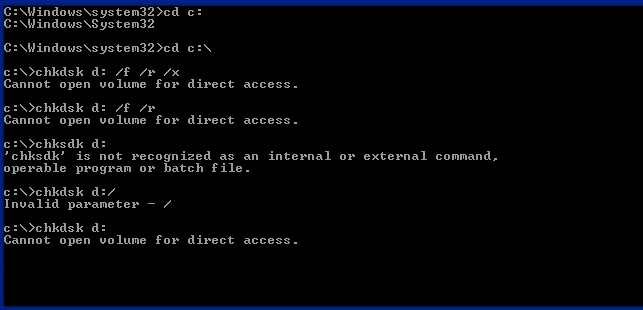
I am receiving "Cannot open volume for direct access" error upon boot. how to fix it? The exactly error message might be similar to the following: Cannot open volume for direct access. The type of the file system is NTFS. IFSUTIL: Can’t open drive. Status returned = c0000043. "Windows has finished checking the disk" Or "Cannot open volume for direct access", 'CHKDSK' is not recognized as an internal or external command, operable program or batch file. How to fix it?
- Question from Elim
When dealing with hard drives, especially external or USB drives, encountering the error "cannot open volume for direct access" can be quite frustrating. This error message often appears when you attempt to run the CHKDSK command to repair your drive, but it fails to gain direct access to the disk. This can occur on both internal and external drives, including USB drives, making it a common issue among Windows users.
In this guide, we'll explore the common reasons behind this error and walk you through the process of data recovery, troubleshooting, and resolving the problem.
The Common Reasons Behind the "Cannot Open Volume for Direct Access" CHKDS Error
If you're seeing the message "cannot open volume for direct access", it's crucial to understand the potential causes behind it, as well as the steps you can take to recover data and fix the issue. The error can arise from a variety of factors, ranging from corrupt system files to physical issues with the drive.
🔒Drive in Use or Locked by Another Process
One of the most frequent causes of this error is when the drive is being used by another process or is locked by the operating system. This typically happens when the drive is open or in use by another program, preventing CHKDSK from accessing it directly.
🔑BitLocker Encryption Enabled
If your drive is encrypted with BitLocker, it may prevent CHKDSK from accessing it for repairs. BitLocker locks the drive to protect your data, which can result in errors like this if the encryption isn’t properly disabled or decrypted.
📌Corrupt File System
A file system corruption could prevent CHKDSK from successfully accessing and repairing the drive. In this case, the drive’s file system may be so damaged that it becomes inaccessible to the CHKDSK command.
💽Physical Drive Damage
Physical damage to the drive, such as bad sectors or hardware failure, can also lead to this error. A drive with damaged sectors or mechanical failure may not respond to CHKDSK commands properly, causing the "cannot open volume for direct access" error.
🛠️Third-Party Software Interference
Sometimes, third-party software, such as antivirus programs or other disk management tools, can interfere with the drive’s operation, preventing CHKDSK from gaining access.
How to Recover Data from the Problematic Hard Drive
Before attempting to fix the issue with the effective methods, it’s essential to secure your data if possible. The first step in addressing the "CHKDSK cannot open volume for direct access" error should be to recover your valuable files from the affected drive. MyRecover is a powerful data recovery tool designed to help recover files from drives that are inaccessible or showing errors like "Windows was unable to repair the drive". It supports a wide variety of file systems and can retrieve data from internal hard drives, external drives, USB drives, SD cards, camera memory cards, etc.

 MyRecover
- Easy to Use – Intuitive design, no technical skills required.
- 1000+ File Types – Recover photos, videos, documents, and more.
- 500+ Data Loss Scenarios – Restore after formatting, partition loss, disk errors, or system crashes.
- Smart Scanning – Quick Scan for recent files, Deep Scan for full recovery.
 100% Secure
Step 1. Download and install MyRecover on your computer from Microsoft Store or its official site. If the affected drive is an external hard drive, connect it to your computer with a correct cable or port.
Step 2. Launch the program and select the problematic drive that shows the "cannot open volume for direct access" error to scan, then click "Scan".

Step 3. Once the scanning is finished, choose the files you attempt to recover from the recoverable lists and click "Recover".

Step 4. Save the recovered files to another drive to avoid overwriting data on the affected drive.

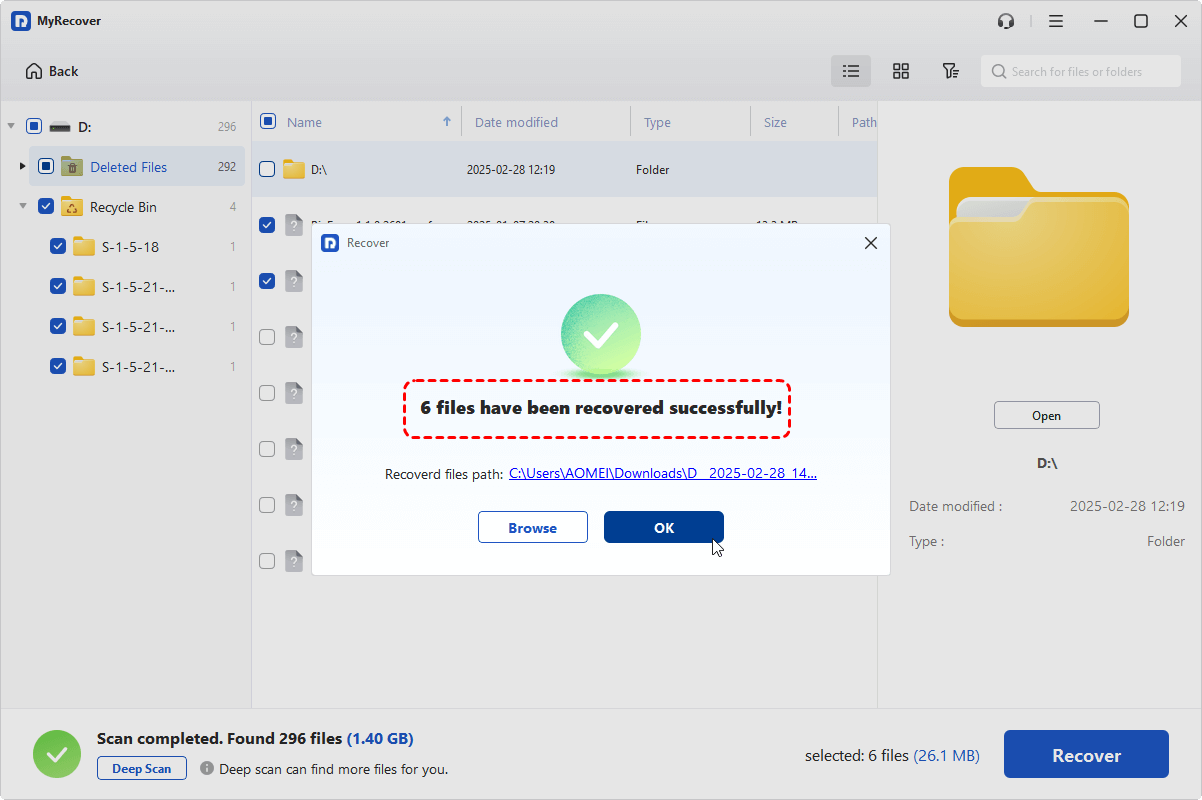
When the process is completed, you'll see the message "Files have been recovered successfully". Then, you can check the recovered files by clicking on the destination folder path or "Browse" button.
How to Fix the CHKDSK "Cannot Open Volume for Direct Access" Error
After recovering your data, it’s time to address the CHKDSK command "cannot open volume for direct access" issue. Here are several methods that you can try to fix this error. Let's explore them one by one.
Reconnect the Drive and Re-launch the Command
If the drive showing this error is an external hard drive, the issue may stem from a connection problem between the drive and your computer. Remove the drive from your computer and restart your computer, then plug the drive in. Try running the CHKDSK command again to resolve the issue.
Perform Error Checking from Windows Explorer
When encountering CHKDSK "cannot open volume for direct access", you can switch to CHKDSK’s graphical interface, Windows Error Checking, to scan for hard drive issues.
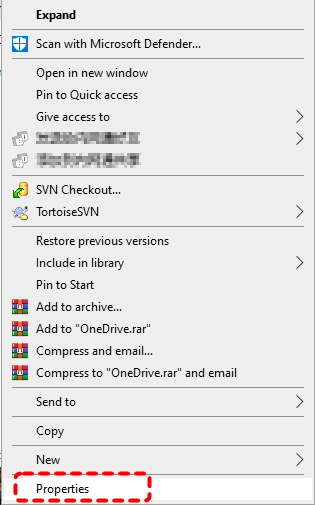
Step 1. Locate the target hard drive in File Explorer and right click on it, then choose "Properties".
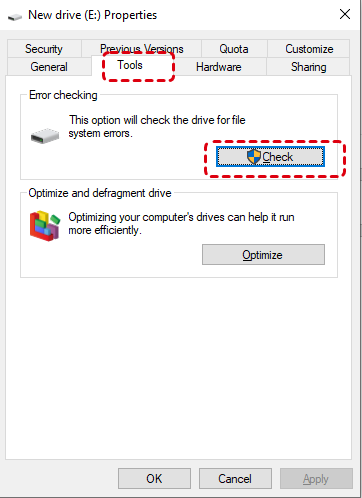
Step 2. Go to the "Tools" tab. Click "Check" under "Error checking".
Step 3. Once any error is found, click "Repair drive" to fix the detected errors.
Disable BitLocker Encryption Temporarily
If BitLocker encryption is enabled on the drive, it can block access for CHKDSK command. You can Turn off BitLocker encryption temporarily:
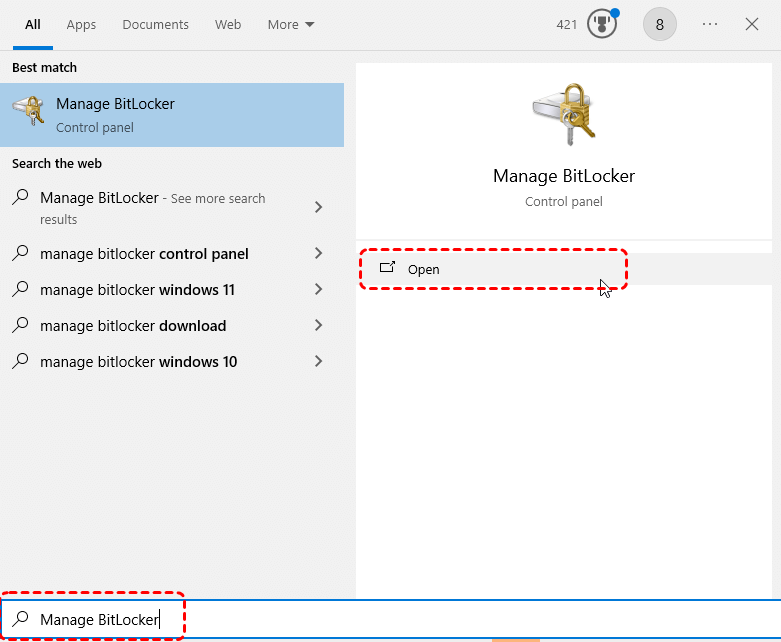
Step 1. Type "Manage BitLocker" in the Start menu and open it.
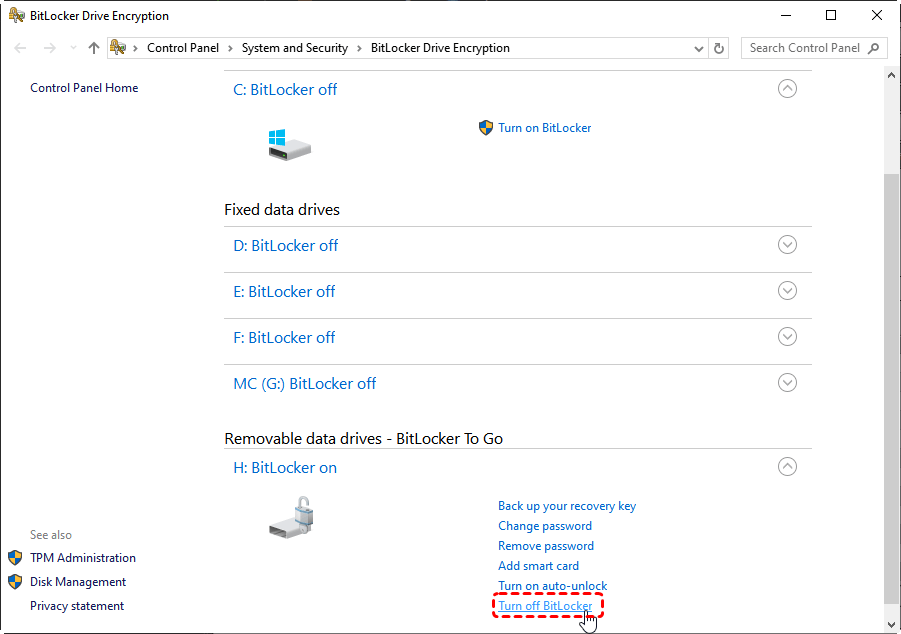
Step 2. Find the affected drive and click "Turn off BitLocker".
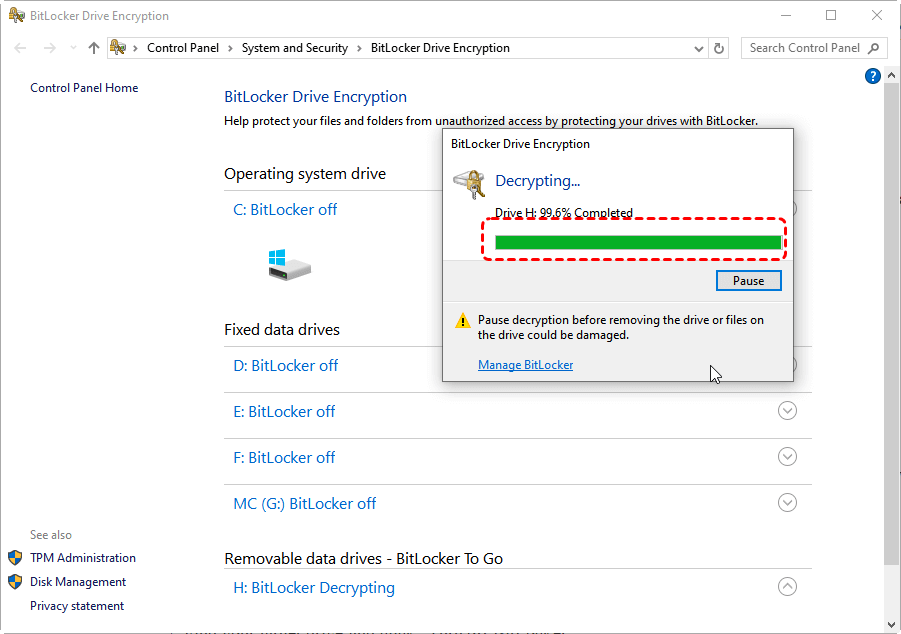
Step 3. Allow the decryption process to complete and then try running CHKDSK command again.
Repair the Volume with PowerShell Tool
In addition to the previously mentioned Error Checking, there’s a more modern alternative to CHKDSK: the Repair-Volume command tool, which is used to diagnose and repair drive errors. If the CHKDSK is still unable to open the volume, you can try using this command.
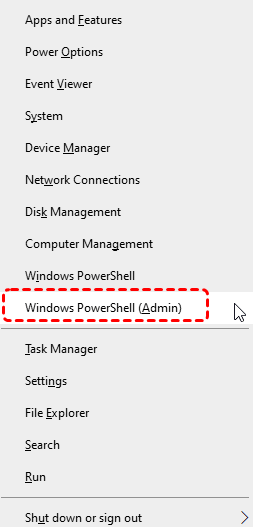
Step 1. Press "Win" + "X" and select Windows PowerShell (Admin) to open it.
Step 2. Enter the following command "Repair-Volume H[DriveLetter]-scan" and press "Enter" key. Replace the drive letter "H" with your actual drive letter.
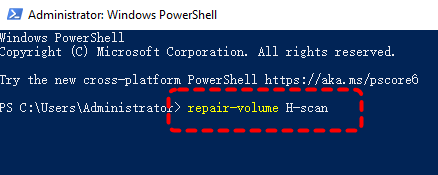
Step 3. Wait for the scan to complete. If the scan result shows "OfflineScanNeeded", you need to enter the following repair command "Repair-Volume H -OfflineScanAndFix".
Run CHKDSK in Clean Boot Environment
Clean Boot is a crucial Windows troubleshooting step. It allows Windows to start with a minimal set of drivers and startup programs, which helps you identify and resolve software issues caused by conflicts between background applications. You can try running CHKDSK in clean boot environment.
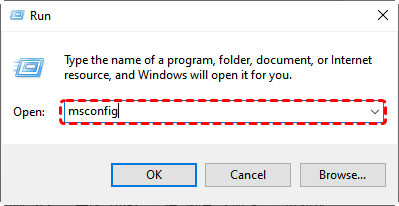
Step 1. Press "Win" + "R" and enter "msconfig" to open System Configuration.
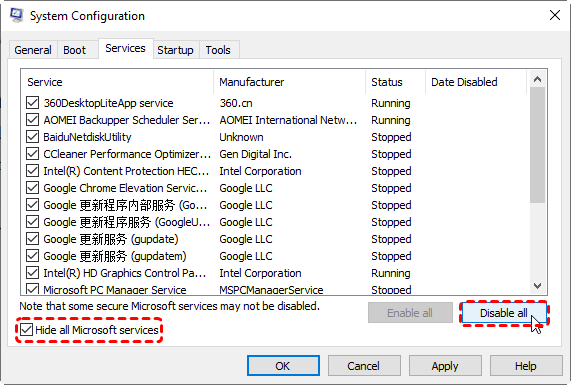
Step 2. Under the "Services" tab, check the "Hide all Microsoft services" and click "Disable all" to turn off all non-Microsoft services. Then, click "Apply" and "OK" to save the changes.
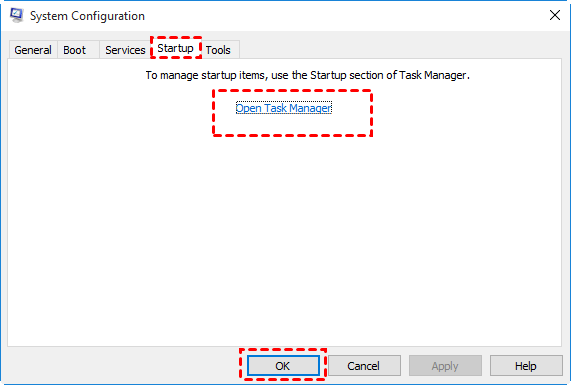
Step 3. Click "Open Task Manager" and select "Startup" tab, disable all apps.
Step 4. Open Command Prompt and run CHKDSK again to check for success.
Format the Drive
If none of the above methods work, you might need to format the drive. Keep in mind that this will erase all data on the drive, so ensure you’ve recovered any important files beforehand.
Step 1. Press "Win" + "X" and select "Disk Management" to open it.

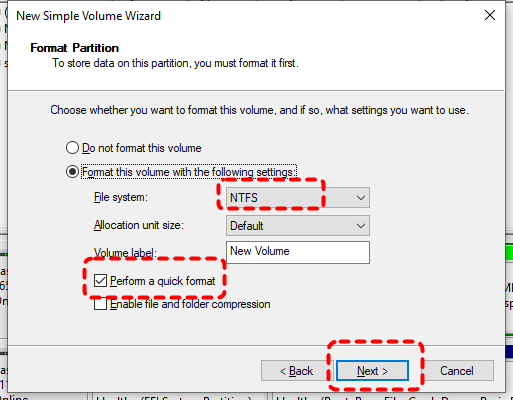
Step 2. Locate the affected drive and right click on it, then click "Format".
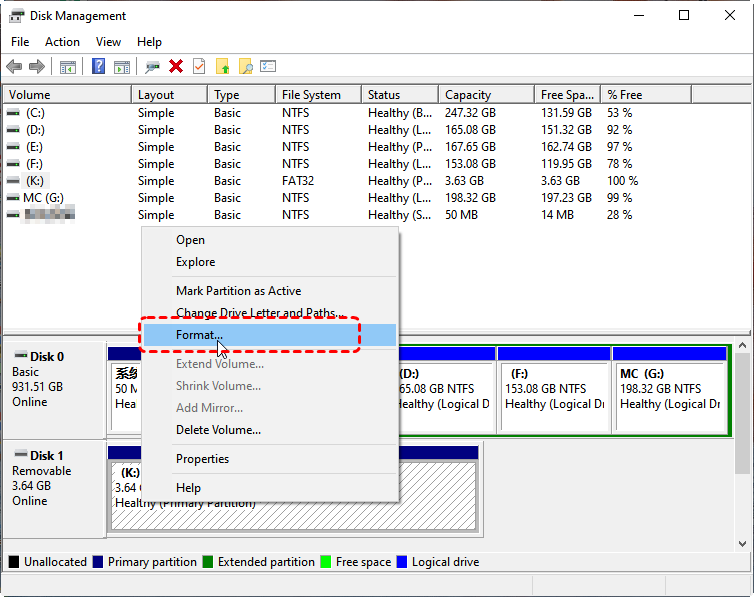
Step 3. Choose a file system and check the "Perform a quick format" option, then click "Start" to begin the process.
The Bottom Line
CHKDSK command "cannot open volume for direct access" error can be frustrating, but with the solutions shared above, you should now be able to address it on USB or other drives. While fixing this issue, remember to keep the data on your drive safe with MyRecover! If you want a more thorough data recovery tool, upgrading to MyRecover Professional edition could give you unlimited data recovery quota and file contents preview before recovery, and even helps you get data back from a crashed system, so you’ll never have to deal with data loss again!

Stay Updated With Our
Latest Tips
Add us as a preferred source on Google to never miss helpful guides.
 Add as preferred source >>