 MyRecover



How to Fix “Current Read Only State: Yes” on USB, SD Cards, and Hard Drives
This guide explains 'current read-only state yes' how to remove using simple DiskPart commands, registry checks, and hardware fixes. Learn why drives become read-only and how to restore full write access without data loss.

By Vera / Updated on July 23, 2026


Introduce
Hi everyone! I need help, I cannot copy files from the computer to usb drive, it says The disk is write-protected. I tried all the YouTube tutorials on how to fix it. However, only the “Read-only: No” was fixed, but the “Current Read-Only State: Yes” doesn’t change. I tried downloading Ufix II but the control disk is empty or the drive doesn’t show. Thank you. Please help me
- Question from https://forums.sandisk.com/
Imagine you are ready to transfer an important presentation or a batch of vacation photos to your USB drive, only to be met with a "Write Protected" error. You check the disk status using Command Prompt, and there it is: "Current Read Only State: Yes." Unlike a simple "Read-only" attribute that you can toggle in file properties, the "Current" state refers to the physical or system-level status of the media.
This error acts as a digital safety lock. While it prevents you from deleting or losing data through accidental modification, it effectively bricks your ability to use the drive for its intended purpose. Whether you are a student trying to save an assignment or a professional managing client data, understanding how to bypass this lock is essential. This guide provides a comprehensive walkthrough to diagnosing and resolving this state, ensuring your hardware remains functional and your data remains safe.
What Does "Current Read Only State: Yes" Mean
When Windows reporting shows Current Read Only State: Yes, it indicates that the hardware environment or the operating system's kernel has placed the device in a protected mode.
Technically, there is a distinction between the "Read-only" attribute and the "Current Read-only State." The former is a software flag you can often change easily; the latter is the "effective" status. If the "Current" state is "Yes," even if the "Read-only" flag is set to "No," the drive will remain locked because the system perceives a hardware or policy-level restriction.
Where You Usually Encounter This Issue
- DiskPart Utility: When querying disk attributes.
- File Explorer: While attempting to format a drive or delete a folder.
- Disk Management: When the drive appears as "Read Only" and options like "New Simple Volume" are grayed out.
- System Crashes: Following an unexpected power failure that triggers a "fail-safe" mode on the drive.
Common Causes of Current Read Only State: Yes
To fix the issue, we must first understand the "Why." Modern flash controllers are designed to protect your data at all costs. If the drive's internal logic senses danger, it will "lock" the gates.
1. Physical Write-Protection: Many SD cards and some USB drives have a physical slider.
2. Drive Wear-and-Tear: NAND flash memory has a limited number of "write cycles." When a drive detects it is reaching its end of life, it may permanently switch to read-only mode to allow you to rescue your data one last time before it dies.
3. Corrupted File System: If the Partition Table or Boot Sector is corrupted, Windows may mount the drive as read-only to prevent further corruption.
4. Registry Policy: A security setting in the Windows Registry might be preventing write access to all removable storage devices.
5. BitLocker or Third-Party Encryption: If an encryption process was interrupted, the drive might stay locked for security.
How to Check Your Disk Status
Before applying fixes, you must confirm exactly which layer is locked. Using DiskPart is the most reliable way to see the "Raw" status of your hardware.
1. In the search bar, type cmd.
2. Right-click Command Prompt and choose Run as administrator.

3. Type diskpart and press Enter.
4. Type list disk to see all connected drives.
5. Type select disk X (replace X with the correct number, e.g., Disk 1).
6. Type attributes disk.
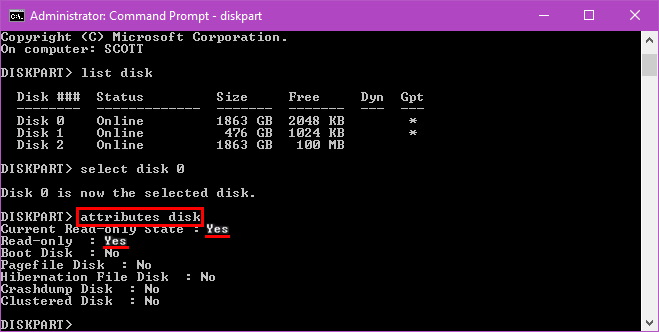
If "Current Read-only State" says "Yes," proceed to the methods below in the order they are listed.
Top 5 Fixes for "Current Read Only State: Yes"
The following are all feasible ways to solve this error.
1. Check the Physical Write-Protect Switch
This is the "Zero-Tech" solution. Many SD card adapters and specialized USB drives have a physical sliding switch. This switch physically breaks the circuit required to send a "write" signal to the flash memory. Try to use an SD card in a laptop or a secure USB drive.
The Fix: Slide the switch to the "Unlock" position. If it is already unlocked, slide it back and forth a few times to ensure the contact isn't stuck.

If your hardware doesn't have a physical switch, or if moving the switch didn't change the status in DiskPart, the restriction is likely software-based, requiring a command-level reset.
2. Clearing Attributes via DiskPart
This method sends a direct command to the Windows storage stack to clear the "Read-Only" flag from the disk's metadata. It's the most common solution for drives that were improperly ejected. Try this way if the drive is healthy but "flagged" as protected by a previous system error.
1. Open Command Prompt (Admin).
2. Type the following commands one by one:
diskpart
list disk
select disk X (Your target drive)
attributes disk clear readonly
exit
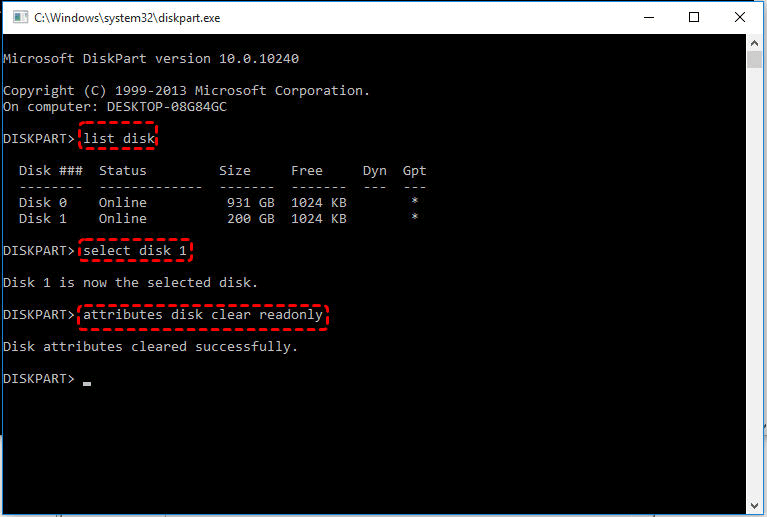
3. If successful, DiskPart will say "Disk attributes cleared successfully."
4. Safely remove the drive. Reconnect it to your computer.
5. Test writing a file.
Sometimes, the "Current Read-only State" remains "Yes" even after DiskPart says success. This usually means a global Windows Policy is overriding your manual command.
3. Modify the Windows Registry (WriteProtect Key)
Windows has a global "StorageDevicePolicies" key that can disable writing to all external drives. This is common in office environments or after a virus infection. By changing the WriteProtect value to 0, we are telling Windows to allow write commands globally.
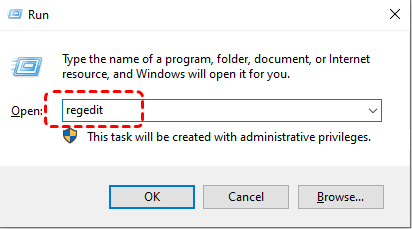
1. Press Windows + R. Type regedit and press Enter.
2. Navigate to: HKEY_LOCAL_MACHINE\SYSTEM\CurrentControlSet\Control\StorageDevicePolicies.
3. If you don't see this folder, right-click Control > New > Key and name it StorageDevicePolicies.
4. Inside, look for WriteProtect. If it's not there, right-click > New > DWORD (32-bit) Value and name it WriteProtect.
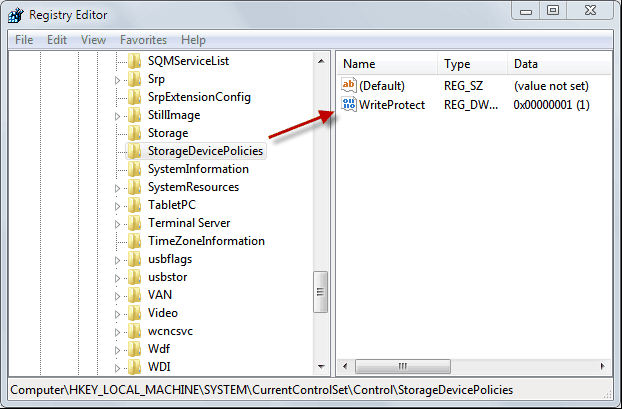
5. Double-click it and set the Value Data to 0.
6. Restart your PC for changes to take effect.
If you are on a professional or school network, the Registry might be locked down by a higher authority—the Group Policy.
4. Check Group Policy Editor (GPO)
Group Policy is used by system administrators to manage computer settings. A policy might be active that denies "Write Access" to removable disks.
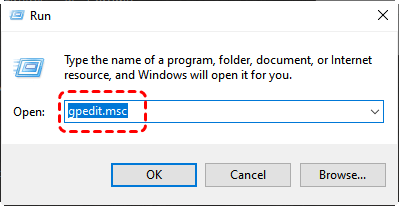
1. Press Win + R, type gpedit.msc. (Note: Only for Windows Pro/Enterprise).
2. Navigate to: Computer Configuration > Administrative Templates > System > Removable Storage Access.
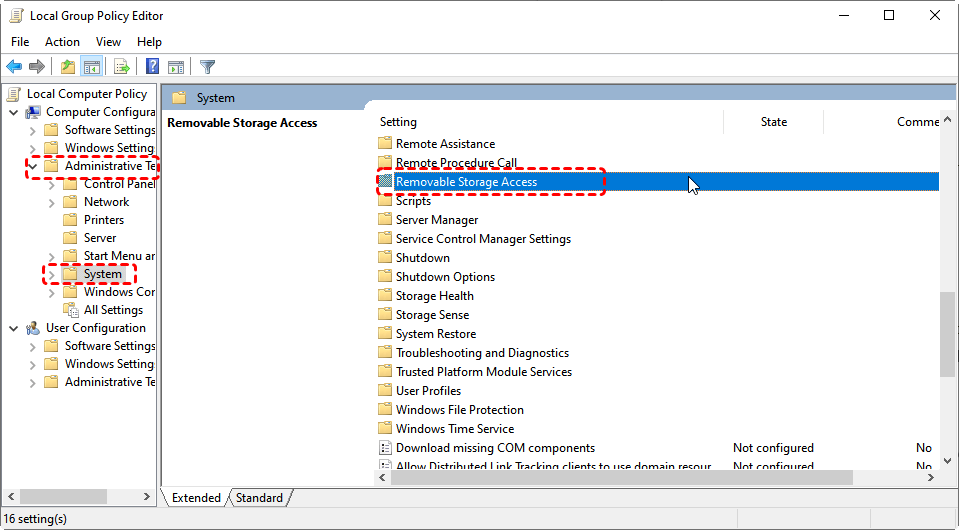
3. Find Removable Disks: Deny write access.
4. Set it to Disabled or Not Configured.
When all software "permission" fixes fail, it usually indicates the file system itself is corrupted. At this point, formatting is the only way to reset the drive structure, but this leads to data loss.
5. Formatting the Drive (The Last Resort)
Formatting wipes the partition table and creates a new file system. This "hard resets" any logical locks. You can try this if the drive is RAW, or none of the above steps worked.
When Formatting Is Safe
- You already backed up your data.
- The drive contains no important files.
- Other fixes failed.
When Formatting Is Risky
- Important files still exist on the disk.
- The drive suddenly turned RAW.
- The disk has hardware issues.
This will erase all data. If you have important files, use the recovery step below first.
Critical Data Protection: Recovering Files from a Read-Only Drive
When a drive is stuck in "Current Read Only State: Yes," you are in a Catch-22: you need to format it to fix the state, but you can't access the files properly to back them up if the drive is failing. This is where a specialized tool like MyRecover becomes indispensable.
Why MyRecover for Read-Only Errors?
Unlike standard file explorers that might hang when encountering a read-only or RAW drive, MyRecover is engineered to bypass standard OS mounting restrictions.

 MyRecover
- ✨Deep Scan for "Locked" Drives: It can penetrate the directory structure of a drive even when Windows refuses to write or modify it.
- ✨Recovery Before Repair: It allows you to extract your data to a safe location before you perform a destructive format to fix the "Read Only" state.
- ✨High Success Rate: Supports over 1000+ data types, ensuring your photos, documents, and videos are recovered with their original filenames and paths.
 100% Secure
How to Use MyRecover to Rescue Your Data:
1. Install MyRecover: Download and install MyRecover on your computer (not on the affected drive).
2. Open MyRecover: Launch the program after installation.
3. Choose the Problem Drive: Select the read-only or affected drive and click Scan.

4. Scan for Lost Files: Wait while MyRecover scans the drive.
5. Select Files to Recover: Preview and choose the files you need.
6. Recover Files: Click Recover and save files to a different drive.

For best results:
- Stop using the affected drive immediately.
- Run MyRecover before writing new data.
- Save recovered files to a different storage device.
Used early, recovery success rates are significantly higher.
Conclusion
The "Current Read Only State: Yes" error is a formidable barrier, but it is rarely permanent. By systematically checking physical switches, clearing software attributes via DiskPart, and verifying system policies, most users can regain access.
Remember: If the software fixes fail, do not keep trying to "force" the drive to work, as this can lead to total hardware exhaustion. Use MyRecover to perform data recovery first, then proceed with formatting or replacing the drive. Good digital hygiene, such as safely ejecting drives and keeping backups, will prevent this headache in the future.
FAQ: Expert Troubleshooting for Read-Only States
1. Why does my drive say "Current Read-only State: Yes" but "Read-only: No"?
This is a common point of confusion. "Read-only: No" means the software attribute is clear. However, "Current Read-only State: Yes" means the hardware or the OS kernel has locked the drive. This usually points to a physical switch, a registry restriction, or a disk that has reached its end-of-life (wear-leveling lock).
2. Can a virus cause my USB to become write-protected?
Yes. Some malware modifies the Windows Registry to disable write access to prevent antivirus tools on the USB from running. If you suspect this, use Method 3 to check your Registry and run a full system scan.
3. I tried the DiskPart "clear readonly" command, but it says "Windows failed to clear disk attributes." What now?
This error often occurs if the drive is physically failing. When the flash controller detects hardware failure, it permanently locks the drive. Your priority should be using MyRecover immediately to pull your data off before the drive becomes completely unreadable.
4. Will formatting a read-only drive always fix the "Current Read-only State"?
Not always. If the state is caused by a physical hardware failure (wear-out), even a low-level format will fail. However, if the cause is a corrupted file system, formatting will solve it.
5. How does MyRecover help if I can't even open the drive in File Explorer?
MyRecover uses advanced scanning algorithms that communicate with the disk at a lower level than Windows File Explorer. Even if the drive shows as "RAW" or "Inaccessible," MyRecover can often still see the data bits and reconstruct your files.
6. Can I use CHKDSK to fix a drive in "Current Read Only State: Yes"?
No. CHKDSK requires write access to repair file system errors. If the drive is in a read-only state, CHKDSK will return an error saying "The type of the file system is RAW. Chkdsk is not available for RAW drives" or "The disk is write-protected."

Stay Updated With Our
Latest Tips
Add us as a preferred source on Google to never miss helpful guides.
 Add as preferred source >>