 MyRecover



DaVinci Resolve Project Recovery: Fix Crashes & Lost Saves Fast
This guide covers DaVinci Resolve project recovery after unexpected crashes or power loss. Learn where DaVinci Resolve projects are saved in Windows folders, how to restore autosaves, and fix "not saving" issues. Recover projects quickly without panic.

By Delores / Updated on June 5, 2026


Can I Recover Deleted DaVinci Resolve Projects?
DaVinci Resolve Projects disappear. How to recover them?
I stayed working overnight on color for a video clip and editing for a short. The day before I opened the program, those two projects had disappeared; they don't appear in the project manager or anywhere else.
I have Davinci Resolve 18 Pro and MacBook M1 Pro, and I edit from a Samsung T5 external drive
Is there a way to recover those projects? I don't have a backup on other disks
- Question from forum.blackmagicdesign.com
DaVinci Resolve freezes while editing, or the power cuts out. You reopen the software, and your project is just gone. If you are stuck in the same situation, don't worry.
This guide covers everything from autosave locations to manual database digging, including a full walkthrough using MyRecover for worst-case scenarios.

By the end, you'll know how to recover DaVinci Resolve project after a crash, fix the "not saving" issue, and more. Let's get started now.
Why Davinci Resolve Projects Disappear or Refuse to Save
If your DaVinci Resolve projects are missing, there are multiple reasons should be responsible for the data loss:
⭕ Running out of hard drive space during autosave.
⭕ Forcing Resolve to close via Task Manager.
⭕ Windows updates that restart your PC overnight.
⭕ Antivirus software quarantines Resolve's project files.
⭕ A single corrupted index file can make the entire project invisible inside Resolve's Project Manager.
Before you can recover anything, you need to know where Resolve stores its projects.
Where Are DaVinci Resolve Projects Saved on Windows?
Where are Dvainci Resolve projects saved in Windows 11/10? Resolve saves projects using a database structure instead of saving them as individual .drp files.
The Default DaVinci Resolve Project Database Folder Path
For the standard Disk Database (used by most free users), the path is:
- C:\Users\YourUserName\AppData\Roaming\Blackmagic Design\DaVinci Resolve\Support\Resolve Disk Database\Resolve Projects\Projects
The "AppData" folder is hidden by default, so you'll need to type %appdata% into File Explorer to jump there directly.
DaVinci Resolve Project Autosave Backups Folder
Resolve also keeps autosaves in a separate cache folder:
- C:\Users\YourUserName\AppData\Roaming\Blackmagic Design\DaVinci Resolve\Cache\AutoSave
Inside, you'll find folders named after your projects, each containing timestamped .autosave files.
Where Are DaVinci Resolve Projects Saved on Mac?
Here is the default save location for DaVinci Resolve projects on Mac:
/Users/your_username/Library/Application Support/Blackmagic Design/DaVinci Resolve/Support/Resolve Disk Database/
Note: The Library folder is hidden. To access it, open Finder → Go menu → hold the Option (⌥) key → select Library.
Shortcut: Inside DaVinci's Project Manager, right-click your database and choose "Open File Location".
DaVinci Resolve Project Recovery After Crash | 4 Ways
You've reopened Resolve, and your project isn't on the list. Don't start a new one yet. Here's exactly how to perform DaVinci Resolve project recovery after a crash using the built-in tools.
Way 1. Restore Auto-Saved Projects from the Project Manager
1. Open DaVinci Resolve and go to the Project Manager window.
2. Look for a small clock icon or "Project Backups" button (varies slightly by version).
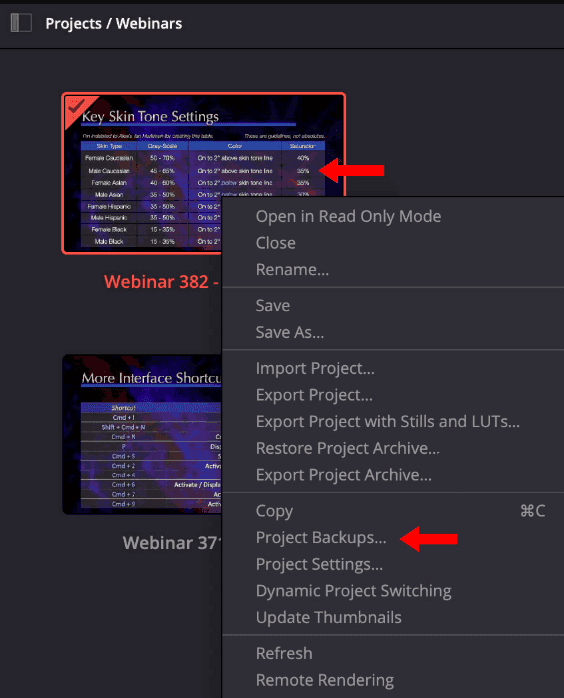
3. Click it. Resolve shows a list of autosaved versions with timestamps.
4. Select the most recent one before the crash and click "Load".
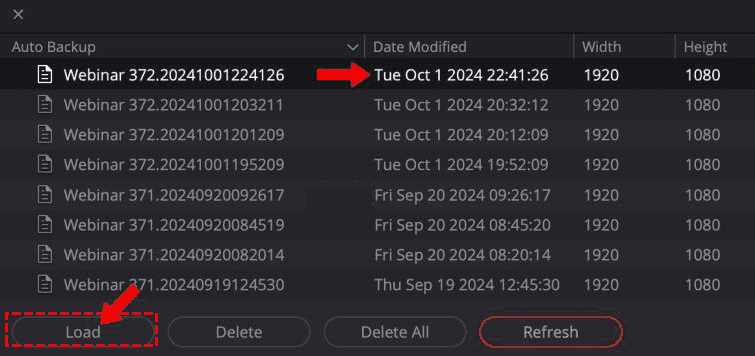
If that works, you're done. If not, move to manual recovery.
Way 2. Manually Recover Projects from the Resolve Database Folder
1. Close Resolve completely.
2. Navigate to the folder: Resolve Disk Database\Resolve Projects\Projects.
3. You'll see folders with numeric or alphanumeric names; each is a project.
4. Copy the entire folder for your missing project to your desktop as a backup.
5. Inside that folder, look for a file named Project.xml or Project.drp.
6. Delete the Project.xml file (yes, delete it—it's corrupted).
7. Find the most recent .autosave file from the Cache\AutoSave folder.
8. Rename that .autosave file to Project.xml and copy it into your project folder.
9. Reopen Resolve. Your project should reappear.
This manual swap often fixes corruption that the Project Manager can't handle.
Way 3. Import A .drp/.dra File to Restore DaVinci Resolve Project
How to find Project backups in DaVinci Resolve? If you manually exported your project as a .drp (DaVinci Resolve Project) file or a .dra (Project Archive) file, you can easily restore it.
1. Go to the Project Manager and right-click in an empty area.
2. Select Import Project (or Restore Project Archive if you backed up the media as well).
3. Navigate to where you saved the .drp or .dra file and click Open.
Way 4. Reconnect The Entire Project Library
If your entire database (Project Library) has gone, you can reconnect to it to restore DaVinci Resolve projects.
1. On the Project Manager screen, click the Show/Hide Project Libraries icon at the top left.
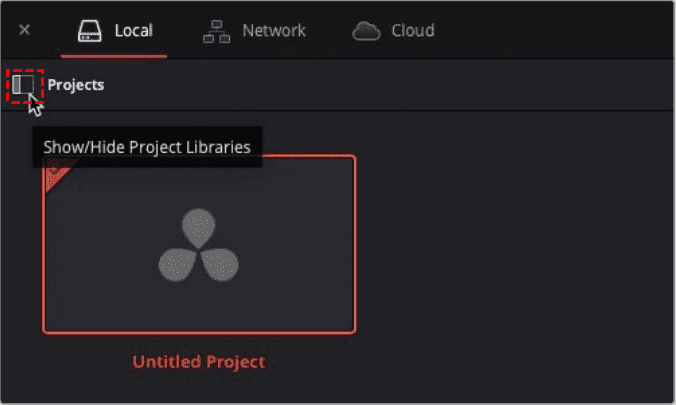
2. Click Restore (the downward arrow icon).
3. Locate the folder where your database is saved (usually contains a Resolve Disk Database folder or project.db files) and select it to restore it to Resolve.
How to Fix DaVinci Resolve Not Saving Project Changes
Hitting Ctrl+S and seeing nothing happen. If Davinci Resolve not saving the project is your issue, try these fixes.
Way 1. Check Disk Permissions and Antivirus Interference
Resolve needs write access to its database folder. If your antivirus is set to "ransomware protection" or "controlled folder access", it might block Resolve without telling you.
1. Go to Windows Security > Virus & Threat Protection > Ransomware Protection.
2. Click Allow an app through Controlled Folder Access.
3. Add Resolve.exe (found in C:\Program Files\Blackmagic Design\DaVinci Resolve).
4. Also, check that your user account actually owns the folder: AppData\Roaming\Blackmagic Design.
5. Right-click it > Properties > Security > make sure your name has Full Control.
Way 2. Reset Resolve Preferences to Restore Save Functionality
Sometimes a corrupted preference file causes the save to fail silently.
1. Close Resolve.
2. Hold down the Shift key while reopening the software.
3. A dialog appears asking if you want to reset preferences. Click Yes.
Or you can try this:
1. Open DaVinci Resolve Studio, click DaVinci Resolve from the menu bar.
2. Choose Preferences.
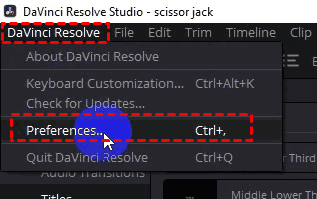
3. Click System > Three-dots icon > Reset System Preferences.
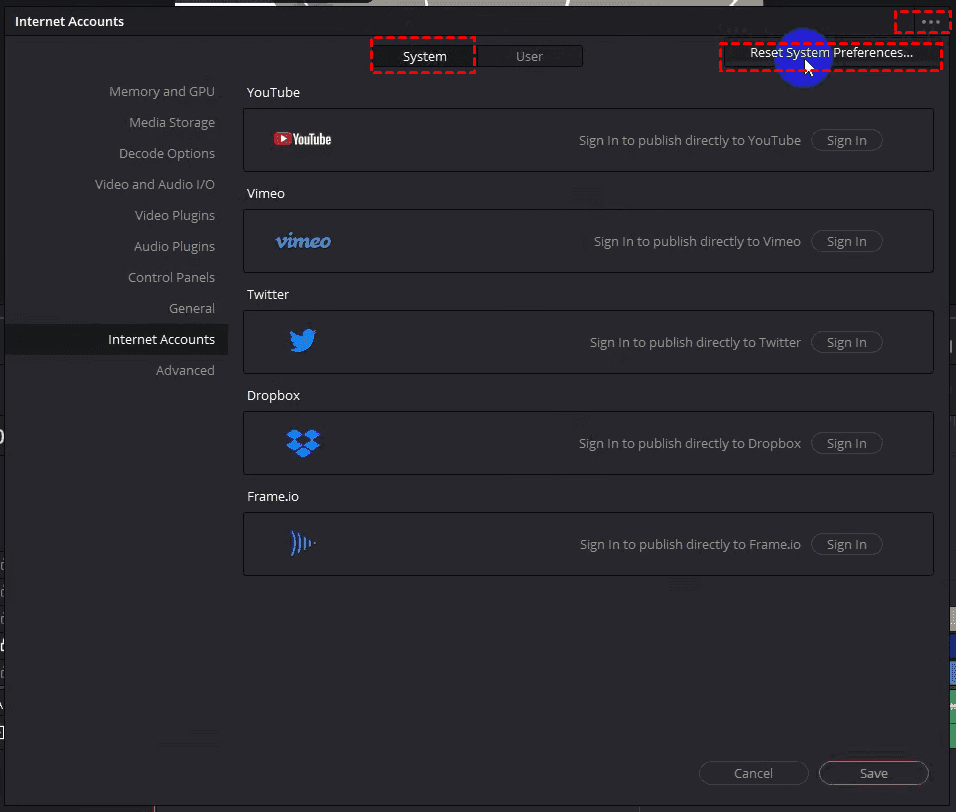
4. Then click User > Three-dots icon > Reset User Preferences.
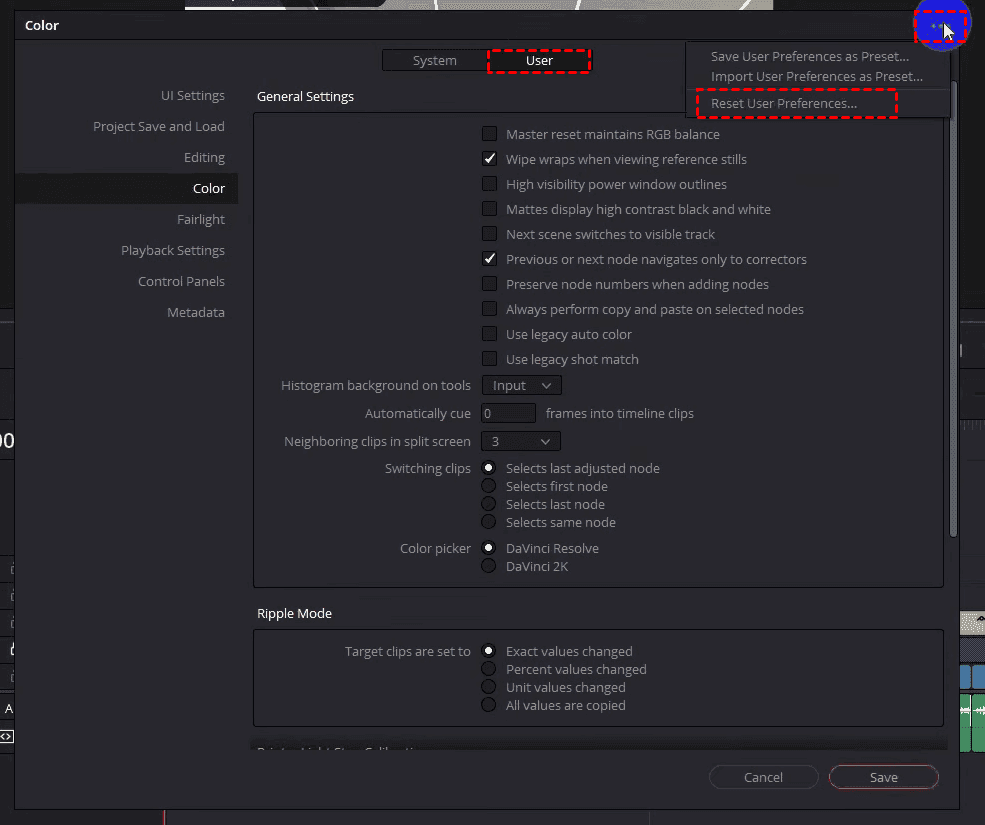
This won't delete projects, but it will reset UI layout, render settings, and keyboard shortcuts.
Ultimate Guide to Recover Deleted DaVinci Resolve Projects via MyRecover
If you accidentally deleted the entire Resolve Projects folder or formatted a drive, normal recovery methods won't work. That's when you need professional Windows data recovery software. MyRecover is one of the most reliable options for Windows because it scans raw disk sectors and finds missing files even Windows can't.
MyRecover key features specifically for recovering deleted DaVinci Resolve projects:
- Recovers 1000+ file types, including .drp, .autosave, .xml, and video files (.mp4, .mov, .avi) used by Resolve.
- Deep Scan for buried data. It recovers old or overwritten project files that Quick Scan misses.
- Preview before recovery. It lets you verify the correct project file before restoring, avoiding junk data.
- Handles formatted drives. Rescue projects if you accidentally formatted the drive containing your Resolve database.
- Supports 500+ devices. So you can recover projects directly from external backup drives or media cards, etc.
Here is how to recover deleted DaVinci Resolve projects via MyRecover:
Note: Stop using the Drive immediately once you find your projects are missing. Every new file you save risks overwriting the deleted project data. If Resolve was installed on your C: drive, avoid browsing, downloading, or installing anything.
1. Download and install MyRecover on a different drive and launch it now.
 100% Secure
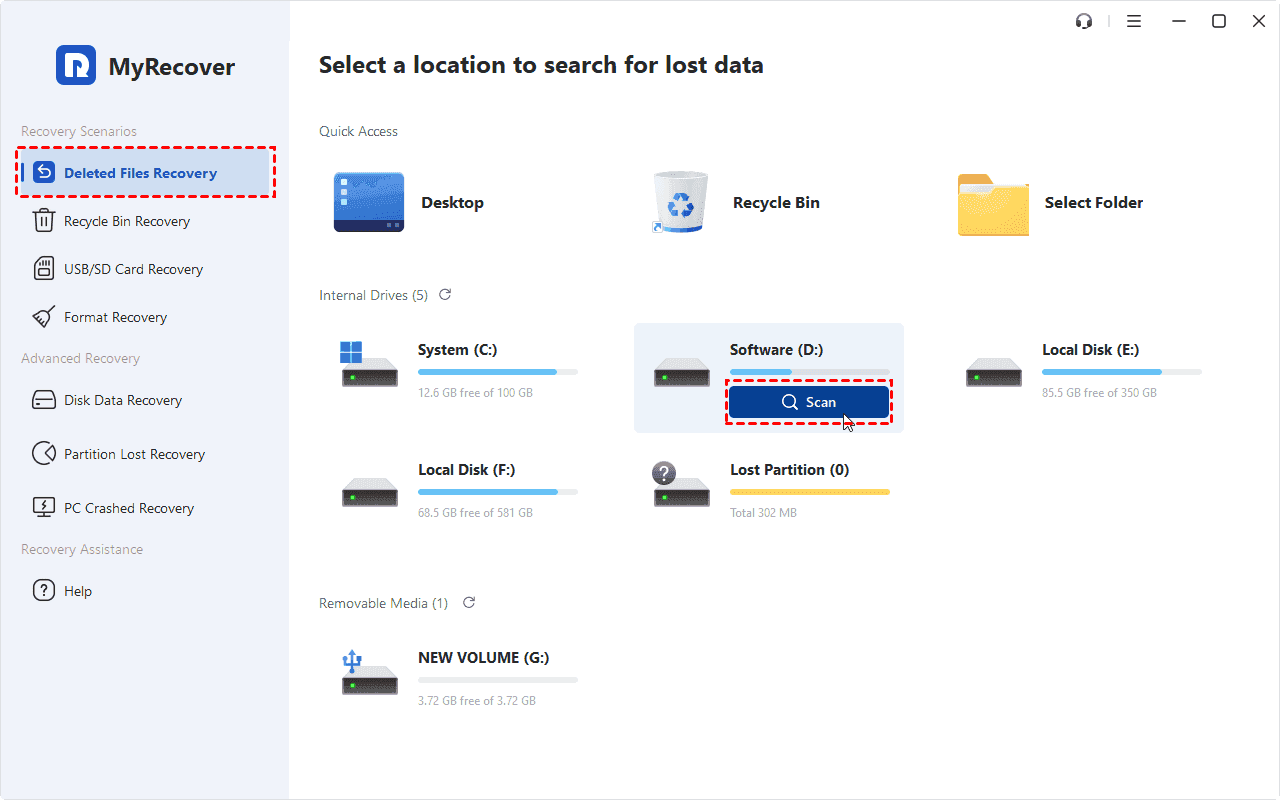
2. Tap Deleted Files Recovery, hover over the drive that contained your Resolve database (usually C:), and hit Scan.
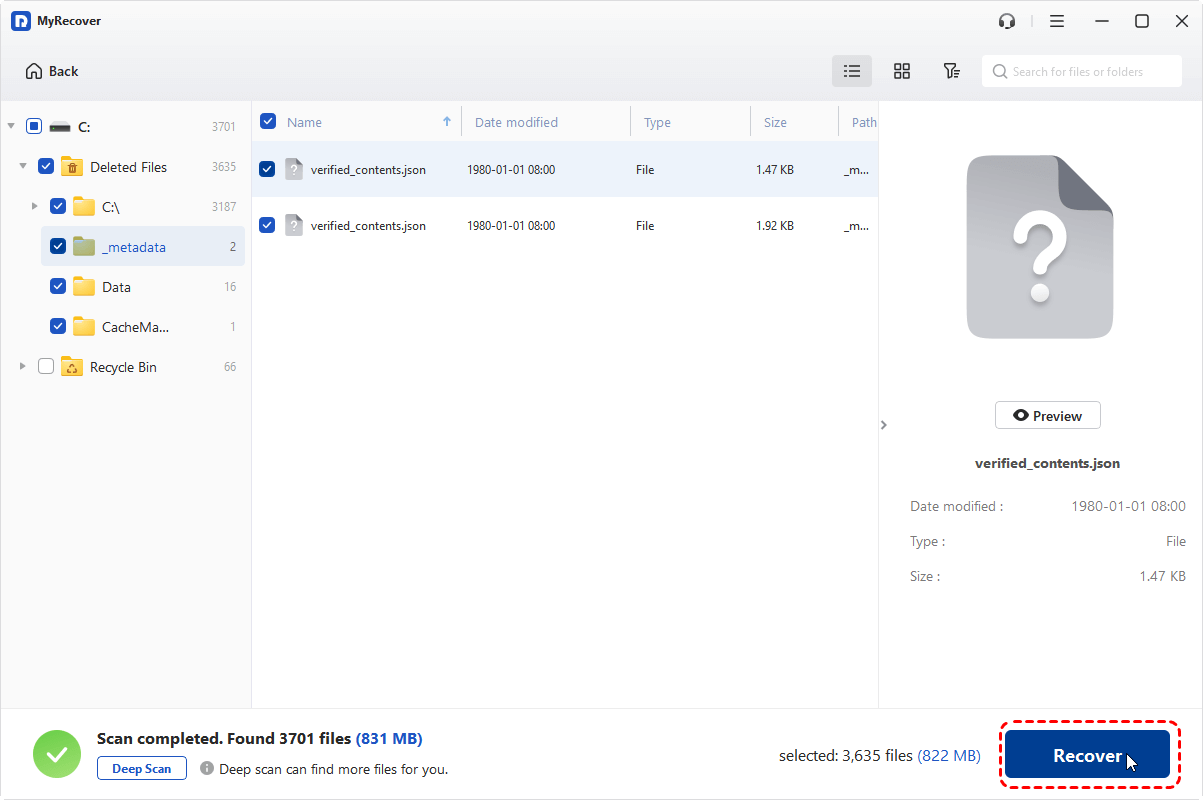
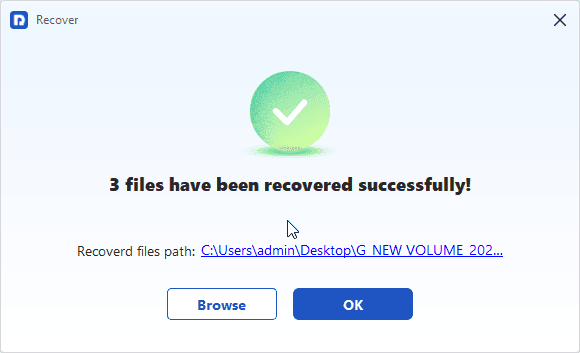
3. Preview and select the DaVinci Resolve project files you need once scanned, and hit Recover.
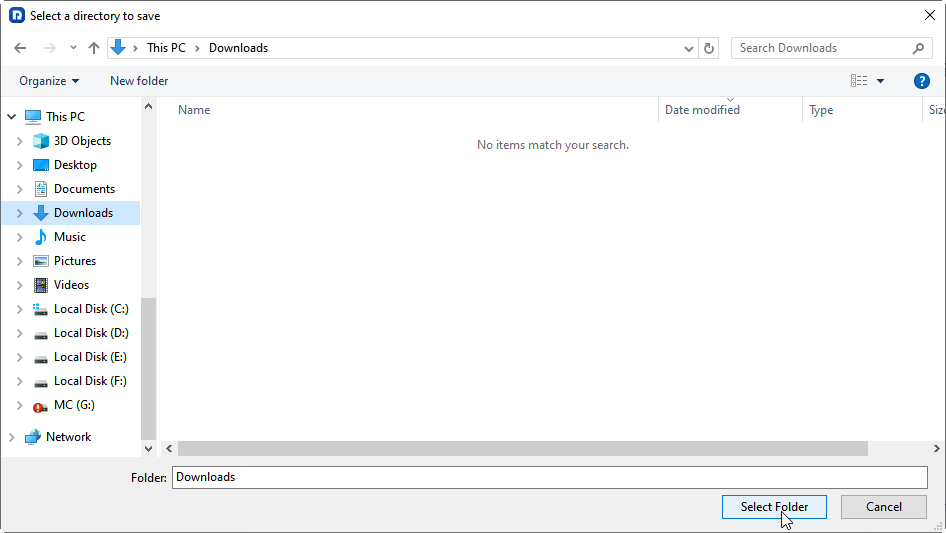
4. Choose an external hard drive or another safe location and hit Select Folder to keep them safe.
- Notes:✎...
- MyRecover runs a quick scan for recently deleted files by default. Then you can perform a deep scan if you can't find DaVinci Resolve project files.
- Use the search bar and type .db, or Project.xml, or Resolve Projects. MyRecover will show any deleted files matching those terms. You can also filter by date modified to narrow results.
- After recovering, go to the destination folder, then copy the recovered Resolve Projects folder back to %appdata%\Blackmagic Design\DaVinci Resolve\Support\Resolve Disk Database\. Then reopen Resolve. Your project should be back.

 MyRecover
- Recover Deleted Files Easily with Simple Clicks
- 1000+ File Formats Supported
- Support HDD, SSD, External Hard Drive, USB Drive, SD Card, etc./li>
- Quickly Find Files Using File Types, Name, Size, etc.
- Preview Files Before Recovering
- Recover Unlimited Data
 100% Secure
How to Prevent Future DaVinci Resolve Project Loss
Enable Live Save and Increase Autosave Frequency
How to back up DaVinci Resolve Projects? Try this:
Go to Davinci Resolve > Preferences > User > Project Save and Load.
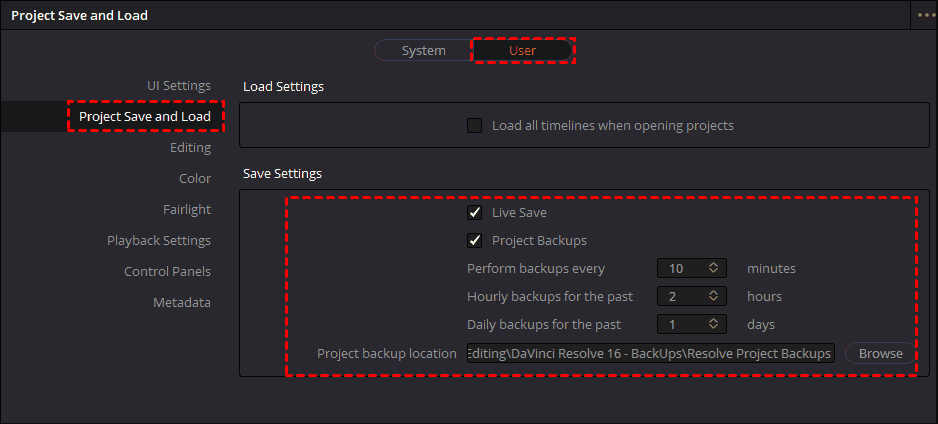
- Turn on Live Save – this saves your project after every single edit.
- Set Project Backups to every 2 minutes.
- Set the maximum project backups to 50 or higher.
Set Up Regular Exports of Project Archive Backups
Resolve can export a .drp (project file) or .dra (archive with media). Do this manually once a day if you're on a long project:
1. File > Export Project > browse to an external drive or cloud folder.
2. Name it with the date: MyProject_2025-05-26.drp
FAQs About DaVinci Resolve Project Recovery
Q: Can I recover a DaVinci Resolve project after a crash if I never saved it?
A: Yes, if autosave was on. Go to Cache\AutoSave, rename .autosave to Project.xml, and place it in a new project folder inside Resolve Projects.
Q: Where are the DaVinci Resolve projects saved on Windows if I'm using the cloud version?
A: The cloud (Blackmagic Cloud) stores projects on Blackmagic's servers, not locally. But local cache is at %appdata%\Blackmagic Design\DaVinci Resolve\Support\Resolve Disk Database\.
Q: Why does DaVinci Resolve not save the project after a Windows update?
A: Windows may reset folder permissions or re-enable Controlled Folder Access. Check antivirus/ransomware settings and ensure AppData\Roaming\... isn't "Read Only".
Q: Can I use MyRecover to restore a project I deleted months ago?
A: Possibly, but the odds drop the longer you wait. Run a deep scan—if file names appear, recovery may work.
Q: What's the difference between a .drp file and a .autosave file in Resolve?
A: A .drp is a full project export. A .autosave is a database-specific backup that also includes project settings and cache links. To restore an autosave manually, rename it to Project.xml (not .drp).
Q: Will resetting Resolve preferences delete my projects?
A: No. Resetting preferences only affects settings like UI layout, render presets, and keyboard shortcuts. Your projects remain untouched in the database.
Q: How do I know if my DaVinci Resolve project database is corrupted?
A: Symptoms include: a project missing from the Project Manager, Resolve crashing when clicking the project name, or a "Database Error" pop-up. Open Project.xml in Notepad—gibberish or unopenable, it's corrupted.
Q: Is it safe to copy the entire Resolve Projects folder to a USB drive as a manual backup?
A: Absolutely. In fact, copying the whole Resolve Disk Database folder to an external drive or cloud folder is one of the best ways. To restore, just copy it back to the same location.
Q: How to save DaVinci Resolve Project as MP4 or video?
A: Click the Deliver tab (rocket icon at bottom). Choose a File Name and Location. Under Format, select MP4. Click "Add to Render Queue", then click "Render All" to export your video.
The End
DaVinci Resolve Project recovery is easy. Check autosaves first, then manual folder swaps, then MyRecover for deleted files. And from now on? Turn on Live Save, export weekly backups, and know exactly where DaVinci Resolve projects are saved in Windows and Mac, so you can grab them anytime.

Stay Updated With Our
Latest Tips
Add us as a preferred source on Google to never miss helpful guides.
 Add as preferred source >>