 MyRecover



How to Recover Recently Deleted Files on Windows 11 or 10 in 5 Ways
Are deleted files truly lost forever? This guide explores various ways to recover recently deleted files in different cases. From restoring files from the Recycle Bin to using Windows built-in recovery features and professional data recovery tools, we cover effective methods to help you retrieve lost data.

By Delores / Updated on August 20, 2026


Quick Answer: How to Recover Recently Deleted Files
Can you recover recently deleted files? Yes — in most cases, you can recover recently deleted files on Windows 11/10. How to recover recently deleted files in Windows 11, 10? Start with the Recycle Bin or press Ctrl+Z, then use File History / Previous Versions, and turn to data recovery software (such as MyRecover) if the file was permanently deleted (Shift+Delete or an emptied Recycle Bin). Act immediately and stop writing new files to the drive, because deleted data gets overwritten fast — especially on SSDs with TRIM enabled.
Which Recovery Method Should You Try First?
To help you choose the best way to recover recently deleted files, you can learn the important information from the chart below.
| If your situation is… | Best solution |
|---|---|
| File deleted normally, Recycle Bin not emptied | Restore from Recycle Bin |
| You deleted it just now in File Explorer | Press Ctrl+Z (Undo) |
| Shift+Delete / Recycle Bin emptied, File History was on | Restore previous versions / File History |
| File lived in OneDrive or Google Drive | Restore from the cloud trash |
| Permanently deleted with no backup | Scan with MyRecover (data recovery software) |
Are Recently Deleted Files Gone Forever?
Not necessarily. When you delete a file on your computer, it doesn’t immediately disappear. In most cases, the file is simply marked as deleted, and the space it occupies is made available for new data. However, the actual file content remains on the storage drive until it gets overwritten by new information. The faster you act, the better your odds.
Soft Deletion vs. Hard Deletion
Soft Deletion: Moving to the Recycle Bin
If you delete a file using the “Delete” key or the right-click “Delete“ option, Windows moves it to the Recycle Bin instead of permanently erasing it; that's soft deletion. The file remains intact in the Recycle Bin, retaining its original structure, metadata, and content.
Hard Deletion: Permanent Deletion
If you empty the Recycle Bin or delete files using Shift + Delete, they no longer appear in the Recycle Bin. The file is no longer visible in the file system, but it still physically exists on the hard drive or SSD.
What Happens When You Delete a File?
Deleting a file is a two-phase process: logical removal (soft deletion) and physical removal (hard deletion). The operating system handles these phases separately, which creates a window of time where the data still exists but is inaccessible through normal means.
Phase 1 - A: Soft Deletion (Recycle Bin / Trash)
When you first delete a file using the “Delete” key or the right-click “Delete“ option, the operating system performs only administrative changes; no data is touched.
1. Directory Entry Relocation: The file system moves the file's reference entry out of the active directory structure and into a temporary subdirectory (the Recycle Bin on Windows, Trash on macOS/Linux).
2. No Disk Modification: The system does not alter, erase, or overwrite the actual data clusters on the storage medium. The file's binary content (0s and 1s) remains completely intact at its original physical location.
The file is fully recoverable. Restoring it requires only that the file system moves the directory entry back to its original location — which takes milliseconds.
Phase 1 - B: Deeper Soft Deletion — Pointer Removal (Emptying Trash or Shift+Delete)
Emptying the Trash or pressing Shift+Delete performs a deeper logical deletion by removing all references to the data, but it is still logical, not physical, deletion:
1. Pointer Removal: The system erases the file's entry from the Master File Table (NTFS), the Inode table (ext4/APFS), or the equivalent directory structure for the file system in use.
2. Space Allocation Update: The system updates the storage volume's free-space bitmap — the master map that tracks which clusters hold active data and which are available for new writes. The clusters that previously held your file are now marked as "free" or "available".
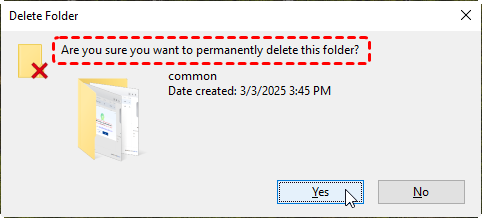
The file is no longer accessible through the operating system's user interface or standard APIs, so it appears "permanently deleted". However, the original binary data persists in those clusters — the storage medium still contains the exact sequence of 1s and 0s that constituted your file. The data remains recoverable with specialized software until new writes overwrite those freed clusters.
Phase 2: Physical Overwrite — Hard Deletion
The permanent destruction of the file occurs only when the system writes new data to those specific clusters:
1. New File Allocation: When you save, download, or create a new file, the operating system consults the free-space bitmap to identify available clusters.
2. Physical Write Operation: The system writes the new file's binary data directly into the clusters that were previously marked as free. This write operation physically alters the magnetic state of the platters (on HDDs) or the electrical charge state of the NAND cells (on SSDs) to represent the new information.
3. Data Replacement: The original binary sequence is completely replaced by the new sequence. The old data no longer exists at the physical level.
The original file is irreversibly destroyed. Data recovery is no longer possible for the overwritten portions.
⚠️ SSD caveat: On modern SSDs, the TRIM command silently clears deleted blocks. After a few hours of normal use, recovery odds on an SSD drop sharply. On a traditional HDD, deleted files can survive much longer if you stop using the drive.
Is There a Way to Recover Recently Deleted Files?
Yes! There are several ways to recover recently deleted files, depending on how and where they were deleted. Whether they were removed from the Recycle Bin, permanently deleted, or lost due to system crashes, different recovery methods can help restore your files. The sooner you attempt recovery, the higher the chances of success.
How to Recover Files Recently Deleted in 5 Easy Ways
The method you use to recover recently deleted files depends on how they were deleted. Below are different scenarios and their respective recovery solutions.
Way 1. Recover Files Recently Deleted from the Recycle Bin
If you deleted a file using the Delete key or right-clicked and selected Delete, it is likely in the Recycle Bin unless the bin was emptied. Then you can directly restore it from the Recycle Bin:
Step 1. Open the "Recycle Bin" by double-clicking its icon on the desktop.
Step 2. Locate the deleted file using the search bar or by browsing.
Step 3. Right-click the file and select "Restore".
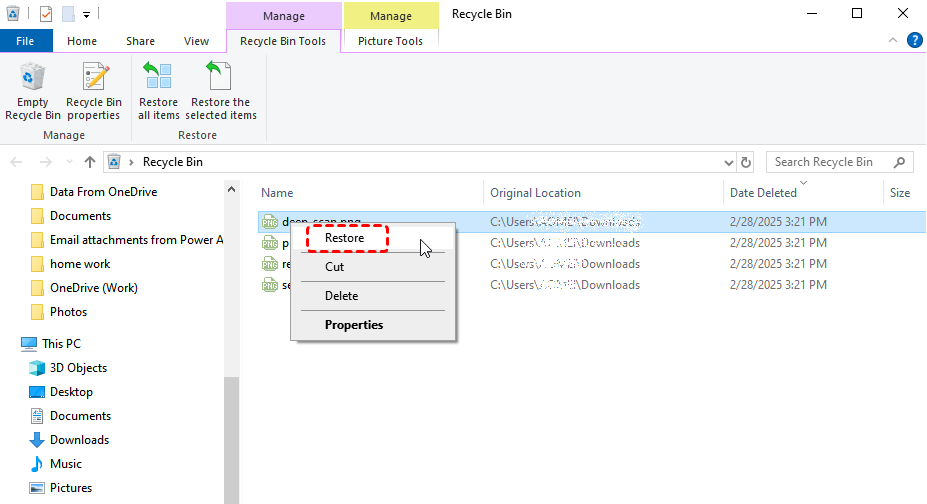
The file will be restored to its original location.
✔️When this method works: If the file was recently deleted and the Recycle Bin hasn’t been emptied.
❌When this method won’t work: If the Recycle Bin was emptied or the file was deleted using "Shift + Delete".
Way 2. Undo the Recently Deleted with Ctrl+Z (the 5-second fix)
If you deleted the file in File Explorer moments ago, the quickest fix is Undo:
1. Go back to the folder where the file was.
2. Press Ctrl+Z, or right-click the space and choose Undo delete.
✔️ When this method works: Works only if deleting was your very last action and you haven't restarted or done other work since.
❌ When this method won’t work: Fails after Shift+Delete or any later action in that window.
Way 3. Recover Permanently Deleted Files With Previous Version
If you emptied the Recycle Bin or used Shift + Delete, Windows no longer tracks the file, but it may still exist on the storage drive until overwritten. If you have enabled previous versions for your deleted files, you can try the following steps.
Using File History (Windows 10/11)
If File History was enabled before deletion, you can recover lost files:
Step 1. Open File Explorer and click on the drive folder that contained the deleted files.
Step 2. Right-click on the folder name, and then select "Restore previous versions".
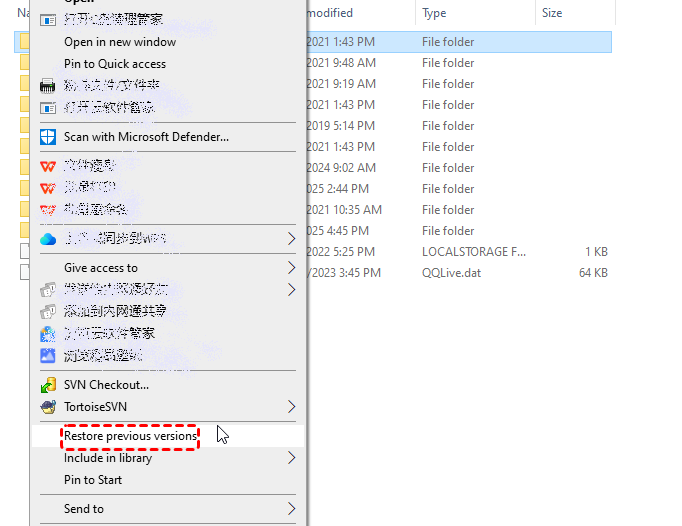
Step 3. The Previous Versions tab lists the available previous versions of the file or folder.
Step 4. Select a previous version of files you want to restore.
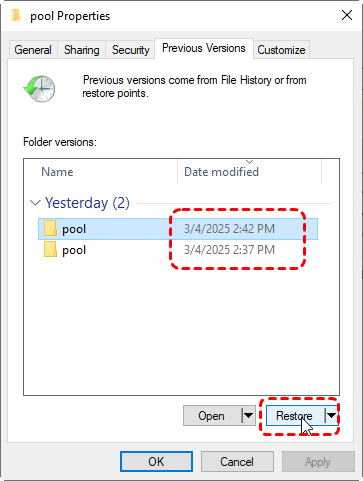
Using Previous Versions
Windows automatically creates system restore points, which may include earlier versions of files. In such a case, you can recover files recently deleted in the following steps.
Step 1. Right-click the folder where the file was stored and select "Properties".
Step 2. Click the "Previous Versions" tab.
Step 3. If a version is available, select it and click "Restore".
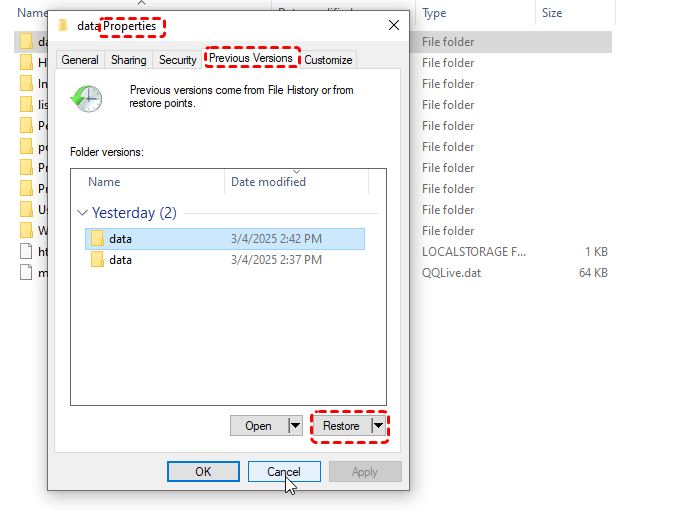
✔️When this method works: If File History or System Protection was enabled before the file was deleted.
❌When this method won’t work: If File History was not enabled or if the restore points do not contain the deleted file.
Way 4. Recover Files Recently Deleted Files from Cloud Storage
If your files were stored in a cloud service, they might still be in the trash or have a recoverable version. The following focuses on how to recover files recently deleted from OneDrive and Google Drive.
Recover Files Recently from OneDrive
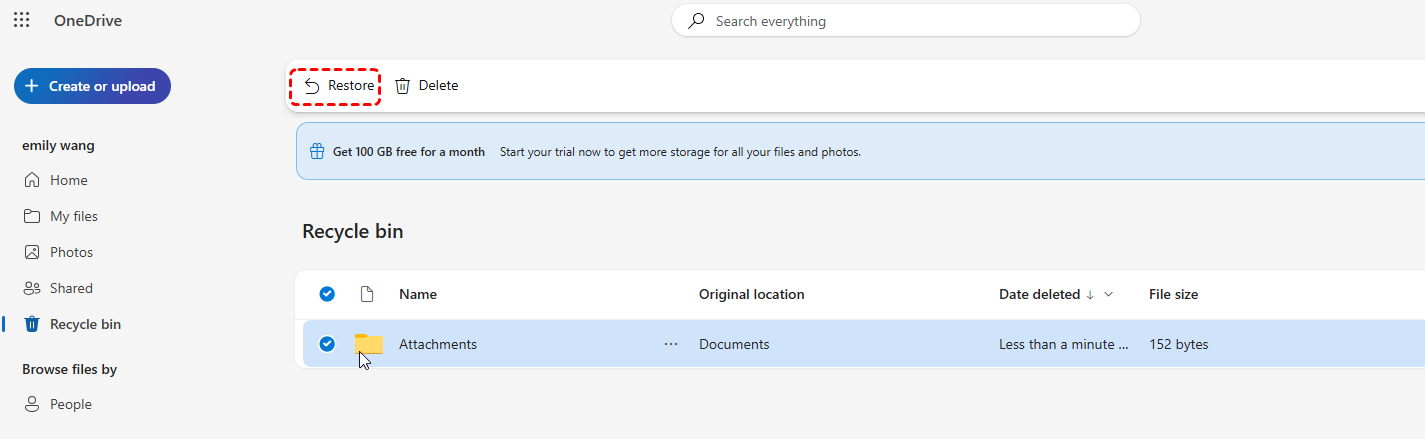
1. Go to OneDrive.com and sign in.
2. Click on Recycle Bin from the left panel.
3. Locate the deleted file and click "Restore".
Recover Files Recently from Google Drive
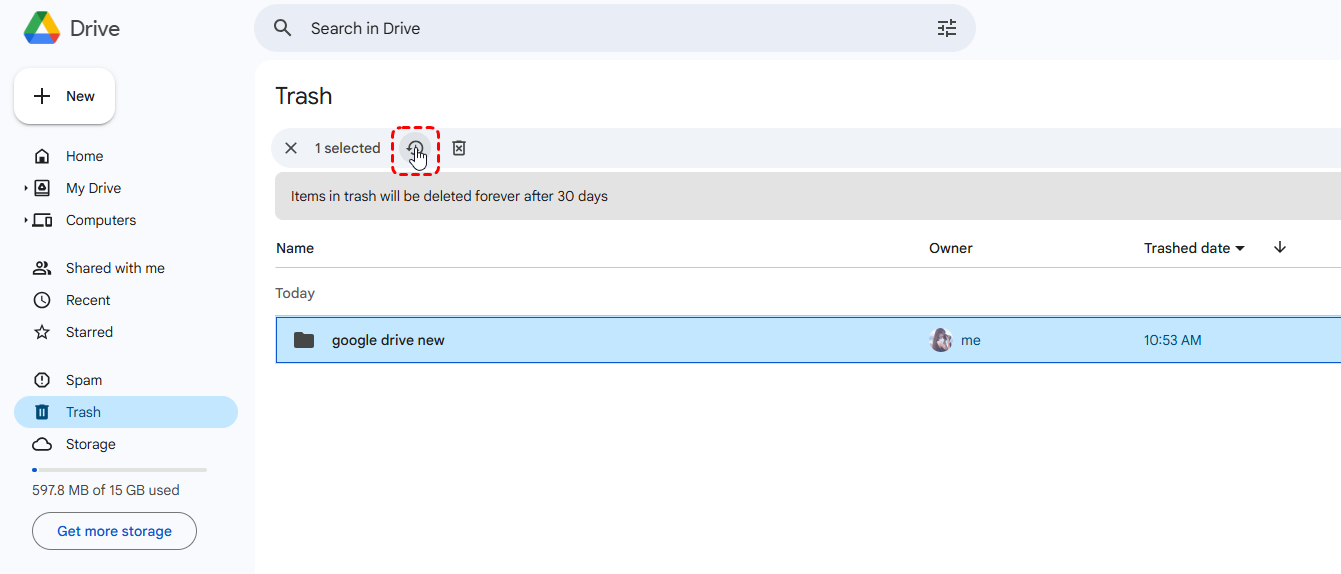
1. Open Google Drive in your browser.
2. Go to Trash and find the deleted file.
3. Right-click the file and select “Restore”.
✔️When this method works: If the file was deleted within the past 30 days (or longer if you have a premium account).
❌When this method won’t work: If the cloud storage’s trash folder has been emptied.
Way 5. Recover Recently Deleted Files Using Data Recovery Software - MyRecover
When there's no Recycle Bin copy, no backup, and no previous version, a data recovery tool is your best bet. MyRecover is a Windows data recovery program we tested on deleted, formatted, and crashed drives; it scans the free space before it's overwritten and rebuilds recoverable files. So, you can recover files recently deleted in Windows 11, Windows 10, Windows 8, Windows 7, and all Windows Server operating systems.
Why Choose MyRecover?
✅ High Recovery Rate (up to 99%): MyRecover uses advanced scanning algorithms to scan, detect, and restore lost files effectively.
✅ Supports 1000+ File Formats: It can recover documents, text, photos, videos, emails, and other file formats.
✅ Quick & Deep Scan Options: Perform a fast scan for recently deleted files or a deep scan for more complex recoveries.
✅ User-Friendly Interface: No technical expertise is needed to navigate and use the software.
✅ Compatible with All Storage Devices (500+) – Works seamlessly on different storage devices like SSD, HDD, USB flash drive, SD card, and more.
How to Recover Recently Deleted Files on Windows 11/10/8.1/8/7 with MyRecover?
1. Download & Install MyRecover: Install the software on a drive different from where the file was lost.
2. Scan the Drive: Tap Deleted Files Recovery, then hover over the drive where the file was deleted, and hit Scan. It will perform a quick scan to find the recently deleted files.
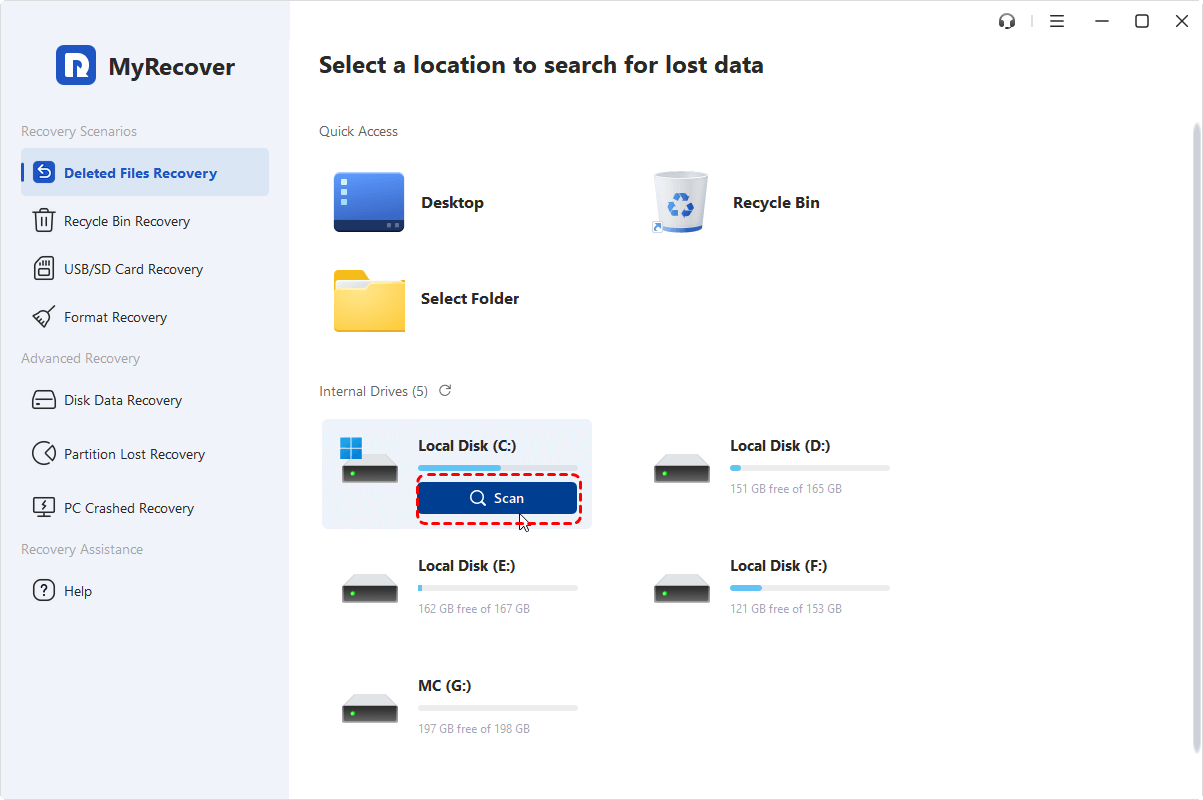
3. Locate the Lost Files and Recover: Once scanning, the missing files will be sorted by file type. You can also type path to sort them. Or you can search recently deleted files by file name, size, modified date, etc, to find them quickly. Select the recently deleted files and hit Recover.
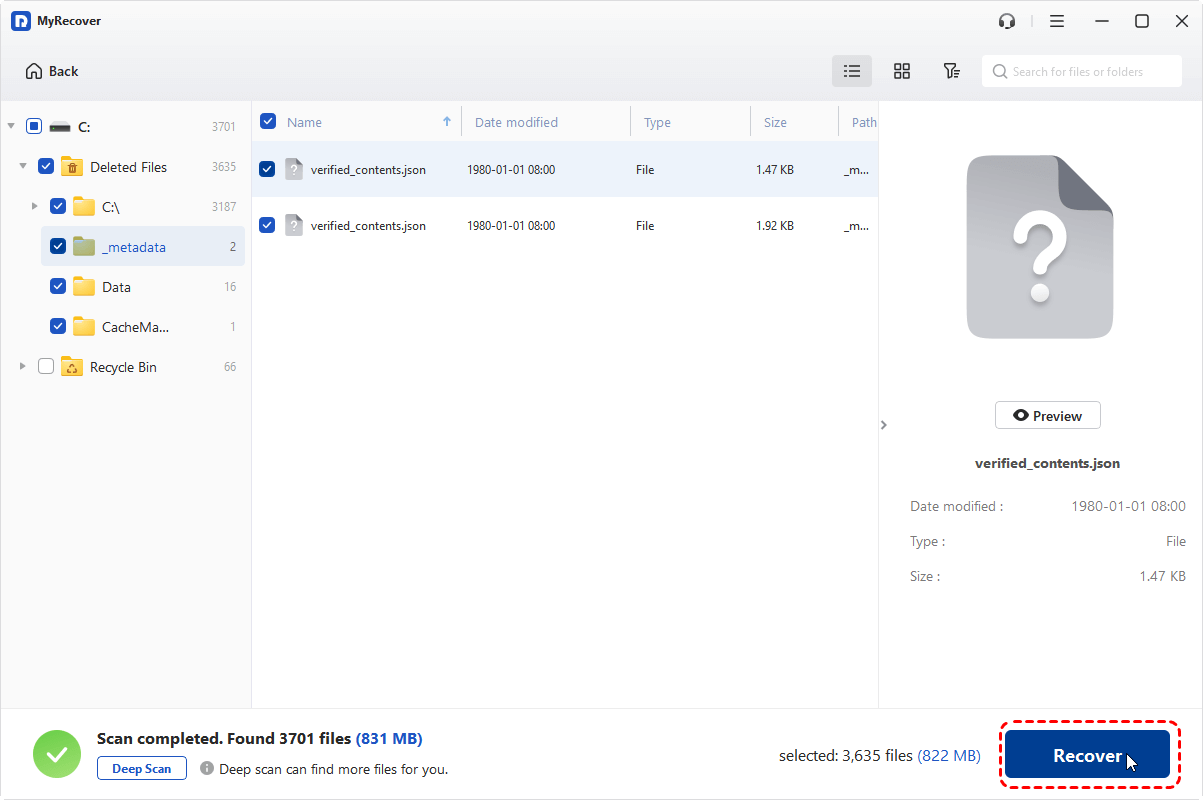
4. Save recovered files to a different drive: Choose a safe location to save your recovered files now.
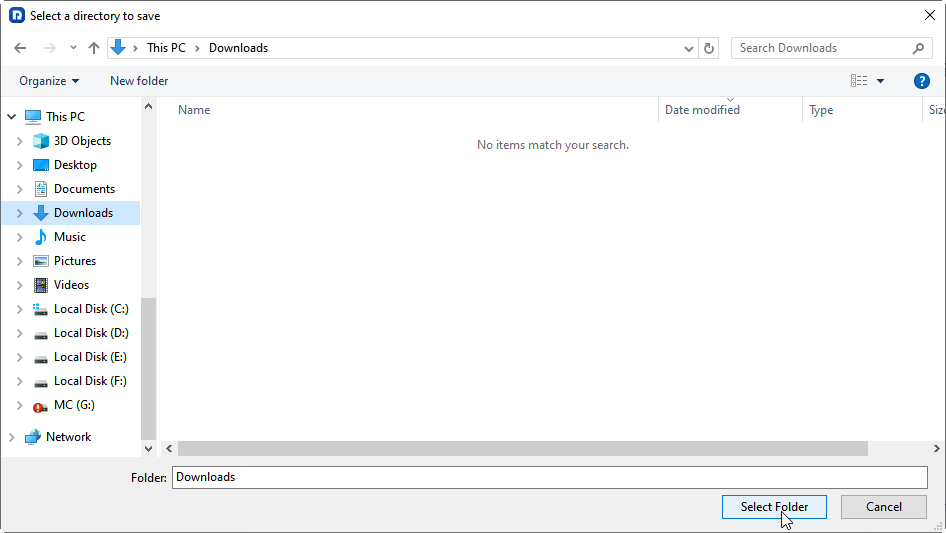
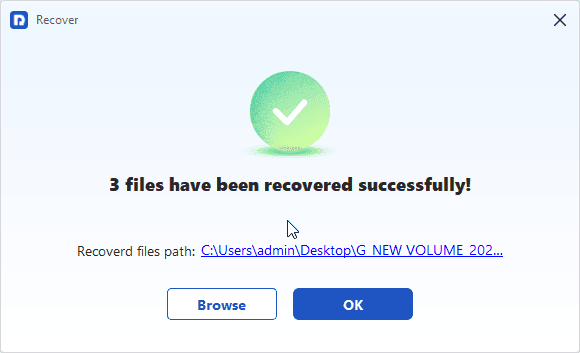
Wait for a while; your recently deleted files recovery process can be completed. You can go to the destination folder to check the files' integrity.
- Tips:✎...
- You can recover files up to 500MB for free. To recover more files, please upgrade to MyRecover Professional or higher to enjoy.
- Previewing files before recovery helps you to recover the right files and save time. It's available in MyRecover advanced plans.
- With MyRecover Technician, you can also recover files from unlimited computers, recover files from crashed computers, recover unlimited files, etc.

 MyRecover
 - Recover Deleted Files Easily with Simple Clicks
- 1000+ File Formats Supported
- Support HDD, SSD, External Hard Drive, USB Drive, SD Card, etc.
- Quickly Find Files Using File Types, Name, Size, etc.
 100% Secure
When to Use MyRecover?
✅ If files were permanently deleted (Shift + Delete or emptied Recycle Bin).
✅ If files were lost due to disk formatting, partition loss, or corruption.
✅If data disappeared after a system crash, BSOD, or freezing issue.
✅ If a virus attack hid or deleted important files.
To sum up
Recovering recently deleted files is entirely possible, depending on the method used and the situation. Whether you’re trying to restore files from the Recycle Bin, recover permanently deleted files without a backup, or retrieve data from a formatted disk or system crash, there are multiple tools and solutions available.
In comparison, MyRecover offers a more reliable and powerful option to recover lost files from your system in various challenging situations. Additionally, if your files were stored in cloud services like OneDrive or Google Drive, you can easily restore them from their respective trash bins, as long as they haven’t been emptied.

Stay Updated With Our
Latest Tips
Add us as a preferred source on Google to never miss helpful guides.
 Add as preferred source >>