 MyRecover



Solved: Documents and Settings Access Denied Error in Windows 10
Troubled by documents and settings access denied on your PC? We address why Windows blocks access and provide step-by-step solutions. Fix documents and settings access denied errors permanently with our comprehensive guide.

By Delores / Updated on March 20, 2026


Documents and Settings Access Denied!
C:\Documents and Settings is not accessible. Windows 10
Below, you can see I have opened up a command prompt and Explorer and attempted to go into C:\Documents and Settings. In Explorer, you do not see it even with hidden files/folders turned on, yet it states, 'Access is denied.'
Question from support.google.com
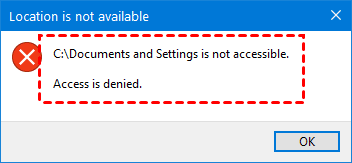
If you encounter the same situation as described—where Documents and Settings is not accessible, and access is denied—there is no need for concern. You have not caused any damage to your system, and more importantly, your files remain intact. This Documents and Settings Access Denied error is actually one of the most common and misunderstood issues in Windows, and it can be resolved without difficulty.
About the Documents and Settings Folder
The Documents and Settings folder you are attempting to access serves as a system redirector rather than a traditional folder. In older Windows versions such as XP, this location functioned as the central repository for all user data(each user's documents, desktop settings, start menu items, and application data). However, beginning with Windows Vista and continuing through Windows 10 and 11, Microsoft restructured this organization.
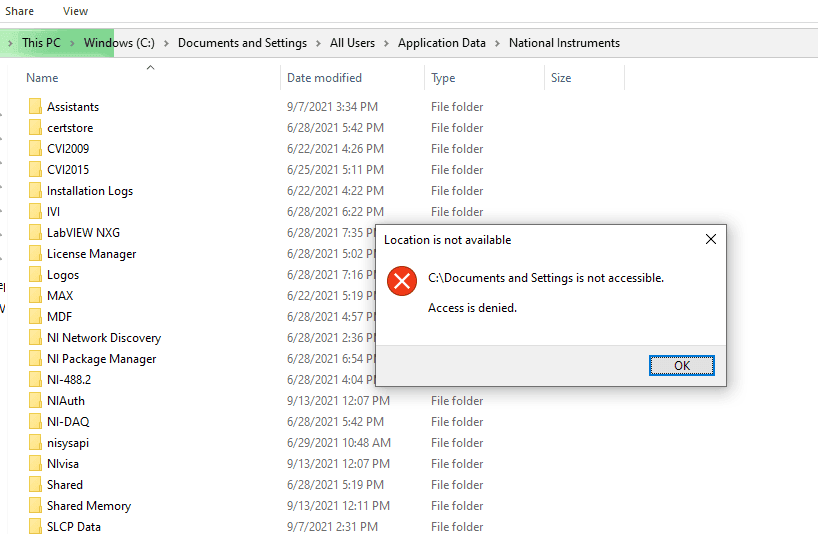
Your actual files now reside in the "Users" folder, C:\Users\[YourUserName]. The Documents and Settings folder you currently see is what Microsoft terms a junction point—essentially a redirector that points to the new storage location. When you receive the "Access Denied" message, Windows is indicating that this location does not contain your actual data and therefore does not require your access.
Why Does Documents And Settings Still Show Up?
The Documents and Settings folder remains visible for compatibility with older software.
The folder is a junction point—a reparse point that redirects to the Users folder. When double-clicked, Windows attempts redirection, but security measures often cause it to fail, triggering the "Access Denied" documents and settings error in Windows 10.
Microsoft deliberately locked this folder for system protection. The junction exists, so legacy software expecting the old location doesn't break. Because modifying system junctions causes instability, Windows restricts access entirely—you're not meant to enter this folder by design.
4 Fixes for C:\Documents and Settings Access Denied
Way 1. Check If You're Using the Correct Path
In Windows 10 and 11, your documents aren't in Documents and Settings—they're in C:\Users[YourUserName]\Documents. Try that path instead.
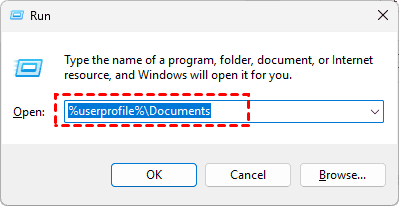
Type %userprofile%\Documents into the File Explorer address bar or the Run dialog (Windows key + R), and you'll land exactly where you need to be.
Way 2. Verify Your User Account Permissions
If you're still determined to access that old junction, you need to check your permissions. Right-click the Documents and Settings folder, select Properties, then click the Security tab. Under Group or user names, find your account and see what permissions are listed. You'll probably notice that even administrators have limited access here—that's intentional.
Way 3. Taking Ownership of the Documents and Settings Folder
This is a controlled, safe way.
1. Right-click the Documents and Settings folder and select Properties.
2. Go to the Security tab and click the Advanced button at the bottom.
3. In the Advanced Security Settings window, click the Change link next to the Owner section.
4. In the Select User or Group box, type your username (or "Administrators" if you want the whole group to have access) and click Check Names to verify it's correct.
5. Click OK, then check the box that says "Replace owner on subcontainers and objects".
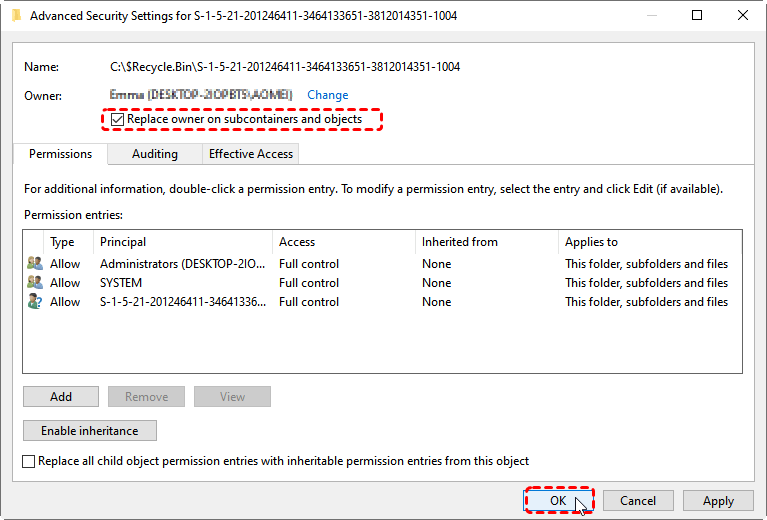
6. Click OK and let Windows work its magic.
After taking ownership, you might need to make sure permissions trickle down to everything inside.
Go back to the Advanced Security Settings window and look for a button or checkbox about "Enable inheritance" or "Replace all child object permission entries." Check that and apply.
This ensures every file and folder inside Documents and Settings inherits the new permissions you've set.
Way 4. Use Command Prompt to Force Access
For those comfortable with the command line, this method is fast and effective.
1. Open Command Prompt as Administrator (right-click Start, select Windows Terminal (Admin) or Command Prompt (Admin)).
2. Then, use the takeown command to recursively take ownership of the folder and everything in it:
takeown /F "C:\Documents and Settings" /R /D Y
3. Use icacls to grant yourself full control:
icacls "C:\Documents and Settings" /grant YourUserName:F /T
The /T flag applies the permission to all subfolders.
Bulk Recover Missing Files in Windows 10/11
Sometimes, your critical files are missing somehow. Check your backups and external hard drive, even the Recycle Bin. If not, you have to turn to a professional data recovery software, MyRecover, to help, which helps you to recover files easily from any complex situation, like accidental deletion, formatted drives, system crashes, virus attacks, and corrupted partitions, etc.
- User-Friendly Interface: MyRecover features a simple, intuitive design that makes the recovery process straightforward even for beginners.
- High Success Rate, 99%: The software successfully restores files while maintaining their original names, formats, and directory structures without any data loss.
- Supports 1,000+ File Types: The software can recover documents, photos, videos, audio files, emails, and compressed archives across various formats.
- Dual Scanning Modes: MyRecover employs both Quick Scan for recently deleted files and Deep Scan for more complex data loss scenarios, ensuring thorough search capabilities.
- Bootable Recovery Option: For non-booting systems, MyRecover can create bootable USB or CD/DVD media to recover data from crashed computers.
- Preview Before Recovery: Users can preview files before restoration to verify they're recovering the correct data.
Here is a step-by-step guide to recover missing files on Windows 10/11 with MyRecover.
1. Please download and install MyRecover on a different drive than the one where your files were lost.
 100% Secure
2. Open MyRecover. Tap Deleted Files Recovery, hover your mouse over the drive or partition where your files were originally located, and click the "Scan" button.

3. By default, it scans files using quick mode; you can also perform a deep scan after that. Preview the files you want, tick these files, and hit Recover.

4. Opt for a safe location to keep your deleted files.


- Notes:✎...
- Deep Scan is a more thorough, sector-by-sector search of your drive. It takes longer, but it is essential for finding files lost due to formatting, system crashes, or older deletions. You can let this process run in the background.
- After scanning, you can easily locate your missing files. MyRecover offers powerful filter options to narrow down the results by file type (e.g., Documents, Pictures, Video), modification date, name, or size.
- Once you find a file, you can double-click it to preview its contents. This is a great way to verify it's the correct, intact file before you recover it.

 MyRecover
- Recover Deleted Files Easily with Simple Clicks
- 1000+ File Formats Supported
- Support HDD, SSD, External Hard Drive, USB Drive, SD Card, etc.
- Quickly Find Files Using File Types, Name, Size, etc.
- Preview Files Before Recovering
- Recover Unlimited Data
 100% Secure
FAQs About Documents and Settings Access Denied
Why do I see "Documents and Settings access denied" on Windows 10?
This folder is a junction point (a shortcut) that redirects to the current Users folder. Microsoft restricts access to protect system stability. Your actual files are in C:\Users[YourUsername].
Can I delete the Documents and Settings folder?
Absolutely not. Deleting system junctions can break older software and destabilize your system. The folder is just a pointer with virtually no space. Leave it alone and use the Users folder instead.
Why does "access denied" happen even when I'm the administrator?
Admin accounts don't automatically access everything. System junctions are deliberately locked down as a security feature. You can override by taking ownership, but proceed carefully.
What's the difference between Documents and Settings and the Users folder?
Documents and Settings was the user folder in Windows XP. Since Vista, Microsoft has used the Users folder instead. The old folder is now just a compatibility junction that redirects to Users.
How can I recover files if permission fixes don't work?
Use data recovery software like MyRecover. These tools scan drives directly, bypassing Windows permission checks to find and restore files from corrupted or inaccessible folders.
How do I access files from an old Windows XP hard drive on Windows 10?
Connect the old drive externally. Expect permission issues since old accounts don't match. Use takeown and icacls commands in an elevated Command Prompt to take ownership, or use recovery software like MyRecover to extract files without permission headaches.

Stay Updated With Our
Latest Tips
Add us as a preferred source on Google to never miss helpful guides.
 Add as preferred source >>