 MyRecover



Best Virus Infected File Recovery Software: Restore Lost Data Now
Finding reliable virus infected file recovery software is crucial after a security breach. Whether you're dealing with hidden files or ransomware virus encrypted files recovery, this article provides step-by-step solutions for retrieving data from infected computers, external drives, and USB devices without spreading the infection.

By Delores / Updated on March 4, 2026


That moment when you realize your computer's been hit by a virus is frustrating. Maybe you're staring at a folder full of shortcuts where your photos used to be, or worse, everything's just... gone. Or perhaps those dreaded ransom notes are plastered across your desktop demanding payment in cryptocurrency.
Some strains like the CIH virus don't just sit there stealing passwords; they actively hide your files, encrypt them, or delete them outright.
Whether you're dealing with a USB drive that's been turned into a shortcut nightmare or a hard disk that's been encrypted by ransomware, we're going to walk through this together. From command prompt tricks to dedicated recovery applications, I'll show you how to fight back and win.
What Happens to Files When a Virus Strikes
What happens to files when a virus strikes? It depends on the way that the virus, malware, or ransomware attacks.
Some viruses are programmed to wipe out specific file types, often targeting documents, photos, and other personal data, like the mentioned CIH virus. When a virus "deletes" your files, it usually doesn't wipe them clean—it just removes the pointers that tell Windows where to find them. The actual data often remains on the drive until something overwrites it.
Then you've got the shortcut virus, which is incredibly common with USB drives. It hides all your actual files and folders and replaces them with shortcuts that look identical. Clicking those shortcuts doesn't open your files—it just spreads the infection further.
Hidden files are even easier to deal with; the virus simply flips an attribute flag telling Windows not to show them.
Corruption and encryption are trickier—ransomware actually scrambles your file contents, requiring decryption or specialized recovery techniques.
How to recover data from virus infected computer depends entirely on what the malware actually did.
Stop Using the Device that Has Been Virus-Attacked
If you're dealing with an infected USB pen drive or external hard disk, unplug it immediately. For internal drives, shut down the computer and consider booting from a clean system or connecting the drive to another computer as a secondary drive. Patience now pays off later.
Why You Need Virus-Infected File Recovery Software After an Attack
Let's get one thing straight right off the bat: antivirus software and recovery software serve completely different purposes. Your antivirus removes viruses and ransomware (sometimes removes your valuable files), while the virus-infected file recovery software recovers files after removing viruses.
Immediate Actions Before Recovering Data
Before attempting any file recovery, you must stop the malware from causing further damage. Follow these steps in order.
Step 1: Isolate the System
Disconnect from the internet immediately. This stops ransomware from communicating with hackers and prevents the virus from spreading to network drives.
Remove any USB drives from the infected computer to prevent them from becoming infected, too.
Step 2: Boot into Safe Mode (If keeping the drive in place)
If you cannot remove the hard drive, booting in Safe Mode prevents most malware from loading.
Restart your computer.
As it boots, repeatedly press F8 (or Shift + F8).
Select Safe Mode with Networking from the menu. This allows you to download the necessary recovery tools while keeping the malware inactive.
Step 3: Connect the Drive to a Clean Computer (The Gold Standard)
This is the safest method, as it ensures the malware isn't running at all during recovery.
Power down the infected computer completely.
Remove the hard drive from the infected machine.
Connect it to a known-clean computer using a USB-to-SATA adapter or an external hard drive enclosure.
Crucial: Do not double-click or open any files directly from the infected drive on your clean system. Use recovery software to scan it instead.
Step 4: Remove the Virus with Antivirus Software
Open your antivirus software directly and initiate a scan specifically targeting that drive letter. If your antivirus finds threats, quarantine them rather than deleting—deleting might remove the files you're trying to save.
How to Recover Files from Virus Infected Computer?
Try different solutions depending on the way the virus affected files.
Way 1. Use Command Prompt to Unhide Files
Many viruses simply hide your files rather than deleting them. Here is how to get them back. This method works if the virus only changed file attributes. Here is how to run:
1. Plug in the infected drive and note its drive letter (e.g., E:).
2. Open Command Prompt as Administrator.
3. Type the drive letter followed by a colon and press Enter (e.g., E:).
4. Type the full command: attrib -h -r -s /s /d *.* and press Enter.
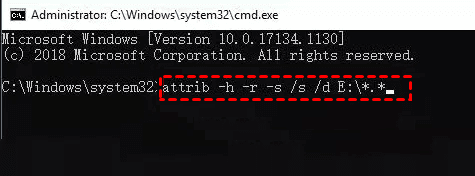
- -h: Removes the "hidden" attribute.
- -r: Removes the "read-only" attribute.
- -s: Removes the "system file" status.
- /s: Applies the command to all subfolders.
- /d: Includes folders in the process.
Wait for the process to finish. Your files should now be visible.
Way 2. Recover Files from Ransomware Virus Encrypted
Ransomware is the heavyweight champion of malware nightmares. It doesn't hide or delete your files—it locks them with unbreakable encryption and demands payment.
Check for Free Decryption Tools Online
Before you even think about paying, check out sites like No More Ransom. This initiative by law enforcement and security companies hosts free decryption tools for dozens of ransomware variants.
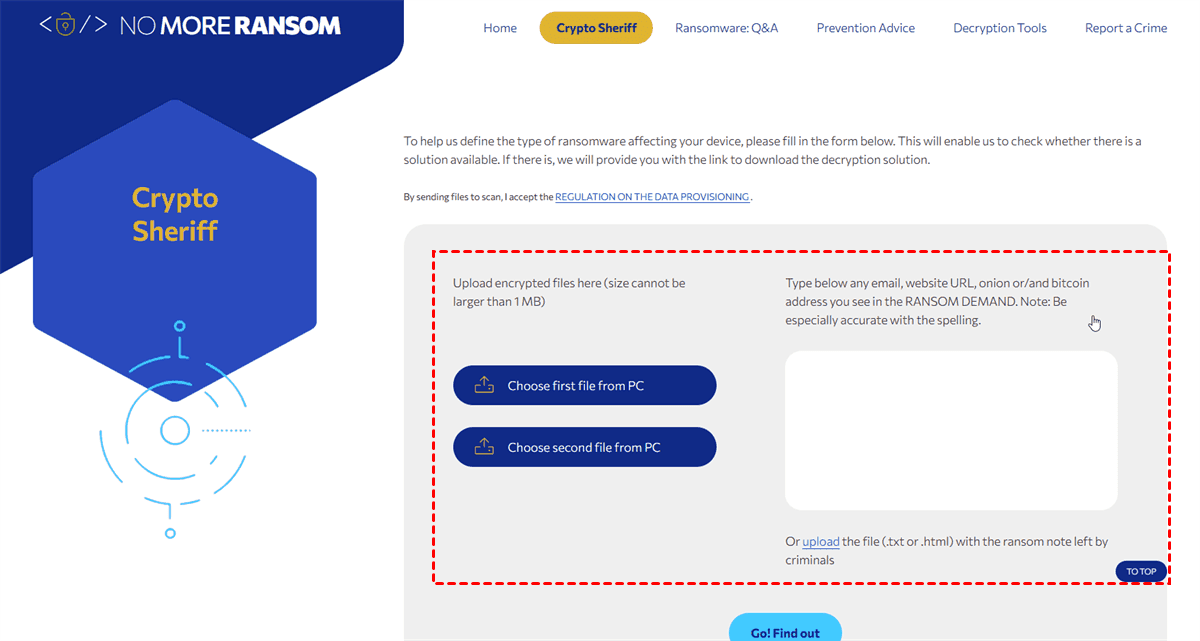
If your specific strain has been cracked, you can decrypt your files without paying a dime. You'll usually need a sample encrypted file and sometimes the ransom note to identify the variant.
Way 3. Recover Files Using the Best Virus-Infected File Recovery Software
To effectively recover files from a virus-infected computer, you need the best virus-infected file recovery software, MyRecover.
Key Features of MyRecover:
- First, deep scan capability. Surface-level scans miss too much when malware's been playing games with your file system.
- Second, preview functionality—being able to see files before recovery saves time and storage space.
- Third, support for your file types (1,000+). Most tools handle common formats, but if you've got specialized files, check compatibility.
- Fourth, bootable media creation for when your system won't start at all.
- Support complex data recovery situations, like recovering files from a formatted hard drive, a damaged partition, or even a virus attack, etc.
Here's exactly how to recover files from a virus-infected computer on a Windows computer with MyRecover:
Step 1: Download and install on a clean computer. Connect your external hard drive or USB drive that has been infected by viruses, if required.
 100% Secure
Step 2: Launch MyRecover, tap Disk Data Recovery, then choose the drive and hit Scan.

Step 3: MyRecover will scan every sector of the drive for file signatures, finding every possible file. Once scanning completes, you'll see a file tree organized by folder structure and file type. Use the filter options to show only documents, images, videos, or whatever you're after.
Step 4: Select the files you want to recover, and hit Recover. Then choose a safe location to hold them.


- Notes:✎...
- Before you open any recovered files, scan them with updated antivirus software. Just because you recovered them doesn't mean they're clean—the virus may have infected the files themselves.
- The preview function is invaluable—you can actually view files before recovering them to confirm they're the right versions and not corrupted.
- Upgrading to MyRecover Technician is your best choice to recover unlimited files or from unlimited computers.

 MyRecover
- Recover Deleted Files Easily with Simple Clicks
- 1000+ File Formats Supported
- Support HDD, SSD, External Hard Drive, USB Drive, SD Card, etc.
- Quickly Find Files Using File Types, Name, Size, etc.
- Preview Files Before Recovering
- Recover Unlimited Data
 100% Secure
Prevent Future Data Loss From Virus Infections
- Keep your software updated—Windows updates, antivirus definitions, and application patches all close security holes that malware exploits.
- Use a reputable antivirus with real-time protection.
- Be suspicious of USB drives from unknown sources.
- Disable AutoRun completely to prevent drive-by infections.
- Stop clicking "Enable macros" on documents you didn't expect to receive.
- Regularly back up your files to the cloud, external hard drive, another computer, etc.
FAQs About Virus-Infected File Recovery
Can I recover files deleted by antivirus software?
A: Yes. First, check your antivirus Quarantine or Virus Chest. Files there can usually be restored. If not, data recovery software can often find them because the data itself may still exist on the drive.
How do I recover files hidden by a shortcut virus?
A: First, try the command prompt method (attrib -h -r -s /s /d *.*) to unhide them. If that doesn't work, data recovery software can scan for and restore the files directly. Do not format the drive.
Can ransomware-encrypted files be recovered without paying?
A: Sometimes. Check No More Ransom for a free decryption tool. You can also try right-clicking files to check for "Previous Versions". Recovery software is a last resort, but it may find fragments. Only pay as a last resort, with no guarantee of success.
Is it safe to use recovery software on an infected drive?
A: Yes, if done carefully. Install the software on a clean computer and connect the infected drive as a secondary drive. This prevents the malware from running during recovery.
How do I remove a virus from my USB without losing files?
A: Two steps: Recover first, clean second. Use software to save your files to a safe location, then format the USB to wipe the malware. You can then copy the scanned, clean files back.
What's the difference between quarantine and delete in antivirus software?
A: Quarantine safely isolates a file, making it easy to recover if it's a false positive. Deleting permanently removes the file, which can lead to data loss. Always choose quarantine when possible.
Can I recover files from a virus-infected computer that won't boot?
A: Yes. Remove the hard drive and connect it as a secondary drive to a working PC, or use a bootable USB recovery tool to access and recover your files.
How long does virus file recovery take?
A: It varies. A simple command prompt fix takes minutes. A deep scan on a large drive can take several hours. Patience is key to a successful recovery.
The End
Look, dealing with a virus infection that's messed with your files is stressful. Take a breath, follow the steps we've covered, and remember that in most cases, how to recover data from virus-infected computer situations have happy endings.

Stay Updated With Our
Latest Tips
Add us as a preferred source on Google to never miss helpful guides.
 Add as preferred source >>