 MyRecover



Does Formatting A USB Drive Wipe It? Experts Explain
This article answers common question: does formatting a USB drive wipe it. It explains how formatting works, what data is actually removed, and under what conditions files can still be recovered. Practical guidance is provided to help users understand data loss risks and take appropriate recovery steps after formatting a USB drive.

By Emma / Updated on December 23, 2025


What Does "Formatting" Mean?
Formatting is the process of preparing a storage device—such as a USB drive—for use by an operating system. When you format a USB drive, the system creates a new file system (such as FAT32, exFAT, or NTFS) and resets the way data is organized and accessed on the drive.
Does Formatting A USB Drive Wipe It Completely?
As part of the formatting process, existing file records are removed, which makes the data appear erased. However, in most cases—especially when performing a quick format rather than a full format—the actual data is not immediately destroyed. Instead, it remains on the drive until it is overwritten by new files
(👉check for difference between quick format and full format).

So, quick formatting does not result in permanent data loss, and data recovery is often still possible after a USB drive has been formatted. However, full formatting is different—it scans the drive for errors and may overwrite existing data, which significantly reduces the chances of recovery and, in many cases, makes the data permanently unrecoverable.
When You Might Need to Format A USB Drive?
For a new USB drive, formatting is often required before it can be properly recognized and used by the system. In addition, the following situations may also require formatting:
⭕File system corruption: The USB drive becomes inaccessibleor shows errors such as "You need to format the disk before you can use it."
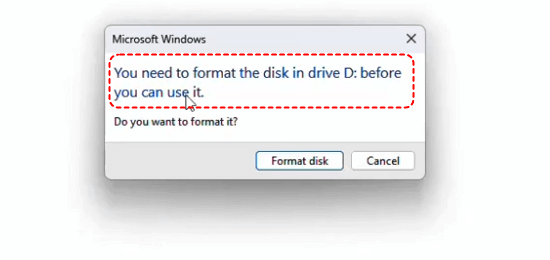
⭕Device not recognized: The USB drive is detected but cannot be opened or used normally.
⭕Compatibility issues: You need to change the file system (for example, to exFAT) to use the USB drive across different devices or operating systems.
⭕Virus or malware infection: Formatting helps remove persistent malware that cannot be cleaned easily.
⭕Preparing the drive for reuse or resale: Formatting clears old data and resets the drive for a fresh start.
Simply put, formatting a USB drive is a practical solution for fixing errors, improving compatibility, and preparing the device for future use.
How to Format A USB Drive on Windows?
Although formatting can solve many issues, it should always be done with caution because it may affect existing data. So, always ensure important data have been backed up beforehand to avoid unnecessary loss.
✔️Format via File Explorer
Step 1. Connect the USB drive to your computer. Open "File Explorer" and go to This PC.
Step 2. Right-click the USB drive and select "Format".
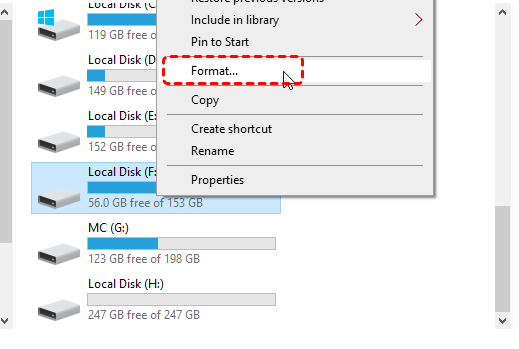
Step 3. Choose the desired File System (such as FAT32, exFAT, or NTFS).
Step 4. Select "Quick Format" if needed, then click "Start".
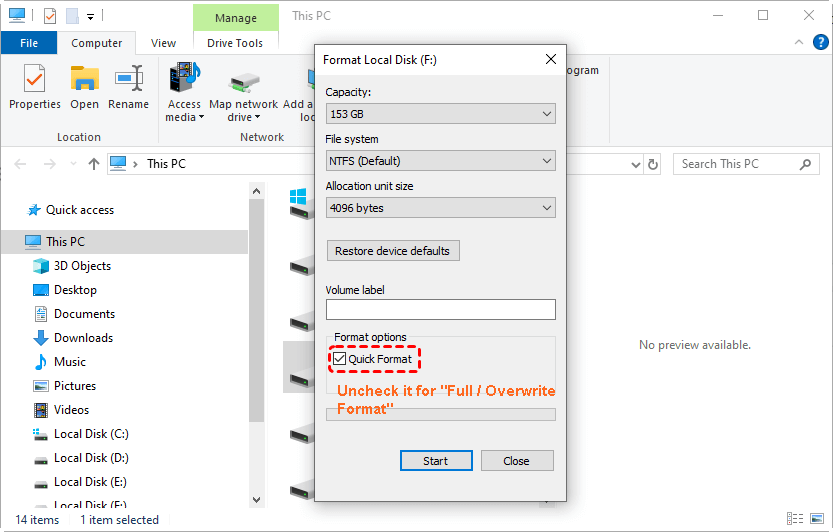
Wait for the process to complete.
- Check also: Windows was unable to complete the formatting
✔️Format in Disk Management
Step 1. Press "Win + X" and select "Disk Management".
Step 2. Locate your USB drive in the list of disks. Right-click the USB partition and choose "Format".

Step 3. Set the file system, volume label, and allocation unit size.
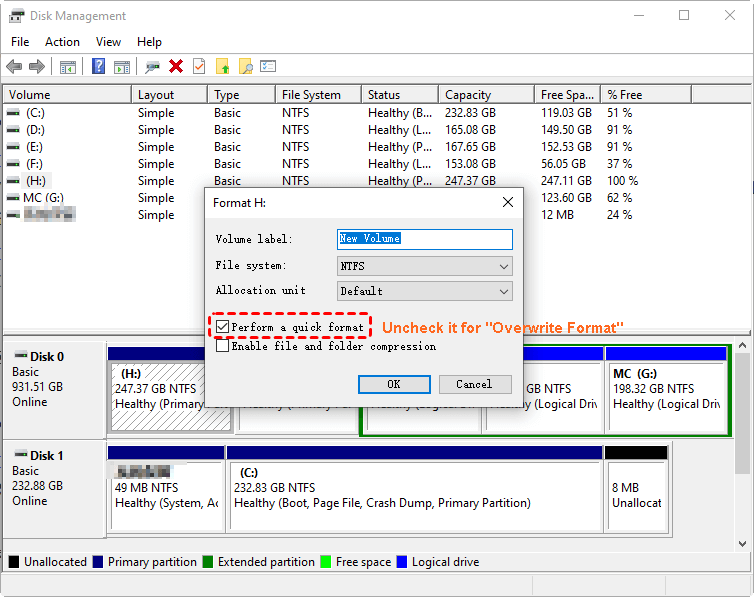
Step 4. Click OK and confirm to begin formatting.
✔️Format through DiskPart Command
Step 1. Press "Win + S", type "cmd", right-click "Command Prompt", and choose "Run as administrator".

Step 2. Type the following commands one by one and press Enter after each:
diskpart
list volume
select volume X(Replace X with the correct partition number.)
format fs=ntfs quick
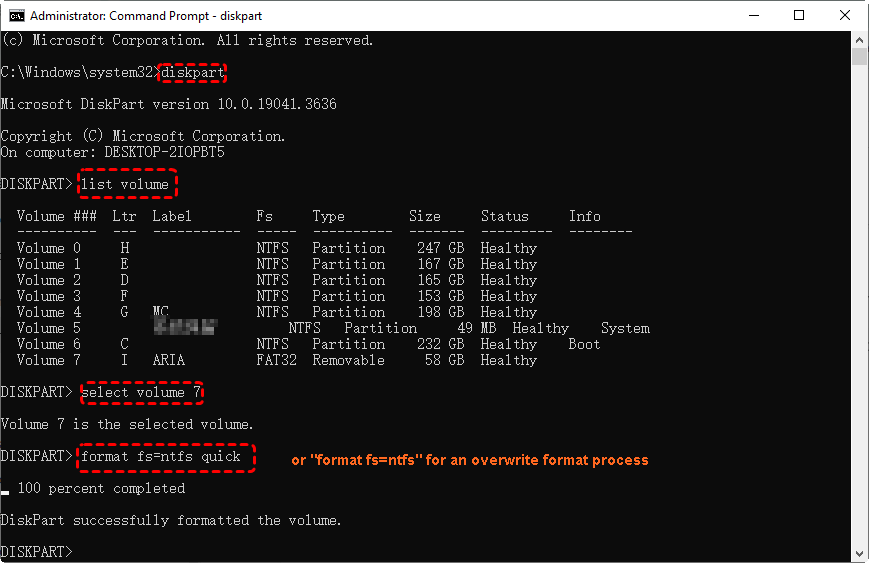
After the process finishes, type exit to close DiskPart.
Can You Get Files Back After Formatting a USB Flash Drive?
According to the above analysis about "does formatting a usb drive wipe it", we can know it is often possible to recover files after formatting a USB flash drive, especially if the drive was quick-formatted and no new data has been written to it. When a USB drive is formatted, the file system records are removed, but the actual data usually remains on the drive until it is overwritten. Below are two practical recovery solutions on Windows:
Solution 1: Recover Formatted Files Using Windows File Recovery (winfr Command)
Windows File Recovery is a free command-line tool provided by Microsoft, suitable for users with some technical experience.
- Requirements:✎...
- Windows 10 version 2004 or later
- Windows File Recovery installed from Microsoft Store
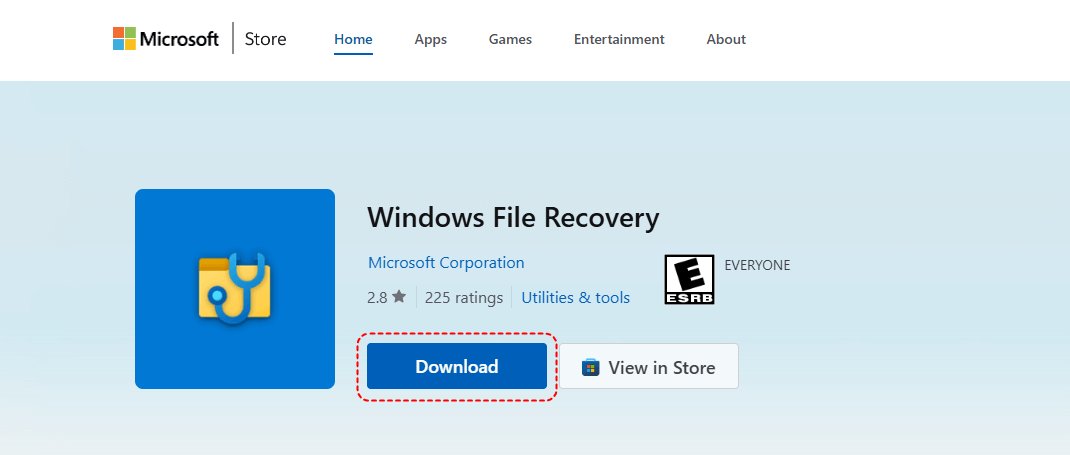
Step 1. Download it from Microsoft store, open the setup and follow the prompts to finish the installation.
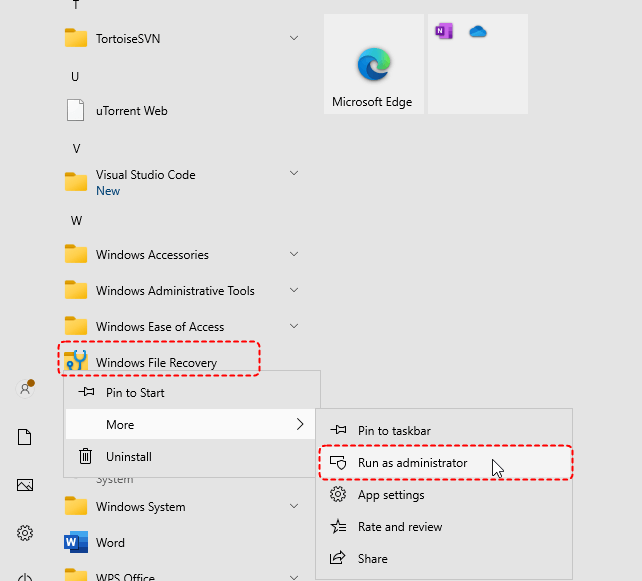
Step 2. Search for "Windows File Recovery" in the Start menu. Right-click and select Run as administrator to ensure it has the necessary permissions. The program will open a Command Prompt window.
Step 3. Use the winfr Command:
Basic Command Example: winfr E: D: /extensive (E: = formatted USB drive, D: = destination drive)
Advanced Example (recover specific file types):
winfr H: D: /extensive /n *.docx
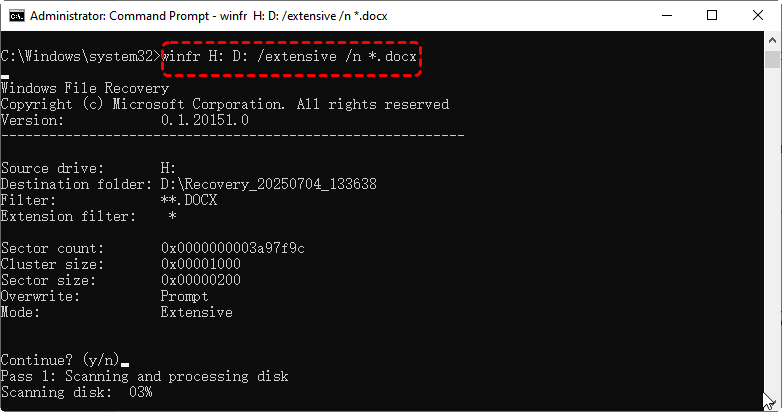
winfr H: D: /extensive /n *.jpg /n *.png
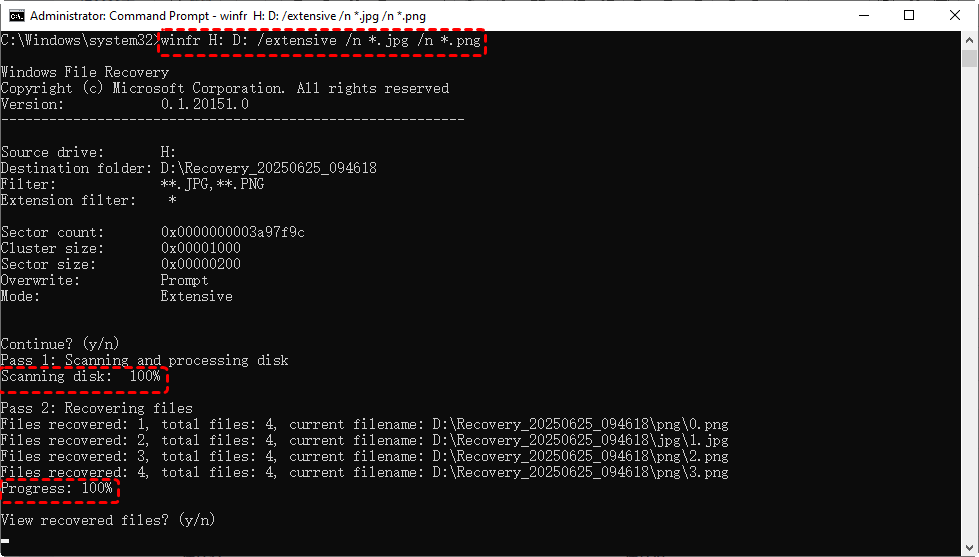
Here, /extensive is the mode for FAT or exFAT driveor quick formatted drives. /n * specifies that you want to recover all files; you can replace * with specific file types, e.g., *.mp4 or *.pptx.
Solution 2: Recover Formatted Files Using MyRecover
FREE MyRecover is a user-friendly data recovery software designed for beginners and professionals alike. It allows you to recover files from formatted USB drives safely and efficientlyon all editions of Windows PC and Server, without requiring command-line knowledge.
Step 1: Download and Install MyRecover following the on-screen instructions.

- 🌟500+ Devices Supported | SSD, HDD, USB Flash Drive, SD Sard, etc.
- 🌟1000+ File Formats Supported | PNG, MP4, MP3, TXT, ZIP, MSG, etc.
- 🌟500+ Data Loss Scenarios | Deletion, Format, System Crash, Virus Attack, etc.
 100% Secure
Step 2: Launch MyRecover and select the USB drive from the list of available drives. Click "Scan" to begin.

Step 3: MyRecover will scan the entire drive to search for all deleted or missing files. After scanning, you can use the search and filter options to quickly locate specific file types or folders.(*To preview the file content before clicking on "Recover", please upgrade to Professional Edition.)

Step 4: Select the files you want to restore and click "Recover".
Step 5: Save the recovered files to a "different drive" to avoid overwriting the data on the formatted USB. Open the recovered files to ensure they are intact.

With MyRecover, even users without technical expertise can restore data from a formatted USB drive safely and quickly.
Closing Thoughts
While many wonder "does formatting a USB drive wipe it", the answer is that quick formatting does not permanently erase data, making recovery possible. If you accidentally formatted a USB drive, you can recover your files using either Windows File Recovery (winfr command), or MyRecover. Both methods allow you to restore photos, documents, videos, and morefrom formatted hard drive.
For much tougher data loss cases, such as corrupted drives, sudden system crashes, or inaccessible USB drives, MyRecover provides a reliable and user-friendly solution. Its deep scan technology can locate and restore even deeply hidden files, giving you a higher chance of full data recovery.

Stay Updated With Our
Latest Tips
Add us as a preferred source on Google to never miss helpful guides.
 Add as preferred source >>