 MyRecover



Does Windows 11 Have Backup and Restore? Comprehensive Guide & Best Alternatives
If you’re wondering where is backup and restore in Windows 11, this guide explains exactly where to find it and how to use built-in tools to safeguard your files. Get clear steps to locate system protection options, automate backups, and ensure your data stays secure.

By Vera / Updated on May 29, 2026


Understanding Windows 11 Backup Features
Windows 11 includes a suite of built-in backup tools, but their names can be confusing. The most robust legacy tool is still labeled "Backup and Restore (Windows 7)." While it sounds outdated, it remains the primary way to create a System Image—a complete "snapshot" of your entire OS, apps, and settings. Understanding these tools helps you move beyond simple file syncing to a true disaster recovery strategy.
Why Data Backup Still Matters in the Modern Era
Think of your data as your digital life. Without backups, a single hardware failure or malware attack could wipe out years of family photos, critical business documents, and system configurations. While Windows 11 is the most advanced OS to date, it is not immune to data loss.
Here’s why a multi-layered backup strategy is essential today:
- ⭕SSD Wear and Tear: Unlike old HDDs, modern SSDs often fail without warning signs (like clicking noises), making data recovery nearly impossible without a prior backup.
- ⭕The Rise of Ransomware: Cyberattacks now target personal files. An offline backup is the only 100% effective defense against being locked out of your own data.
- ⭕Update Instability: Windows 11 is constantly evolving. A "Feature Update" can occasionally cause boot loops or "Blue Screen of Death" (BSOD) errors that require a full system rollback.
- ⭕Human Error: Accidentally hitting "Shift + Delete" on a critical folder happens to the best of us.
Understanding the Legacy Tool: Backup and Restore (Windows 7)
Unlike file-based backups, Backup and Restore (Windows 7) creates a .vhd or .vhdx file (Virtual Hard Disk). If your hard drive dies, you can buy a new one and "drop" this image onto it, returning your PC to exactly how it was at the moment of backup. So, you can try this if you want to capture a "snapshot" of your entire computer, including the Operating System, drivers, installed programs, and registry settings.
Does Windows 11 Have Backup and Restore (Windows 7)?
Does Backup and Restore work in Windows 11? Yes. You may notice the term "Windows 7" inside your Windows 11 settings. This isn't a mistake. Microsoft maintains this tool for backward compatibility and for users who prefer local, non-cloud-based control over their entire system image.
- Enterprise environments still use system images for mass deployments.
- IT professionals prefer system image recovery for fast disaster fixes.
- Many users upgraded from older systems and still rely on their existing images.
- Backward compatibility remains a key priority for Windows.
Where is Backup and Restore in Windows 11?
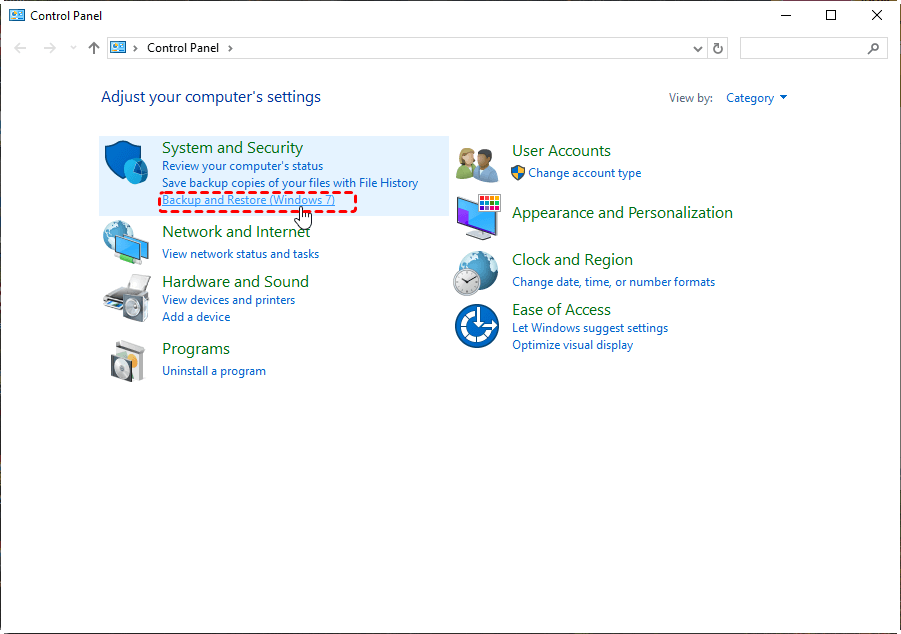
Because Microsoft prioritizes its modern "Settings" app, this classic tool is tucked away in the Control Panel. You can access it via three primary routes:
👉1. Classic Control Panel: Open Control Panel > System and Security > Backup and Restore (Windows 7).
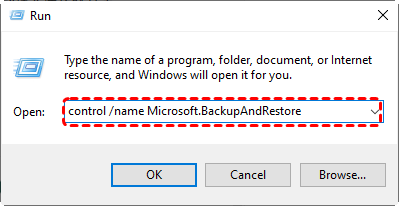
👉2. The Run Command: Press "Windows + R". Type: "control /name Microsoft.BackupAndRestore", and press "Enter". This method is useful for advanced users and IT professionals.
👉3. Command Prompt (CMD)
Press "Start", type "cmd", right-click "Command Prompt," and select "Run as administrator". Then enter the command: sdclt.exe
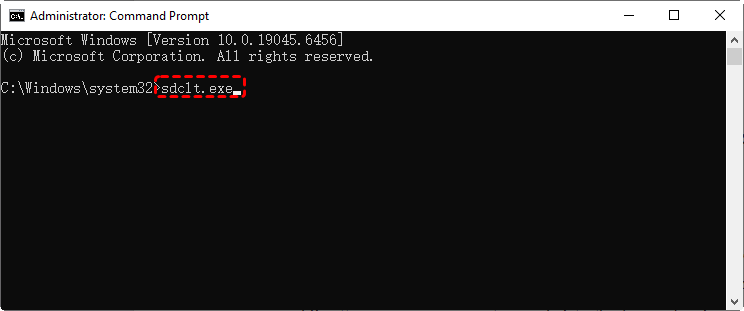
All those methods can launch the Backup and Restore interface immediately.
How to Configure Backup and Restore in Windows 11
While knowing where the tool is located is the first step, executing a proper backup requires specific configurations to ensure the data is recoverable when a crisis hits. To ensure your backup is reliable, follow these expanded steps:
👉Setting Up Your First System Image
Here’s the expanded step-by-step guide:
1. Prepare Your Hardware: Connect an external hard drive with at least the same capacity as your internal C: drive. Ensure it is formatted to NTFS, as the Windows 7 tool does not support FAT32 for large images.
2. Initialize: Open the tool and click Set up backup.
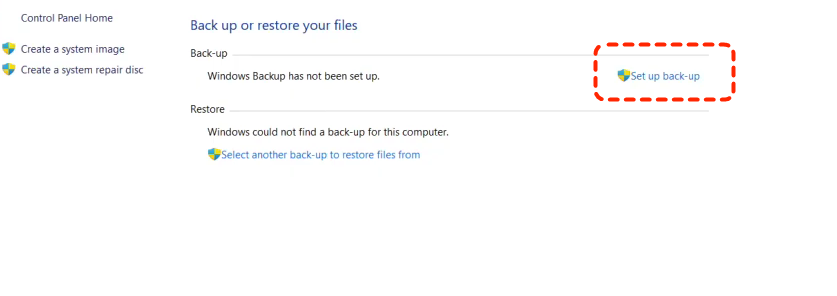
3. Destination Selection: Choose your external drive. (Note: Avoid backing up to the same physical disk where Windows is installed; if that disk fails, you lose both the OS and the backup.)
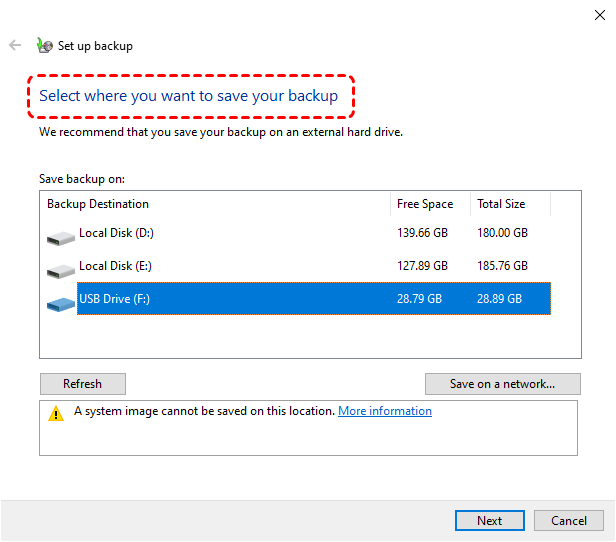
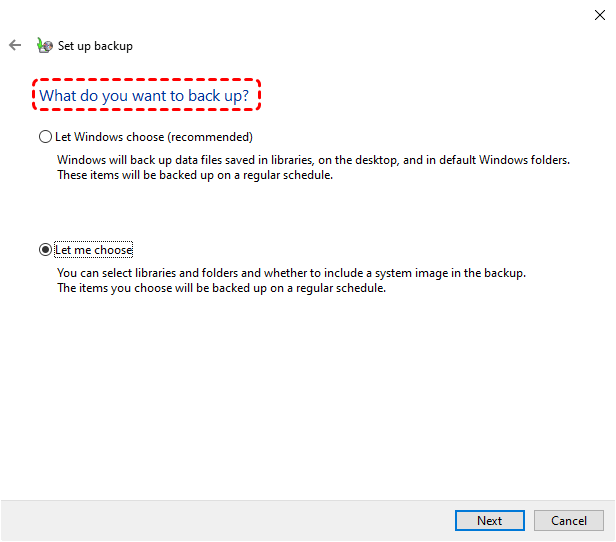
4. Selection Logic:
- Let Windows choose: Automatically backs up user folders and creates a system image.
- Let me choose: Allows you to pick specific libraries and include/exclude the system image.
5. Scheduling: Set a schedule (e.g., Weekly on Sunday at 11:00 PM). This automates the logic of "set it and forget it."
6. Finalize: Click Save settings and run backup.
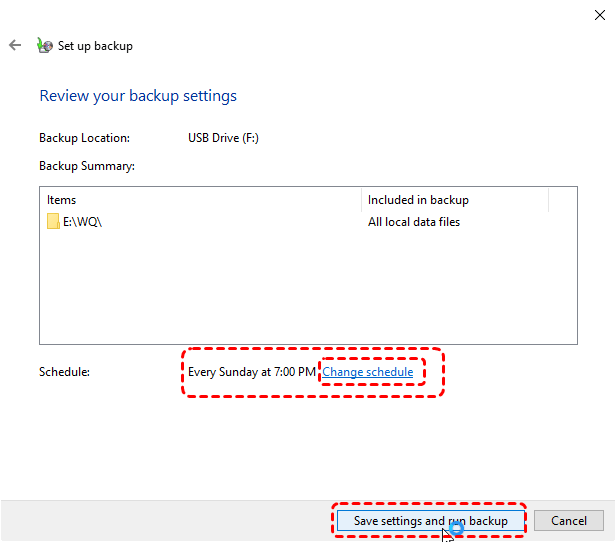
Windows will now create the first full backup and then maintain incremental updates. >> Look here to get more details for setting up Restore and Backup.
👉Restoring Files or the Entire System
There are two main situations:
Situation 1. For Individual Files
If you only lost a specific folder, use the Restore my files button within the interface to browse the backup contents without overwriting your current OS.
1. Open Backup and Restore.
2. Click Restore my files.
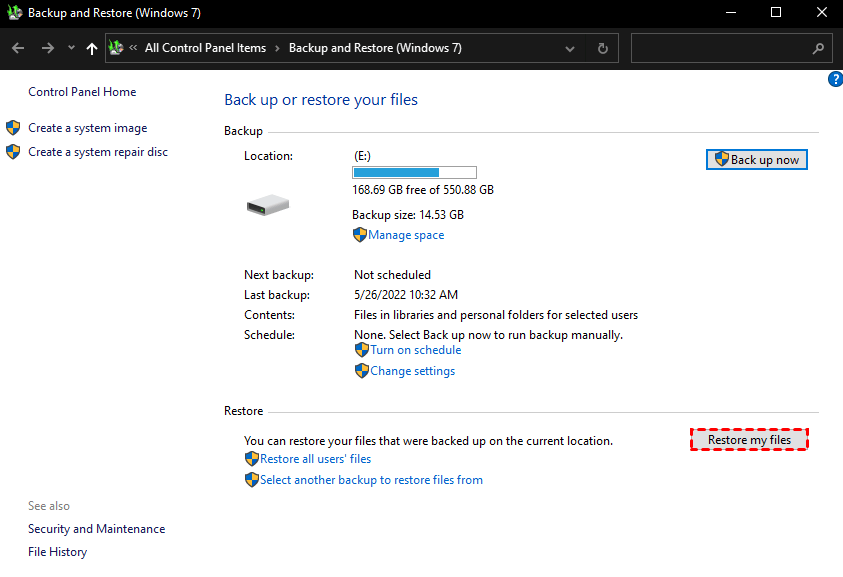
3. Pick exactly what you want to restore.
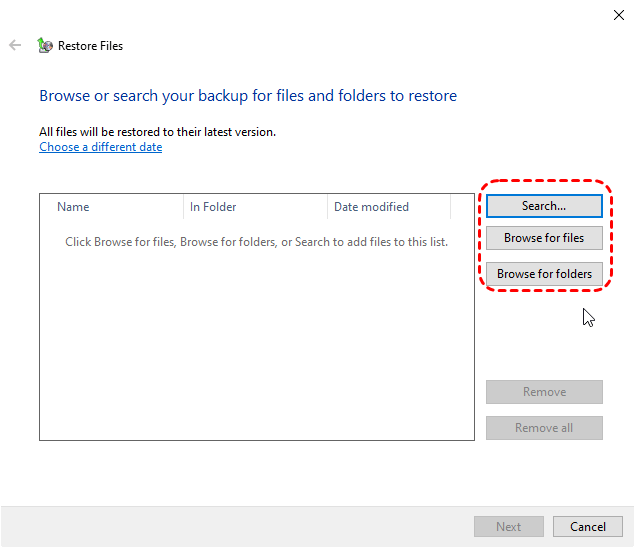
This is helpful if you accidentally delete something.
Situation 2. For System Failure
If Windows won't boot, you must use a Windows Installation Media (USB) to enter the "Advanced Startup" environment.
1. Select Troubleshoot > Advanced Options > System Image Recovery.
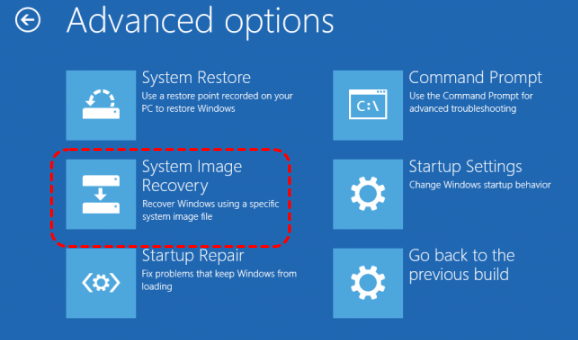
2. Plug in your backup drive. And, follow the prompt to restore.
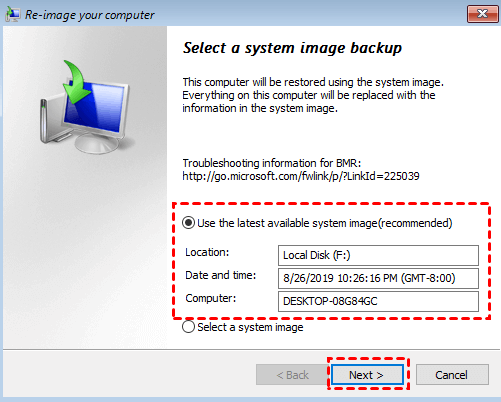
This returns your entire PC to the state it was in at the time of the backup.
Other Modern Alternatives to Backup and Restore in Windows 11
Legacy system images are great for total disasters, but they are "heavy" and slow. For day-to-day file protection, Windows 11 offers more agile, modern alternatives. Microsoft now splits backup duties: File History handles version control (protecting against accidental edits), while OneDrive handles cloud accessibility (protecting against local hardware loss).
Option 1. File History
File History takes snapshots of specific folders (Documents, Music, Pictures, etc.) every hour. It keeps a "history" of changes, allowing you to roll back a specific file to a version from three hours ago without affecting the rest of your system. You can try this if you are working on a thesis or a project and accidentally delete a paragraph or overwrite a file with the wrong data.
- 🔖Backs up Documents, Pictures, Music, Videos, and Desktop.
- 🔖Stores multiple versions of each file.
- 🔖Lets you "travel back in time" to older versions.
- 🔖Requires an external drive or network location.
Steps to Enable File History
1. Plug in an external hard drive, SSD, or USB flash drive. (You can also use a mapped network drive).
2. Press the Win + R keys, type control in the Run dialog box, and press Enter.
3. Set the View by option in the top right to Large icons or Small icons, then click on File History.
4. If your drive wasn't detected automatically, click Select drive on the left menu, highlight your external drive, and click OK.
5. Click the Turn on button. Windows will immediately start backing up files in your main User folders (such as Desktop, Documents, Pictures, and Videos).

Option 2. OneDrive Backup
This leverages Microsoft’s cloud servers. Files are synced in real-time. If your local computer is destroyed, your data remains safe in the Microsoft data center. You can try this if you need your files to be accessible on your laptop, phone, and work computer, and you want protection against physical theft or fire at your home.
- 🔖Automatic synchronization.
- 🔖Access your files on any device.
- 🔖Protection against local hardware failures.
- 🔖Optional Personal Vault for sensitive documents.
Steps to Sync Important Folders
1. Click the OneDrive (cloud) icon in your taskbar tray.
2. Select the Settings (gear icon) > Settings.
3. Go to the Sync and backup tab and click Manage Backup.
4. Toggle on Documents, Pictures, and Desktop. This ensures that even if you save something haphazardly to your desktop, it is instantly backed up to the cloud.
The Safety Net: When Backups Fail or Don’t Exist (MyRecover)
Despite our best intentions, backups can fail. Perhaps the external drive for Backup and Restore became corrupted, or you realized too late that File History wasn't tracking a specific folder.
This is where MyRecover steps in. While the previous methods are proactive (preventing loss), MyRecover is reactive (rescuing lost data).
Why MyRecover is the Essential Alternative
In the context of Windows 11, MyRecover serves as the ultimate fail-safe. If you discover that your "Backup and Restore (Windows 7)" image is unreadable or you accidentally deleted a file that wasn't synced to OneDrive, MyRecover can scan your disk's "raw" sectors to find traces of lost data.
Key Advantages for Windows 11 Users:

 MyRecover
- 🌈Recovery from Backup Failure: If your backup drive is accidentally formatted or shows as "RAW," MyRecover can retrieve the backup files themselves.
- 🌈High-Speed Deep Scan: It uses advanced algorithms to reconstruct over 1000+ file types (PDFs, 4K videos, specialized documents) that standard Windows tools might miss.
- 🌈Intuitive Interface: Unlike command-line recovery tools, MyRecover provides a visual "search and filter" system, making it easy to find a single deleted photo among millions of files.
- 🌈Universal Compatibility: It supports NTFS, FAT32, exFAT, and ReFS, making it compatible with all Windows 11 storage configurations.
 100% Secure
How to use it: Simply launch the software, select the partition where the data was lost, and click Scan. You can preview files before deciding which ones to recover to a safe location.
Conclusion
So, does Windows 11 have Backup and Restore? Yes—Microsoft still includes the classic Backup and Restore (Windows 7) tool, even though it’s hidden in the Control Panel. Alongside it, Windows 11 offers File History and OneDrive for modern backup needs. And when these tools fall short, MyRecover provides a powerful, user-friendly alternative for restoring lost files.
Which method should you choose? Here’s a more detailed comparison:
| Backup Method | Best For | Strengths | Weaknesses |
|---|---|---|---|
| Backup and Restore (Windows 7) | System image backups; full recovery | Entire system restores; classic reliability | Outdated UI; manual storage management |
| File History | Frequent file version backups | Simple; browsable history; automatic | Doesn’t back up apps or system |
| OneDrive Backup | Cloud sync & accessibility | Instant sync; recoverable anywhere; ransomware protection | Limited by cloud storage space |
| MyRecover | Full control and flexibility | More features; advanced recovery | Requires installation and setup |
Protecting your data has never been more important, and thankfully, Windows 11 gives you plenty of ways to stay safe.
FAQs
1. What is the difference between a "System Image" and a "File Backup"?
A file backup only saves your documents and photos. A System Image (created via the Windows 7 tool) is a bit-by-bit copy of your entire hard drive, including the Windows OS, your wallpaper, saved passwords, and installed software like Microsoft Office or Adobe Creative Cloud.
2. Why does Windows 11 call it "Backup and Restore (Windows 7)"?
This is primarily for branding and compatibility. The underlying engine was perfected during the Windows 7 era. Microsoft kept the name so users migrating from Windows 7, 8, or 10 would recognize the tool that handles their existing backup archives.
3. Can I use the same external drive for File History and System Images?
Yes, you can. However, ensure the drive is large enough. The System Image will take a massive "chunk" of space initially, while File History will continuously grow as it saves file versions. It is best to partition the drive or monitor space closely.
4. What should I do if my backup drive is not recognized?
First, check Disk Management (diskmgmt.msc) to see if it needs a drive letter. If the drive appears as "Unallocated" or "Not Initialized," do not initialize it if it contains data. Instead, use MyRecover to scan the drive. MyRecover can often "see" and retrieve files from unrecognized or logical-failure partitions that Windows File Explorer cannot access.
5. Does Windows 11 Backup include my Chrome passwords and app settings?
"Backup and Restore (Windows 7)" includes them because it images the entire C: drive. However, OneDrive and File History generally do not back up application settings or passwords. For those, you should use the sync features built into the specific apps (like your Google or Microsoft Account sync).
6. I deleted a file and emptied the Recycle Bin, but my File History was off. Is the file gone forever?
Not necessarily. When Windows deletes a file, it only removes the "pointer" to that data. The actual data stays on the disk until new data overwrites it. By using MyRecover, you can perform a Deep Scan of the disk to locate these "invisible" files and restore them to their original state, provided you act quickly before they are overwritten.

Stay Updated With Our
Latest Tips
Add us as a preferred source on Google to never miss helpful guides.
 Add as preferred source >>