 MyRecover



Downloads Folder Empty Windows 10: Where Did All My Downloaded Files Go?
If your downloads folder empty on Windows 10 shows 0 saved files after browser downloads or system updates, this complete guide covers every common root cause. Follow simple step-by-step methods to locate missing downloaded files and stop your download directory from appearing blank unexpectedly.

By Aria / Updated on July 20, 2026


My Downloads Folder is Suddenly Empty
Downloads Folder Suddenly Empty
My Downloads folder is suddenly empty. What could have done this other than me and it wasn't me. Wondering if anyone has had an issue with file folders being emptied with Windows 10. I turned on my PC and noticed that my Downloads folder was empty and I didn't do anything to cause that to happen. Could some of the updates for Windows 10 have done this?
- Question from Anonymous
Finding your Downloads folder empty on Windows 10 can be confusing, especially when you have previously saved important files, installers, documents, or media there. In most cases, the files are not necessarily gone forever. They may have been moved, deleted accidentally, hidden, or stored in a different download location.
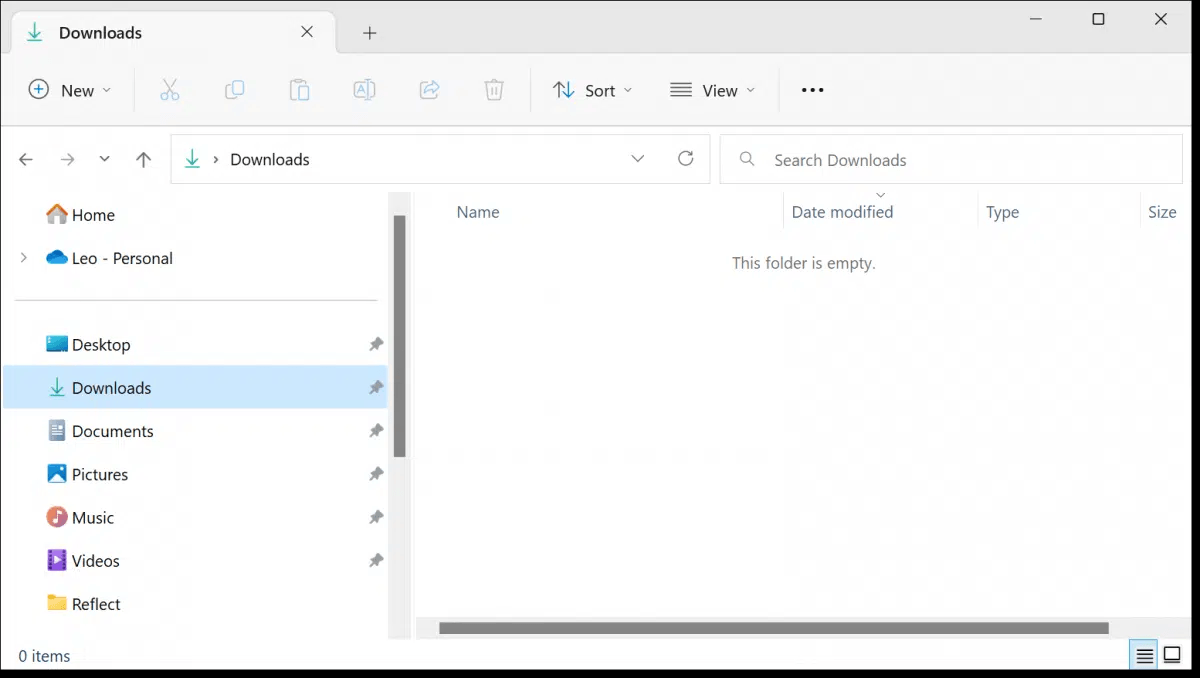
If your Downloads folder is still empty after these checks, the files may have been permanently deleted or lost due to file system errors. No matter what caused your downloads folder empty Windows 10 issue, this post shares a detailed guide to recover missing downloaded files, so you won’t have to redownload everything from scratch.
Why Is My Downloads Folder Empty on Windows 10?
When the Downloads folder suddenly becomes empty, the cause is usually related to file deletion, folder location changes, system settings, or storage issues. Identifying the reason can help you choose the right way to find or restore your missing downloaded files. Common reasons include:
✂️ Files were accidentally deleted: Downloaded files may have been removed manually, deleted by mistake, or cleared from the Recycle Bin.
📍 The Downloads folder location was changed: Windows allows users to move the Downloads folder to another location or drive. If the folder path was modified, the default Downloads folder may appear empty.
⚙️ Browser download settings changed: Chrome, Edge, or other browsers may save new downloads to a different folder than the default Windows Downloads location.
📌 Files were hidden or moved: Downloaded files may still exist but are hidden or transferred to another folder.
💻 Windows cleanup tools removed files: Features such as Storage Sense or third-party cleanup utilities may remove certain files during automatic maintenance.
📂 File system error or drive issues: If the storage drive has file system corruption or other disk errors, Windows may fail to display files correctly, making the Downloads folder appear empty.
Where Did My Downloaded Files Go on Windows 10?
First of all, it is worth checking whether your missing downloads are still available somewhere on your computer. In many cases, an empty Downloads folder does not mean the files have been permanently deleted. They may simply be hidden, moved to another location, removed by cleanup settings, or stored in a synced folder. Follow the methods below to locate your missing downloaded files on Windows 10.
Method 1. Check If Files are Hidden
Sometimes downloaded files appear to be missing because Windows File Explorer is set to hide certain files. Changing the display settings can help you determine whether your Downloads folder is actually empty or if the files are simply hidden.
Step 1. Open File Explorer and navigate to the "Downloads" folder.
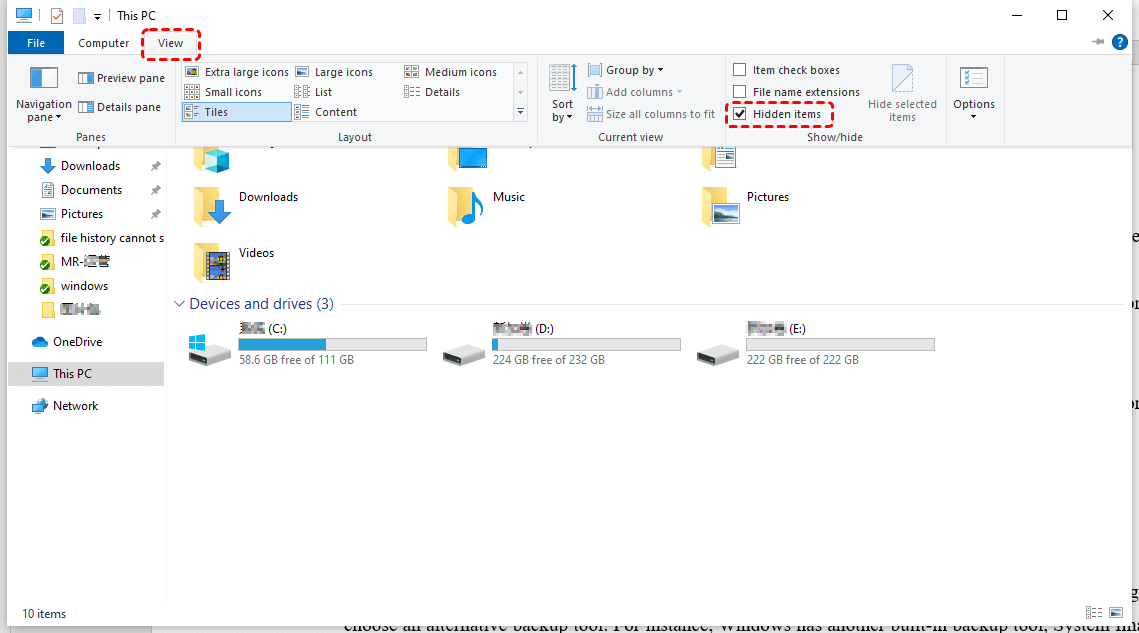
Step 2. Click the "View" tab on the top menu.
Step 3. Check the "Hidden items" option to display hidden files and folders. Then, verify whether your previously downloaded files appear in the folder.
Method 2. Search in Windows
If files were moved to another folder or saved in a different location, Windows Search can help locate them. This method is useful when you remember the file name, extension, or approximate download time.
Step 1. Enter the file name or a related keyword in Windows Search or File Explorer. To search for specific file types, you can also use extensions such as "*.pdf", "*.zip", or "*.exe".
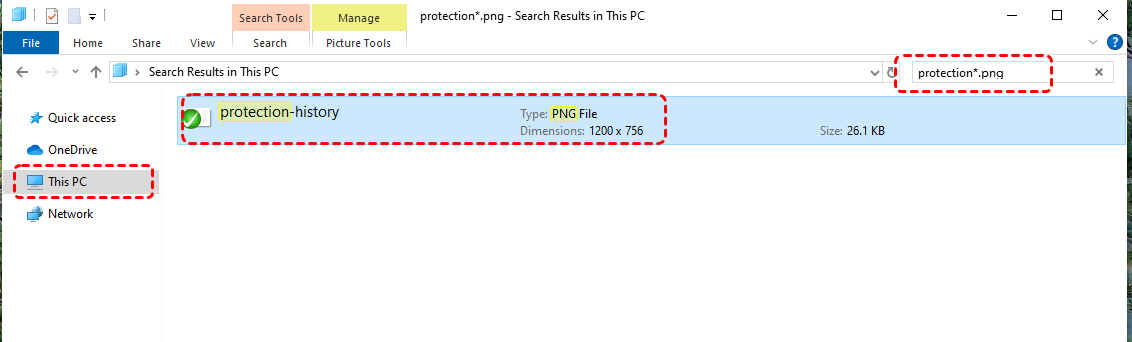
Step 2. Open the search results and check the file location shown by Windows.
Step 3. Move the found files back to your preferred Downloads folder if needed.
Method 3. Check for Automatic Deletion by Storage Sense
Windows 10 includes Storage Sense, which can automatically and regularly remove temporary files and other unnecessary data to free up disk space. If your Downloads folder was included in Storage Sense cleanup settings, some files may have been deleted automatically.
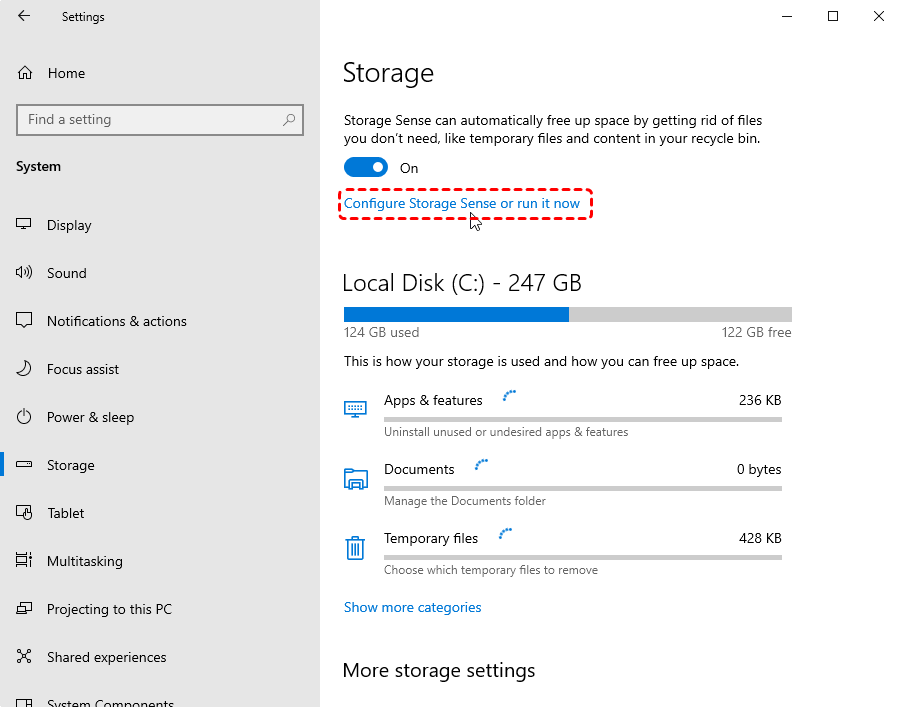
Step 1. Open Settings and go to "System" > "Storage".
Step 2. Click "Configure Storage Sense or run it now" and review the automatic cleanup settings.
Step 3. Locate the dropdown menu labeled "Delete files in my Downloads folder if they haven’t been opened for more than" and switch its value to "Never".
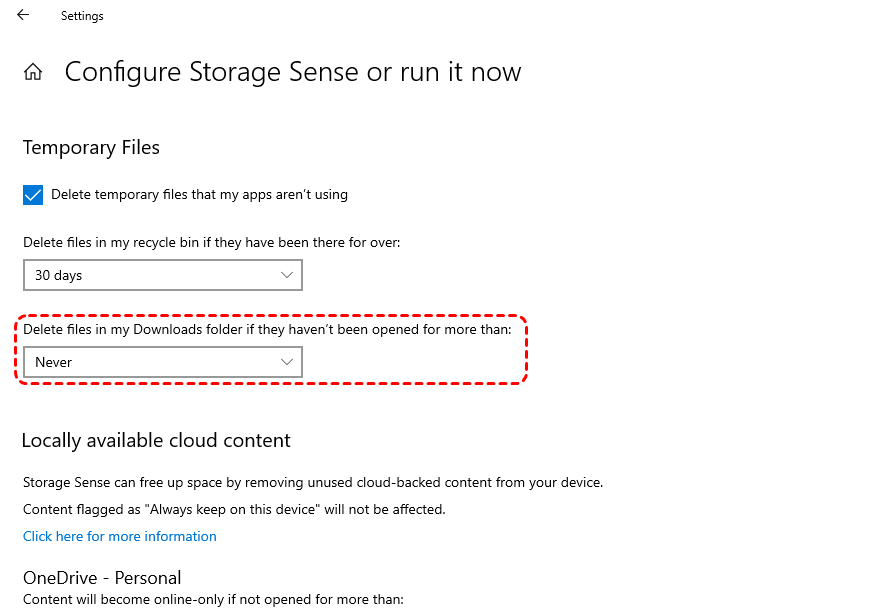
Step 4. If Storage Sense removed your files, you can use a recovery tool like MyRecover to restore permanently deleted downloads. Files erased by Storage Sense skip the Recycle Bin entirely and get permanently removed.
Method 4. Check the Browser Downloads Settings
Your downloaded files may not be missing but saved to another folder. Browsers such as Chrome and Edge allow users to change the default download location, causing files to appear in a different directory.
Step 1. Open your browser and go to the "Downloads" settings page ("Settings" > "Downloads").
Step 2. Check the current download location displayed by the browser.
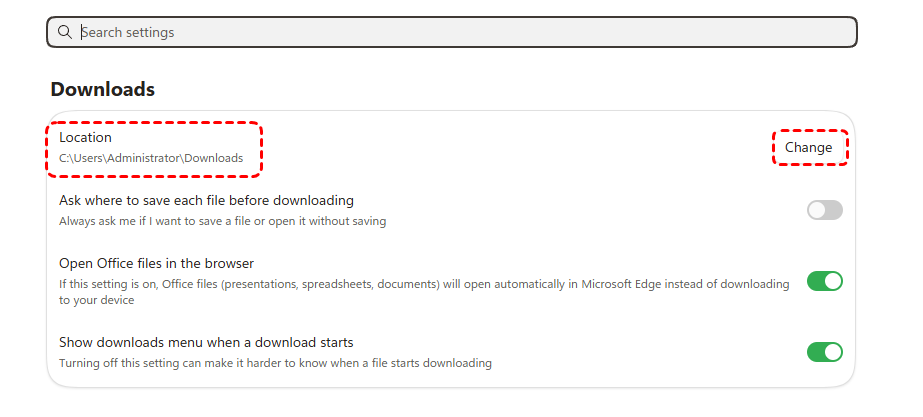
Step 3. Open that folder in File Explorer and check whether your downloaded files are there.
Step 4. Change the download location back to the default Downloads folder if necessary.
Method 5. Restore the Default Location of Downloads
If the Downloads folder path was changed accidentally, Windows may display an empty Downloads folder because you are viewing the wrong location. Restoring the default path can reconnect Windows with the original Downloads folder.
Step 1. Open File Explorer, right-click the "Downloads" folder, and select "Properties".
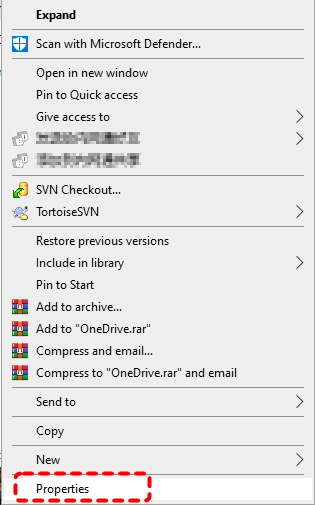
Step 2. Go to the "Location" tab.
Step 3. Click "Restore Default" to return the folder path to the original location.
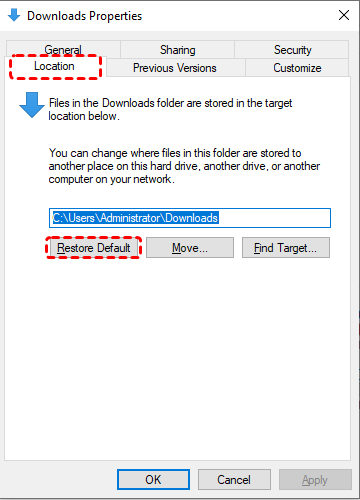
Step 4. Click "Apply" and confirm the changes to restore the default Downloads location.
Method 6. Check Cloud Sync or Recycle Bin
If you use cloud services such as OneDrive to sync your Windows folders, your Downloads files may have been moved, synced, or deleted through another device. Synced cloud drives may shift your downloaded files out of the local directory, while accidentally deleted items often sit in the Recycle Bin.
Step 1. Open the Recycle Bin on your desktop and search for your missing downloads.
Step 2. Right-click the required files and select "Restore" if they are available.
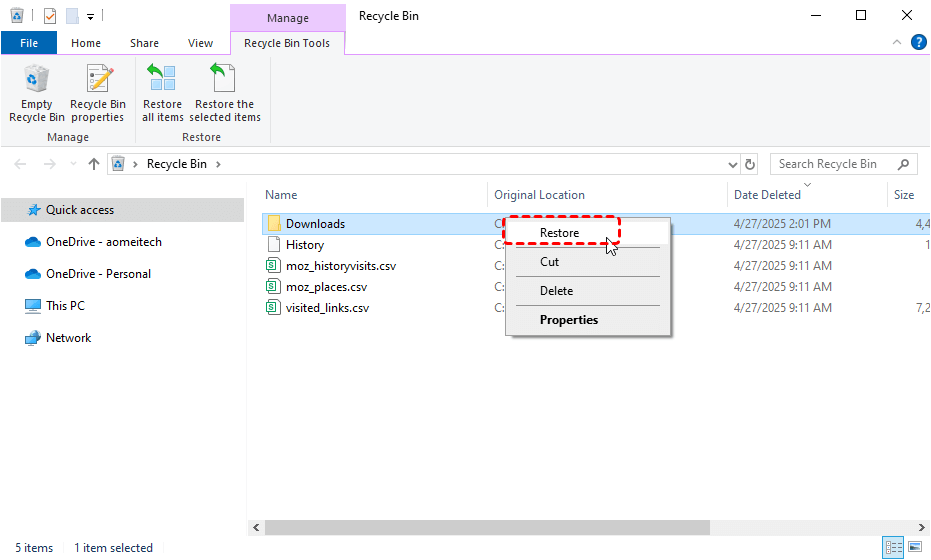
Step 3. Sign in to your cloud storage account and check synced folders or deleted files.
Step 4. Restore any available files back to your computer.
How to Recover Missing Downloaded Files on Windows 10
If you still cannot find your downloaded files after trying these methods, the files may have been permanently deleted or removed automatic cleanup tools. As long as the deleted files have not been overwritten, you can use professional data recovery software like MyRecover to scan the drive and to restore the lost downloads files.
MyRecover is a Windows data recovery tool designed to help recover missing files from various data loss situations, including emptied folders, accidental deletion, emptied Recycle Bin, formatted drives, etc. It can scan your Downloads folder location or the entire drive to find recoverable files and allows you to preview found data before recovery.

 MyRecover
- Recover deleted & lost files from HDD, SSD, USB, SD card, camera as you need.
- Support 1000+ formats of photos, videos, docs, archives, emails, compressed files, etc.
- Reliable rescue for deletion, formatted disk, emptied Recycle Bin, system crashes and more.
 100% Secure
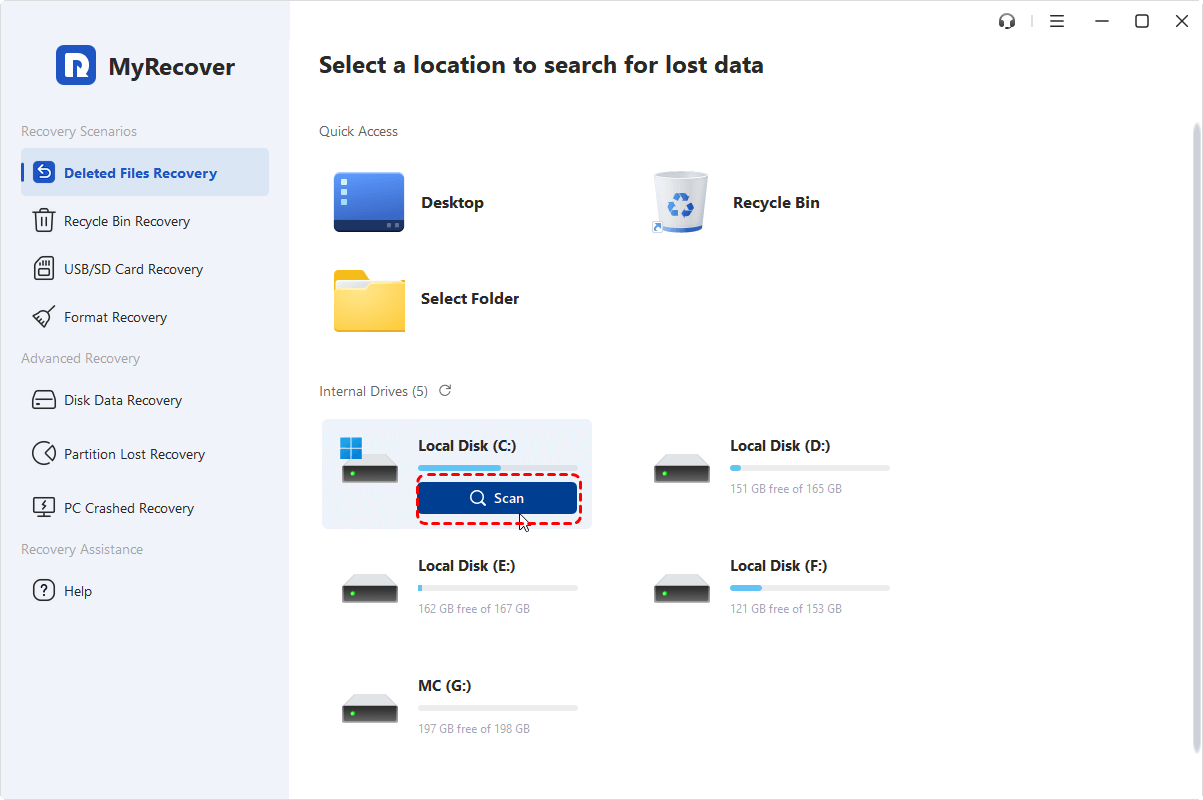
Step 1. Download and install MyRecover on your Windows computer. Avoid installing it on the same drive where your missing downloads were stored to prevent overwriting data.
Step 2. Launch MyRecover, select the drive containing your Downloads folder, and click "Scan" to search for recoverable files.
Step 3. After scanning, use filters such as file type or search by file name to quickly locate your missing downloads. You can preview available files before recovery.
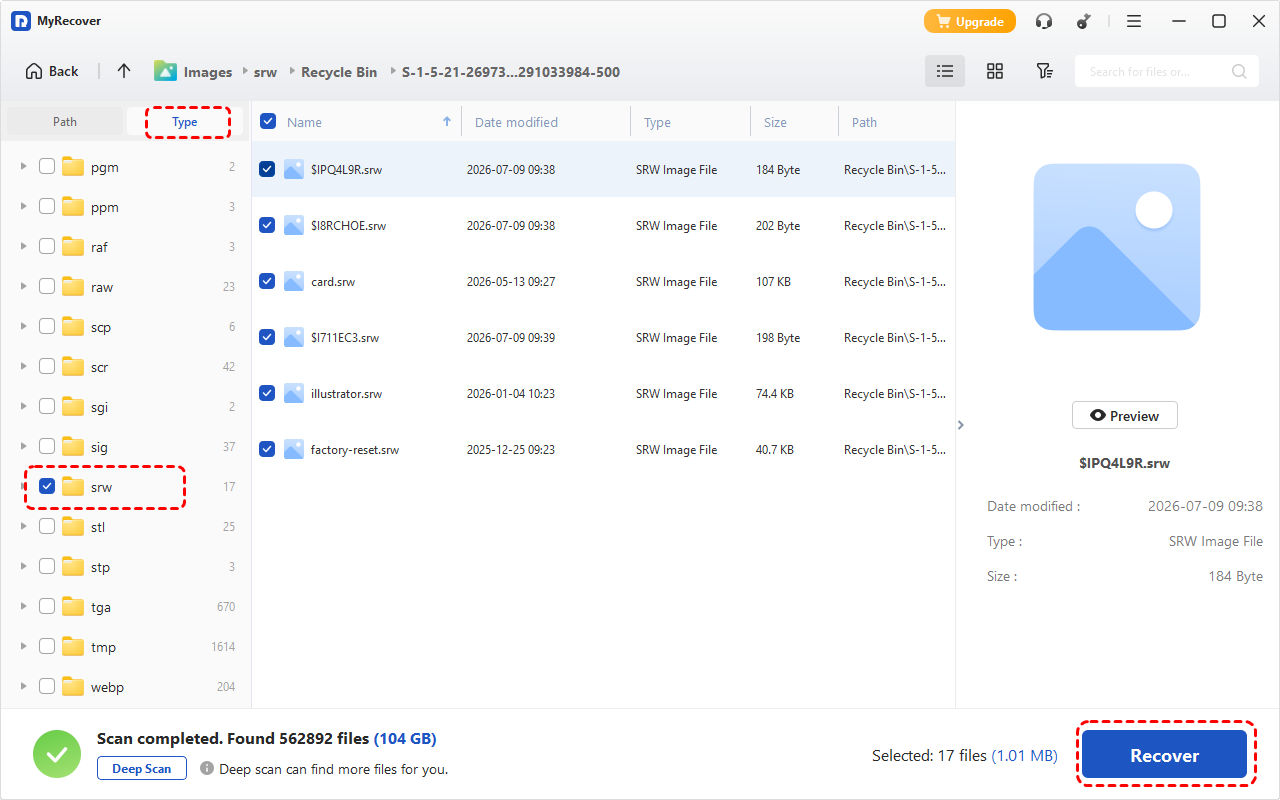
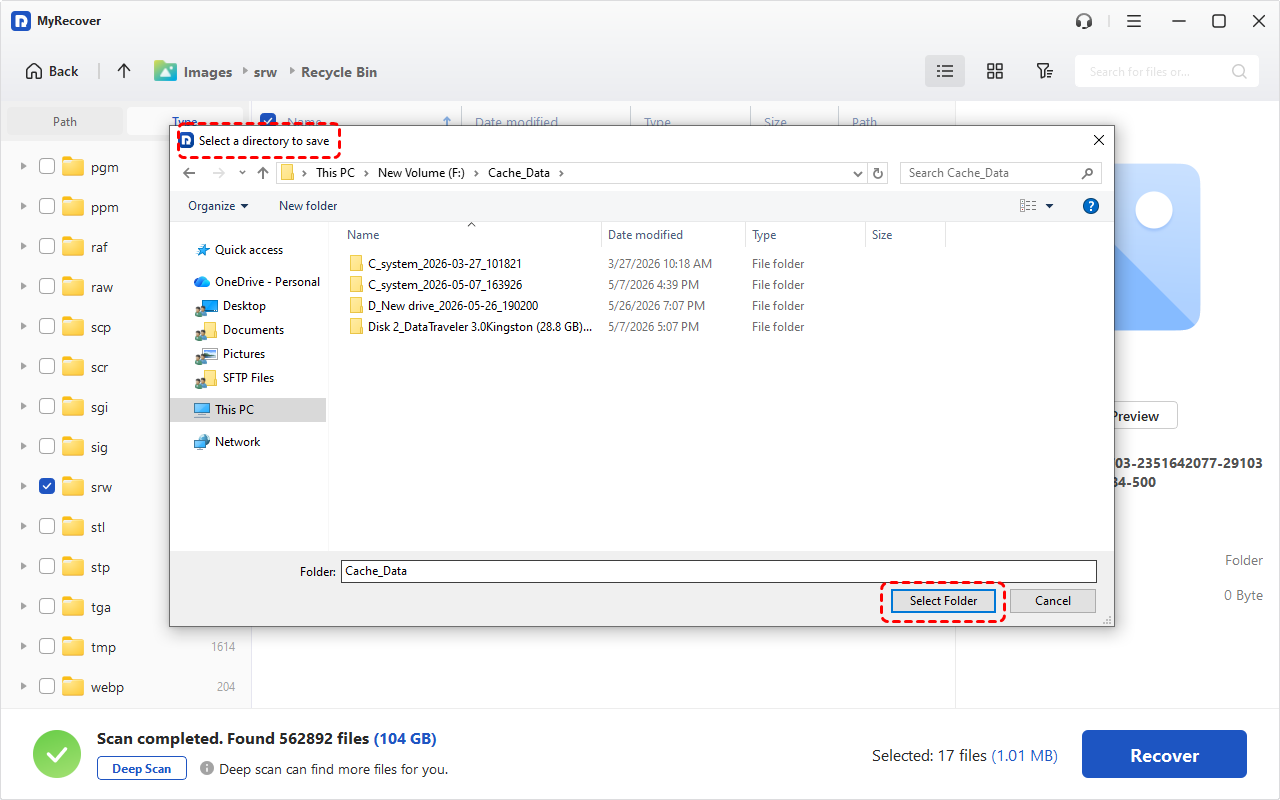
Step 4. Select the files you want to restore and click "Recover". Save the recovered files to another drive or location to avoid overwriting existing data.
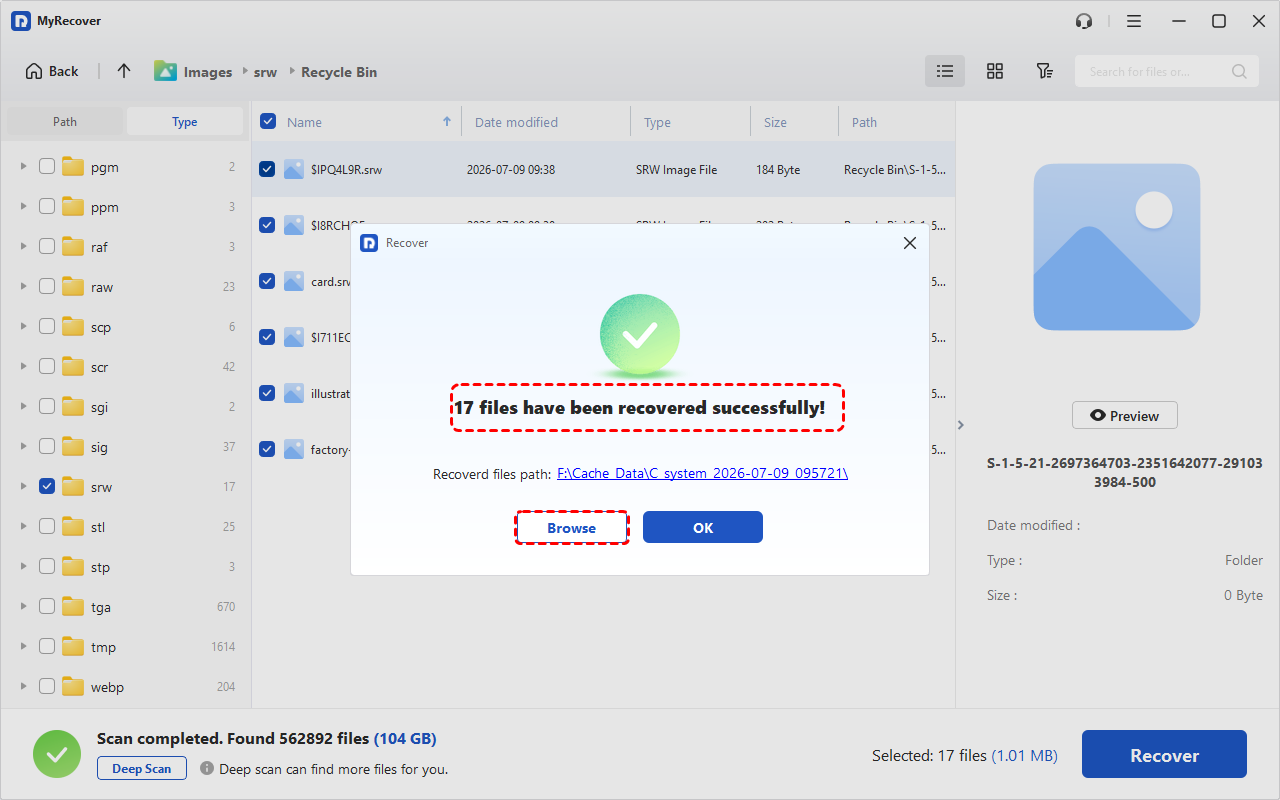
Once the process is finished, the message saying "Files have been recovered successfully" will pop up. Then, you can access the recovered files by clicking on the folder path or "Browse" button.
The Bottom Line
An empty Downloads folder on Windows 10 does not always mean that your files are permanently lost. In many cases, downloaded files may have simply been moved, hidden, saved to another location, or affected by changes in system settings. Following the solutions listed above, you will easily retrieve all your disappeared downloads to fix the emptied downloads folder Windows 10 issue.
However, if your Downloads folder was emptied due to accidental deletion or automatic cleanup tools, use a professional data recovery tool like MyRecover to scan for and restore lost downloads before they are overwritten.
FAQs
Q1: How to find missing downloaded files?
You can find missing downloaded files by checking the Recycle Bin, Windows Search, browser download history, hidden items settings, and other storage locations. If the files were moved or permanently deleted, use a data recovery tool to scan the drive and restore them.
Q2: What happens if I delete the Downloads folder?
Deleting the Downloads folder does not remove the entire Windows system, but it can delete the files stored inside it. Windows may recreate an empty Downloads folder automatically. If important files were deleted, stop using the drive and recover them as soon as possible.
Q3: How to recover missing files from Windows 10 downloads?
To recover missing Downloads files, first check the Recycle Bin, backups, and folder locations. If the files are permanently deleted, use data recovery software like MyRecover to scan your drive, preview recoverable files, and restore them to a safe location.
Q4: How to restore default downloads folder path in Windows 10?
To restore the default Downloads folder path, open File Explorer, right-click the Downloads folder, select "Properties", and go to the "Location" tab. Click "Restore Default", then select "Apply" to return the folder to its original Windows location.
Q5: Why are Chrome downloads not appearing in Windows 10 folder?
Chrome downloads may not appear in the Windows 10 Downloads folder because the browser download location has been changed. Open Chrome "Settings", check the "Downloads" section, and verify the current save location. Your files may be stored in another folder.
Q6: How to stop Windows 10 cleanup tools deleting downloads?
To prevent Windows 10 cleanup tools from deleting downloads, open "Settings" > "System" > "Storage" and review Storage Sense options. Change the Downloads cleanup setting to "Never". You should also check third-party cleanup software settings to avoid automatic file removal.

Stay Updated With Our
Latest Tips
Add us as a preferred source on Google to never miss helpful guides.
 Add as preferred source >>