 MyRecover



Windows Cloud Download or Local Reinstall: How to Keep Your Data Safe
When resetting a Windows PC, users are often asked to choose between 'Cloud Download' and 'Local Reinstall', but the implications for data safety are not always clear. This article breaks down how these two reset methods functions. By understanding the differences and preparing properly, you can make an informed decision and reduce the chance of unintended data loss during the reset process.

By Aria / Updated on January 22, 2026


What Is Cloud Download and Local Reinstall in Windows?
I am trying to reset my computer and it came up with two options, Cloud Download and Local Download. I am wondering what is the difference between those two. Can you explain?
- Question from Van
When you reset a Windows PC, the system now gives you an important choice: cloud download or local reinstall. This option appears in Windows 10 and Windows 11 during the "Reset this PC" process and directly affects how Windows is reinstalled, how long the reset takes, and how reliable the result will be. Many users hesitate at this step and have no clue how to choose, especially when they’re eager to fix existing system issues by resetting their PC.
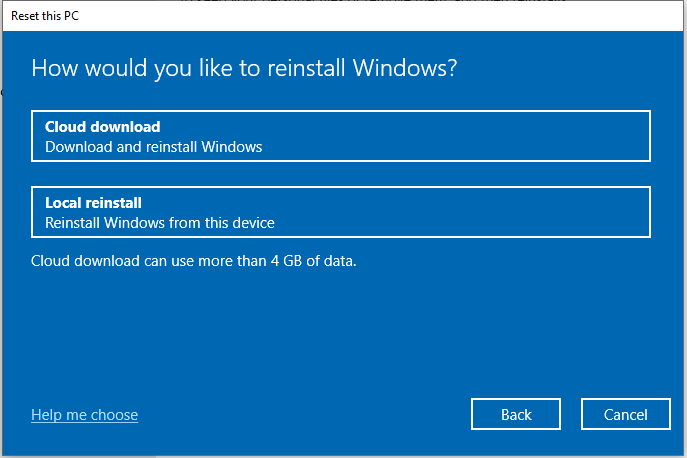
In simple terms, both options reinstall Windows, but they rely on very different sources. Understanding how each works, and when one is better than the other helps you to get a smoother resetting process.
What Is Cloud Download?
Cloud Download reinstalls Windows by downloading a fresh copy of system files directly from Microsoft’s servers. Instead of relying on files already stored on your PC, Windows retrieves a clean, up-to-date installation image from the cloud. This method is often recommended when local system files are damaged or missing, which is why many users lean toward resetting PC cloud download or local reinstall when troubleshooting serious system issues.
👍Pros
- Fresh Installation: Cloud Download retrieves a fresh system image directly from Microsoft servers. It does not rely on potentially corrupted local system files.
- Few Existing Issues: Avoids reinstalling corrupted or missing local system files, ensures consistency across core Windows components.
- Few Updates: Often installs the latest Windows version and security updates.
- Ideal for fixing severe system corruption or failed updates.
👎Cons
- Requires a stable internet connection. Any unexpected interruption can delay or fail the reset process.
- Uses significant data (usually 4–6 GB or more).
- Takes longer on slow or unstable networks.
- Not ideal for metered or limited data plans
- If the process is interrupted, this may lead to boot issues or require another recovery attempt.
What Is Local Reinstall?
Local Reinstall uses the Windows system files already stored on the recovery partition on your device to reinstall the operating system. No large download is required, which makes it faster in some cases. This option is often chosen when users want a quick reset without relying on internet connectivity.
👍Pros
- No Internet Needed: Local Reinstall uses system files already stored on the device and works in an offline environment, ideal for limited or unstable internet connections.
- Faster: Skips the image download step, faster than cloud download in most cases.
- Less Disruption: No dependency on network stability, fewer interruptions caused by connection drops or bandwidth limits.
- Less Reinstall Drives: Less need to reinstall drivers after reset, especially on laptops or branded systems.
👎Cons
- Depends on the integrity of local system files. If those files are corrupted, the reset may fail or inherit issues.
- If Windows Update, DISM, or SFC errors are already present, local reinstall may not fix them.
- Corruption in the component store directly affects reinstall success.
- Because it reuses local files, subtle configuration or component problems can remain.
How to Choose: Cloud Download or Local Reinstall
Choosing between Cloud Download and Local Reinstall is not about which option is "better" in general, but which one best fits your system’s current condition and your recovery goals. Both methods can reinstall Windows successfully, yet they rely on different resources and carry different risks. Understanding when to use each option helps reduce failure rates.
|
Feature / Aspect |
Cloud Download |
Local Reinstall |
|
Source of Installation Files |
Downloaded fresh from Microsoft's official servers over the internet. |
Uses the existing recovery partition stored on your hard drive. |
|
System Version & Freshness |
The latest stable public version of Windows |
The original version that came with your PC |
|
Pre-installed Software & Bloatware |
Provides a clean, pure Microsoft image. |
Typically restores all original manufacturer drivers, apps, and bloatware that came with your PC. |
|
Internet & Data Required |
✅ |
❌ |
|
Speed & Time |
Slower |
Very fast |
|
Reliability & Success Rate |
Depends on network stability. |
Highly reliable (If the recovery partition is not corrupted) |
|
Best for |
You want the cleanest, most up-to-date system; deep system file corruption; remove all manufacturer bloatware; recovery partition is missing or damaged, etc. |
You have no internet, slow internet, or limited data; need quick recovery; need specific original hardware drivers; cloud download fails repeatedly, etc. |
|
Post-Reset Action Required |
Very few updates needed |
Immediately check for and install a large number of Windows Updates |
How to Keep Your Data Safe When Reset Your Computer
Whether you choose cloud download or local reinstall, unexpected data loss may occur during the PC reset process, especially if the reset is interrupted or leads to more serious system errors. It’s essential to take some preparatory steps before resetting your system to protect your data.
Best Practices Before Resetting
Proper preparation can save you time, prevent complications, and protect your personal files, settings, and installed programs. By taking a few careful steps before resetting your system, you can safeguard your important data and streamline the recovery process.
- Backing up important files to an external drive, cloud storage or using Windows built-in backup tools like File History, Backup and Restore (Windows 7) or system image backup.
- Exporting browser data, licenses, and application settings.
- Disconnecting unnecessary external devices during reset to prevent from accidental data loss.
- Avoiding forced shutdowns once the reset begins, making sure connect a stable power supply.
- Choose "Keep my files" instead of "Remove everything". Your personal files will be saved in C:\Users\UserName\.
MyRecover: A Reliable Safety Net After System Resets
If you don’t back up your data or select the "Remove Everything" option before resetting, this will delete all personal files, apps, and system settings on your system drive. It’s equivalent to formatting the C: drive and reinstalling Windows. That doesn’t mean your data is gone forever, though. This is where a dedicated data recovery solution like MyRecover becomes valuable.
It can scan affected drives deeply to locate recoverable documents, photos, videos, music, archives and other critical data even after major system changes like system resets, failed update, or unexpected interruptions. Its read-only scanning approach ensures that recovery attempts do not overwrite existing data, making it one of the most dependable option.

 MyRecover
- 1000+ Devices Supported: HDD, SSD, USB flash drive, SD card, etc.
- 1000+ File Formats: Videos, PNG, VMDK, Archives, Emails and more.
- 500+ Data Loss Cases: Deletion, Format, Virus Attack, System Crash, etc.
 100% Secure
Step 1. Download and install MyRecover on your computer from Microsoft Store, avoid installing it on the system drive.
Step 2. Run the application and select the C drive to scan, then click "Scan" to search for recoverable files.

Step 3. After the scan is completed, choose the files you intend to recover from the recoverable lists and click "Recover".
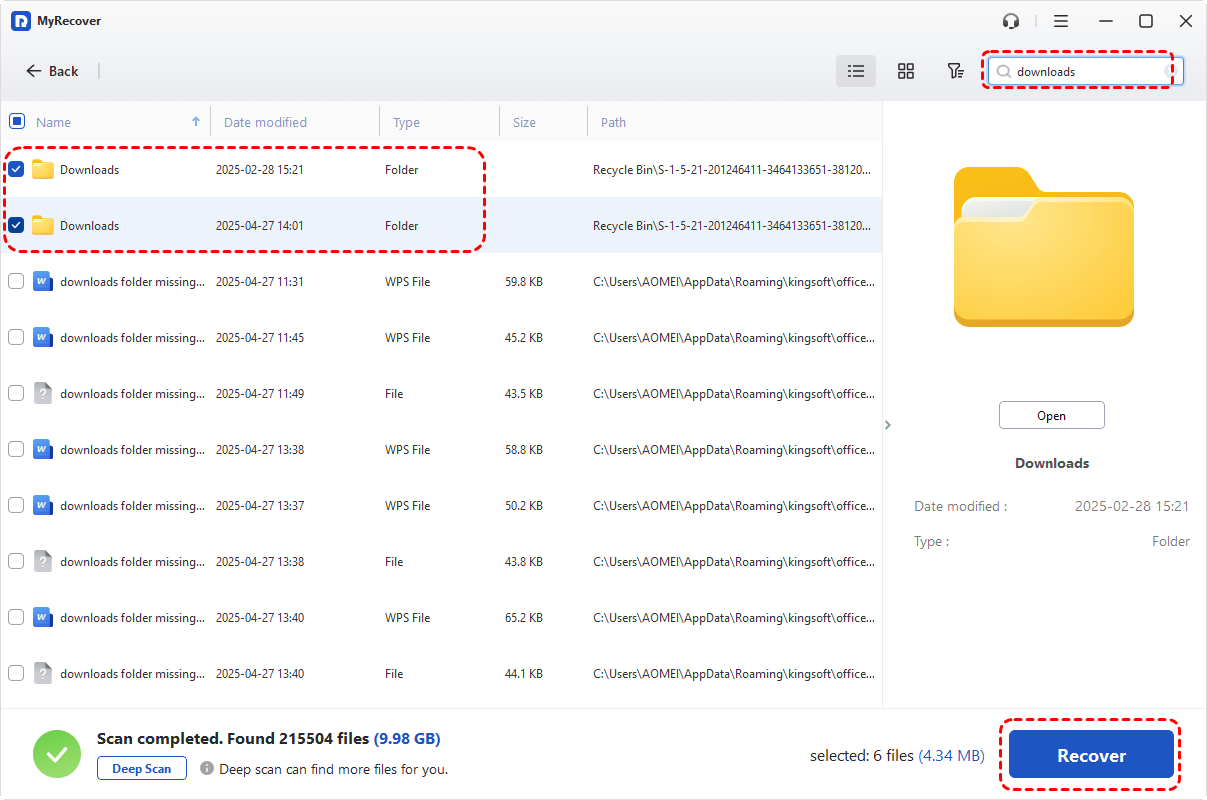
Step 4. Select a safe hard drive different from the C drive to save the recovered files.

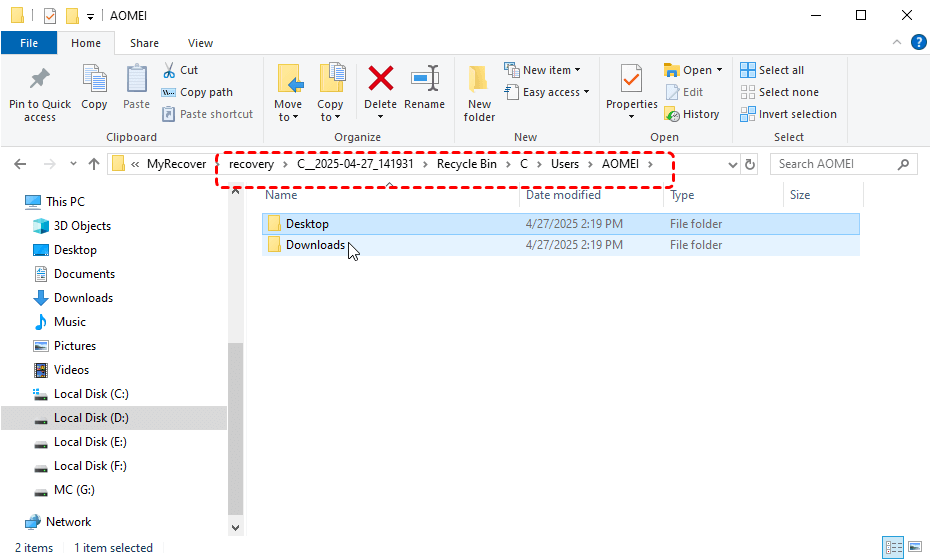
Once the process is done, you can check the recovered files by clicking on the destination folder path or the "Browse" button.
Conclusion
When faced with cloud download or local reinstall, there is no universally "correct" answer, only the option that best fits your system’s condition and your environment. Cloud Download prioritizes reliability and cleanliness, while Local Reinstall emphasizes speed and convenience.
If you suffer unexpected data loss after a reset, professional data recovery software can help you get your files back easily. For users with more advanced recovery needs, MyRecover Professional edition allows unlimited data recovery and lets you preview file contents before restoration, covering everything you could ask for.

Stay Updated With Our
Latest Tips
Add us as a preferred source on Google to never miss helpful guides.
 Add as preferred source >>