 MyRecover



Solved: Drive Not Showing Up in File Explorer on Windows 10/11
Struggling with a drive not showing up in File Explorer? This guide explains why your file explorer not recognizing external hard drive and provides step-by-step fixes. We cover Disk Management, driver updates, partition repairs, and hardware checks to restore your missing drive quickly and safely.

By Delores / Updated on March 12, 2026


Drive Not Showing Up in File Explorer!
What if your drive is not showing up in File Explorer? Whether it's an external hard drive, an internal SSD, or a simple USB stick, this issue can bring your productivity to a screeching halt. Don't worry, this guide will be your lifesaver, walking you through a logical, step-by-step process to understand why your hard drive is not showing up in File Explorer and, more importantly, how to get it back.
Why is Drive Not Showing Up in File Explorer?
A disk not showing in File Explorer can stem from a variety of reasons, ranging from the laughably simple to the moderately complex. Generally speaking, it might be caused by the following reasons:
This could be due to a driver software glitch.
- A missing drive letter assignment.
- A corrupted file system.
- Lack of power for larger external devices.
- You are using a brand-new drive, the drive is perfectly healthy, but hasn't been initialized and formatted, a necessary process before Windows can use it.
- Hardware failure.
After getting the reasons, you might have solutions to fix it. And we will show the proven solutions to solve your problem and make it show in File Explorer.
How to Fix Drive Not Showing Up in File Explorer in 10 Ways
Way 1. Try Another USB Port
First, try a different USB port. Seriously. The port you're using could be faulty or not provide enough power. If you're using a USB hub, plug the drive directly into a port on your computer itself, as hubs can be finicky.
Way 2. Try A Different Cable
Next, try a different cable if you have one; cables fail more often than you’d think.
Way 3. Check the SATA Data And Power Cables
For internal drives, power down your PC, open the case, and check that both the SATA data and power cables are snugly connected. Give your computer a restart. It often works by clearing temporary glitches.
Way 4. Check Disk in Disk Management
If your drive does not show up in File Explorer, you have to check it in Disk Management.
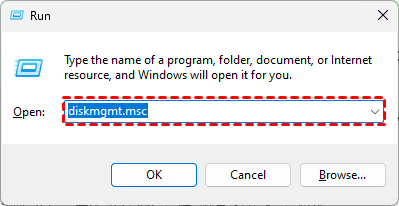
You can access Disk Management by right-clicking the Start button and selecting "Disk Management", or by pressing Win + R, typing diskmgmt.msc, and hitting Enter.
Here, you’ll see a comprehensive list of all storage devices connected to your system. Scan this list carefully. You’re looking for your missing drive. It might appear in one of several states:
- Unallocated: This means the drive has no partition. It’s like a plot of empty land with no building on it. Windows can't use it yet.
- RAW: The drive has a partition, but Windows doesn't recognize its file system (often due to corruption).
- Online, with a Healthy Partition: This is what you want to see. If it's here but not in File Explorer, the issue is almost certainly a missing drive letter.
- Offline: The drive is seen by the system but is set to an offline state.
If you find your drive listed as "Unallocated", it means that your drive is physically healthy; it just needs to be set up. Right-click on the unallocated space and select "New Simple Volume".
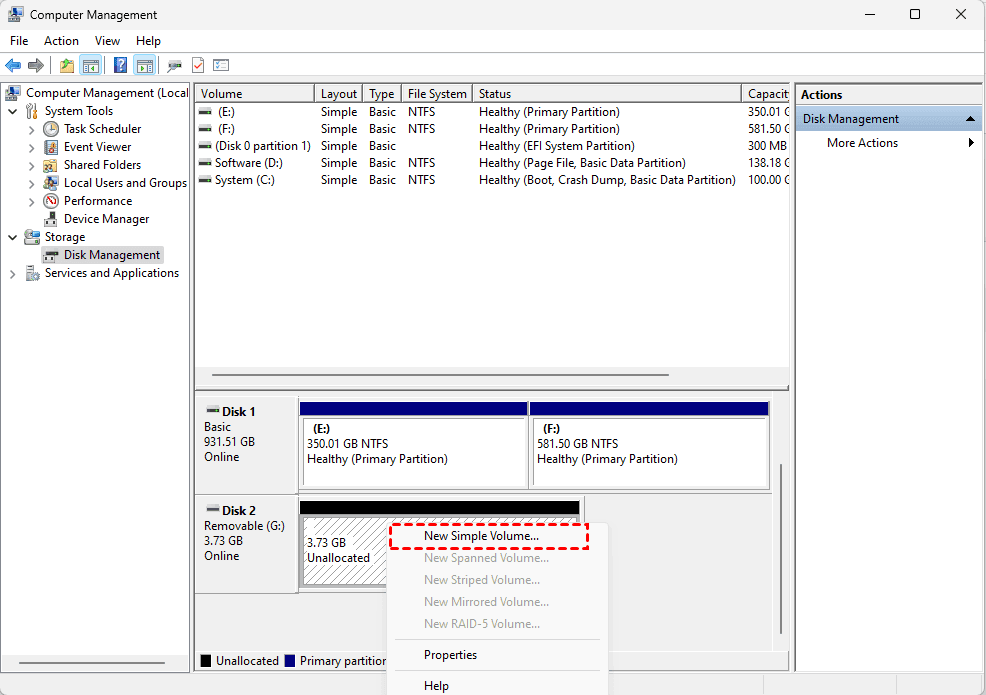
This will launch a wizard. You can mostly just click "Next", but when you reach the "Assign Drive Letter" step, ensure that you have chosen a drive letter that is not already in use.
Later, you’ll be prompted to format the drive. Once the format is complete, your drive should appear in File Explorer, ready for action. This is a common fix for a new hard drive not appearing in File Explorer.
Way 5. Update Drivers
If your drive isn't new and showing up in Disk Management, you can try to update the drivers to make it show in File Explorer.
It can easily lead to a situation where your file explorer does not recognize the external hard drive if the driver for your disk is outdated or corrupted. To check this:
1. Right-click the Start button and select "Device Manager".
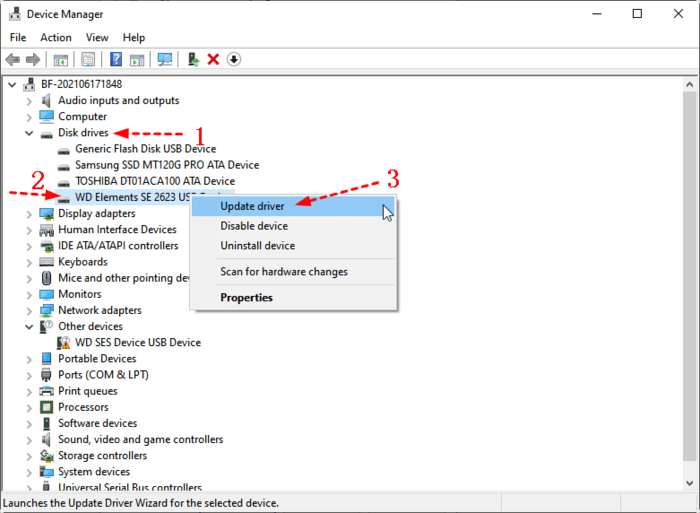
2. Expand the "Disk drives" and "Universal Serial Bus controllers" sections.
3. Look for any devices with a yellow exclamation mark, which indicates a problem.
4. Right-click on the relevant device (or even the generic "USB controllers") and choose "Update driver".
5. Let Windows search automatically.
6. If that doesn’t work, select "Uninstall device", then restart your computer. Windows will attempt to reinstall the driver fresh upon reboot, which often clears up any nagging issues.
Way 6. Run the Hardware and Devices Troubleshooter
Windows has a suite of built-in troubleshooters designed to identify the problems and fix them automatically.
1. Open the Settings app, go to "Update & Security".
2. Then select "Troubleshoot".
3. Run the "Hardware and Devices" troubleshooter.
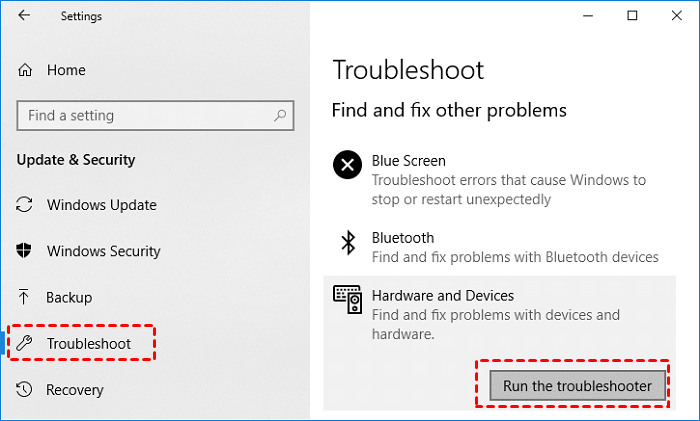
It will scan for issues related to devices and drivers and suggest fixes. It's a low-effort, potentially high-reward step.
Way 7. Change the Drive Letter and Paths
This is a fantastically common and simple fix. Sometimes, the drive is perfectly healthy, but its assigned drive letter has somehow conflicted with another device or been removed.
1. Right-click on the Start button and select "Disk Management" from the menu.
2. In Disk Management, right-click on the healthy partition of your missing drive and select "Change Drive Letter and Paths".
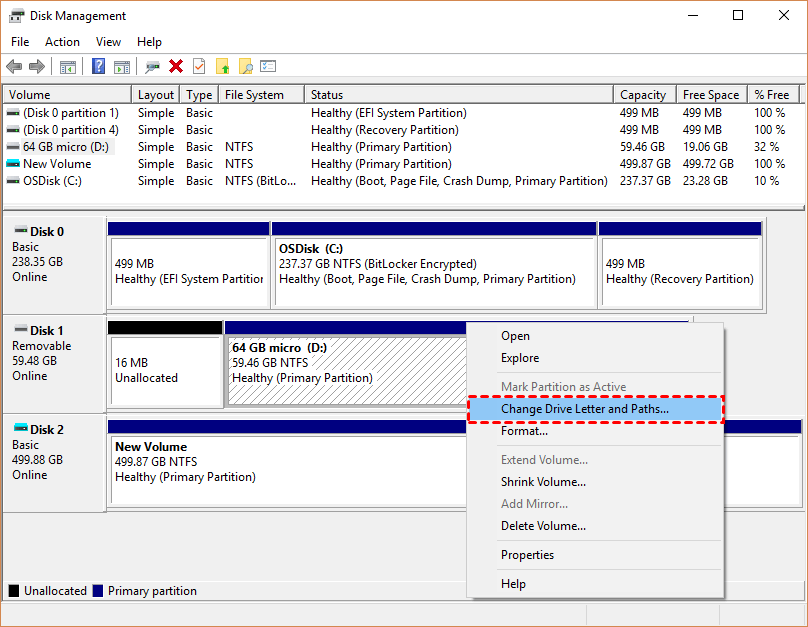
3. Click "Add" or "Change" and assign it a new, unused letter like Z: or E:.
4. Click OK, and like magic, your previously missing drive should instantly appear.
It's a straightforward solution for a hard drive not showing up in File Explorer that's otherwise healthy.
Way 8. Check and Repair Disk Errors
If the drive is visible but has a "Raw" file system or other errors, Windows' Check Disk utility can be a lifesaver.
1. Open an administrative Command Prompt.
2. Assigned the letter E: for your missing disk, you can type chkdsk E: /f /r and press Enter.

The /f parameter fixes errors, and /r locates bad sectors and recovers readable information.
This process can take a long time for large drives, but it can repair file system corruption that prevents access.
Way 9. Format Drive
DiskPart is a command-line powerhouse that can often fix problems that Disk Management can't handle. This is for when a disk not showing in File Explorer is due to more stubborn partition issues.
Important: Please ensure you have backed up your important files in this drive, or your files will be lost permanently.
1. Open Command Prompt as an administrator.
2. Then type diskpart.
3. Once it opens, use the list disk command to check your available disks.
4. Identify the correct one, then type select disk [your disk number].
5. After that, enter clean.
6. Input create partition primary, and select partition [partition number], input active.
7. Then format fs=ntfs quick, and finally assign letter=g.
8. Type exit to close DiskPart.
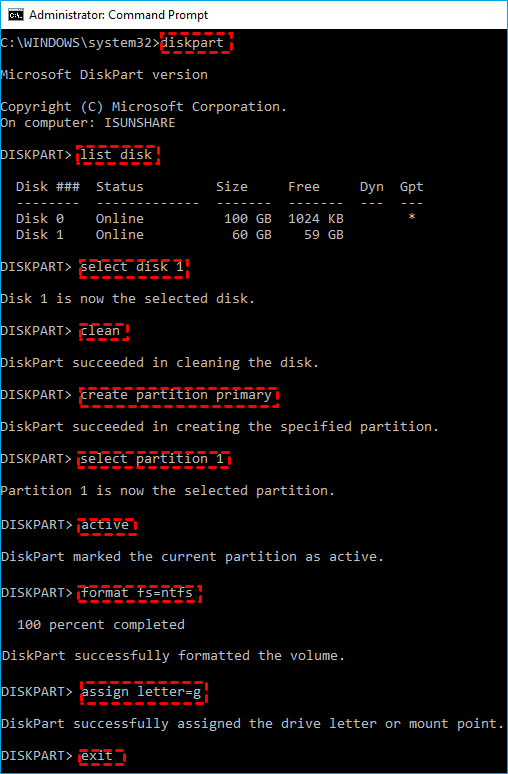
After doing this, the disk should show up in File Explorer. This worked for me.
Way 10. Replace Another Hard Drive
If your disk has been physically damaged, you will need to replace it with another healthy drive to finish your task.
Recover Your Files with MyRecover
When all else fails, and you're facing a hard drive not appearing in File Explorer that contains irreplaceable data, your best bet is a dedicated data recovery tool.
- MyRecover is a powerful and user-friendly application designed to scan storage devices at a deep level, bypassing many of the Windows-level issues that cause a drive to disappear.
- It can read the raw data from the drive and recover your files, even if the drive is unformatted, corrupted, or has lost its partition.
- It provides the preview feature for you to find the right files and ensure they are intact.
- You can recover unlimited files all at once.
- MyRecover supports 1,000+ formats, including JPG, JPEG, PNG, TIF, HEIC, GIF, PSD, SVG, ARW, X3F, NEF, MP4, MOV, AVI, ASF, WMV, RM, FLV, QSV, RMVB, X3F, MP3, CDA, WAV, AIFF, WMA, VQF, OGG, ARM, APE, FLAC, etc.
Here is how to recover files from the drive that is not showing up in File Explorer with MyRecover:
1. Connect your external hard drive to your computer if necessary. Download and install MyRecover on your computer.
 100% Secure
2. Launch MyRecover, tap Disk Data Recovery, choose the drive that is not showing up in File Explorer, and hit Scan.

3. Hit OK when it’s done.
4. Preview and choose the files you need, then hit Recover. Choose a safe folder to save these files.


After recovery, you can check the recovered files in the destination folder.

- Tips:✎...
- By default, MyRecover scans files, and once you find the missing files, recover them all. Besides, you can perform a deep scan to find more missing files, and the time is much longer.
- MyRecover lists files by file type, so you can find the specific files quickly. On the other hand, you can search files by file name, file size, and file path.
- To recover files from unlimited computers within a company for administrators, please upgrade to MyRecover Technician to enjoy.

 MyRecover
- Recover Deleted Files Easily with Simple Clicks
- 1000+ File Formats Supported
- Support HDD, SSD, External Hard Drive, USB Drive, SD Card, etc.
- Quickly Find Files Using File Types, Name, Size, etc.
- Preview Files Before Recovering
- Recover Unlimited Data
 100% Secure
FAQs About Drive Not Showing Up in File Explorer
Q: Why is my external hard drive not showing up in File Explorer, but it has power?
A: This typically indicates a software issue, not a physical failure. Common causes include driver conflicts, a missing drive letter, or a corrupted file system. Check Windows Disk Management first to see the drive's true status (uninitialized, offline, etc.).
Q: How can I force Windows to recognize my external hard drive?
A: Start with basic troubleshooting: try a different USB port/cable and restart your PC. Then, use Device Manager to update drivers. In Disk Management, you can set an "Offline" drive to "Online" or assign a new drive letter. For severe cases, the DiskPart command-line tool can force recognition but erase data.
Q: Can a dead external hard drive be recovered?
A: It depends. Drives with physical damage (e.g., seized motor, scratched platters) require expensive professional recovery. However, if the drive powers on but has logical corruption, data recovery software like MyRecover can often successfully retrieve the data.
Q: How do I fix an unallocated external hard drive without losing data?
A: First, recover your data using software like MyRecover to scan the unallocated drive. After securing your files, use Disk Management to initialize and format the drive, which will erase it but make it usable again.
Q: My internal SATA hard drive is not detected in Windows at all. What should I do?
A: This suggests a hardware issue. Check and reseat the SATA data and power cables, and try a different motherboard SATA port. Enter your BIOS/UEFI settings to see if the drive is detected there. If not, it's likely a hardware failure. If the BIOS sees it but Windows doesn't, the problem is software-related.

Stay Updated With Our
Latest Tips
Add us as a preferred source on Google to never miss helpful guides.
 Add as preferred source >>