 MyRecover



Driver Power State Failure Windows 10
This guide explains Windows 10 driver power state failure, why the BSOD occurs, and how to fix it by updating drivers, changing power settings, disabling fast startup, and resolving sleep or hibernate conflicts for long-term system stability on modern PCs.

By Vera / Updated on February 6, 2026


What Is Driver Power State Failure in Windows 10
Driver Power State Failure is a Blue Screen of Death (BSOD) that occurs when Windows fails to properly transition a device into or out of a power-saving state.
In plain English, Windows asks a driver to change power mode, and the driver either:
- Doesn’t respond.
- Responds too slowly.
- Responds incorrectly.
To prevent further damage, Windows stops the system and shows the blue screen.
Why Windows 10 Is More Prone to This Error
Windows 10 relies heavily on:
- Sleep mode
- Hibernate
- Fast Startup
These features improve performance and battery life, but they also demand perfect driver behavior. One outdated or incompatible driver is enough to crash the entire system.
What Causes Driver Power State Failure Windows 10
There is rarely a single cause. This error usually results from driver conflicts combined with power settings.
1. Outdated or Corrupted Drivers
This is the most common cause. Drivers can become problematic due to:
- Windows updates (such as updating Windows 10 to 11)
- Incomplete installations
- Long periods without updates
2. Graphics Drivers
Display drivers frequently cause this issue, especially on systems with:
- Dedicated GPUs
- Hybrid graphics (Intel + NVIDIA/AMD)
3. Network and Wireless Drivers
Wi-Fi, Bluetooth, and Ethernet drivers are notorious for power-state conflicts, especially during sleep or hibernation.
4. Power Management Settings Conflicts
Features like Fast Startup and aggressive power-saving modes can clash with certain drivers, causing them to fail during transitions.
5. External Devices and USB Drivers
External hard drives, USB hubs, printers, and adapters can all trigger this error if their drivers don’t support modern power states.
6. Windows Update Compatibility Issues
Some Windows updates introduce changes that older drivers simply can’t handle, leading to blue screens shortly after updating.
Can Driver Power State Failure Cause Data Loss
Technically, the error itself doesn’t delete files. However, repeated blue screens and forced shutdowns increase the risk of data loss, especially if:
- Files were open during a crash.
- The system becomes unbootable.
- The file system gets corrupted.
If important files go missing after repeated crashes, this is where a dedicated data recovery tool like MyRecover becomes useful.
Using MyRecover to Recover Lost Data
MyRecover is a data recovery tool designed to retrieve files lost due to:
- System crashes.
- Unexpected shutdowns.
- Blue screen errors.
- Accidental deletion during troubleshooting.
 100% Secure
It can scan internal drives and recover documents, photos, videos, and other files without requiring advanced technical skills. If Driver Power State Failure leaves your system unstable or causes missing files, using MyRecover early improves recovery success.
How to Fix Driver Power State Failure Windows 10
Below are complete, standardized solutions, arranged from easiest to more advanced. Follow them in order for best results.
Solution 1: Restart Windows 10 in Safe Mode
Safe Mode loads only essential drivers, making it easier to identify driver-related problems.
Steps to Enter Safe Mode
1. Click Start → Settings
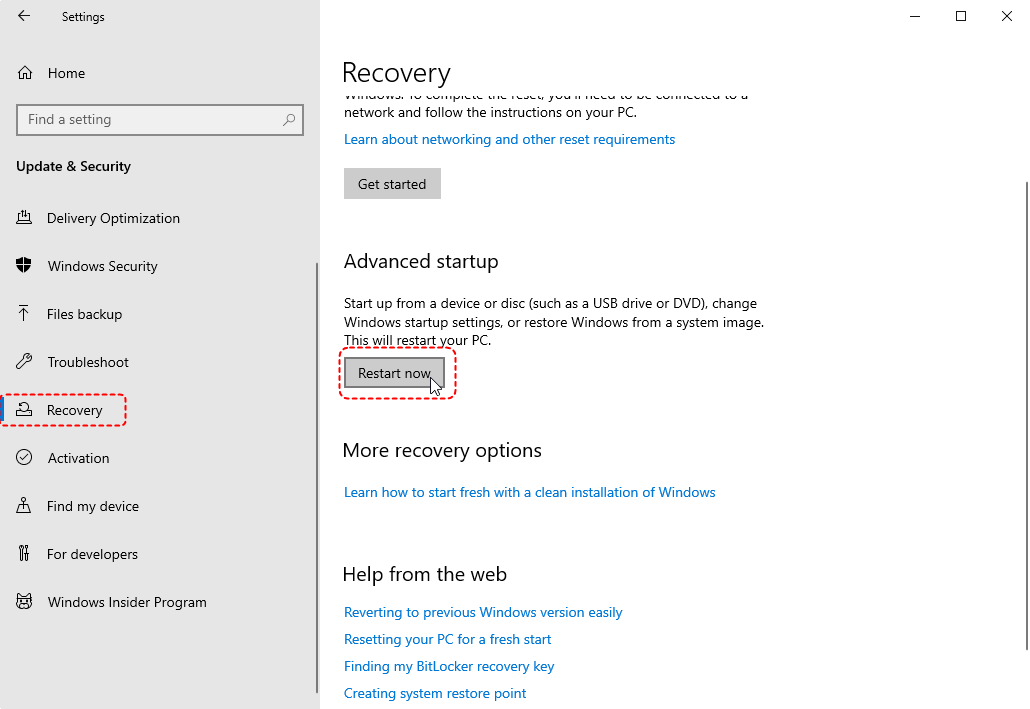
2. Go to Update & Security. Select Recovery. Under Advanced startup, click Restart now.
3. Choose Troubleshoot → Advanced options → Startup Settings → Restart.
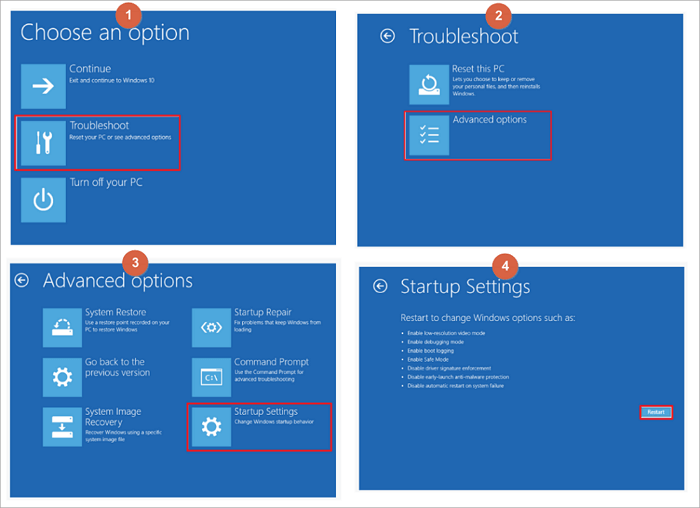
4. Press 4 to enable Safe Mode.
If the blue screen does not occur in Safe Mode, a third-party driver is the cause.
Solution 2: Update All Device Drivers
Keeping drivers updated is the single most effective fix.
Method 1: Update Drivers Using Device Manager
1. Press Win + X. Select Device Manager.

2. Expand each category.
3. Right-click a device and select Update driver.

4. Choose Search automatically for drivers.
5. Restart your PC after updates
6. Repeat this process for:
- Display adapters.
- Network adapters.
- USB controllers.
Method 2: Update Drivers from Manufacturer Websites
For critical drivers, manual updates are better.
Focus on:
- Graphics card (NVIDIA, AMD, Intel)
- Wi-Fi and Bluetooth adapters
- Motherboard chipset drivers
Always download drivers directly from official sources.
Solution 3: Disable Fast Startup
Fast Startup is a frequent cause of driver power issues.
Steps to Disable Fast Startup
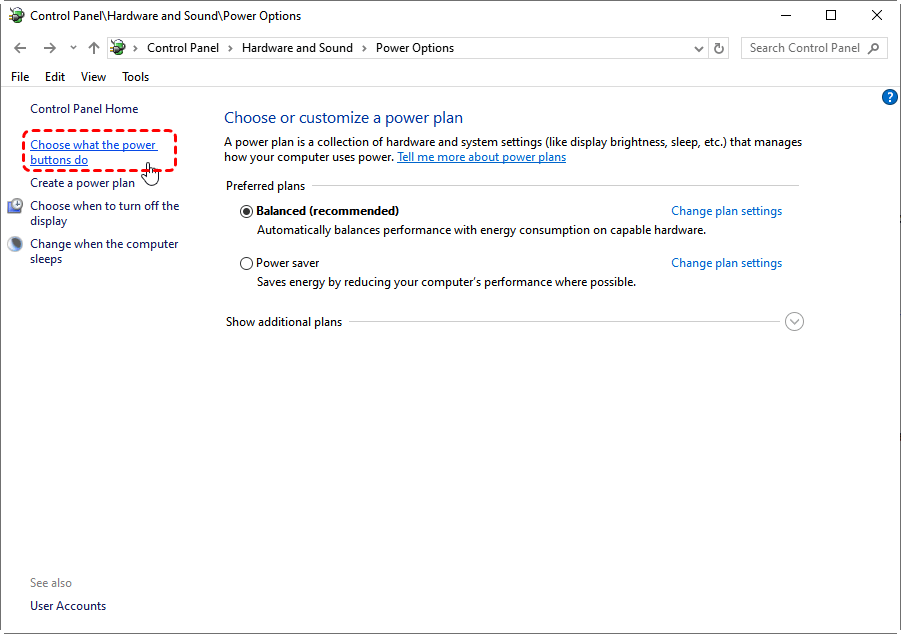
1. Open Control Panel. Go to Hardware and Sound → Power Options.
2. Click Choose what the power buttons do.
3. Click Change settings that are currently unavailable.
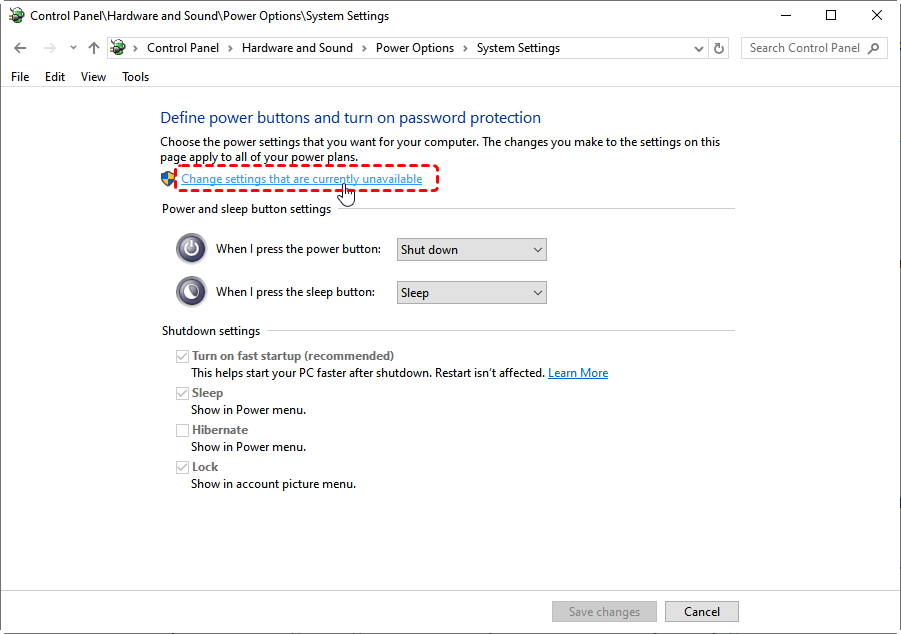
4. Uncheck Turn on fast startup.
5. Click Save changes.
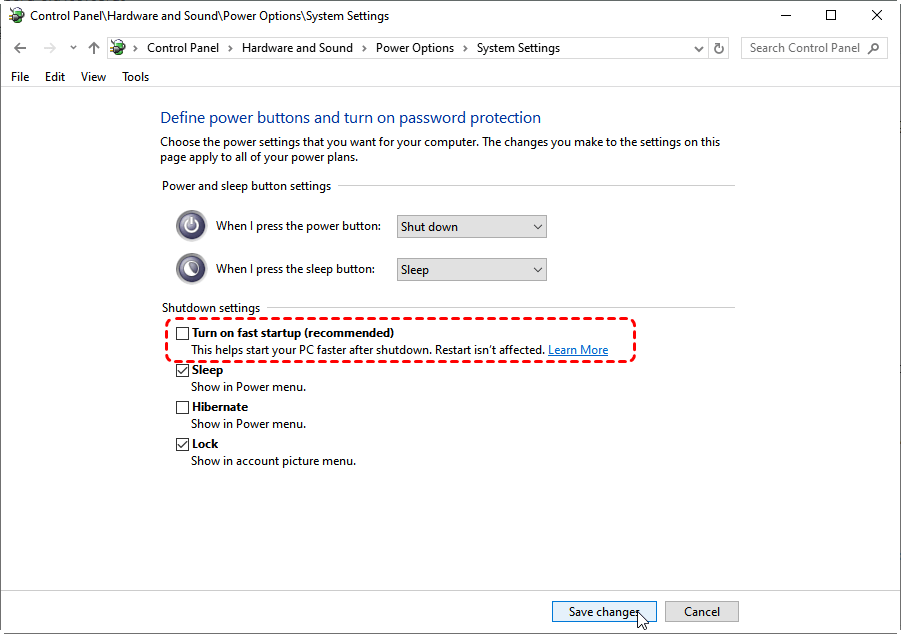
6. Restart your PC.
Solution 4: Adjust Power Plan Settings
Switching power plans can stabilize driver behavior.
Steps
1. Open Control Panel.
2. Select Hardware and Sound → Power Options.
3. Choose Balanced or High performance.
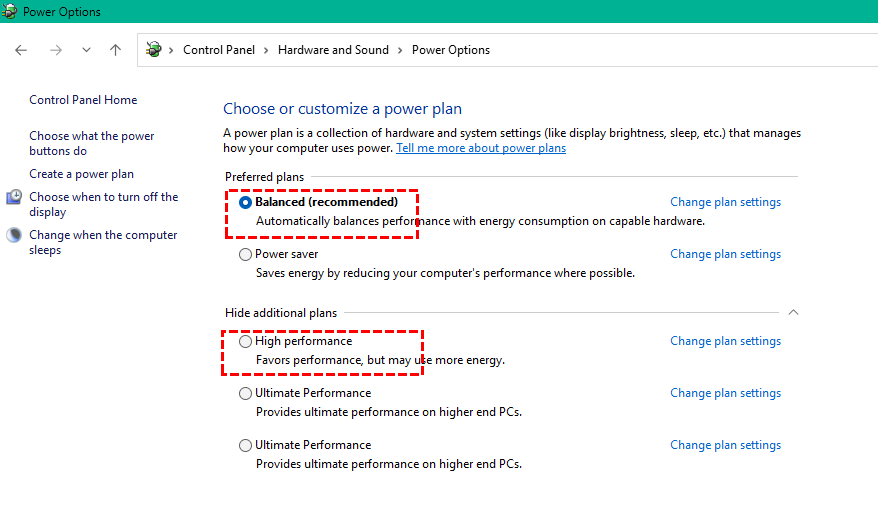
4. Avoid aggressive custom power-saving profiles.
Solution 5: Disconnect External Devices
1. Shut down your computer.
2. Disconnect all non-essential devices.
3. Restart Windows.
4. Use the system normally.
If the error disappears, reconnect devices one by one until you find the culprit.
Solution 6: Run Windows Power and Blue Screen Troubleshooters
Steps
1. Open Settings.
2. Go to Update & Security.
3. Click Troubleshoot.
Run:
- Power Troubleshooter
- Blue Screen Troubleshooter
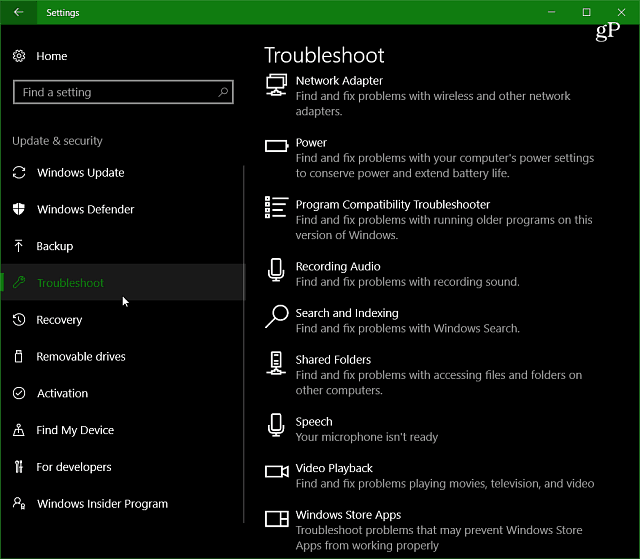
These tools can automatically detect misconfigured drivers or settings.
Solution 7: Roll Back or Update Windows 10
If the error started after an update, rolling back may help.
Steps to Roll Back
1. Open Settings.
2. Go to Update & Security.
3. Select Recovery.
4. Choose Go back to the previous version.
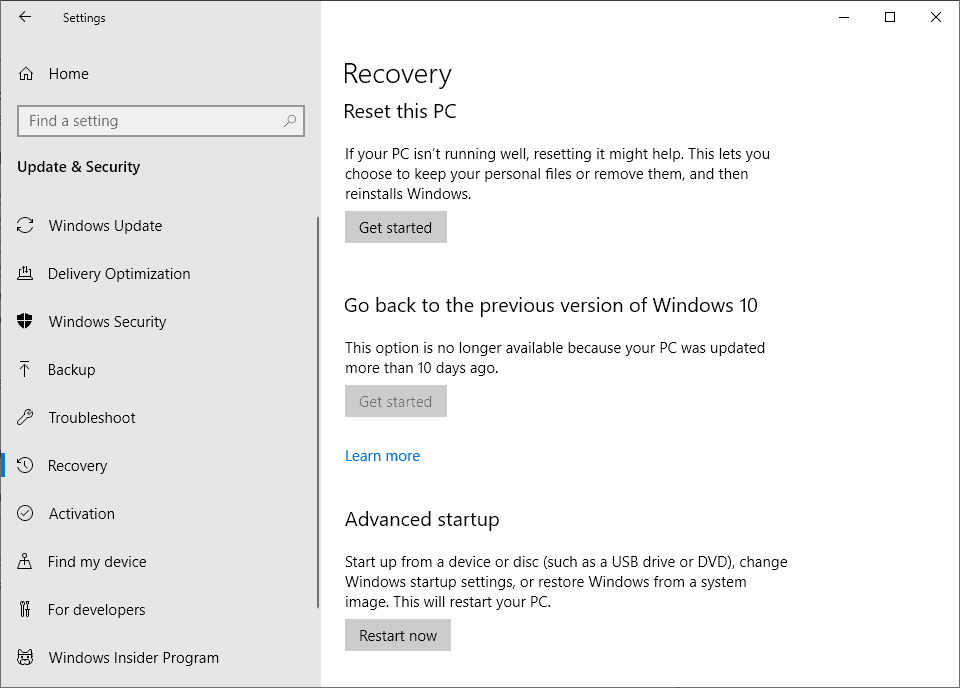
Alternatively, install pending updates that may contain bug fixes. If the issue continues, move on to these deeper fixes.
Solution 8: Run System File Checker (SFC)
Corrupted system files can indirectly cause driver errors.
Steps
1. Open Command Prompt as Administrator.
2. Type: sfc /scannow. Press Enter.

3. Wait for the scan to complete.
4. Restart your PC.
Solution 9: Update BIOS or Firmware
Outdated BIOS versions can conflict with modern Windows power management.
Check your motherboard or laptop manufacturer’s website for BIOS updates and follow their instructions carefully.
How to Prevent Driver Power State Failure in the Future
Once fixed, prevention is key.
Keep Drivers and Windows Updated
Regular updates reduce compatibility issues and improve system stability.
Avoid Untrusted Driver Tools
Third-party driver installers often cause more problems than they solve. Stick to official sources.
Conclusion
The Driver Power State Failure Windows 10 error is frustrating but rarely permanent. With proper driver updates, power setting adjustments, and careful device management, most systems return to normal quickly.
If repeated crashes cause files to go missing or the system becomes unstable, a data recovery tool like MyRecover can help retrieve important files before further troubleshooting. Fix the cause, protect your data, and you’ll be back to a stable system in no time.v

Stay Updated With Our
Latest Tips
Add us as a preferred source on Google to never miss helpful guides.
 Add as preferred source >>