 MyRecover



Fix "Entry Point Not Found" in Windows 11 – Dynamic Link Library Errors
Constant pop-ups showing "entry point not found" error on Windows 11 usually stop users from launching games, official utilities and regular desktop software. Whether you're troubleshooting a specific DLL error or looking for reliable ways to resolve startup issues in Windows 11, this guide will help you diagnose the problem, recover important DLL files if needed, and prevent similar errors from occurring again.

By Aria / Updated on July 28, 2026


The Procedure Entry Point Cloud not be Located
InitializeSynchronizationBarrier Entry Point Not Found
"Hi, everything was working fine. But all of sudden I encountered below error: The procedure entry point InitializeSynchronizationBarrier could not be located in the dynamic link library KERNEL32.dll. I copied 64bit application to the target machine and when I run it, I get below error: App_CL.exe - Entry Point Not Found. Can someone suggest how can I fix it. what went wrong? Just 2 weeks back everything was working fine"
- Question from Kumar
The "Entry Point Not Found" error is a common Dynamic Link Library (DLL) error in Windows 11 that usually appears when you try to launch an application, game, or system utility. The error message typically states that "a specific procedure entry point could not be located in a DLL file, preventing the program from starting correctly". It often occurs after a Windows update, software installation, application upgrade, or changes to system files.
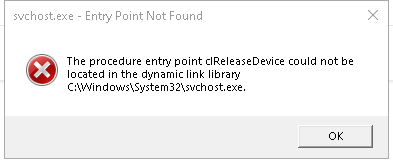
Fortunately, this error is usually caused by software or system file issues rather than hardware failure. In this guide, you'll learn the most common reasons behind the and follow step-by-step solutions to repair corrupted DLL files, restore missing system components, and get your applications running normally again.
Why Does "Entry Point Not Found" Appear in Windows 11?
An "Entry Point Not Found" error occurs when a program cannot locate the specific function (entry point) it expects within a Dynamic Link Library (DLL) file. This usually means the application and the DLL version are incompatible, or the required system files have been modified, corrupted, or replaced. The most common causes include:
Corrupted or missing DLL files: Essential DLL files may become damaged due to disk errors, malware, or unexpected system shutdowns.
Software version mismatch: A program may be trying to load an older or newer DLL that doesn't contain the required entry point.
Incomplete software installation or update: If an application is not installed or updated properly, some DLL files may be missing or incorrectly registered.
Corrupted Windows system files: Damaged system components can prevent applications from accessing the required DLL functions.
Faulty Windows updates: In some cases, a Windows update may replace or modify system libraries, causing compatibility issues with existing software.
Outdated Visual C++ Redistributables: Many applications rely on Microsoft Visual C++ runtime libraries. If they are missing or outdated, DLL-related errors may occur.
Third-party software conflicts: Registry cleaners, DLL replacement tools, or unofficial software modifications can overwrite system DLLs and trigger entry point errors.
How to Fix Entry Point Not Found in Windows 11/10/7/8
Since the "Entry Point Not Found" error can result from application conflicts, missing DLL files, corrupted system components, or incompatible updates, it is best to troubleshoot from the simplest solutions before moving to advanced system repairs. Follow the methods below in order until the error is resolved.
Method 1. Reinstall the Affected Program
In many cases, the error is caused by an incomplete installation or a version mismatch between the application and its required DLL files. Reinstalling the program replaces missing or damaged files with fresh copies and ensures the application is correctly registered with Windows. This is the quickest solution if the error only affects one specific program.
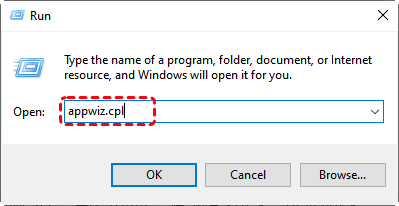
Step 1. Press "Win" + "R" and type "appwiz.cpl" in the Run dialog, then hit the "Enter" key to open Programs and Features.
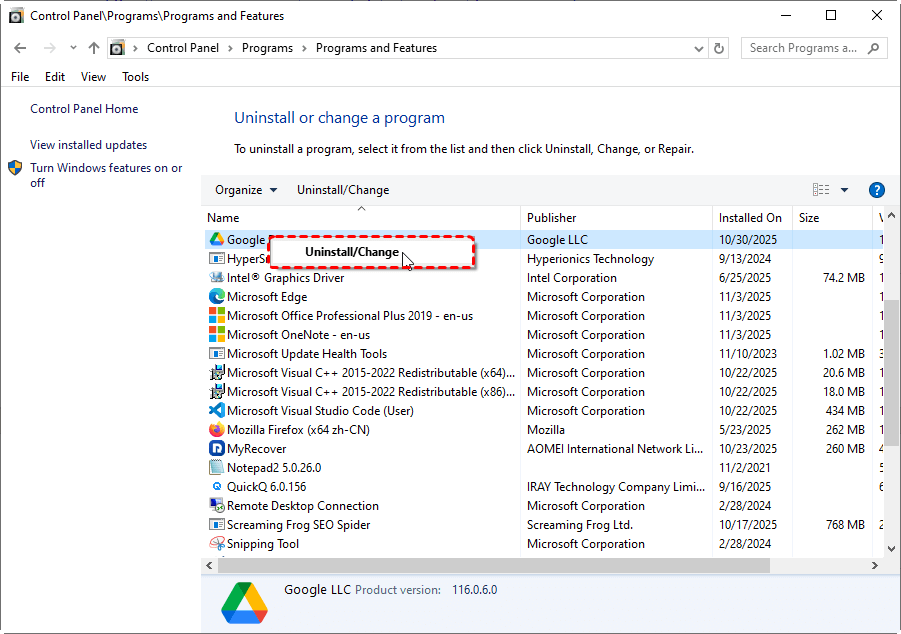
Step 2. Find the affected application from the list and right click on it, then choose "Uninstall".
Step 3. Restart your computer after the uninstallation is complete.
Step 4. Download the latest version of the application from its official website and install it.
Step 5. Launch the program to verify whether the error has disappeared.
Method 2. Disable Windows Defender Temporarily
Sometimes Windows Defender or another antivirus program may mistakenly quarantine a required DLL file, preventing an application from loading correctly. Temporarily disabling real-time protection helps determine whether security software is causing the issue. If the application works afterward, you can restore the quarantined file and add it to the exclusion list instead of leaving protection disabled.
Step 1. Open "Windows Security" from the "Start" menu.
Step 2. Select "Virus & threat protection".
Step 3. Click "Manage settings" under "Virus & threat protection" settings.
Step 4. Turn "Real-time protection" off temporarily.
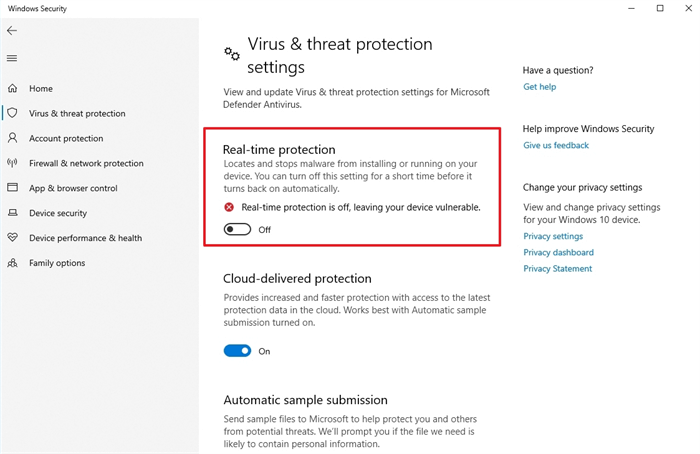
Step 5. Run the affected application again to see whether the "Entry point not found" error is resolved.
- ★Tips:
- Re-enable Windows Defender immediately after testing to keep your computer protected.
Method 3. Restore the Quarantined DLL File
If Windows Defender has quarantined a DLL that your application depends on, restoring it may immediately resolve the Entry Point Not Found error. After restoring the file, you should add it to the exclusion list if you trust the application. Only restore DLL files that belong to legitimate software from reliable sources.
Step 2. Navigate to "Windows Security" > "Virus & threat protection" > "Protection history".
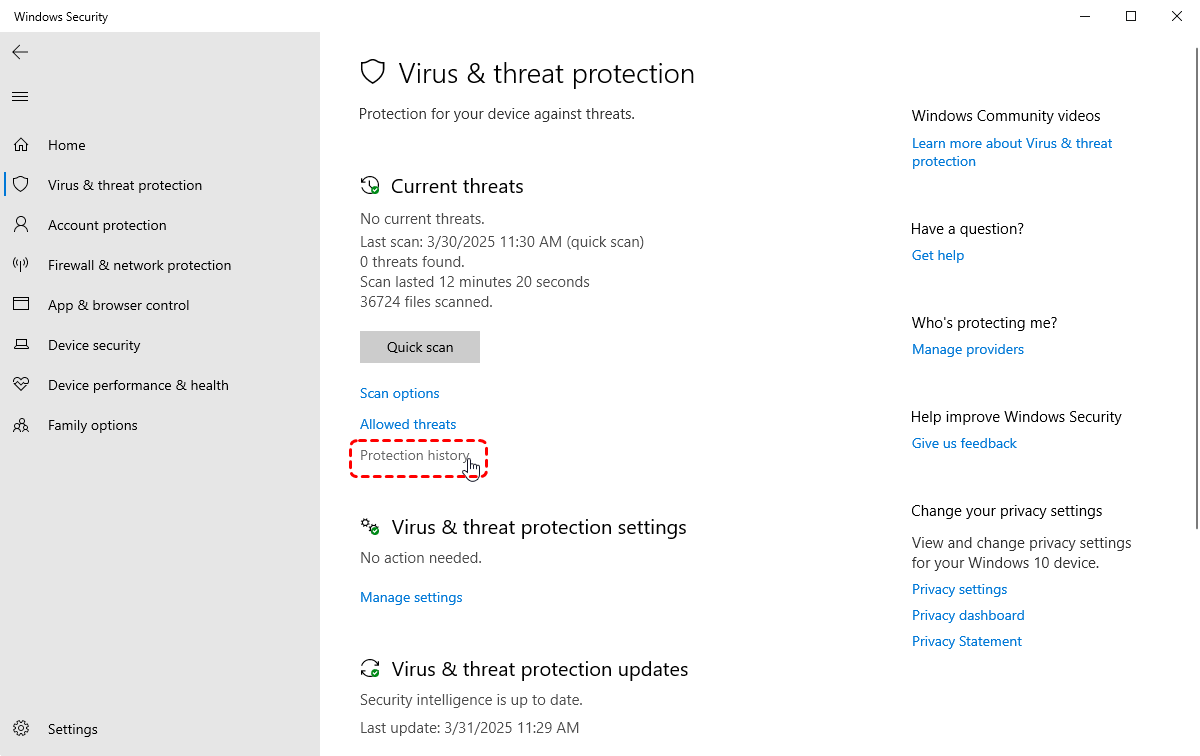
Step 3. Look for recently quarantined DLL files related to the affected application.
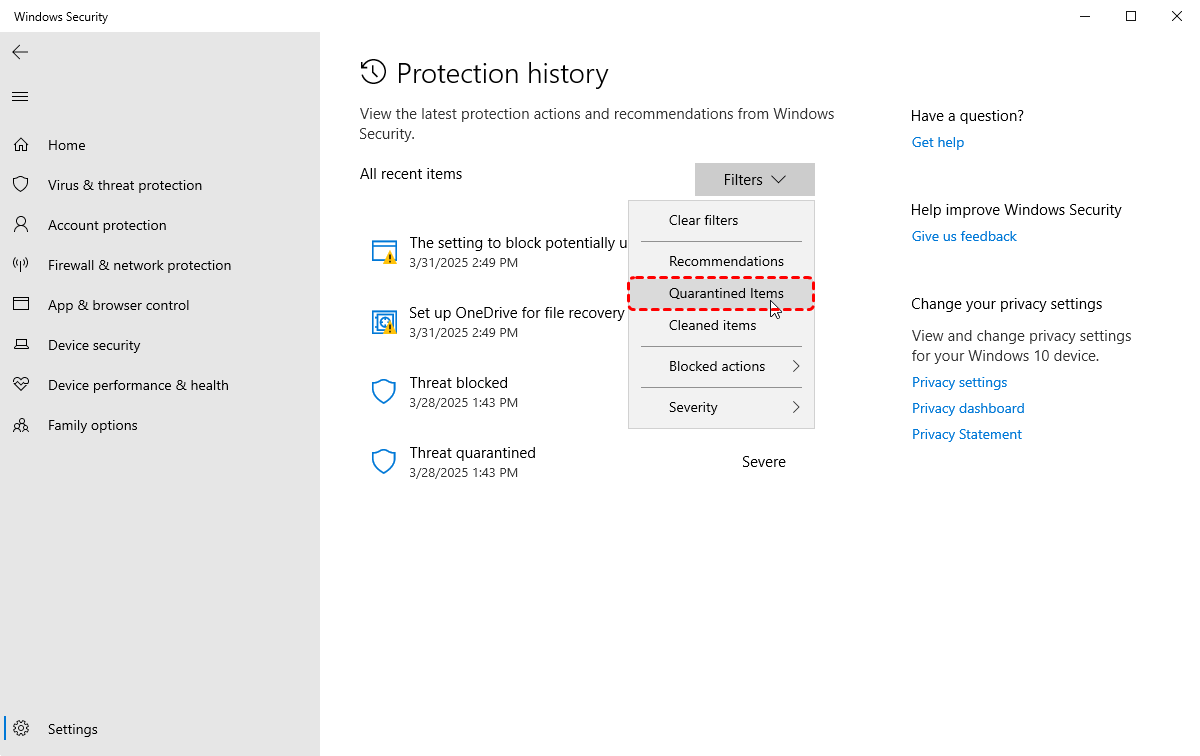
Step 4. Select the DLL file and click "Quarantined Items" by "Filters".
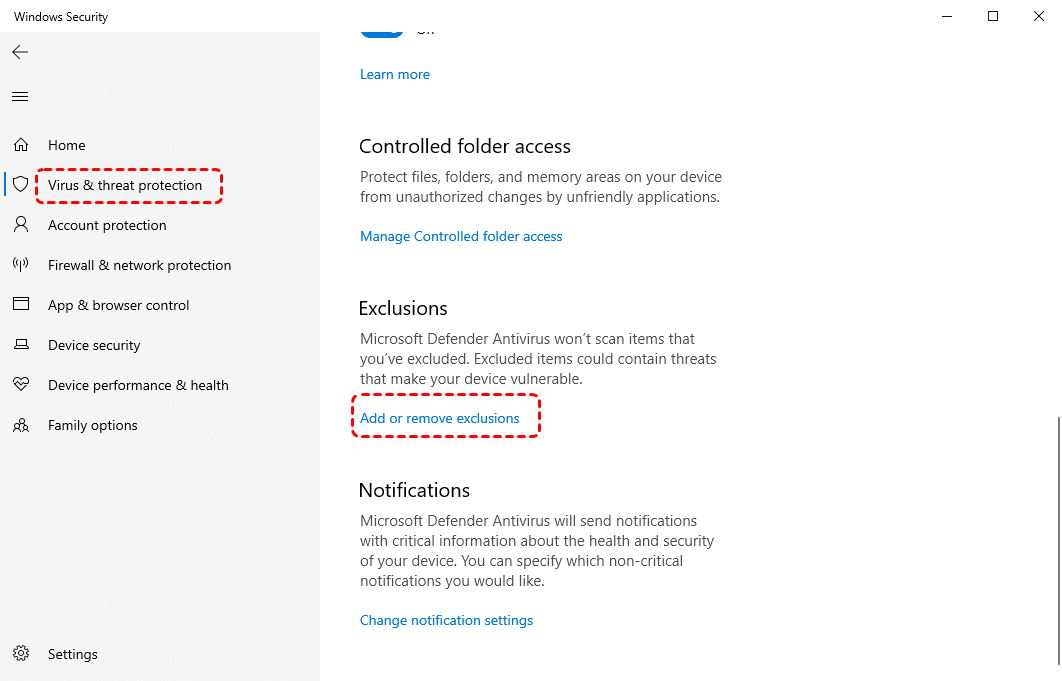
Step 5. Go to "Virus & threat protection" settings > "Add or remove exclusions" and add the application's installation folder or DLL file.
Step 6. Restart the application and verify that the error no longer appears.
Method 4. Recover Missing DLL Files with MyRecover
If the "Entry Point Not Found" error is caused by a missing DLL file that was accidentally deleted, removed during disk cleanup, lost after formatting, or disappeared because of file system corruption, recovering the original DLL file may resolve the issue. Before making further system changes, it's worth checking whether the missing DLL can be restored. MyRecover is a professional Windows data recovery tool that can recover deleted DLL files as well as other lost documents, photos, videos, and application files from HDDs, SSDs, USB drives, and other storage devices.

 MyRecover
- Recover deleted & lost files from HDD, SSD, USB, SD card, camera as you need.
- Support 1000+ formats of photos, videos, docs, archives, emails, compressed files, etc.
- Reliable rescue for deletion, formatted disk, emptied Recycle Bin, system crashes and more.
 100% Secure
Step 1. Download and install MyRecover on your Windows computer from Microsoft Store.
Step 2. Run the application and select the drive where the missing DLL file was saved (typically the C drive), then click "Scan" to search for the lost files.
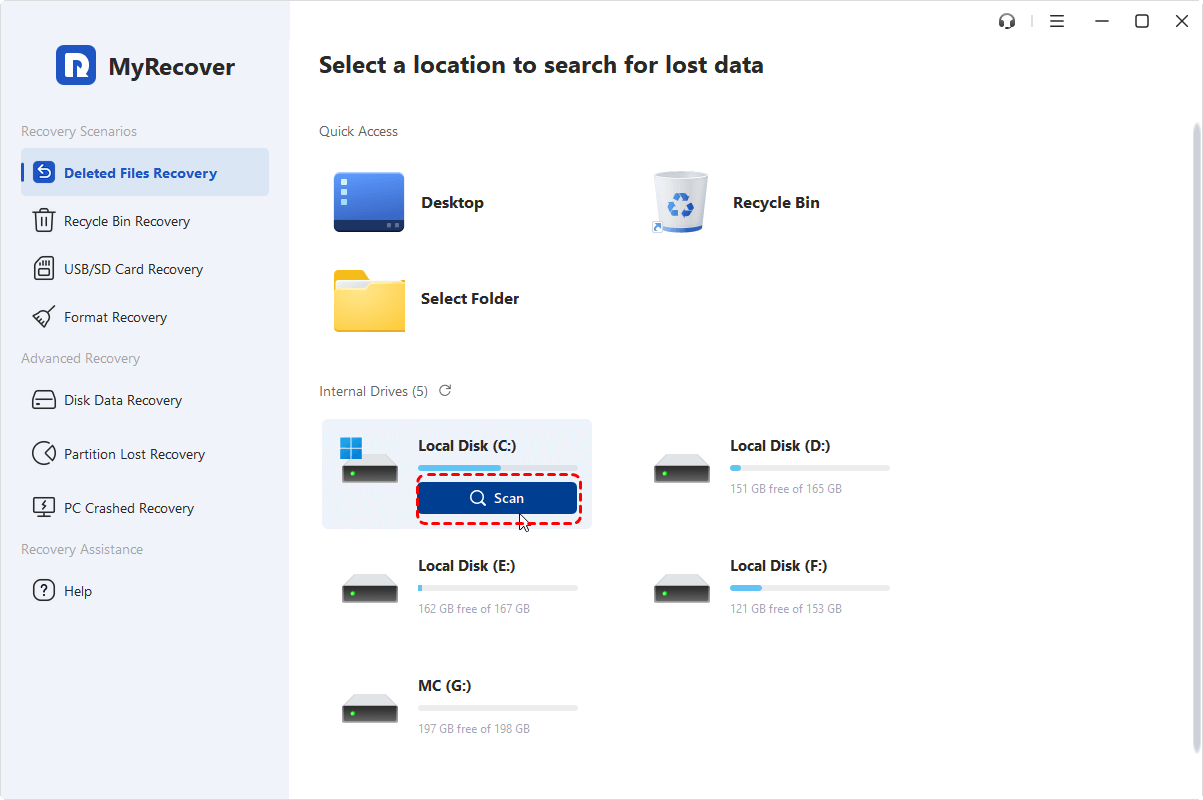
Step 3. After the scanning finished, filter the DLL files using key words, size, or modified date. Select the files you want to recover, then click "Recover" to get them back.
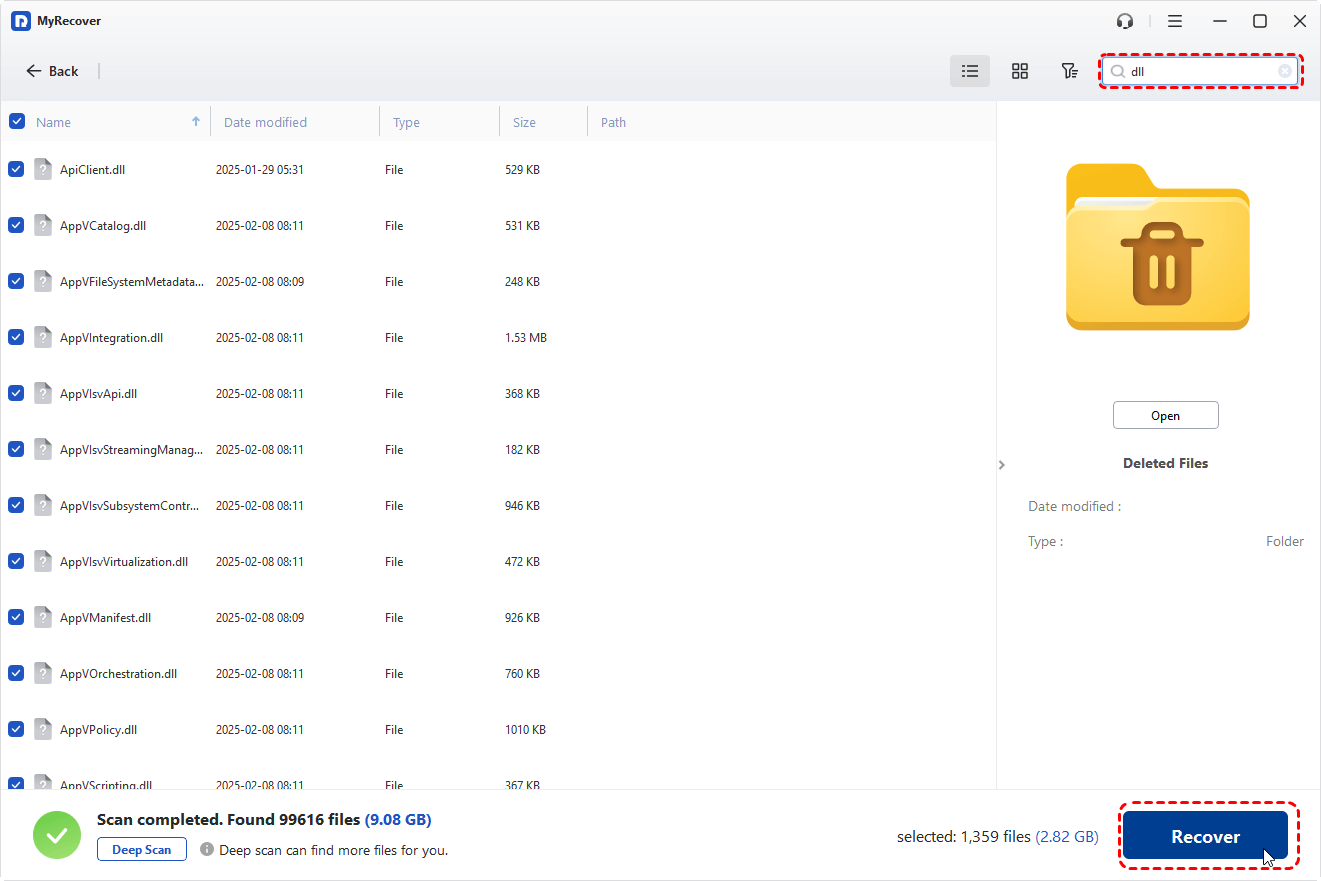
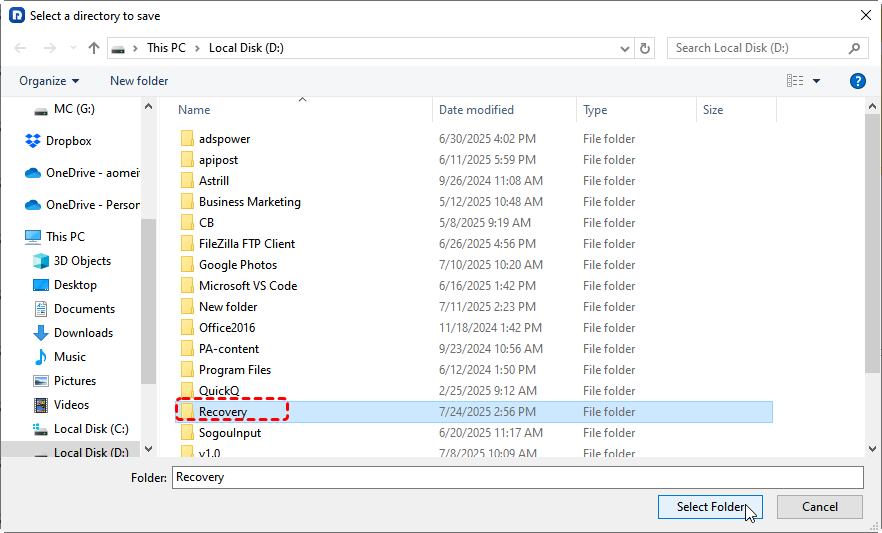
Step 4. Choose a safe but different location to save the recovered files.
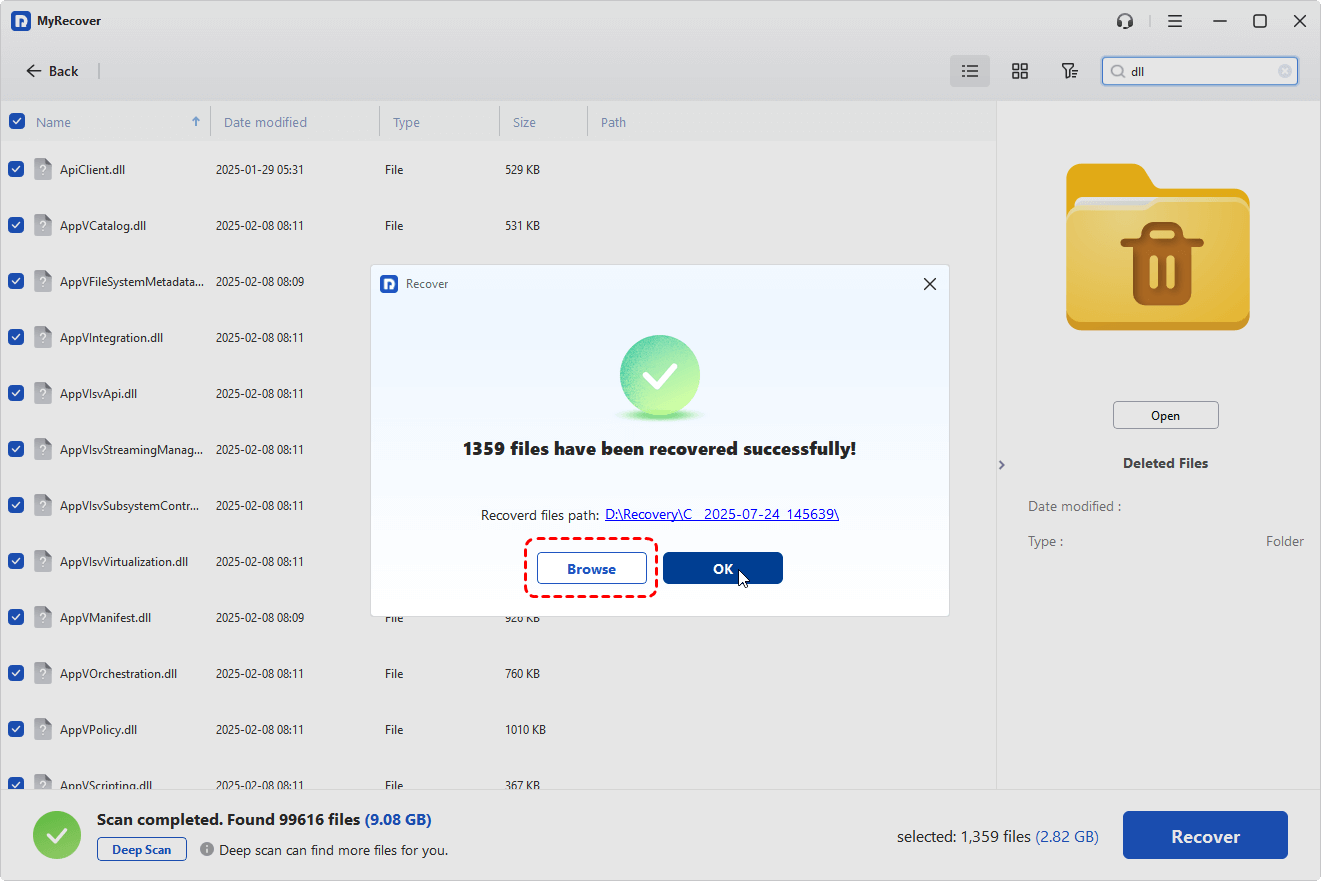
When the process is completed, the message saying "Files have been recovered successfully" will pop up. You can check and access the recovered files by clicking on the "Browse" button or the destination folder path.
Method 5. Run DISM and SFC Commands
If Windows system files have become corrupted, repairing them can resolve many DLL-related errors. DISM repairs the Windows component store, while SFC scans and replaces damaged system files using healthy copies. Running both tools together is one of the most effective ways to fix system-level "Entry Point Not Found" errors.
Step 1. Type "Command Prompt" in the Start menu, right-click on it, and choose "Run as administrator".
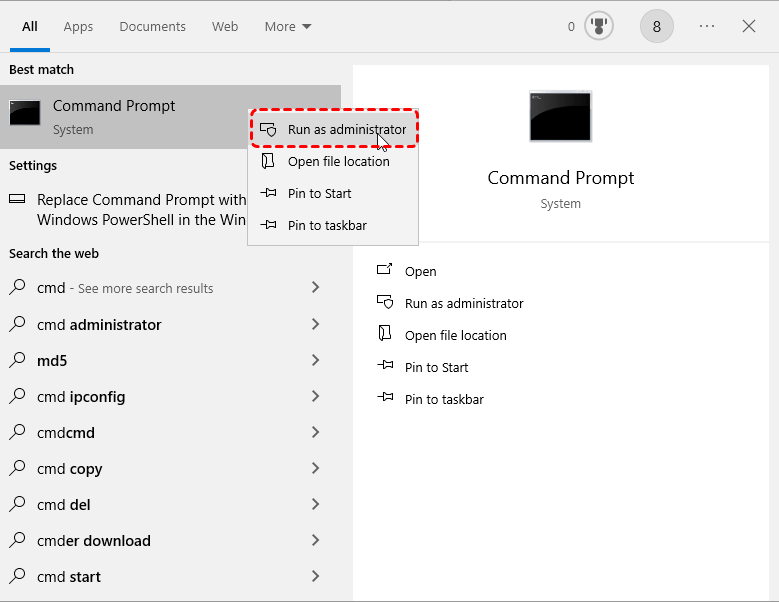
Step 2. Run the following command one by one. Proceed to the next command only after the former one hits 100% completion:
- DISM /Online /Cleanup-Image /RestoreHealth
- sfc /scannow
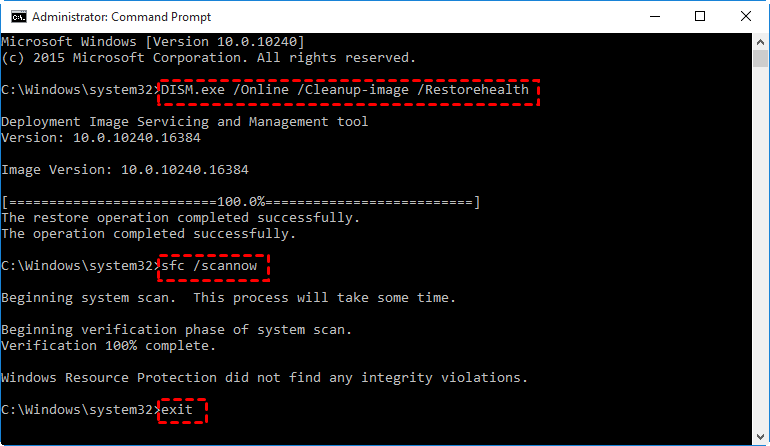
Step 3. Restart your computer after both scans finish.
Step 4. Launch the affected application to check whether the error is fixed.
Method 6. Update Visual C++ Redistributable Packages
Many Windows applications rely on Microsoft Visual C++ Redistributable packages to access shared runtime libraries. If these components are outdated, corrupted, or missing, the application may fail to locate the required DLL entry point. Installing the latest supported packages often resolves compatibility problems without reinstalling Windows.
Step 1. Open "Settings" > "Apps" and review the installed Microsoft Visual C++ Redistributable versions.
Step 2. Download the latest supported Visual C++ Redistributables from Microsoft's official website.
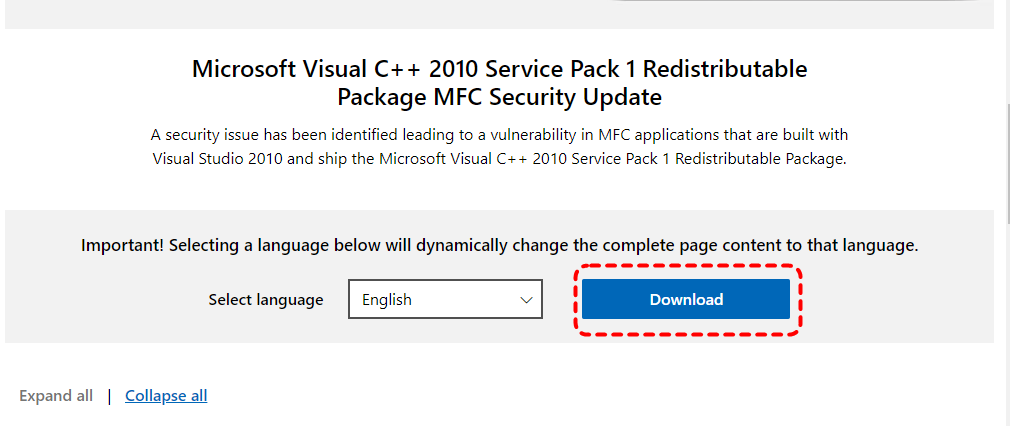
Step 3. Install both the x64 and x86 versions if your system requires them.
Step 4. Restart your computer after installation.
Step 5. Open the affected application and check whether the DLL error has been resolved.
Method 7. Check for Recent Windows Updates
If the error started after a Windows update, the update may have introduced compatibility issues with older software. Conversely, if your system has not been updated for a long time, installing the latest updates may provide bug fixes that resolve DLL-related problems. Reviewing recent updates helps determine which situation applies.
Step 1. Open "Settings" > "Update & Security" > "Windows Update".
Step 2. Click "Check for updates" and install any available updates.
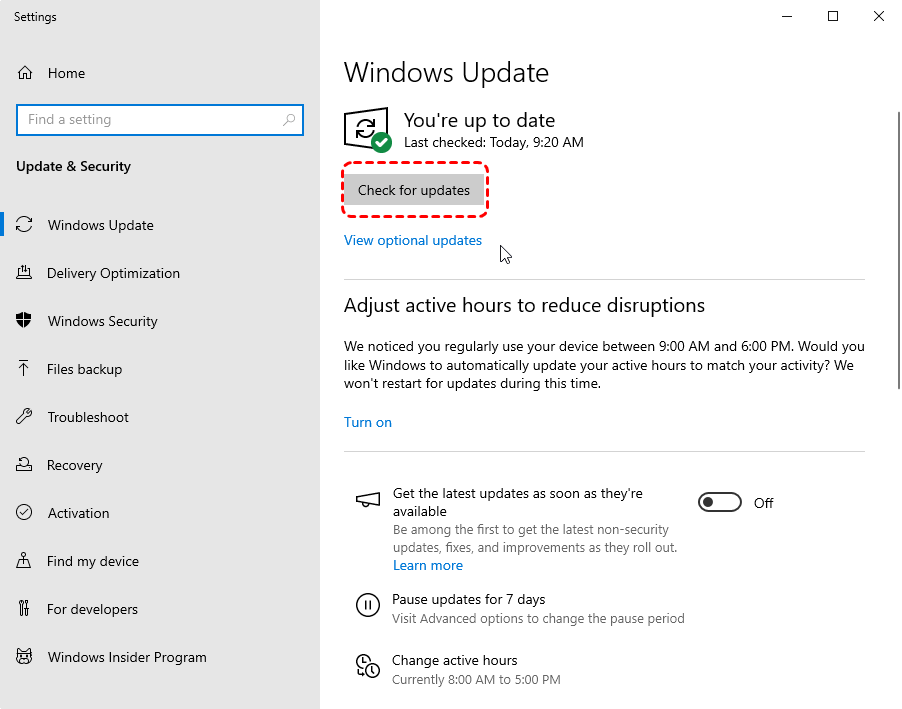
Step 3. If the error appeared immediately after an update, select "View update history".
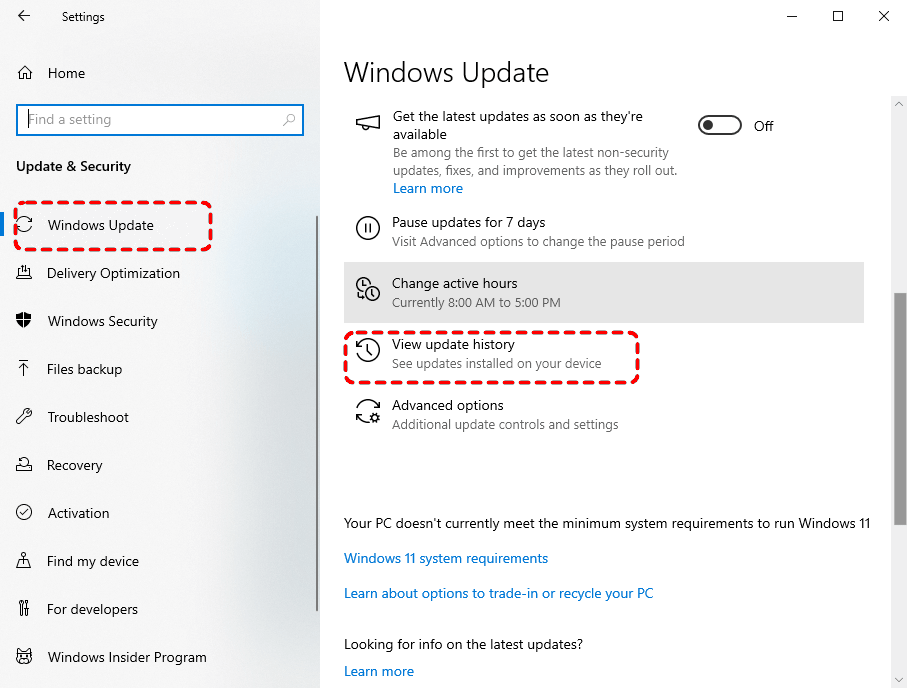
Step 4. Click "Uninstall updates" and remove the most recent update if necessary.
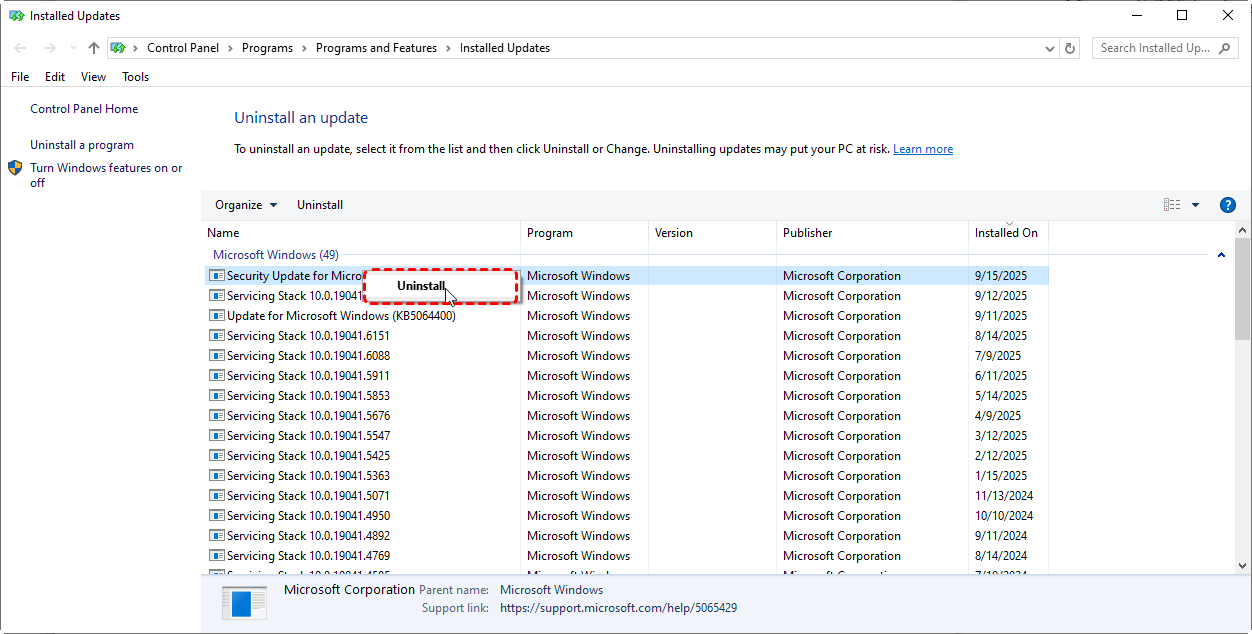
Step 5. Restart your computer and test the application again.
Method 8. Perform a System Restore
If the "Entry Point Not Found" error appeared recently and none of the previous methods work, restoring Windows to an earlier restore point can reverse changes made by software installations, driver updates, or Windows updates. System Restore does not affect your personal files but may remove recently installed applications and drivers.
Step 1. Type "Create a restore point" in the Start menu and open it.
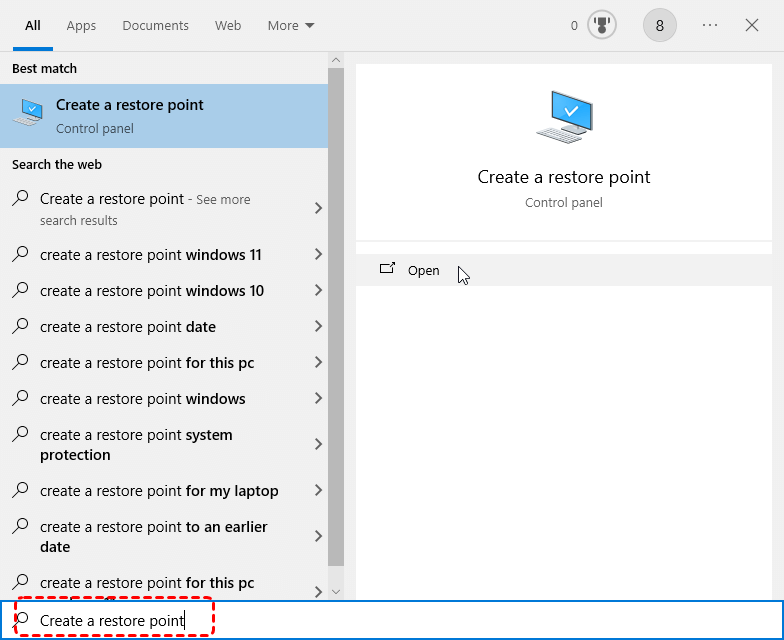
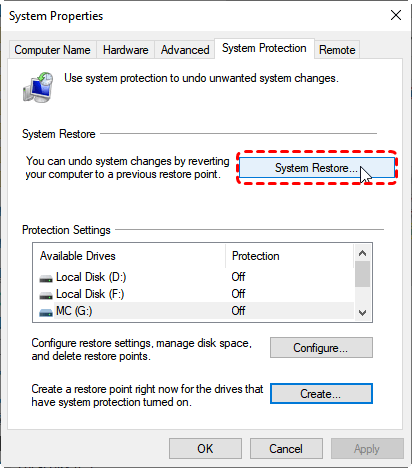
Step 2. Under "System Protection", click "System Restore" to view available restore points.
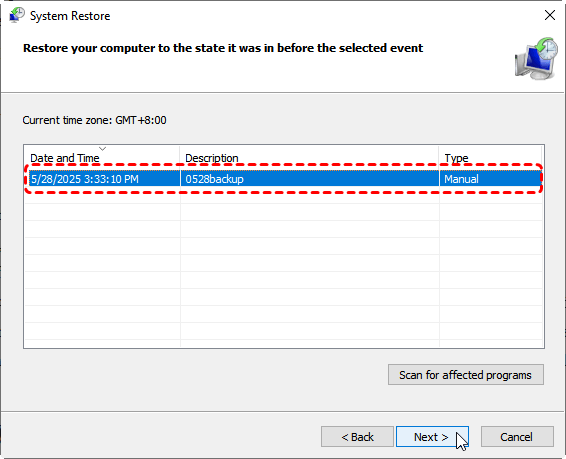
Step 3. Select a restore point created before the error first appeared and click "Next". You can check the affected programs by clicking on the "Scan for affected programs".
Step 4. Confirm the restore point and click "Finish" to start the restoration. Wait for Windows to restart automatically.
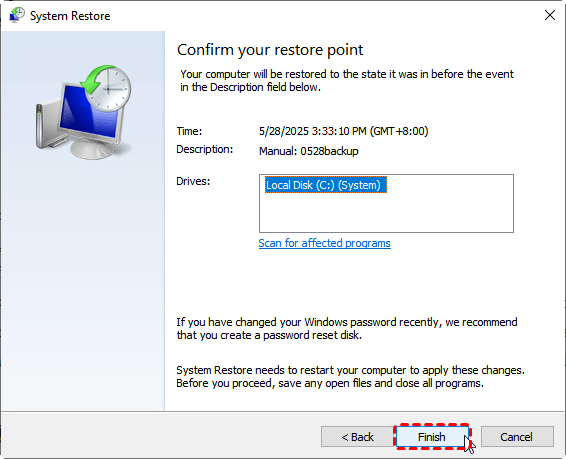
Step 5. After the restoration is complete, launch the application and verify that the error has been resolved.
Final Words
The "Entry Point Not Found" error in Windows 11, 10, 8, or 7 is usually caused by missing or incompatible DLL files, corrupted system components, or software conflicts rather than hardware failure. By following the troubleshooting methods in this guide, you can resolve the error in most cases without reinstalling Windows.
If the error is caused by an accidentally deleted DLL file or you lose important data while troubleshooting, recover your files first before making further system changes. MyRecover can help restore deleted DLL files and other important data from your hard drive, SSD, USB drive, or memory card, minimizing the risk of permanent data loss. Upgrading to the Professional edition, you can enjoy unlimited data recovery quota and preview file content before recovery.
FAQs
Q1: How to fix entry point not found error kernel32.dll Windows XP?
The "kernel32.dll Entry Point Not Found" error in Windows XP is usually caused by incompatible software or incorrect DLL versions. Reinstall the affected application, restore the original kernel32.dll from the Windows XP installation media if necessary, and ensure the program is compatible with Windows XP.
Q2: How to fix application not found in Windows 11?
If Windows 11 reports "Application Not Found", check whether the program is installed correctly, repair or reinstall it, and verify that file associations are intact. Running the application as an administrator, updating Windows, or repairing corrupted system files with SFC and DISM may also resolve the issue.
Q3: How to fix Windows 10 operating system not found?
The "Operating System Not Found" error usually indicates boot or disk issues. Check whether the drive is detected in BIOS, verify the boot order, repair the boot configuration using Windows Recovery Environment, or rebuild the BCD if necessary. Recover important data before making major disk repairs.
Q4: How to repair corrupted DLL files?
To repair corrupted DLL files, first reinstall the affected application to replace missing DLLs. If the DLL is a Windows system file, run DISM and SFC to restore it. Avoid downloading DLL files from unofficial websites, as they may be incompatible or unsafe.
Q5: How to repair corrupted system files causing Entry Point Not Found?
Run DISM /Online /Cleanup-Image /RestoreHealth to repair the Windows image, then execute sfc /scannow to replace corrupted system files. Restart your computer after both scans finish. If the error persists, consider performing a System Restore or reinstalling the affected application.

Stay Updated With Our
Latest Tips
Add us as a preferred source on Google to never miss helpful guides.
 Add as preferred source >>