 MyRecover



Unable to Read from Drive? Fix It Fast in 7 Ways | 2026
This article explains causes and fixes for unable to read from drive, covering driver updates, disk checks, and data recovery for unable to read external drive issues on Windows 11.

By Delores / Updated on July 13, 2026


Unable to Read from Drive!
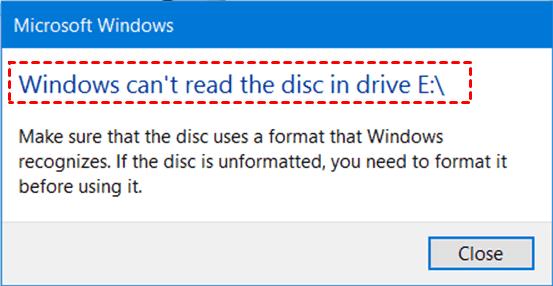
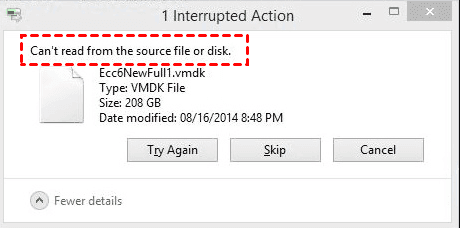
When you plug in a USB stick, an external hard drive, or even try to access your computer’s secondary disk, an error message shows up: Unable to read from drive, or Can’t read from the source file or disk, Windows can’t read the disc in drive E:\, etc. It’s a heart-sinking moment, especially when you’ve got critical files on the line.
Why does this happen, and more importantly, how do you fix it easily? This guide walks you through every detail, from basic checks to a powerful recovery tool called MyRecover. So, let’s roll up our sleeves and get that data back.
Why Does It Show Unable to Read from Drive?
What does it mean when you encounter the error? It usually means your operating system can’t interpret or access the file system on your storage device. There are some reasons for that error message:
- A broken port.
- A loose cable.
- A USB connector that’s seen better days.
- Dust, bent pins, or even a faulty USB hub.
- A driver crashes or gets outdated.
- Corrupted system files.
But don’t panic; most solutions are quicker than you’d expect.
How to Fix Unable to Read from Drive in Windows 11/10
There are proven solutions to fix issues with being unable to read from a USB drive, external hard drive, etc.
Way 1. Reboot Your Computer
A fresh reboot clears temporary glitches and resets USB controllers, often killing the unable to read from drive error instantly. So shut down completely (not sleep), wait ten seconds, and restart. You'd be surprised how often this solo move fixes the unable to read USB drive problem.
Way 2. Try A Different USB Port
Not all ports are equal. Switch from a front panel port to a rear one on a desktop for better power. On a laptop, try the other side. If you have a USB 3.0 drive, plug it into a blue USB 3.0 port.
Way 3. Run Hardware and Devices Troubleshooter
Windows 11 actually has a hidden gem: an automated troubleshooter. To find it:
1. Go to Settings > System > Troubleshoot > Other troubleshooters.
2. Run the “Hardware and Devices” troubleshooter.
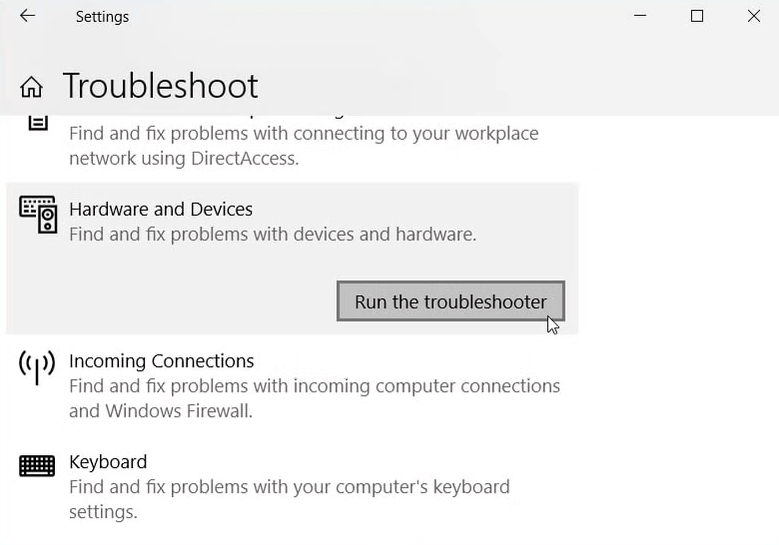
3. It scans for common glitches and can automatically resolve the unable to read USB drive headache in Windows 11 without you touching a single advanced setting.
Way 4. Update or Reinstall USB Drivers
Now, you can try updating or reinstalling the USB drivers. Here is how:
1. Right-click the Start button and select Device Manager.
2. Expand “Universal Serial Bus controllers”.
3. Look for any entry with a yellow exclamation mark.
4. Right-click each USB Root Hub, choose “Update driver”, and let Windows search automatically.
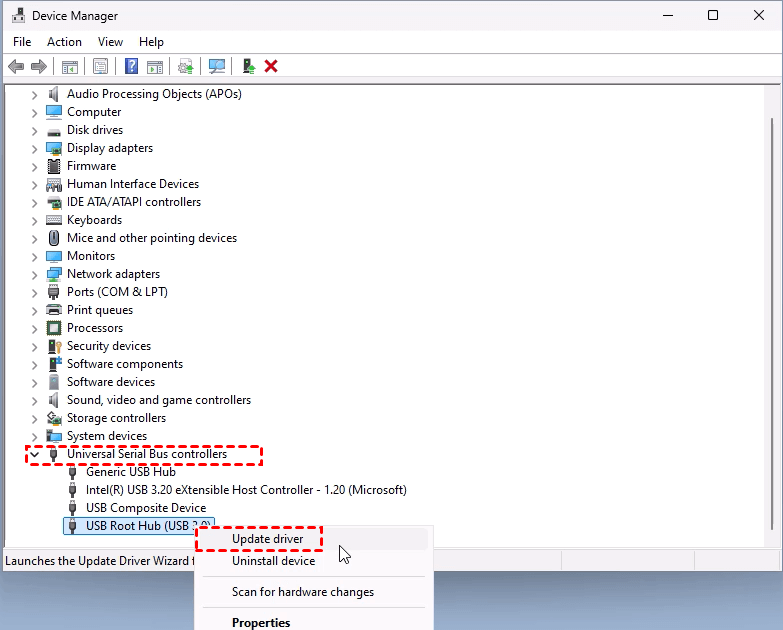
If that fails, uninstall the driver, then restart your PC—Windows will reinstall a fresh copy.
Way 5. Assign or Change Drive Letters in Disk Management
Sometimes Windows simply forgets to assign a letter to your drive. Here is how to assign a drive letter:
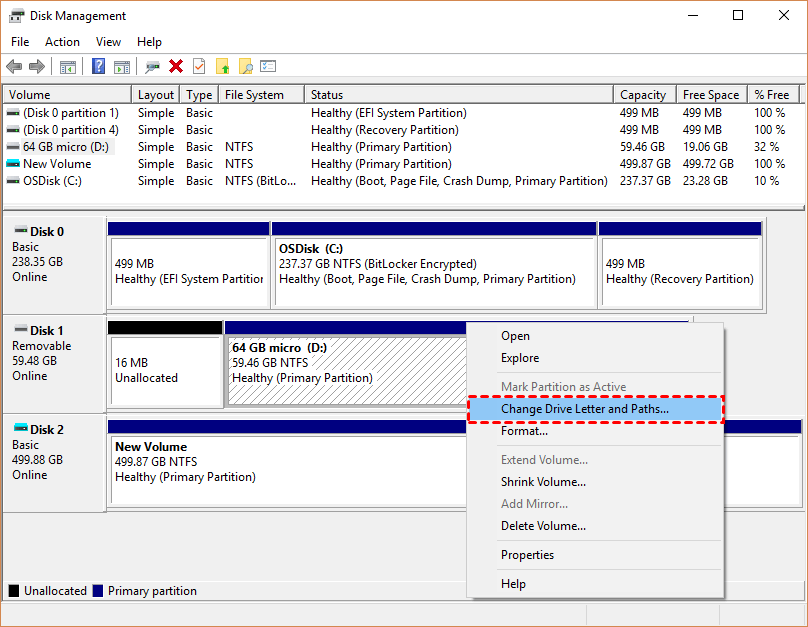
1. Right-click the Start button and choose Disk Management.
2. Look for your disk (it may show as "RAW" or without a letter).
3. Right-click the partition, select "Change Drive Letter and Paths", and assign a new letter.
Way 6. Use CHKDSK to Repair File System Errors
To fix file system errors:
1. Type “cmd” in the search, right-click, and select Run as administrator.
2. Type chkdsk g: /f /r (replace g with your drive letter).

This command checks for logical errors and fixes them. It scans bad sectors and recovers readable info. You might find the Windows FOUND.000 folder if CHKDSK finds recoverable files.
Way 7. Format External Drives
Plugging a drive formatted for Windows into a Mac (or vice versa) often triggers the unable to read external drive error.
1. On Windows, right-click the drive in File Explorer.
2. Choose Format and select exFAT (works on both Windows and Mac without size limits).
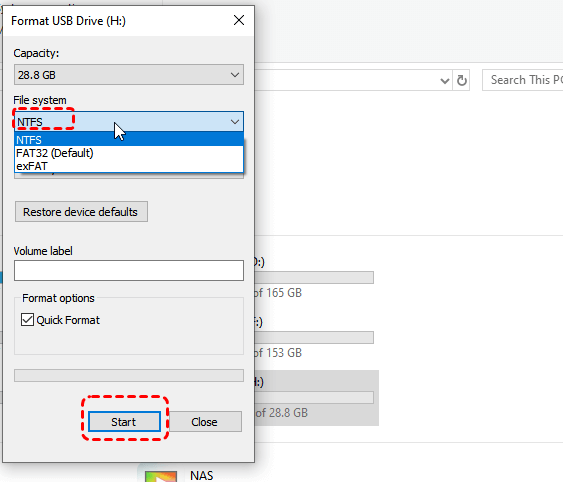
On Mac, use Disk Utility to format as exFAT or MS-DOS (FAT).
Remember, formatting erases everything, so only do this if you've already backed up or accepted the loss.
Recover Lost Files with MyRecover When All Else Fails
After troubleshooting your problem, it’s time to recover deleted files if you just formatted the drive without backing them up. Fortunately, there is a powerful Windows data recovery software to help.
MyRecover is a dedicated file recovery tool designed to dig deep into damaged, formatted, or RAW drives. It bypasses Windows’ limitations and scans the actual data sectors. Here’s exactly how to use it.
1. Download and install MyRecover on a different drive than the one you’re trying to fix. Connect it to your computer if it’s an external hard drive.
 100% Secure
2. Launch MyRecover, then choose Deleted Files Recovery or another feature you need, hover over the drive you need to recover files, and hit Scan.

3. Preview and select all the files you need, and hit Recover.

4. Opt for a new location to keep them safe.


- Notes:✎...
- MyRecover will perform a quick scan to find recently deleted files. Or you can try a deep scan to find more missing files, like formatted files, etc. A deep scan takes much more time to find all files.
- During the scan, you can preview recoverable files, like documents, images, videos, you name it.
- You can find the files quickly by tapping the type and path. Or you can search them by file name, file size, and modified date.
- Upgrading to MyRecover Technician to enjoy more powerful features.
MyRecover’s strength lies in its ability to handle RAW file systems and corrupted partitions where Windows gives up.

 MyRecover
- Recover Deleted Files Easily with Simple Clicks
- 1000+ File Formats Supported
- Support HDD, SSD, External Hard Drive, USB Drive, SD Card, etc./li>
- Quickly Find Files Using File Types, Name, Size, etc.
- Preview Files Before Recovering
- Recover Unlimited Data
 100% Secure
FAQs About Unable to Read from Drive
Why does my computer say unable to read from drive when the USB is plugged in?
A: Driver corruption, loose connection, or file system mismatch. Try a different USB port or computer. Update drivers via Device Manager or run Windows troubleshooter. Usually, the unable to read from drive error vanishes after a quick driver reinstall.
Can a virus cause an unable to read USB drive error on Windows 11?
A: Yes. Malware can corrupt partition tables, triggering the Unable to read USB drive" error in Windows 11. Run Windows Defender or a trusted antivirus. After cleanup, use CHKDSK to repair remaining damage.
How do I fix unable to read hard drive without formatting?
A: Run `chkdsk X: /f` in Command Prompt. Use Disk Management to change the drive letter. Update storage drivers. If the drive shows as RAW, use MyRecover to extract data first. Format only as a last resort while still unable to read the hard drive.
Is data recovery possible when Windows is unable to read an external drive?
A: Absolutely. Even with the unable to read external drive error, raw data often remains intact. Tools like MyRecover can scan sector-by-sector. Stop using the drive immediately, then run recovery software on another PC.
What does “unable to read from drive” mean on a Mac?
A: Usually a format incompatibility (like an NTFS drive on Mac) or a corrupted partition. Run Disk Utility > First Aid. If that fails, the drive may be dying. Install NTFS for Mac software to read Windows drives.
How do I recover files without software when I am unable to read from the drive?
A: Run CHKDSK from Command Prompt. Boot into Safe Mode. Use a Linux live USB (Linux often reads drives Windows rejects). Or try Windows File Recovery (free from Microsoft Store). For a true unable to read from drive situation, dedicated software like MyRecover works best.

Stay Updated With Our
Latest Tips
Add us as a preferred source on Google to never miss helpful guides.
 Add as preferred source >>