 MyRecover



MSVCP100.dll Missing on Windows 11: Step-by-Step Guide
The msvcp100.dll missing on Windows 11 is a common issue that prevents programs, games, or applications from launching correctly. This guide provides a clear explanation of what the error means and why it occurs. It also walks you through several effective solutions to resolve the error and restore normal application functionality on your PC.

By Aria / Updated on March 11, 2026


MSVCP100.dll not Found on Windows 11
I am getting an error message on my Windows 11: "The code execution cannot proceed because MSVCP100.dll was not found. Reinstalling the program may fix this problem." I have followed the directions from prior posts about this error message and installed Microsoft Visual C++ 2012 (x64) and (x86). I am still getting the same error message. I uninstalled and reinstalled two applications I thought might be causing this error message: Amazon Kindle and iTunes, but still get the error message.
- Question from Lissa
MSVCP100.dll is a dynamic link library file that belongs to the Microsoft Visual C++ Redistributable package. It contains essential runtime functions that many programs rely on to run correctly. When this file is missing, corrupted, or not properly registered in the system, Windows cannot load the required components, which prevents certain applications from starting.
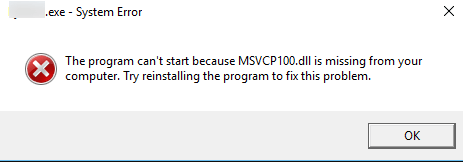
If you see the "msvcp100.dll not found" error on Windows 11, the affected application or game will usually fail to launch and display a message saying that the program cannot start because the required DLL file is missing. For many users, the problem becomes frustrating because simply reinstalling the program does not always fix the error, and downloading random DLL files from the internet can create security risks or compatibility issues.
Why Is MSVCP100.dll Missing on Windows 11?
The "msvcp100.dll not found" error usually appears for several reasons, and identifying the underlying cause helps determine the most effective fix. Below are the main causes of this error.
🔔Missing or Incorrect Visual C++ Redistributable Version
MSVCP100.dll is part of the Microsoft Visual C++ 2010 Redistributable, not the 2012 version. If only newer packages are installed, programs that specifically rely on the 2010 runtime may still fail to run because the required DLL file is not included.
💾Corrupted System Files
System file corruption can prevent Windows from accessing or loading important DLL files. This may happen after unexpected shutdowns, system crashes, or incomplete updates.
💽Incomplete or Damaged Software Installation
If an application installation is interrupted or improperly configured, the program may fail to install the required runtime components, which can trigger the msvcp100.dll error when launching the software.
💡Accidental Deletion or Security Software Removal
In some cases, users may accidentally delete the DLL file, or antivirus software may quarantine it after mistakenly identifying it as suspicious.
🛠️Compatibility Issues After Windows Updates
Major Windows updates occasionally affect system libraries or application compatibility, which can lead to missing runtime dependencies for older programs.
How to Fix MSVCP100.dll Missing on Windows 11
Once you understand the possible causes, you can begin applying targeted solutions to restore the missing DLL file and allow affected programs to launch normally. The following methods can help you resolve the issue efficiently without unnecessary risks.
Fix 1. Copy the File from a Trusted Computer
If the msvcp100.dll file is missing from your system, you can try copying it from another computer that runs the same Windows version and architecture to restore the required component. But note that it is important to only copy the file from a reliable source to avoid introducing corrupted or unsafe files.
Step 1. On another computer with the same Windows architecture (32-bit or 64-bit), open File Explorer and navigate to C:\Windows\System32 or C:\Windows\SysWOW64.
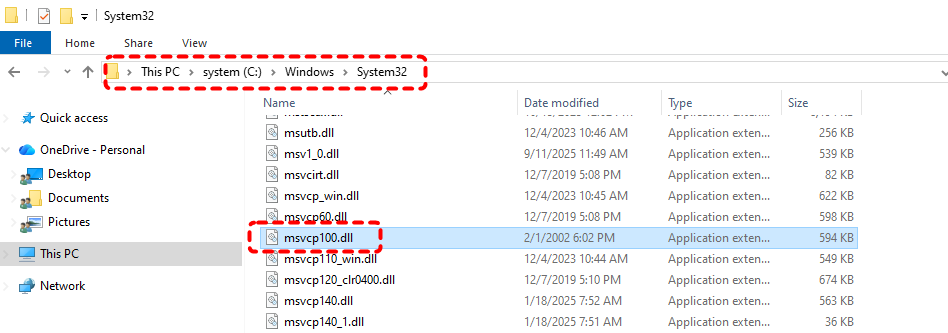
Step 2. Locate the msvcp100.dll file and copy it to a USB drive.
Step 3. Insert the USB drive into your computer and paste the file into the corresponding system folder.
Step 4. Restart your computer and try launching the affected program again.
Fix 2. Restore the DLL File from Recycle Bin
If the msvcp100.dll was just recently removed, it may still exist in the Recycle Bin and can be restored easily. Recovering the original file from the Recycle Bin ensures that the correct version is placed back in its original location.
Step 1. Double-click the Recycle Bin icon on your desktop to open it.
Step 2. Search for msvcp100.dll using the search box.
Step 3. Right-click the file if it appears and choose "Restore".
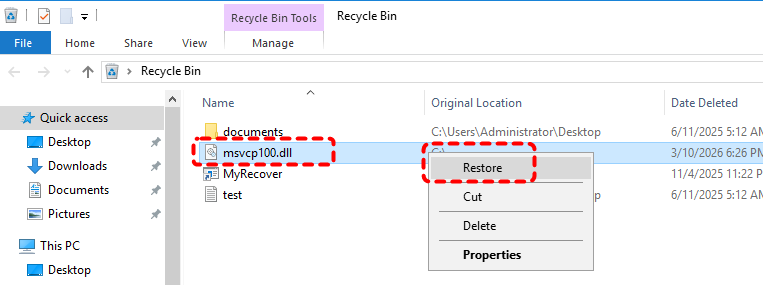
Restart your computer and check if the program launches normally.
Fix 3. Reinstall Microsoft Visual C++ 2010 Redistributable
Since msvcp100.dll belongs to the Microsoft Visual C++ 2010 Redistributable, installing the correct runtime package is one of the most reliable solutions. This process restores the required libraries and ensures programs that depend on them can access the proper runtime environment.
Step 1. Visit the official Microsoft website and download the Microsoft Visual C++ 2010 Redistributable package.
Step 2. Download both x86 and x64 versions if you are using a 64-bit system to ensure compatibility with different applications.
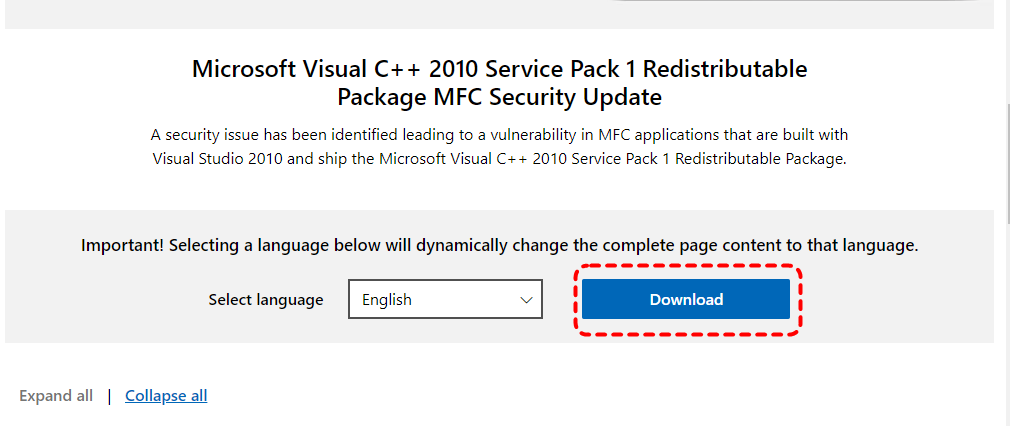
Step 3. Double click the installation file to run it and follow the on-screen instructions to install it.
Step 4. Restart your computer after installation completes for the change to affect.
Fix 4. Run System File Checker (SFC) and DISM Command
If the error is caused by corrupted or missing system files, Windows provides built-in tools such as System File Checker (SFC) and DISM to scan and repair system components automatically. These tools can restore damaged system libraries and ensure that required files are properly registered in the operating system.
Step 1. Locate Command Prompt in the Start menu and right click on it, then choose "Run as administrator".

Step 2. Enter the following command and press "Enter" to start the system file scan:
DISM /Online /Cleanup-Image /RestoreHealth
sfc /scannow

Step 3. After the scan finishes, restart the computer to run the program again.
Fix 5. Reinstall the Affected Program
If only a specific application triggers the msvcp100.dll missing error on Windows 11, the installation of that program may be incomplete or corrupted. Reinstalling it can restore missing runtime components and correct configuration issues that occurred during the initial installation. Download the latest installer from the official website and reinstall the program.
Fix 6. Scan for Malware
Malware infections can sometimes delete, modify, or replace system DLL files. Running a full system scan helps detect and remove potential threats that may be interfering with system components such as msvcp100.dll.
Step 1. Go to "Settings" > "Update & Security" > "Windows Security".
Step 2. Select "Virus & threat protection", then click "Scan options" and choose "Full scan" to start the scan.
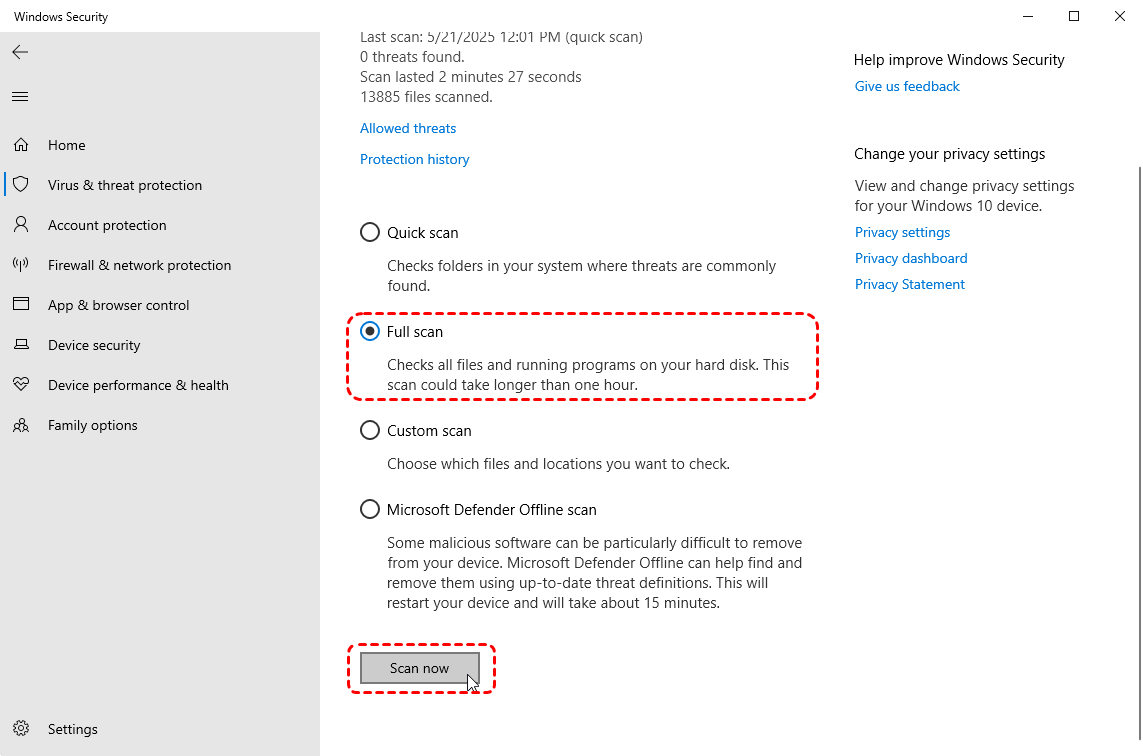
Step 3. Follow any recommended actions to remove or quarantined if threats are detected.
Fix 7. Register the DLL Using Command Prompt
In some situations, the DLL file may exist on the system but is not properly registered with Windows. Manually registering the file using the regsvr32 command can restore its association with the operating system and allow programs to access it correctly.
Step 1. Run Command Prompt as administrator.
Step 2. Type the command "regsvr32 msvcp100.dll" and press "Enter".
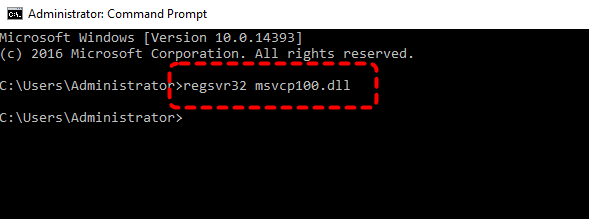
Step 3. Wait for the confirmation message indicating the DLL was successfully registered. Then restart your computer and test the affected program again.
Fix 8. Perform a System Restore
If the error began after a recent system change, such as installing new software or updates, using System Restore can return your computer to a previous state where the DLL file worked correctly. This process does not affect personal files but restores system settings and installed components.
Step 1. Type "Create a Restore Point" in the Start menu and open it.
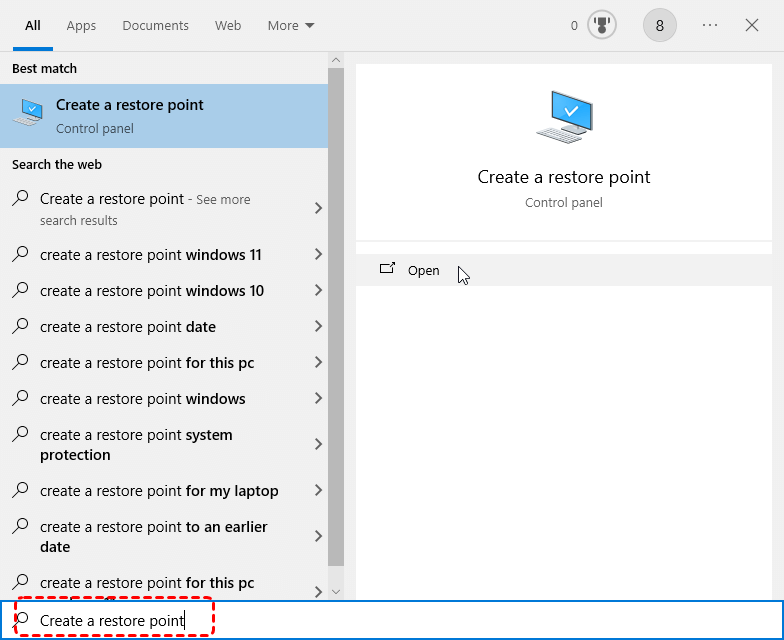
Step 2. Under the "System Protection" tab, click "System Restore".
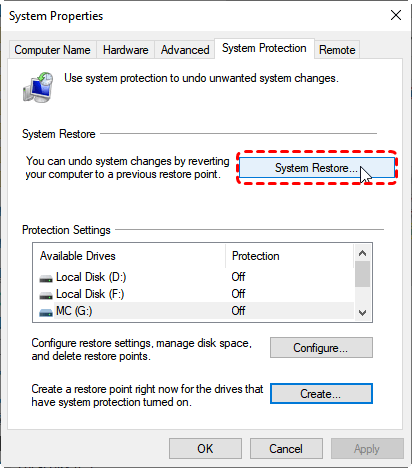
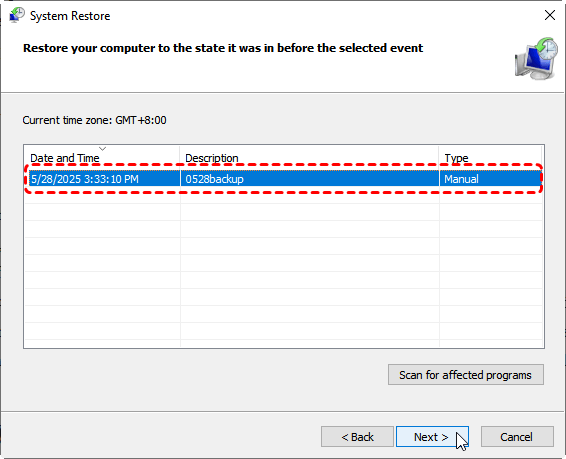
Step 3. Choose a restore point created before the mscvp.dll missing and click "Next".
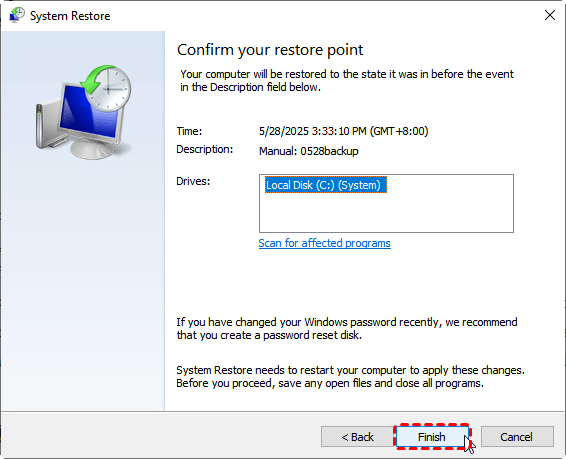
Step 4. Confirm the restore point and click "Finish" to start the process. You can also check the affected programs by clicking on the "Scan for affected programs".
Fix 9. Recover Deleted MSVCP100.dll with MyRecover
If the DLL file was permanently deleted and cannot be restored from the Recycle Bin, using a professional recovery tool like MyRecover can help retrieve it from the disk. MyRecover scans storage devices for deleted files and restores them safely, which can be useful if the system file was accidentally removed. MyRecover’s simple interface allows even beginners to complete data recovery easily, with just a few clicks.

 MyRecover
- Recover deleted & lost files from HDD, SSD, USB, SD card, camera as you need.
- Support 1000+ formats of photos, videos, docs, archives, emails, compressed files, etc.
- Reliable rescue for deletion, formatted disk, emptied Recycle Bin, system crashes and more.
 100% Secure
Step 1. Download and install MyRecover on your computer from Microsoft Store.
Step 2. Run the app and select the drive where the DLL file was originally located (usually C drive) and click "Scan" to search for deleted files.

Step 3. Locate msvcp100.dll in the scan results and click "Recover".
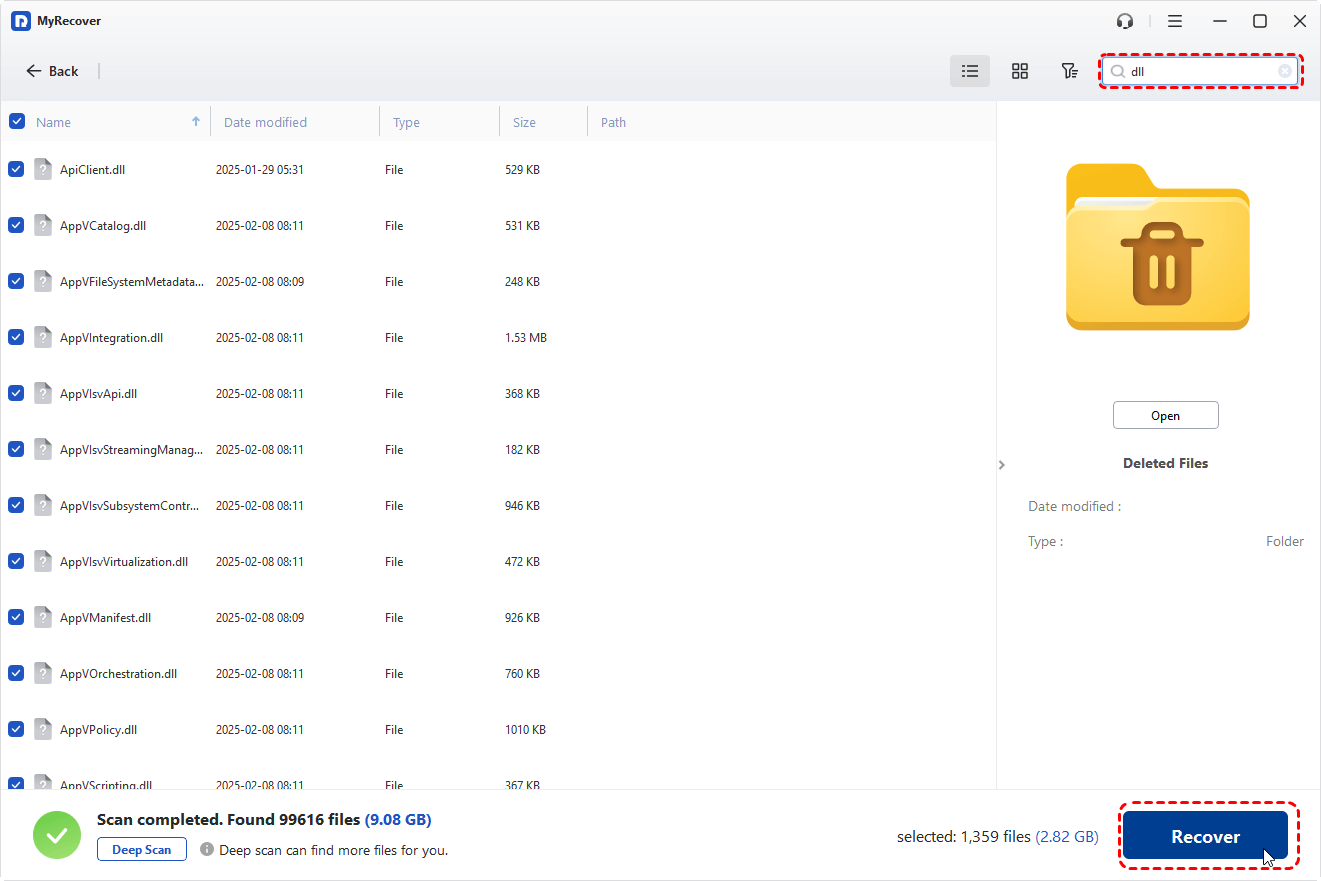
If the files you need to recover are larger than 500 MB, upgrading to the Professional edition of MyRecover removes the recovery limit and allows unlimited data restoration. It also file content preview before restoration.
Step 4. Save the file to a different location to prevent overwriting.
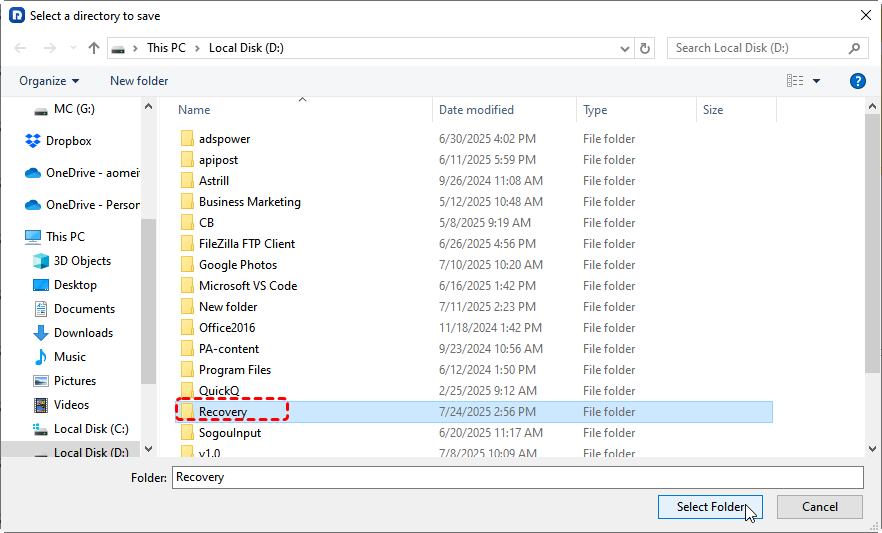
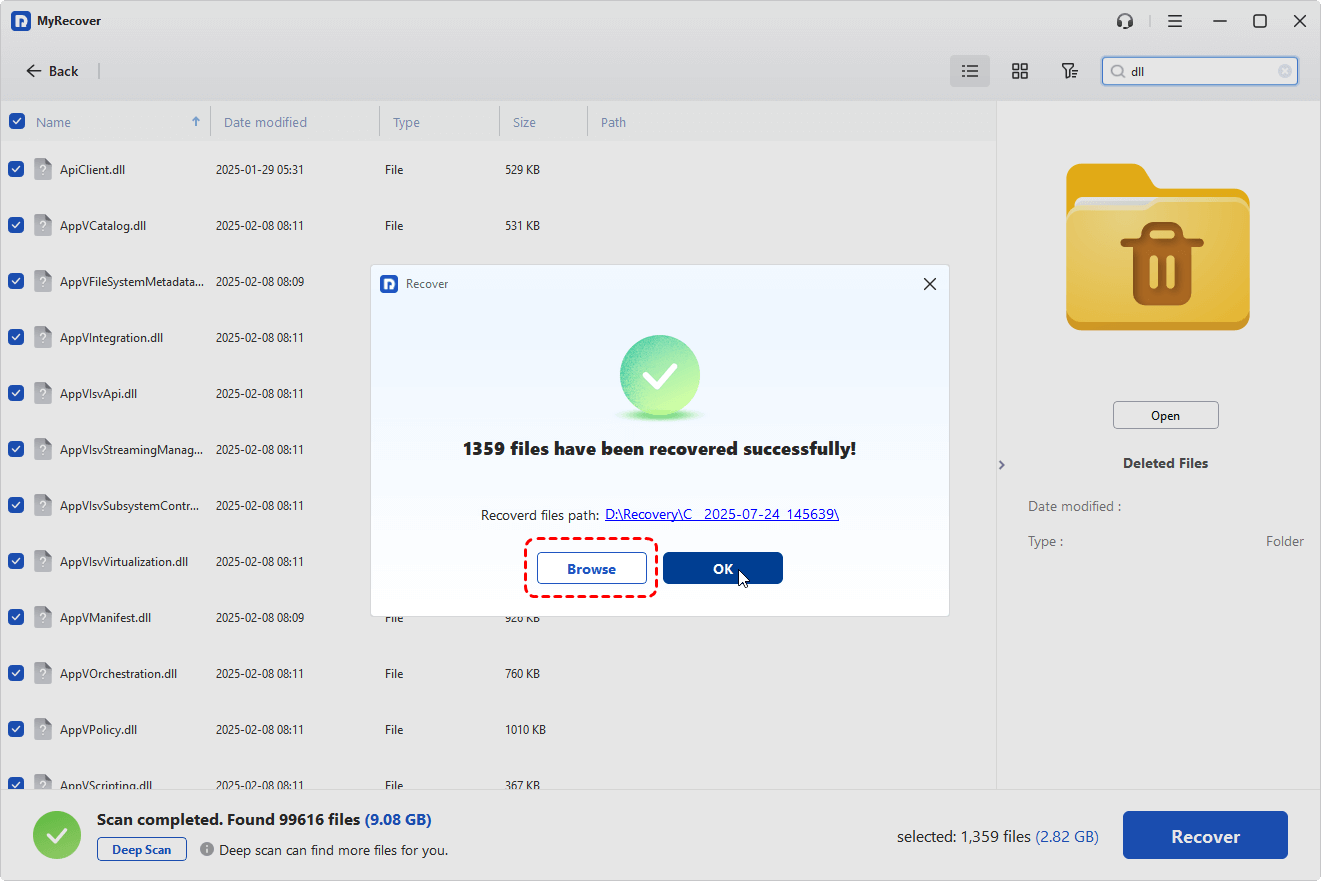
Once the recovery process is done, you can access the recovered files in the destination folder by clicking on the "Browse" button.
Summary
In short, the MSVCP100.dll missing on Windows 11 will no longer be a nightmare. With the methods above, you can easily restore the msvcp100.dll file, get your programs running normally again and safeguard your system from further runtime issues.
In addition, if you lose data in various complex scenarios such as USB drive formatting, Recycle Bin emptying, or Windows system crashes, you can use MyRecover to recover your desired files. The sooner you take action, the higher the chance of recovering lost data.

Stay Updated With Our
Latest Tips
Add us as a preferred source on Google to never miss helpful guides.
 Add as preferred source >>