 MyRecover



Excel File Has Been Moved Renamed or Deleted: Fix It Instantly
The 'Excel file has been moved, renamed, or deleted' error can disrupt your work and leave you unable to open important files. This article explores the causes behind this error and provides step-by-step solutions to resolve it. We offer a comprehensive guide to help you regain access to your Excel files without data loss.

By Aria / Updated on January 30, 2026


Excel File was Moved, Renamed or Deleted?
The file is using macros and whenever I relocate the file to another folder this message will appear: Is it possible it was moved, renamed or deleted? However, when I open it on the original path in the Downloads folder it will open. I double checked the path of the file on the Properties of the file. It seems all good. What might cause this problem? And is there a way where I can relocate the file to a preferred folder?
- Question from Sheena Balais
When working with Microsoft Excel, you might come across an error message that states "Sorry, we couldn't find your file. Was it moved, renamed, or deleted". This can be both frustrating and confusing, especially if you haven’t consciously moved or deleted the file. This issue typically arises when Excel cannot locate the file at its expected location, preventing you from opening it.
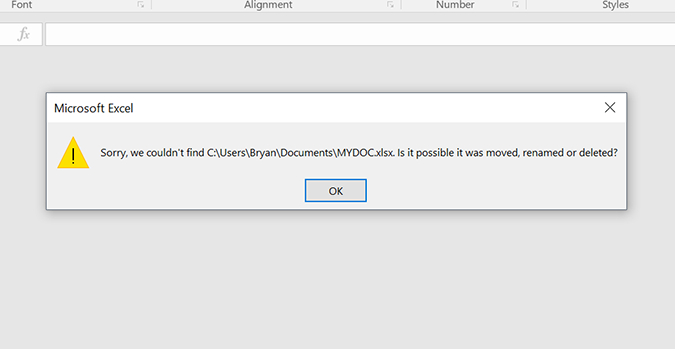
If you've encountered this error message, you are not alone. Many users face this issue after moving files, updating systems, or having connectivity issues with cloud storage solutions like OneDrive. Fortunately, there are several ways to recover your Excel file and fix the "Excel file has been moved, renamed or deleted" error.
The Common Causes Behind the "Excel File was Moved, Renamed or Deleted"
The "Excel file has been moved, renamed or deleted" error appears when Excel cannot locate the file in the location it was originally saved. Understanding the root cause of this issue will guide you toward an appropriate solution. Several factors can cause this:
🔔File location change: The file may have been moved to another folder or drive without Excel being updated on the new location.
📌File renaming: The file might have been renamed, causing the original reference to become outdated.
✂️File deletion: The file may have been accidentally deleted, either manually or due to a system issue.
📁Corrupted file paths: If the file path becomes corrupted, Excel may no longer be able to locate the file.
📤Cloud synchronization issues: Files stored in cloud storage, like OneDrive or SharePoint, may encounter sync issues, causing Excel to lose track of them.
How to Fix the "File Has Been Moved, Renamed or Deleted" Error
Based on the aforementioned causes of this error, this section provides several effective solutions to help you regain access to your Excel files. Even if the file was accidentally deleted, there are methods to retrieve it effortlessly. Let's dive into the detailed steps.
Method 1. Check File Location and Path
Before jumping into complex solutions, start by confirming that the file is still in its original location. If you moved the file to a new folder or drive, ensure that you’re looking in the correct place. Try navigating manually to the location where you saved the file and verify its presence.
- If the file is located on a network drive, check the network connection and ensure the drive is accessible.
- If the file is on an external drive or USB device, ensure it is properly connected and recognized by your system.
Method 2. Search in File Explorer
If you forget the file’s new path after moving it or have renamed the file, attempting to open it from the Recent list will result in Excel failing to open the file and triggering the "Is it possible it was moved, renamed or deleted" error. You can search the file name in File Explorer to quickly locate the file you need.
Step 1. Open File Explorer and input the file name, partial name or file type into the search bar.
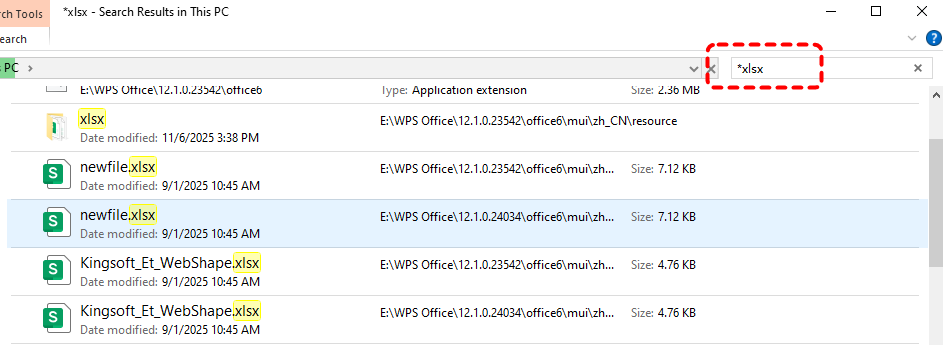
Step 2. If found, try opening the file directly with Excel and saving it to a new location.
Method 3. Check the Recycle Bin
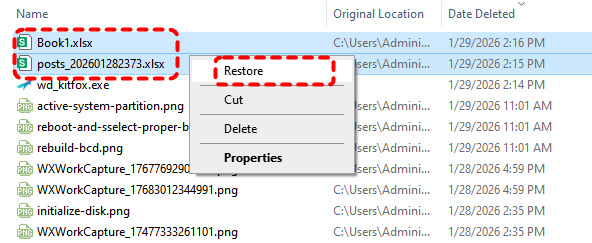
For files that have been moved or renamed, these two methods above will essentially resolve the issue as long as the files still exist on your computer. For files that were accidentally deleted, they may have been sent to the Recycle Bin. Before assuming the file is gone for good, check the Recycle Bin.
Step 1. Double click the Recycle Bin icon on your desktop to open it.
Step 2. Browse through the deleted items and select the Excel file.
Step 3. Right click on it and choose "Restore" to recover it to its original location.
Method 4. Restore from Previous Versions
If the deleted Excel file is not in the Recycle Bin, it means the file has been permanently deleted. If you've been using Windows backup tools like File History, you may be able to restore an earlier version of the file or folder. Once you have enabled File History on Windows, you may be able to restore it when it was deleted or altered.
Step 1. Type "Restore your files with File History" in the Start menu and open it.
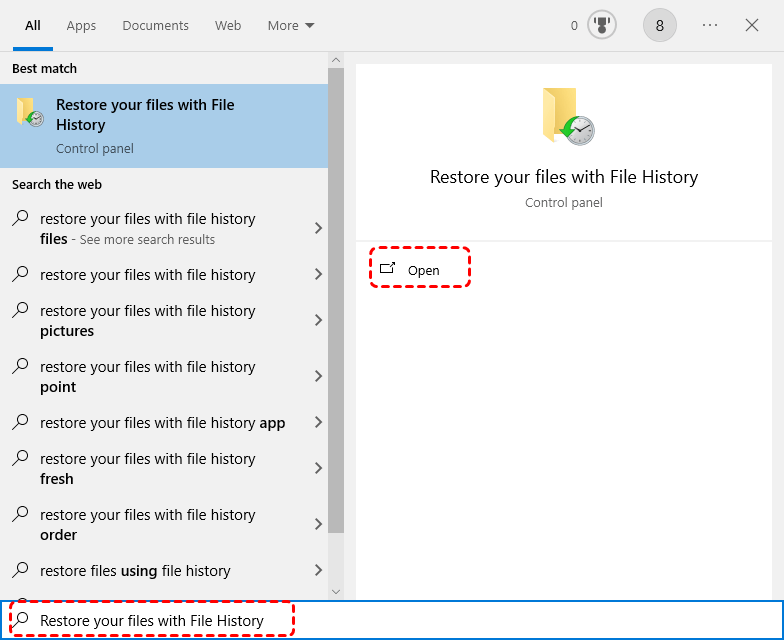
Step 2. Navigate to the folder where the deleted Excel file was stored. Select a desired version including the Excel file based on the backup date.
Step 3. Click the green "Restore" button to recover the deleted Excel file.
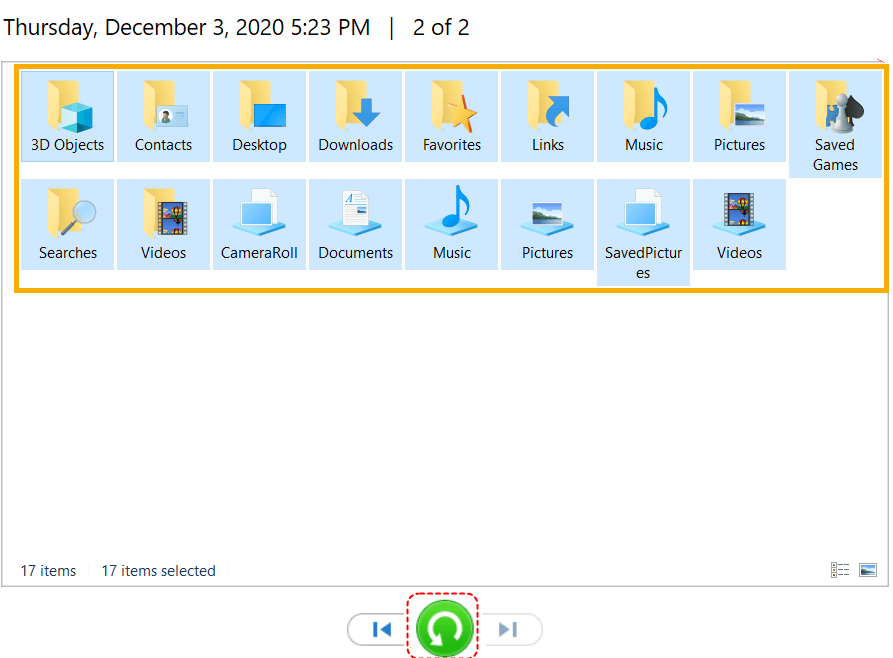
In addition, if you have backed up the Excel file with any other backup tool such as Backup and Restore (Windows 7) or OneDrive, you can also restore it directly from the backup, save it to a secure location, and then open it in Excel.
Method 5. Recover Lost Excel Files with MyRecover
If the file is permanently deleted and there is no backup available, a professional data recovery tool—MyRecover can help retrieve lost Excel files. MyRecover is a reliable tool for Excel file recovery that can scan your hard drive for deleted Excel, document, PowerPoint, image, design files and more. Moreover, it offers an easy-to-use interface for both beginners and advanced users. You can recover your files with just a few clicks on the icons.

 MyRecover
- With a success rate of up to 99% for all Windows data.
- Support 500+ devices,such as SSDs, HDDs, internal & external hard drive, and more.
- Cover multiple data loss scenarios, like format, deletion, system crash, etc.
- Recover data from special loaction with shorter waiting times.
 100% Secure
Step 1. Download and install MyRecover on your computer from Microsoft Store, avoid installing it on the drive with lost files.
Step 2. Run the program and select the drive to scan, then click "Scan" to search for recoverable files.
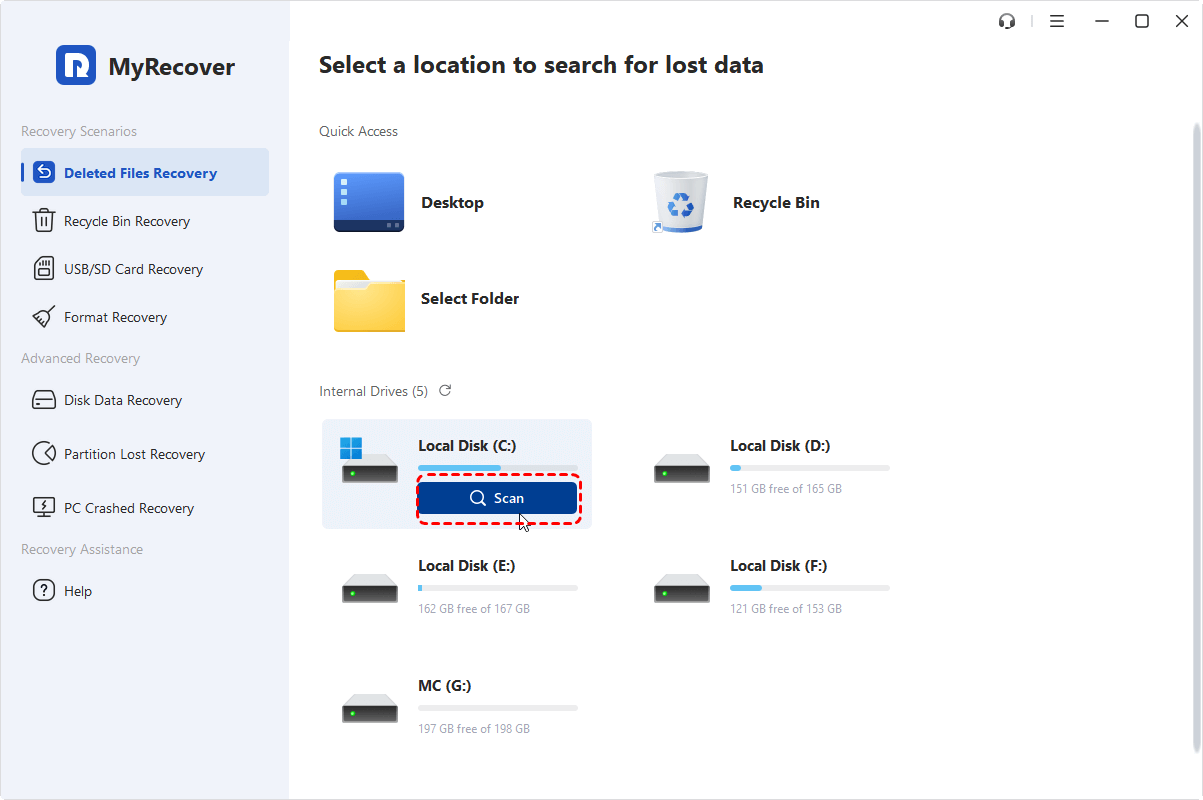
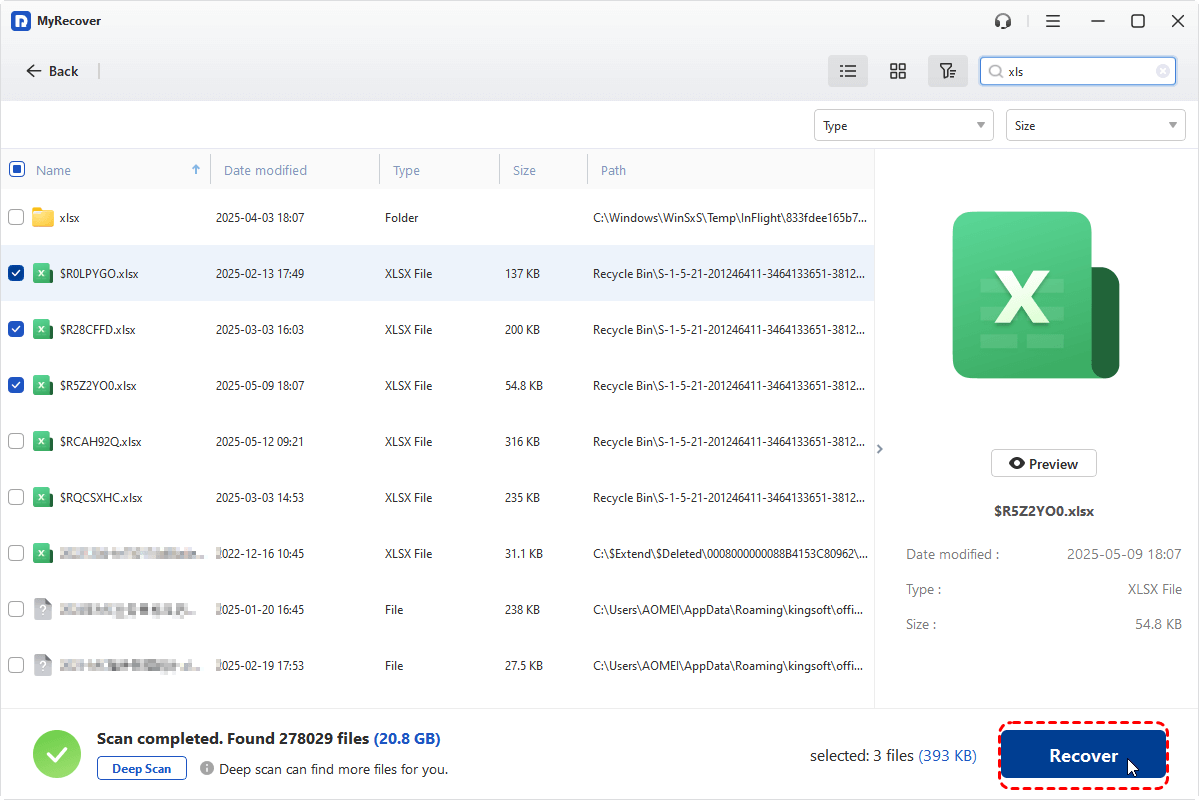
Step 3. After the scanning completes, choose the files you wish to recover from the recoverable lists and click "Recover". You can use the "Filter" function in the top-right corner or quickly find the Excel file you need under the "Type" tab.
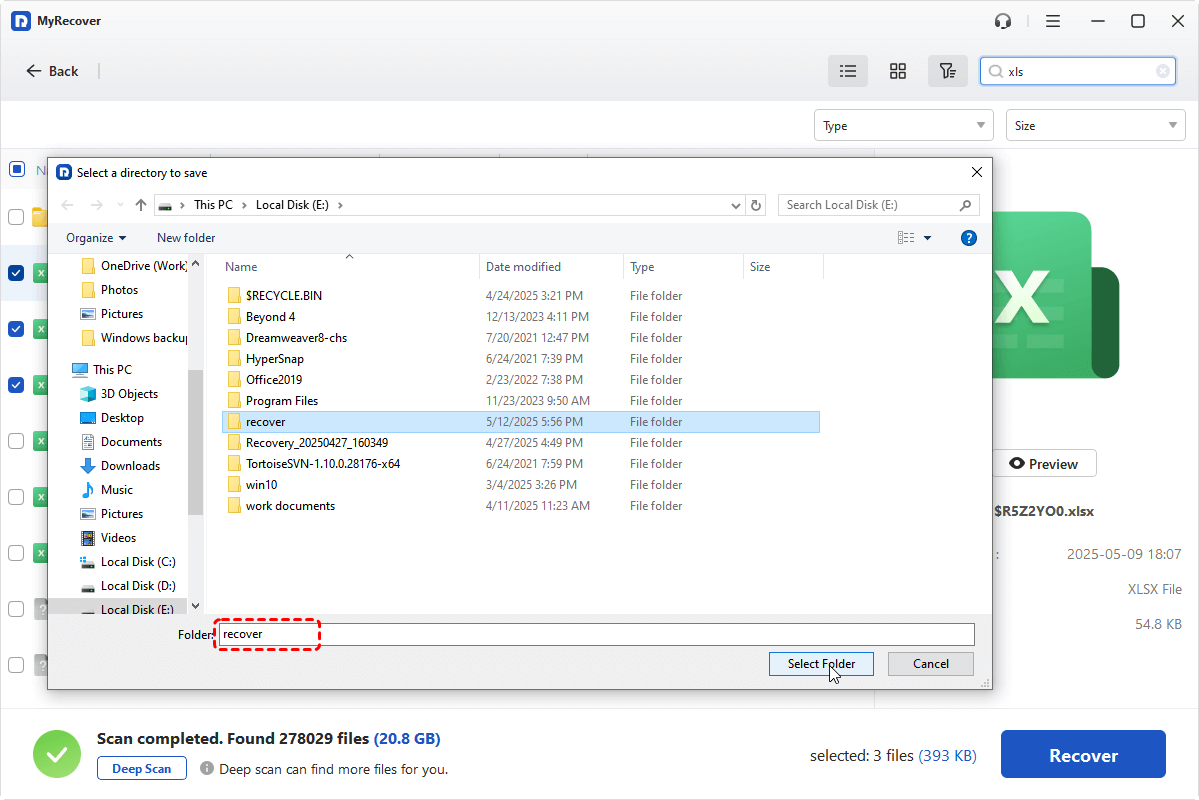
Step 4. Choose a safe location to save the recovered files.
When the recovery process is done, the message "Files have been recovered successfully" will pop up. Then, you can access the recovered files by clicking on the destination folder path or the "Browse" button.

Method 6. Remove File from Recent List
If you’ve moved or renamed the file to a new location, be sure to open it in Excel from its new path and delete the original location entry from the Excel "Recent" list. Otherwise, the error "Excel file has been moved, renamed or deleted" may still appear when you try to access the file in "Recent", as the Recent won’t update the file’s location automatically.
Step 1. Launch Excel and locate "Home" page.
Step 2. Under "Recent", right click on the old file name or entry from the list and select "Remove from list".
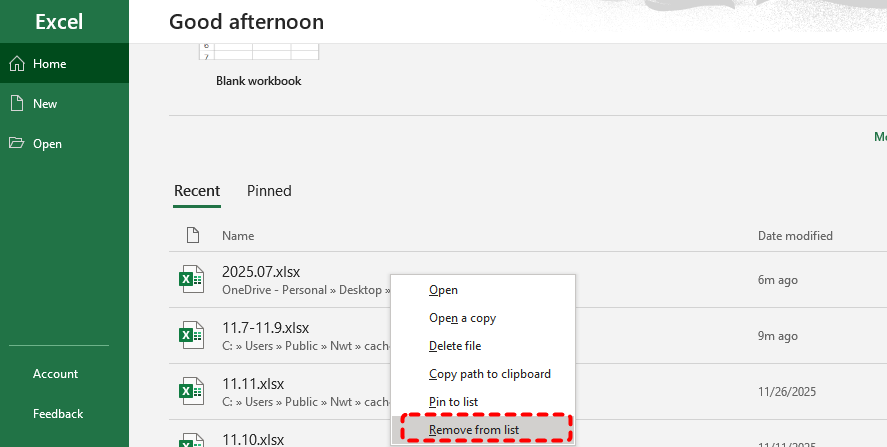
When you open the file again, Excel Recent will generate an updated shortcut path for the file.
Method 7. Try Excel in Safe Mode
If the file’s name and path are correct, and the file has not been deleted, but Excel still fails to open it and displays the error "Is it possible it was moved, renamed or deleted", this may be because a third-party add-in is blocking access to the file. Running Excel in safe mode might solve the issue. Safe Mode disables third-party add-ins and may help bypass issues that prevent file access.
Step 1. Press "Win" + "R" and enter "excel /safe" in the Run dialog to launch Excel in Safe Mode.
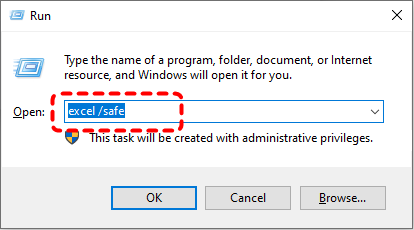
Step 2. Open the file again to check if the error continues.
Conclusion
The "Excel file has been moved, renamed or deleted" error can be frustrating, but with the right approach, you can recover your file and get back to work. If these methods don’t work, this could be because it has been deleted. The professional recovery tools like MyRecover can help you restore lost files with ease.
If you need more advanced features such as unlimited data recovery or file content preview before restoration, upgrading to the Professional edition of MyRecover is a worthwhile investment.

Stay Updated With Our
Latest Tips
Add us as a preferred source on Google to never miss helpful guides.
 Add as preferred source >>