 MyRecover



Safely Convert exFAT to NTFS Without Losing Data in Windows 11, 10
This guide explains how to convert exFAT to NTFS without losing data. We provide a detailed, step-by-step tutorial on the CMD conversion method and a safer, simpler software-based approach to format exFAT to NTFS without losing data, ensuring your files remain perfectly intact throughout the entire process.

By Delores / Updated on December 1, 2025


Can I convert exFAT to NTFS without Losing Data?
How do I convert exFAT to NTFS without losing data?
I have an external SSD that is using 800gb/1tb of games. A rookie mistake I made before I started using it was not converting/formatting the drive to NTFS.
I do not have another SSD big enough to transfer the data over.
Is there a program or command to convert the drive from exFAT to NTFS?
- Question from reddit.com
Converting exFAT to NTFS without losing data can be challenging if you have critical files on the exFAT hard drive. Terabytes of information are located on an exFAT drive. What should you do? How to back them up when there are no other drives for backups? Don't worry, this article will be your trusted guide, leading you safely through the terrain of converting your drive, ensuring your precious data arrives completely intact on the other side.
About exFAT and NTFS
exFAT (Extended File Allocation Table) was designed as a lightweight, compatible file system for flash media like SD cards and USB drives. Its biggest strength is its cross-platform compatibility, working seamlessly with Windows, macOS, and many Linux distributions without needing third-party drivers. However, it lacks critical features. It lacks journaling, meaning it's more susceptible to corruption from unexpected disconnections. It doesn't support file-level permissions or encryption natively.
NTFS (New Technology File System) is Windows' powerhouse. It’s journaled, supports permissions, encryption via EFS, file compression, and has practically no realistic file size limits. The trade-off? While modern macOS can read NTFS drives, writing to them often requires additional software, and some other devices, like media players, might not recognize them.
Why convert exFAT to NTFS?
So, why would you want to convert exFAT to NTFS? You might need to enjoy the following features:
Unlocking a suite of advanced features that exFAT, by design, doesn’t have. exFAT is great for storing large amounts of files, but it lacks the security of a password-protected system, an organized shelving system, and a detailed inventory log. NTFS, on the other hand, is a high-tech, secure facility with individual locks on every door, a flawless tracking system, and built-in redundancy.
NTFS’s support for file compression, disk quotas, and shadow copies (which enable Windows' Previous Versions feature) provides a level of control and resilience that exFAT can't touch.
Backup Important Files Before Converting
First of all, please back up your files on the exFAT hard drive before converting. If you don’t have another drive, you can try a cloud storage service, like Google Drive, OneDrive, Dropbox, etc. Besides, you can also copy files from your exFAT hard drive to a network location to keep them safe.
Besides, close all programs that might be accessing the drive. Having a file open can cause the conversion process to fail.
How to Convert exFAT to NTFS Without Losing Data
After backing up your crucial files, you can convert exFAT to NTFS without losing data now. Some users say that you can use the Convert command to convert exFAT to NTFS (convert E: /fs:ntfs). However, it’s not available. The Windows convert command is specifically designed for changing FAT/FAT32 file systems to NTFS and does not support exFAT. When you try to use it on an exFAT volume, you receive an error message indicating that CONVERT is not available for exFAT drives.
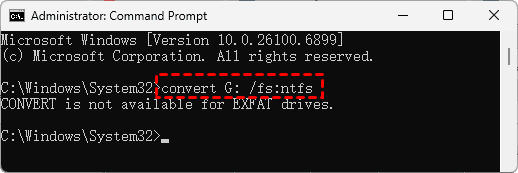
Thus, you have to format exFAT to NTFS in Disk Management, then move files back to the hard drive to keep your files safe.
Here is how to format an exFAT drive to NTFS in Disk Management on Windows 11,10:
1. Please connect your hard drive to a Windows computer, then ensure Windows can detect it.
2. Right-click the Start icon, and choose Disk Management.
3. Right-click the exFAT hard drive, choose Format.
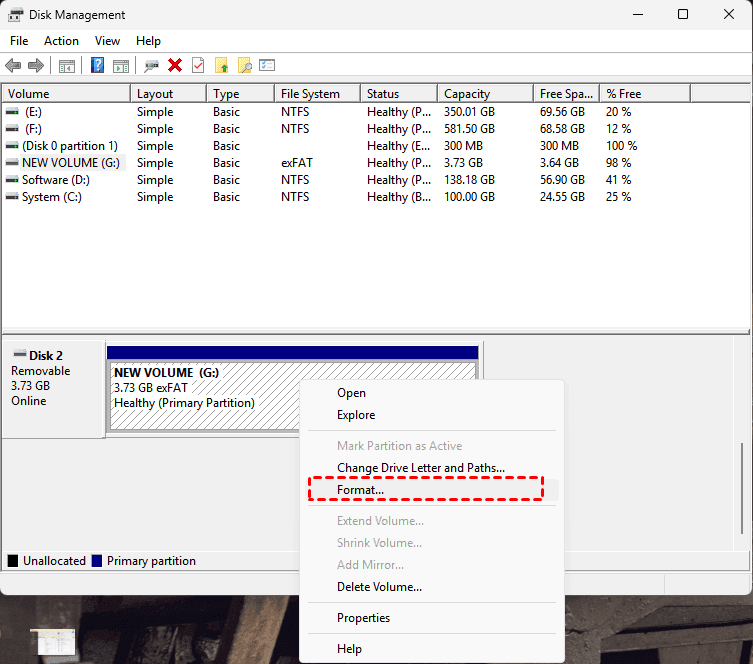
4. Choose NTFS as the file system, and hit OK.

Formatting will delete all your files permanently. Please ensure you have backed them up first. After formatting, you can move all backed-up files to the NTFS drive, use it normally, and enjoy the benefits.
Recover Lost Files After Formatting
You have to recover files if you formatted your exFAT hard drive without a backup. So here comes the powerful data recovery software MyRecover, to help. MyRecover provides the following features:
- Deep Scan Lost Partitions and Data. Unlike simple file recovery, MyRecover's advanced scanning algorithms can reconstruct data structures and locate files even if the partition table was damaged during the conversion process, making it effective for severe cases.
- Preserves Original Filenames and Folder Structures. MyRecover can recover files with their original names and organize them within their original folder hierarchy. This saves you from the nightmare of sorting through thousands of unnamed files.
- Selective Recovery with File Preview. You don't have to recover everything blindly. MyRecover allows you to preview files like photos, documents, and videos before recovery, so you can selectively choose only the important, uncorrupted files you need.
- User-Friendly Interface for All Skill Levels. MyRecover offers a simple, guided interface that makes data recovery straightforward, without requiring technical expertise or command-line commands.
So, here is how to recover files after formatting with MyRecover: check the simple instructions:
1. Please connect your drive that is missing files to a Windows computer if it’s an external hard drive. Download and install MyRecover, then run the program.
 100% Secure
2. Tap Format Recovery, choose the drive that is missing files, and hit Scan.
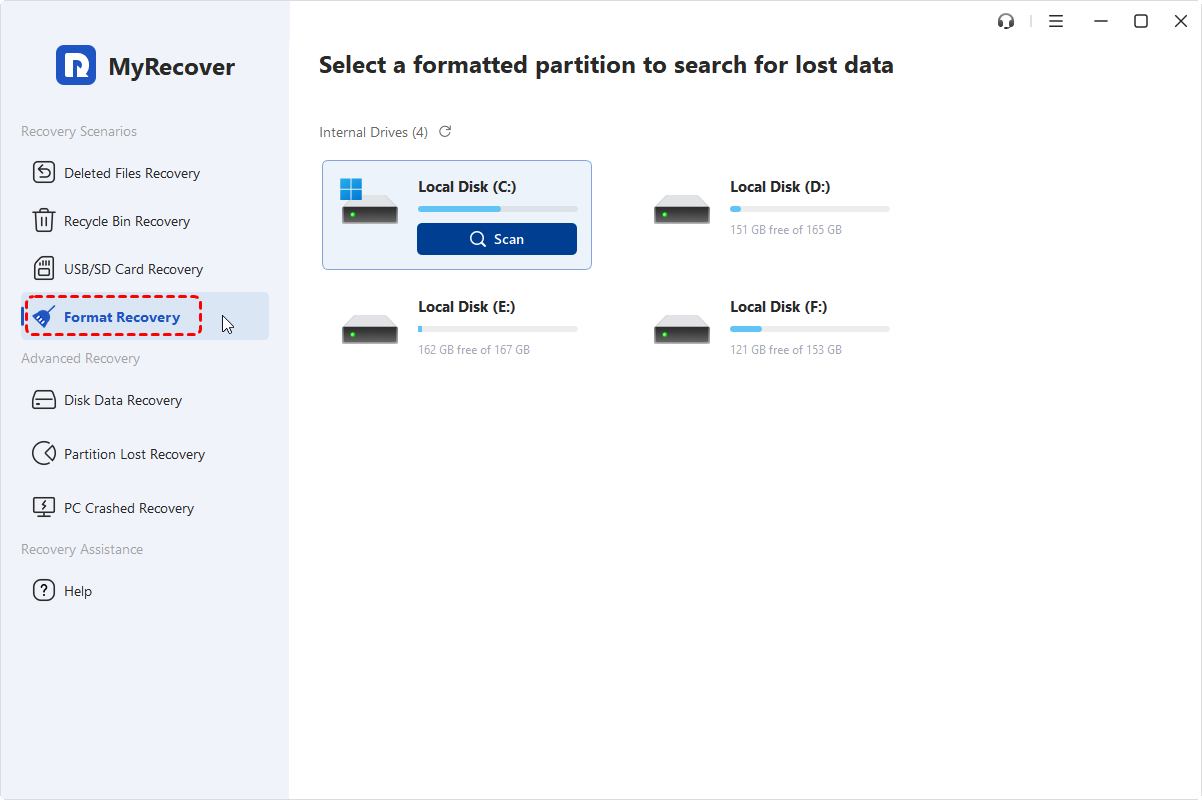
3. Hit OK when it’s done.
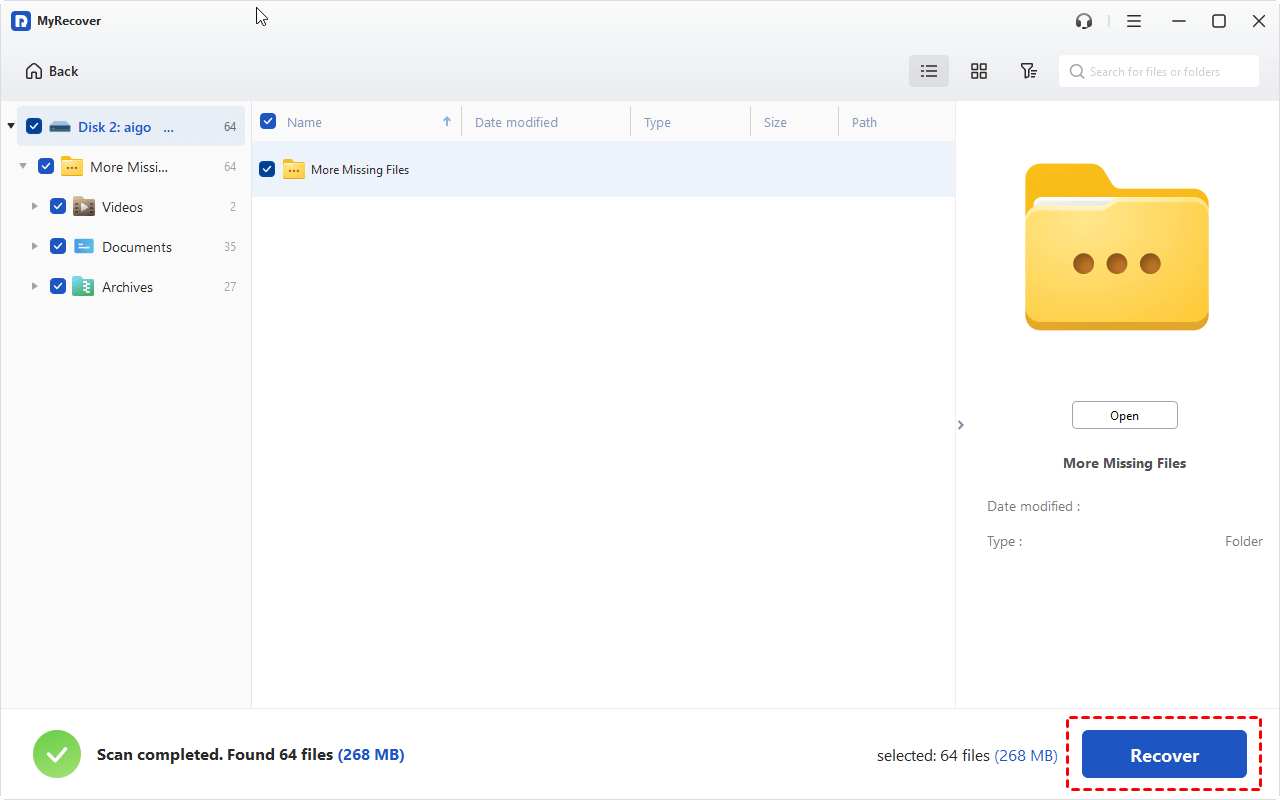
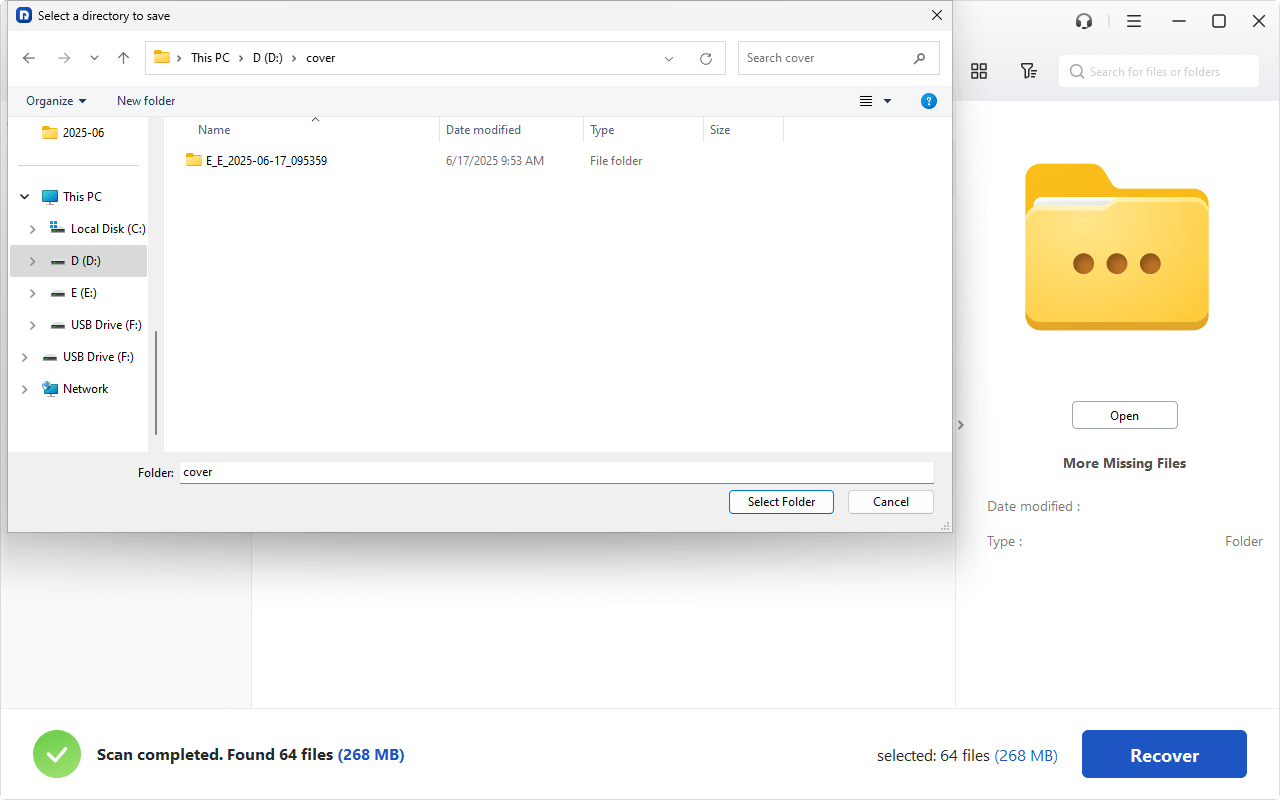
4. Preview and choose the files you need, and tap Recover. Then choose another folder to keep them safe.
- Tips:✎...
- By default, MyRecover scans formatted files deeply, and it costs much more time, so wait patiently.
- Once MyRecover finds files, they will be sorted by file type, and find files quickly. Besides, you can also use file name, file path, and file size to filter files quickly.
- If you lost files from multiple computers, you can recover files from unlimited computers within a company with the help of MyRecover Technician.

 MyRecover
- Recover Deleted Files Easily with Simple Clicks
- 1000+ File Formats Supported
- Support HDD, SSD, External Hard Drive, USB Drive, SD Card, etc.
- Quickly Find Files Using File Types, Name, Size, etc.
- Preview Files Before Recovering
- Recover Unlimited Data
 100% Secure
FAQs About Converting exFAT to NTFS
Q: Is it safe to use the CMD convert command to change exFAT to NTFS?
A: Generally, yes, as it's a Microsoft-designed non-destructive tool. However, interruptions like power outages can cause corruption, so always back up first.
Q: Will I lose data or performance when converting from exFAT to NTFS?
A: No data loss occurs with successful conversion. Performance is typically similar or better, as NTFS handles large files and directories more efficiently.
Q: Can I convert back to exFAT from NTFS without losing data?
A: No. Reverting requires formatting, which erases all data. You must back up first, then format to exFAT.
Q: Why does the convert command fail with an "access denied" error?
A: This usually means you're not running Command Prompt as administrator. Right-click Command Prompt and select "Run as administrator".
Q: What is the best software to convert exFAT to NTFS without formatting?
A: Reliable options include AOMEI Partition Assistant, MiniTool Partition Wizard, and EaseUS Partition Master, which offer user-friendly graphical interfaces.
Q: My drive is not converting, and I don't have a backup. What can I do?
A: Stop conversion attempts immediately. Use data recovery software like MyRecover first to rescue your files, then format the drive.

Stay Updated With Our
Latest Tips
Add us as a preferred source on Google to never miss helpful guides.
 Add as preferred source >>