 MyRecover



How to Recover Data From NTFS Hard Drive | Free NTFS Recovery Tool
Learn how to recover lost or corrupted data from an NTFS partition with this step-by-step guide. Discover effective methods to restore your important files and avoid data overwriting to safely retrieve your lost information.

By Delores / Updated on August 24, 2026


Key Takeaway
Can you recover data from NTFS hard drive? Yes, you can recover data from an NTFS hard drive. When you delete a file on NTFS, its entry in the Master File Table (MFT) is marked as available, but the actual data remains on the disk until it's overwritten. Use the Recycle Bin, Windows File Recovery, CHKDSK, or a free NTFS recovery tool like MyRecover to retrieve your lost files.
Can I Recover Files from an NTFS Hard Drive Easily?
Recover an NTFS filesystem accidentally over-formatted with FAT - getting the filesystem back?
I accidentally FAT-formatted an NTFS partition, and now it shows up as an empty FAT partition. I'm thinking much should be recoverable, since AFAIK NTFS puts much of the important stuff towards the middle of the partition, while FAT's file table is at the beginning.
Anyway, there is plenty of information here about how to recover files from a partially overwritten NTFS system (eg., careless use of dd), so that'll be the second thing I do... However, first I have to turn the partition back into an NTFS partition. So how do I do that?
Trying to format the drive would destroy the NTFS file table... Can I perhaps raw-edit the partition and put the correct magic numbers for NTFS at the beginning?
- Question from superuser.com
Overview of NTFS (File System)
NTFS (New Technology File System) is a file system developed by Microsoft, and it has since become the default file system for Windows operating systems. It offers numerous features that make it more advanced than older file systems like FAT16 and FAT32, including:
- File Size and Volume Support: NTFS supports much larger file sizes and volumes compared to FAT32. While FAT32 is limited to a maximum file size of 4GB and a volume size of 8TB, NTFS can handle files up to 16 exabytes and volumes up to 256 terabytes.
- Security: NTFS provides advanced security features, including file and folder permissions (ACLs) and encryption (EFS), which are not available in FAT32. This allows for better control over who can access and modify files.
- Reliability: NTFS uses journaling to track changes, helping prevent file corruption during system crashes or power failures. FAT32 lacks this feature, making it more prone to data corruption.
- Disk Quotas and Compression: NTFS allows administrators to set disk quotas and offers built-in file compression to save space. FAT32 does not have these features.
Why Is NTFS Data Highly Recoverable?
NTFS (New Technology File System) is the default file system for Windows 10 and 11, and it's the most recovery-friendly file system available on Windows. The key reason is the Master File Table (MFT) — a database that records every file’s name, location, size, and metadata on the volume.
When you delete a file from an NTFS drive, Windows does not erase the actual data. Instead, it marks the file’s MFT entry as “available” and flags the disk clusters as free space. The file’s data remains intact until new data overwrites those clusters. This is why NTFS data recovery is often successful even after deletion, formatting, or partition corruption — provided you act quickly.
Critical rule: Stop using the NTFS drive immediately after data loss. Every new file written to the drive increases the risk of overwriting your lost data. Do not install recovery software on the same drive, and never save recovered files back to the source partition.
NTFS also offers advantages over FAT32 and exFAT for recovery:
- The MFT preserves deleted file metadata longer, giving recovery software more information to reconstruct files accurately.
- The $LogFile journal tracks recent file system changes, helping tools reconstruct recent operations.
- Volume Shadow Copies (VSS) enable “Previous Versions” recovery without third-party tools.
How to Recover Data from NTFS Hard Disk in Windows 11/10? 6 Methods
The right recovery method depends on your situation. Below are six proven methods, starting with the simplest.
Way 1. Recover Files from NTFS Hard Drive via Recycle Bin
Best for: Files deleted normally (not with Shift+Delete)
If you deleted files from an NTFS partition in File Explorer, they likely moved to the Recycle Bin first. This is the fastest recovery method.
1. Open the Recycle Bin on your desktop.
2. Locate the files you want to restore. You can sort by “Date deleted” or search by file name.
3. Right-click the file(s) and select “Restore”. The files will return to their original location on the NTFS drive.
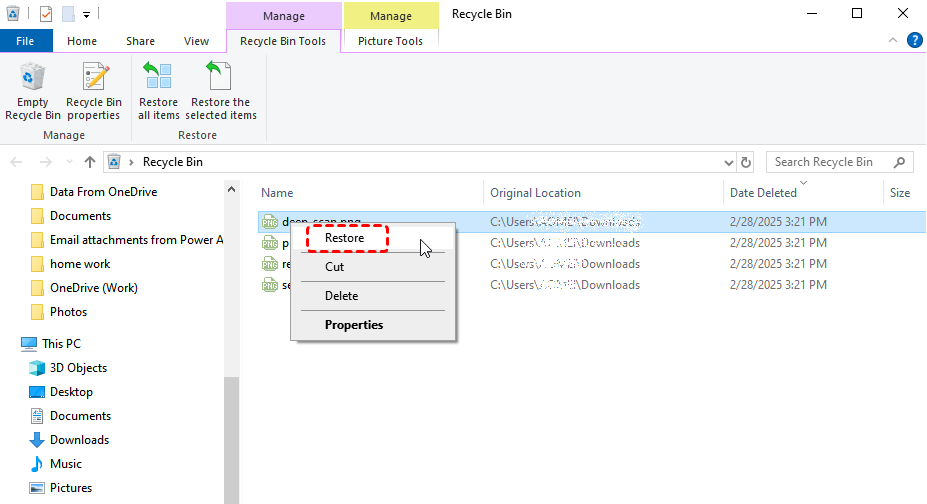
Note: Files deleted with Shift+Delete, or files deleted from an external NTFS drive (which may bypass the Recycle Bin), will not appear here. Move to Method 2 or 3.
Way 2. Recover NTFS Drive Files via Windows File History
Best for: Files lost due to accidental modification or deletion, if backups were enabled for this NTFS drive.
Windows includes built-in backup features, like File History or System Protection, that can restore earlier versions of files on NTFS partitions.
1. Go to Control Panel → System and Security → File History.
2. If enabled, click “Restore personal files” on the left.
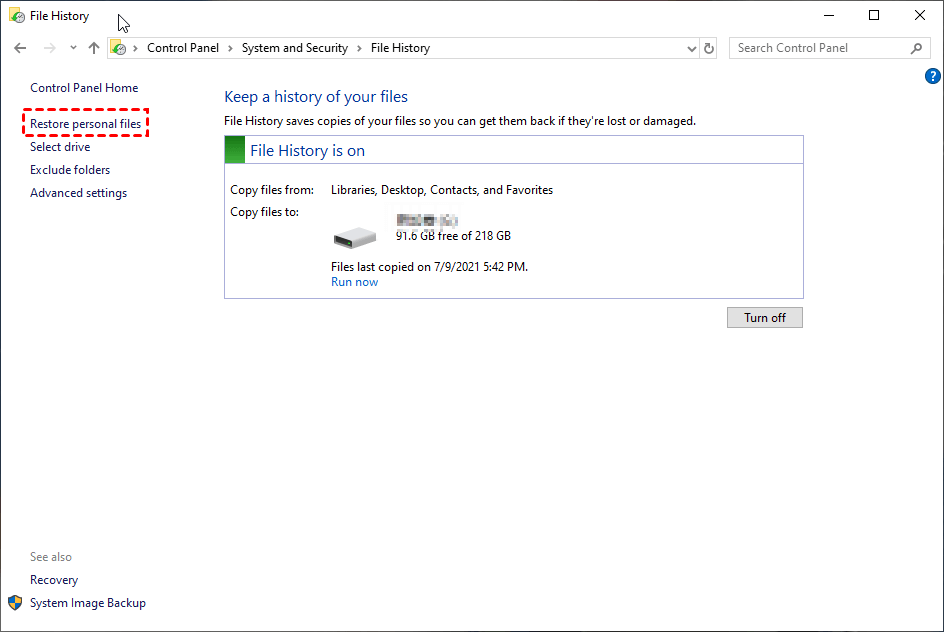
3. Browse to the folder where your files were stored, select the version you want, and click the green Restore button.
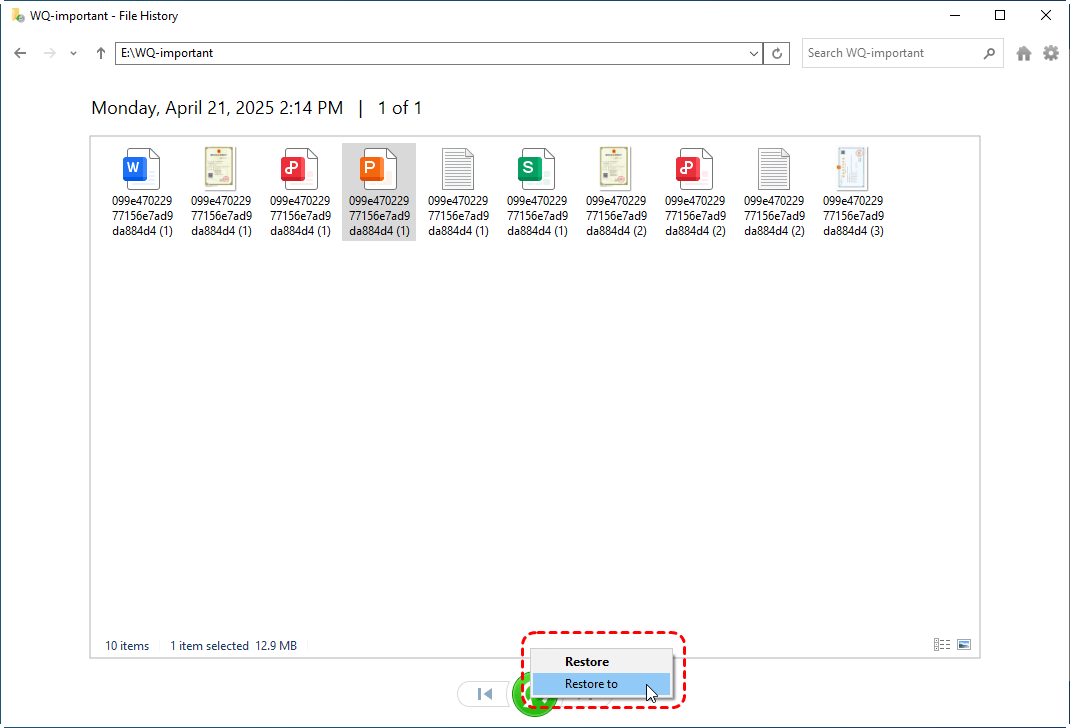
Or you can try these steps to recover files from an NTFS hard drive:
1. Right-click the folder where your files were lost.
2. Select “Restore previous versions”.
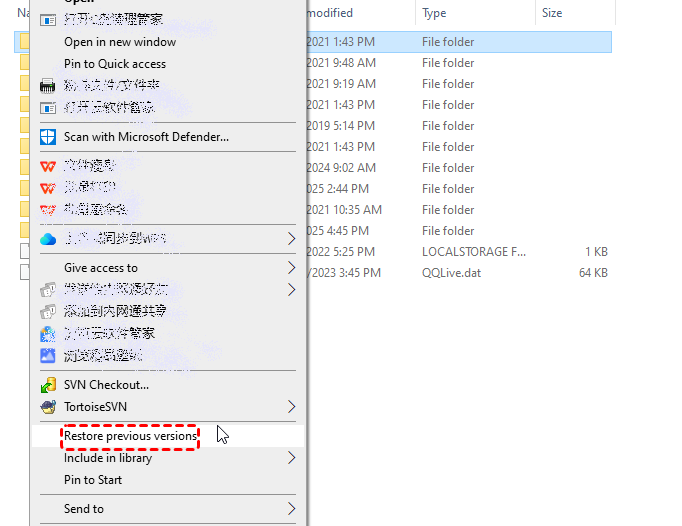
3. Choose a version from before the data loss and click “Restore”.
Way 3. Recover NTFS Drive Files via Windows File Recovery
Best for: Permanently deleted files (Shift+Delete) not in the Recycle Bin.
Windows File Recovery is a free command-line tool from Microsoft that can recover deleted files from NTFS, FAT, and exFAT drives.
1. Download Windows File Recovery from the Microsoft Store and install it.
2. Run Command Prompt as an administrator.
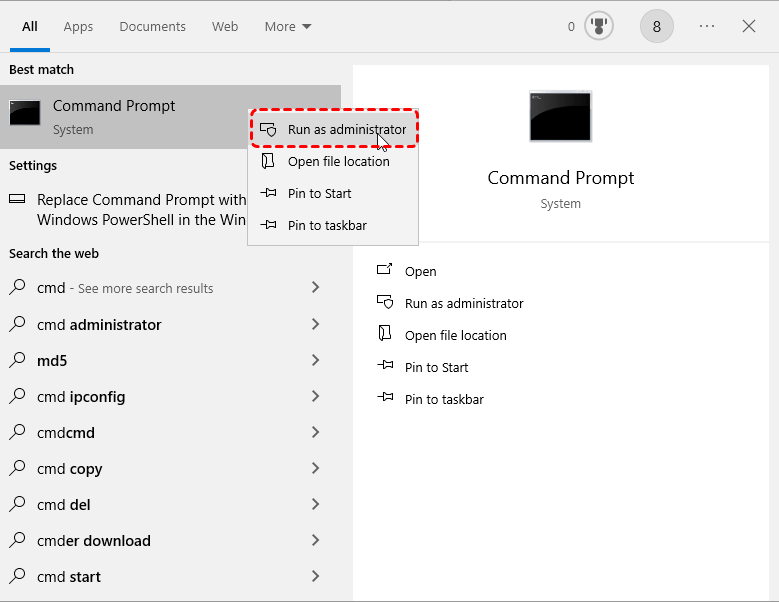
3. In the Command Prompt window, input the following command and press Enter.
winfr C: D: /n \Users\YourName\Documents\*.xlsx
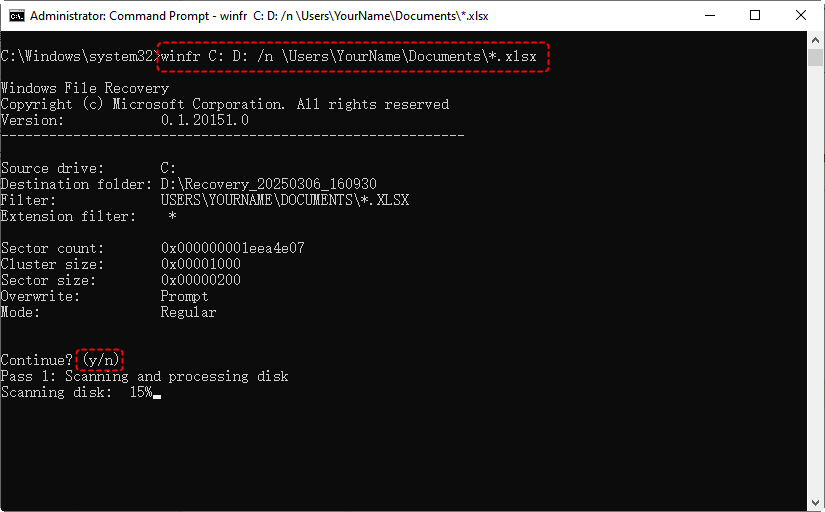
4. After you run the command, the tool will begin scanning the Excel files (.xlsx) on the source NTFS drive here, it is C:, then restore the NTFS files to the destination D: drive. The progress will be displayed in the command prompt window.
Tip: /n filters by file path or type (e.g., *.xlsx for Excel files, *.jpg for images).
Way 4. Run CHKDSK to Repair Corrupted NTFS Partitions
Best for: NTFS partitions with file system errors or bad sectors
CHKDSK (Check Disk) is a built-in Windows utility that detects and repairs file system errors on NTFS volumes. If your NTFS partition is visible but files are inaccessible or corrupted, CHKDSK may help.
Recover NTFS Drive Files Via File Explorer:
1. Right-click the NTFS drive in File Explorer and select “Properties”.
2. Go to the “Tools” tab and click “Check” under Error checking.
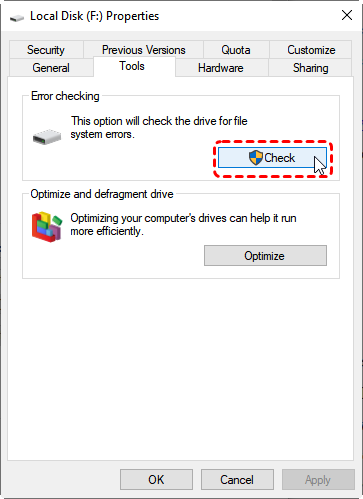
3. Follow the on-screen prompts to scan and repair.
If Windows detects errors, it will prompt you to repair the drive. Follow the on-screen instructions.
Recover from NTFS Hard Drive Via Command Prompt (advanced):
1. Open Command Prompt as Administrator.
2. Type: chkdsk G: /f /r (replace G: with your drive letter)
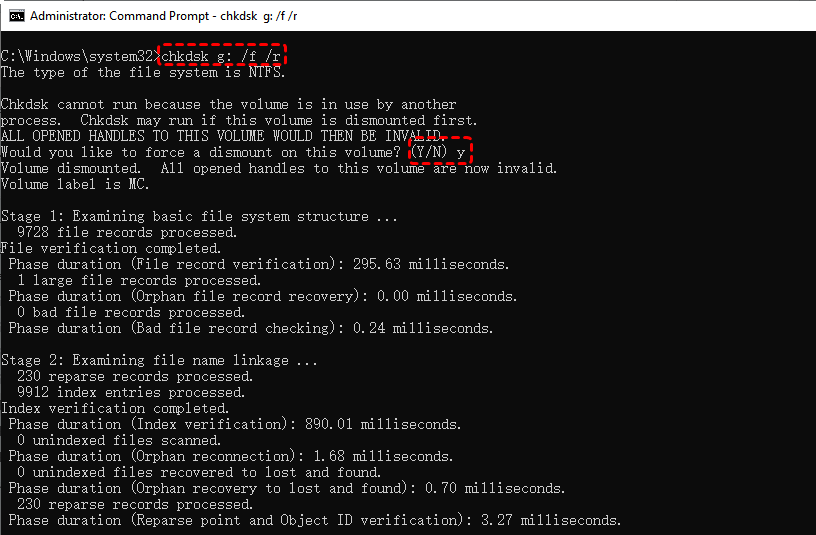
3. Press Enter.
- /f Fixes file system errors automatically.
- /r Locates bad sectors and recovers readable information.
Warning: Do not use CHKDSK on a physically failing drive, as it may cause further damage. If you hear clicking or grinding noises, stop and consult a professional data recovery service.
Way 5. Rebuild the MBR for Invisible NTFS Partitions
Best for: NTFS partitions that do not appear in File Explorer due to MBR corruption.
If your NTFS partition is missing from File Explorer, the Master Boot Record (MBR) may be corrupted. You can attempt to rebuild it:
1. Open Command Prompt as Administrator.
2. Run each command in sequence:
bootrec /fixmbr
bootrec /fixboot
bootrec /scanos
bootrec /rebuildbcd
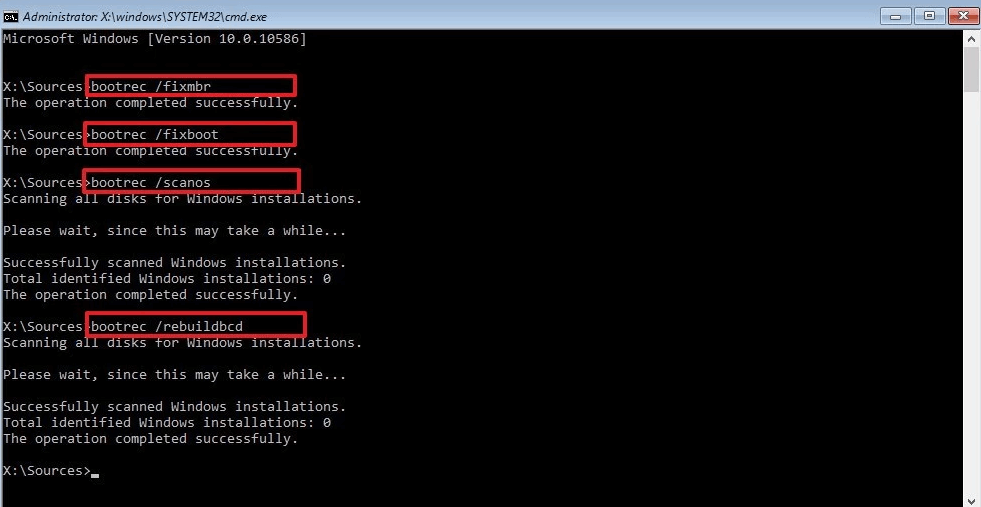
3. Restart your computer and check if the partition appears.
Alternatively, open Disk Management (Windows + X → Disk Management). If the partition shows as “Unallocated” or “RAW,” do not format it — formatting will erase all data. Instead, right-click the partition and select “Change Drive Letter and Paths” to reassign a letter, which may make it accessible again.

Way 6. Try the Best NTFS Recovery Tool - MyRecover
Best for: Any data loss scenario — deleted files, formatted drives, corrupted partitions, lost partitions, and RAW drives
If the built-in tools above do not work, or if you need a simpler, more comprehensive solution, MyRecover is a free NTFS recovery tool that handles all major data loss scenarios in one application.
Key features:
- Recovers deleted, lost, and formatted files from NTFS, FAT32, exFAT, and ReFS partitions.
- Restores deleted or lost NTFS partitions along with their data.
- Supports all file types (1,000+): documents, photos, videos, audio, emails, compressed files.
- Works on 500+ devices, including HDDs, SSDs, USB flash drives, SD cards, cameras, and more.
Here is how to recover deleted files from an NTFS hard drive with MyRecover in a few clicks:
Step 1. Download and install MyRecover on your Windows computer.
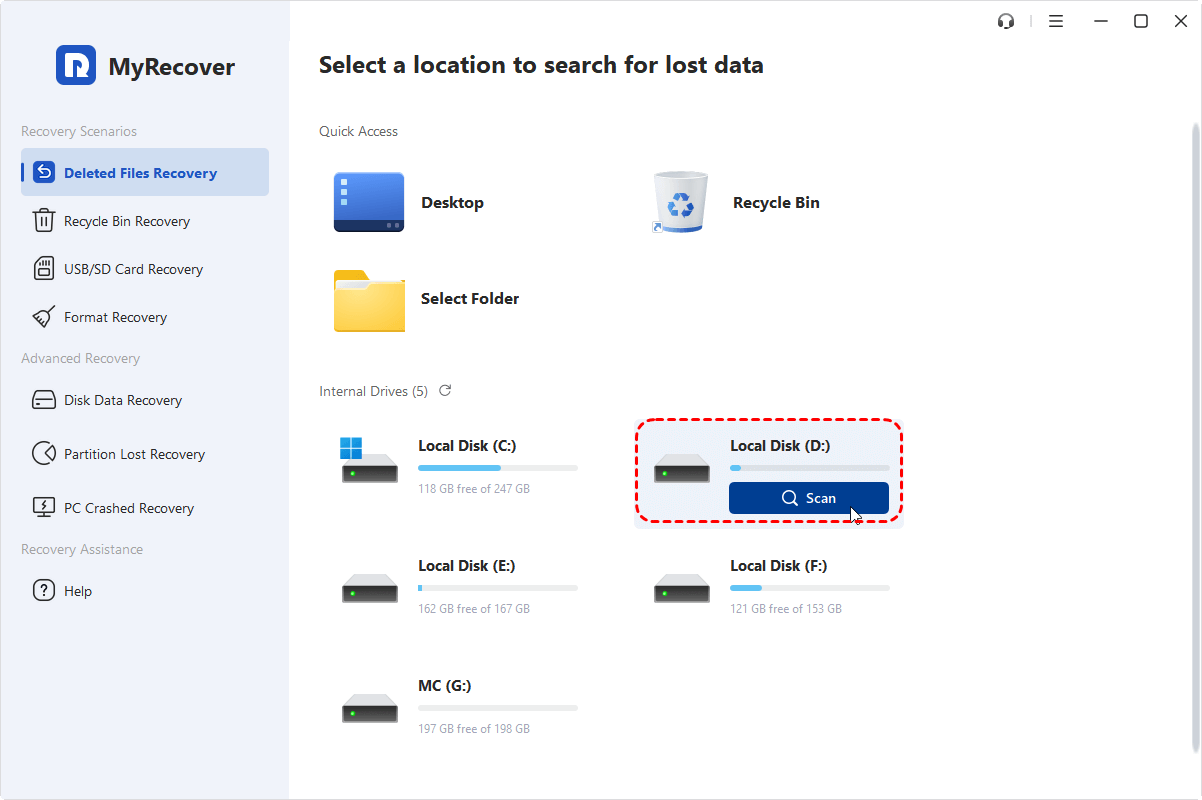
Step 2. Run it, click Deleted Files Recovery, click the target NTFS hard drive, then click on “Scan”, which will scan the entire partition for lost data.
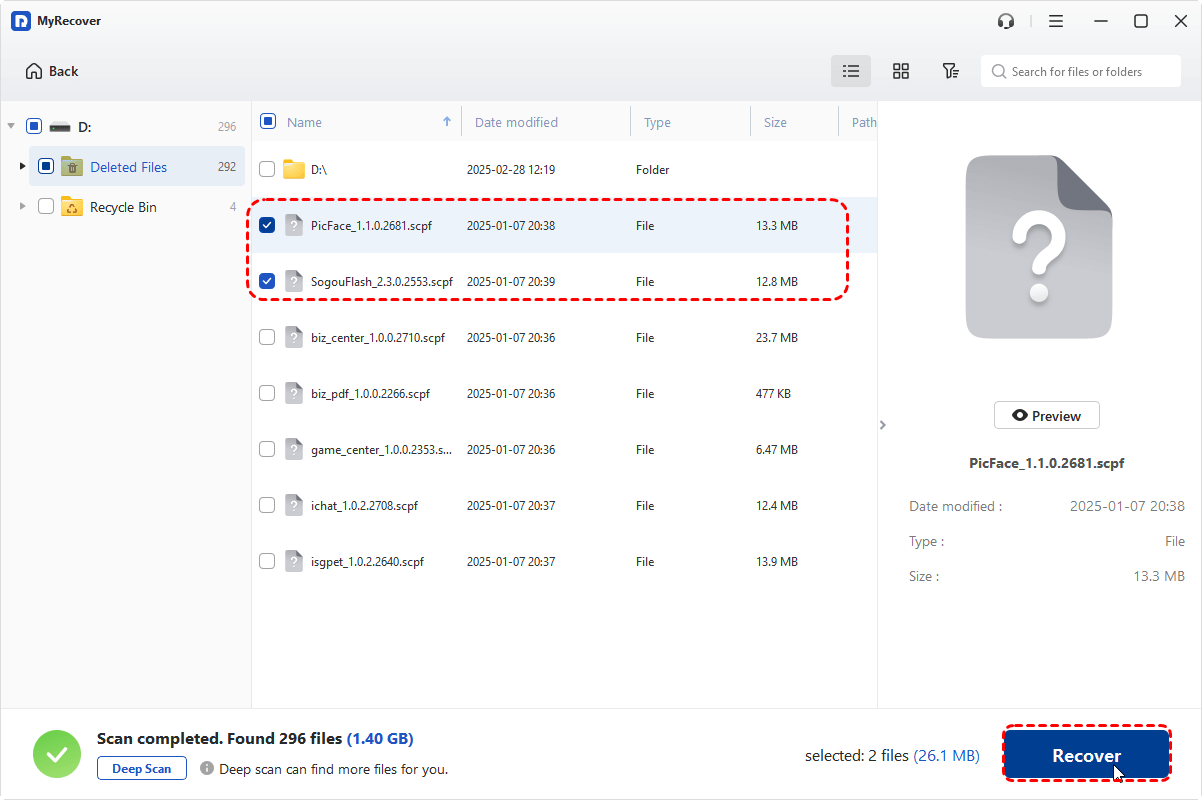
Step 3. Once the scanning process is finished, all recoverable files will be listed, and you can tick the files on the NTFS hard drive and click on “Recover”.
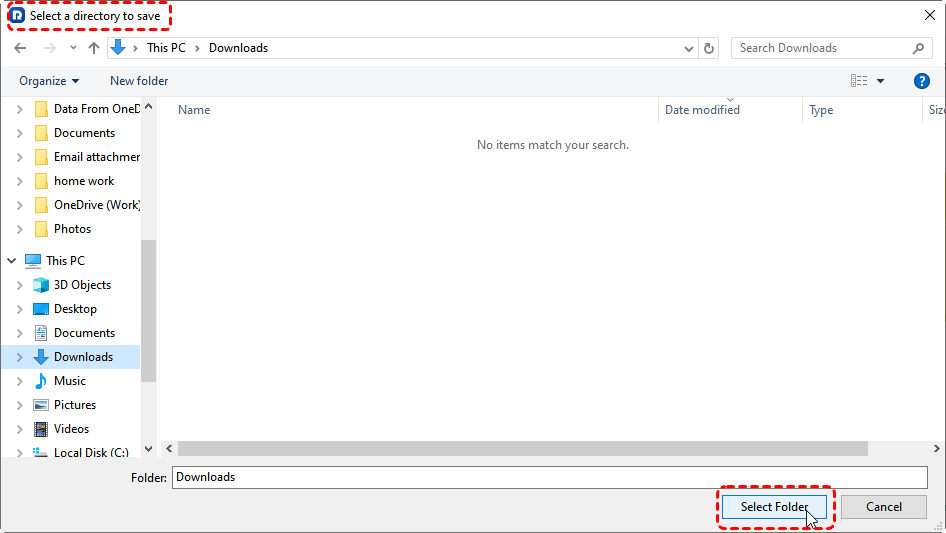
Step 4. Choose a destination drive to save the recovered files.
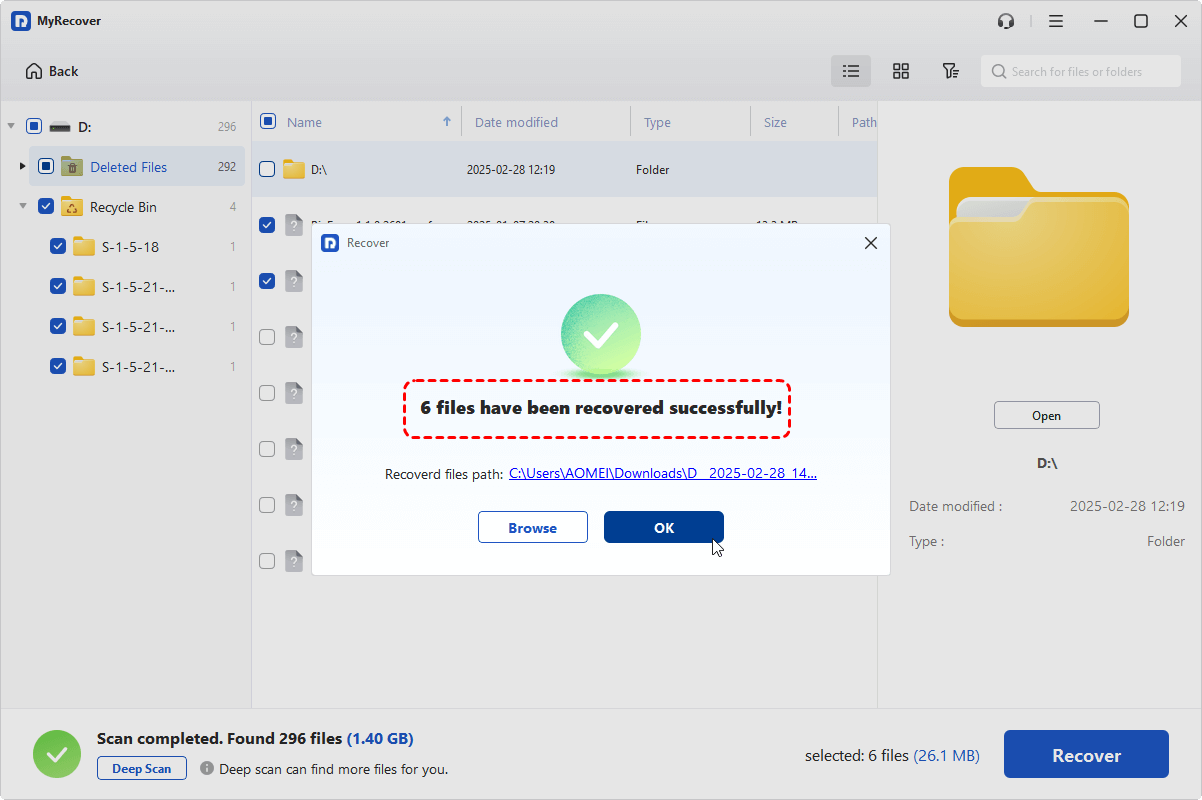
Step 5. Wait for the process to complete. How long it will take to recover NTFS drive data depends on the amount or size of the recoverable files.
- Notes:✎...
- If your NTFS partition is deleted, you can go directly to “Partition Lost Recovery” in the “Advanced Recovery” section, which will search for the lost partition and then recover it along with its data.
- If your computer will not boot, you can use MyRecover’s Advanced Edition to create a bootable recovery media and then recover files with MyRecover.
- If you need to preview files before recovery, recover unlimited files, or use other premium features, please upgrade to MyRecover Professional or Technician to enjoy.

 MyRecover
 - Recover Deleted Files Easily with Simple Clicks
- 1000+ File Formats Supported
- Support HDD, SSD, External Hard Drive, USB Drive, SD Card, etc.
- Quickly Find Files Using File Types, Name, Size, etc.
 100% Secure
FAQs About Recovering Data from NTFS Hard Drive
Can I recover permanently deleted files from an NTFS hard drive?
Yes. When you permanently delete a file (Shift+Delete) from an NTFS drive, the file’s MFT entry is marked as available, but the data remains on the disk. You can recover it using Windows File Recovery, MyRecover, or other NTFS recovery software — provided the data has not been overwritten.
Is it possible to recover data after formatting an NTFS partition?
Yes, especially after a quick format. A quick format rebuilds the file system table but does not erase the underlying data. Recovery software like MyRecover can scan the raw sectors and retrieve the original files. A full format, however, overwrites data sectors and makes recovery much harder.
How long does NTFS data recovery take?
Recovery time depends on the drive size, the extent of data loss, and the scanning method. A quick scan of a small NTFS partition may take minutes, while a deep scan of a large hard drive can take several hours.
Is CHKDSK safe for NTFS data recovery?
CHKDSK is safe for repairing file system errors on a healthy-but-corrupted NTFS partition. However, if the drive is physically failing (clicking noises, very slow response), CHKDSK may cause further damage. In that case, use recovery software first to extract your data, then consult a professional.
What is the best free NTFS recovery tool?
MyRecover offers a free edition that can scan NTFS drives, select the recoverable files, and recover a limited amount of data at no cost. For unlimited recovery, the Professional and Technician editions are available. Other free options include Windows File Recovery (command-line), etc.
Can I recover data from an NTFS drive on a Mac?
Yes, but you will need a Mac-compatible NTFS recovery tool. Macs can read NTFS drives natively but cannot write to them without third-party software. Use a cross-platform recovery tool that supports NTFS file system reading and scanning on macOS.
To Wrap Up
This guide provides an effective solution to recover data from an NTFS hard drive, regardless of the reason for data loss. For a faster and more efficient recovery, MyRecover is your best choice, as it handles various data loss scenarios with ease. This tool can restore different types of data (texts, pictures, videos, audio, emails, compressed files, etc) on different devices (HDD, SSD, USB flash drive, SD card, Camera, PS4/5, drone, CCTV, music/video players, etc).
What’s more, even if you cannot boot your computer as usual, you can use the Advanced Edition to create bootable media and perform data recovery.

Stay Updated With Our
Latest Tips
Add us as a preferred source on Google to never miss helpful guides.
 Add as preferred source >>