 MyRecover



[Full Guide] The File Has Properties That Can't Be Copied to The New Location
Users may encounter the error ‘The file has properties that can’t be copied’ when transferring files in Windows.The article explores the common causes of this error and offers step-by-step methods to successfully copy or move affected files without data loss.

By Emma / Updated on December 22, 2025


User Query
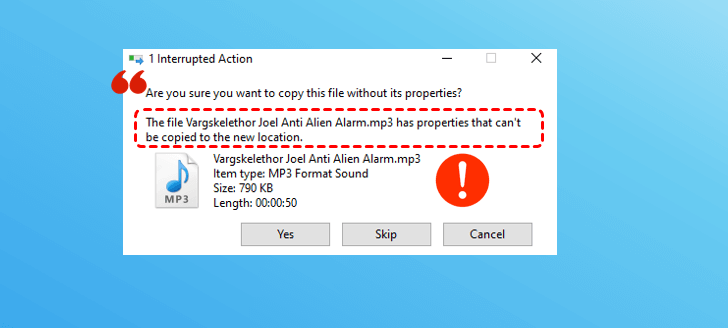
Trying to drag and drop a file to a USB, i am now getting this message; The file has properties that can't be copied to this location. Can anyone explain what is happening?
What Cause "The File Has Properties That Can't be Copied to the New Location"?
This error typically appears in Windows when a file cannot be moved or copied to a new location because of certain restrictions or issues. It indicates that the file has attributes, permissions, or system-level protections that prevent it from being transferred in the usual way. It usually occurs due to one or more of the following underlying reasons:
⭕File Permissions: The user account may not have sufficient rights to access or modify the file.
⭕File Attributes or System Restrictions: Certain system files, protected files, or files with special attributes (like read-only/write-protection or hidden) may be restricted from being copied.
⭕Corrupted Files: Damaged or partially corrupted files may prevent copying or moving.
⭕Destination Restrictions: The target location might have restrictions, such as file system limitations (e.g., copying a large file to a FAT32 drive).
How to Fix "The File Has Properties That Can't be Copied to the New Location"?
After identifying the root cause, you can choose the right method to safely copy or move your files.
Method 1. Skip the Error and Continue Copying Files
If only a few problematic files are causing the error, you can skip them and continue copying the rest of your files:
Step 1. Start the copy or move operation as usual.
Step 2. When the error message "The file has properties that can’t be copied to the new location" appears, click "Skip".
Step 3. Windows will copy all other files while ignoring the problematic ones.
Method 2. Check and Modify File Permissions
Sometimes, Windows blocks file operations if your account lacks the proper permissions. To fix this:
Step 1. Right-click the file and select "Properties".
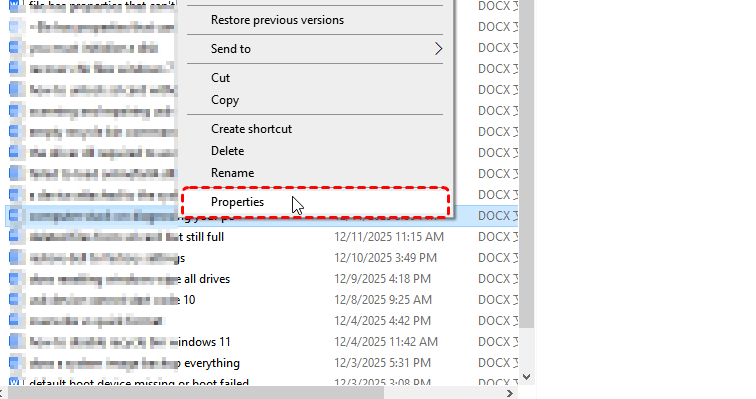
Step 2. Go to the "Security" tab.
Step 3. Ensure your account has "Full Control". If not, click "Edit" to grant the necessary permissions.
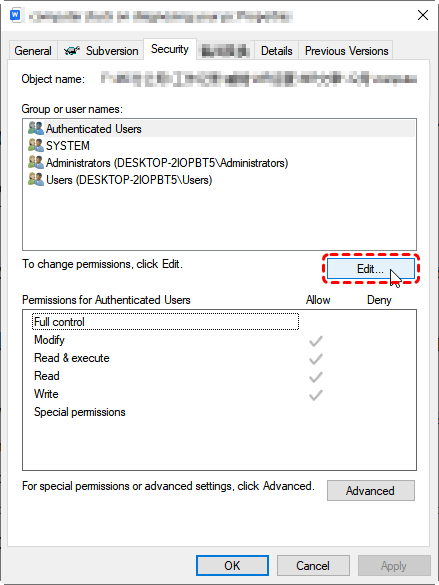

Apply the changes and try copying the file again.
Method 3. Remove Read-Only or Hidden Attributes
Files marked as read-only or hidden may also fail to copy. To change the attributes: right-click the file and select "Properties". In the "General" tab, uncheck "Read-only and Hidden" if applicable. Click "Apply" and then "OK".
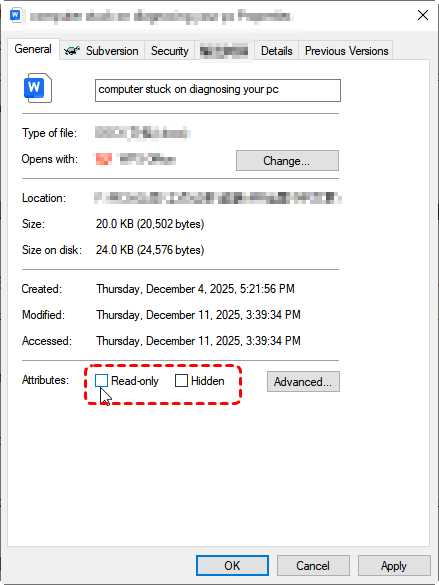
After this, attempt the file transfer againto check whether "the file has properties that can't be copied" error disappears.
Method 4. Use Xcopy Commandto Copy Files
For stubborn files, Windows Command Prompt can help:
Step 1. Open Command Prompt as admin: press Win+R, input "cmd" in the run dialogue and hit on "Ctrl+Shift+Enter".
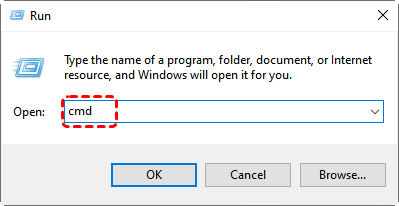
Step 2. In the elevated window, run the following xcopy command:
Xcopy f:\test h:\test /E /H /C /I
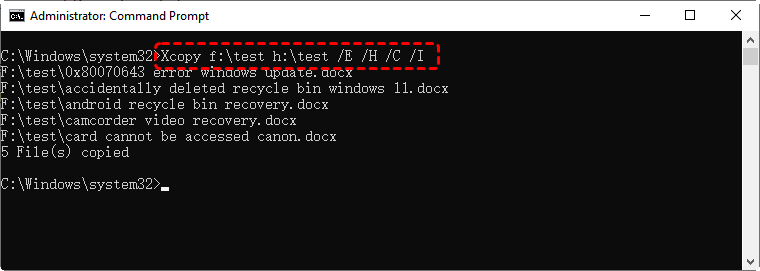
- xcopy – The command used to copy files and directories, including subdirectories. It’s more powerful than the basic copy command.
- f:\test – The source directory you want to copy from (in this case, f:\test).
- h:\test – The destination directory where the files will be copied to (in this case, h:\test).
🌟Switches / Options:
- /E – Copies all subdirectories, including empty ones.
- /H – Copies hidden and system files as well.
- /C – Continues copying even if errors occur. This ensures the process doesn’t stop due to a problematic file.
- /I – If the destination doesn’t exist and you are copying more than one file, this option assumes the destination is a directory (avoiding prompts).
This command copies everything from f:\test to h:\test, including all subfolders (even empty ones), hidden/system files, continues despite errors, and assumes the destination is a folder if it doesn’t already exist.
Alternatively, use ROBOCOPY command: robocopy f:\test h:\test /E /COPYALL /R:3 /W:5
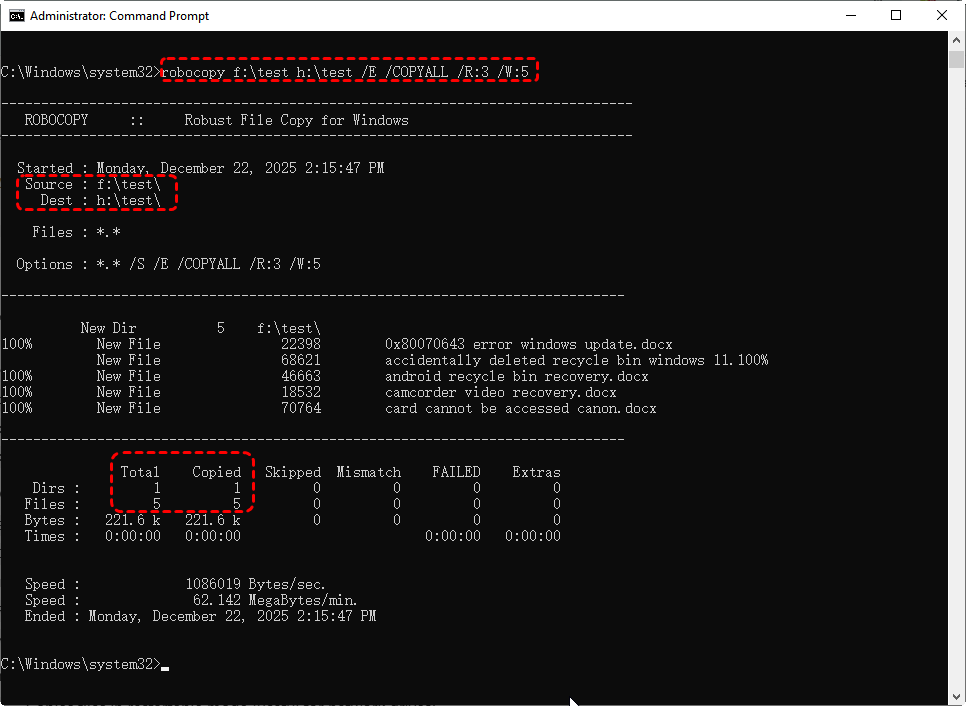
- robocopy – The command used for robust file and folder copying in Windows.
- f:\test – Source directory.
- h:\test – Destination directory.
🌟Switches / Options:
- /E – Copies all subdirectories, including empty ones (like /E in XCOPY).
- /COPYALL – Copies all file information, including data, attributes, timestamps, permissions, owner, and auditing info. This is more comprehensive than XCOPY’s /H.
- /R:3 – Retries 3 times on failed copies (default is 1 million).
- /W:5 – Waits 5 seconds between retries.
ROBOCOPY is generally better than XCOPY because it handles large files, network interruptions, and file attribute preservation more reliably. It’s especially useful when trying to copy files that trigger "The file has properties that can’t be copied" errors in Windows Explorer.
Method 5. Compress The Files or Folder
If certain files or folders cannot be copied, compressing them into a ZIP file can help removes many of the file-level attributes and permissions that may be causing the "The file has properties that can’t be copied to the new location"error. It’s a simple and safe way to transfer files without modifying their original content.
Step 1. Locate the File or Folder: Right-click the file or folder that cannot be copied.
Step 2. Select "Send to > Compressed (zipped) folder": Windows will create a ZIP file containing your files.

Step 3. Copy the ZIP File: Move or copy the compressed file to the desired location.
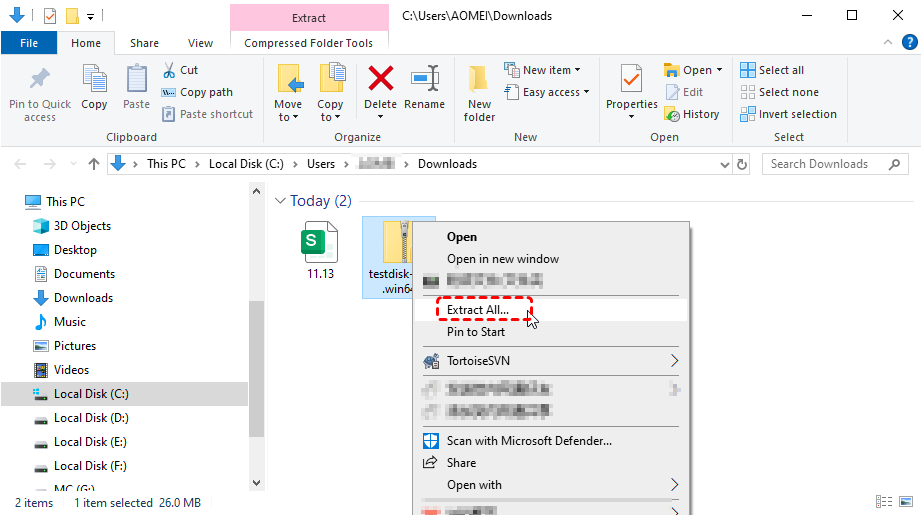
Once copied, right-click the ZIP fileat the destination drive and select "Extract All" to restore the files.
Method 6. Format Drive from FAT32 to NTFS
Sometimes the error "The file has properties that can’t be copied to the new location" occurs because the destination drive uses the FAT32 file system, which has limitations such as:
- Maximum file size of 4 GB.
- Limited support for long file names and certain file attributes.
If your file exceeds these limitations, copying will fail. Formatting or converting the drive from FAT32 to NTFS can resolve the issue. To protect the data on the destination drive, it’s recommended to use the convert command, which changes the file system from FAT32 to NTFS without deleting existing files, much safer than formatting process.
Just open Command Prompt as an admin (refer to method 4) and execute the command: convert X: /fs:ntfs (Replace "X:" with the letter of the drive you want to convert.)
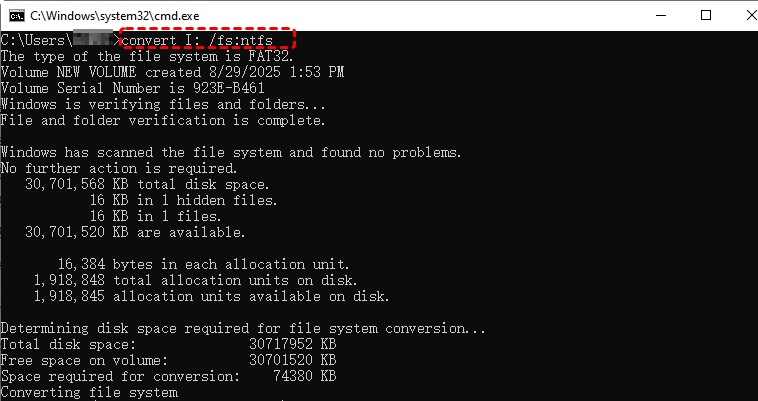
After the conversion is finished, try copying the files again.
Lost Important Data During Copy Failure? Try FREE MyRecover
If copying files fails due to errors like "The file has properties that can’t be copied to the new location", there’s a risk of data loss, especially for important documents, photos, or videos. In such cases, free data recovery software like MyRecover can help.

- ✨500+ Devices Supported | SSD, HDD, USB Flash Drive, SD Sard, etc.
- ✨1000+ File Formats Supported | PNG, MP4, MP3, TXT, ZIP, MSG, etc.
- ✨500+ Data Loss Scenarios | Deletion, Format, System Crash, Virus Attack, etc.
 100% Secure
Step 1. Download and install MyRecover.
Step 2. Run the software. Select the drive where the lost files were located and click on "Scan".

Step 3. When the scan completes, filter and select target files,then click "Recover".

Step 4. Choose a safe location to restore them.

Wrapping Up
As explained above,the error "The file has properties that can’t be copied to the new location"usually appears when Windows encounters file attributes, permission restrictions, file system limitations, or compatibility issues during a copy or drag-and-drop operation, you can resolve this issue in multiple ways. Choosing the right method depends on the specific cause and how important the affected files are.
If a copy failure leads to accidental data loss, data recovery tools like MyRecover provide a safe and effective way to scan your drive and restore lost files before they are overwritten. To enjoy unlimited data recovery quota and file preview before recovery, you can consider upgrading to Professional edition.

Stay Updated With Our
Latest Tips
Add us as a preferred source on Google to never miss helpful guides.
 Add as preferred source >>