 MyRecover



Fix Folder Shows Empty But Files Are There in Windows 10 & 11
Is your folder empty but files are there? Our article covers the "folder shows empty but files are there" issue. Learn how to fix folder shows empty but files are there with clear troubleshooting for Windows and device sync problems.

By Delores / Updated on January 4, 2026


Folder Shows Empty, But Files Are There?
Folder shows empty, but files are there on my D Drive!
Since I updated my pc from Windows 7 to 10, I have had some problems with the local disk D. For example, it shows that the folder is empty, but when I search for something, it shows that it's not empty.
How can I fix it?
- Question from learn.microsoft.com
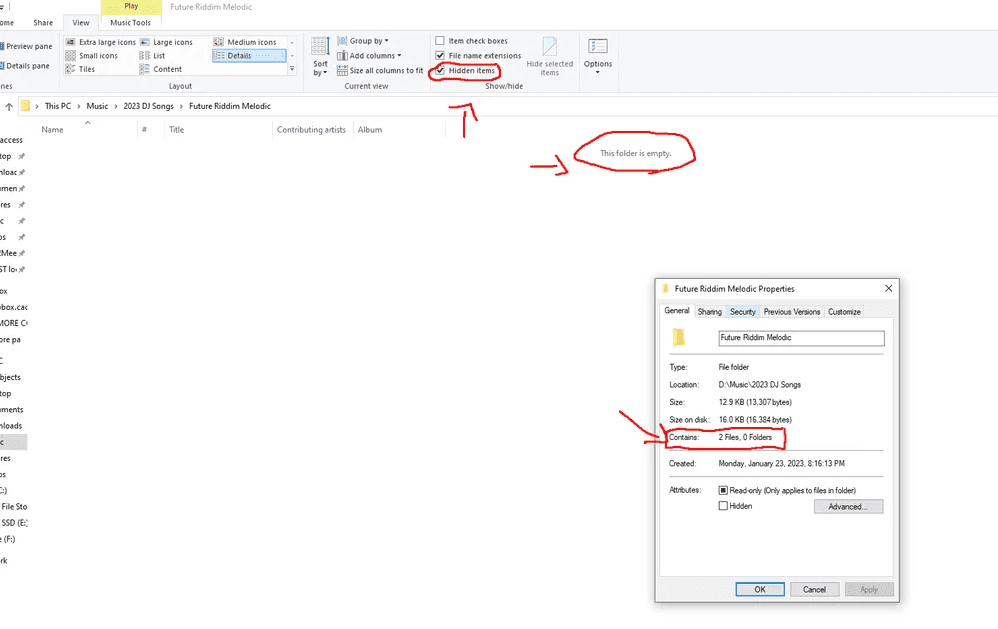
Have you ever double-clicked a folder on your computer, only to find that it's empty, yet you’re certain your important documents, vacation photos, or work projects are supposed to be right there? This is a common digital headache that can be easily fixed.
Whether you're facing a folder that shows empty but files are there in Windows 10, the newer folder shows empty but files are there in Windows 11, or the specific "this folder is empty when connecting iPhone to PC" problem, understanding the "why" is the first crucial step to learning how to fix a folder shows empty but files are there.
Why Does Your Folder Shows Empty, But Files Are There?
So, what's actually happening under the hood? When your folder shows empty, but files are there, it's typically one of several software glitches or configuration errors blocking the view. It's rarely a case of actual deletion, which is the silver lining here. The system knows the data occupies space on the drive (you can check this by right-clicking the folder and selecting 'Properties'—it will likely show the correct size).
There are multiple reasons why your folders show empty, but it’s not:
⭕ Hidden files. If files or the folder itself have the "hidden" attribute enabled, Windows Explorer, by default, will politely look the other way and show you a space.
⭕ Corrupted icon or thumbnail caches can also throw a wrench in the works, causing Explorer to display a folder incorrectly.
⭕ A recent Windows update or the installation of a new program can tweak system settings just enough to cause this visual bug.
⭕ A corrupted user profile can cause all sorts of display issues, including empty folders.
⭕ Issues with the Windows Explorer process itself—the very program that paints your desktop and file windows—can lead to this problem.
⭕ File system errors on your drive. If the table that tells Windows where files are located (the Master File Table on NTFS drives) gets a bit scrambled, the OS might struggle to retrieve and list the contents correctly.
⭕ Some antivirus software or syncing applications like OneDrive can sometimes lock or hide files during scans or sync operations, temporarily making them invisible in their native folder location.
How to Fix Folder Shows Empty, But Files Are There in Windows 11, 10?
There are multiple proven ways can fix the folder showing empty, but files are there, let’s find out.
Way 1. Show Hidden Files
This is the fix that works more often than not. Open File Explorer and navigate to the seemingly empty folder. Click the ‘View’ tab at the top. In the ribbon that appears, look for a box labeled "Hidden items" and make sure it is checked. Your files may instantly reappear.
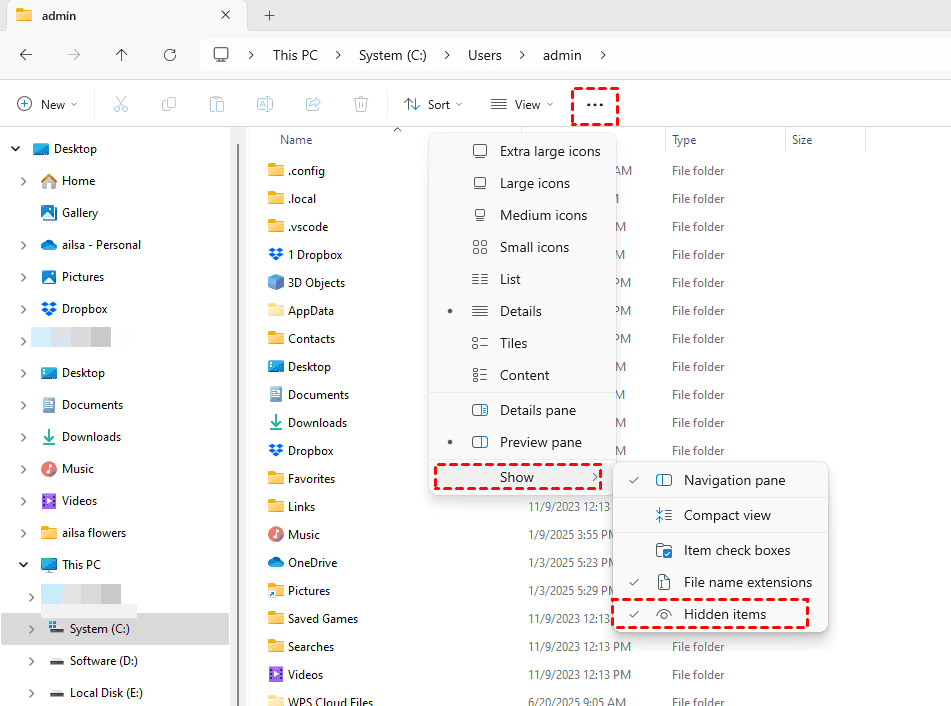
While you're there, click the three-dot icon >"Options" to open the Folder Options window. Navigate to the ‘View’ tab within this new window. Under ‘Advanced settings’, scroll down and ensure "Show hidden files, folders, and drives" is selected.
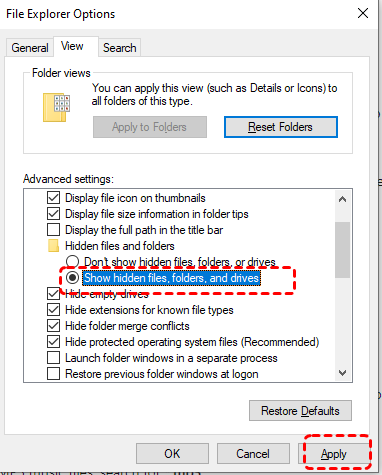
Also, uncheck "Hide protected operating system files (Recommended)" just for this troubleshooting session—you might be surprised what appears. Remember to re-check this box later for safety. Sometimes, you might find that the show hidden files not working, check the solutions.
Sometimes, simply changing the folder's view from "List" to "Details" or "Large icons" can jolt the display back to normal.
Way 2. Run Antivirus Software
Some malware will set certain file attributes to hide your files. Run the antivirus software to remove viruses and malware to make things right.
Way 3. Uncheck Compress Contents to Save Disk Space
Windows 11 also has a habit of using "Compressed folders" in certain views, which can sometimes behave oddly.
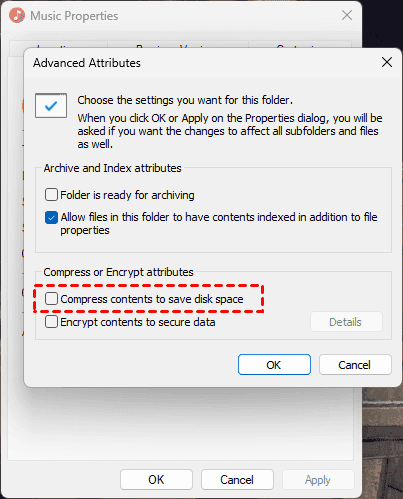
1. Right-click the problematic folder, select 'Properties', and under the 'General' tab, click 'Advanced'.
2. Ensure "Compress contents to save disk space" is not checked, as this can occasionally cause display issues.
Way 4. Clear Thumbnail Cache and Repair System Files
Besides, you can clear the corrupted thumbnail cache using the command prompt to fix it.
Search for "Command Prompt", right-click it, and select "Run as administrator".
Type del /f /s /q /a %localappdata%\Microsoft\Windows\Explorer\thumbcache_*.db and press Enter.
Next, we can check for system file corruption. In the same admin Command Prompt, type sfc /scannow and hit Enter. This System File Checker will scan and repair corrupted Windows system files.
For a deeper check, follow up with the DISM tool by typing DISM /Online /Cleanup-Image /RestoreHealth.
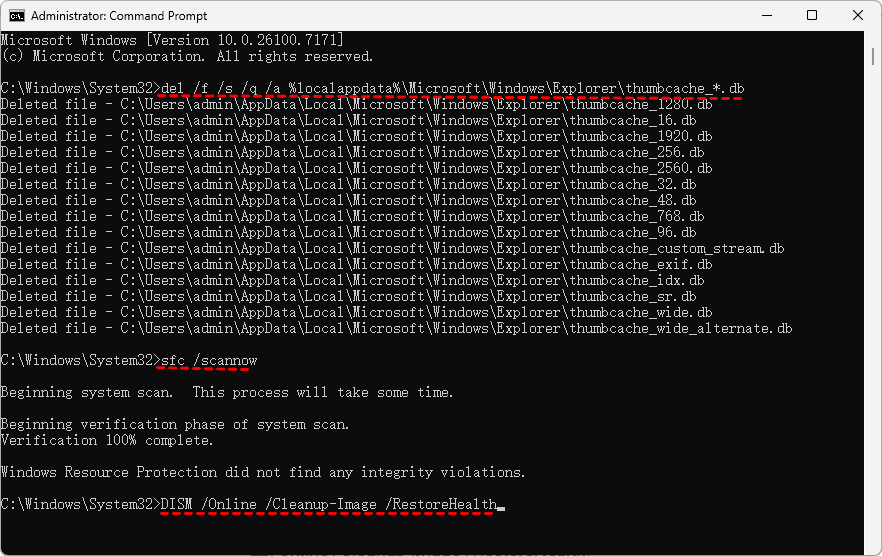
These tools can resolve underlying system issues that cause the folder to show empty, but files are there, a Windows 10 problem.
Way 5. Reset Windows File Explorer State
PowerShell is Command Prompt's more powerful sibling, perfect for Windows 11.
Right-click the Start button and select "Windows Terminal (Admin)" or "PowerShell (Admin)". Let's reset the Windows Explorer state completely. Type the following commands, pressing Enter after each:
Get-Process explorer | Kill-Process
Remove-Item -Path "$env:localappdata\Microsoft\Windows\Explorer\*" -Filter *.db -Force
The first command restarts Explorer (your taskbar will flash), and the second forcefully deletes the icon and thumbnail cache files. After a moment, your folder should refresh with the correct contents visible.
Not all empty folder issues are born from Windows itself; sometimes, they spring from connecting other devices.
Way 6. Run the Attrib command
1. Open an elevated command prompt.
2. Run this command:
attrib -H -R -S C:\* /S /D
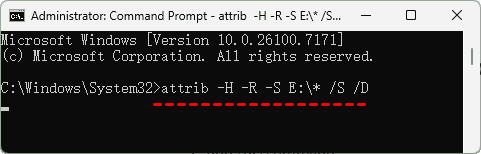
- Replace C:\* with the drive letter you want to fix.
- -H unsets the Hidden attribute;
- -R unsets the Read-only attribute (which some malware also sets);
- -S unsets the System attribute.
- /S makes it recursive,
- /D makes it apply to folders as well.
- Remember that when specifying an entire drive, you must put the \ after the :.
- The attrib command also doesn't seem to like to work in the root folder directly, so the * is needed, but not when working on any other folder.
- The less nuclear option is to give a more specific path to the attrib command, such as attrib -H -R -S "C:\path to\folder" /S /D.
Method 7. Check Disk Errors
1. Open an Admin Command Prompt again.
2. To check the disk for errors, type chkdsk C: /f /r (replace C: with the drive letter of your affected folder).

This will schedule a check on the next reboot; type 'Y' to confirm.
This utility can find and fix bad sectors and file system errors that might be hiding your files.
Besides, you can try the following steps to repair disk errors:
1. Open File Explorer and go to This PC.
2. Right-click on the drive that contains the folder showing as empty, and select Properties.
3. Go to the Tools tab and under Error checking, click on Check.
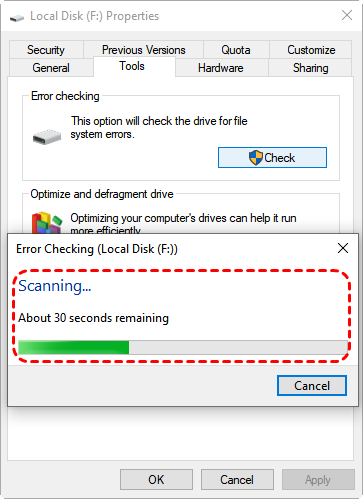
4. If errors are detected, follow the on-screen instructions to allow Windows to fix them.
Once the scan is complete, restart your computer and check if the folder contents are now visible.
Fixed: This Folder Is Empty When Connecting iPhone to PC
When you plug in your iPhone to transfer photos, you only see an empty DCIM folder. The error message "this folder is empty when connecting iPhone to PC" is caused by a lack of trust, drivers, and software.
Way 1. Update Apple Drivers
First, ensure you have the latest Apple Mobile Device Support drivers. The simplest way to do this is to install or update iTunes from the Microsoft Store. Even if you don't use iTunes, this package contains the essential drivers. After installing, restart your PC. Then, on your iPhone, when you connect it and see the "Trust This Computer?" prompt, make sure you tap "Trust" and enter your passcode.
In Windows, you can also try updating the driver manually: open Device Manager, find your iPhone under "Portable Devices", right-click it, and select "Update driver".

Way 2. Try A Different USB Cable
Try a different USB cable—preferably an original Apple cable—and plug it directly into a USB port on your computer, not a hub.
Way 3. Change iPhone Trust and Connection Settings
Reset the trust relationship. On your iPhone, go to Settings > General > Transfer or Reset [Device] > Reset > Reset Location & Privacy. This will make your iPhone ask to trust the computer again on the next connection.
Also, when connected, unlock your iPhone and keep it awake; iOS sometimes restricts access when the device is locked.
Ensure your iPhone is not in Low Power Mode, as this can limit background processes needed for data transfer.
Fast Recover Lost Files with MyRecover
When all else fails, or if you suspect the files might be lost, using dedicated data recovery software like MyRecover is your best bet.
MyRecover is designed to dig deep into your storage device, bypassing the Windows file system to find and restore data that seems gone.
MyRecover stands out while recovering files because:
- It supports 500+ devices, including HDD, SSD, USB flash drive, SD Card, music player, video player, PS4/5, etc.
- You can recover thousands of formats, such as JPG, JPEG, PNG, TIF, HEIC, GIF, PSD, MP4, MOV, AVI, ASF, MP3, CDA, WAV, AIFF, etc.
- Up to 99% recovery rate. You can fast recover all files at once.
- You can preview files before recovery to ensure they are intact and that the correct files are.
So, how to recover deleted files with MyRecover? Follow the steps:
1. Download and install MyRecover on your computer. Launch the application.
2. Tap Deleted Files Recovery, select the specific drive where your "empty" folder is located, and click "Scan".
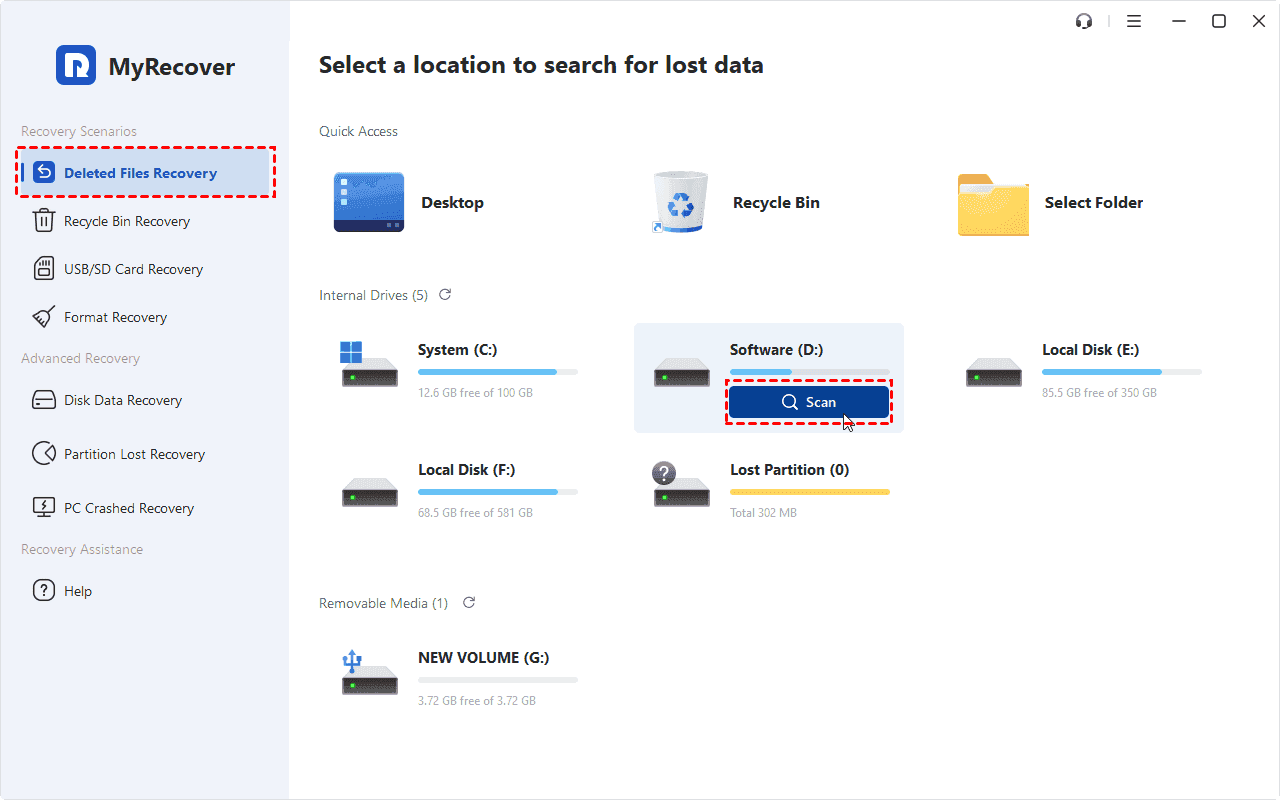
3. MyRecover will immediately begin a quick scan, and hit OK when it’s done.
4. Preview and select the files from your problematic folder, and hit Recover. Select a secure location to store them.


5. Once recovered successfully, check them in the destination folder.

- Notes:✎...
- After scanning, you’ll see files in the results pane. You can browse through them using a folder tree view on the left or filter results by file type, date modified, or size on the top bar.
- These found files show their original filenames and folder structures intact.
- To recover files from unlimited computers, try MyRecover Technician to enjoy.

 MyRecover
- Recover Deleted Files Easily with Simple Clicks
- 1000+ File Formats Supported
- Support HDD, SSD, External Hard Drive, USB Drive, SD Card, etc.
- Quickly Find Files Using File Types, Name, Size, etc.
- Preview Files Before Recovering
- Recover Unlimited Data
 100% Secure
FAQs About Empty Folder But Files Are There
Q: Why does my folder show as empty but have files in Properties?
A: The files are physically present (Properties shows disk usage), but Explorer fails to display them due to hidden attributes, corrupted cache, or system errors.
Q: Can viruses cause empty folders?
A: Yes. Malware can hide files or encrypt them. Run a full antivirus scan if you suspect an infection.
Q: I've shown hidden files, but folder still looks empty. What next?
A: Clear Windows cache via Command Prompt: del /f /s /q /a %localappdata%\Microsoft\Windows\Explorer\thumbcache_*.db, then run sfc /scannow. If issues persist, try data recovery tools.
Q: Will resetting my PC fix this?
A: Yes, but it's a last resort. A reset reinstalls Windows and removes apps. Try other troubleshooting methods first.
Q: How can I tell if files are deleted or just hidden?
A: Check folder Properties - if size > 0, files are likely hidden. Use the Command Prompt's dir /a command to see all files, including hidden ones.
Q: Is data recovery software safe to use?
A: Yes, but always recover files to a different drive/partition than the one being scanned to avoid overwriting lost data.
Q: What are these hidden files: Thumbs.db and desktop.ini, pagefile.sys, or boot.ini? Do they take up space in the folder?
A: Yes, Thumbs.db, desktop.ini, pagefile.sys, and boot.ini are hidden system files, and they do take up space in their respective folders:
- Thumbs.db - Stores thumbnail images for folder content (takes space). They can be deleted.
- desktop.ini - Stores folder customization settings (tiny, minimal space). They can be deleted.
- pagefile.sys - Windows virtual memory/swap file (very large, takes significant space). Should not be deleted.
- boot.ini - Legacy boot configuration file (tiny, minimal space).

Stay Updated With Our
Latest Tips
Add us as a preferred source on Google to never miss helpful guides.
 Add as preferred source >>