 MyRecover



[Fixed] GoPro SD Card Error
Dealing with an SD card error GoPro users often face can be frustrating. This guide explains common causes, practical fixes, and prevention tips to help you recover footage, restore card access, and keep your GoPro recording without interruptions.

By Vera / Updated on March 12, 2026


What is a GoPro SD Card Error?
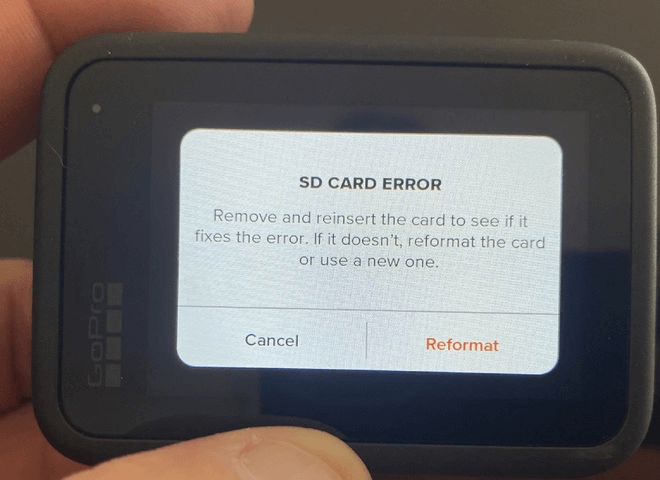
A GoPro SD card error occurs when your camera cannot properly read, write, or access data on the microSD card. Since the SD card is where all your videos and photos live, even a small issue can bring everything to a halt.
Think of the SD card as your GoPro’s brain. If the brain can’t process information correctly, nothing works as it should.
Common Symptoms of GoPro SD Card Errors
Before fixing the problem, it helps to recognize the signs.
Error Messages You May See
Some common GoPro SD card error messages include:
- "SD CARD ERROR"
- "NO SD"
- "SD CARD NEEDS FORMATTING"
- "SD CARD FULL" (when it’s not)
If you see any of these, your GoPro is telling you something isn’t right.
Performance Issues Linked to SD Card Errors
Even without an error message, SD card problems can show up as:
- Videos stopping mid-recording
- Frozen screens
- Missing or corrupted files
- Extremely slow saving times
If your GoPro starts acting weird, the SD card is often the culprit.
Main Causes of GoPro SD Card Error
Understanding the root cause makes fixing the issue much easier.
1. Incompatible SD Card
Not all SD cards work well with GoPro cameras. Using a card that’s too slow or unsupported is one of the most common reasons for SD card errors. GoPro cameras require UHS-I microSD cards with specific speed ratings.
Corruption happens when data is interrupted—kind of like pulling a book out of the printer halfway through printing. This can occur due to:
- Sudden power loss
- Removing the SD card while recording
- Battery dying mid-video
3. Improper Card Removal
Yanking the SD card out without powering off the camera first can damage file structures. If your GoPro shuts down unexpectedly while recording, it can corrupt the video file—or worse, the entire card.
How to Fix GoPro SD Card Error (Step-by-Step)
Now let’s get practical. Try these fixes in order, from easiest to more advanced.
Fix 1: Restart Your GoPro Camera
Yes, it sounds basic—but it works surprisingly often.
Steps:
1. Power off your GoPro.
2. Remove the battery.
3. Wait 30 seconds.
4. Reinsert the battery and turn it back on.
This resets temporary glitches.
Fix 2: Remove and Reinsert the SD Card
Sometimes the card just isn’t seated correctly.
Steps:
1. Turn off the GoPro.
2. Remove the SD card.
3. Gently clean it with a soft cloth.
4. Reinsert it firmly.
5. Power on the camera.
Fix 3: Format the SD Card on GoPro
Formatting clears corrupted data and prepares the card for optimal performance.
When Formatting is Necessary
You should format the SD card if:
- The camera repeatedly shows SD card errors.
- Videos won’t play.
- Files appear missing.
⚠️ Formatting erases all data, so recover files first if needed. Using a reliable data recovery tool (such as professional SD card recovery software - MyRecover) can help restore videos and photos before formatting the card.
 100% Secure
This step can save you a lot of regret later.
Step 1: Remove the SD card from your GoPro.
Step 2: Connect it to your computer via a card reader.
Step 3: Install and open MyRecover.
Step 4: Select your SD card and click Scan to let the tool find lost or corrupted files.
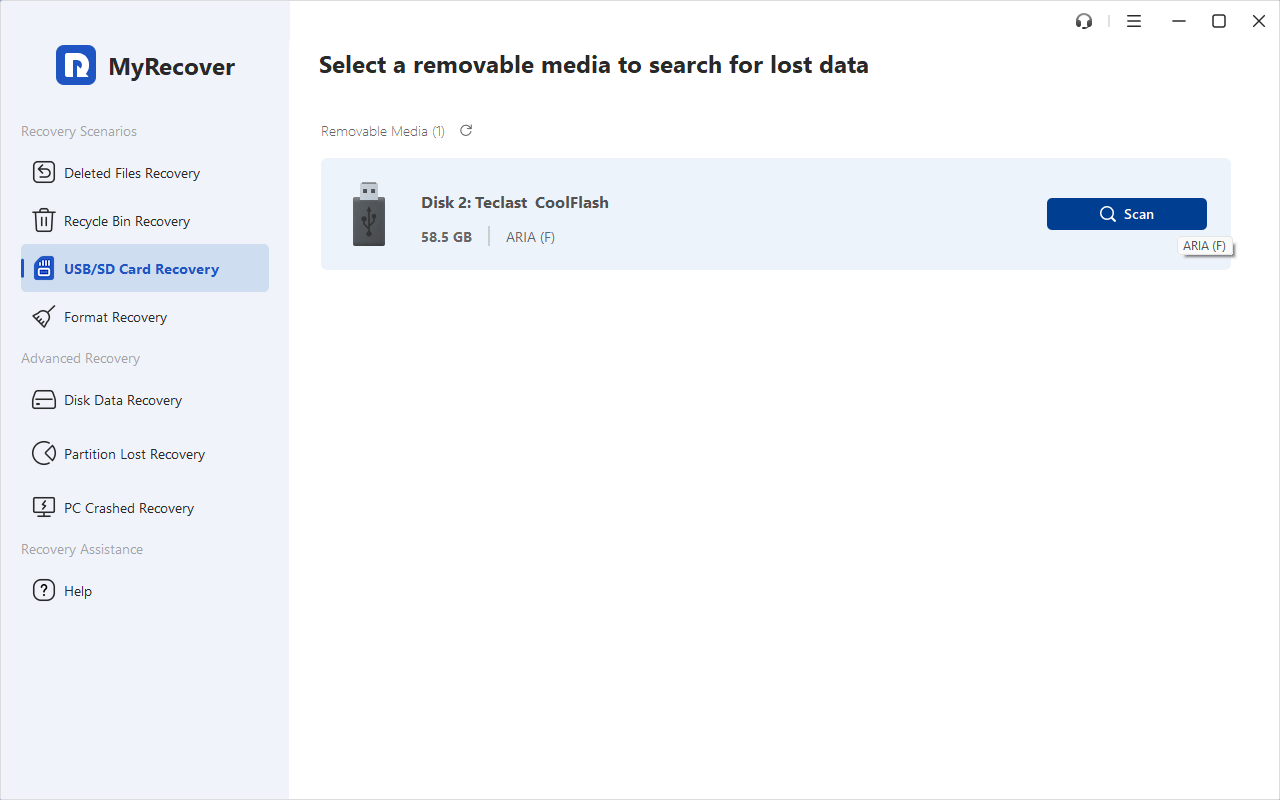
Step 5: Preview and select the files you want to recover.
Step 6: Click Recover and save the files to a different drive, not the SD card.
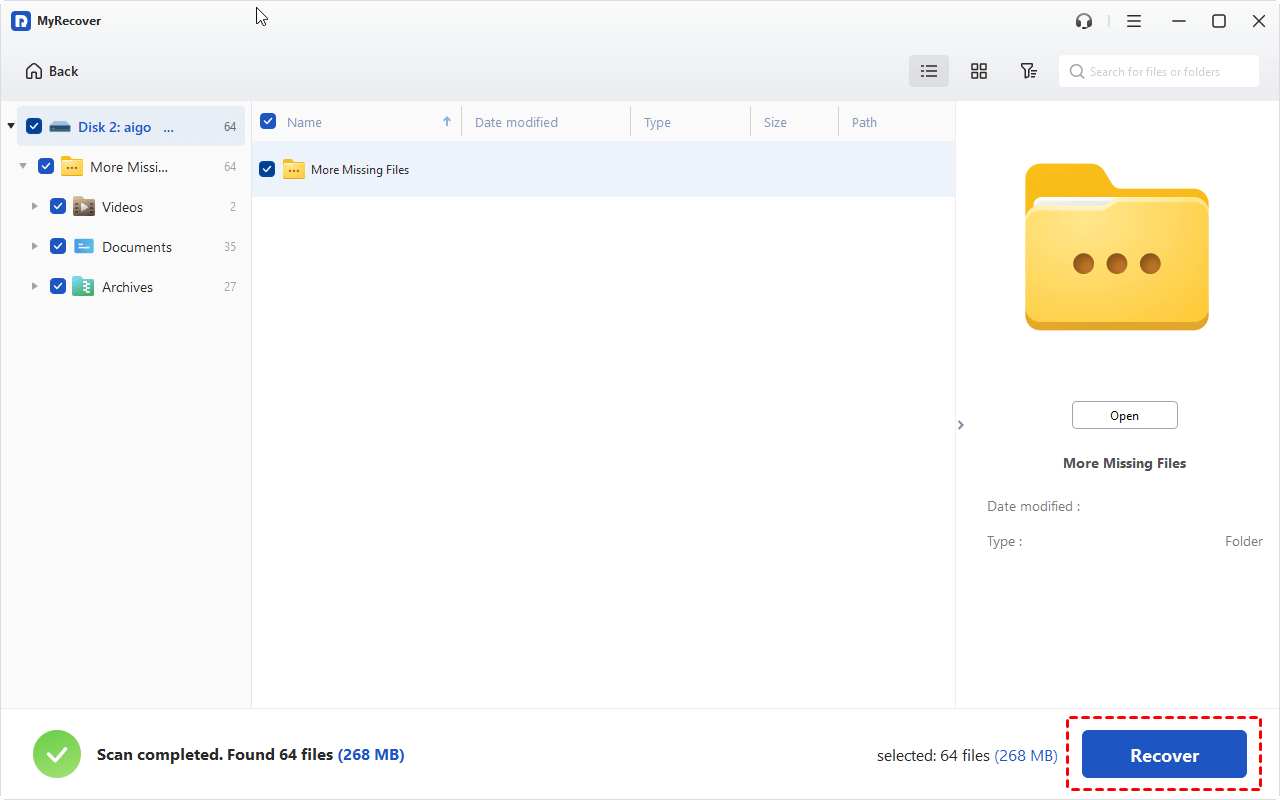
Once done, your data is safe, and you can format the SD card without losing anything.
Steps:
1. Turn on your GoPro.
2. Go to Preferences > Reset > Format SD Card.
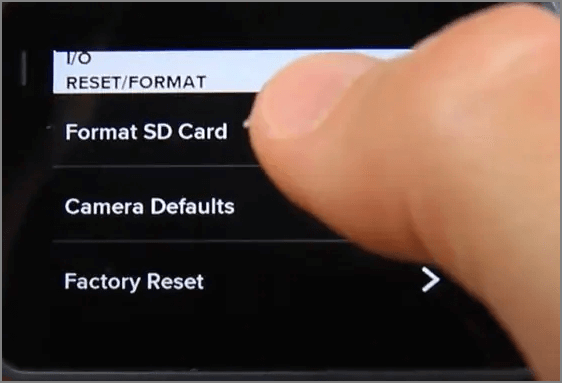
3. Confirm formatting.
Fix 4: Format SD Card on a Computer
If GoPro can’t format the card, try a computer.
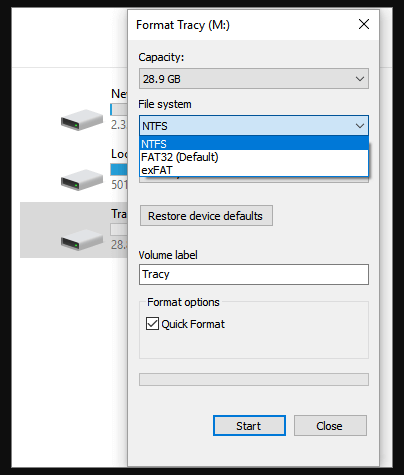
Steps (Windows):
1. Insert SD card into card reader.
2. Open This PC.
3. Right-click the SD card. Choose Format.
4. Select exFAT, then click Start.
Steps (Mac):
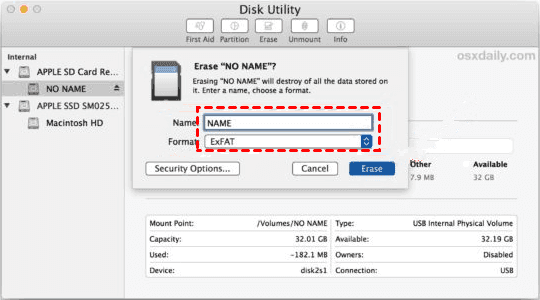
1. Open Disk Utility.
2. Select the SD card. Click Erase.
3. Choose exFAT, then click Erase.
Fix 5: Update GoPro Firmware
Outdated firmware can cause compatibility issues.
Steps:
1. Open the GoPro Quik app.
2. Connect your camera.
3. Check for firmware updates.
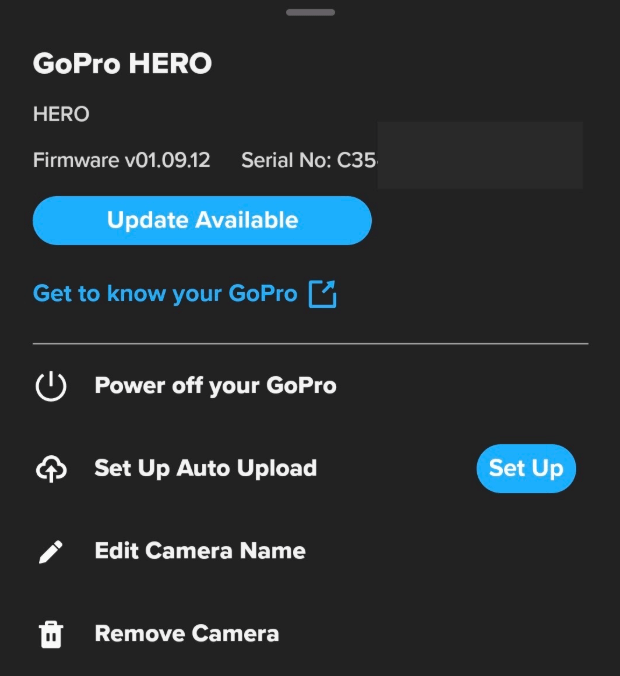
4. Install the latest version.
This often resolves unexplained SD card errors.
Fix 6: Check SD Card Compatibility
GoPro officially recommends specific SD cards.
Minimum Requirements:
- microSD, microSDHC, or microSDXC
- UHS-I
- V30 or higher
Using cheap or generic cards is asking for trouble.
How to Prevent GoPro SD Card Errors
Prevention is easier than repair.
Proper Usage Tips
- Always format the SD card in the GoPro, not just on a computer.
- Stop recording before turning off the camera.
- Avoid filling the card completely.
Storage and Maintenance Best Practices
- Store SD cards in protective cases.
- Avoid extreme heat or moisture.
- Replace cards every 1–2 years if used heavily.
Think of SD cards like tires—they wear out over time.
Final Thoughts on GoPro SD Card Error
A GoPro SD card error doesn’t have to ruin your adventure—or your footage. Most issues stem from incompatible cards, corruption, or improper handling, and the fixes are usually straightforward.
Treat your SD card well, use the right one, and your GoPro will reward you with smooth, error-free recording every time.
Frequently Asked Questions (FAQs)
1. Are there the best SD Cards for GoPro cameras?
These cards are fast, durable, and GoPro-approved.
Top Picks:
- SanDisk Extreme / Extreme Pro
- Samsung EVO Plus
- Lexar Professional 1066x
If SD card errors keep coming back, it may be time to upgrade.
2. Can a GoPro SD card error cause data loss?
Yes, especially if files become corrupted. Recover data before formatting.
3. Should I format my SD card every time?
Formatting regularly—especially before big recordings—helps prevent errors.
4. How long do GoPro SD cards last?
With heavy use, about 1–2 years. Light use can extend lifespan.
5. Is exFAT the best format for GoPro SD cards?
Yes. GoPro cameras are optimized for exFAT file systems.

Stay Updated With Our
Latest Tips
Add us as a preferred source on Google to never miss helpful guides.
 Add as preferred source >>