 MyRecover



How to Clear Computer Cache Windows 11
This detailed guide explains how to clear cache on computer (Windows 11) to remove temporary files, improve system speed, fix errors, and free up storage using safe, built-in Windows tools.

By Vera / Updated on January 28, 2026


What Is Cache and Why Does It Matter?
Cache is temporary data stored by your system, apps, and browsers to help things load faster. Sounds great, right? It is—until that cache becomes outdated or bloated.
When cache piles up, it can:
- Slow down system performance.
- Cause apps to crash or freeze.
- Take up unnecessary disk space.
- Trigger strange errors.
Clearing cache is like giving your PC a quick reset without deleting anything important.
Types of Cache in Windows 11
- System Cache: Temporary files created by Windows and installed applications. These files are meant to be short-term but often linger longer than needed.
- Browser Cache: Saved images, scripts, and website data that help pages load faster—but too much can cause slow browsing or display issues.
- Microsoft Store Cache: Temporary data used by the Microsoft Store, which can cause download or update problems when corrupted.
- DNS Cache: Stores website IP addresses. When outdated, it can cause internet connection issues.
Is It Safe to Clear Cache in Windows 11?
Yes—100% safe.
Windows automatically recreates cache files when needed. Clearing cache does not delete:
- Personal files.
- Installed programs.
- System settings.
At worst, some apps may load slightly slower the first time after clearing cache. That’s normal and temporary.
How to Clear Computer Cache Windows 11 (All Methods)
Below are the most effective and standardized ways to clear cache in Windows 11. You don’t need to do all of them every time—use the ones that fit your issue.
Method 1: Clear Temporary Files Using Windows Settings
This is the safest and most beginner-friendly method.
1. Click the Start button.
2. Open Settings > System > Storage > Temporary files.
3. Wait for Windows to scan.
4. Check items like:
- Temporary files
- Delivery Optimization Files
- Thumbnails
5. Click Remove files.

✅ This clears system cache without touching personal data.
Method 2: Clear Cache Using Disk Cleanup
Disk Cleanup removes deeper system junk that Settings may miss.
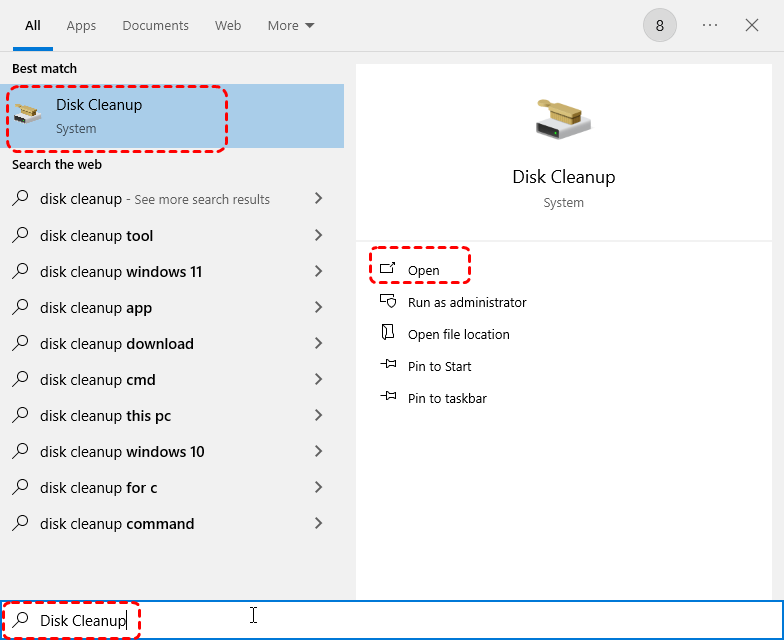
1. Press Windows + S. Type Disk Cleanup. Open the tool.
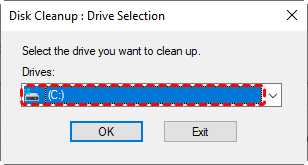
2. Select your main drive (usually C:). Click OK.
3. Check:
- Temporary files
- Temporary Internet Files
- Thumbnails
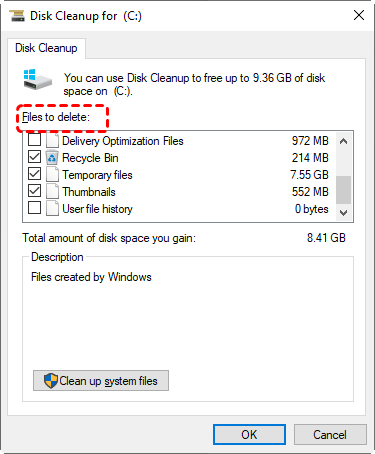
4. Click OK. Confirm by clicking Delete Files.
💡 Optional: Click Clean up system files for deeper cleanup.
Method 3: Clear Microsoft Store Cache
If Microsoft Store apps won’t download or update, this helps instantly.
1. Press Windows + R.
2. Type wsreset.exe.
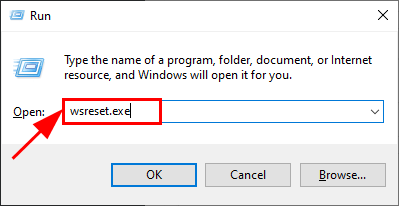
3. Press Enter.
4. Wait for the Store to reset automatically.
No confirmation message—just let it finish.
Method 4: Clear Browser Cache in Windows 11
Browsers are cache hoarders. Clearing them improves speed and fixes loading issues.
👉 1. Clear Cache in Microsoft Edge
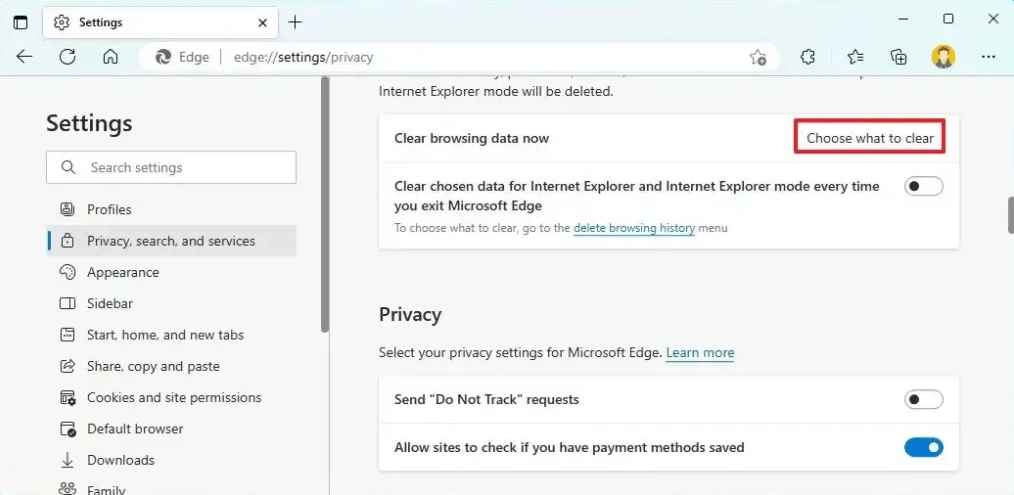
1. Open Microsoft Edge. Click the three-dot menu.
2. Select Settings. Go to Privacy, search, and services.
3. Under the Clear browsing data section, click theChoose what to clearbutton.
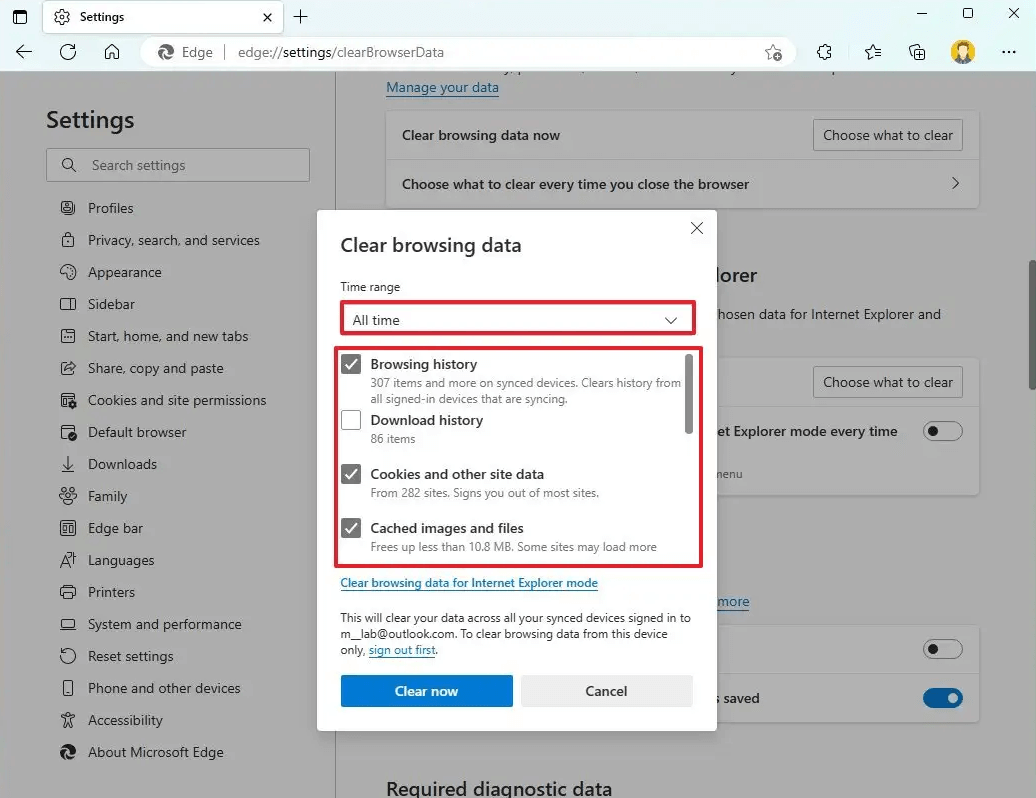
4. Select a time range (All time recommended). Choose Cached images and files. Click Clear now.
👉 2. Clear Cache in Google Chrome
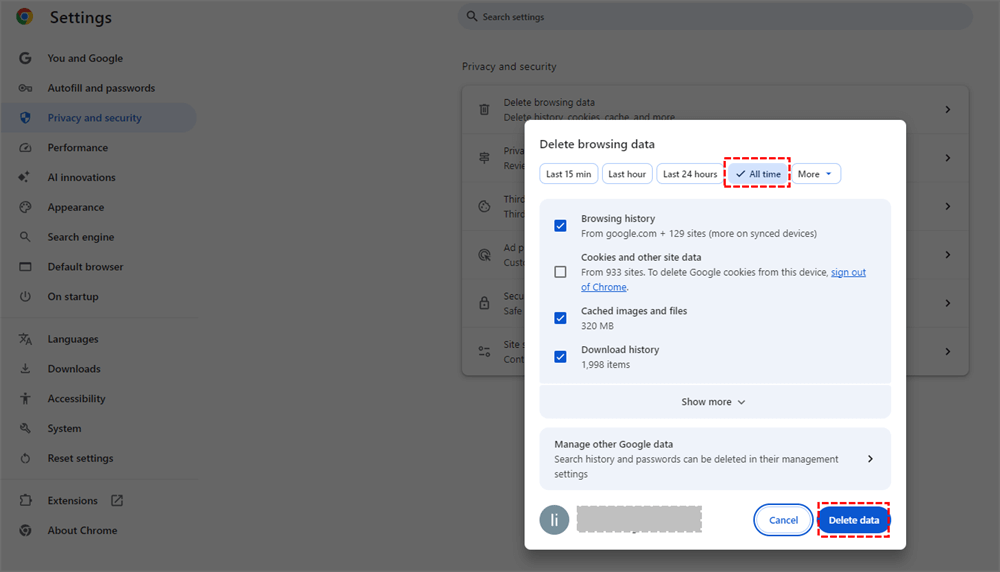
1. Open Chrome. Click the three dots.
2. Go to Settings. Select Privacy and security.
3. Click Clear browsing data. Check Cached images and files.
4. Choose All time. Click Clear data.
👉 3. Clear Cache in Firefox
1. Open Firefox. Click the menu icon.
2. Select Settings. Go to Privacy & Security.
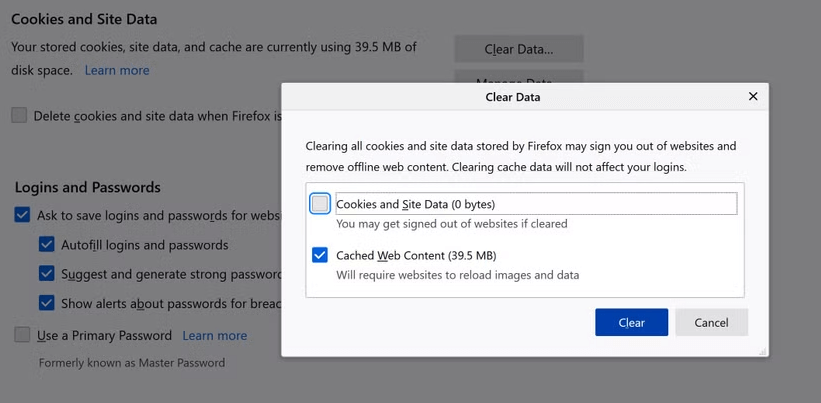
3. Scroll to Cookies and Site Data. Click Clear Data.
4. Check Cached Web Content. Click Clear.
Method 5: Clear DNS Cache Using Command Prompt
Great for fixing slow or broken internet connections.
1. Press Windows + S. Type Command Prompt.
2. Right-click and select Run as administrator.

3. Type: ipconfig /flushdns. Press Enter.
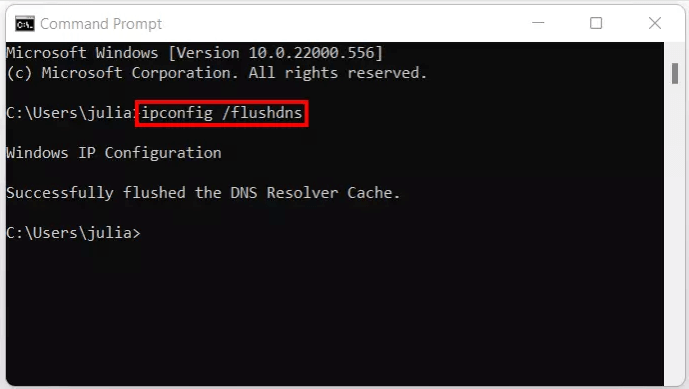
You’ll see a confirmation message immediately.
What If You Accidentally Delete Important Files While Cleaning?
While clearing cache itself is safe, it’s not uncommon for users to accidentally delete important files when performing deeper cleanups or using Disk Cleanup incorrectly.
If that happens, a reliable data recovery tool like MyRecover can help. MyRecover is designed to recover deleted files from Windows 11 systems, including documents, photos, videos, and other common file types—even after they’ve been removed from the Recycle Bin.
 100% Secure
The key is to stop using the affected drive immediately and run recovery software as soon as possible to increase the chance of successful recovery.
Conclusion
Knowing how to clear computer cache Windows 11 gives you a simple yet powerful way to fix performance issues, reduce clutter, and keep your PC running smoothly. And in the rare case that files are accidentally deleted during cleanup, tools like MyRecover provide an extra layer of safety. With regular maintenance, Windows 11 can stay fast, stable, and stress-free.
FAQs
1. How Often Should You Clear Cache in Windows 11?
- Casual users: every 1–2 months.
- Heavy users or gamers: monthly.
- If you notice lag or errors: right away.
Cache maintenance is like changing oil—it keeps things running smoothly.
2. What Mistakes Should Be Avoided During the Operation?
- ❌ Deleting random system folders manually.
- ❌ Using shady "one-click PC cleaner" tools.
- ❌ Clearing browser data without checking options.
Stick to built-in Windows tools for best results.
3. Does Clearing Cache Improve Performance?
Yes—especially if your system feels sluggish or unstable. Clearing cache:
- Frees up disk space.
- Reduces software conflicts.
- Improves responsiveness.
It’s one of the easiest performance boosts you can do.
4. What Are the Differences Between Cache, Cookies, and Temporary Files?
- Cache: Speeds up loading.
- Cookies: Save preferences and logins.
- Temporary files: Short-term system data.
Clearing cache alone usually won’t log you out of websites.

Stay Updated With Our
Latest Tips
Add us as a preferred source on Google to never miss helpful guides.
 Add as preferred source >>