 MyRecover



How to Restore a Deleted Minecraft Worlds on PC, Mobile and PS4/5 [Full Guide]
Accidentally wiped your favorite map? Discover how to recover deleted Minecraft worlds by exploring hidden backup folders and cloud storage. Whether you need to know how to recover deleted Minecraft worlds on PC or mobile, our guide provides the technical fixes to get your creative projects back.

By Aria / Updated on March 2, 2026


I Accidentally Deleted My Minecraft Worlds
I had a world on Minecraft bedrock pc. I launched the game and it said it needed updating so i deleted it and then reinstalled it. Once the game had reinstalled, I logged on and my worlds were no longer there. I have checked the Minecraft saves folder and they are no longer there. Help!
- Question from Tabitha
Accidentally deleting Minecraft Worlds can feel devastating, especially after hours of building and exploration. When you open the game save folder, you will find that the files related to the deleted world have also been removed, and these files do not appear in the Recycle Bin. The good news is that deletion does not always mean permanent loss. In many cases, the world files still exist on the device until they are overwritten by new data, which means timely action can significantly improve recovery chances.

However, the recovery approach depends heavily on the platform you’re using. If you’ve just lost your world, stop creating new worlds or installing large files on the same device immediately. Acting quickly and choosing the correct method for your platform gives you the best chance to recover your deleted Minecraft world.
How to Recover Deleted Minecraft Worlds on PC
With the situation clarified, the next step is to choose the right recovery method based on your device. The effective methods below are provided for different devices you are using, helping you restore your Minecraft Worlds with the highest possible success rate.
Method 1. Restore Minecraft Worlds via File History
If you have enabled File History or Shadow Copy before the loss occurred, Windows may have preserved earlier versions of your Minecraft saves. This built-in feature is one of the safest ways to recover deleted Minecraft Worlds on PC because it restores clean copies without scanning the disk. It works best when the world folder was previously backed up automatically.
Step 1. Navigate to the Minecraft saves path:
C:\Users\UserName\AppData\Roaming\.minecraft\saves.
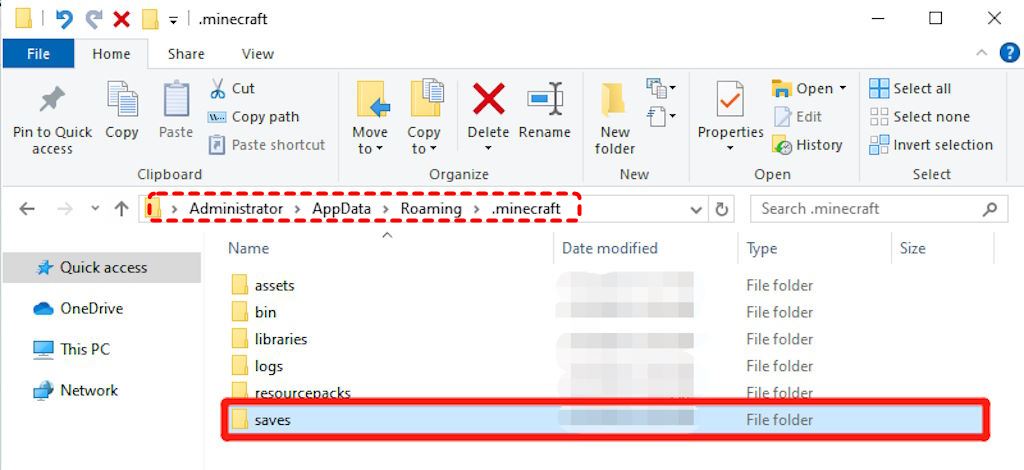
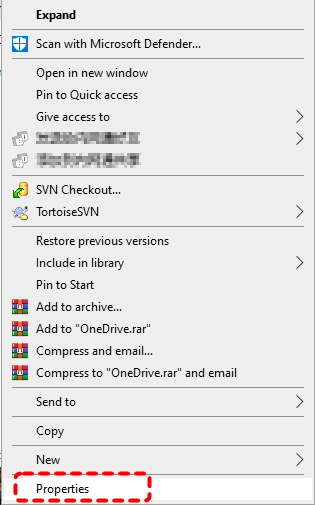
Step 2. Right click on it and choose "Properties" from the context menu.
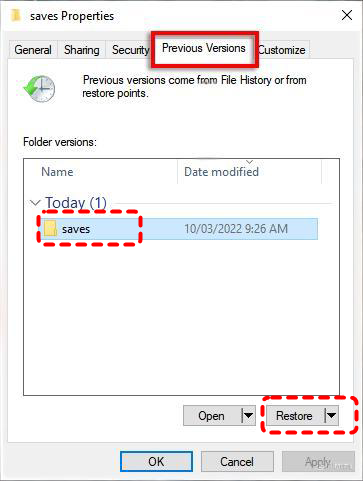
Step 3. Go to the "Previous Versions" tab, you will see a list of versions of this folder. Choose a desired version dated before deletion and click the "Restore" button.
Method 2. Restore from the Saves Folder
If you have previously backed up your Minecraft world save files, or if the save still exists but does not appear in the game due to corruption or deletion, you can directly rebuild the world using the saves folder. This method will restore your buildings and game progress to the greatest extent possible.
Step 1. Create a new world in Minecraft Worlds and save it. Name it with a different name from the deleted one.
Step 2. Go to the following path: C:\Users\\AppData\Roaming\.minecraft\saves.
Step 3. Use key files such as level.dat, level.dat_old, session.lock, spc.settings from this folder to overwrite the corresponding files in the newly created world.
Step 4. Restart Minecraft and load the newly created world to check if your original world has been restored.
Method 3. Recover Deleted Minecraft Worlds with MyRecover
If no backup exists or the folder is missing entirely, the professional data recovery software like MyRecover offers a deeper scan of the storage device. It can locate deleted Minecraft world saves folder even if these files bypassed the Recycle Bin when deleted. It uses Quick Scan and Deep Scan to reconstruct lost data, making it suitable for accidental deletion, emptied Recycle Bin, or drive corruption, etc. over 500+ data loss scenarios.

 MyRecover
- No Tech Skills Needed: User-friendly interface designed for beginners and non-tech-savvy users.
- Supports Over 1000 File Types: Recover photos, videos, documents, emails, ZIP files, and more.
- Supports Multiple Storage Devices: Works seamlessly with internal and external HDD, SSD drives, USB flash drives, SD/memory cards, digital cameras, and more.
- Safe & Read-Only Process: Your original data remains untouched during the scan and recovery process.
 100% Secure
Step 1. Download and install MyRecover on your PC (avoid installing it on the original game drive).
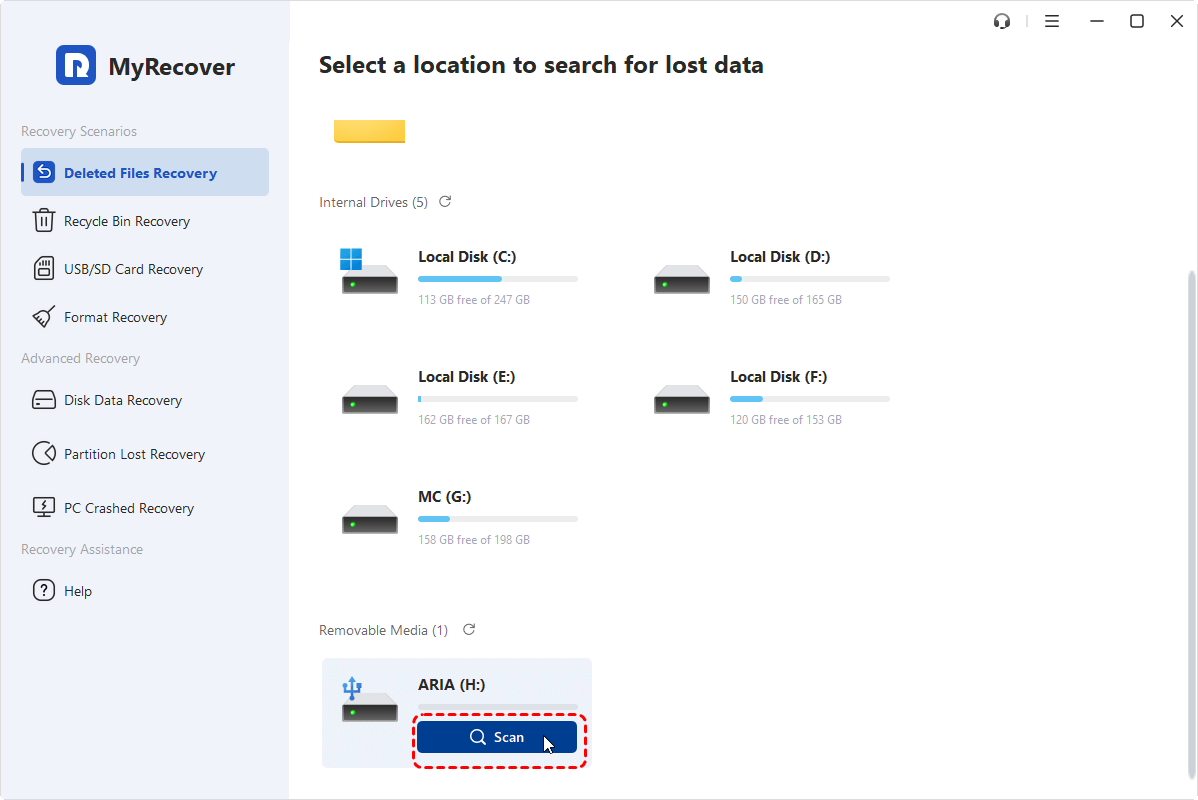
Step 2. Launch the tool, select the drive that stored Minecraft data, and click "Scan" to search for the deleted Minecraft Worlds folder or related files.
Step 3. After the scan is finished, select the files you wish to recover from the recoverable lists and click "Recover".
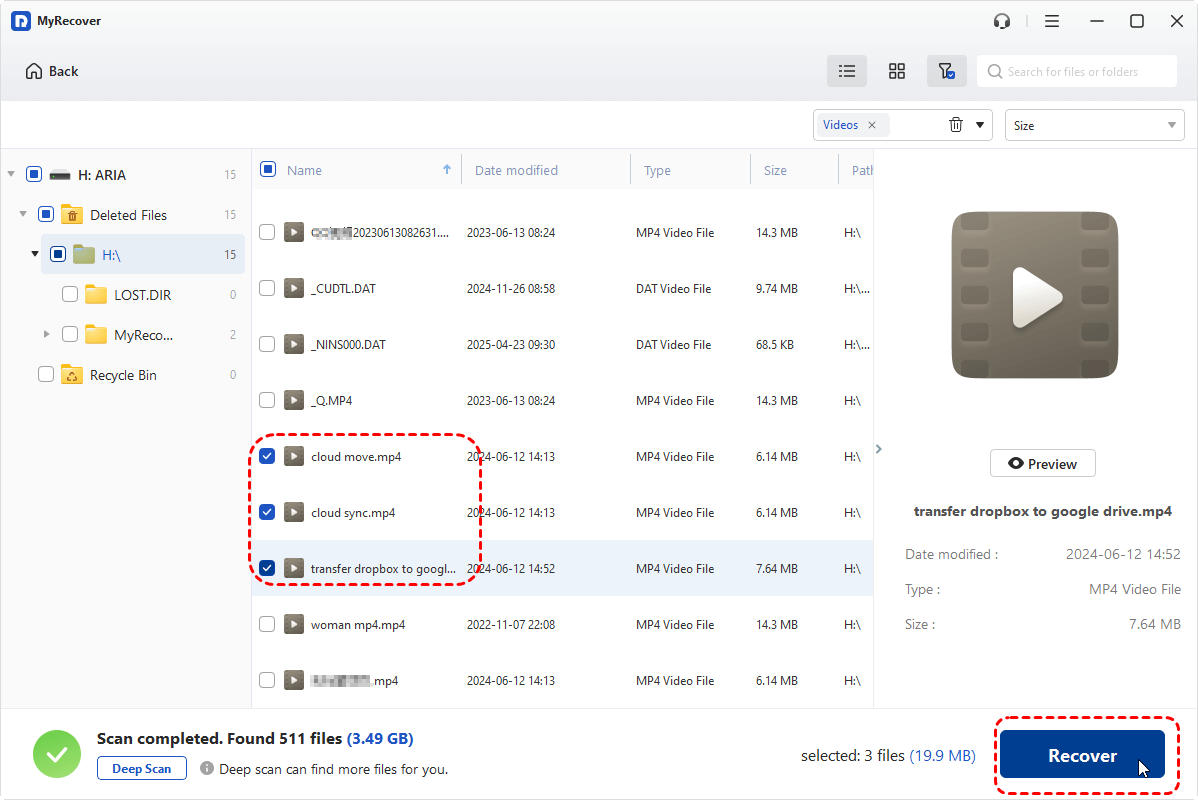
If the files you want to recover are larger than 500 MB, upgrade to the Professional edition of MyRecover to unlock unlimited data recovery. It even allows to recover data from crashed Windows with a bootable media.
Step 4. Save the restored worlds files to a different location.
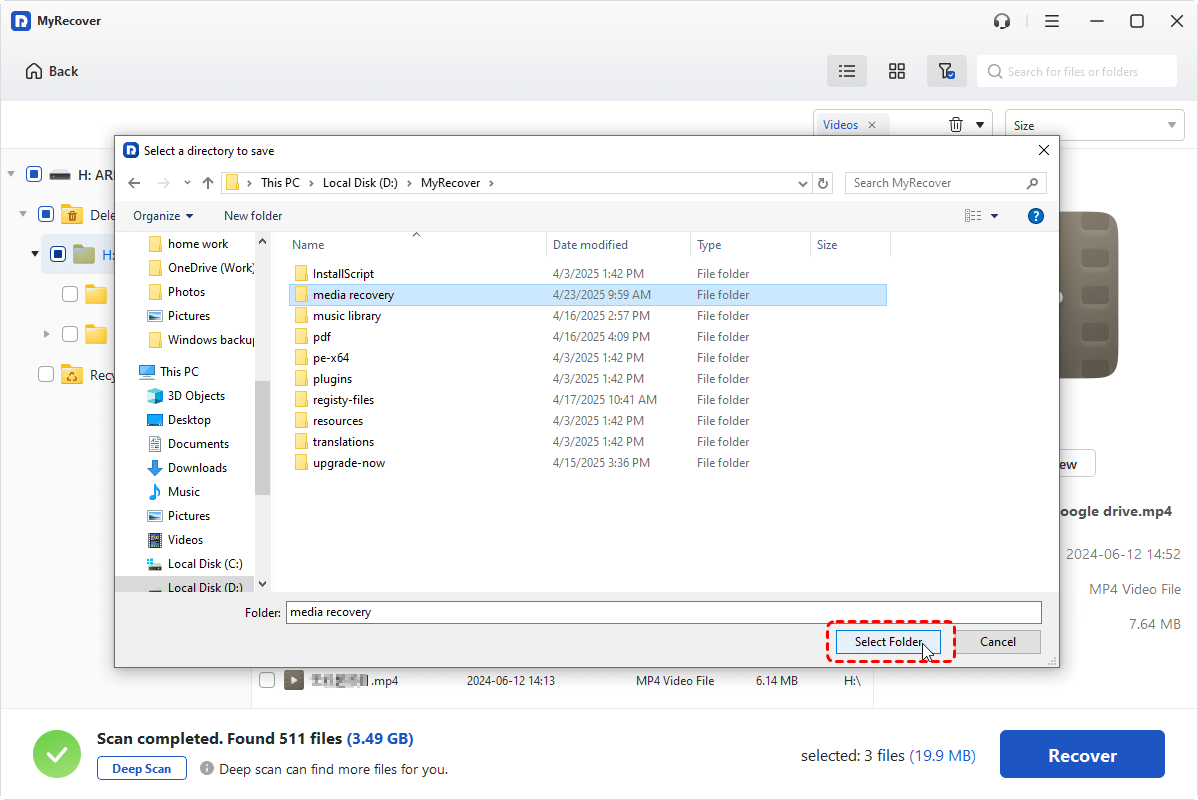
Once the process is done, you can access the recovered files in the destination folder by clicking on the "Browse" button. Copy the recovered world save to its original location before deletion, then restart Minecraft to check if your world has been properly restored.
How to Recover Deleted Minecraft World on PS4/5
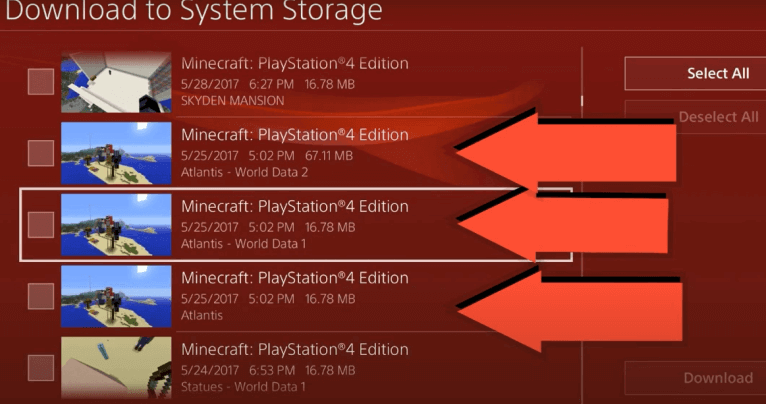
On PlayStation consoles, the primary recovery path is restoring saved data from system storage or cloud backups (PlayStation Plus). If a backup exists, this method can quickly bring your Minecraft worlds back without risking further data loss. It is the most reliable built-in solution for PS4/PS5 users.
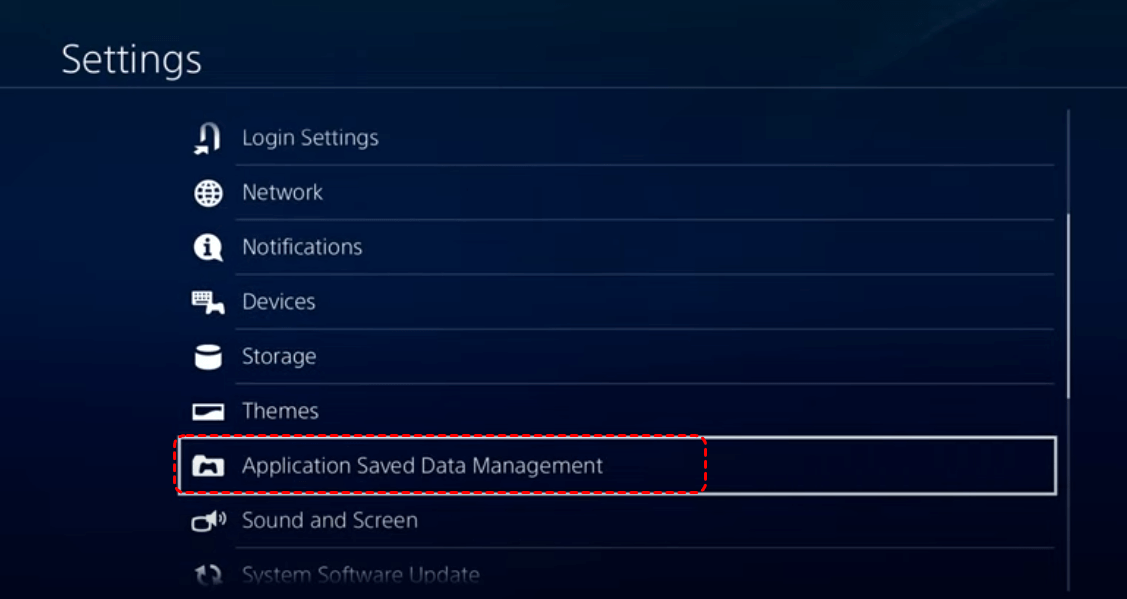
Step 1. Go to "Settings" > "Application Saved Data Management" > "Saved Data in Online Storage".
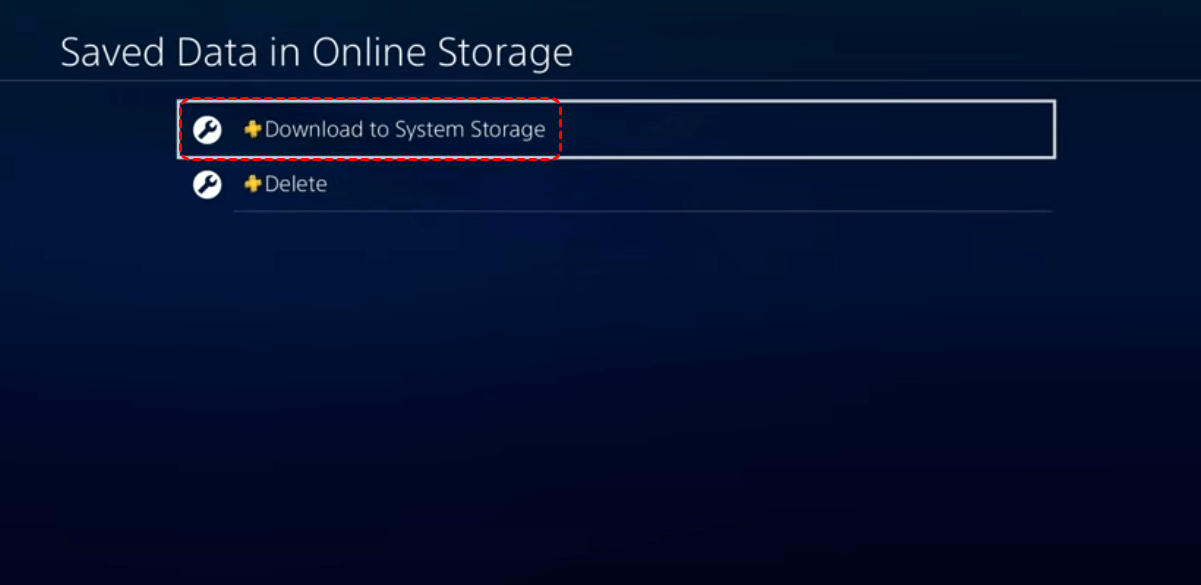
Step 2. Choose "Download to System Storage" to check the backup on the cloud.
Step 3. Select the Minecraft edition that contains your deleted world and click "Download" to restore it on PS4. When you go back to the loading screen, you will get back the deleted Minecraft world.
How to Recover Deleted Minecraft World on iOS
On iOS devices, deleted Minecraft worlds usually cannot be recovered directly with data recovery software because the game data is stored in a protected app sandbox. Recovery is typically only possible from iCloud or iTunes backups.
For iPhone users, Minecraft Bedrock worlds are often included in iCloud or device backups. If syncing was enabled before deletion, restoring from iCloud can recover deleted Minecraft worlds on mobile effectively. This method replaces current app data with the backup version, so it should be performed carefully.
Step 1. Open "Settings" > "Apple ID" > "iCloud" > "Manage Storage" > "Backups".
Step 2. Confirm a backup exists that predates the deletion.
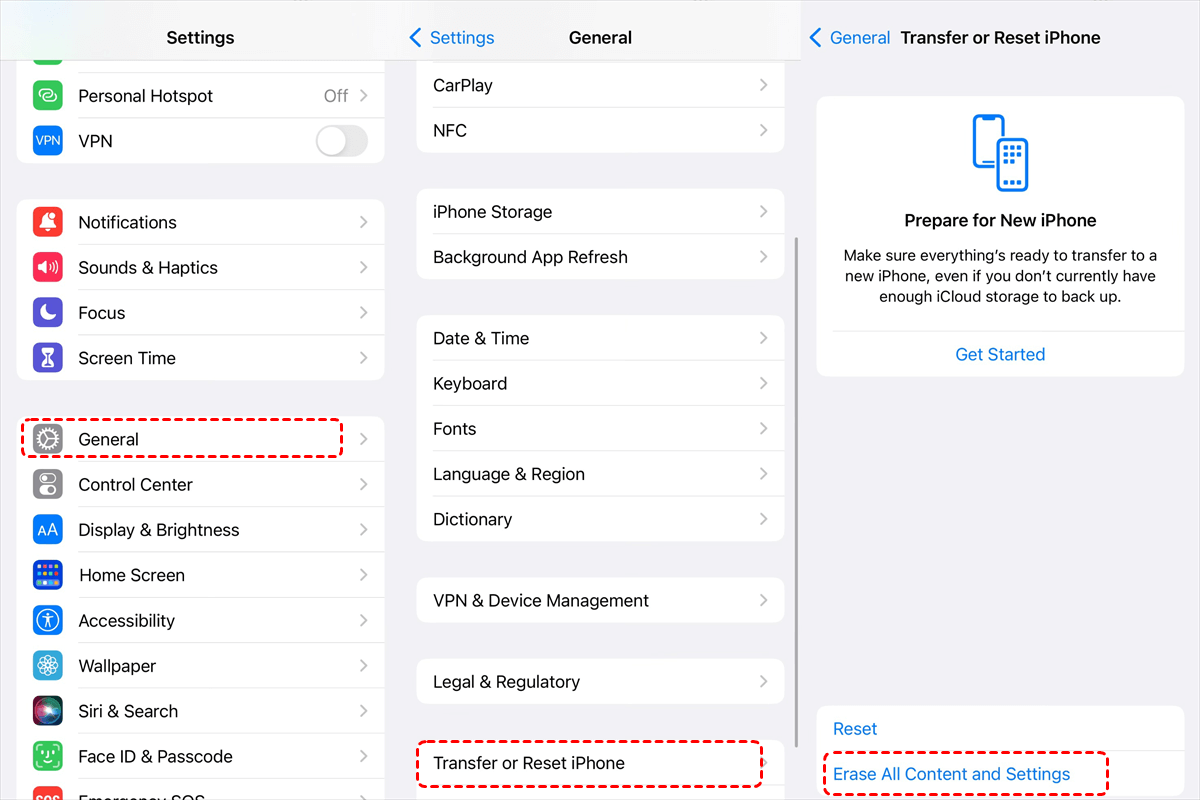
Step 3. Go to iPhone's "Settings" app and tap "General" > "Transfer or Reset iPhone" > "Erase All Content and Settings".
-
This step will erase all data on your phone. If there are any important files that haven’t been backed up, back them up first before proceeding with the steps.
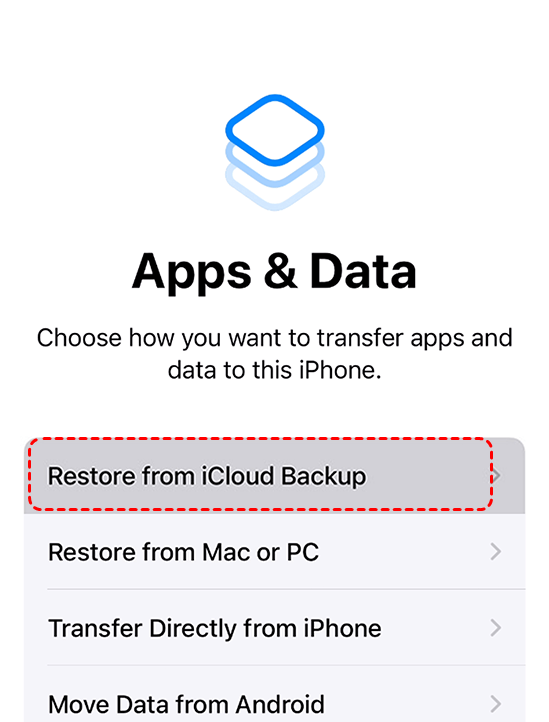
Step 4. Once the iPhone reboots, follow the instructions displayed on the screen to start its initial setup. Then select "Restore from iCloud Backup" on the "Apps & Data" screen.
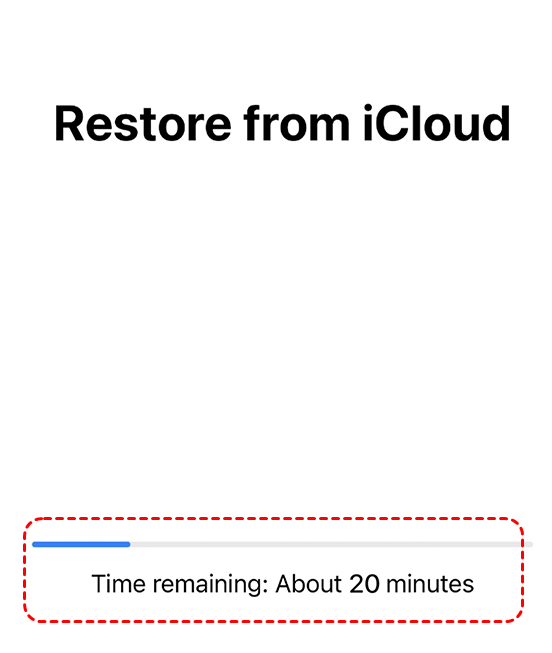
Step 5. Log into the same iCloud account that contains your Minecraft data backup. Tap on "Choose backup" and select the backup you want to restore from the available lists.
Summary
Losing a Minecraft world is stressful, but it is often recoverable if you act quickly. Because deleted data may remain on the device until overwritten, the key is to stop using the affected storage and apply the right method for you as describe above. First check if a backup is available, while professional tools such as MyRecover provide a deeper recovery path when no backup exists. The sooner you start the recovery process, the higher your success rate, take action now to maximize your chances of restoring your Minecraft worlds.

Stay Updated With Our
Latest Tips
Add us as a preferred source on Google to never miss helpful guides.
 Add as preferred source >>