 MyRecover



How to Recover Files from Emptied Trash on Mac or Windows
Accidentally emptied your trash and lost important files? We explain the different ways to recover data from an emptied recycle bin or trash folder. Find out which recovery tools can help you restore your lost files.

By Emma / Updated on June 8, 2026


Can I Recover Files from Emptied Trash?
I was cleaning up my Maclate one night and emptied my trash to free up space. However, I suddenly realized I had accidentally deleted an important folder with weeks of work. Panicked, I wondered, Can I recover files from emptied trash?
- Question from discussions.apple.com
If you've ever found yourself in a situation like above user, you might be asking, Is it possible to recover files from emptied trashon Mac? Fortunately, there are several ways to attempt file recovery, even after emptying the trash or recycle bin. Next, we will walk you through what steps you can take to retrieve your lost files.
How to Recover Files from Emptied Trash Bin Mac?
If you’ve accidentally emptied your Mac’s Trash, don’t panic just yet! Here are some steps you can take to try to retrieve deleted files from emptied Trash bin:
- ★Tip:
- Once you realize you’ve emptied your Trash by mistake, avoid using your Mac for further work. This is to prevent new data from overwriting the deleted files, making recovery more difficult.
Method 1. Restore Files from Time Machine
Time Machine is a built-in feature on Mac that automatically backs up your files hourly, daily, and weekly. It allows you to restore your Mac from previous backups after a crash or recover specific files when needed.If you’ve been using Time Machine for backups, this is your best bet. To restore deleted files from emptied Trash using Time Machine:
Step 1. First, click on the Time Machine icon in your Mac Menu bar. Click on "Enter Time Machine".

Step 2. Open the folder where your lost files were.
Step 3. You can now scroll through previous backups to locate the version of the files you need.
Step 4. The backup timeline will appear on the right edge of your screen, showing all backups sorted by date and time.
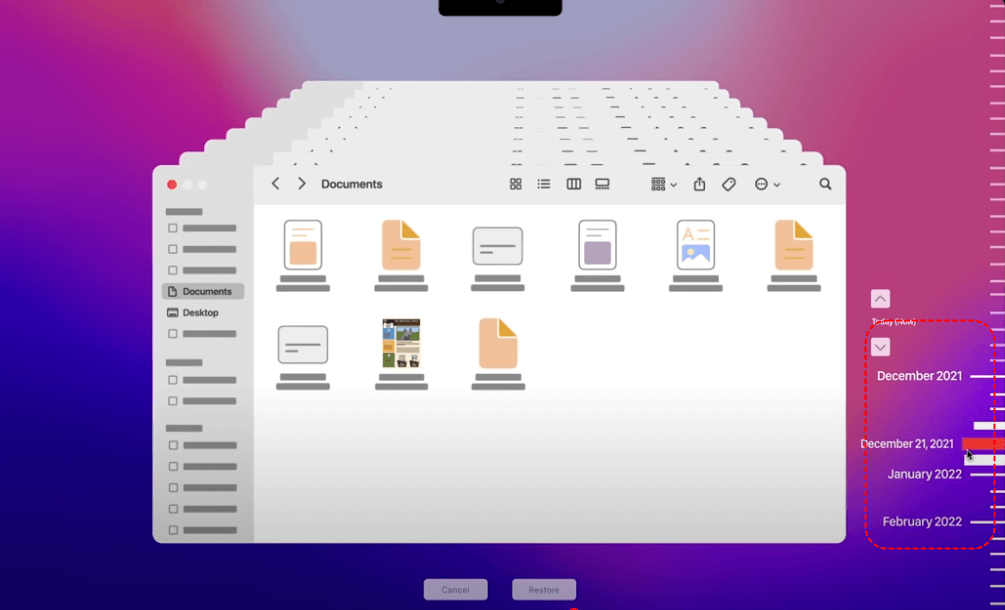
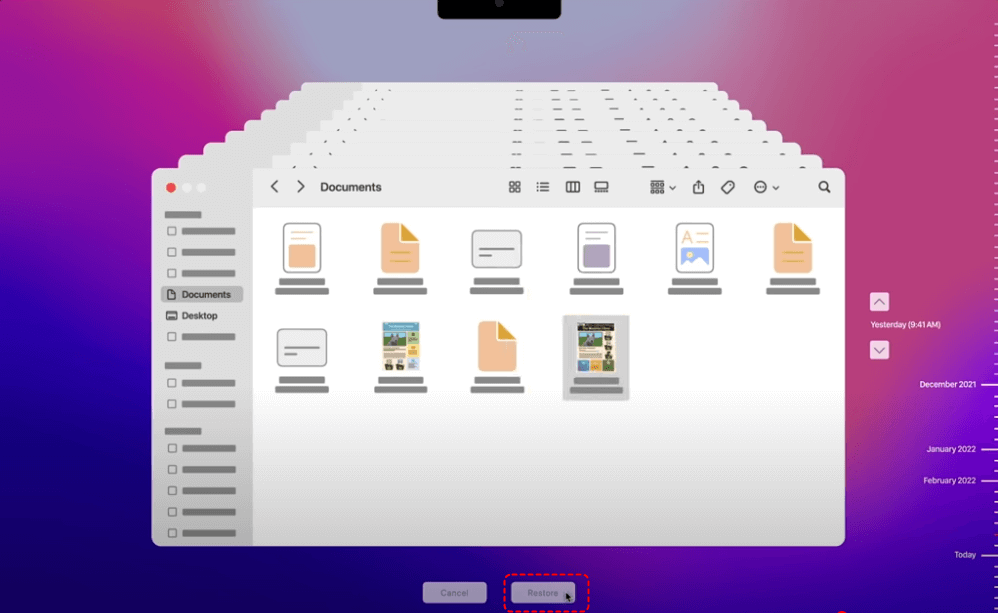
Step 5. When you find what you need, click “Restore" to bring them back.
Method 2. Retrieve Deleted Files via iCloud Backup
iCloud Backup is a cloud backup service provided by Apple that automatically backs up data on your device, such as photos, files, apps, settings, and more. With iCloud Backup, you can restore your data if your device is lost, damaged. Here’s how to retrieve files from emptied Trash on Macusing iCloud Backup:
Step 1. Visit iCloud.com and sign in using your Apple ID and password.
Step 2. Click on the Account Icon, then select "iCloud Settings".
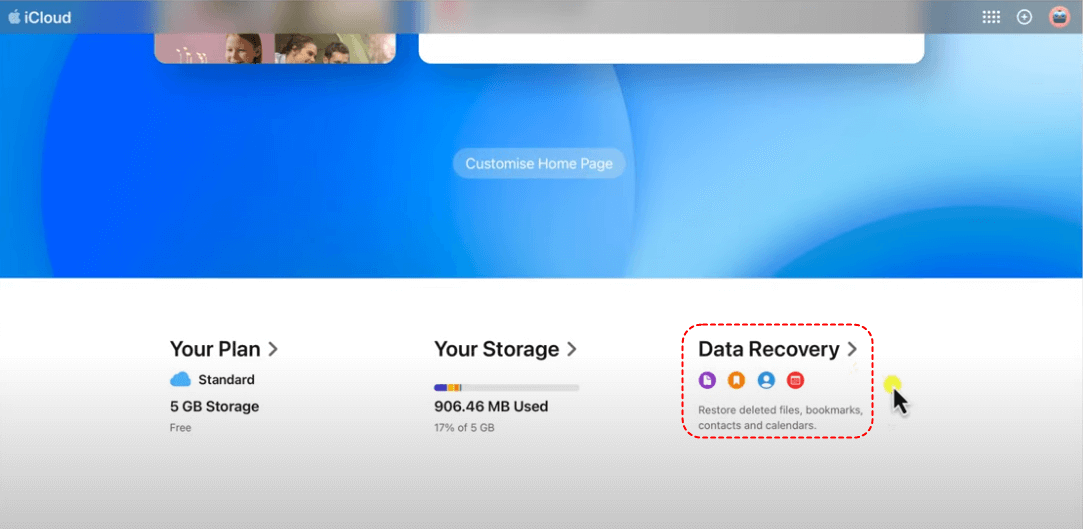
Step 3. In the "Data Recovery" section, click "Restore Files".
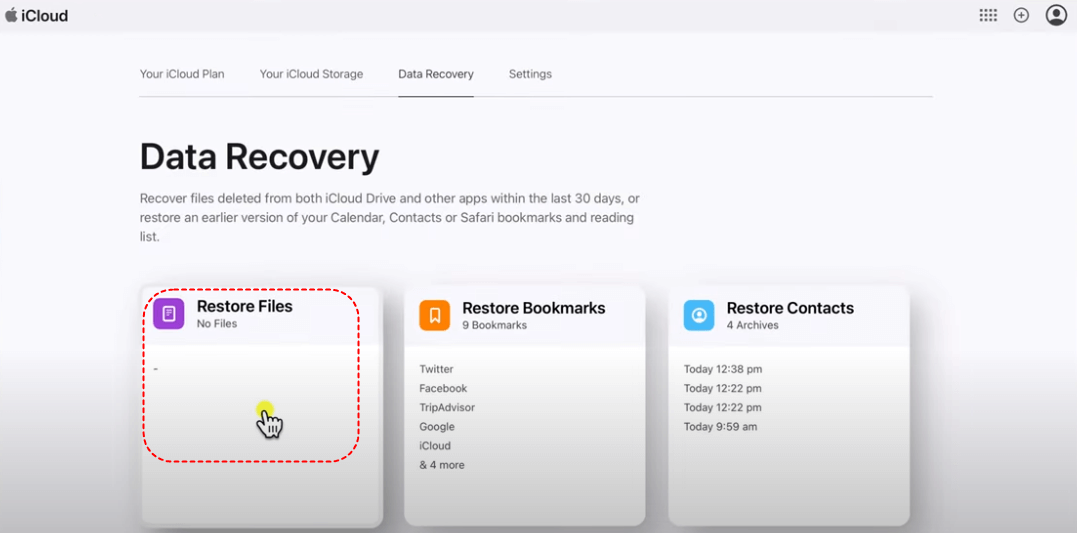
Step 4. Then it will search all recoverable files and list them. You cancheck the boxes next to the ones you want to recover. To restore all files at once, choose “Select All”.
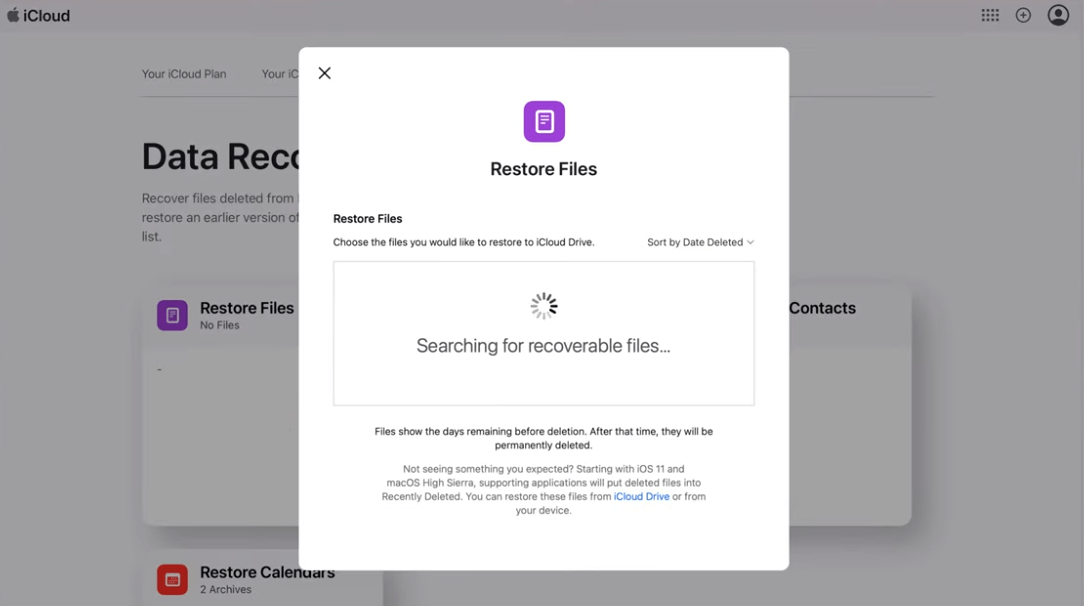
Step 5. Click "Restore Files" to complete the recovery process and retrieve your lost data.
- ★Important Notes:
- You can only recover files that were included in an iCloud backup before they were deleted.
- Restoring from an iCloud backup will replace the current data on your device with the data from the selected backup.
Method 3. Restore Files from Emptied Trash via TestDisk
If the above methods fail to recover files emptied from the Trash on Mac, using a professional data recovery tool is often the most effective solution. These tools can deeply scan your storage device and retrieve permanently deleted files before they are overwritten.
TestDisk is a highly recommended open-source recovery tool that can help restore lost files from formatted, corrupted, or accidentally deleted storage devices efficiently. It supports multiple operating systems, including DOS, Windows, Linux, FreeBSD, NetBSD, OpenBSD, SunOS, and macOS, making it a versatile recovery solution for different platforms.
Step 1. Download Testdisk and install TestDisk by entering "brew install testdisk" in Terminal.
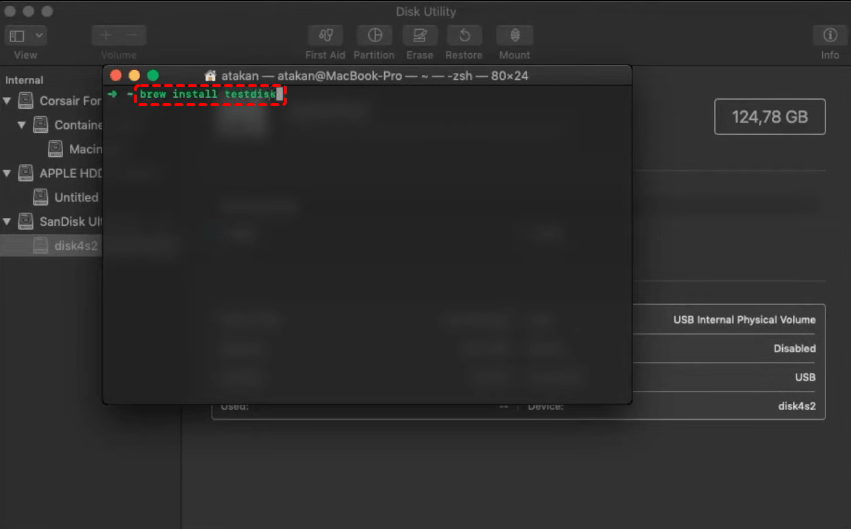
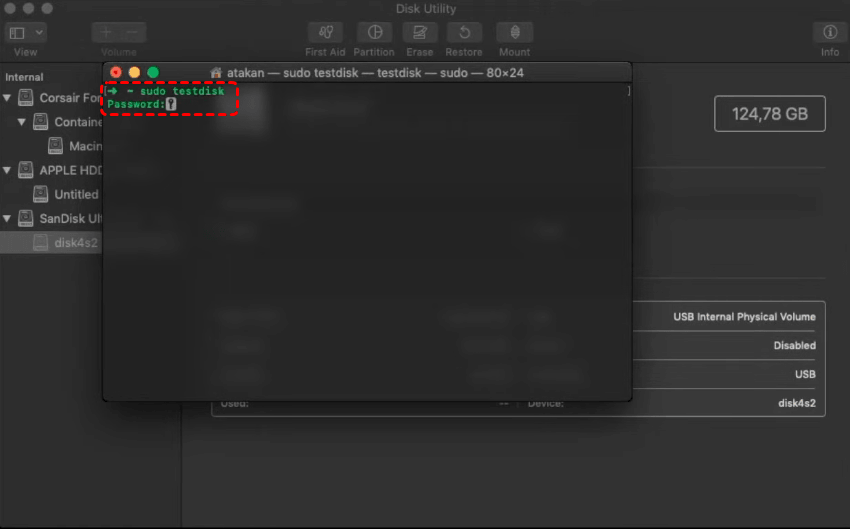
Step 2. Once installation is complete, launch TestDisk with administrator privileges with "sudo testdisk" and enter your Mac login password when prompted, then press Enter.
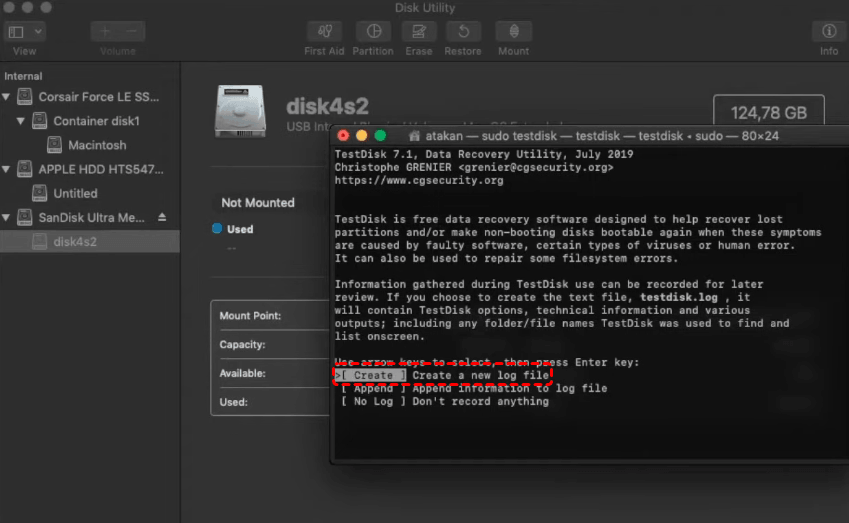
Step 3. Select Create to save recovery logs.
Step 4. Choose the drive or volume where the lost files were located, then select Proceed.
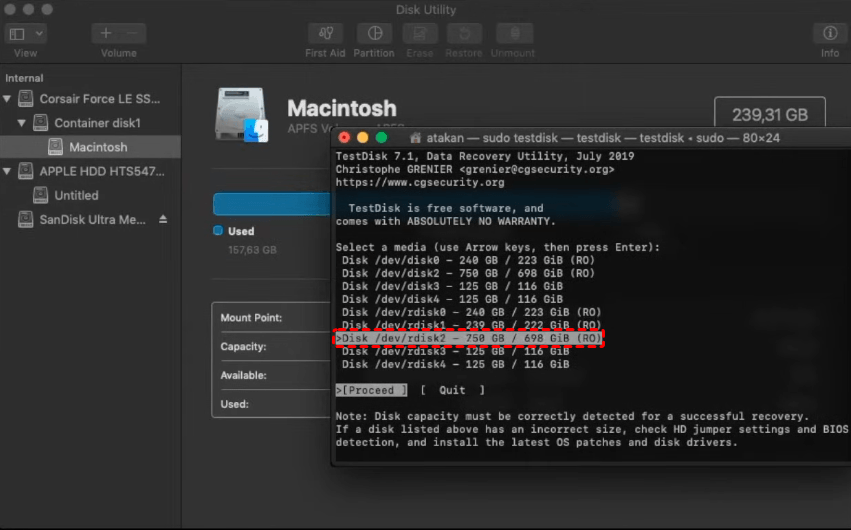
Step 5. TestDisk will automatically detect the partition table type. Press Enter to confirm.
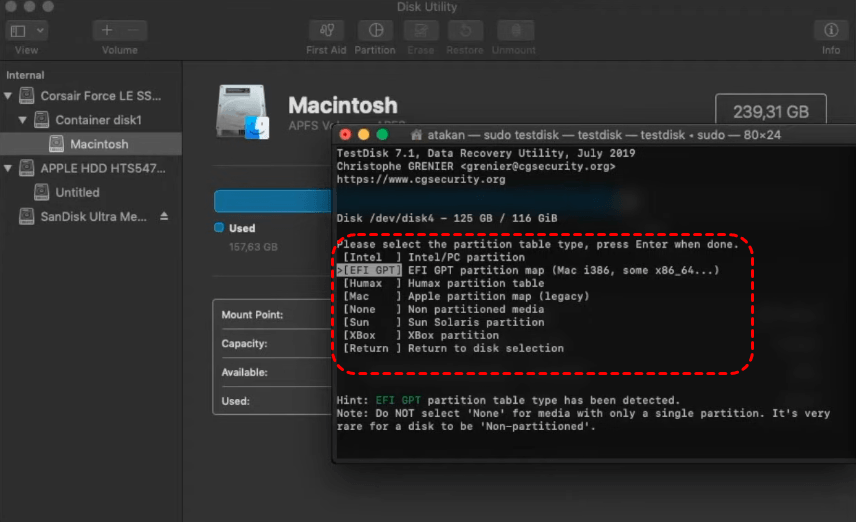
Step 6. Select Analyse to begin scanning for lost or missing partitions.
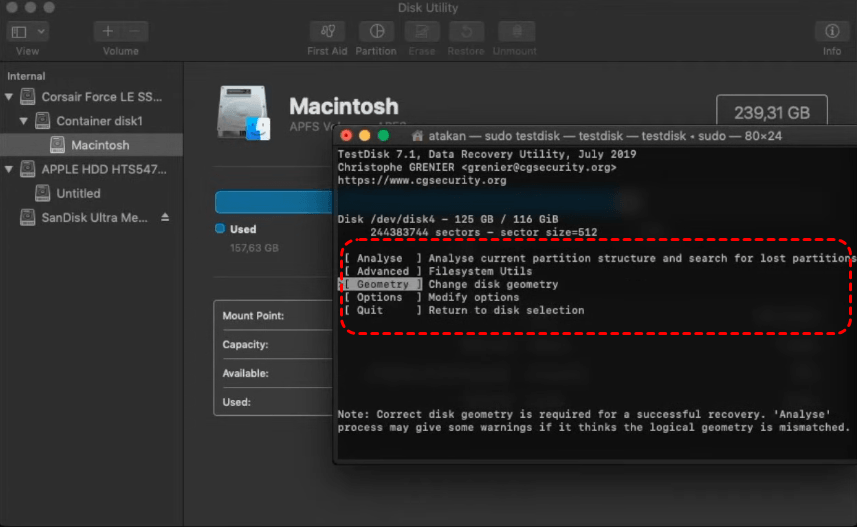
Step 7. Highlight the Quick Search and press Enter to proceed.
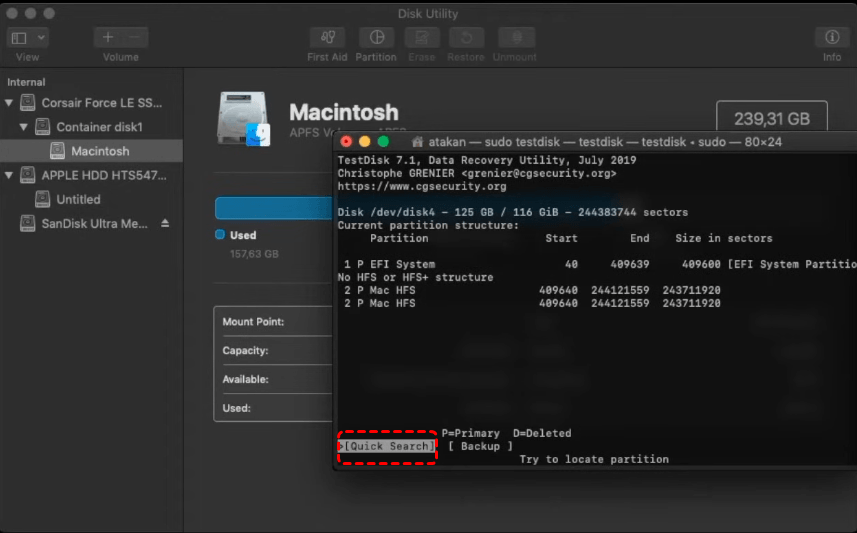
Step 8. When the process is completed, you can see the missing partitions with green background.
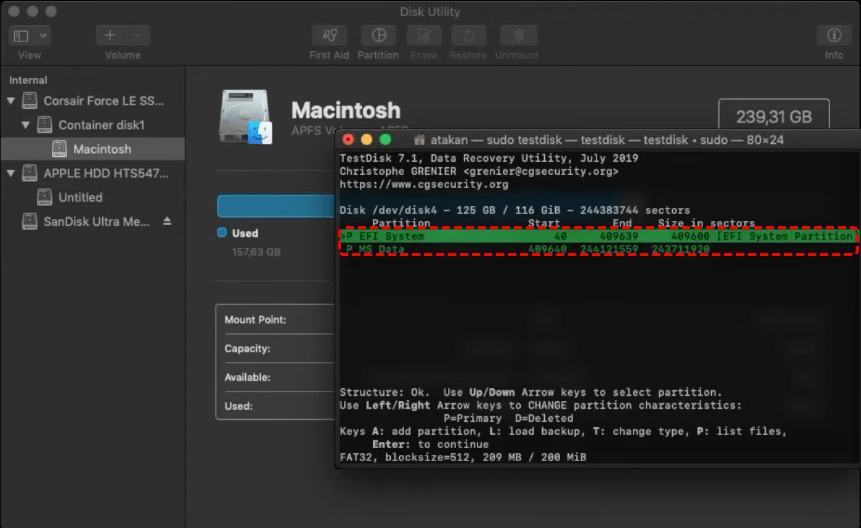
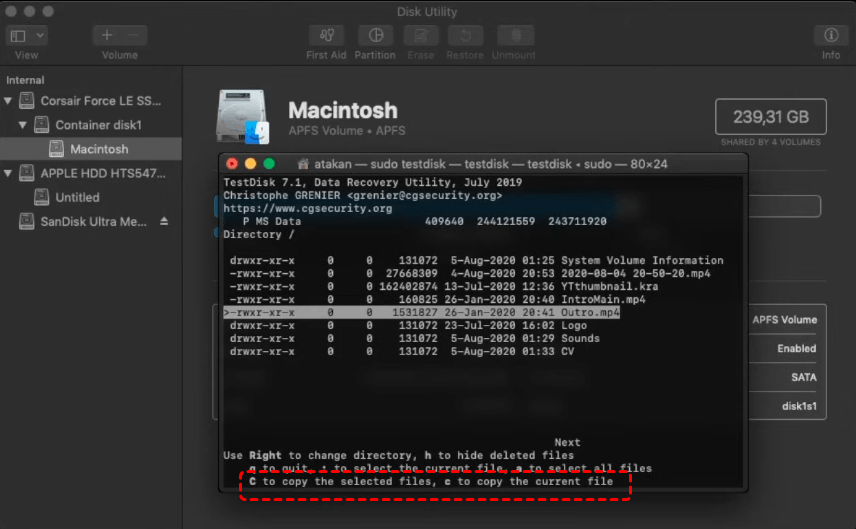
Step 9. Now you can browse and copy files from it.

Add us as a preferred source on Google to see more helpful content like this.
How to Retrieve Deleted Files from Emptied Recycle Bin on Windows?
The above is about how to recover files from emptied Trash on Mac computer. If you are a Windows user and looking for a way to recover files from emptied Recycle Bin, then the following methods are worth trying.
Method 1. Recover from OneDrive Cloud Backup
If you have enabled file syncing or backup with Microsoft OneDrive, there is a good chance your deleted files are still recoverable from the cloud even after emptying the Recycle Bin.
Step 1. Go to the OneDrive website and sign in with your Microsoft account.
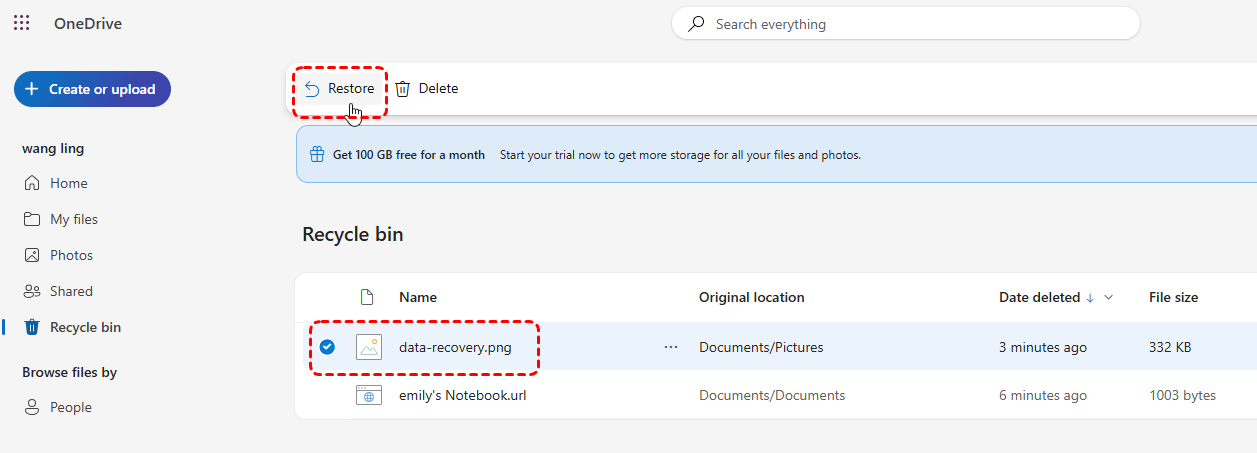
Step 2. In the left menu, click Recycle bin Look for the deleted files.
Step 3. Select the files you want to restore and click "Restore".
Method 2. Windows File Recovery Command
Windows File Recovery is an official tool provided by Microsoft that helps recover permanently deleted files. It works by scanning the storage device for recoverable data fragments and restoring them to a specified location.
Step 1. Download and install Windows File Recovery from the Microsoft Store.

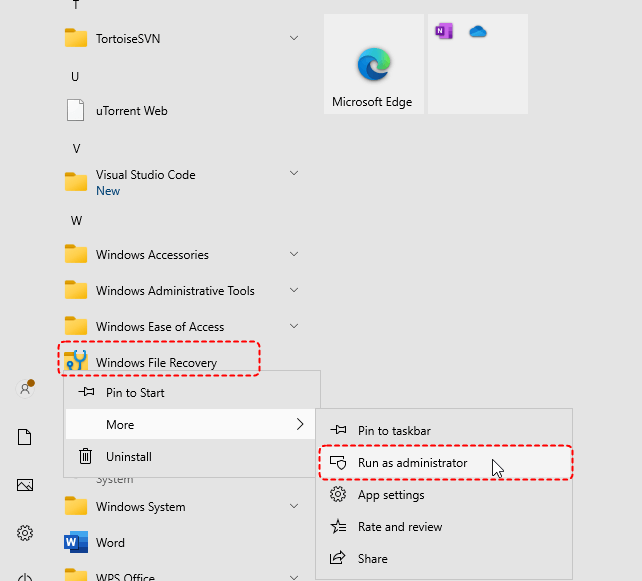
Step 2. Search it from the Start menu, right-click it and choose "Run as Administrator".
Step 3. Run a recovery command such as: winfr C: D: /regular
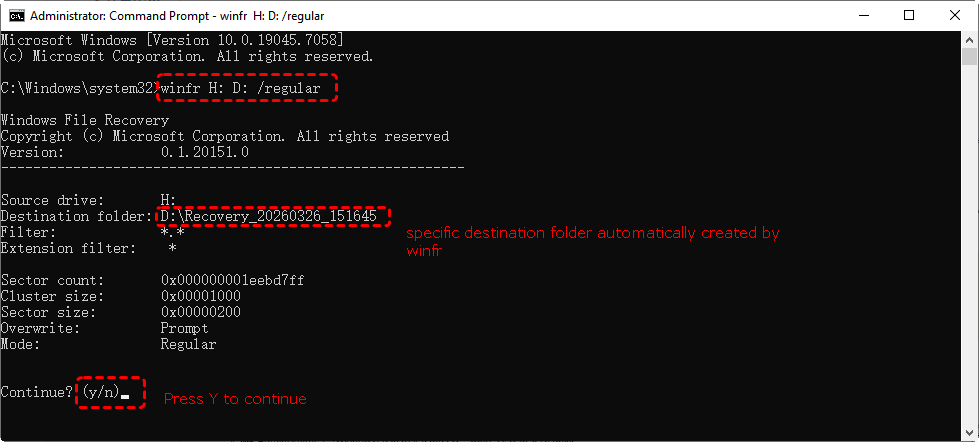
(Replace H: with the source drive and D: with the destination drive.)
Wait for the scan and recovery process to complete. Once it is done, you can hit on Y to directly open the destination folder and check the recovered files.
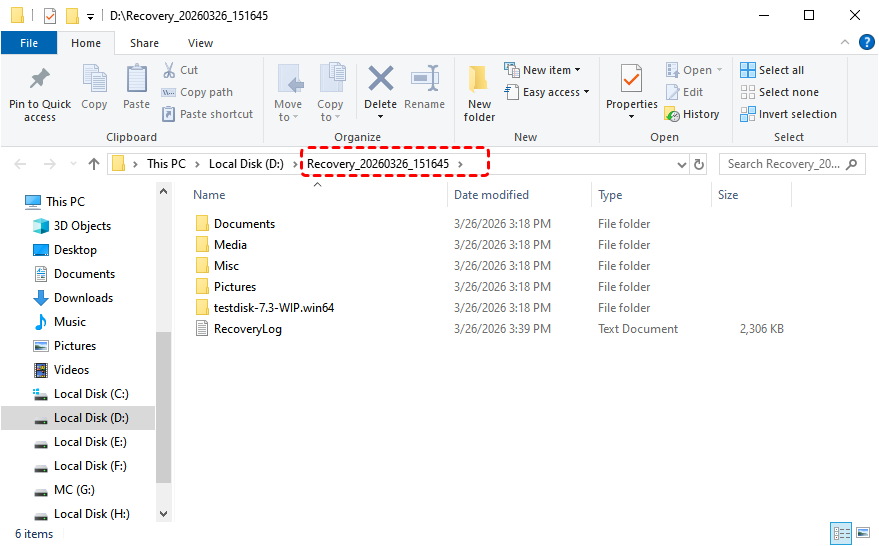
Use /extensive mode for deeply deleted files (e.g., emptied Recycle Bin). Always recover files to a different drive to avoid overwriting data.
"I followed the directions from a video on YouTube. I love that it not only gets the files back, but the folder structure the files were in. This helped me tremendously."- Clyde on Microsoft Store
Method 3. Professional Data Recovery- MyRecover
If the above methods, such as recovering from Microsoft OneDrive or using the Windows File Recovery tool, do not work, you can try a professional data recovery solution: MyRecover. This data recovery tool is designed specifically for Windows users and can help you restore files that have been permanently deleted from the Recycle Bin.
Compared with command-line recovery tools like Windows File Recovery, this method offers a more user-friendly interface, making it easier for beginners to locate and recover lost files quickly.
MyRecover – Powerful Windows Data Recovery Solution
✅ Recover Deleted Data– Restore files deleted normally, accidentally, via “Shift + DEL”, or by emptying the Recycle Bin.
✅ Recycle Bin Recovery– Retrieve permanently deleted files even after emptying the Recycle Bin with ease.
✅ Restore Data from Formatted Disks– Recover lost files from formatted drives before they get overwritten.
✅ Retrieve Data from Lost Partitions – Restore files from deleted, lost, corrupted, or formatted partitions.
✅ Recover Data After System Crash – Retrieve files lost due to “BSOD, system freezes, or inaccessibility” after a crash.
✅ Data Recovery After Virus Attacks – Recover files lost or hidden due to “Trojan, malware, or worm infections”.
Step 1: Download and install MyRecover.
Step 2: Launch MyRecover and select the drive where the deleted files were located. click "Scan" to start the recovery process.

Step 3: MyRecover will perform a "Quick Scan" to find recently deleted files. Wait for the scan to complete, and this may take some time depending on your drive size and the number of lost files.
Step 4: Once the scan is complete, browse through the list of recoverable files.

Note: you can use the "search bar" or "filter options" to find specific file types such as documents, images, or videos.
Step 5. Click on a file to preview it before recovery. If it is the file you plan to restore, click "Restore".
Step 6. Choose a different drive or external storage device to save the recovered files safely.

With MyRecover, Windows users can easily retrieve lost files from an emptied Recycle Bin, ensuring a quick and effective recovery process.
We have been using the MyRecover Pro edition for over a year as part of the bundle of six utilities. The deep scan on crashed PCs is highly effective and successfully recovered all personal files. The technical support team is also excellent. We recently had a very positive experience with Lanry Lucky, who responded promptly to our request and resolved the issue within minutes. — Business Computer Services (Trustpilot)
To Conclude
This guide not only covers how to recover files from emptied Trash Bin on Mac computer, but also shows how to retrieve files from emptied Recycle Bin on Windows computer.Whether you are using a Mac or Windows PC, data loss can be frustrating, but recovery is possible with the right methods. For Mac users, you can restore deleted files using Time Machine, iCloud Backup, or professional data recovery tools.
For Windows users, MyRecover provides an efficient solution to restore files from an emptied Recycle Bin, formatted disks, lost partitions, system crashes, or virus attacks. Three different versions are available for you to choose from based on your daily requirements: Free, Professional and Technician.
People Also Ask
When You Empty the Recycle Bin, is the File Gone Forever?
Not immediately. When you empty the Recycle Bin in Windows, the system only removes the file’s index, making it invisible and marking the storage space as available. The actual data may still remain on the disk until it is overwritten by new files. However, once overwritten, recovery becomes very difficult or impossible.
Can Ctrl + Z Restore Deleted Files?
Yes, but only in limited situations. Ctrl + Z (Undo) works if you just deleted the file within the same session in File Explorer or immediately after deletion. Once you close the window, restart your computer, or perform other actions, Ctrl + Z will no longer be able to restore the file.
How Can I Recover Permanently Deleted Files without a Backup?
If you don’t have a backup (such as File History), you can try using Windows recovery commands, or scanning the drive with tools like MyRecover. The key is to stop using the drive immediately to avoid overwriting lost data.

Stay Updated With Our
Latest Tips
Add us as a preferred source on Google to never miss helpful guides.
 Add as preferred source >>