 MyRecover



How to Recover Files Lost by Ctrl + Z: 5 Proven Methods
Discover how to recover files lost by Ctrl + Z windows with effective solutions that help restore accidentally removed files. This guide covers undo recovery limits, Windows file history, recycle bin checks, and powerful data recovery tools to quickly retrieve your lost documents.

By Vera / Updated on April 27, 2026


Introduction

Ctrl + Z is the universal "Undo" shortcut, a lifesaver when you make a typo or an accidental move. However, when used within Windows File Explorer, this command can be surprisingly destructive. If you recently moved a group of files and accidentally hit the undo keys, you might find that your data has completely vanished.
If you are currently panicking about how to recover files deleted by ctrl z, you are not alone. This issue usually occurs because Windows reverses a "Paste" action by deleting the files from the destination without successfully returning them to the source. This guide provides a comprehensive walkthrough on how to recover files lost by ctrl z windows 10 (and Windows 11), explaining the logic behind each step so you can choose the most effective path to data restoration.
Understanding the Logic: Why Does Ctrl + Z Delete Files?
Before attempting recovery, it is vital to understand the system's behavior. When you perform a file operation (like Move or Copy), Windows records it in a "history stack."
Why Files Disappear After Ctrl + Z
When Ctrl + Z reverses a file operation, Windows tries to return the system to the previous state. However, if the original location no longer exists or if the action involved deleting files, the data may appear to vanish. In reality, the files are often moved, hidden, or temporarily stored elsewhere in the system.
Common Situations Where Files Disappear After Ctrl + Z
Several common scenarios can cause files to go missing after using the undo shortcut:
- Undoing a file move between folders
- Reversing a folder organization action
- Undoing a deletion or restoration
- Undoing file extraction or copy actions
In most cases, the files are not permanently erased. They simply require the right recovery method to locate them again.
How to Recover Files Lost by Ctrl + Z in Windows 10/11
When files disappear, the most important factor is speed. The sooner you start recovery, the higher the chance of restoring your data successfully. You should do the first things below immediately after losing files.
- Stop Using the Affected Drive: Avoid saving new files, installing software, or downloading data to the drive where the files were lost. New data may overwrite the deleted files, making recovery more difficult.
- Search the System Thoroughly: Use the Windows search feature to look for the missing file names. Sometimes files are moved back to their original locations without you noticing.
Then, let’s start to recover files lost by Ctrl+Z! There are 5 feasible ways.
Method 1: The "Redo" Command (Ctrl + Y)
The most immediate solution for how to recover files lost by Ctrl-Z Windows 10/11 is the "Redo" command. The logic here is simple: if Ctrl + Z moved the system back one step in time, Ctrl + Y moves it forward one step. This is the most effective method if you haven't performed any other file operations (like renaming, moving, or creating new files) since the accident.
Step 1. Stay in the same folder where the files disappeared.
Step 2. Press Ctrl + Y on your keyboard.
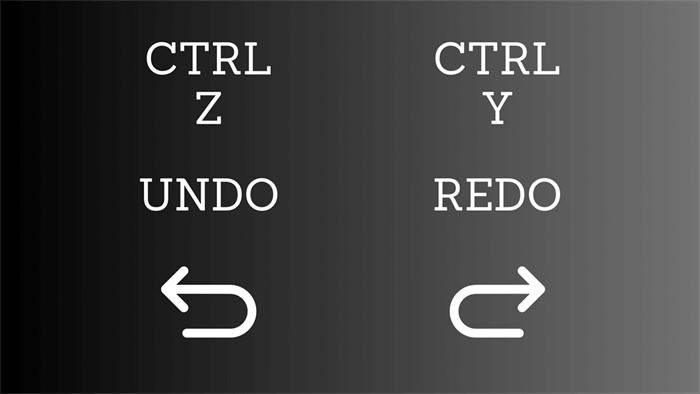
Step 3. Alternatively, right-click an empty space in the folder and select Redo Move or Redo Paste.
Step 4. If the buffer is still active, your files will instantly reappear.
If the Redo command fails, it likely means the operation history was interrupted. The next logical step is to see if the system treated the "undone" files as standard deleted items.
Method 2: Restore Files from the Recycle Bin
When wondering how to recover files deleted by ctrl z, many users overlook the Recycle Bin. In certain Windows configurations, an "Undo Paste" command triggers a deletion event that sends the files to the bin as a safety precaution rather than erasing them from the disk entirely.
Step 1. Double-click the Recycle Bin icon on your desktop.
Step 2. Use the Search Bar in the top right to look for the specific filenames.
Step 3. Sort by "Date Deleted" to find items that disappeared at the exact moment you pressed Ctrl + Z.
Step 4. If found, right-click and select Restore.
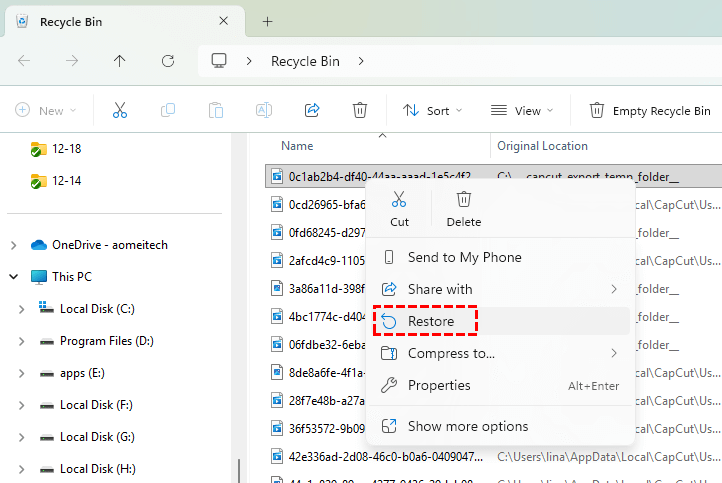
If the files aren't in the Bin, we must look at the system's internal snapshots.
Method 3: Recover Files to Previous Versions Using Windows File History
Windows 10/11 includes a feature called File History. The logic behind this method is "Point-in-Time Recovery." Even if the file is currently "deleted" due to an undo command, File History may have a cached version of the folder from an hour ago. This is highly effective for users who have backup settings enabled.
Step 1. Navigate to the folder that previously contained the lost files.
Step 2. Right-click the folder and select Restore previous versions.
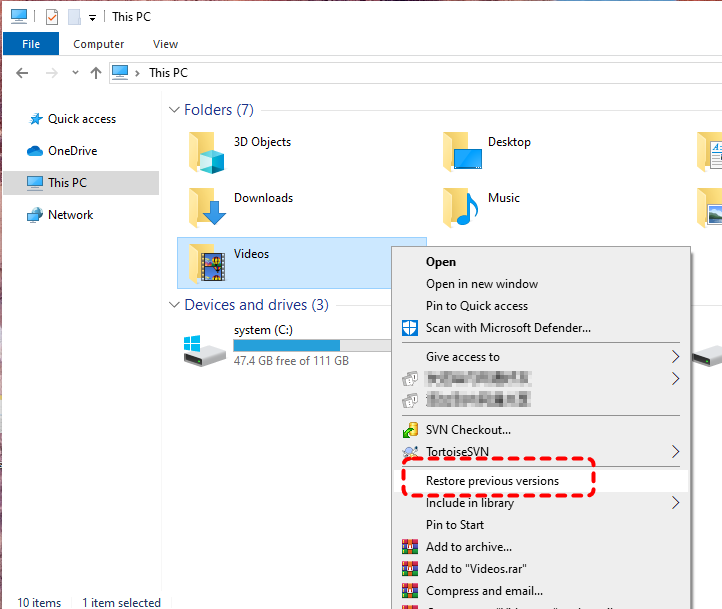
Step 3. Look for a version of the folder created before the Ctrl + Z mishap.
Step 4. Select the version and click Restore to overwrite the current empty state with the previous data-filled state.
When manual Windows commands and backups fail, it indicates that the file's directory pointers have been stripped. To solve how to recover files lost by Ctrl-Z Windows 10/11 when the files are nowhere to be found, you need a deep-sector scanning tool.
Method 4: Professional Data Recovery with MyRecover
MyRecover is a professional-grade solution specifically engineered for Windows file system errors. While Windows might see a "deleted" file as empty space, MyRecover identifies the underlying data signatures. It is particularly effective for Ctrl + Z errors because it can reconstruct file paths that were broken during an interrupted "Undo" command.
Why MyRecover is the best choice for Ctrl + Z recovery:

 MyRecover
- Windows 10/11 Optimized: Specifically designed to handle the NTFS and FAT32 file systems used by modern Windows versions.
- Deep Scan Technology: If Ctrl + Z caused a "permanent" deletion, MyRecover's Deep Scan bypasses the file system to find data fragments on the disk.
- Search & Filter: Instead of looking through thousands of files, you can filter by "Date Modified" to pinpoint exactly what was lost during your Ctrl + Z action.
 100% Secure
Steps:
Step 1. Download and install MyRecover on your computer.
Step 2. Launch the application.
Step 3. Select the drive or partition where the files were lost. Start the scanning process.

Step 4. Wait while the program analyzes the drive for recoverable data.
Step 5. Preview the files found by the scan. Select the files you want to restore.
Step 6. Click Recover and choose a safe destination folder.

Using recovery software significantly increases the chances of restoring files that appear permanently deleted.
Method 5: Check Temporary Files and Backup Locations
If the files were part of an active project (like an Office document or a Creative Cloud file), the data might still reside in a "Temp" buffer or a cloud-synced secondary version. The logic here is that many modern applications create an independent "Work-in-Progress" copy that ignores File Explorer’s Ctrl + Z commands.
1. Check the Windows Temp Folder:
Step 1. Press Windows + R on your keyboard.
Step 2. Type %temp% and press Enter.
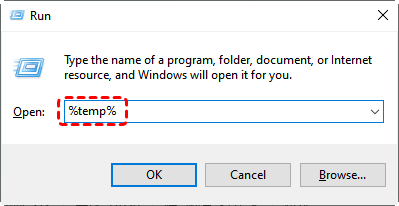
Step 3. Search the folder for recently created files.
You may find temporary versions or fragments of the missing files.
2. Check Cloud Version History (OneDrive/Google Drive):
If your system synchronizes with services like OneDrive or other cloud platforms, your files may still exist in the cloud version history. Many platforms keep deleted files for 30 days or more, so you can log in to your cloud account and review recently deleted files or previous versions.
Best Practices to Prevent File Loss
Although file recovery is possible, prevention is always the safest strategy.
1. Enable Automatic Backups
Regular backups protect your data from accidental deletion or system errors. Consider enabling:
- Windows File History
- Cloud synchronization services
- External backup drives
2. Save Multiple File Versions
Many productivity tools automatically save document versions. This allows you to restore earlier versions of files if something goes wrong.
3. Be Careful with Keyboard Shortcuts
Keyboard shortcuts improve productivity, but accidental commands can create confusion. Taking a moment to verify actions before undoing operations can prevent file loss.
Conclusion
Learning how to recover files lost/deleted by Ctrl + Z is a vital skill for anyone who manages large amounts of data on Windows. While the shortcut is meant to be helpful, the way Windows 10/11 handles "Undo" for file operations can lead to accidental deletions.
Always start with the simplest fix—Ctrl + Y—but don't hesitate to use a professional tool like MyRecover if the files don't reappear immediately. The sooner you stop writing new data to the drive and start the recovery process, the higher your chances of getting every single file back.
FAQs
Q1: Why did Ctrl + Z delete my entire folder instead of just one file?
Answer: Windows views a "Paste" or "Move" of a folder as a single transaction. When you hit Ctrl + Z, the system tries to reverse the entire transaction. If the folder was moved from an external drive or a network location, Windows may delete the local copy without having the "path" open to move it back, effectively deleting it.
Q2: Can I still recover files if I restarted my computer after the Ctrl + Z mishap?
Answer: Yes, but the "Redo" (Ctrl + Y) option will no longer work because the RAM buffer is cleared upon restart. At this stage, your best option is MyRecover. Since the files were not "wiped" (zeroed out), they still exist on the disk sectors until new data overwrites them.
Q3: How can I prevent Ctrl + Z from deleting files in the future?
Answer: You can disable the "Undo" feature for file operations via third-party registry tweaks, but the best practice is to use Ctrl + C / Ctrl + V (Copy/Paste) instead of Ctrl + X / Ctrl + V (Cut/Paste). Additionally, enabling Windows File History ensures you always have a 1-hour-old snapshot of your work.
Q4: Does "Undo" work differently on SSDs vs HDDs?
Answer: Yes. If you have an SSD with TRIM enabled, once a file is "permanently deleted" by an undo command, the SSD may clear the cells faster than a traditional HDD. If you lose files on an SSD, you should shut down your computer immediately and run recovery software from a bootable USB to prevent TRIM from erasing the data.
Q5: Do files deleted by Ctrl + Z go to the Recycle Bin?
Answer: Usually, no. Because Ctrl + Z is an "Undo" command rather than a "Delete" command, Windows attempts to move the files back to their original source. If the source is no longer available (like a disconnected USB or a cleared temp folder), the files are often bypassed from the Recycle Bin and removed from the file system index entirely.
Q6: What should I do if Ctrl + Y (Redo) fails to bring my folder back?
Answer: If Ctrl + Y doesn't work, it means the "undo chain" has been broken by a subsequent action, such as saving a new file or refreshing the desktop. You should immediately stop writing any new data to the drive. Use a specialized tool like MyRecover to perform a deep scan of the partition; it can often reconstruct the directory structure of folders lost during failed move/undo operations.

Stay Updated With Our
Latest Tips
Add us as a preferred source on Google to never miss helpful guides.
 Add as preferred source >>