 MyRecover



What Does Time Machine Backup? Discover What's Saved and What's Not
What does Time Machine backup? This comprehensive guide provides the answers you need. The article walks through every layer of protection. It also addresses what does Time Machine not backup.

By Delores / Updated on March 25, 2026


What Does Time Machine Backup?
Does Time Machine Back Up Everything?
I'm having to return my MacBook Air and get a replacement due to the delete key failing and a small chip I noticed on the screen. It was a refurb. Absolutely love the device, but shame about the faults on this one.
I want to transfer the existing Mac's info to the new future Mac, as it now has all my files and also system preferences, and the way I have set it up, I'd prefer not to go through that again. Does Time Machine include this? I can see files on the Time Machine app, but I can't see system preferences, for example. I've backed it up to an external Samsung T7 hard drive. I couldn't see anything on the internet that confirms the system settings.
Any help appreciated
- Question from reddit.com
About Time Machine on Mac
Time Machine is Apple's built-in backup tool that automatically safeguards your entire Mac—including applications, documents, photos, system files, and settings—once you connect an external drive. It works silently in the background, creating hourly, daily, and weekly incremental backups while automatically managing storage space by deleting older copies when the drive fills up.
Even when your backup drive is disconnected, Time Machine stores local snapshots on your Mac's internal drive, allowing you to recover previous versions of files anytime. To restore data, you can browse a timeline-based interface to retrieve individual files or perform a full system recovery through macOS Recovery.
Does Time Machine Back up Everything?
No, Time Machine does not back up everything on your Mac. Time Machine backs up your personal data, including all user accounts, music, photos, emails, documents, system settings, and only third-party apps and user-installed software.
What does Time Machine not back up? In fact, Time Machine intentionally excludes certain items such as temporary files, caches, Spotlight indexes, and the Trash.
Additionally, Time Machine does not back up system files and applications that were installed as part of macOS itself.
For a true "everything" backup, you would need to combine Time Machine with other solutions.
What Does Time Machine Not Back up?
So, what does Time Machine not back up? Check what is not included in a Time Machine backup:
- First and foremost, Time Machine does not back up external drives. If you have a second hard drive or a USB stick plugged in with important data, Time Machine leaves it untouched. You'd have to manually back that up elsewhere.
- Similarly, it does not back up the system's trash bin, temporary files, and caches.
- Besides, Time Machine doesn't back up the macOS Recovery Partition. It means if your internal drive completely dies, you'll need to use Internet recovery or a separate bootable installer to get macOS running again before you can restore your Time Machine data.
- Additionally, it won't back up files saved on network volumes or any folders you've explicitly added to the exclusion list in System Settings.
How to Start Time Machine Backup?
Starting a Time Machine backup on your Mac is a straightforward process that takes just a few minutes to configure.
1. Connect an external drive (USB, Thunderbolt, or NAS) with at least twice your Mac's storage capacity.
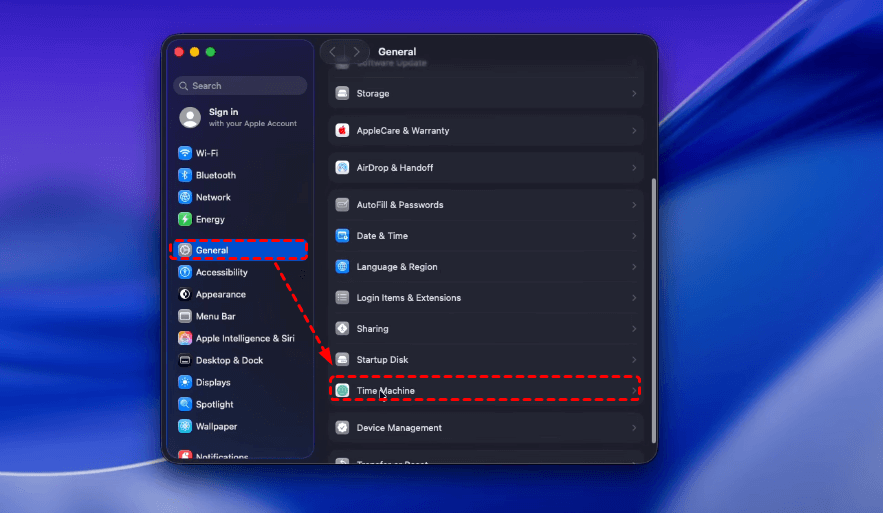
2. Go to System Settings > General > Time Machine.
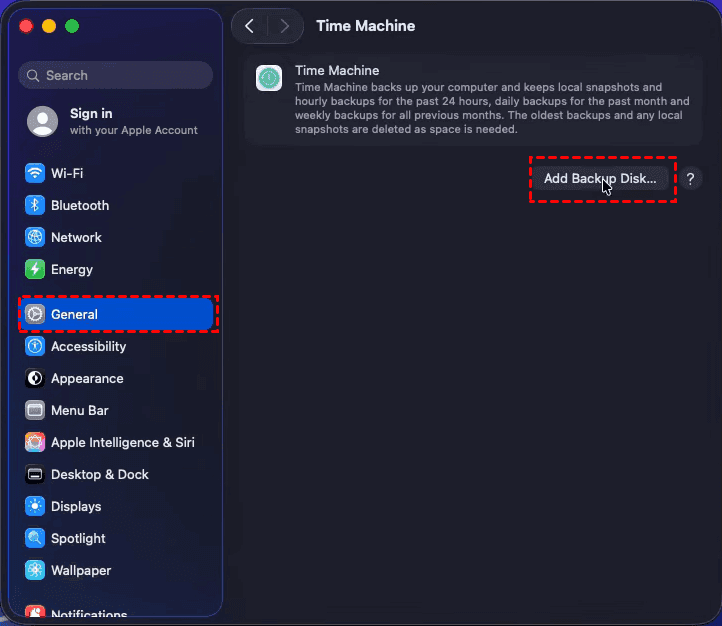
3. Click Add Backup Disk.
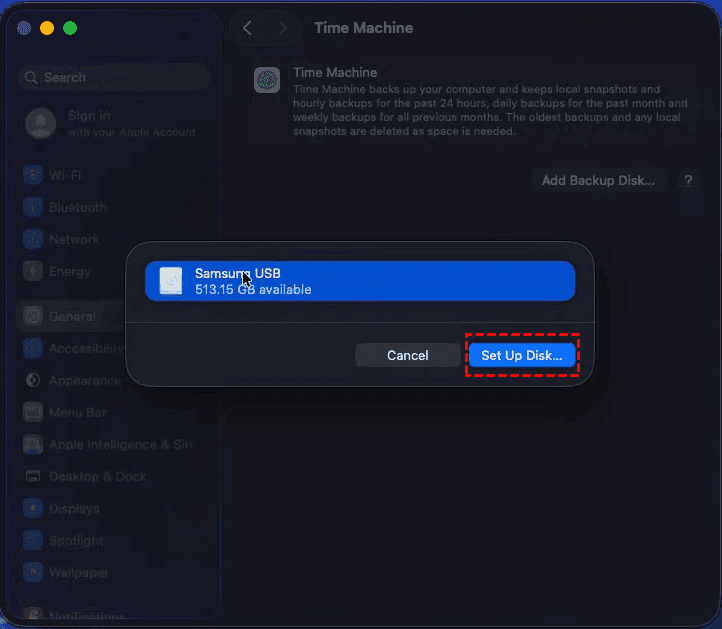
4. Select your drive, then click Set up Disk.
- Notes:✎...
- If prompted about encryption, decide whether you want to password-protect your backups.
- If the drive needs formatting, macOS will offer to erase and reformat it automatically.
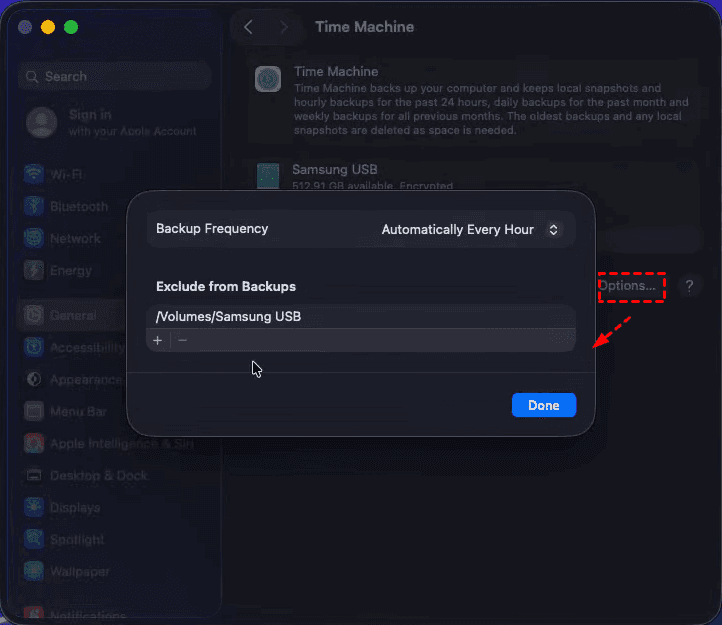
- Click "Options" to add folders you want Time Machine to ignore.
5. Time Machine begins its first backup automatically, copying all your apps, files, and system data.
After the initial setup, Time Machine works autonomously in the background. It creates hourly backups for the past 24 hours, daily backups for the past month, and weekly backups for all previous months, automatically deleting the oldest backups when space runs low.
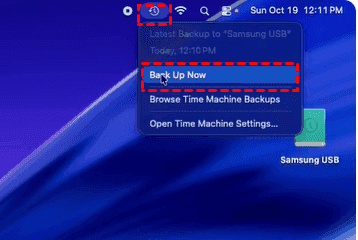
To run a manual backup at any time, click the Time Machine icon in the menu bar and select Back Up Now. If you don't see the icon, go back to Time Machine settings and enable Show Time Machine in the menu bar.
How Long Does Time Machine Backup Take?
The time varies significantly. The initial backup is the longest, typically taking 2 to 10 hours or even longer, depending on how much data you have—it's best to run this overnight. Subsequent backups are much faster, usually completing in 5 to 30 minutes since Time Machine only copies files that have changed.
Key factors affecting speed include the amount of data, whether you're using a fast USB/Thunderbolt drive versus a slower network backup, and the type of drive (SSDs are faster than traditional hard drives). You can continue using your Mac normally while backups run in the background.
What Does Time Machine Backup Look Like?
A Time Machine backup looks like a folder structure that mirrors your Mac's internal drive, organized by date. When you open your backup drive, you'll see a folder named Backups.backupdb, which contains a folder for your Mac, and inside that, folders for each backup session labeled by date and time (e.g., 2026-03-24-143021). Inside each dated folder, you'll find a complete snapshot of your Mac's file system—Applications, Users, System, and Library folders—preserving the exact state of your data at that moment.
In the Time Machine interface itself, the backup looks like a spatial, starfield-like view where your current desktop appears layered behind previous versions, allowing you to scroll back through time to browse and restore files.
FAQs About Time Machine
Does Time Machine back up iCloud Drive files?
A: It depends. With Optimize Mac Storage on, only locally stored files are backed up—offloaded files appear as stubs. To ensure full backups, turn off Optimize Mac Storage or manually download files before backup.
How long does Time Machine keep old backups?
A: It manages automatically: hourly for 24 hours, daily for a month, and weekly until the drive fills. Once full, the oldest backups are deleted to make room for new ones.
What should I do if my Time Machine backup is corrupted?
A: First, restart your Mac and run First Aid on the drive via Disk Utility. If that fails, keep the old drive as a read-only source to manually copy files, then start a fresh backup on a newly formatted drive.
Does Time Machine back up Windows partitions on a Mac?
A: No. Boot Camp and Windows partitions are not backed up. Time Machine only supports macOS file systems (APFS and HFS+).
Can I restore my Mac to a different model using Time Machine?
A: Generally, yes if the new Mac runs a compatible macOS version. However, avoid restoring system files across different hardware architectures (like Intel to Apple Silicon) without a clean OS install first.
Does Time Machine back up all users?
A: Yes. Time Machine captures the entire system, including all user folders and their associated data—documents, settings, and files from every account on your Mac.
How to Recover Lost Files on a Windows Computer?
What if you need to recover missing files on a Windows computer? Don’t worry. Here comes the powerful Windows data recovery software, MyRecover. Unlike many traditional recovery tools that rely on complex command-line interfaces, MyRecover offers a modern approach to data recovery that prioritizes simplicity without sacrificing effectiveness. Here are the key advantages:
- Intuitive interface – No command lines or technical expertise required; simple point-and-click operation
- Preview before recovery – See photos, documents, and videos before restoring them
- High success rate – Achieves up to 99% recovery for lost files
- Versatile recovery scenarios – Restores files from Recycle Bin, formatted drives, lost partitions, system crashes, and virus attacks, etc.
- Bootable media support – Create a WinPE USB to recover files from Windows systems that won’t start
- Broad file type support – Recovers over 1000 file types, including documents, images, videos, and audio
- Dual scanning modes – Quick Scan for recent deletions and Deep Scan for formatted or corrupted drives
- Advanced filters – Sort and search recovered files by name, type, path, size, or date
- Wide compatibility – Works with all Windows operating systems, and supports HDDs, SSDs, USB drives, SD cards, and so on.
 100% Secure

Stay Updated With Our
Latest Tips
Add us as a preferred source on Google to never miss helpful guides.
 Add as preferred source >>