 MyRecover



Recover Word Document When Computer Shuts Down in 7 Ways
Power outage? System crash? Don't panic. This article explains how to recover Word document when computer shuts down using AutoRecover, temporary files, and document recovery panes. Master these quick steps to retrieve unsaved work and prevent future data loss.

By Delores / Updated on March 20, 2026


How to Recover Word Document When Computer Shuts Down?
My computer unexpectedly shut down and lost my Word document that was not saved yet. I have searched and can't find the autorecovery anywhere.
My computer unexpectedly shut down and lost my Word document that was not saved yet. I have searched and can't find the auto recovery anywhere. I have tried to recover unsaved documents, and it saved one, but not the most important one. Please help.
- Question from learn.microsoft.com
When you're editing a Word document, a power outage, a blue screen, or maybe your laptop just shuts down. However, the Word document is gone after the computer restarts. What should you do to recover an unsaved Word document that was never saved?

Microsoft Word has some pretty clever tricks up its sleeve to help you out of this exact jam. This guide will walk you through every possible method to get your work back. Just check it out now.
What Happens to Unsaved Files When the Power Goes Out?
When your computer loses power or crashes, Microsoft Word cannot complete its normal save routines. The application halts instantly, leaving any unsaved work in a precarious position.
Here's what happens behind the scenes: the document version you're actively editing resides in your computer's RAM (random access memory)—temporary storage that requires continuous power to retain data. Unless you've manually saved, that version exists exclusively in this volatile memory. A sudden shutdown clears RAM immediately, erasing all unsaved changes.
However, Word incorporates protective measures. The application automatically creates backup copies during your editing session without any action required from you. These background saves provide recovery options when unexpected shutdowns occur.
Word Temporary Files and AutoRecover Feature
Word generates temporary files during editing sessions. These .tmp files store document fragments at regular intervals. After an unexpected shutdown, these temporary files may contain substantial portions of your work. You can find these temporary files to recover files easily
Besides, AutoRecover automatically saves document snapshots at configured intervals—typically every 10 minutes. These copies are stored in a designated folder. After a system restart following a crash, Word should display these recovered files in the Document Recovery pane. If automatic recovery doesn't occur, manual navigation to the AutoRecover folder may retrieve the saved versions.
Recover Unsaved Word Document After Computer Shut Down | 7 Ways
Way 1. Check the Document Recovery Pane Immediately After Booting Up
1. Launch Microsoft Word. Just open it.
2. Often, Word will sense that something went wrong last time and open a "Document Recovery" pane on the left side of the screen all by itself.
3. This little panel lists any files that AutoRecover managed to save. If you see your document there, click it, open it, and immediately hit Save As to store it somewhere safe.
Way 2. Go to Word's AutoRecover File Location Manually
Or, you'll need to go to the AutoRecover file location to recover files.
1. In Word, click File > Info > Manage Document, then select Recover Unsaved Documents.
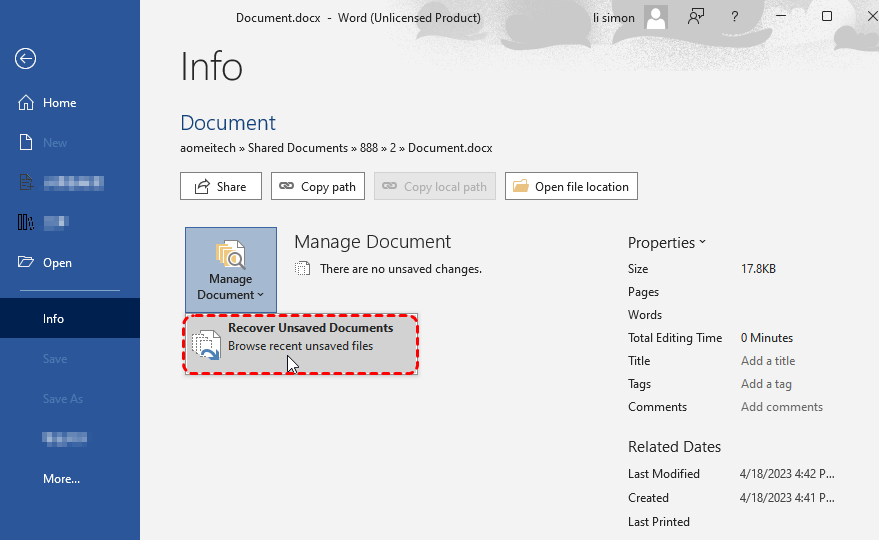
2. A folder will pop open showing files with the .asd extension. These are your AutoRecover files.
3. If you see one that matches your document's name or creation time, double-click it to open it in Word and save it immediately.
Way 3. Search for Recovered Unsaved Files from the File Menu
An additional method exists through the File menu.
1. From the Word start screen, navigate to File > Open > Recent.
2. Scroll to the bottom of the Recent documents list to find the "Recover Unsaved Documents" button.
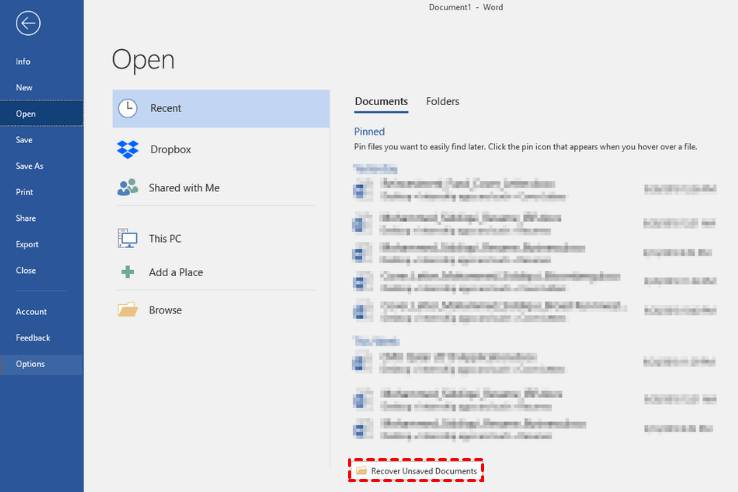
3. Clicking this opens the same folder containing the drafts Word has preserved.
Even if other recovery attempts failed, checking here may yield results.
Way 4. Locate .tmp Files in the Windows Temp Folder
1. Hit Windows Key + R on your keyboard, type %temp% into the Run dialog, and press Enter.
2. This opens the temporary files folder. Look for files that end in .tmp, especially ones modified around the time you were working. You can sort by "Date modified" to make this easier.
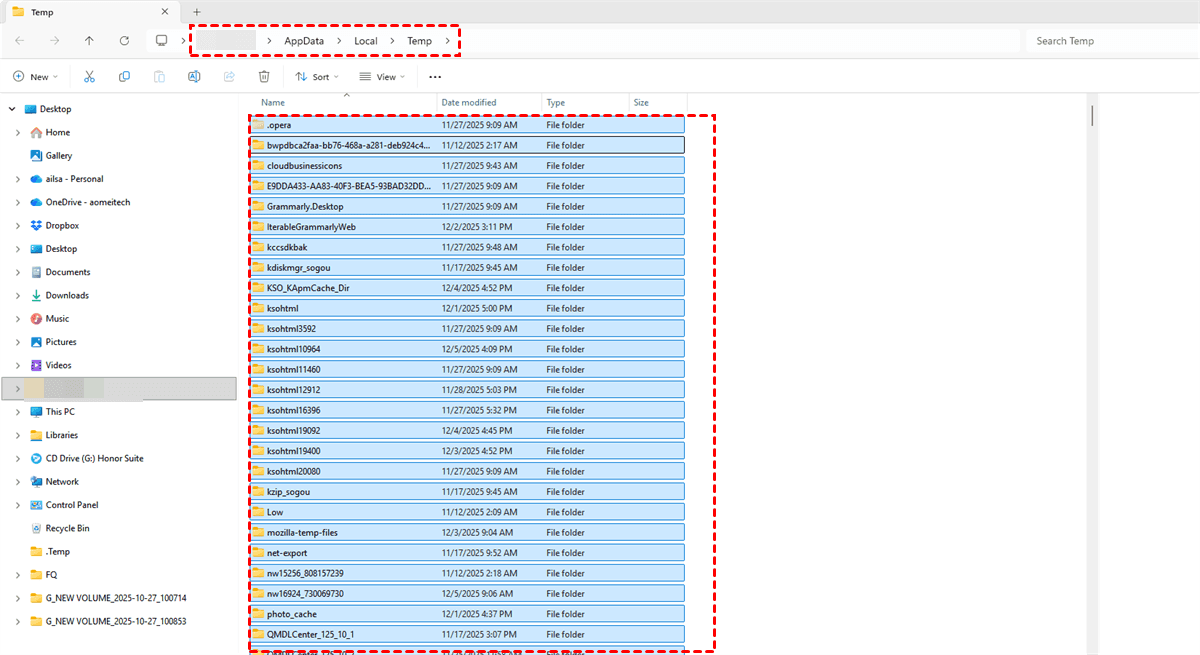
3. If you find your files, copy them to your desktop, rename them with a .docx extension, and try opening them in Word.
Way 5. Check the Recycle Bin for Accidentally Deleted Drafts
When a computer shuts down abruptly, files don't typically end up in the Recycle Bin. But if you were in the middle of saving or moving files when the crash happened, it's worth checking the Recycle Bin.
1. Double-click the Recycle Bin on the Desktop.
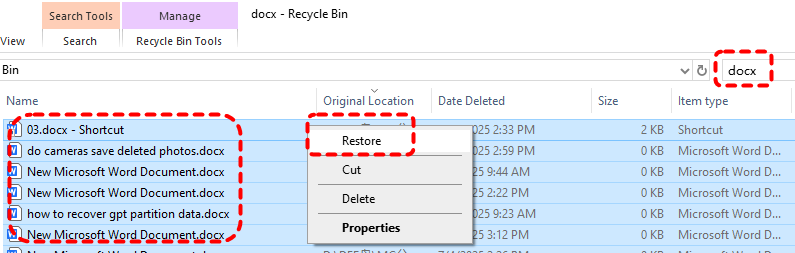
2. Search through the list of documents to see whether the deleted Word document is still there. If you don't know the file name, look for file types such as .doc, .docx, and .dot.
3. If you find the desired Word file, right-click the file name and then select Restore to recover the file.
Way 6. Search for Previous Versions via File Properties
If you had enabled File History for the document before the crash, you might be in luck.
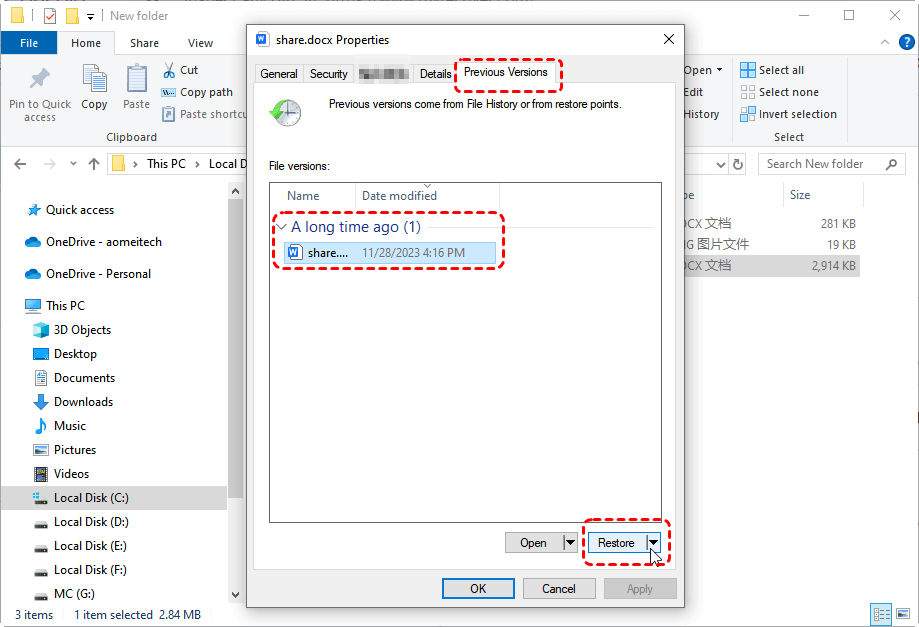
1. Go to the folder where the file was saved, right-click on it (or where it should be), and select Properties.
2. Click the Previous Versions tab.
3. You can see older copies of the file listed here if Windows has been doing its job. Select one and click "Restore" to bring it back.
Way 7. Recover Deleted or Lost Word Document with MyRecover
If nothing works to recover your unsaved Word documents, you can try a dedicated recovery tool, MyRecover, that picks up where Word's built-in features leave off.
MyRecover is designed to scan your drives deeply and recover files that have been deleted, lost, or corrupted.
- It supports over 1,000 file types, so Word documents are right in its wheelhouse.
- 500+ devices supported, such as external hard drive, internal hard drive, SSD, HDD, SD Card, USB Drive, Xbox One, PS4/5, camera, music players, etc.
- Create bootable media if the computer won't turn on. Then you can use the bootable media to recover files from the crashed computer.
- Highest recovery rate in the market, 99%. It's worth trying to recover Word documents.
- MyRecover provides a quick scan for recently deleted files and a deep scan to find deeply hidden files, such as those after formatting, crashes, etc.
Here's how to use MyRecover to hunt down your lost Word document:
1. Please download and install MyRecover on your computer—ideally on a different drive than the one you're scanning to avoid overwriting anything.
 100% Secure
2. Launch MyRecover, choose Disk Data Recovery, and hover over the drive or partition where your document was originally located. Click "Scan". Wait for it to complete.

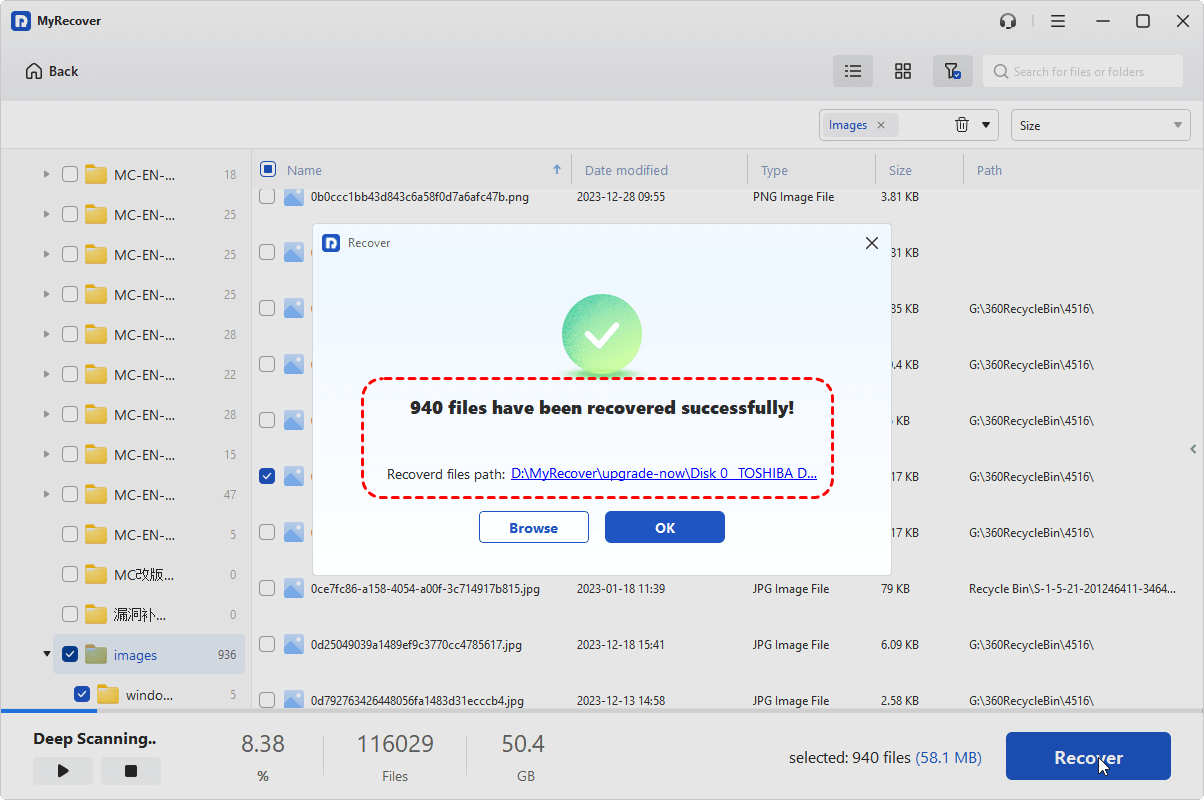
3. Once scanning completes, you can filter results by file type, path, date, name, or size to narrow down the chaos. Preview and choose the Word documents you need, and hit Recover.

4. Choose a safe location and hit Select Folder to save them.

- Notes:✎...
- You can double-click the files to preview them.
- Recovering unlimited files at a time is very easy and time-saving.
- Upgrade to MyRecover Technician is your best choice if you need to recover files from an unlimited number of computers in the future.

 MyRecover
- Recover Deleted Files Easily with Simple Clicks
- 1000+ File Formats Supported
- Support HDD, SSD, External Hard Drive, USB Drive, SD Card, etc.
- Quickly Find Files Using File Types, Name, Size, etc.
- Preview Files Before Recovering
- Recover Unlimited Data
 100% Secure
FAQs About Recovering Word Document When Computer Shuts Down
Can I recover a Word document if my computer crashed and I never saved it?
A: Yes, in many cases. Word's AutoRecover saves temporary copies every 10 minutes by default. After restarting, check the Document Recovery pane. If absent, go to File > Info > Manage Document > Recover Unsaved Documents to find .asd files. Also search the %temp% folder for .tmp files from around the crash time.
Where does Word store AutoRecover files?
A: Default location: C:\Users[YourUserName]\AppData\Roaming\Microsoft\Word. To confirm the exact path, open Word > File > Options > Save and check "AutoRecover file location." Enable "Hidden items" in File Explorer to see the AppData folder.
How do I set up AutoRecover to protect my work?
A: Open Word > File > Options > Save. Ensure "Save AutoRecover information every X minutes" is checked. Reduce the interval from 10 minutes to 2-3 minutes. Also, check "Keep the last autosaved version if I close without saving." Click OK.
What's the difference between AutoSave and AutoRecover?
A: AutoRecover saves temporary copies of local files at set intervals for crash protection. AutoSave continuously saves changes in real-time, but only works for files stored in OneDrive or SharePoint. "AutoSave is off" means you're working on a local file relying solely on AutoRecover.
Can I recover a Word document if I clicked "Don't Save" when closing?
A: Possibly, but act quickly. Word typically deletes AutoRecover files after "Don't Save," but temporary files may linger briefly. Immediately check File > Info > Manage Document > Recover Unsaved Documents and search %temp% for .tmp files from your work session.
My AutoRecover folder is empty—now what?
A: Verify the correct folder path in Word's Options. Search your entire computer for .asd files. Check C:\Users[YourUserName]\AppData\Local\Microsoft\Office\UnsavedFiles. If empty, try recovery software like MyRecover for deeper scanning.
How long does Word keep unsaved recovered files?
A: Approximately 4 days. After this period, Word automatically deletes them to free space. Always save recovered documents immediately to a permanent location.

Stay Updated With Our
Latest Tips
Add us as a preferred source on Google to never miss helpful guides.
 Add as preferred source >>