 MyRecover



Where Are Temp Files Stored Windows 10: Find & Clean Them Fast
This guide answers where are temp files stored windows 10 for system, Excel, and Word, and explains how to delete temporary files windows 10 safely to free up valuable disk space and improve PC performance.

By Delores / Updated on February 9, 2026


Preface
Is your Windows 10 PC unexpectedly slow? A common cause is low disk space, often due to accumulated temporary files. Learning how to locate and remove these files can free up storage and restore your computer's performance. This guide will show you exactly where to look and the detailed steps to delete temporary files easily in Windows 10 and 11. Let’s get started.
What Are Temporary Files?
Temporary files, or "temp files" for short, are auxiliary files created by your operating system and applications to support short-term tasks.
Windows and your applications generate these files as a form of working memory. For instance, when editing a large video or complex spreadsheet, the system may create temporary files to cache portions of the data, enabling quicker access and preserving incremental progress to prevent total loss in the event of a crash.
These files are intended to be disposable and should be removed automatically once the related task is complete. However, they are frequently left behind when programs fail to clean up properly, resulting in significant, unnecessary storage consumption.
Common Types of Temporary Files You May Encounter
There are different types of temporary files you might encounter, including:
- Installation remnants from software setup.
- Cached web content from browsers.
- Error logs.
- Document recovery files from programs like Microsoft Office.
Temporary files are often identifiable by a leading tilde (~) or a .tmp file extension. Recognizing these types helps determine which files are safe to delete and which may still be in use.
Where Are Temp Files Stored in Windows 10/11?
Temporary files are not kept in a single location; instead, they are distributed across a structured set of directories.
Primary System Temp Folder Location
The location: C:\Users\YourUsername\AppData\Local\Temp is the system-wide temp folder. How to access the temporary folder? Check this:
1. Just press Windows Key + R to open run dialog.
2. Type %TEMP% into the Run dialog, and hit Enter.
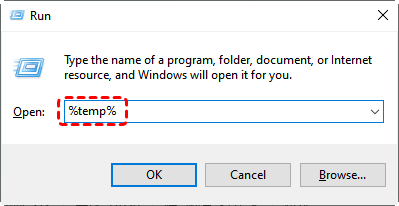
This usually opens a path like C:\Users\YourUsername\AppData\Local\Temp. This is a primary location for user-specific temporary data from all sorts of applications.
Tip: The notations %TEMP% and %TMP% are system environment variables—predefined shortcuts used by Windows. While they generally point to the same folder, some older applications may reference %TMP% specifically. You can enter either variable in the Run dialog to access the directory.
User-Specific Temporary File Storage Paths
Another important temporary files folder is C:\Windows\Temp. This folder is more for system-level operations and often requires administrator permissions to modify. It’s another key location to check when investigating where temporary files are located in Windows 10.
Between these two main directories, you’ve covered most of the temporary files in the C:\Users\YourUsername\AppData\Local\Temp folder and the C:\Windows\Temp folder. However, many individual applications also maintain dedicated temporary folders, which we will explore next.
Find Temporary Files for Microsoft Office
Microsoft Office, in particular, likes to do things its own way. Knowing where it stores files helps you a lot when it crashes.
Where Are Excel Temp Files Stored in Windows 10/11?
Excel often stores its auto-recovery temporary files in a hidden folder. Typically, you can find them by navigating to C:\Users\YourUsername\AppData\Roaming\Microsoft\Excel\. Look for files with cryptic names or the .xar (Excel AutoRecover) extension. It helps you to find the Excel temp files quickly in Windows 10.
If Excel closes unexpectedly, the unsaved Excel workbooks will be stored in: C:\Users\YourUsername\AppData\Local\Microsoft\Office\UnsavedFiles.
Recover Unsaved Excel Workbooks from Temp Data
You can try to recover unsaved Excel workbooks from temp data:
1. Open Excel, and go to File > Open > Recent.
2. Scroll to the very bottom and click "Recover Unsaved Workbooks".
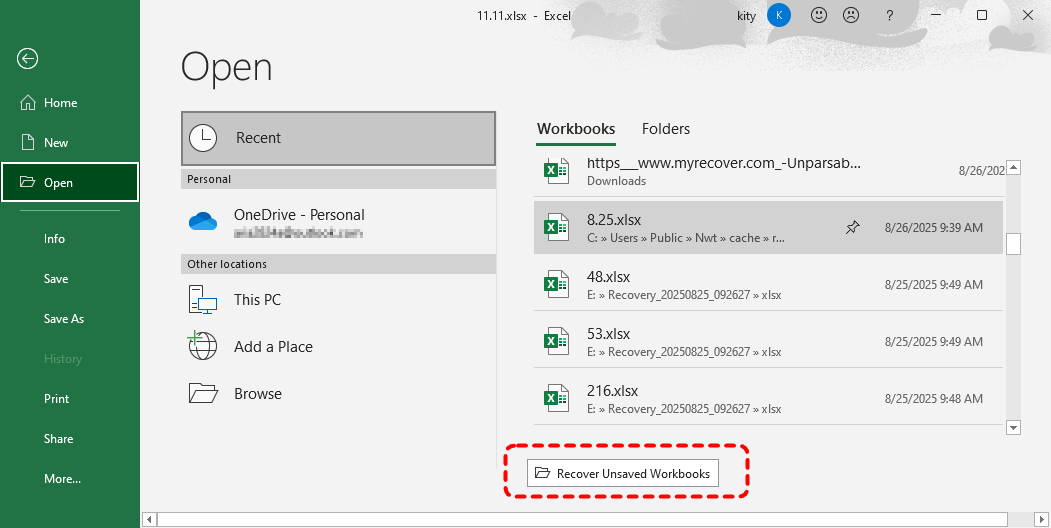
3. This magical button will take you directly to the folder mentioned above. Then choose the unsaved Excel file, click Open, and then save it safely.
Where Are Word Temp Files Stored in Windows 10/11
The Word auto-save files are often stored in C:\Users\YourUsername\AppData\Roaming\Microsoft\Word\. Once you get into the folder, look for files starting with ~$—that’s Word’s signature for a temporary document it’s holding onto.
Use Word Temp Files for Document Recovery
Just like Excel, Word has a built-in recovery pane. Upon reopening after a crash, it should appear on the left. If not, you can manually browse to the folder mentioned above, sort by "Date modified", and look for the most recent files. You might need to change the file type to "All Files" to see them and rename the extension to .docx to open them.
Other Key Locations for Temporary Data
Except for the above two temporary folders, you have to check the following locations:
- The Downloads folder! Files you’ve downloaded often sit here until you move them.
- The Recycle Bin—it stores the deleted files temporarily, but these deleted files still consume disk space.
- The C:\Windows\SoftwareDistribution\Download folder holds Windows Update leftovers, which can be safely cleared after updates are installed.
- C:\Users[YourUsername]\AppData\Local\Microsoft\Windows\INetCache, this folder stores the cache files from Edge or Internet Explorer.
- Chrome and Firefox have their own separate folders in the AppData local directory. Chrome's cache is located at C:\Users\[Username]\AppData\Local\Google\Chrome\User Data\Default\Cache; while Firefox's temporary disk cache is found in C:\Users\YourUserName\AppData\Local\Mozilla\Firefox\Profiles\xxxxxxxx.default\cache.
How to Delete Temporary Files Windows 10/11Safely
There are different ways to delete temporary files safely. Check them now:
Way 1. Use the Built-in Disk Cleanup Utility
This is the safest solution to delete temporary files.
1. Search for "Disk Cleanup", run it.
2. Choose your C: drive. It will calculate what can be removed.
3. Then check the boxes before "Temporary files", "Temporary Internet Files", "Recycle Bin", "Thumbnails", and "Previous Windows Installations" (if present), and hit OK.
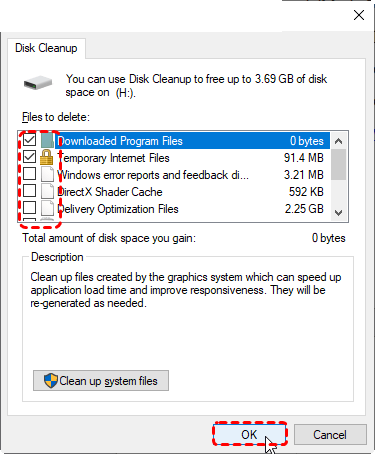
4. It will prompt you to delete these temporary files permanently. Please hit Delete Files to confirm.
Tip: For a deeper clean, click "Clean up system files" and go through the process again.
This tool is the safest and most effective way to delete temporary files in Windows 10.
Way 2. Manually Delete Files from Temp Folders
You can manually clean the %TEMP% and C:\Windows\Temp folders.
1. Open them, select all (Ctrl+A), and hit Delete.
2. Windows will prompt you that some files are in use—just skip those.
This manual process is more thorough, finding temporary files that Disk Cleanup does not.
Way 3. Automatically Delete Temp Fileswith Storage Sense
Windows provides a built-in feature, called Storage Sense, which can help you to remove temporary files easily.
1. Go to Start > Settings > System > Storage.
2. Turn on "Storage Sense".
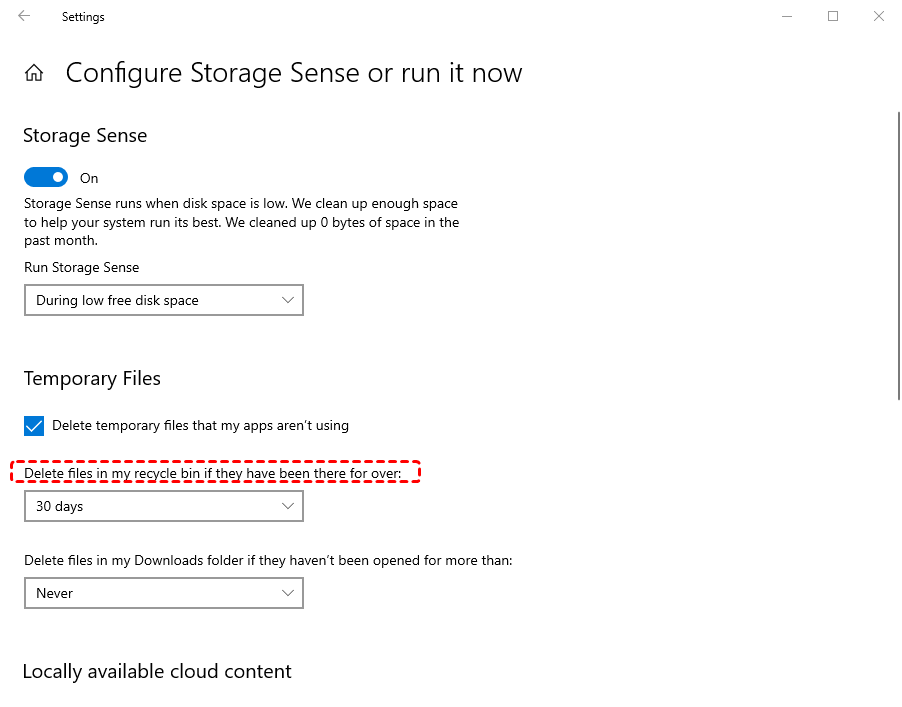
3. You can configure it to automatically delete temporary files and empty the Recycle Bin every day, week, or month. Configure it once for automatic, effortless storage management.
Easily Recover Lost Files with MyRecover
Now, you might have deleted the temporary files or other files in Downloads, or the Recycle Bin, to free up space. However, how to recover deleted files if you deleted them by accident? First, check your Recycle Bin. If the deleted files are not in the Recycle Bin, you have to turn to a Windows data recovery software, MyRecover, for help.
When Windows deletes a file, it doesn’t immediately erase the data; it just marks the space as available for new data. That’s why you can recover deleted files using the right tool.
With MyRecover, you can enjoy the following strengths:
- Deep Scanning Technology: MyRecover employs advanced scanning algorithms to dig deep into your storage drives, recovering every possible file.
- Broad File Format Support. It supports more than a thousand file types, including documents, photos, videos, emails, and archives, etc, and supports NTFS, FAT32, exFAT, and ReFS drives.
- Intuitive, User-Friendly Interface. You can directly recover files even for a novice.
- Preview Before Recovery. This ensures you recover exactly what you need, saving time and avoiding the restoration of unnecessary data.
- Maintains Original File Structure and Names. MyRecover strives to recover files with their original folder structures, filenames, and formats intact, significantly simplifying the task of reorganizing your recovered data.
So, how to recover deleted files with MyRecover ona Windows 11 or 10 computer? Here is how:
1. Download and install MyRecover. Do not install it on the same drive (like your C: drive) where you lost the files.
 100% Secure
2. Open MyRecover, tap Deleted Files Recovery, choose your drive where the deleted files were located, and hit Scan.

3. Wait patiently to complete, and hit OK to confirm. You can also try a deep scan if needed.
4. Preview and choose the files you need, and hit Recover. Opt for a destination to keep them safe.


- Notes:✎...
- By default, MyRecover scans files in a quick mode to find recently deleted files. Or you can try a deep scan, which costs much more time to scan sector by sector and finds more files.
- Besides, if you need to recover files from unlimited computers, please upgrade to MyRecover Technician.
- You can also recover files from a crashed computer, recover unlimited files, recover files from a corrupted SD card, a write-protected disk, etc.

 MyRecover
- Recover Deleted Files Easily with Simple Clicks
- 1000+ File Formats Supported
- Support HDD, SSD, External Hard Drive, USB Drive, SD Card, etc.
- Quickly Find Files Using File Types, Name, Size, etc.
- Preview Files Before Recovering
- Recover Unlimited Data
 100% Secure
FAQs About Temporary Files
Q: I can't find the AppData folder. What do I do?
A: It's hidden by default. In File Explorer, go to the View tab and check "Hidden items." It will then appear in your user directory (C:\Users\[YourName]\AppData).
Q: Is it safe to delete everything in my Temp folders?
A: Generally, yes—but first close all running applications. For safety, use Windows Disk Cleanup, which automatically skips files in use.
Q: How often should I clean my temporary files?
A: For most users, once a month is sufficient. If you install/uninstall frequently or handle large files, consider cleaning every few weeks.
Q: Can temporary files contain viruses?
A: Yes. Malware can hide in or use temp folders. Regular cleaning helps remove harmful components, and scanning these folders with antivirus software is wise.
Q: How can I open a recovered .tmp file?
A: First, make a copy. Try renaming its extension (e.g., to .docx or .jpg) and open it with the relevant program. If that fails, use Notepad or a recovery tool like MyRecover to inspect the contents.
Q: Why does my disk space keep filling up after deleting temp files?
A: Temp files are only one source. Check other areas like system restore points, downloads, the recycle bin, installed apps, and system leftovers via Settings > System > Storage for a full breakdown.

Stay Updated With Our
Latest Tips
Add us as a preferred source on Google to never miss helpful guides.
 Add as preferred source >>