 MyRecover



How to Find Missing Word Document on Windows & Mac
Discover step-by-step solutions for how to find missing Word document. We cover system searches, Word's Document Recovery pane, and manual temp file checks. Finally, learn how to recover Word document that disappeared using reliable data recovery tools for permanently deleted files.

By Delores / Updated on January 4, 2026


Preface
Whether it’s a critical report, a cherished personal project, or hours of meticulous research, losing a Word file can feel like a minor catastrophe. This immediate, practical guide is dedicated to answering the urgent question: how to find missing Word documents?

In nearly all cases, that document is still somewhere on your machine or in the cloud, waiting to be found. The key is knowing where—and how—to look. This isn't just about a simple search; it's about understanding the clever, built-in safety nets Microsoft and your operating system have created for exactly this moment. We'll walk you through everything, from basic searches to advanced recovery, ensuring you're equipped to solve this frustrating puzzle.
Why Do Your Word Documents Go Missing?
A document rarely just "disappears"; there's usually a logical, if annoying, reason.
- The most common culprit is simply saving to an unexpected location. In a hurry, you might have clicked "Save As" and chosen the Downloads folder, a temporary desktop, or a different drive without realizing it.
- Another frequent issue is accidental deletion—a quick drag to the Recycle Bin or Trash, or a misdirected keyboard shortcut.
- Software glitches are also a prime suspect. Word can occasionally crash during an AutoSave, or a system update might temporarily disrupt file paths. Even syncing errors with cloud services like OneDrive can make a file seem to vanish when it's merely stuck in a conflict state.
Understanding these common scenarios demystifies the problem and directs you to the most effective solution for how to find lost Word documents.
How to Find a Lost Word Document on My Computer
When you need to figure out how to find a lost Word document on my computer, your operating system’s native search tools are your first and most powerful allies. Don't just rely on the simple search bar; you need to get tactical.
Part 1. How to Find Missing Word Documents on Windows PCs
Way 1. Use Windows Search Effectively
On Windows, the search function built into File Explorer is more powerful than most people realize. Don't just type the filename. If you remember any unique phrase from inside the document, use the search box in the top-right corner of File Explorer, navigate to your primary drive (like C:), and type ext:docx "your unique phrase".
The ext:docx part limits results to Word files, and the quotation marks search for that exact phrase.
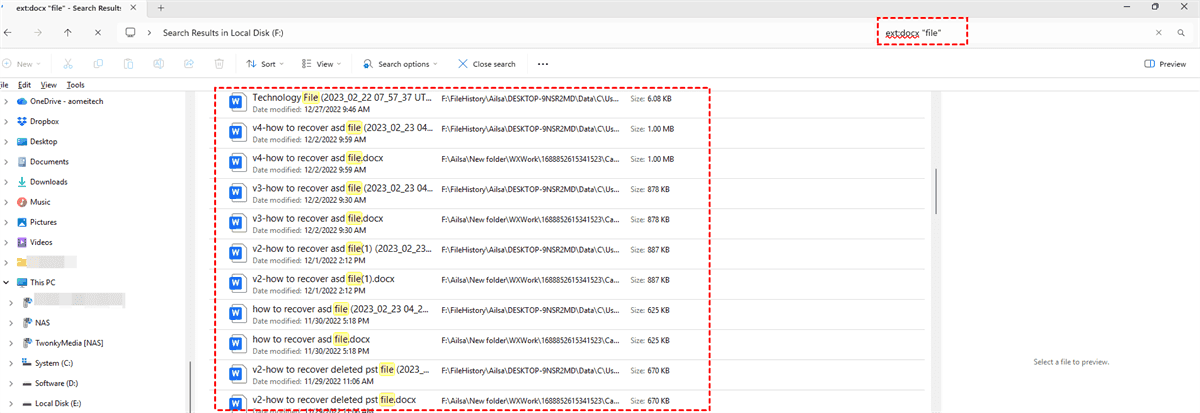
You can also use the search filters. Click the search box to reveal the "Search Tools" tab, then use "Date modified" to narrow down to when you last worked on it.
If you're truly drawing a blank on the name, try searching for *.docx or *.doc in a likely folder to list all Word documents, then sort by "Date modified" to find the most recent ones.
However, Windows File Explorer search is very slow when specifying the file name or the exact phrase. You can try third-party search software, such as Everything, to find them quickly (in just a few seconds).
Way 2. Check Windows Temporary Files
Windows creates temporary (.tmp) files during the editing process. These can sometimes be recovered.
1. On Windows, press Win + R, type %temp%, and press Enter. This opens the Temp folder.
2. You can sort by "Date modified" and look for files with .tmp or .asd (Word's AutoRecover backup) extensions from the relevant time.
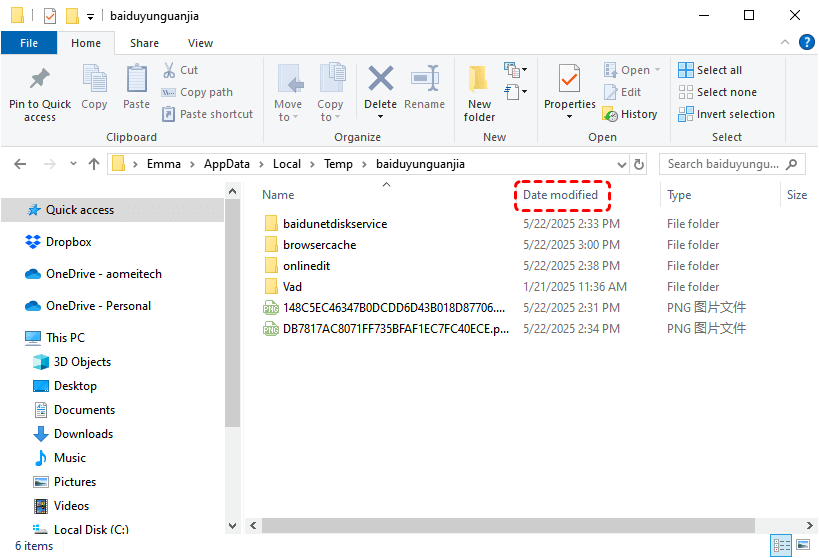
3. Be cautious, as you'll need to copy these files to another location and try changing the extension to .docx to open them.
Part 2. How to Find a Missing Word Document on Mac
Way 1. Try macOS Spotlight for Document Recovery
For Mac users, Spotlight (Command + Space) is incredibly efficient. Type a fragment of the document's name or content. Immediately use the keyboard arrows to scroll down to "DOCUMENT" results.
You can also use specific search operators. In a Finder window, press Command + F to open a detailed search. Click the "+" button to add search criteria. Set the first filter to "Kind" is "Document", and add a second filter for "Last opened date" is within a certain range. This will dramatically refine the list, making it much easier to spot your file.
Way 2. Check Temporary Files on Mac
On Mac, temporary files are often in /private/var/folders/, but this is a more complex, hidden directory. For most users, the "Recover Unsaved Documents" method within Word is a safer and more reliable way to access these temp files.
How to Find a Lost Document in Microsoft Word?
Sometimes, the answer to how to find a lost document in Microsoft Word lies within the application itself. Microsoft has integrated several recovery features designed specifically for crashes and unexpected closures.
Way 1. Try the Document Recovery Pane
This is your first stop after a crash or force quit. Upon reopening Word, look immediately to the left-hand side of the window.
A "Document Recovery" pane should automatically appear if Word detected unsaved changes during the interruption.
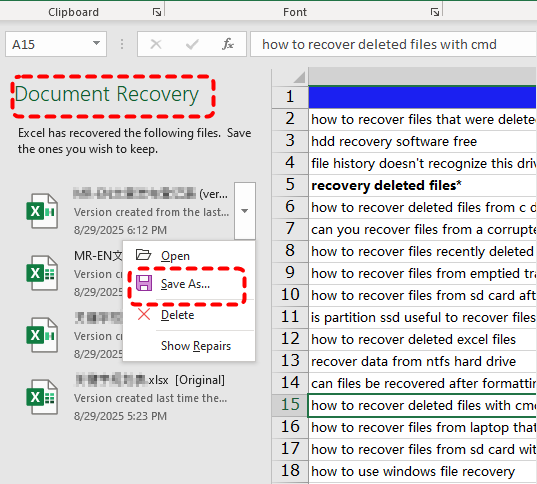
It will list "Recovered" versions of files. Don't just open the top one—click the dropdown arrow next to each file name and select "Save As" to permanently save the most complete version to a secure location you’ll remember.
This pane is a silent guardian, but it only hangs around until you close it, so address it immediately.
Way 2. Use Word's AutoRecover and AutoSave Features
These are two different features, but they are helpful. AutoRecover is a background feature that periodically saves a temporary copy of open documents at a set interval (you can check this in File > Options > Save).
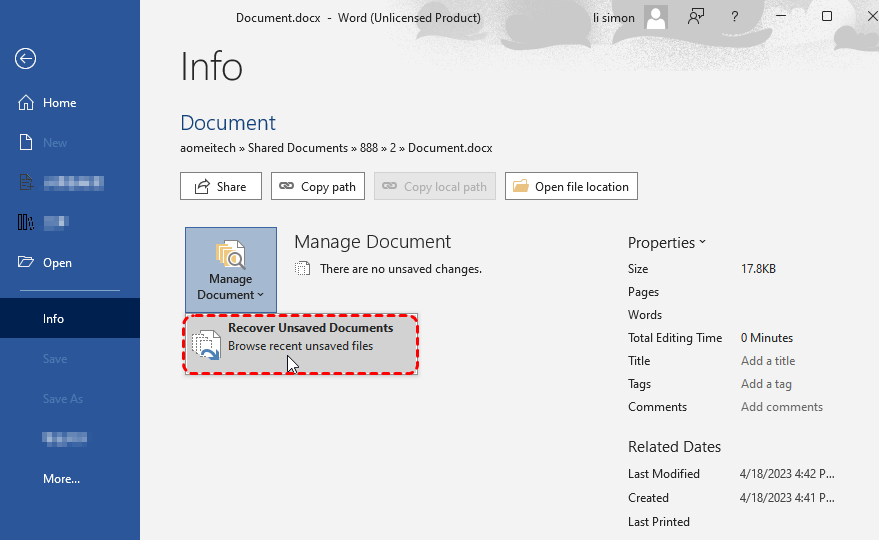
To manually hunt for these backups, you can navigate to the folder path listed in those same Options. A quicker way is to go to File > Open > Recent Documents, and then scroll to the very bottom and click "Recover Unsaved Documents". This opens the hidden folder where Word stashes these drafts.
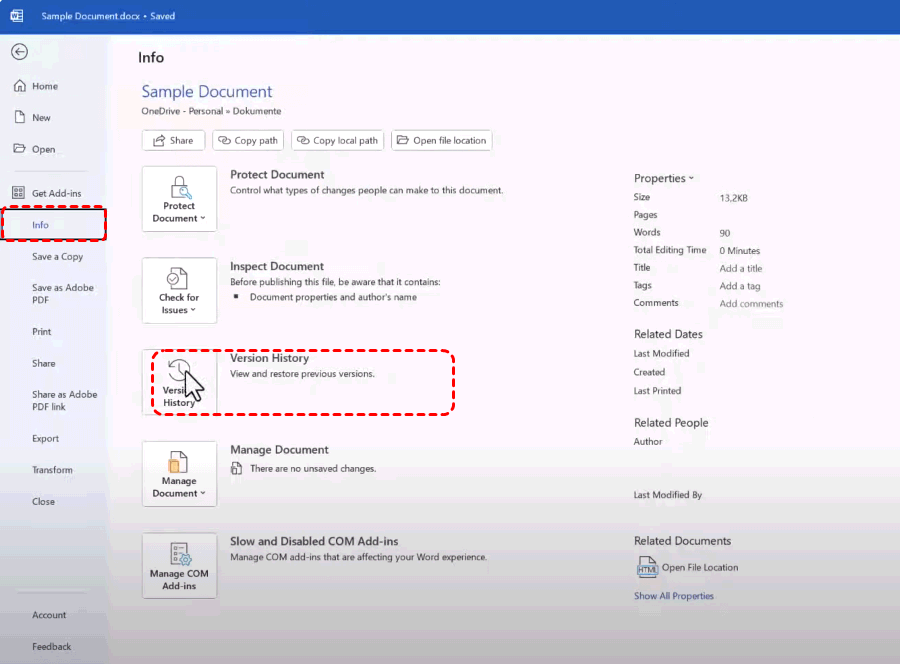
Meanwhile, AutoSave is the constant, seamless saving you see with files stored on OneDrive or SharePoint. If a file saved there seems to have reverted, click File > Info > Version History. You can browse through a timeline of saved versions and restore an older one with a click.
Recover Missing Word Documents with MyRecover
You've searched high and low, checked every recovery pane, and scoured temporary folders. If the file remains missing, it’s time to recover your lost Word documents. This is where a dedicated, trustworthy tool like MyRecover becomes essential.
MyRecover is designed to perform a deep scan of your storage drive, looking for file signatures and data remnants that the operating system has marked as deleted but which may still be physically present on the disk. It’s a powerful solution for files lost due to accidental deletion, formatting, or even system crashes where other methods have failed.
Learn how to recover a Word document that disappeared with MyRecover. Check the following steps:
1. Download and install MyRecover onto a different drive than the one you're recovering from, if possible. This prevents overwriting data.
 100% Secure
2. Launch MyRecover. Tap Deleted Files Recovery, choose the drive where your missing Word document was last located, and click Scan.

3. MyRecover scans missing files and hits OK when it’s done.
4. Preview and select the Word documents you need, and click Recover.

5. Select a safe location to keep them. Then check the integrity of all recovered files.


- Tips:✎...
- MyRecover allows you to recover files from any complex situation, like recovering files from a write-protected disk, a RAW partition, an emptied recycle bin, etc.
- You can upgrade to MyRecover Technician to recover files from unlimited computers.

 MyRecover
- Recover Deleted Files Easily with Simple Clicks
- 1000+ File Formats Supported
- Support HDD, SSD, External Hard Drive, USB Drive, SD Card, etc.
- Quickly Find Files Using File Types, Name, Size, etc.
- Preview Files Before Recovering
- Recover Unlimited Data
 100% Secure
FAQs about Missing Word Document Recovery
Q: I never saved my Word document, and my computer crashed. Is it gone forever?
A: Probably not. Restart Word immediately. Check for a Document Recovery pane. If it's not there, go to File > Open > Recent Documents and click "Recover Unsaved Documents" at the bottom. Open the most recent file there and use Save As right away to secure it.
Q: Can I recover a Word document I saved over?
A: It's difficult, but try these steps in order: 1) Check Word's Version History (for OneDrive/SharePoint files). 2) Use system backups: "Previous Versions" in Windows or Time Machine on Mac. 3) As a last resort, try data recovery software like MyRecover, though success isn't guaranteed.
Q: Why can't I find my Word document even when I search for its exact name?
A: Check these common issues: You're searching in the wrong location—expand to "This PC". The file extension might be wrong (.doc instead of .docx). Your search index might need rebuilding. Finally, check the Recycle Bin in case it was deleted.
Q: How can I prevent this from happening again?
A: Enable AutoSave with OneDrive/SharePoint. Always note where you're saving files. Set AutoRecover to save every 5-10 minutes. Maintain regular system backups. Use clear, consistent file names.

Stay Updated With Our
Latest Tips
Add us as a preferred source on Google to never miss helpful guides.
 Add as preferred source >>