 MyRecover



How to Restore Files from OneDrive to PC [Windows 10/11 Tutorial]
If you've lost important files and need to restore them from OneDrive to your Windows 10/11 PC, this article provides a comprehensive guide. Follow our guide to easily restore your files and keep your data secure.

By Aria / Updated on March 16, 2026


Overview of OneDrive
OneDrive is a cloud storage service provided by Microsoft that allows users to store files and documents online, making them accessible from any device connected to the internet. Integrated with Microsoft 365, OneDrive seamlessly syncs your files across multiple devices, including Windows PCs, Macs, Android, and iOS devices. In other words, OneDrive can back up your files, allowing you to easily recover lost data and restore previous versions of files.

Whether you're dealing with accidental deletion, file corruption, or simply need to move files between devices, OneDrive offers a convenient way to restore files. It’s truly a fantastic ally for managing your files in the cloud.
How to Restore Files from OneDrive to Your PC on Windows 10/11
Log into your OneDrive account on Windows and select your preferred files to sync them to OneDrive. You can then access and manage these files online. However, some beginner users don’t know how to restore files from OneDrive to their computers when local files run into problems. This section will provide several methods to help you learn how to restore files from OneDrive to your PC.
Copy and Paste in OneDrive Folder
OneDrive comes pre-installed on Windows 10 and 11, so it acts like a regular local folder that uploads your files to the cloud automatically. That means you can copy files from the OneDrive folder and paste them anywhere you want, exactly the same way you handle other local folders. If you have files on OneDrive but need to move them back to your PC or to another folder, here's what you need to do:
Step 1. Navigate to the OneDrive folder in File Explorer on Windows 10/11.
Step 2. Select the files you wish to restore to your PC and right click on them, then click "Copy" (or press "Ctrl" + "C").

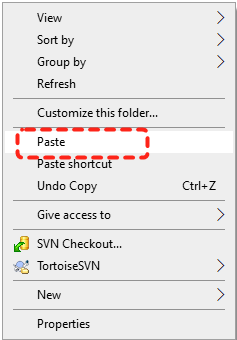
Step 3. Choose the desired location on your PC and right click on the blank space, then click "Paste" (or press "Ctrl" + "V").
Download Files to PC
Moreover, if you want to restore files from OneDrive to your PC, direct downloading from the cloud constitutes an additional straightforward approach. This method works especially well if the files are already synced to your cloud storage, but not on your PC. Here's how to do it:
Step 1. Sign in OneDrive with your account.
Step 2. Locate the files or folders you want to restore.
Step 3. Right-click on the file or folder and select "Download" to restore it to your local PC storage. You can then navigate directly to the Download folder on your PC to access the target file.

Restore from Recycle Bin
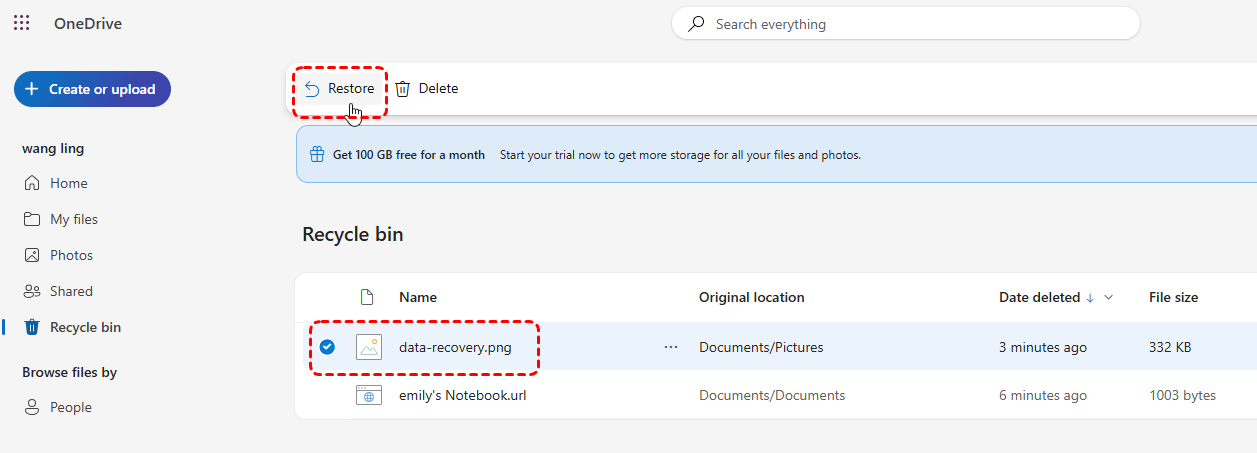
Even if you’ve accidentally deleted files from your local computer, you can still restore them from OneDrive. OneDrive has a Recycle Bin where deleted files (including permanently deleted) are temporarily stored for 30 days, making it possible to restore them.
Step 1. Sign in to OneDrive with your account.
Step 2. Locate the Recycle bin section in the left sidebar.
Step 3. Choose the files you wish to recover from the deleted items and click "Restore" in the right upper corner.
How to Recover Lost Files Without OneDrive Backup
If you've lost important files and don't have a OneDrive backup, it can be a stressful situation. However, there are also several ways to recover your lost data, even without OneDrive backup. In this section, we'll explore two professional data recovery tool to help you recover files without backup. Let's explore the detailed steps.
Restore from Windows File Recovery
If deleted files sit in the OneDrive Recycle Bin for more than 30 days (for Microsoft account), they’ll be permanently deleted. In such cases, is it still possible to recover them? Absolutely! Windows File Recovery is specifically designed to get back permanently deleted files from your Windows storage (like your hard drive). It is important to note that its compatibility is limited to Windows 10 and 11.
Step 1. Download and install Windows File Recovery on your computer from Microsoft official website.
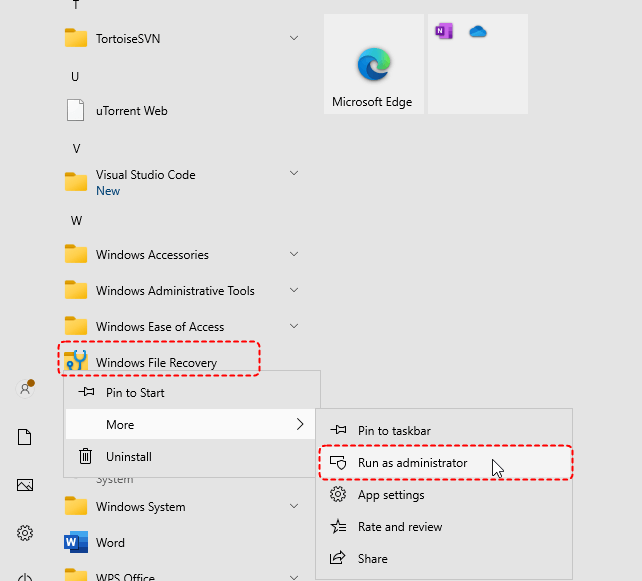
Step 2. Run Windows File Recovery as administrator.
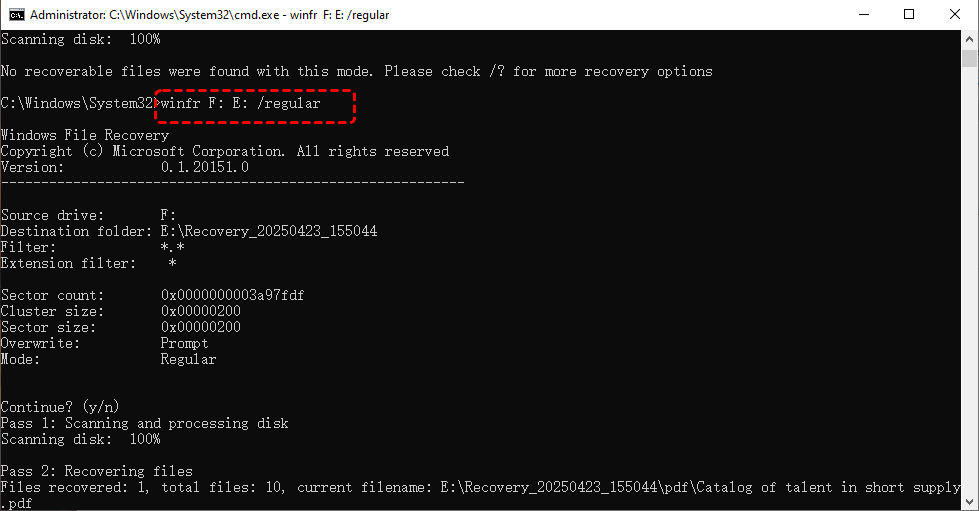
Step 3. Enter the following command "winfr F: E: /regular" and press "Enter" key. Replace the drive letters "F" and "E" with your actual drive letters.
- Notes:✎...
- F: the source drive letter.
- E: the destination drive letter.
- Regular: the quick scan mode.
When the process is completed, you can access the recovered files by pressing "y".
Restore Lost Files with MyRecover
While Windows File Recovery is an effective data recovery tool, it is not very user-friendly for beginner users. Even a minor error such as a spelling mistake can lead to data recovery failure and error prompts. If you are looking for a more user-friendly data recovery tool, MyRecover will be a powerful alternative.
It adopts a visual interface, enabling novice users to perform data recovery without investing time in acquiring professional command-line expertise. MyRecover further supports more than 500 storage device types, encompassing data recovery from USB flash drives, SD cards, digital cameras, camera memory cards, and additional storage media.
Step 1. Download and install MyRecover on your computer from Microsoft Store, avoid installing it on the drive with lost files.
Step 2. Launch the app and select the drive to scan for lost files, then click "Scan".

Step 3. After the scan is finished, choose the files you want to recover from the recoverable lists and click "Recover".

MyRecover Free offers up to 500MB of data recovery at no charge, perfect for small recoveries. If you're looking for unlimited recovery, real-time file previews, and the capability to recover data from a system that won’t boot, MyRecover Professional edirion gives you everything you need to ensure your data is safe.
Step 4. Save the recovered files to a safe location.

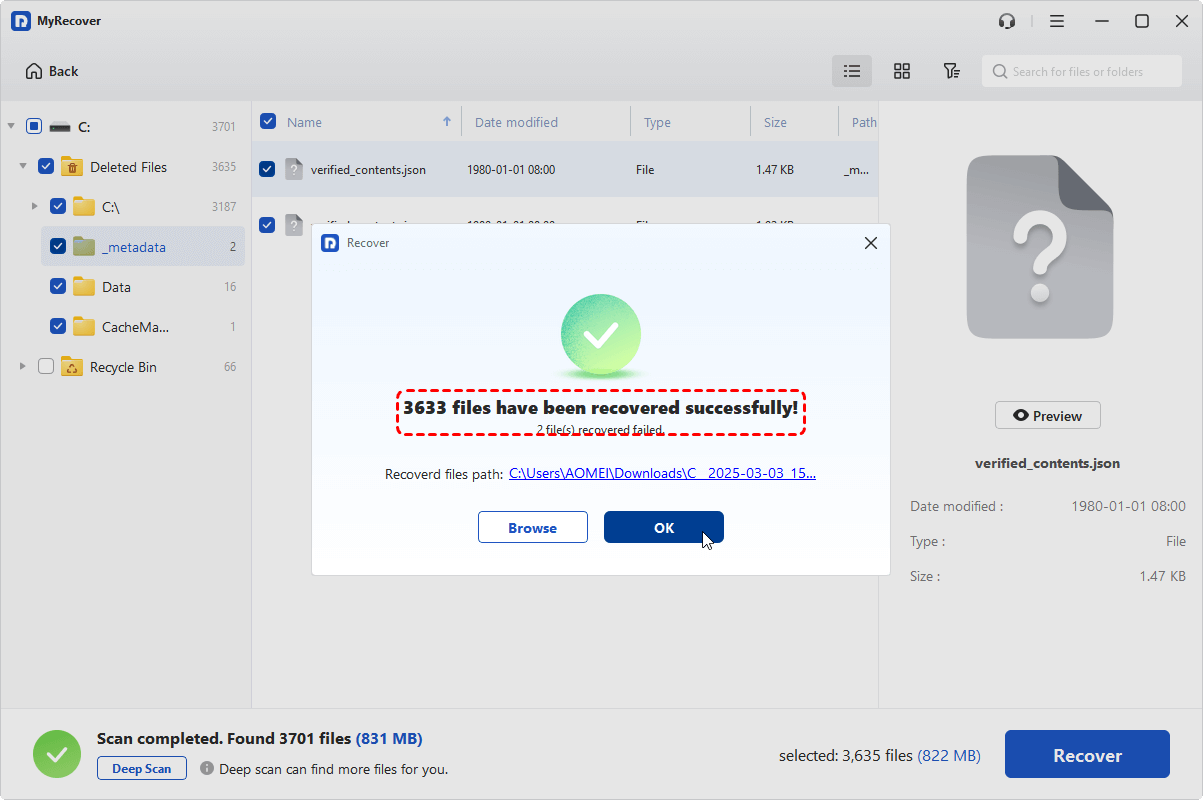
When the process is done, you'll see the message "Files have been recovered successfully". Then, you can view the recovered files in the destination folder by clicking on "Browse" button.
Conclusion
Knowing how to restore files from OneDrive to your PC is essential for anyone using cloud storage. With options to download files, restore from the Recycle Bin, recover previous versions, or use Windows File Recovery and MyRecover, you have multiple ways to ensure that your data is safe.
Whether you're working on Windows 11, 10, 8, 7 or Server, MyRecover provides a comprehensive solution for data recovery, giving you peace of mind knowing that your files can be restored, even if you've accidentally deleted or lost them.
FAQs:
Q1: How do I move files from OneDrive back to my desktop?
Open the OneDrive folder in File Explorer and locate the files you want to move. Select the files, then drag and drop them to your Desktop folder, or use "Cut and Paste". This moves the files from OneDrive storage to a local location on your PC so they remain available offline. Moreover, you can also download the files you want from online.
Q2: How do I download everything from OneDrive to my PC?
Sign in to OneDrive.com, select the files or folders you want, and click "Download" to save them to your computer. Alternatively, install the OneDrive desktop app, sign in, and enable folder synchronization. This will automatically download and sync your OneDrive files to a local folder on your PC.
Q3: Are files permanently deleted from OneDrive?
When you delete files in OneDrive, they are first moved to the OneDrive Recycle Bin rather than permanently removed. They usually remain there for up to 30 days, allowing you to restore them if needed. After that period or if the recycle bin is emptied, the files may be permanently deleted.
Q4: Does OneDrive have a restore feature?
Yes, OneDrive provides a restore feature. You can restore individual files from the Recycle Bin, or use the OneDrive Restore option to roll back your entire storage to an earlier point in time. This feature is useful if files were accidentally deleted, modified, or affected by malware or ransomware.

Stay Updated With Our
Latest Tips
Add us as a preferred source on Google to never miss helpful guides.
 Add as preferred source >>