 MyRecover



How to Recover Files from Laptop That Won't Boot | Easy Steps
Having trouble with a laptop that won’t boot? Discover how to recover important files from a laptop that won’t turn on or has a non-booting hard drive. We cover step-by-step solutions to help you retrieve your data from a PC that isn’t starting up.

By Aria / Updated on July 31, 2026


Is it possible to retrieve data from a dead laptop?
“My Asus UX430UA laptop has had booting issues for a couple of years, but I could usually get it working by pressing the power button multiple times. Yesterday, however, I couldn’t boot it and encountered a blue screen with error code 0xc0000185. As a result, I lost access to my important data, which is causing me a lot of concern.So, is it possible to recover files from laptop that won’t boot? Thanks a lot!”
If your laptop won’t boot, you might be in the same situation, unsure how to recover your valuable files without causing further damage. In this article, we’ll explore how to recover files from a laptop that won’t boot, even if you’re dealing with errors like 0xc0000185 or others.

Possible Causes of Laptop Not Turning On or Booting
When your laptop refuses to turn on or boot up, it can be due to a variety of reasons. The issue could stem from hardware failure, software corruption, or other underlying problems. Here are some of the most common causes:
1. Power Supply Issues: A dead battery or faulty charger may prevent your laptop from powering on.
2.Overheating: Frequent overheating can cause the laptop to shut down and fail to start until cooled.
3. Hard Drive Issues: A damaged or corrupted hard drive can stop the laptop from booting.
4. BIOS/UEFI Problems: Corrupted BIOS settings or incorrect boot order can prevent the laptop from starting.
5. Software or OS Corruption: Corrupted system files or a failed update can stop the operating system from booting.
6. Faulty RAM: Defective or improperly seated RAM can prevent the laptop from booting.
7. Motherboard Failure: A damaged motherboard can result in a complete boot failure.
8. External Device Interference: Connected peripherals may cause boot issues; disconnecting them can resolve this.
9.Virus or Malware: Malware can corrupt essential files, preventing the operating system from loading.

How to Recover Files from Laptop That Won’t Boot with MyRecover
If your laptop isn’t booting, it’s understandable to be concerned about your important data. Whether you're facing errors like 0xc0000185 or other issues, there’s a way to recover your files without risking further damage. One of the most effective methods to recover data from a laptop that won't boot is using a reliable data recovery tool like MyRecover Professional.
Whether your laptop is showing a blue screen, giving error codes, or simply won’t turn on, MyRecover offers a straightforward solution for file recovery from a laptop hard drive that won’t boot. It allows you to create a bootable media to boot up your PC and then perform data recovery on various types of storage devices, including internal and external hard drives, USB drives,SD cards and more.
Basic Steps to Recover Files from PC that Won’t Boot
To boot your computer first and then recover files from the dead laptop, first of all, we need to create a bootable media using MyRecover.
Step 1. Insert an external hard drive ( e.g. USB flash drive) into a working computer. Download, install and launch MyRecover.
- ★Tip:
- The USB flash drive will be used to make a bootable disk and all data on it will be erased, so make a backup in advance if necessary.
Step 2. Click on "PC Crashed Recovery". Select your USB device under the "USB Boot Device" list.
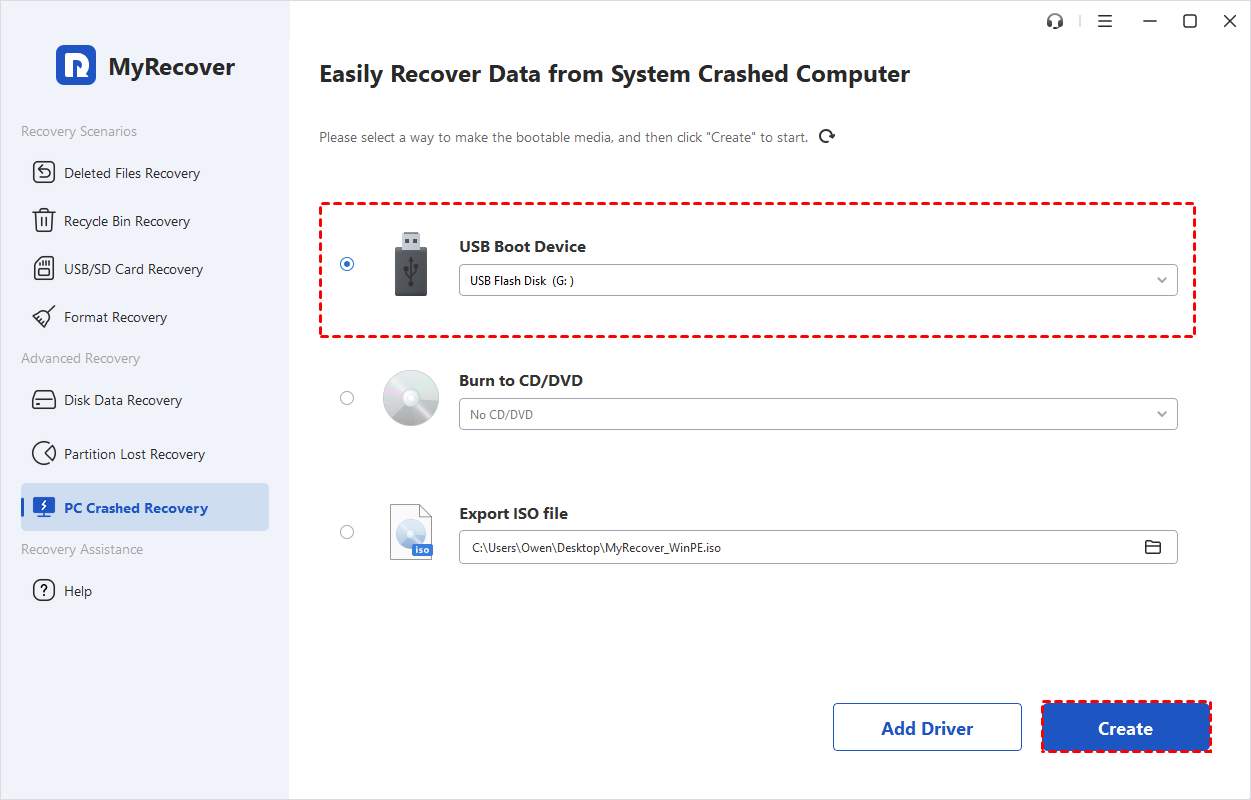
Step 3. Select a way to create the WinPE bootable disk according to your needs and click "Create". Here we take a USB Boot Device for example.
- USB Boot Device: To create a bootable USB Device.
- Export ISO File: Use this method to make a bootable ISO file. After the ISO is exported, you need to burn it with a third-party burning program. Or, you can use the ISO to boot some virtual machines or burn it to other devices.
- Burn to CD/DVD: To create a bootable CD/DVD.
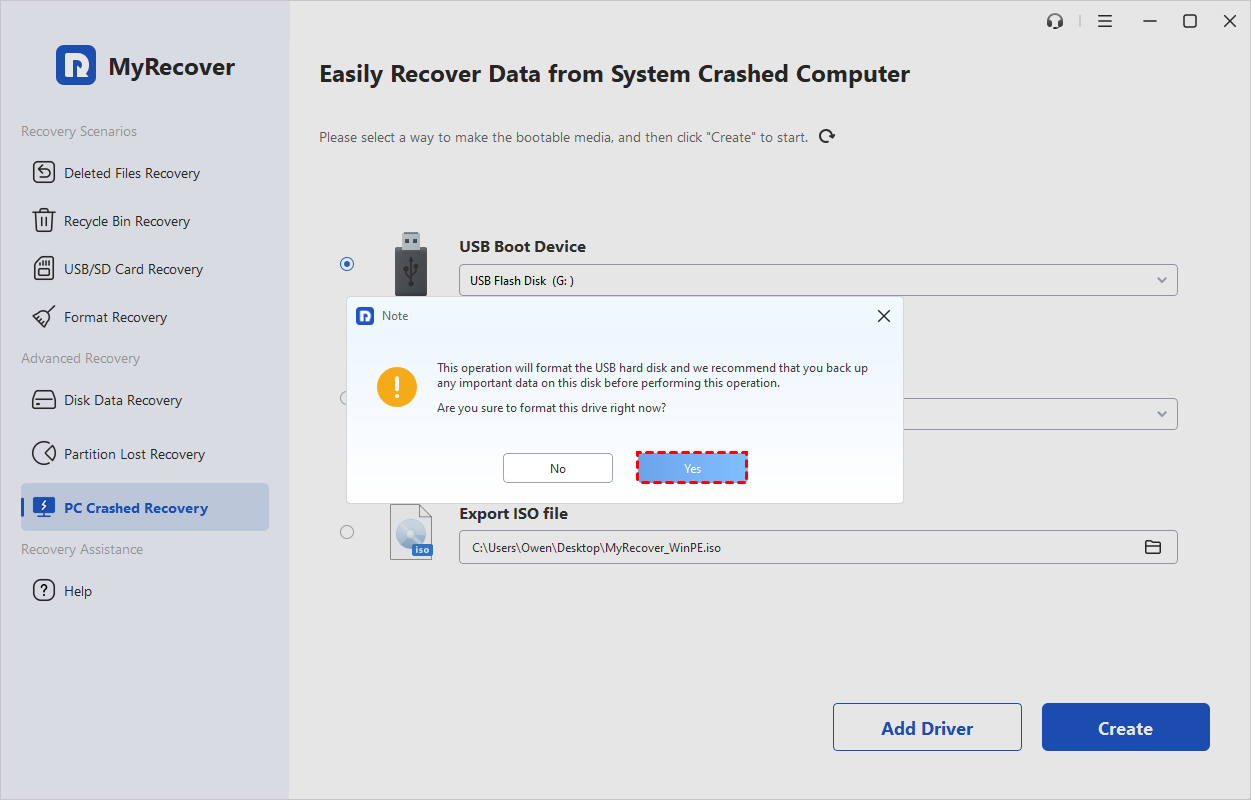
Step 4. An information window will appear, notifying you that the USB flash drive needs to be formatted and that all data on it will be erased. If you wish to proceed, click "Yes" to continue.
Step 5.The creation operation will start and take a few minutes.
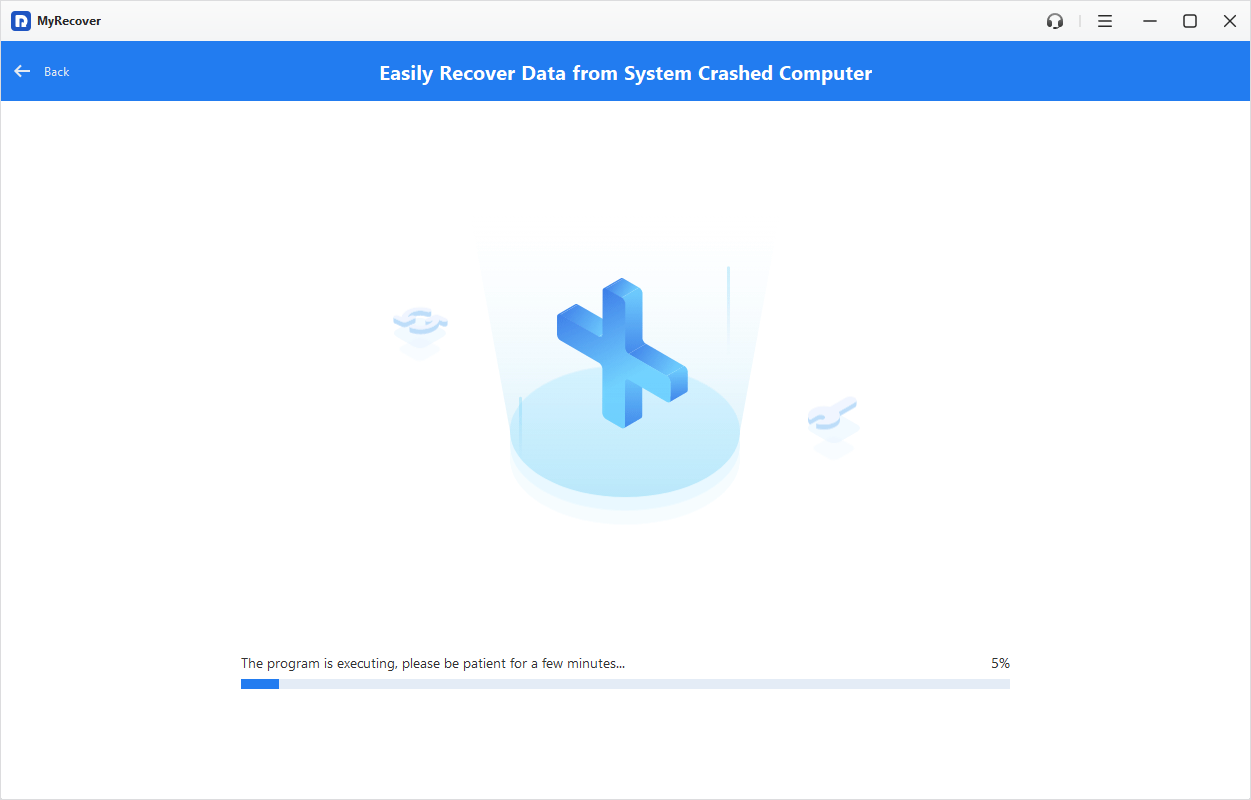
Once it is finished, you can will get a successful message. And, you will get a notice of steps to boot from the bootable disk and then recover from crashed PC.
Step 6. Insert the bootable USB into the laptop that won't start up and enter BIOS/UEFI by press F2, F10 or Esc (depends on your laptop brand). Boot the crashed PC from the bootable disk by changing the boot order.
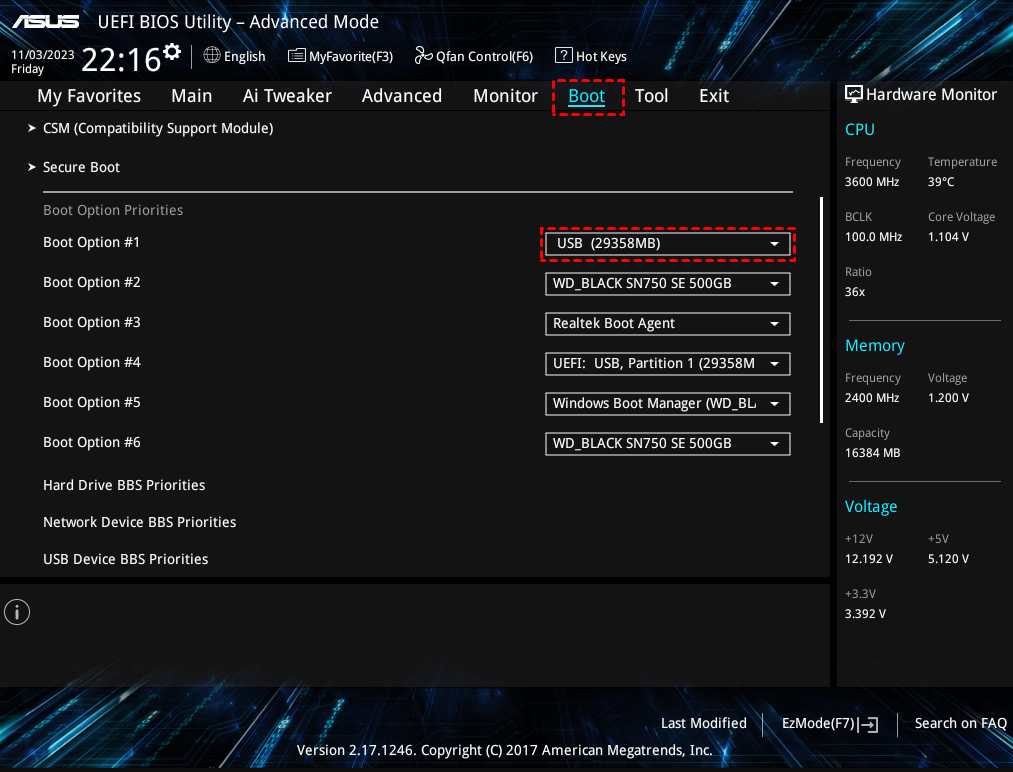
Step 7. After you boot the PC from the bootable disk, you will enter the main interface of MyRecover.
Step 8. Select the drive which contains the lost data and click on "Scan" to start a quick scan to search for lost or inaccessible files.
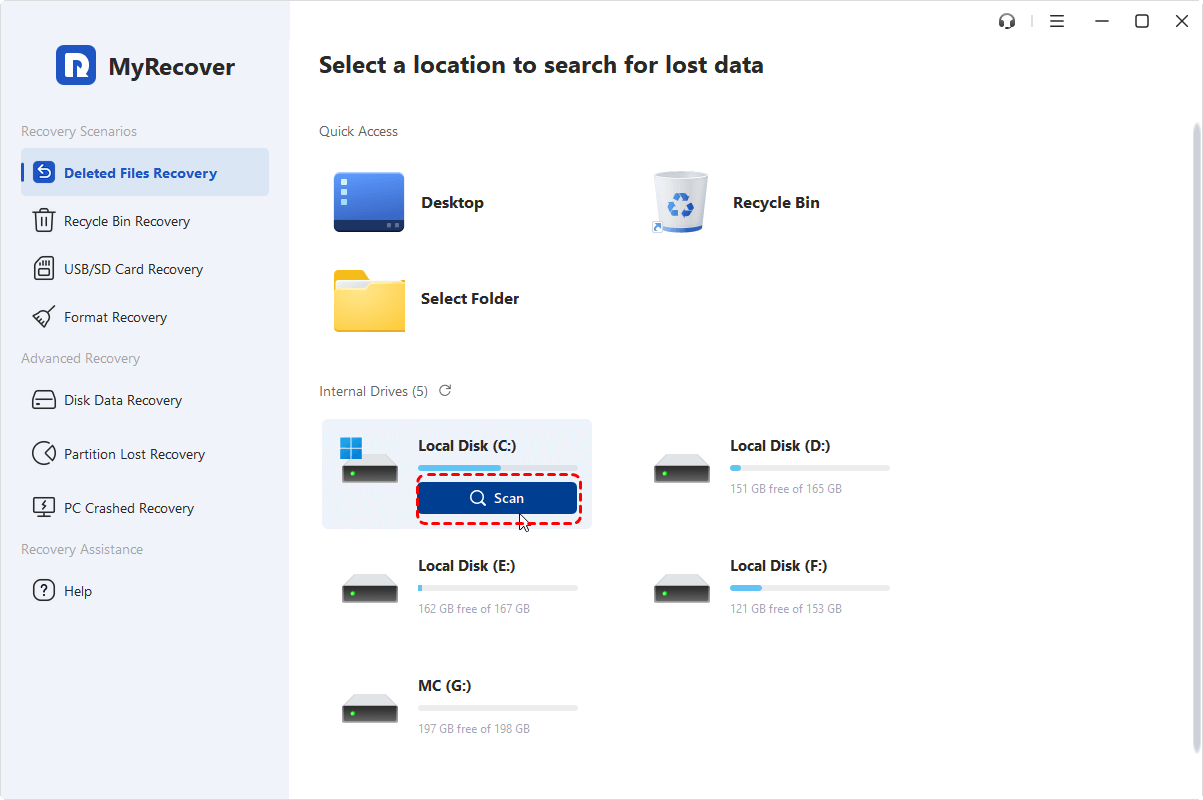
Step 9. If the quick scan did not search the lost files you want to recover from the dead laptop hard drive, you can choose a "Deep Scan" for a more thorough search.
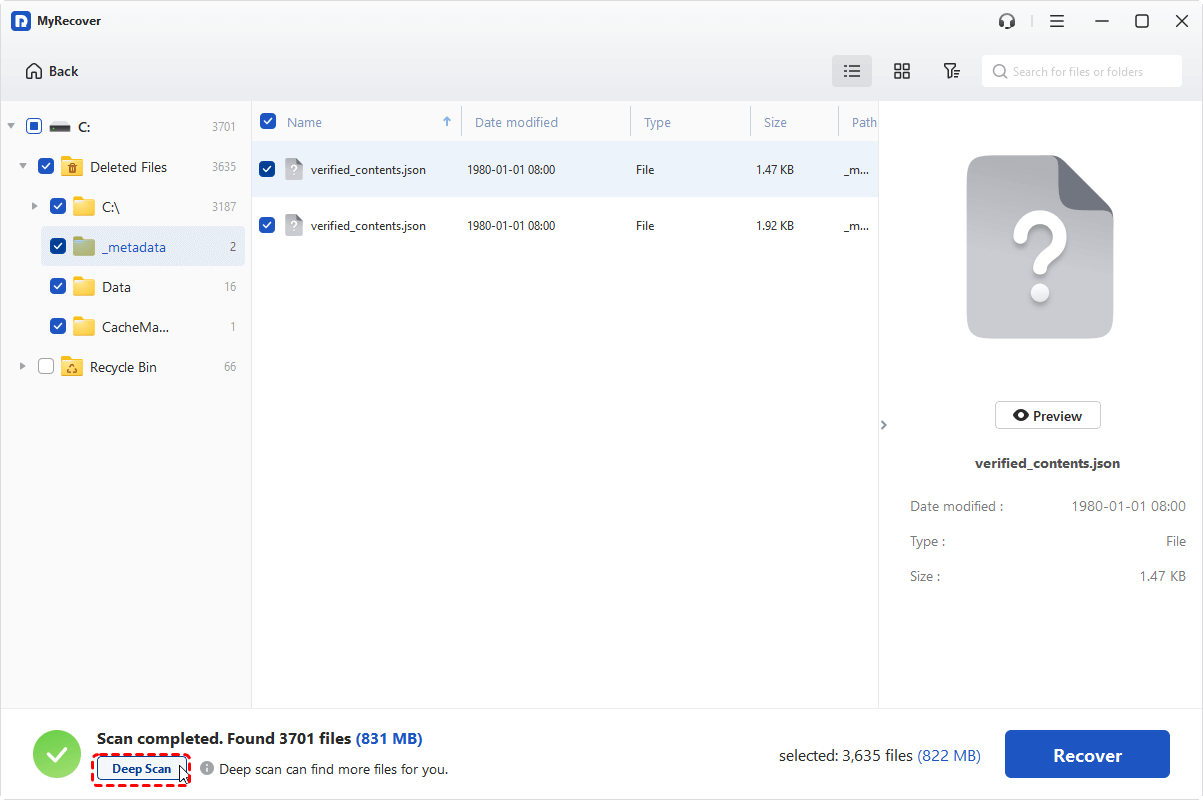
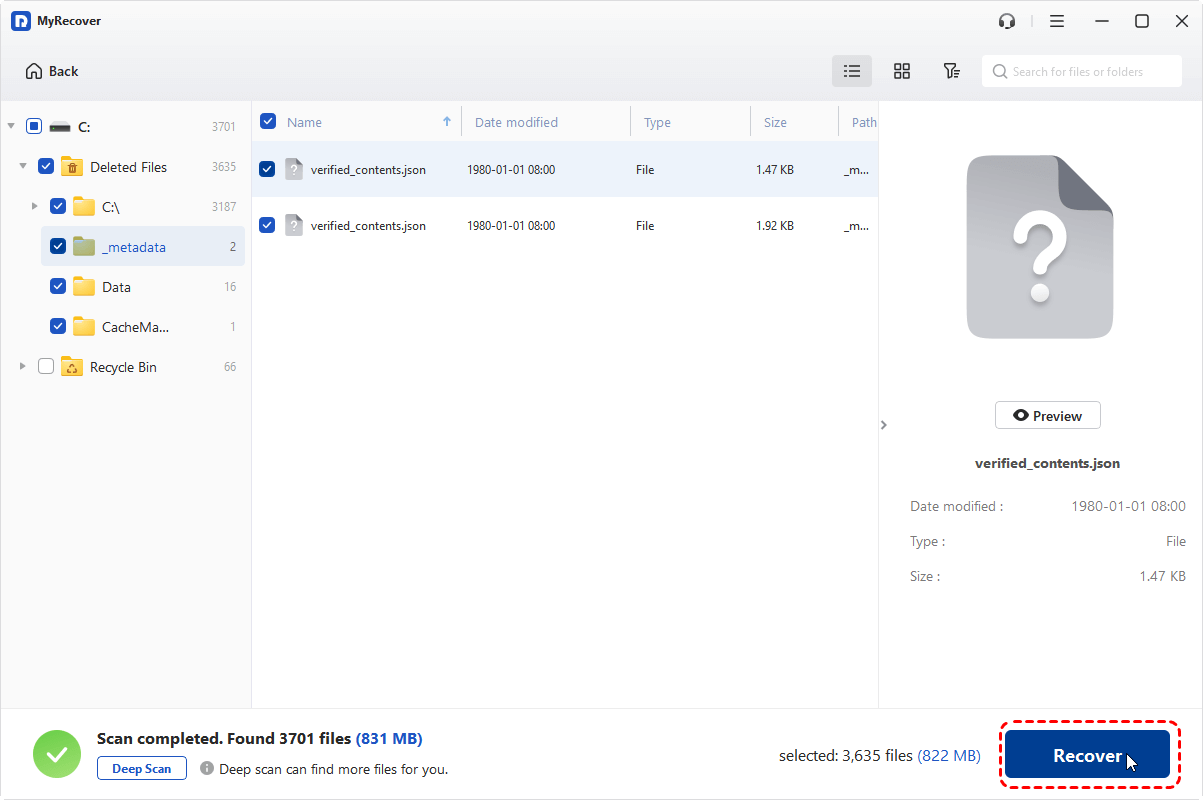
Step 10. After the scan is complete, MyRecover will show a list of recoverable files. You can preview them to ensure they are the correct files. Once you’ve selected the files you need, click “Recover” to save them to your new location.
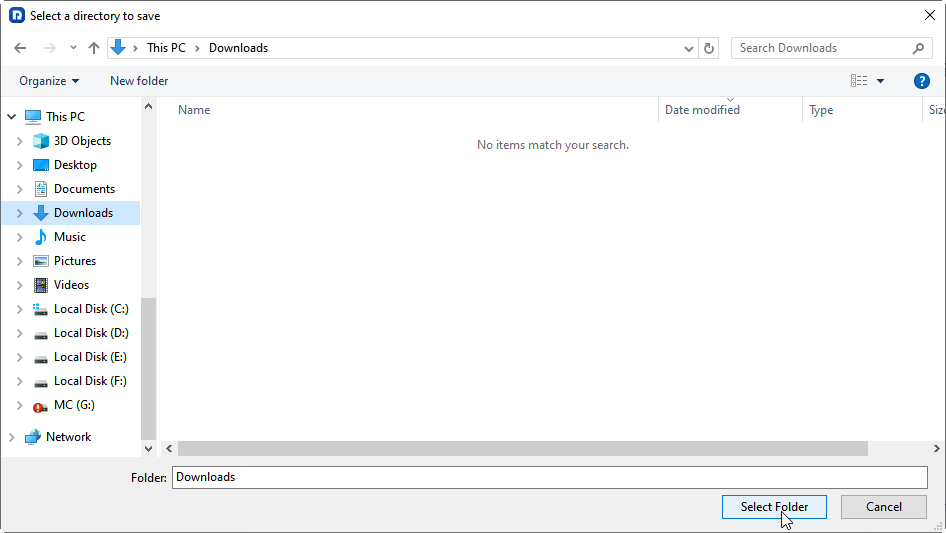
Step 11. Choose a safe location to save recovered files. It is advised to select a different storage device (such as another external hard drive or a different internal drive) to avoid overwriting any existing data.
Alternatively, you can remove the laptop from the dead computer, connect it to a working PC and perform the data recovery with MyRecover.
Other Ways You Can Try to Recover Files from a Laptop That Won’t Turn on
If creating a bootable recovery disk using MyRecover isn't the right option for you, there are still several other ways to recover files from a laptop that won't boot. Depending on whether the hard drive is still healthy or the damage is hardware-related, one of the following methods may help you access your important data.
Method 1. Remove the Drive and Connect It to Another Computer
If the laptop itself won't boot but the internal SSD or HDD is still working properly, removing the drive is one of the most reliable ways to recover your files. Once connected to another computer through a SATA-to-USB adapter or external drive enclosure, the drive can be accessed just like any external storage device.
Step 1. Power off the crashed laptop completely and unplug the charger.
Step 2. Remove the back cover and carefully disconnect the internal SSD or hard drive.
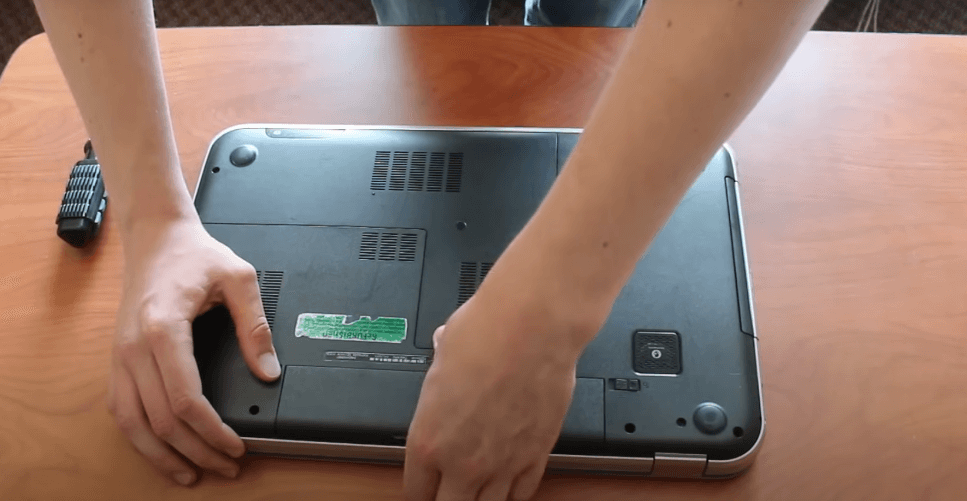
Step 3. Insert the drive into a compatible USB enclosure or connect it with a SATA-to-USB adapter.
Step 4. Connect the drive to a working Windows computer.
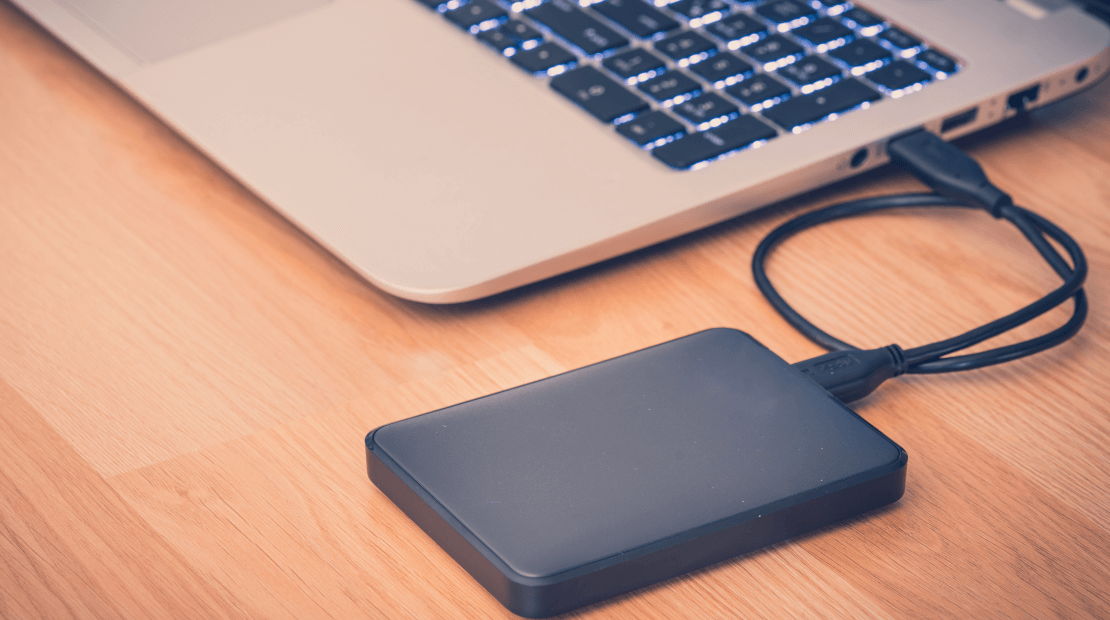
Step 5. Open File Explorer and check whether the drive appears. If the drive is accessible, copy your important documents, photos, videos, and other files to another safe location.
- Notes:✎...
- If Windows detects the drive but asks you to format it, stop immediately. Formatting may overwrite recoverable data. In this case, use professional recovery software like MyRecover to extract all files in the drive before making any changes.
Method 2. Use Windows Installation Media and Command Prompt
If the hard drive is still intact but Windows refuses to boot because of system corruption, you may be able to access your files through Command Prompt in the Windows Recovery Environment. This method doesn't require removing the drive, but it does require some familiarity with command-line operations. If the drive has physical damage or severe file system corruption, it may not work.
Step 1. Create a Windows installation USB or recovery media on another working computer using Microsoft's Media Creation Tool or Windows built-in feature.
Step 2. Insert the USB into the unbootable laptop and boot from it.
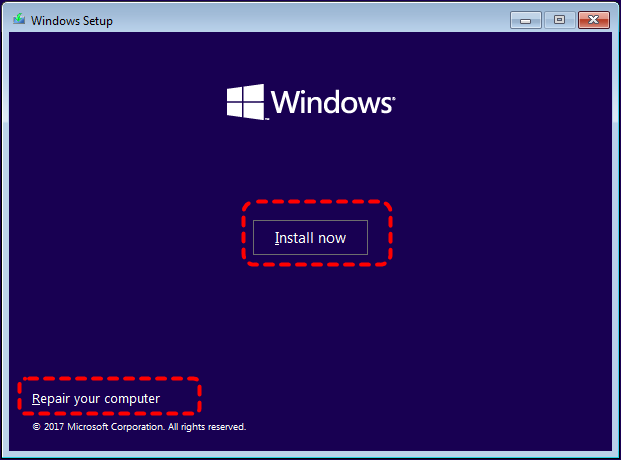
Step 3. On the Windows Setup screen, select "Repair your computer" instead of "Install now".
Step 4. Navigate to "Troubleshoot" > "Advanced options" > "Command Prompt".
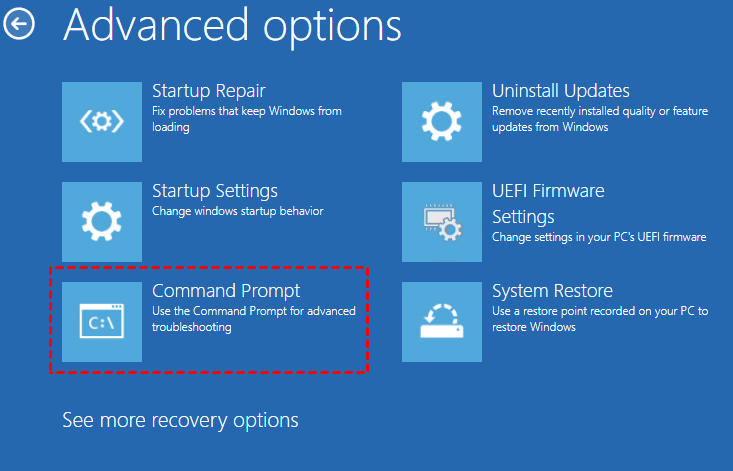
Step 5. Type the following command and press Enter: notepad.exe.
Step 6. In Notepad, click "File" > "Open". The Open dialog works like a simple file manager, allowing you to browse your drives.
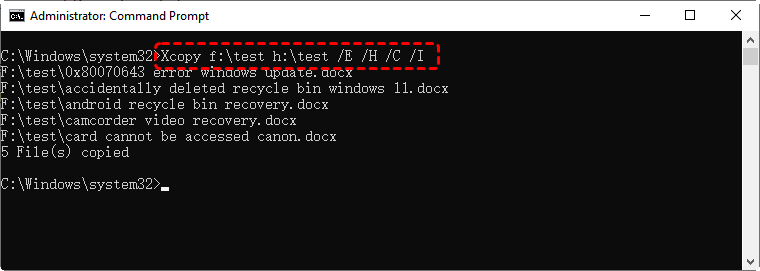
Step 7. Connect an external USB drive and copy important files from the internal drive to the external drive using commands (replace the drive letters and folder paths with your actual locations):
xcopy C:\Users\YourUsername\Documents E:\Backup\Documents /E /H /C /I
Method 3. Turn to a Professional Data Recovery Service
If your laptop has suffered physical damage, liquid spills, motherboard failure, or the hard drive is making clicking or grinding noises, DIY recovery attempts may make the situation worse. In these cases, a professional data recovery service is usually the safest option.
Step 1. Stop using the laptop immediately to avoid further damage.
Step 2. Contact a reputable data recovery company and describe the symptoms.
Step 3. Ship or deliver the laptop or hard drive for evaluation.
Step 5. If you approve the cost, technicians recover the data using specialized equipment in a cleanroom environment. Once recovery is complete, your recovered files are typically returned on an external hard drive or USB device.
Compare the Best Ways to Recover Files from a Laptop That Won't Boot
| Method | Best For | Difficulty | Cost | Success Rate |
|---|---|---|---|---|
| MyRecover Bootable Media ★ Recommended |
Recover data from both bootable and unbootable Windows PCs without removing the drive | Easy | Free Trial / Paid | Very High |
| Remove the drive and connect it to another PC | Laptop won't power on but the drive is still healthy | Medium | Low | High |
| Windows installation media + Command Prompt | Windows won't boot due to system corruption | Medium-High | Free | Medium |
| Professional data recovery service | Physically damaged or failing drives | Easy | High | Very High |
Bonus Tip: How to Solve “Laptop Won’t Boot Up”Issue
Learning how to recover files from a laptop that won’t boot or turn on is crucial. Additionally, understanding how to resolve the laptop booting issues is equally important. Here are some common methods to fix a computer that won't boot. Feel free to check them out if you're interested.
- Check the battery and charger: Ensure the battery is charged and the charger is functioning. Test with a different charger if necessary.
- Try a hard reset: Remove the battery (if removable), disconnect the power adapter, hold the power button for 30 seconds, then reconnect and power on the laptop.
- Cool down the laptop: Turn off the laptop and allow it to cool down for at least 30 minutes. Clean out dust from the cooling vents to improve airflow.
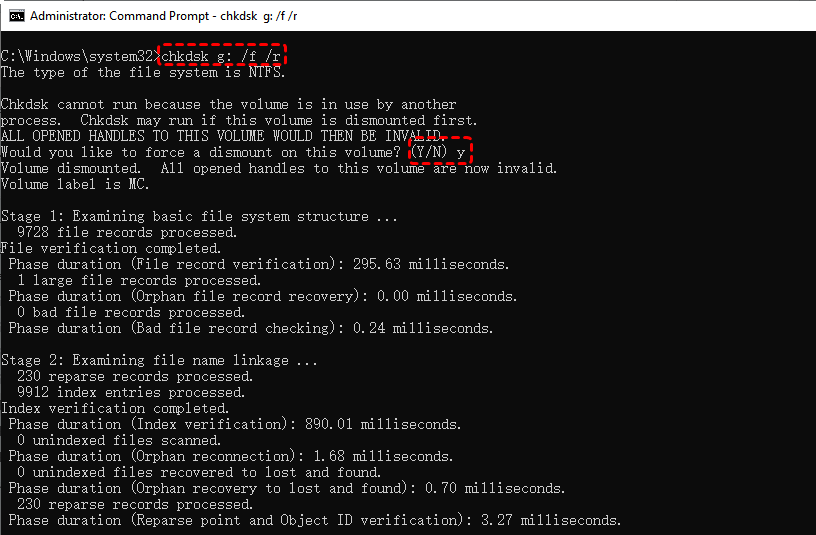
- Run CHKDSK (Check Disk): Use the CHKDSK command to repair any logical errors on the hard drive. You can run this through Windows Recovery Environment or command prompt.
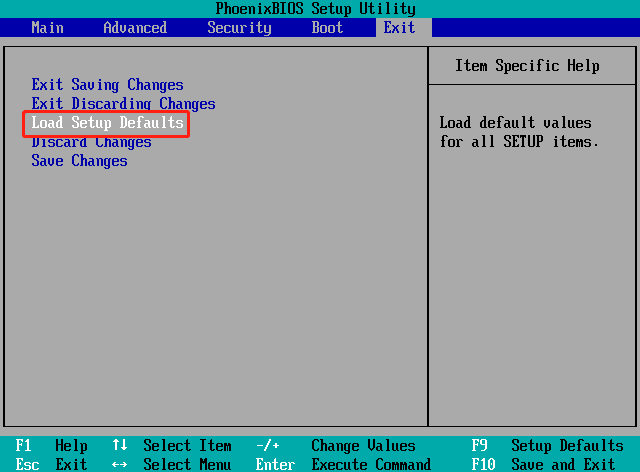
- Reset BIOS settings: Enter BIOS settings during startup (usually by pressing F2 or Del) and select "Restore Defaults" or "Reset to Default."
- Repair Windows: Use a Windows installation disk or recovery USB to attempt a system repair or restore point.
- Reseat or replace the RAM: Open the laptop and ensure the RAM is properly seated in its slot. If possible, test with known good RAM to see if the issue resolves.
- Disconnect all peripherals: Remove any connected devices such as USB drives, external hard drives, printers, etc., and try booting the laptop again.
- Boot in Safe Mode: If the laptop boots with peripherals removed, restart and press F8 to enter Safe Mode to troubleshoot furthersuch as running antivirus or anti-malware software.
By addressing these potential causes with the suggested solutions, you can troubleshoot and resolve most laptop’s booting issues effectively.If they don’t work, there is a chance that your laptop hard drive is physically damaged, then you might need to replace it with a new one.
To Conclude
In conclusion, if your laptop won’t boot and you're worried about losing important files, using tools like MyRecover can help you recover data safely. By creating a bootable USB drive, you can retrieve files without overwriting them. Meanwhile, addressing the root causes of boot issues, such as power problems, overheating, or corrupted OS, can help resolve the problem.
FAQs
Q1: Can I retrieve files from a dead laptop?
Yes. You can retrieve files from a dead laptop if the storage drive is still working. Use a bootable recovery tool like MyRecover, connect the drive to another computer, or seek professional recovery services if the device has hardware damage.
Q2: Can data be recovered from a dead HDD?
Yes, data can often be recovered from a dead HDD if the drive is not physically damaged. Recovery software like MyRecover may help with logical failures, while severely damaged drives usually require professional data recovery services.
Q3: How to retrieve important documents from dead laptop?
You can retrieve important documents by creating a bootable USB recovery disk using MyRecover, removing the hard drive and connecting it to another PC, or using a data recovery service. Choose a method based on the cause of the laptop failure.
Q4: Can I recover files if my laptop won't power on at all?
Yes. If the laptop won't power on but the internal drive is intact, you can recover files using a bootable recovery software like MyRecover or by transferring the drive to another working computer.
Q5: Can I recover files without removing the hard drive?
Yes. A bootable USB recovery tool like MyRecover allows you to access and recover files without removing the SSD or HDD. It is usually easier and safer than physically taking out the drive.
Q6: Is a bootable USB better than taking out the SSD?
In most cases, a bootable USB is the better choice because it avoids opening the laptop and works with many boot failures. Removing the SSD is useful when the laptop has serious hardware issues or cannot start at all. For most users without professional hardware experience, manually taking apart or removing an SSD can easily lead to further physical damage to the drive.

Stay Updated With Our
Latest Tips
Add us as a preferred source on Google to never miss helpful guides.
 Add as preferred source >>