 MyRecover



HP Laptop System Restore Not Working? 6 Easy Fixes That Actually Work
Experiencing of an HP laptop's System Restore not working can be frustrating, especially when your computer fails to revert to a previous working state. In this comprehensive guide, we’ll provide 6 proven solutions to fix the common problem that prevent system restore from functioning correctly.

By Aria / Updated on March 16, 2026


Preview
After initially upgrading from Windows 8 to 8.1 on my HP Laptop, the Windows Update Troubleshooter deleted my update history, and I tried to use System Restore to recover it. So, when I went to do a System Restore to possibly get it back, I got some kind of error message indicating that the System Restore had failed, because my drive may possibly be corrupt, and had advised me to do a Scandisk/R; or something like that.
I am at a loss. Someone please help, and explain to me what is going on here, and of course, how to fix this mess; and how to at least get System Restore working again. Thanks...
- Question from NSCracqui
System Restore is an essential feature in Windows that allows users to roll back their computer to a previous state in case of system errors, crashes, or unwanted changes. However, many users face issues when trying to use System Restore on their computer, particularly when the tool doesn't seem to work as expected.
Now, let’s dive into the potential causes of this issue and explore practical solutions to get your HP laptop system restore back on track.
Common Causes of HP Laptop System Restore Not Working
Several issues can prevent System Restore from functioning correctly. Understanding the root causes can help you pinpoint the problem and apply the appropriate fix. Here are some common reasons why System Restore may not work:
📌Corrupted Restore Points: If the restore points are corrupted or incomplete, System Restore may fail to load them properly.
📂System Protection Disabled: If the System Protection feature is turned off or misconfigured, you may not have any restore points available, or System Restore won’t function properly.
🛠️Software Conflicts: Some third-party software, particularly antivirus or security tools, can interfere with the restore process.
💽Insufficient Disk Space: System Restore requires adequate disk space to create restore points. If the disk space is full, the process might not work.
📖File System Errors: File system issues or corruption on the drive can prevent System Restore from completing successfully.
How to Fix System Restore Not Working Issue on HP Laptop
Based on the above reasons, you may have already figured out some solutions. This section will provide 6 effective methods to help you fix the System Restore not working issue. Let's explore them one by one.
Fix 1. Try Another System Restore Point
Sometimes, the restore point you're trying to use is the problem. If System Restore fails to work with one restore point, try selecting a different one (if available). Follow these steps:
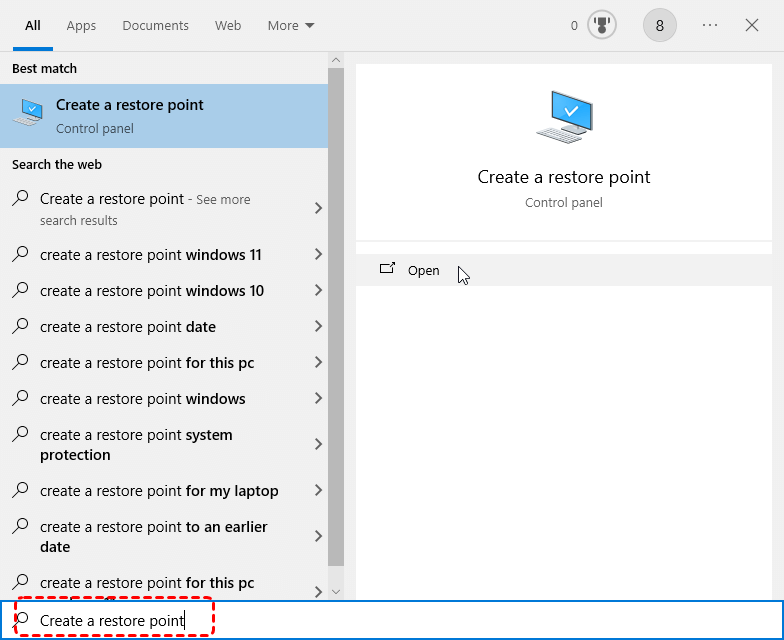
Step 1. Type "Create a system restore point" in the Start menu and open it.
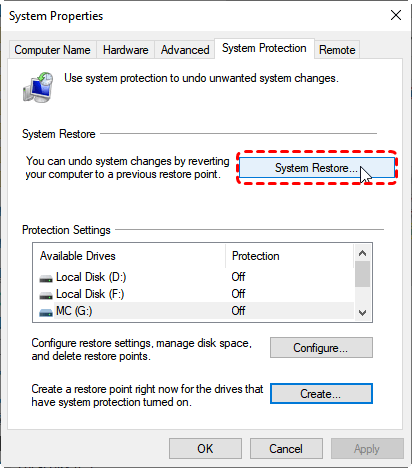
Step 2. Under the "System Protection" tab, select the drive with restore point and click "System Restore".
Step 3. Choose another restore point to restore and click "Next". You can check the affected program by clicking on "Scan for affected programs".
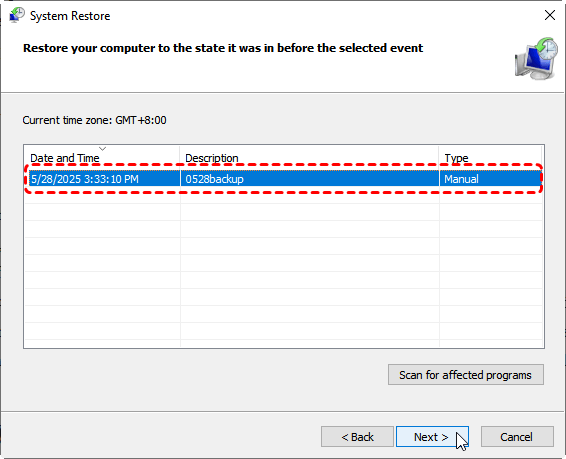
Step 4. Click "Finish" to start the process. If the current System Restore is successful but it’s not the system state you want, you can immediately undo the system restore.
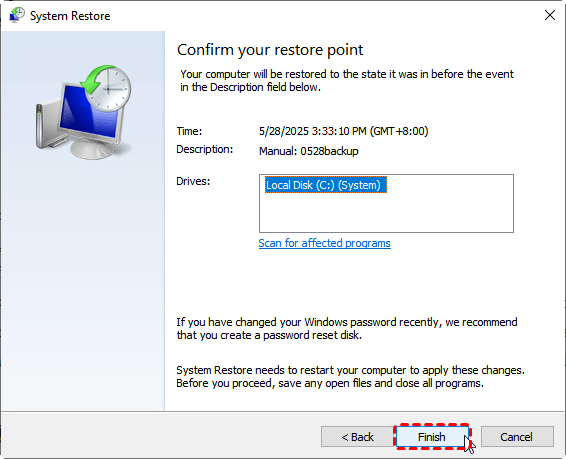
If it still doesn’t work, move on to the other methods below.
Fix 2. Run System Restore in Safe Mode
Sometimes, certain third-party software and services may conflict with System Restore. Running System Restore in Safe Mode can help bypass any software conflicts that might be causing the issue. To enter Safe Mode, follow these steps:
Step 1. Restart your computer and press F8 during the boot process to access the "Advanced Options".
Step 2. Click on "Troubleshoot" > "Advanced options" > "Startup Settings" > "Restart". After your computer restarts again, press F4 to enable Safe Mode.
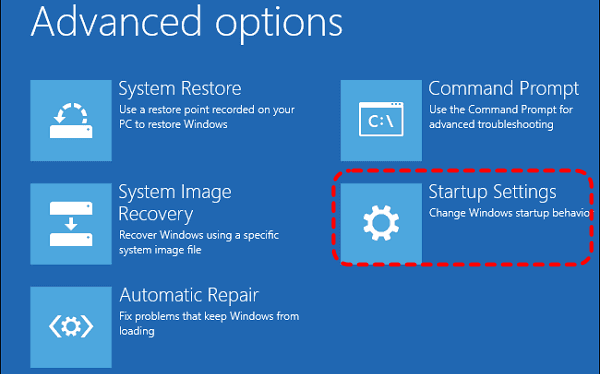
Step 3. Then you can follow the steps in Fix 1 to run System Restore again.
Fix 3. Check System Protection Settings and Disk Space Usage
If System Protection is disabled or the allocated disk space is full for restore pointsl, System Restore may fail to work at all. Checking and adjusting these settings ensures Windows has enough space to store restore data and perform system recovery properly.
Step 1. Locate System Protection, click "Configure", ensure "Turn on system protection" is checked.
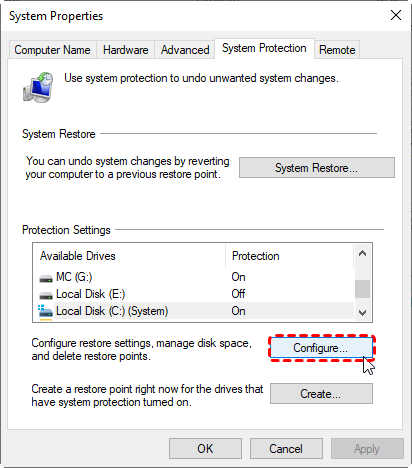
Step 2. Make sure there is enough disk space allocated for System Restore. You can drag the "Max Usage" bar from default 3% or over 5% and click "Apply" to save the change.
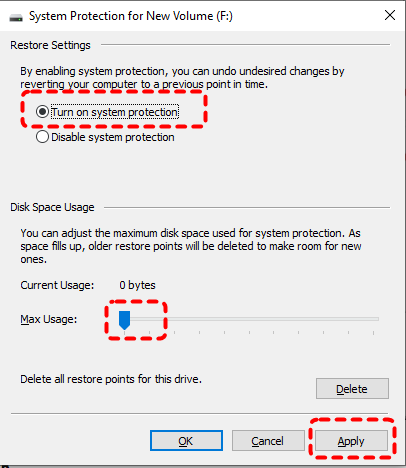
If System Protection is enabled and the restore point settings are correct, check if there is sufficient disk space on the system drive. If necessary, you can delete some files using Disk Cleanup.
Fix 4. Temporarily Disable Your Antivirus
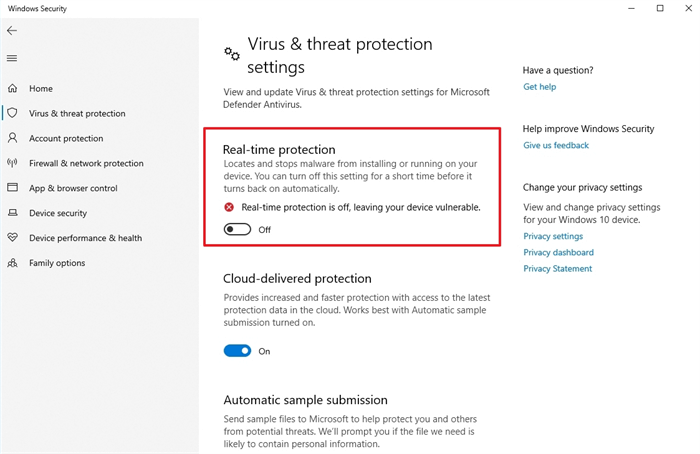
Some antivirus programs may interfere with the System Restore process. Try disabling your antivirus software temporarily and then attempt to perform the restore again. Make sure to re-enable your antivirus after you're done with the process.
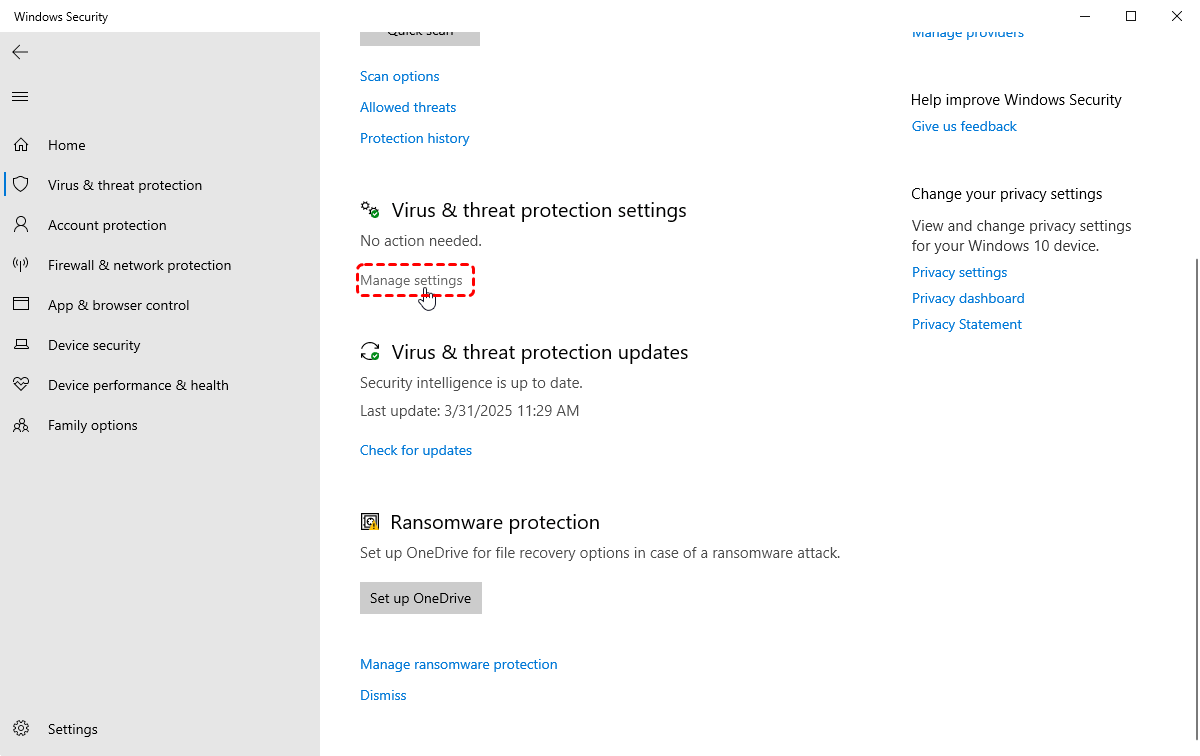
Step 1. Navigate to "Settings" > "Update & Security" > "Windows Security" > "Virus & threat protection".
Step 2. Click on "Manage settings" under "Virus & threat protection settings".
Step 3. Switch "Real-time protection" to "Off".
Fix 5. Run CHKDSK Command
File system errors on the hard disk may also lead to the corruption of restore points, thereby preventing System Restore from functioning properly. Attempt to repair the file system errors on the hard disk using the CHKDSK command.
Step 1. Open Command Prompt and run it as administrator.

Step 2. Type the command "chkdsk G: /f /r" and press "Enter" key. Replace the drive letter "G" with your system drive letter.

The tool will scan your disk for errors and try to fix them automatically. This can help resolve issues that may be preventing System Restore from working.
Fix 6. SFC and DISM Command
Damaged or deleted Windows system files can cause parts of the OS (such as the System Restore tool) to stop functioning. For such scenarios, the System File Checker and DISM command are useful tool to restore those corrupted or lost files.
Step 1. Open Command Prompt as administrator.
Step 2. Run the DISM command "DISM /Online /Cleanup-Image /RestoreHealth" and press "Enter".
Step 3. After the DISM completes, run the SFC command to repair the system file: sfc /scannow.

Once the process is done, restart your laptop and try to perform System Restore again.
Beyond System Restore: Recovering Lost Data with MyRecover
Since System Restore cannot retrieve your deleted files, you can use a professional data recovery tool like MyRecover to recover your personal files after System Restore is completed. MyRecover scans your drive with AI-embedded file recognition and recovery algorithms, making file recovery easy with no files missed. You can restore your files within 4 steps:

 MyRecover
- Intuitive GUI (Graphical Interface) for effortless file recovery.
- Precision recovery of files by type, date, or size.
- Recover files from SSDs, HDDs, USB flash drives, SD cards, cameras, and more.
- Works on Windows 11/10, as well as Windows 8.1/8/7 and all Server editions.
 100% Secure
Step 1. Download and install MyRecover on your computer from Microsoft Store.
Step 2. Run the app and select a drive to scan for lost files, then click "Scan".

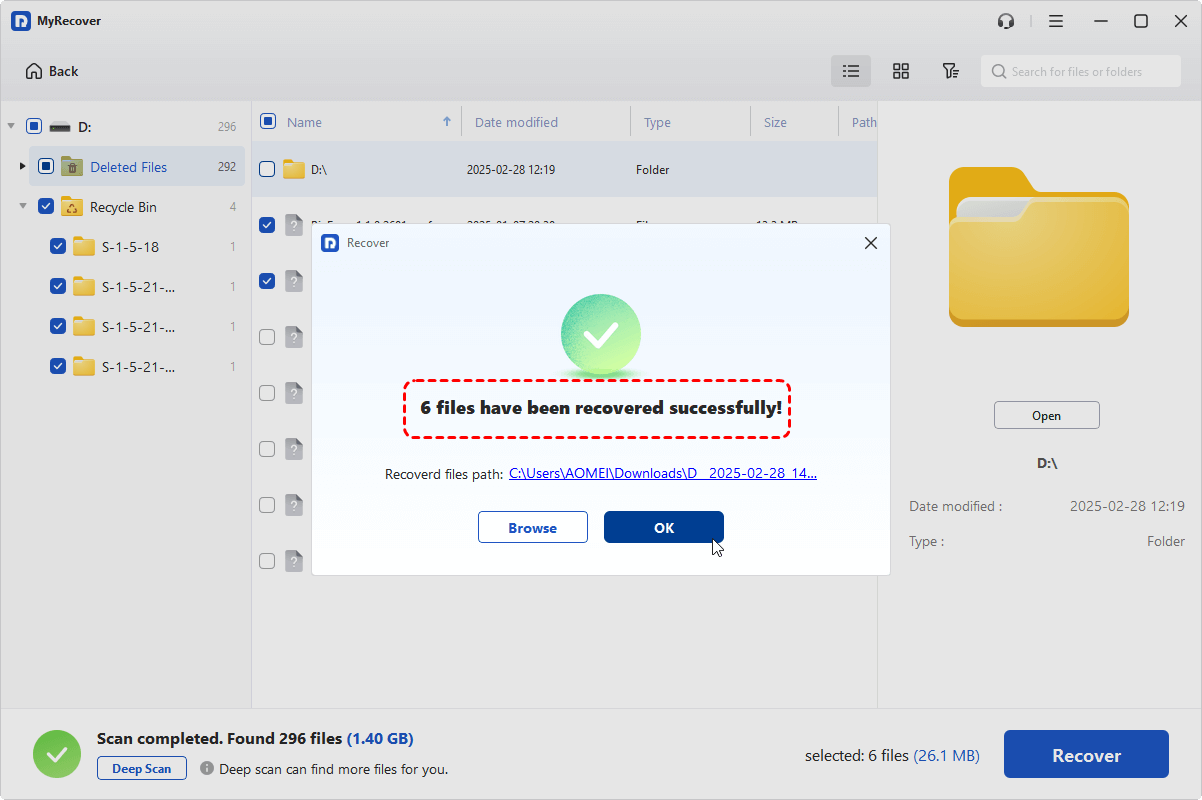
Step 3. Choose the files you wish to recovered from the recoverable lists under "Type" or "Path" tab and click "Recover".

Step 4. Select a safe location to save the recovered files.

When the process is completed, you can access the recovered files by clicking on the destination folder path or "Browse" button.
The Bottom Line
System Restore is a helpful tool, but it isn't always perfect. If you’re facing issues like System Restore not working on your computer, using the troubleshooting methods above should help resolve most common problems. Additionally, after System Restore completes, MyRecover can provide a comprehensive data recovery solution.
With MyRecover Professional edition, you can enjoy unlimited data recovery capacity and file content preview. It also allows data recovery from crashed Windows. By keeping a backup system in place and using tools like MyRecover, you can better safeguard your data and ensure that system issues don't result in permanent data loss.

Stay Updated With Our
Latest Tips
Add us as a preferred source on Google to never miss helpful guides.
 Add as preferred source >>