 MyRecover



What is SFC /Scannow and How to Use it on Windows 8/10/11
SFC /scannow is an essential Windows diagnostic tool for maintaining system stability. This article explores how the System File Checker (SFC) works and why it is commonly used to fix system-related problems across Windows 8, 10, and 11. With this tool, you can restore normal system behavior.

By Aria / Updated on January 28, 2026


What Is SFC /Scannow?
Windows relies on thousands of system files to function properly. These files control everything from startup processes and updates to core features like File Explorer, networking, and system security. When they work as intended, most users never notice them. But once system files become corrupted or go missing, problems can surface quickly, failed updates, system errors, slow performance, or even an unbootable PC.

To address corrupted or missing system files, Windows includes built-in repair tools—System File Checker (SFC), which are designed to detect and fix corrupted system components. It can scan for integrity violations in protected system files and repair them automatically. In many cases, it's essential as part of the troubleshooting process.
How SFC /Scannow Works
When you enter the SFC command, Windows compares all protected system files against cached copies stored in a secure system directory. If a file is missing, corrupted, or altered, SFC replaces it with the correct version automatically. This process helps restore system stability without requiring a full Windows reinstall.
When Should You Run SFC /Scannow
Knowing when to use SFC is just as important as knowing how it works. While it’s not a tool you need to run daily, it becomes extremely valuable in specific scenarios. This tool may fix issues with corrupted system files and resolve Windows malfunctions. You should consider running SFC when:
- Windows behaves unpredictably or crashes frequently,
- Windows update repeatedly fails with errors like 8x00f0983,
- Built-in Windows features like System Restore stop working,
- Malware or sudden shutdowns may have damaged system files.
How to Run SFC /Scannow on Windows 8/10/11
Once you’ve identified the right time to use SFC, the next step is executing it correctly. Although the command is extremely simple, but omitting any letters or spaces when entering it will render it ineffective. Follow these steps to run SFC command:
Step 1. Press "Win" + "S" and input "Command Prompt" in the Search box.
Step 2. Right click on it and choose "Run as administrator".

Step 3. Enter the following command "sfc /scannow" and press "Enter" key.
Step 4. Wait for the scan to complete. The process may take anywhere from 5 to 30 minutes, depending on system performance and file integrity.
Understanding SFC Scan Results
Windows will display the scan results, and different outcomes indicate the integrity status of your system files. You can decide whether to take further action based on these results.
⭕Windows Resource Protection did not find any integrity violations: You do not have any missing or corrupted system files.
⭕Windows Resource Protection could not perform the requested operation: There is a core issue that is blocking the launch of SFC service.
⭕Windows Resource Protection found corrupt files and successfully repaired them: The operation was successful.
⭕Windows Resource Protection found corrupt files but was unable to fix some of them: Additional tools like DISM are required.
If SFC cannot fix certain files, it doesn’t mean the tool is ineffective. It simply indicates deeper system image issues and a more advanced tools like DISM is required to fix this issue.
SFC and DISM: How They Work Together to Fix Windows
In many cases, you’ll likely see another tool used alongside SFC: DISM. It is a more powerful tool designed to fix issues with the Windows image itself. DISM is capable of repairing the underlying system environment that SFC cannot touch, specifically, problems in the Windows Component Store (WinSxS) or if your system files are severely corrupted. Unlike SFC, which relies on local file caches, DISM can pull needed files from Windows Update or from a local source (such as a mounted ISO file or installation media).
If SFC can’t fix the corrupted files it finds, or if your system has more serious file corruption, using DISM and SFC together will yield better repair results. DISM is used first to repair the Windows image, followed by SFC to check and restore the system files using the corrected image. This can ensure that both the underlying Windows environment and the system files are healthy.
Step 1. Locate Command Prompt in the Start menu and run it as administrator as described above.
Step 2. Enter DISM command "DISM /Online /Cleanup-Image /RestoreHealth" to restore the health of the Windows image.
Step 3. After the DISM command finishes, enter "sfc /scannow" to verifies and repairs any missing or corrupted system files.

Step 4. Wait for the process to complete and restart your computer.
How to Recover Missing Files After SFC Command
Although SFC is safe, some users notice files missing after system repairs, especially if corruption existed beforehand. In such cases, if you don’t have any backups, using a professional data recovery tool like MyRecover can help you retrieve these lost files. It is designed to recover files lost due to formatted hard drive, deleted partition, emptied Recycle Bin, inaccessible drive, even virus infected USB drives. It performs deep scans without modifying existing data, making it a safe option even after system-level changes.

 MyRecover
- 500+ Devices Supported | SSD, HDD, USB Flash Drive, SD Sard, etc.
- 1000+ File Formats Supported | PNG, MP4, MP3, TXT, ZIP, MSG, etc.
- 500+ Data Loss Scenarios | Deletion, Format, System Crash, Virus Attack, etc.
 100% Secure
Step 1. Download and install MyRecover on your computer from Microsoft Store or its official website, avoid installing it on the drive with lost files.
Step 2. Run the program and select the drive to scan, then click "Scan" to search for recoverable files.

Step 3. After the scan is completed, choose the files you attempt to recover from the recoverable lists and click "Recover".

With MyRecover Free, you can recover up to 500MB of data at no cost. But if you need unlimited recovery capacity and the ability to preview files before restoring them, MyRecover Professional edition is the perfect upgrade. It even helps you recover data from crashed systems.
Step 4. Save the recovered files to a safe location (not the original drive).

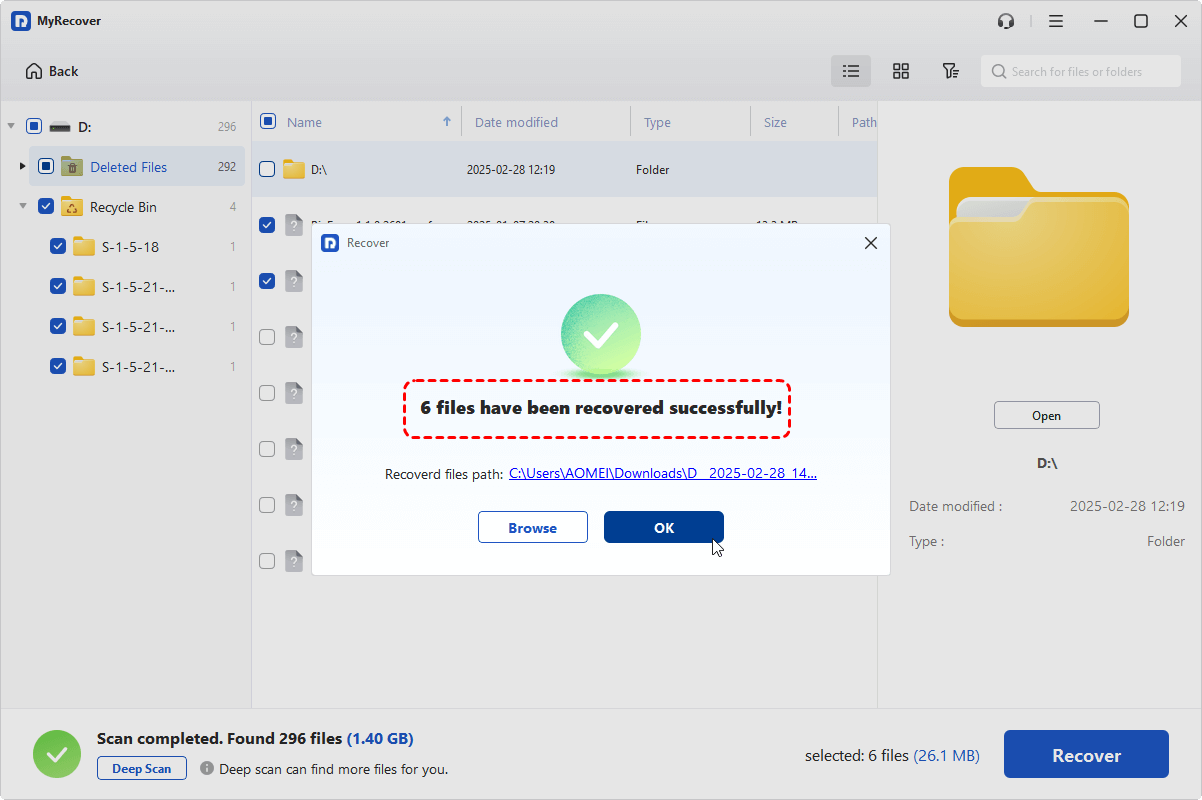
Once the process is done, the message "Files have been recovered successfully" will pop up. Then, you can access the recovered files in the destination folder by clicking on the "Browse" button.
Conclusion
Understanding what is SFC /Scannow gives you a practical advantage when dealing with Windows instability or system corruption. It’s a lightweight but powerful tool that can resolve many issues without drastic measures.
While SFC focuses on restoring system integrity, pairing it with proper recovery practices ensures both system stability and data safety. With the right tools like MyRecover and a clear understanding of how Windows repairs itself, you can fix problems confidently without risking what matters most.

Stay Updated With Our
Latest Tips
Add us as a preferred source on Google to never miss helpful guides.
 Add as preferred source >>