 MyRecover



Recover Deleted X3F Files: A Complete and Practical Guide
If you need to recover deleted X3F file images, this article introduces effective recovery techniques and trusted software. Learn how to retrieve lost Sigma RAW photos from memory cards or drives and prevent permanent data loss with easy, step-by-step solutions.

By Vera / Updated on March 18, 2026


Introduction
Losing X3F files can feel like losing the "master copy" of your memories. If you’re using a Sigma camera, you already know these files aren’t just images—they’re rich, high-quality RAW data packed with detail. So when they disappear, it’s not just frustrating… it’s stressful.
But here’s the reality: deleted doesn’t always mean gone forever. In this guide, I’ll walk you through how to recover deleted X3F files step by step, using clear, structured methods. No fluff, no guesswork—just practical solutions that actually work.
Before we dive into recovery techniques, it’s important to understand what makes X3F files so valuable in the first place.
What Are X3F Files?
X3F files are RAW image files produced by Sigma cameras equipped with Foveon sensors. Unlike JPEGs, they store full color and light data for every pixel.
Why X3F Files Matter
Think of X3F files as your photo’s "source code". You can tweak exposure, color, and detail without damaging quality. Once they’re gone, recreating that level of detail is nearly impossible.
Where They’re Commonly Used
- Professional photography workflows
- High-end editing (Lightroom, Sigma Photo Pro)
- Archival storage for future edits
Now that you understand their importance, let’s look at how these valuable files can suddenly disappear.
Common Causes of X3F File Loss
File loss rarely happens without a reason. Identifying the cause can help you avoid repeating the same mistake—and choose the right recovery approach.
1. Accidental Deletion: A simple misclick or bulk delete operation.
2. Storage Device Failure: SD card corruption, bad sectors, or drive crashes.
3. Formatting Errors: Formatting a memory card without backup.
4. Malware or System Errors: Viruses or OS crashes removing or hiding files.
With the causes in mind, the next logical question is whether recovery is actually possible.
How to Recover Deleted X3F Files?
Can deleted X3F files be recovered? The short answer is yes—in most situations, recovery is possible. Before attempting any recovery method, you need to take a few critical precautions. Acting quickly can make the difference between full recovery and permanent loss.
Step 1: Stop Using the Storage Device
Avoid saving, copying, or installing anything on it.
Step 2: Disconnect the Device (If External)
Safely remove SD cards or external drives to prevent background processes from writing data.
Step 3: Check Backup Locations
Look into:
- Cloud storage
- External drives
- Previous versions (Windows File History)
Once you’ve secured the situation, you can move on to actual recovery methods.
Method 1: Restore from Recycle Bin (Windows)
Let’s start with the simplest solution—it often works when the deletion happened recently on your PC.
1. Open the Recycle Bin.
2. Locate the deleted X3F files.
3. Right-click the selected file(s).
4. Click Restore.
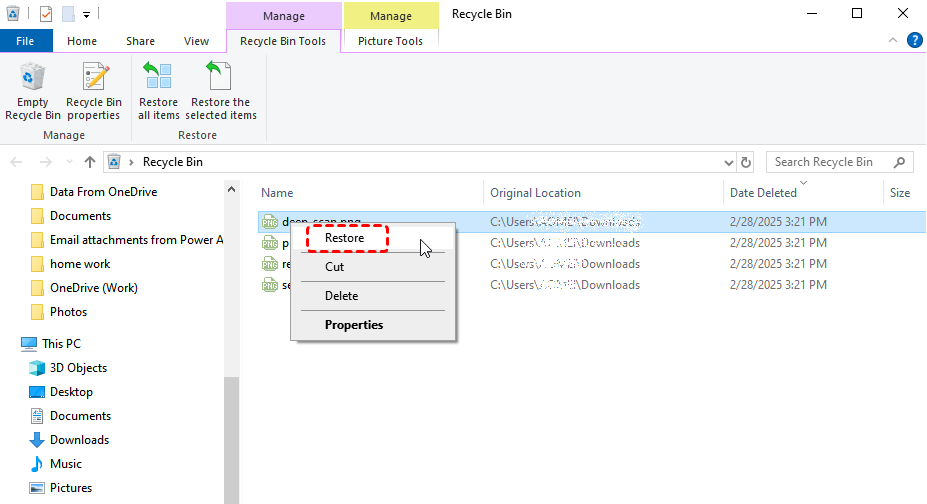
Files will return to their original location. If the files are not in the Recycle Bin, don’t worry—there are still several effective options available.
Method 2: Restore from Backup
If you’ve been maintaining backups, recovery becomes significantly easier and safer.
1. Open your backup tool (e.g., Windows Backup or File History).
2. Navigate to the folder where X3F files were stored.
3. Select the version containing your files.
4. Click Restore.
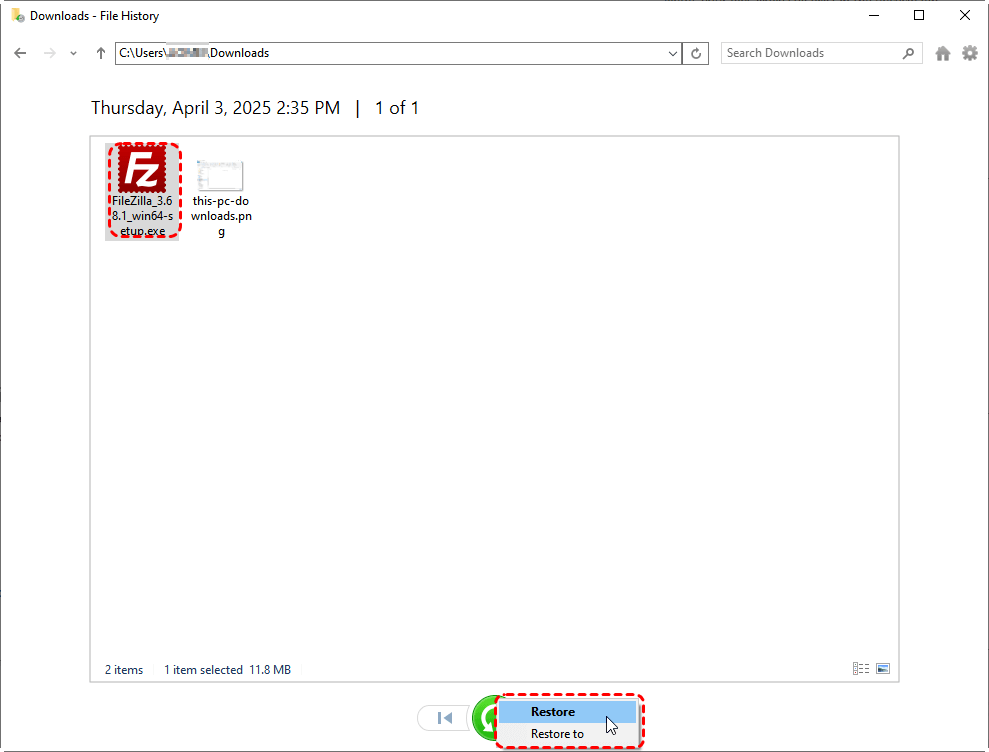
Original files are recovered without quality loss. However, not everyone has backups in place. In that case, recovery software becomes essential.
Method 3: Recover Using MyRecover (Recommended)
When backups are unavailable, using a professional recovery tool is often the most reliable solution. MyRecover is designed specifically to retrieve deleted files from various storage devices.
Why Choose MyRecover for X3F Recovery
With so many recovery tools available, choosing the right one can feel overwhelming. However, some features make MyRecover a strong option.
Key Advantages
- Supports RAW formats including X3F.
- Deep scan technology for higher recovery rates.
- Simple and intuitive interface.
- Compatible with SD cards, HDDs, SSDs, and USB drives.
 100% Secure
It offers a solid balance between speed and accuracy, which is crucial when dealing with large RAW image files.
1. Download and install MyRecover on a different drive (not the one with lost files). Launch the application.
2. Select the target drive or SD card. Initiate a Scan.

3. Filter results by file type (e.g., X3F).
4. Preview recoverable files. Select required files.
5. Click Recover and choose a safe destination.

Recovered X3F files are saved securely without overwriting original data. If your files were stored externally, the process is slightly different—but still straightforward.
Method 4: Recover from SD Card or External Drive
This method is particularly useful for photographers who store images directly on memory cards.
1. Insert the SD card into a card reader.
2. Connect it to your computer.
3. Open recovery software such as MyRecover.
4. Select the external device. Run a full scan.

5. Locate X3F files using filters.
6. Recover files to a different storage location.

Files are restored from removable media. Now that you’ve seen the methods, it’s worth understanding why a tool like MyRecover stands out.
Best Practices to Prevent X3F File Loss
Once you’ve recovered your files, the next step is making sure this doesn’t happen again.
1. Maintain Regular Backups
Use both:
- Cloud storage
- External drives
2. Handle Storage Devices Carefully
Avoid:
- Sudden removal
- Physical damage
- Unstable connections
3. Use Trusted Software Only
Always rely on reputable tools to avoid file corruption.
Conclusion
Recovering deleted X3F files isn’t about luck—it’s about timing, method, and the right tools.
If you act quickly, follow structured steps, and use reliable software like MyRecover, your chances of success are high. Whether your files were lost due to accidental deletion or a corrupted SD card, recovery is often within reach.
In many ways, data recovery is like rescuing a hidden masterpiece—the sooner you act, the better the result.
FAQs
1. Can X3F files be recovered after permanent deletion?
Yes, as long as the data has not been overwritten, recovery software can retrieve them.
2. Is MyRecover safe to use?
Yes, it is designed for secure recovery and does not overwrite existing files.
3. Can I recover X3F files from a formatted SD card?
Yes, formatting does not immediately erase data, so recovery is often possible.
4. What affects the success rate of recovery?
Factors include time elapsed, device usage, and whether new data has overwritten the files.
5. Should I use software or professional recovery services?
Start with software recovery. If it fails, consider professional services for advanced recovery.

Stay Updated With Our
Latest Tips
Add us as a preferred source on Google to never miss helpful guides.
 Add as preferred source >>