 MyRecover



All My Files Disappeared from My Desktop: Complete Fix Guide
If you’re asking why have all my files disappeared from my desktop, this guide explains common reasons like system updates, profile errors, or hidden files, plus proven troubleshooting steps and recovery methods to help you get your missing desktop files back quickly and safely.

By Vera / Updated on May 7, 2026


Introduction: Panic or Problem?
All my desktop files have disappeared after turning pc on
I was doing my 3d work as usual, restarted pc after a while and all of my desktop files are gone, my desktop is blank I have default icons but all my files are gone, help.
- Question from Reddit
Ever sat down at your computer, ready to get work done, only to think, “Wait… all my files disappeared from my desktop!”? Take a deep breath. This is a surprisingly common issue on Windows PCs, and in most cases, your files aren’t gone forever.
Usually, it means the path to those files has been broken, the user profile is misaligned, or the files have been hidden by a system update. This guide will walk you through why did my files suddenly disappear and provide a logical progression of solutions to get your workspace back to normal.
Common Reasons: Why Did My Files Suddenly Disappear?
Before we jump into the recovery steps, understanding the root cause helps you choose the right fix. Here is the logic behind why files disappeared from desktop locations:
⭕Accidental Deletion or Relocation: Sometimes, files disappear simply because they were accidentally deleted. Maybe you hit Shift + Delete by mistake or dragged them into the wrong folder. Mistakes happen to all of us!
- >> Look here if you want to recover an accidentally deleted folder.
⭕Hidden Files and Folders: Windows can hide files by default. If "Show hidden files" is turned off, your desktop might look empty even though the files are still there.
⭕User Profile Issues: If you’re logged into a different Windows profile, your desktop will appear empty. Each profile has its own desktop, so files won’t show across accounts.
⭕System Updates or Glitches: Windows updates (e.g., Windows 10 to 11) occasionally cause glitches, moving desktop files to temporary folders or hiding them entirely.
⭕Desktop Icon Visibility: A simple setting in Windows can hide all icons, making the desktop appear empty even if the files are physically there.
⭕Virus or Malware Attacks: Some malicious software hides, moves, or deletes files. Running regular antivirus scans is essential to prevent this.
Quick Checks Before Panicking
Before moving to advanced recovery, let’s rule out the most common setting-related issues. These are "non-destructive" checks that take seconds.
1. Check Desktop Icon Visibility
Windows has a feature that allows you to hide all icons for a clean look. You might have toggled this by accident, which is a frequent reason why users think files disappeared from desktop folders.
Action: Right-click any empty space on your desktop. Hover over View and ensure Show desktop icons is checked. If it wasn't, your files will instantly reappear.

2. Check the Recycle Bin
If your files vanished due to a stray mouse click or an accidental "Delete" key press, they are likely sitting in the bin.
Action: Open the Recycle Bin and sort by "Date Deleted." If you see your files, right-click and select Restore.
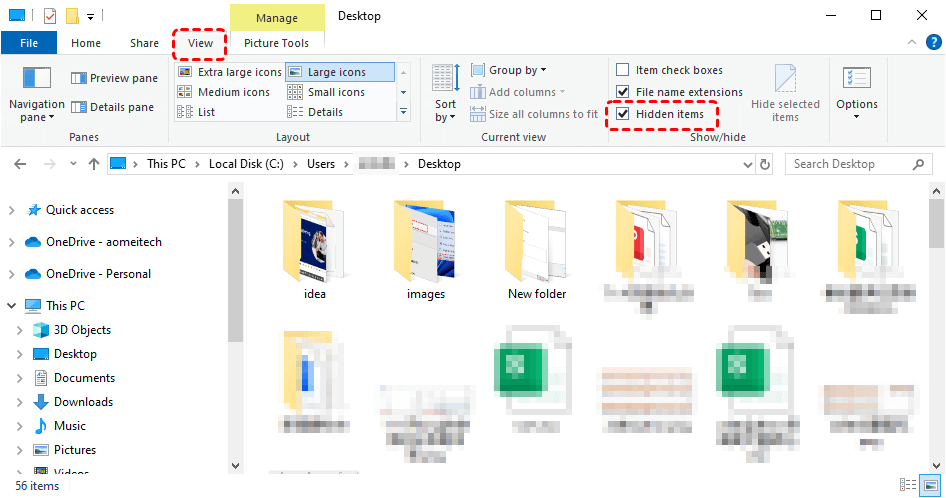
3. Look for Hidden Files
Sometimes your files are just hiding. You can enable hidden files in Windows.
Action: Open File Explorer → View → Show → Hidden Items.
4. Inspect for a Temporary Profile
If you see a notification saying "You’ve been signed in with a temporary profile," it explains why did my files suddenly disappear. You are looking at a "clean slate" profile, not your actual one.
Action: Go to Settings > Accounts > Sync your settings. If you see a message about a temporary profile, do not save new files. Restart your PC 2-3 times to force Windows to log into your actual account.
How to Recover Missing Desktop Files (Systematic Recovery Methods)
If the quick checks didn't work, we need to move into data retrieval. We will start with built-in Windows tools and progress to professional recovery software.
Method 1. Using Windows File History
File History creates incremental snapshots of your "User" folders. Even if the original file is gone, we can "roll back" the Desktop folder to a previous state. You can try this if you had a backup drive connected or File History enabled prior to the files disappearing.
Steps:
1. Press Windows + S and type "Restore your files with File History."
2. In the window that opens, look for the Desktop folder.
3. Use the left/right arrows to find a version from before the files disappeared from desktop.
4. Click the green Restore icon to put them back.
Method 2. Using System Restore (The Time Machine Approach)
System Restore reverts your Windows system files and registry to a "Restore Point." It is particularly effective if a configuration error is the reason why did my files suddenly disappear. Try this if files disappeared after a software installation, a driver update, or a sudden system crash.
Steps:
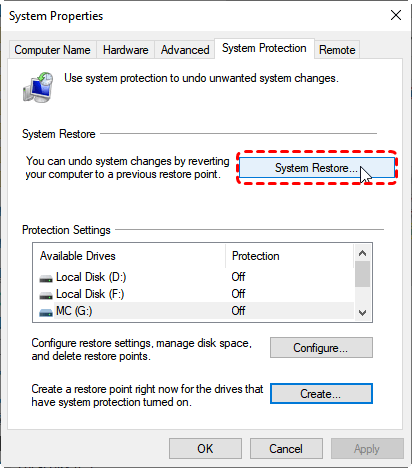
1. Press Windows + S, type Create a restore point, and hit Enter.
2. In the System Properties window, click System Restore.
3. Choose a restore point from before the files disappeared.
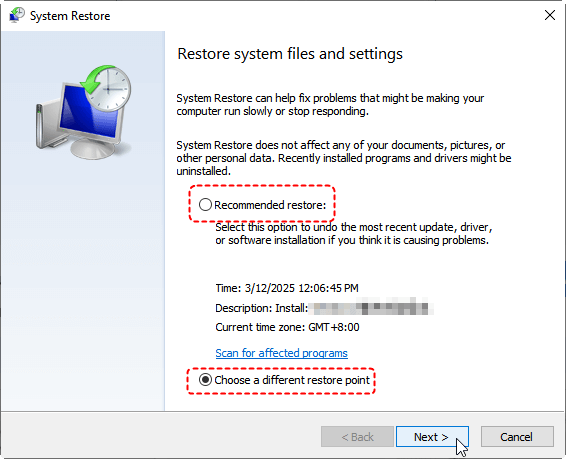
4. Click Next → Finish and let Windows restart.
5. Check your desktop to see if the missing files have returned.
Method 3. Using Advanced Data Recovery Software (Recommended)
When files are "deleted," Windows only removes the "pointer"; the actual data remains on the hard drive until overwritten. MyRecover is designed to scan the raw sectors of your drive to find these orphaned files.
You can try this tool when files are not in the Recycle Bin, no backups exist, or the files were lost due to a disk error or accidental permanent deletion (Shift + Del).
Why MyRecover is ideal for Desktop File Loss:

 MyRecover
- 💙Path-Specific Scanning: Instead of scanning your whole PC, you can target the C:\Users\Username\Desktop path, which is the most efficient way to find files disappeared from desktop.
- 💙High-Fidelity Recovery: For creative professionals (like the Reddit user doing 3D work), MyRecover maintains original file names and formats (.obj, .max, .psd), ensuring your project structure remains intact.
- 💙Deep Scan Technology: It excels at finding files that have been "lost" due to system glitches or formatting issues.
 100% Secure
Steps with MyRecover:
1. Download and install MyRecover on a different drive than the one with missing files (to prevent overwriting).
2. Launch the software and select the desktop drive or partition where files were lost.
3. Click Scan. MyRecover will run a Scan quickly. You can also choose a Deep Scan to find all recoverable files.

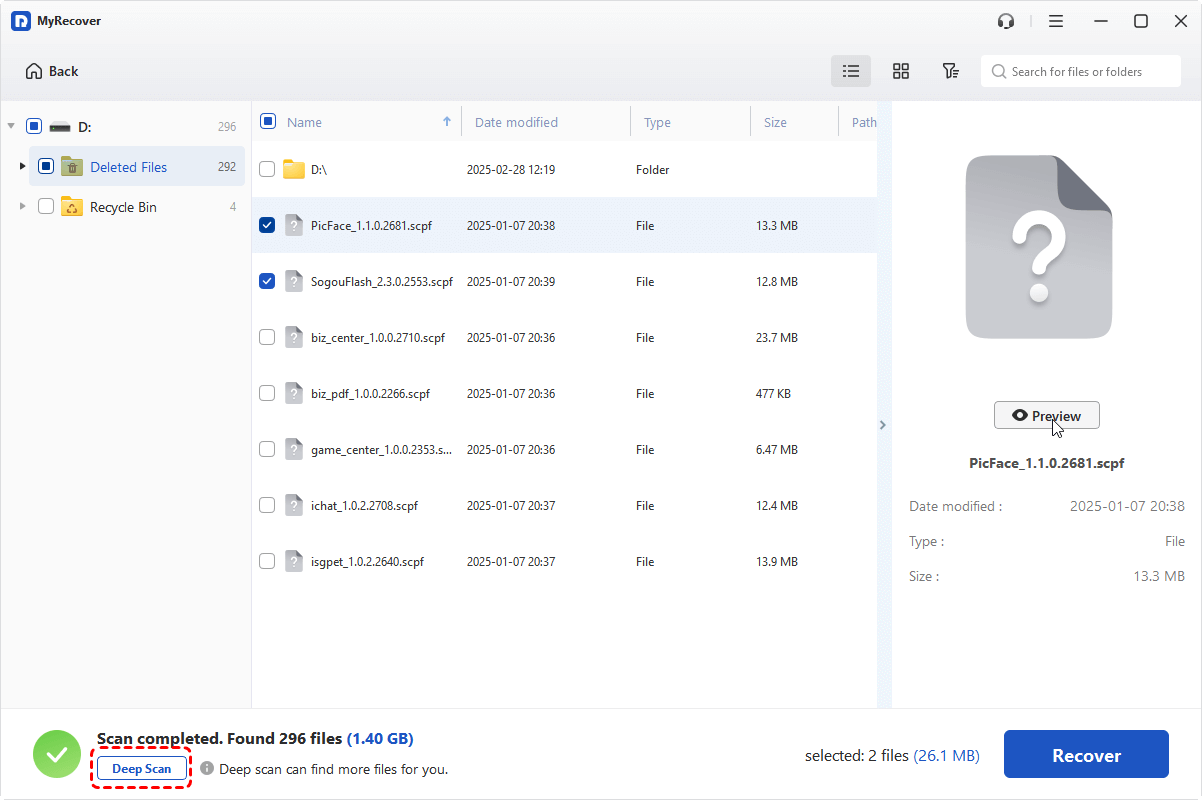
4. Browse the results or use the search bar to find specific files.
5. Select the files you want and click Recover.
6. Save recovered files to a different drive for safety.

MyRecover stands out for ease of use and high success rates, making it ideal for both beginners and advanced users.
Method 4. Checking Cloud Sync (OneDrive/Dropbox)
If you’ve been syncing your desktop with OneDrive, Google Drive, or Dropbox, recovery can be straightforward.
Steps:
1. Open your cloud service app or website.
2. Navigate to the Trash or Deleted Files folder. Most cloud services keep deleted files for 30–90 days.
3. Select the missing files and click Restore.
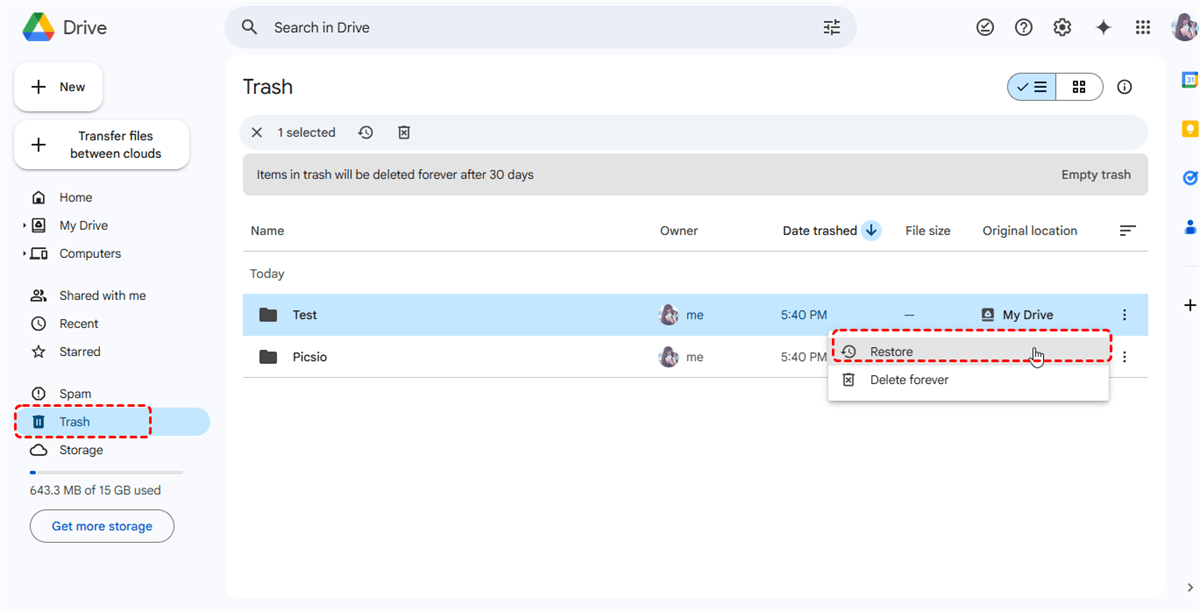
4. Confirm that the files are restored to your desktop or synced folder.
Conclusion
Finding that your files disappeared from desktop is a stressful experience, but by following a logical recovery path—starting with visibility settings and ending with professional tools like MyRecover—you can almost always get your data back.
To prevent asking "why did my files suddenly disappear" in the future, ensure you have File History enabled and consider a secondary cloud backup like OneDrive or Google Drive to keep your most important work synced in real-time.
FAQs
Q: I found a folder called "Windows.old" on my C: drive. Could my files be there?
A: Yes! If your files disappeared after a major Windows update, Windows moves your old user data to C:\Windows.old\Users\YourName\Desktop. You have 10 days to retrieve these files before Windows automatically deletes this folder to save space. Move them to your current desktop immediately.
Q: My icons are gone, but I can see the files when I open "Desktop" through File Explorer. Why?
A: This is a "Desktop Layer" glitch. It usually means the explorer.exe process is struggling. Try this: Press Ctrl + Shift + Esc, find Windows Explorer in the list, right-click it, and select Restart. This often forces the desktop to refresh and show your icons.
Q: I suspect a virus deleted my files. What should I do first?
A: Do not keep using the PC. Disconnect from the internet and run an offline scan using Windows Defender or a reputable antivirus. Viruses often change file attributes to "System + Hidden," making them invisible even if you check "Show Hidden Files." Try to use MyRecover to recover files deleted by viruses.
Q: Can I recover files if my hard drive is making a clicking noise?
A: No. If you hear physical clicking, this is a hardware failure. Software like MyRecover or File History cannot fix mechanical issues. Shut down the computer immediately and contact a professional data recovery lab to prevent permanent platter damage.
Q: How to avoid file loss again?
A: Here’s how to protect your files in the future:
- ✔️Regular Backups: Schedule automatic backups using File History, OneDrive, or an external drive to ensure your files are never permanently lost.
- ✔️Enable Auto-Save Features: Apps like Microsoft Office, Google Docs, or Adobe have auto-save. Make sure it’s turned on for all important files.
- ✔️Keep System and Antivirus Updated: Updates patch security holes and fix bugs that could hide or delete files. Antivirus software prevents malware from corrupting your desktop.

Stay Updated With Our
Latest Tips
Add us as a preferred source on Google to never miss helpful guides.
 Add as preferred source >>