 MyRecover



Recover Deleted Zoom Recordings from Cloud and Computer
This guide covers every possible way to recover deleted zoom recordings - from cloud recycle bins to local hard drive scans. You'll also learn how to recover lost zoom recording files that never converted, plus what to do when the 30-day window has already closed. Practical, no-fluff instructions included.

By Delores / Updated on July 6, 2026


About Zoom Recordings
You just wrapped up a crucial client meeting or an important lecture, and you hit that record button. Then, a few days later, you go to grab the file, and it's just… gone. Whether you accidentally deleted it yourself or Zoom's automatic cleanup wiped it out, that sinking feeling is real. In many cases, you can recover deleted Zoom recordings easily in different ways. But you need to act fast and know exactly where to look.

Zoom stores recordings in two very different ways: either in the cloud or directly on your computer's hard drive. Where your file lives determines the recovery method.
Recover Deleted Zoom Recordings from the Cloud
Cloud recordings are the most straightforward to restore, assuming you haven't waited too long. When you delete a cloud recording, Zoom doesn't wipe it immediately. Instead, it sends the file to a temporary holding area—the trash folder—where it sits for 30 days.
How to check your cloud trash:
1. Sign in to the Zoom web portal at zoom.us (do not use the desktop app for this).
2. Click Recordings from the left navigation menu.
3. Select the Cloud Recordings tab.
4. Look for the Trash tab at the top-right of the recording list. If you don't see it, the Trash feature might be disabled on your account—if so, contact your Zoom admin.
5. Browse the list or search by meeting ID. When you find the missing file, click the Recover button next to it.
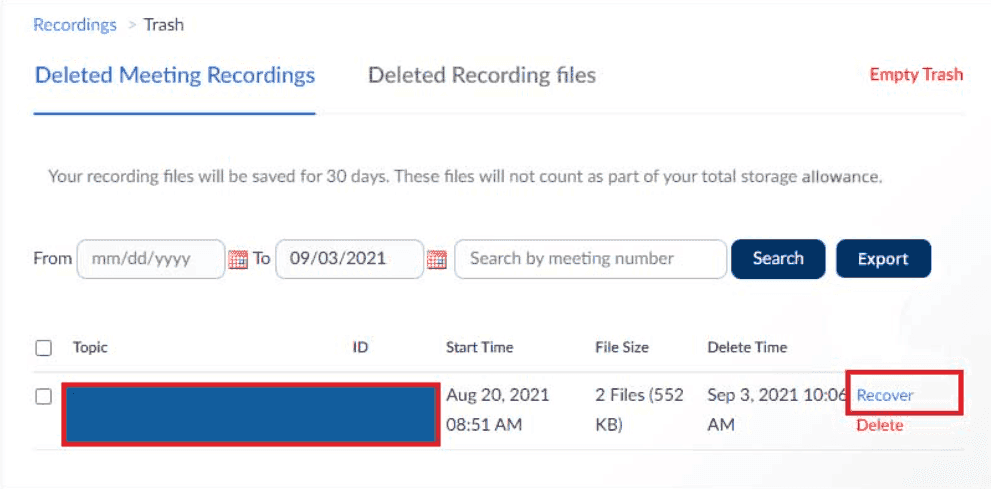
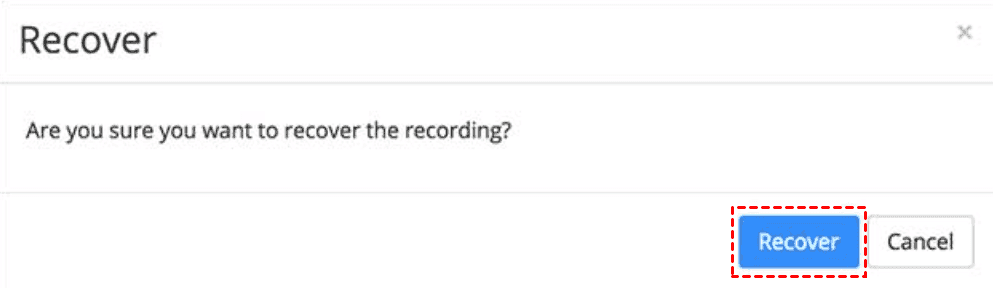
6. Confirm the action, and the recording will be moved back to your main Cloud Recordings list, ready to download.
How to Retrieve Zoom Recording from Computer When Not in Cloud
Not everyone has cloud recording enabled, and many users prefer local storage anyway. If your recording isn't in the cloud, the first thing to do is to retrieve Zoom recording from computer from its default local folder.
By default, Zoom saves local recordings to:
- Windows: C:\Users\[YourUsername]\Documents\Zoom
- Mac: /Users/[YourUsername]/Documents/Zoom
If the file is missing from there, check your computer's system trash:
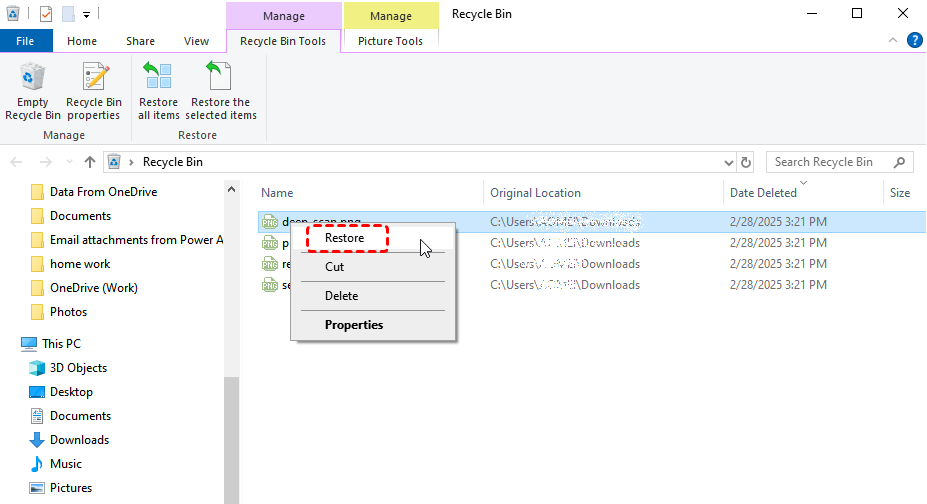
Windows: Open the Recycle Bin. Right-click on the recording file or folder and select Restore.
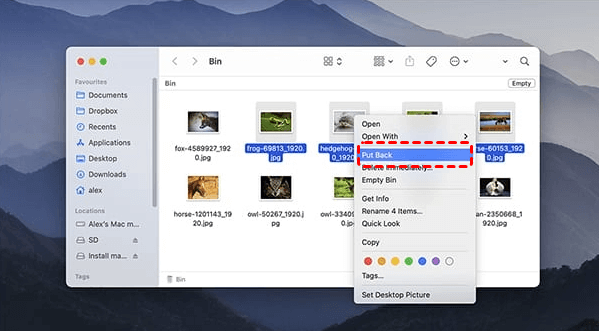
Mac: Open the Trash in your dock. Right-click and select Put Back.
If it's not in the recycling bin, then the file was either permanently deleted or never properly saved in the first place. Your next step is a deeper file recovery scan.
How to Recover Deleted Zoom Recording After 30 Days | 4 Ways
However, the cloud trash folder typically retains files for only 30 days after deletion; after that, these Zoom recordings are permanently removed. Once that grace period passes, the Zoom web portal won't offer a "Recover" button anymore.
If you're staring at an empty trash folder after 30 days, you need a different strategy for recovering deleted Zoom recordings.
Way 1. Contact Zoom Support Immediately
Large enterprise accounts sometimes have custom retention policies or back-end access that could theoretically pull an older file, but this is rare and never guaranteed.
Way 2. Check your Local Computer
If you were the host and you had local recording enabled as a backup, you might find a copy sitting in your Documents/Zoom folder (above-mentioned) that wasn't touched.
Way 3. Ask Other Participants
If someone else in the meeting recorded locally (even just audio), they might still have their copy. Worth a quick Slack message at the very least.
Way 4. Use A Windows Data Recovery Tool
When the cloud trash is empty, the local folder is bare, and the files are not in the Recycle Bin, your last line of defense is data recovery software. The powerful Windows data recovery software, MyRecover, specializes in deep-scanning your hard drive for lost files, including video formats like MP4 and M4A. It doesn't rely on the file system table—it reads raw sectors, which means it can often find missing files that were formatted, permanently deleted, corrupted, and more.
Thus, here is how to recover deleted Zoom recordings on a Windows computer with MyRecover:
1. Download and Install MyRecover. Install it on a different drive than the one you're scanning.
 100% Secure
2. Open MyRecover. Tap Deleted Files Recovery, select the drive or specific folder where your Zoom recordings were stored, and click "Scan".
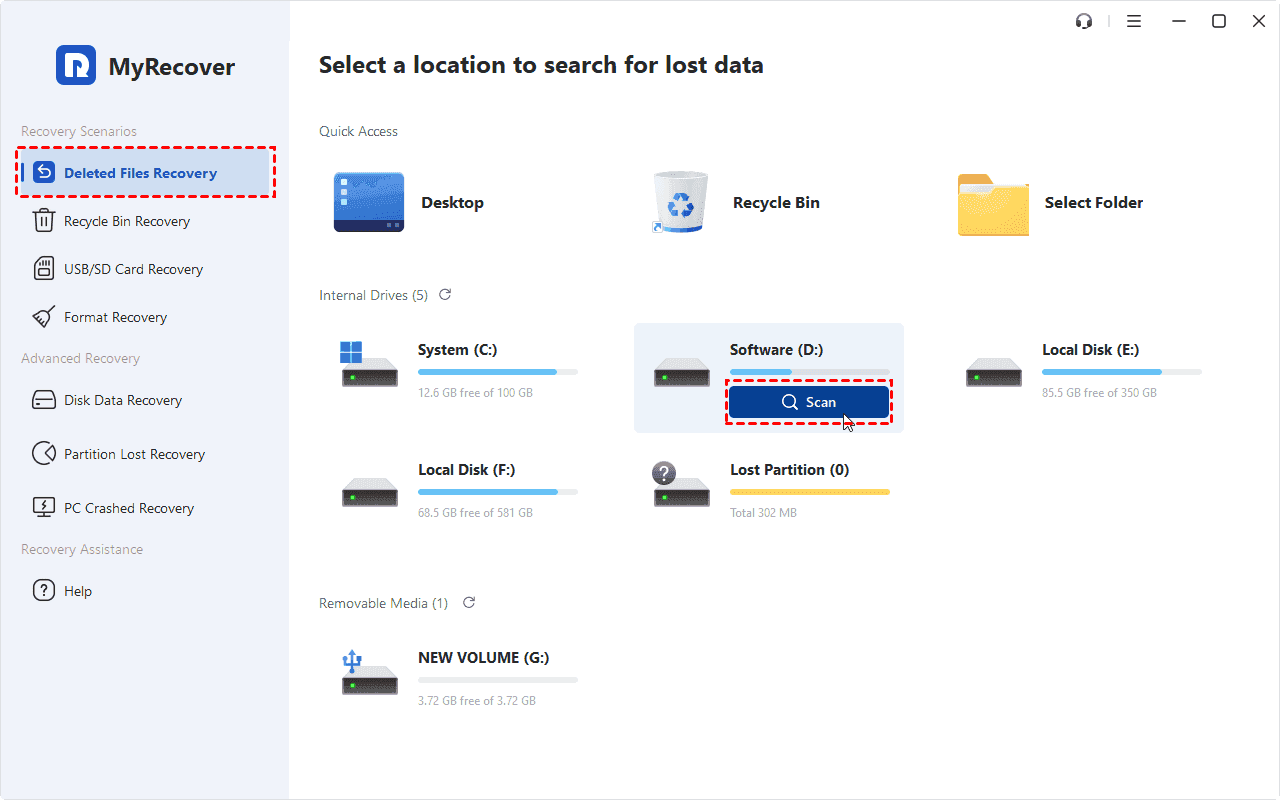
3. It will run a Quick Scan first to find recently deleted files. Or you can perform a deep scan to find all missing files at once.
- Notes:✎...
- The Deep Scan takes longer but is much more thorough, looking for file signatures of MP4, M4A, and other formats. Don't interrupt it.
4. Once the scan finishes, preview the recovered files and choose all the Zoom recordings you need, then hit Recover.
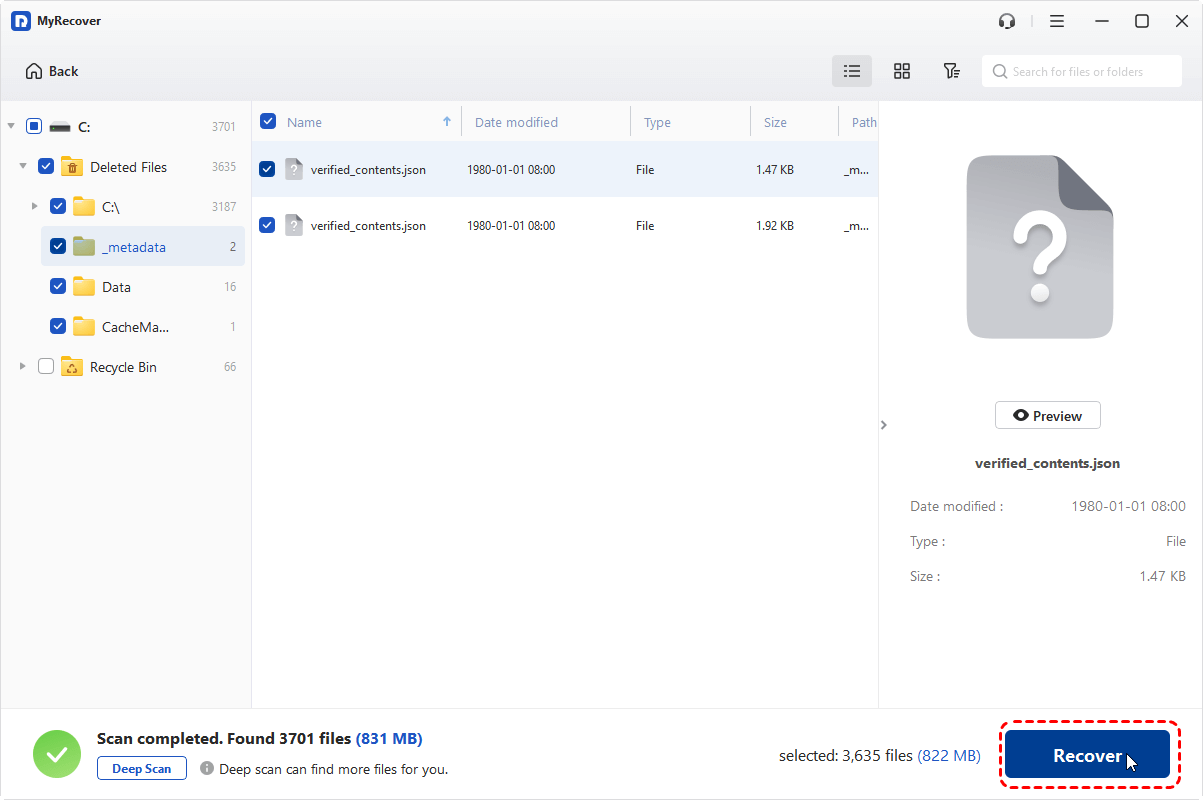
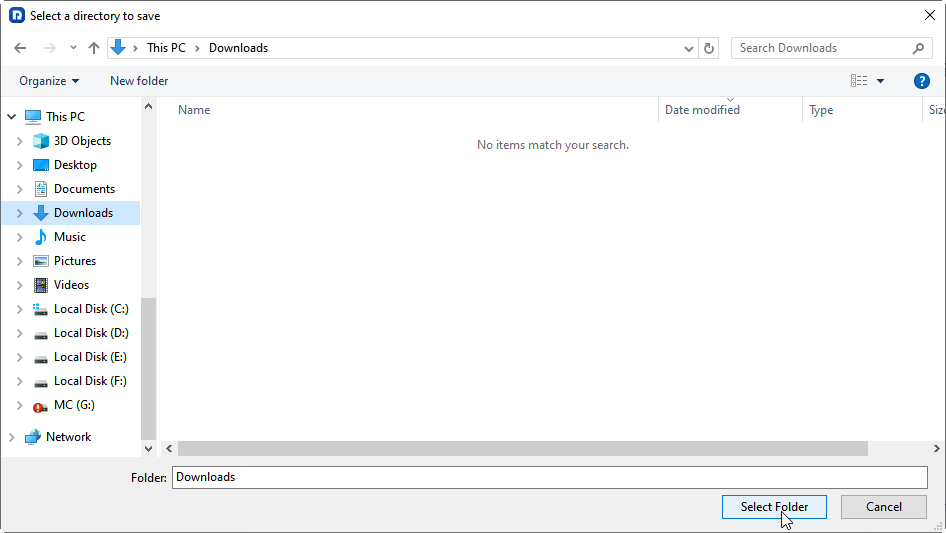
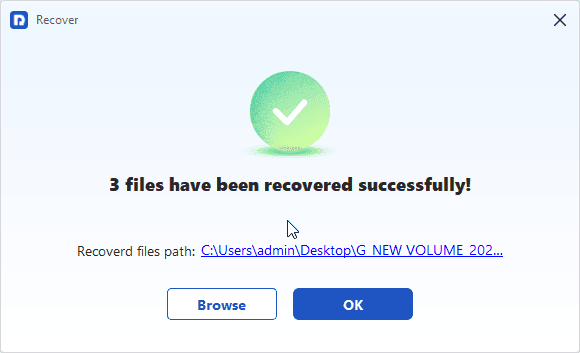
5. Choose a safe location to keep them safe.
- Notes:✎...
- Once the scan is finished, your missing files will be sorted by file type by default. You can also sort them by file path. And search files quickly with file name, size, modified date, etc.
- Double-click the files to preview, ensuring they are intact.
- Upgrading to MyRecover Technician to enjoy all premium features, including unlimited file recovery, recovering files from unlimited computers, etc.

 MyRecover
- Recover Deleted Files Easily with Simple Clicks
- 1000+ File Formats Supported
- Support HDD, SSD, External Hard Drive, USB Drive, SD Card, etc./li>
- Quickly Find Files Using File Types, Name, Size, etc.
- Preview Files Before Recovering
- Recover Unlimited Data
 100% Secure
How to Recover Zoom Recording Not Converted After a Meeting
This is a special kind of frustration. You recorded a meeting locally, Zoom ended, and instead of seeing a nice .mp4 file, you see a weird file called double_click_to_convert.zoom, or the conversion simply failed. Your recording is there, just in a raw state.
Here's how to recover a Zoom recording not converted.
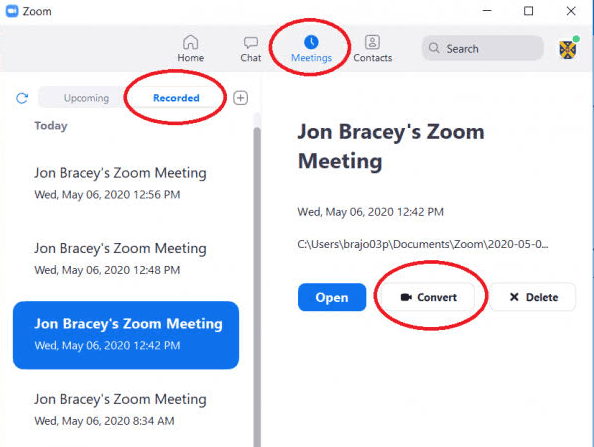
Way 1. Try Converting Directly Through the Zoom App
1. Open Zoom, go to the Meetings tab, then the Recorded tab.
2. Find the meeting and click Convert.
Way 2. Manually Double-Click the Zoom File to Convert
1. Navigate to the recording folder.
2. Locate double_click_to_convert_01.zoom and double-click it.
3. This should trigger Zoom's built-in conversion tool.
Way 3. The Swap Trick
If the manual click fails:
1. Start a new quick Zoom meeting with local recording.
2. Pause it immediately.
3. Now, copy your original .zoom file from the corrupted folder into this new meeting's folder, replacing the new file.
4. End the meeting.
5. Zoom will try to convert the newly pasted file as if it were a clean recording.
Way 4. Repair with VLC
If conversion absolutely fails:
1. Drag the raw video or audio file into VLC Media Player.
2. VLC can sometimes play and transcode partially corrupted files, giving you at least a salvageable version.
FAQs About Recovering Deleted Zoom Recordings
Can I recover a Zoom cloud recording after 30 days?
A: Usually no -Zoom permanently deletes trash after 30 days. Custom enterprise policies or immediate Zoom Support contact are your only shots. Otherwise, check for a local copy.
Does Zoom automatically delete old cloud recordings?
A: Yes. Zoom automatically deletes old cloud recordings based on your account's retention policy (commonly 30, 90, or 180 days). Once deleted, they move to the trash for 30 days before permanent removal. You'll usually get a 7-day warning email. Check with your Zoom admin for your specific timeline.
Where do locally recorded Zoom files go on my computer?
A: Windows: C:\Users\[Username]\Documents\Zoom. Mac: /Users/[Username]/Documents/Zoom. Path can be changed in Zoom's Recording settings.
Why is my Zoom recording not showing up in the cloud?
A: Free accounts don't support cloud recording. On paid plans, ensure you choose "Record to Cloud" and that it's enabled by your admin.
How do I recover a Zoom recording that didn't convert?
A: Double-click the double_click_to_convert.zoom file. If that fails, start a new local recording, swap the raw files, and end the meeting to force reconversion.
Can I recover a Zoom recording if I permanently deleted it from my computer?
A: Possibly -stop using the drive and run a deep scan with recovery software (e.g., MyRecover) to find MP4/M4A signatures before they're overwritten.

Stay Updated With Our
Latest Tips
Add us as a preferred source on Google to never miss helpful guides.
 Add as preferred source >>