 MyRecover



How to Recover Deleted OBS Recordings Fast in 4 Proven Ways
This guide explains how to recover deleted OBS recordings using file history, recovery tools, and cache folders. If you accidentally deleted OBS recording, follow these steps to restore scenes and files quickly, even without backups.

By Delores / Updated on May 28, 2026


How to Recover Deleted OBS Recordings?
Looking to recover a deleted 70GB OBS recording
Hi everyone,
I accidentally permanently deleted a very important video file from my laptop, and I'm desperate to recover it. Here are the technical details of my case:
File Size: Approximately 70 GB.
File Source: It was a high-quality video capture recorded directly using OBS Studio.
File Format: It was saved strictly as an .mp4 file.
OS / Drive: Windows 10/11, running on a 512GB Windows-SSD partition (NTFS).
Current state of the PC: I haven't written any new heavy files to the drive to avoid overwriting the data, though the laptop has been on.
- Question from reddit.com
Your OBS recordings got deleted? You accidentally hit delete, or maybe OBS glitched, and the file vanished into nothing. Don't worry, you can recover deleted OBS recordings more often than you think. In fact, the sooner you act, the better your chances.
This guide walks you through every trick in the book, from checking your recycle bin to using dedicated recovery tools like MyRecover.
How OBS Saves and Stores Recordings
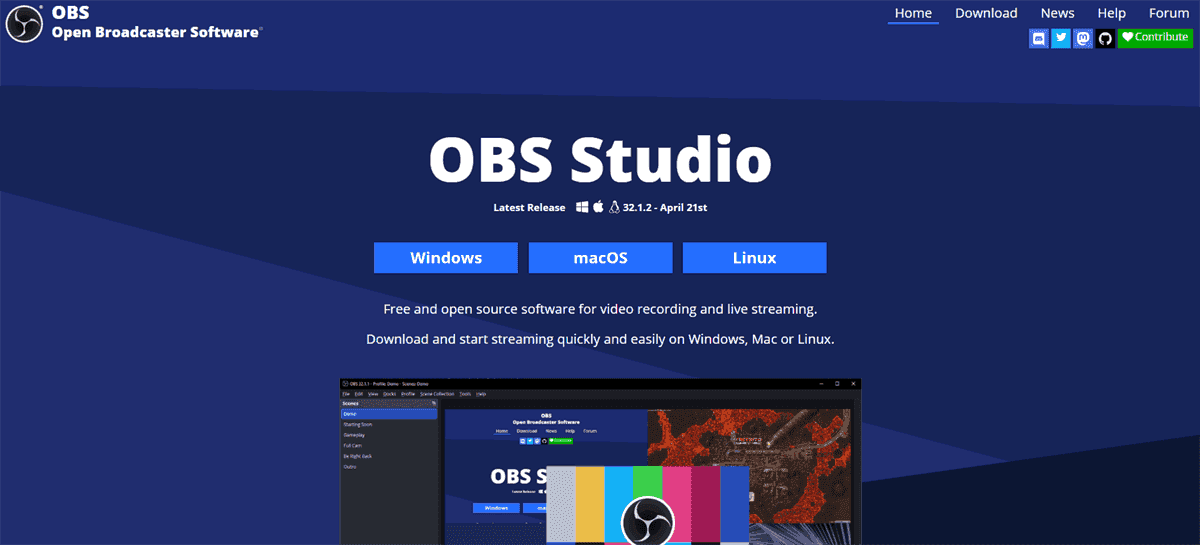
OBS Studio (Open Broadcaster Software) is a free, open-source software for video recording and live streaming. It allows users to capture, mix, and broadcast high-quality video content to platforms like Twitch, YouTube, or Facebook. It is a powerful mixing and organizing tool that acts as a virtual broadcast station on your computer.
By default, OBS Studio saves videos to a specific folder on your computer.
- On Windows, that's usually C:\Users\YourName\Videos.
- On Mac, it's ~/Movies.
- Linux: /home/[Username]
You can change this in Settings > Output > Recording Path. If you're not sure where you saved things, check there first.
When you delete a file, it doesn't actually vanish. Windows and Mac just remove the pointer to it. Until new data writes over that spot, the original video remains intact. That's why recovery tools work so well.
How to Recover Deleted OBS Recordings? 4 Ways
First, check the Recycle Bin (Windows) or Trash (Mac). If you just deleted the file and didn't empty the bin, you're seconds away from restoring it.
Way 1. Restore Recently Deleted OBS Videos from Windows Recycle Bin
1. Double-click the Recycle Bin icon on your desktop.
2. Look for your missing OBS file (usually an .mp4 or .mkv).
3. Right-click it and select "Restore".
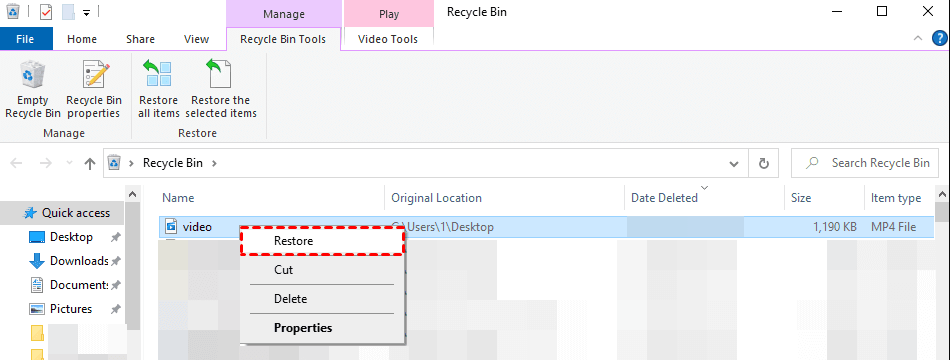
That's it. The video goes back to its original folder. If it's not there, someone or something emptied the bin.
Way 2. Recover Deleted OBS Recordings on macOS Trash Before Emptying
On a Mac, click the Trash icon in your dock.
Find the OBS recording, right-click, and choose "Put Back".
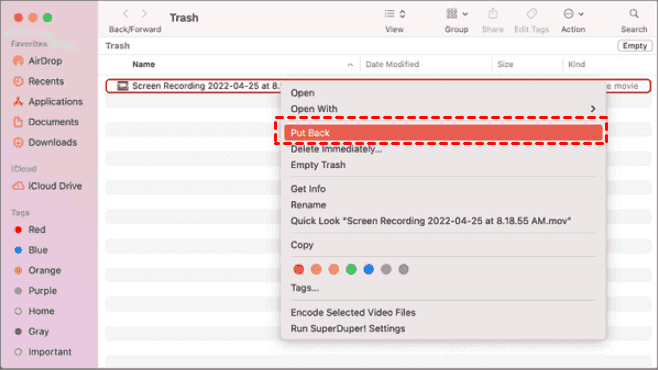
The file returns to where it was. If you've already emptied the Trash, don't lose hope—move to the next section.
Way 3. Recover Unsaved OBS Recordings from The Output Folder
If you are recording videos with OBS Studio, and the computer crashed somehow, the video is not stored. How can you recover unsaved OBS recordings? Check this:
In OBS, if you go to File> Show Recordings to open the configured directory.
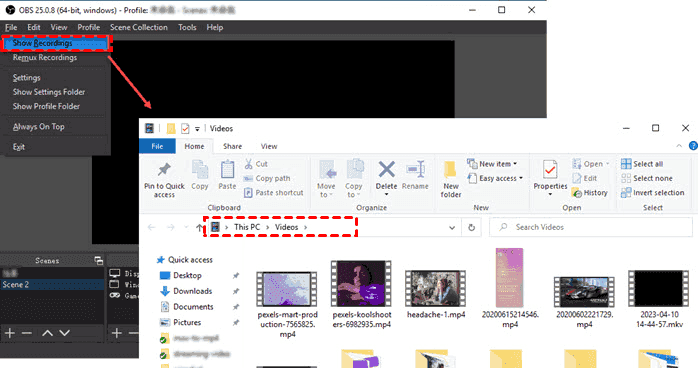
By default, recordings are named with a date and timestamp like "2020-05-06 12-30-22.mkv", though the extension may be hidden by Windows.
They may not LOOK like a recording either, as Windows doesn't handle MKVs well.
If you have installed MLC, you can preview and play the video.
Way 4. Recover Deleted OBS Recordings with MyRecover
If you can't recover deleted OBS recordings using the above solutions, you can try the powerful Windows data recovery software, MyRecover.
It's designed to scan deep into your hard drive and pull back files you thought were gone forever. It works even after you've emptied the Recycle Bin or formatted a drive.
Here's exactly how to use it to recover deleted OBS files.
1. Download MyRecover and install it on a different drive than the one you're recovering from. Because installing on the same drive risks overwriting the deleted OBS video.
 100% Secure
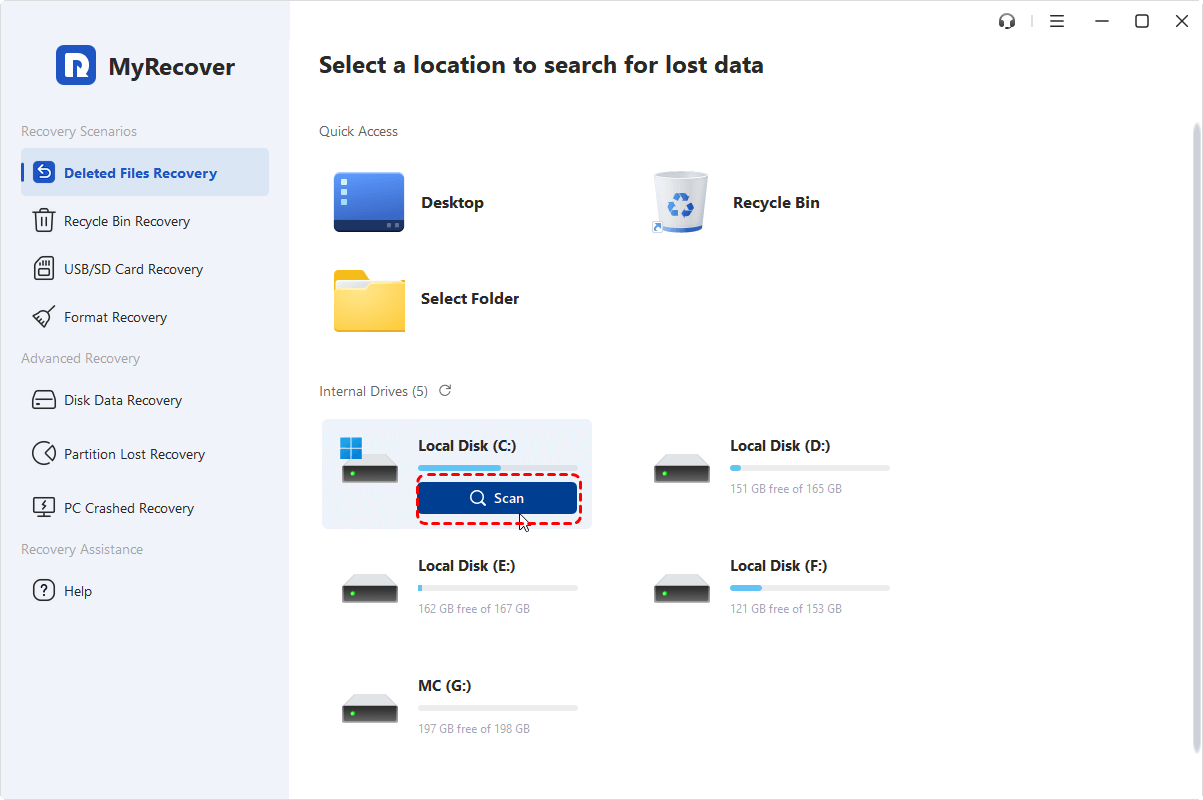
2. Launch MyRecover, tap Deleted Files Recovery, hover over the Drive where the OBS recordings were stored before, and hit Scan.
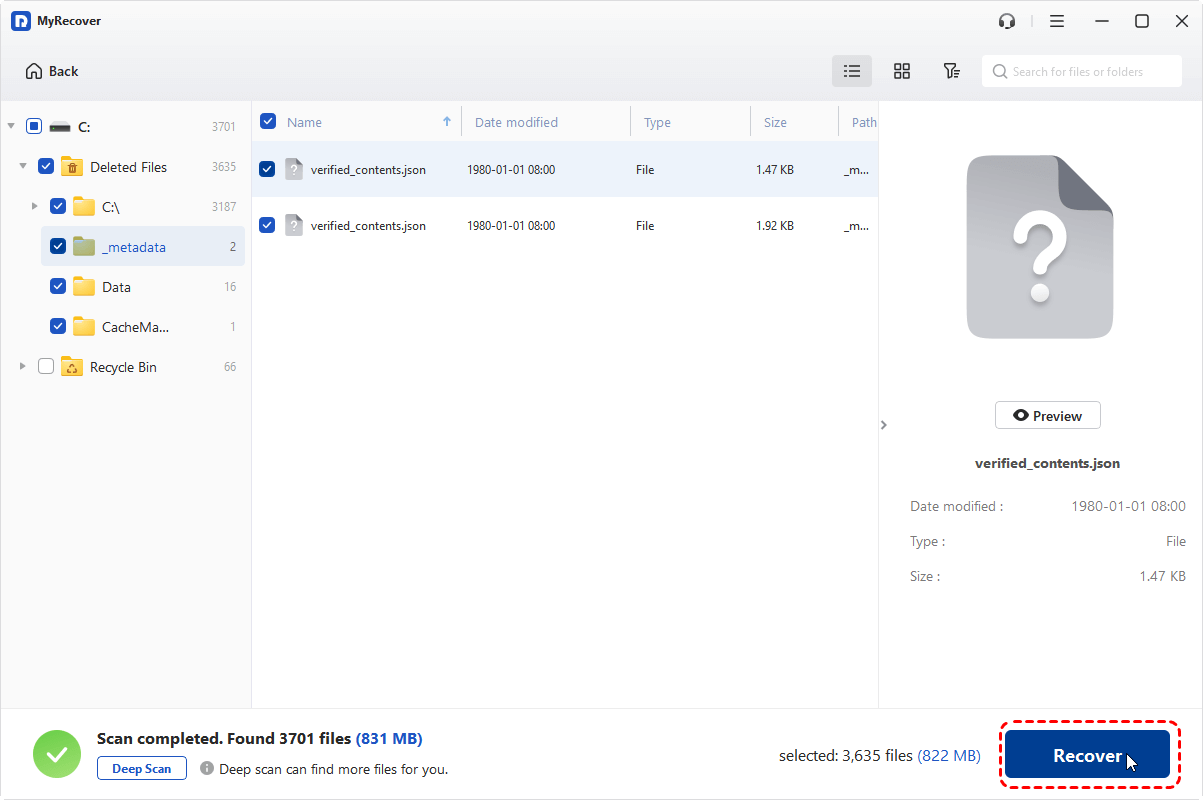
3. Preview and select the OBS recordings you need, and tap Recover.
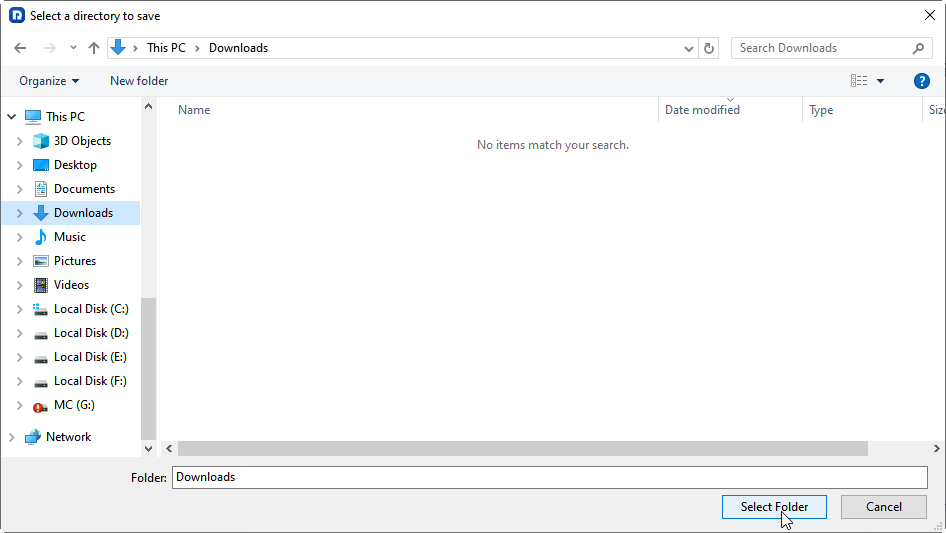
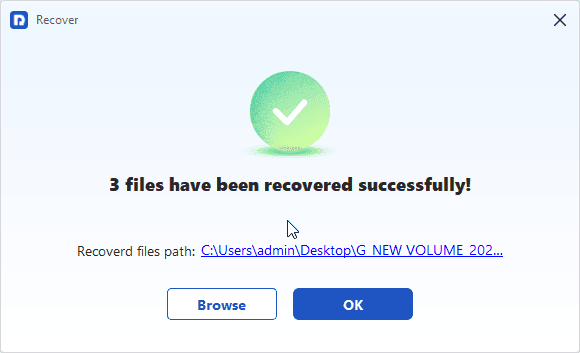
4. Opt for a location and hit Select Folder to keep them safe.
- Notes:✎...
- MyRecover performs a quick scan by default to find recently deleted files. Or you can try a deep scan to find more missing files, like formatted files from the hard drive, etc, and the time gets much longer.
- After scanning, browse the results. Use the filter options, type '.mp4', '.mkv', or '.flv' to find OBS recordings. You can also search by file name, size, and modified date, if you remember it.
- It's wise to upgrade to MyRecover Technician if you need to recover more files.

 MyRecover
- Recover Deleted Files Easily with Simple Clicks
- 1000+ File Formats Supported
- Support HDD, SSD, External Hard Drive, USB Drive, SD Card, etc.
- Quickly Find Files Using File Types, Name, Size, etc.
- Preview Files Before Recovering
- Recover Unlimited Data
 100% Secure
Prevent Future Loss of OBS Recordings and Scenes
Look, prevention is way less painful than recovery. A few small changes to your workflow can save you hours of stress down the line.
Changing OBS Output Settings to Save Files More Safely
- Open OBS Studio and go to Settings > Output > Recording.
- Change the "Recording Path" to a dedicated folder on a different drive if possible—preferably not your system drive.
- Also, switch "Recording Format" to mkv. MKV files are more resilient; if OBS crashes, you can often recover the video up to the crash point.
Set Up Automatic Backups for OBS Recordings and Scenes
Use free tools like Windows' own Task Scheduler to automatically copy new recordings to an external drive or cloud storage (Google Drive, Dropbox, etc.). Set it to run once a day or every few hours. That way, even if you accidentally delete something locally, you've got a backup.
FAQs About Recovering Deleted OBS Recordings
Q: Can I recover deleted OBS recordings after emptying the Recycle Bin?
A: Yes. Emptying the Recycle Bin only marks space as reusable. Tools like MyRecover can still retrieve the video if you act fast and avoid using the drive.
Q: Does OBS have a built-in way to recover deleted OBS scenes?
A: No. But scene layouts are saved as JSON files. Check %APPDATA%\obs-studio\basic\scenes (Windows) or ~/Library/Application Support/obs-studio/basic/scenes (Mac) to restore them from backups.
Q: What's the best free software to recover an accidentally deleted OBS recording?
A: MyRecover (Windows) or TestDisk (Mac). Free tools lack previews and can be slow. MyRecover offers a free trial, worth paying for critical files.
Q: How can I recover deleted OBS files from an external hard drive?
A: Same as internal. Connect the drive, run MyRecover, select it, and scan. Stop using the drive immediately after deletion to avoid overwriting.
Q: Why does my recovered OBS video have no audio or glitches?
A: Likely partial overwrites. Always recover to a different drive. Try VLC Media Player and switch audio tracks. If that fails, use a video repair tool like Stellar Repair.
Q: Can I recover deleted OBS recordings from months ago?
A: Possibly, but chances drop with every new file saved. Use a deep scan tool. Best practice: run recovery right after deletion, not months later.
Q: What should I do immediately after an accidental deletion?
A: Stop using the computer. No browsing, saving, or restarting. Then use recovery software from a separate drive to scan the original.

Stay Updated With Our
Latest Tips
Add us as a preferred source on Google to never miss helpful guides.
 Add as preferred source >>