 MyRecover



Permanently Delete Recycle Bin Windows 11 Desktop Icon & Restore Guide
Need to delete Recycle Bin Windows 11 or has it vanished? This guide covers everything: permanently removing the icon, finding hidden settings, and using the easiest methods to show Recycle Bin Windows 11 again on your desktop.

By Delores / Updated on December 5, 2025


How to Permanently Delete Recycle Bin Files?
How do I delete files permanently from my computer and make them unrecoverable?
Hi everyone, I was organizing my computer recently and found some old files and sensitive data that I want to completely delete. I don't want these files to be restored, and I feel that ordinary deletion methods, such as right-clicking to delete or emptying the Recycle Bin, may still leave traces of data. I have heard of some methods, such as using special software or command line operations, but I am not familiar with these.
I hope to find a simple and effective method to delete files permanently from my computer and make them unrecoverable. Does anyone have good suggestions or experience to share? Thank you very much for your help!
- Question from techcommunity.microsoft.com
If you want to delete the Recycle Bin in Windows 11, you can follow the steps in this guide. It not only shows you how to delete files permanently in your Recycle Bin, but also guides you on how to show the Recycle Bin in Windows 11 if it’s disappeared.
About the Recycle Bin in Windows 11
The Recycle Bin is a designated, system-managed storage folder with a fancy icon and some rules.
When you delete a file from your hard drive, Windows doesn't immediately erase it. Instead, it moves the file to this special folder, buying you time—a grace period—to change your mind. The icon on your desktop is simply a shortcut to view this folder's contents.
When we discuss deleting the Recycle Bin in Windows 11, we’re primarily talking about removing the visual shortcut from your desktop, not wiping out the underlying function.
How to Show the Recycle Bin on Your Desktop
Sometimes, the Recycle Bin icon vanishes by glitch—maybe after an update, a driver install, or a third-party "cleaner" tool got overzealous. It's easy for you to show the Recycle Bin icon in Windows 11 Desktop:
If your recycle bin disappeared in Windows 11, don't panic. The most common and easiest fix is to:
1. Right-click on your desktop, select "Personalize", then choose "Themes" on the right.
2. From there, scroll down and click "Desktop icon settings".
3. A small window will pop up. Here, you’ll see a checkbox next to "Recycle Bin". Simply check it, click "Apply", then "OK".
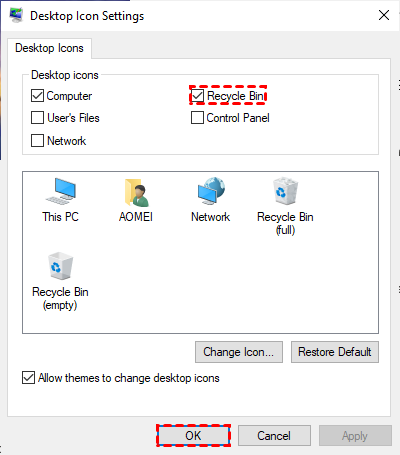
Tip: If you want to hide the Recycle Bin icon from the desktop, you can uncheck the Recycle Bin option in step 3.
Your Recycle Bin icon should be back.
How to Delete the Recycle Bin in Windows 11 Permanently
To delete Recycle Bin from the Windows 11 desktop permanently, you can try the above way to hide the Recycle Bin, or remove the Recycle Bin shortcut via Group Policy.
Warning: This method is for more advanced users and is only available on Windows 11 Pro, Enterprise, or Education editions. If you have Windows 11 Home, you can skip this.
1. Press Win + R, type gpedit.msc, and hit Enter.
2. In the Group Policy Editor, navigate through this path: User Configuration > Administrative Templates > Desktop.
3. On the right, find the policy named "Remove Recycle Bin icon from the desktop".
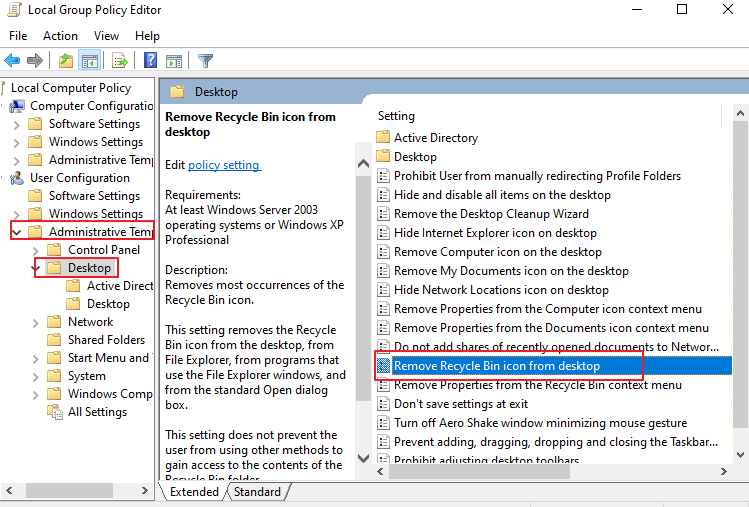
4. Double-click it, select "Enabled", and click "Apply" and "OK".
You’ll likely need to restart your computer or log out and back in for the change to take full effect. This policy actively prevents the icon from appearing, overriding personalization settings.
You have successfully chosen to delete Recycle Bin in Windows 11 from your view. The function itself, however, is alive and well. Deleted files still go there; you just need to know how to find the Recycle Bin in Windows 11 without the icon.
What Happens After You Delete the Recycle Bin in Windows 11
The deleted files will still go to the Recycle Bin folder after hiding files. Because you just remove the icon from the Windows 11 desktop. The Recycle Bin folder, typically located at C:\$Recycle.Bin (which is a hidden system folder), remains functional.
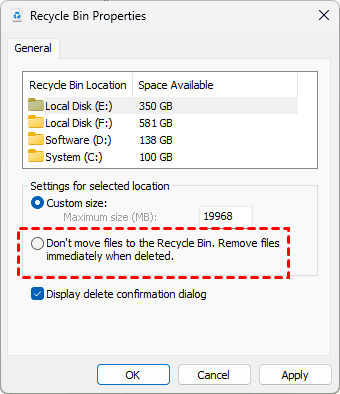
If you want to permanently delete files directly instead of moving them to the Recycle Bin folder, you can enable the Remove files immediately when deleted. Here is how to set it up:
1. Right-click on the Recycle Bin icon (which you no longer have), select "Properties".
2. Choose the option to "Don't move files to the Recycle Bin. Remove files immediately when deleted".
How to Find Recycle Bin Files in Windows 11?
If you have removed the Recycle Bin icon, how to find your deleted files in Windows 11? The quickest way is to use File Explorer.
1. Open it (Win + E) and type Recycle Bin directly into the address bar at the top. Hit Enter.
2. You are in the Recycle Bin folder, and manage Recycle Bin files.
Boom—you’re in. You can also pin this location to your Quick Access for future ease.
How to Empty Recycle Bin in Windows 11?
To empty the Recycle Bin in Windows 11, right-click the Recycle Bin icon on the desktop and select "Empty Recycle Bin", then confirm by clicking "Yes" in the prompt.
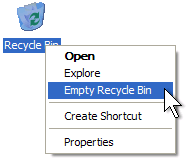
Alternatively, you can open the Recycle Bin and click the "Empty Recycle Bin" button in the top menu bar.
Addressing the Myth of Downloading the Recycle Bin on Windows 11
You’ll sometimes see forums where a frustrated user asks where to download the recycle bin for Windows 11. This stems from a misunderstanding. The Recycle Bin is not a standalone application you can download and install from the web; it’s an integral, built-in component of the Windows shell and file management system.
Searching for a "download" will, at best, lead you to misleading websites and, at worst, expose you to malware. If your Recycle Bin is corrupted, try to repair it.
FAQs About Deleting the Recycle Bin in Windows 11
Will deleting the Recycle Bin icon permanently delete my files?
No. Deleting the icon only removes the shortcut. The Recycle Bin itself remains active. For permanent deletion by default, you must change its properties to “Remove files immediately when deleted.”
How can I access the Recycle Bin after removing the desktop icon?
Open File Explorer (Windows key + E), type “Recycle Bin” in the address bar, and press Enter. You can also search for it via Start and pin it to Start or the taskbar.
Can I download the Recycle Bin for Windows 11?
No. The Recycle Bin is a built-in Windows feature. Any site offering a download is likely distributing malware. Fix issues with Windows tools like System File Checker instead.
Can I delete the actual Recycle Bin folder to free up space?
Yes, but it’s not recommended. Deleting C:$Recycle.Bin (a hidden folder) permanently erases all files inside it. For routine cleanup, simply empty the Recycle Bin normally.
Why did my Recycle Bin icon disappear after a Windows update?
Updates can sometimes reset desktop settings. Go to Personalization > Themes > Desktop icon settings and re-check the Recycle Bin box to restore it.
Is there a keyboard shortcut to open the Recycle Bin?
No direct shortcut exists, but you can press Win, type “recycle”, and press Enter. You can also create a desktop shortcut and assign a custom keyboard shortcut to it.
Recover Precious Files If Required
Sometimes, you have permanently deleted important files by accident, how to recover these files easily? Here comes the powerful Windows data recovery software, called MyRecover.
With MyRecover, you can enjoy the following strengths:
- User-Friendly Interface – Simple, clean, and intuitive design, making recovery accessible even for non-technical users.
- Deep & Quick Scan Modes – Effectively recovers files from formatted drives, system crashes, or after permanent deletion (Shift + Delete) by scanning NTFS, FAT32, exFAT, and ReFS partitions.
- Retains Original Filename & Structure – Unlike many tools that rename recovered files, MyRecover preserves original filenames, folder paths, and directory structures when possible.
- Wide File Format Support – Recovers documents (Word, Excel, PPT), photos, videos, audio, emails, and archives—over 200+ file types.
- Preview Before Recovery – lets you preview recoverable files (images, documents, etc.) before saving, saving time and storage space.
- Selective Recovery – Choose specific files or folders to restore instead of recovering everything, making the process faster and more organized.
So, how to recover permanently deleted files in Windows 11 with MyRecover? Check the simple guide:
1. Download and install MyRecover, then execute it.
 100% Secure
2. Tap Deleted Files Recovery, choose the drive where the files were located before the deletion, and hit Scan.

3. Wait for the scanning to complete and hit OK.
4. Preview and choose the files you need, and hit Recover.

5. Select a safe location to save these recovered files.

- Notes:✎...
- You can use MyRecover to recover files from an emptied recycle bin, recover files from a crashed computer, a formatted hard drive, an unformatted partition, etc.
- Recovering unlimited files is very helpful when you have a large number of files to recover.
- You can try MyRecover Technician to recover files from unlimited computers if you’re an administrator of an organization.

 MyRecover
- Recover Deleted Files Easily with Simple Clicks
- 1000+ File Formats Supported
- Support HDD, SSD, External Hard Drive, USB Drive, SD Card, etc.
- Quickly Find Files Using File Types, Name, Size, etc.
- Preview Files Before Recovering
- Recover Unlimited Data
 100% Secure

Stay Updated With Our
Latest Tips
Add us as a preferred source on Google to never miss helpful guides.
 Add as preferred source >>