 MyRecover



[Step by Step] How to Restore Dell to Factory Setting and Start Over?
Learn how to restore your Dell laptop or desktop to factory settings with ease. In this step-by-step tutorial, we show you how to reset Dell Inspiron, Latitude, Alienware, and other models to their original factory configuration. Whether you want to fix performance issues or prepare your device for resale, we guide you through the process, including how to restore BIOS settings to factory.

By Emma / Updated on December 10, 2025


What Does "Restore Dell to Factory Setting" Mean?
Restoring your Dell to factory settings essentially means reverting the device to its original, out-of-the-box state. This process reinstalls the operating system and removes any customizations, apps, or software that were installed after you purchased the device. It’s like starting over with a fresh system, just as it was when you first got it.
When You Might Need to Restore Dell to Factory Setting?
While a factory reset can be an effective way to refresh your Dell, it’s not always necessary. However, there are specific scenarios where resetting your device can resolve issues or help you start over with a clean slate.
🛠️Fixing System Issues
If your device is running slowly, freezing, or crashing frequently, a factory reset can help by removing corrupt files, bugs, and problematic software.
🛠️Preparing for Sale or Transfer
A reset is crucial if you’re selling or gifting your device. It ensures that all personal data is erased, protecting your privacy.
🛠️Removing Malware or Viruses
For severe malware or virus infections that are difficult to remove, a factory reset is one of the best ways to clear out threats and restore a clean system.
🛠️Boosting Performance
Over time, accumulated files and unused apps can slow down your system. A factory reset removes unnecessary clutter and gives your device a fresh, faster start.
🛠️Fixing Software Corruption
If your operating system becomes corrupted due to a failed update or missing files, a reset can reinstall the OS and restore functionality.
🛠️Reconfiguring After Major Changes
After significant system upgrades or changes, such as upgrading from Windows 10 to Windows 11, a factory reset helps you start fresh with the new setup.
How to Restore Dell Laptop / Desktop to Factory Setting?
The reset can be performed through Windows Settings or Dell / Windows Recovery Options. Next, we will break down how each method works.
1: Restore Dell Computer to Factory Setting Through Windows Settings
This is the most common and easiest method, suitable when you’re logged into Windows and can access the Settings menu.
Step 1. Open the "Start"Menu and click on the "Settings" gear icon.

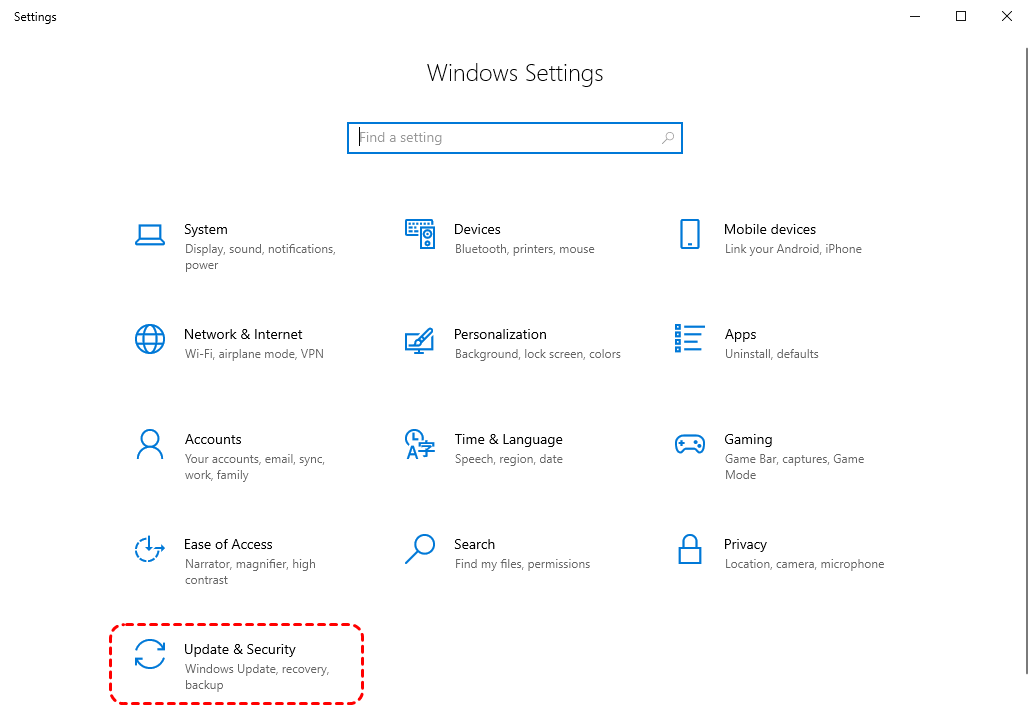
Step 2. Go to "Update & Security".
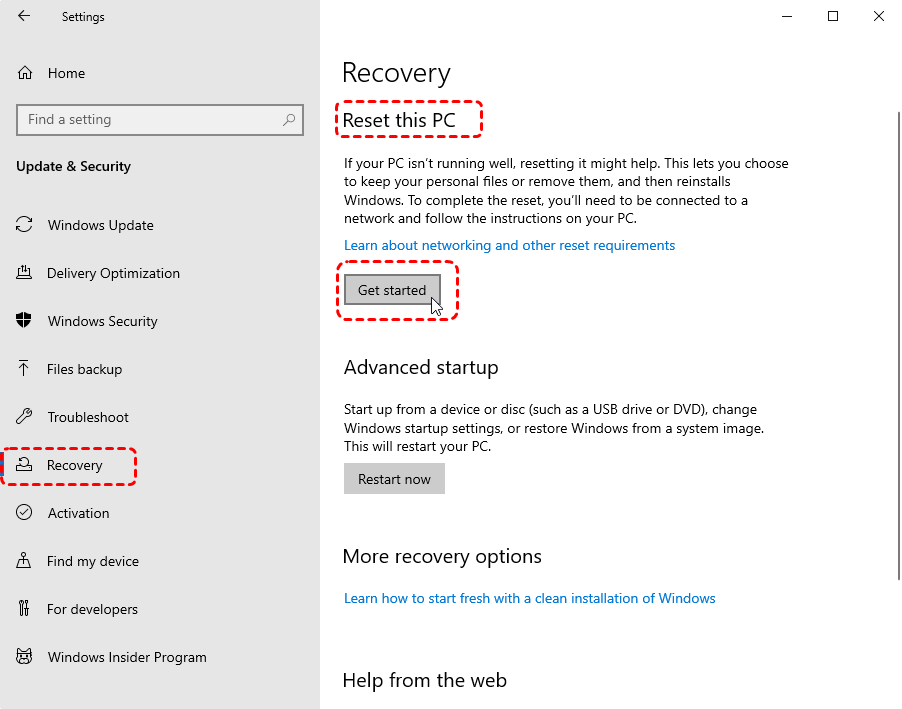
Step 3. Click on "Recovery" from the left sidebar. Under "Reset this PC", click on "Get started".
Step 4. Choose one of the following options(which determine whether the reset will wipe all files from your drives):
- Keep my files: This keeps your personal files but removes apps and settings.
- Remove everything: This will delete all personal files, apps, and settings, returning the PC to its factory state.
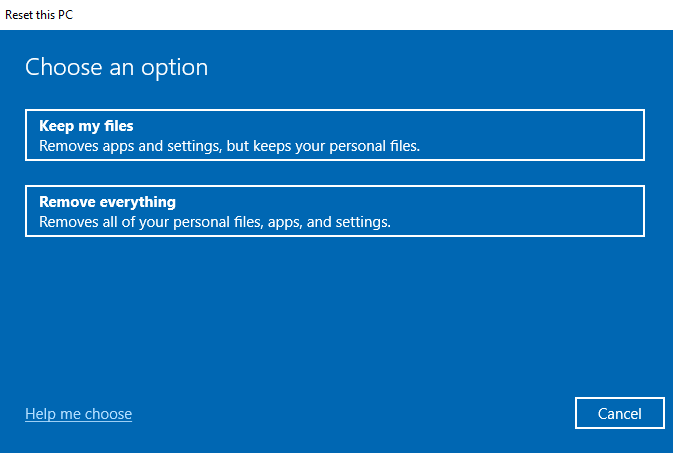
The following steps based on the situation where we choose "Remove everything" option.
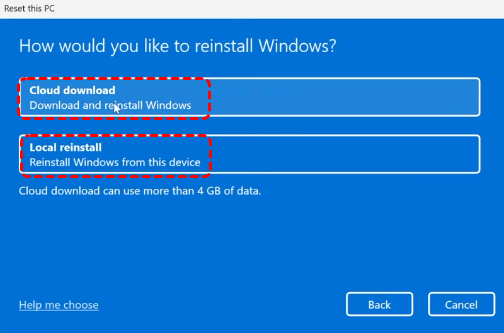
Step 5. Following prompts to select local or cloud reinstall and complete the process.
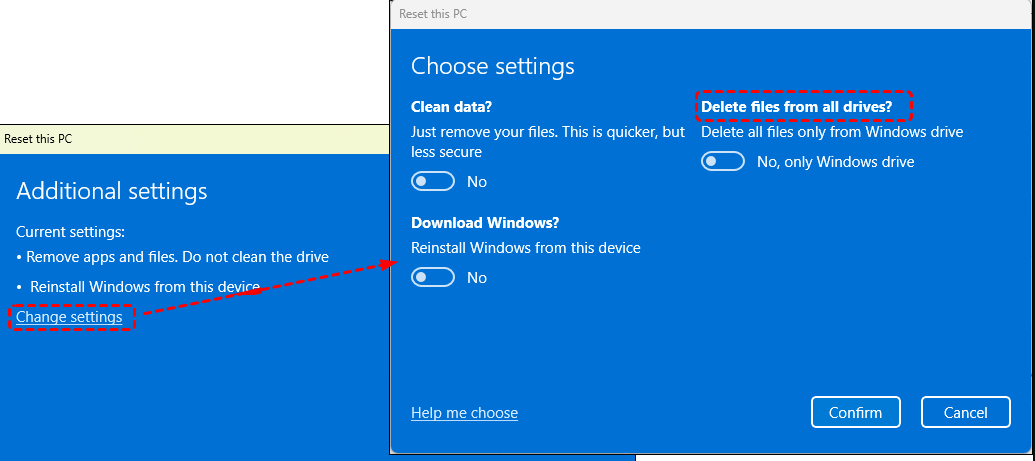
Step 6. In the "Additional Setting" window, you can change configure two critical options:
- Clean data?: Toggle this ON if you need to securely erase your drive (e.g., before selling your PC). This makes file recovery nearly impossible but takes much longer. Leave it OFF for a faster reset if you are keeping the PC.
- Remove files from all drives?: Only toggle this ON if you want to wipe every internal and external drive connected to your PC (like D: or E:). This will delete all personal files on those drives. Leave it OFF to reset only your Windows (C:) drive.
After making your selections, click "Confirm" and "Next".
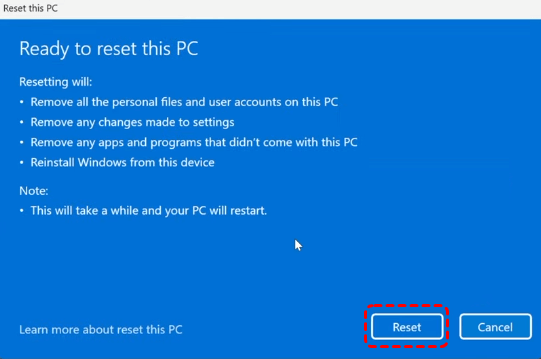
Step 7. Finally, you will see a final confirmation screen titled "Ready to reset this PC". Review the settings one last time. If everything is correct, click "Reset" to begin the process.
2: Resetting Dell PC to Factory Settings Through Dell SupportAssist OS Recovery
This method utilizes the Dell SupportAssist OS Recovery tool or the dedicated recovery features within the Windows Recovery Environment (WinRE) that are pre-installed on Dell PCs. It is a reliable solution when your Dell PC isn’t starting properly or you can't access Windows normally.
No download needed usually. Dell SupportAssist OS Recovery is a pre-installed, standalone tool stored on a dedicated recovery partition. It works even if your main Windows system is corrupted, as it boots independently. You only need to download it separately if the recovery partition was deleted (e.g., after a hard drive replacement).
Step 1. Restart your Dell PC. As soon as the Dell logo appears during startup, immediately and repeatedly press the F12 key until the "One-Time Boot Menu" appears.
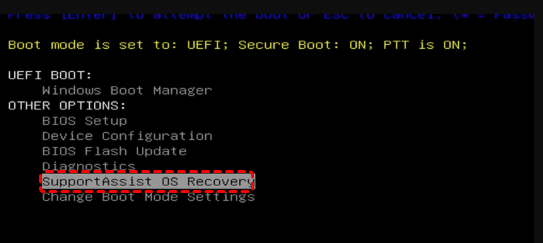
Step 2. Use the arrow keys to select "SupportAssist OS Recovery" press Enter.
Step 3. Once in the recovery environment, you will now see 4 SupportAssist OS Recovery options by Dell. Directly select "Reset ".
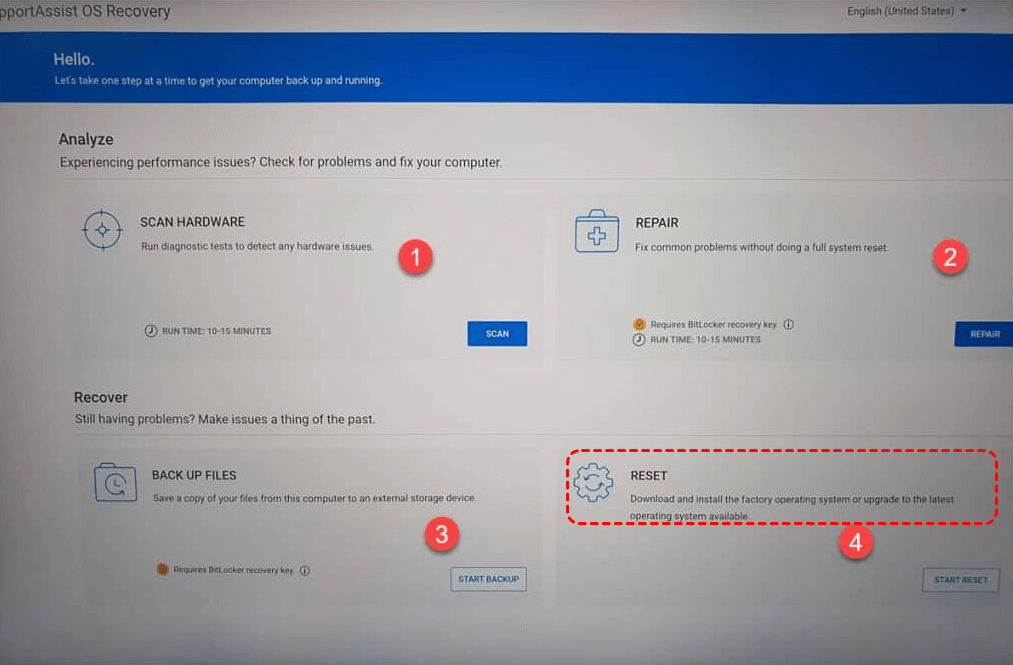
Step 4. Click "Start Reset".
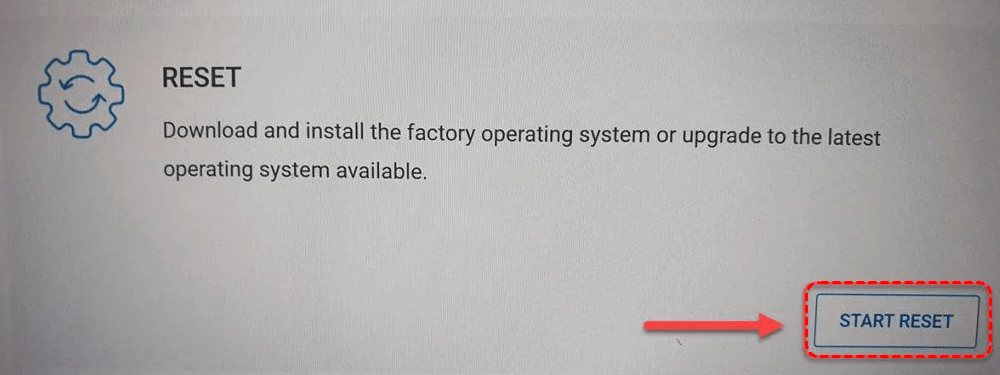
Step 5. Then, you need to choose between "Reset to Factory Settings" or "Reset and Update".
- Restore to Factory Settings: This option resets your device to its original factory state and reinstalls the operating system that was preinstalled at the time of purchase.
- Reset and Update (Recommended): Dell recommends this option for a fresh start. It will reset your device and install the latest available version of the operating system, including all current updates.
Step 6. Make your decision and follow the on-screen instructions to complete the process.
3: Reset Dell PC to Factory Settings Using Windows Recovery Options
Additionally, you can reset Dell Inspiron, Latitude, Alienware, and other series to their factory settings using the built-in Windows Recovery Options. This method is especially useful when the system fails to boot or when you want to restore the PC to its original condition without the need for external media.
Step 1. Enter Windows recovery mode by interrupting the boot process. To do this, Force a shutdown by pressing and holding the power button for 10 seconds, then turn the PC back on. Repeat this process 2-3 times until Windows enters "Automatic Repair" mode.
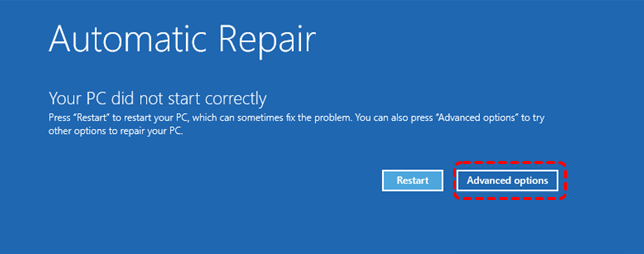
Step 2. Once the Windows Recovery Environment (WinRE) screen appears, choose the "Troubleshoot" option.
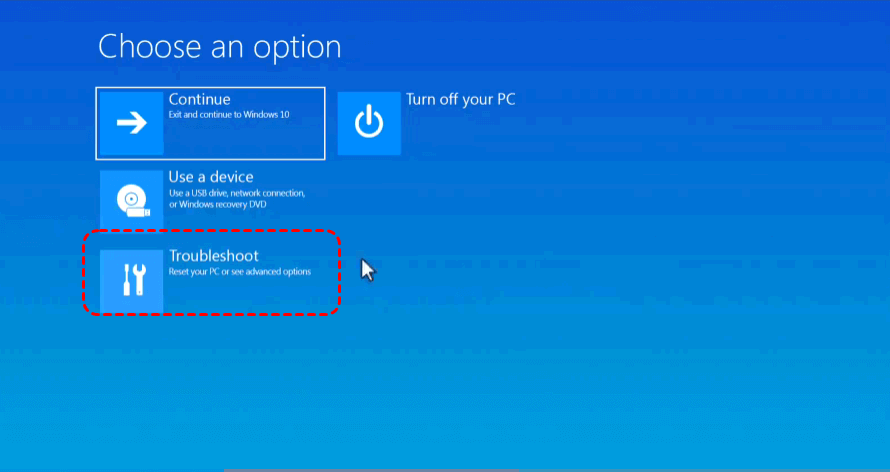
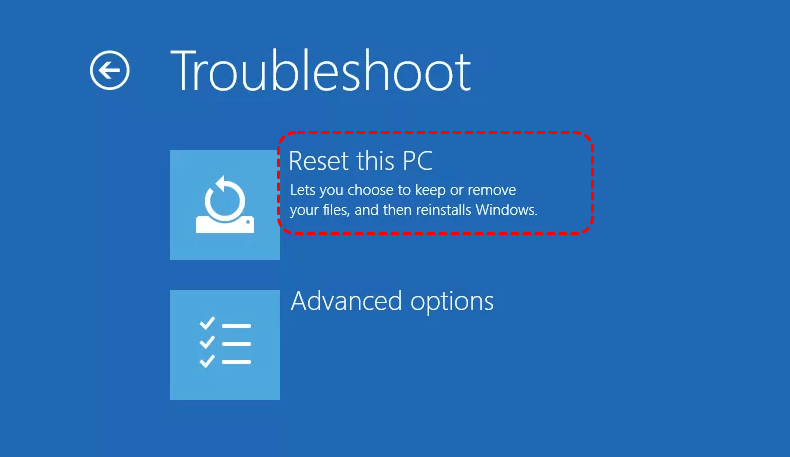
Step 3. This will open up advanced recovery options. On the Troubleshoot menu, select "Reset this PC". This option will help you restore your PC to factory settings.
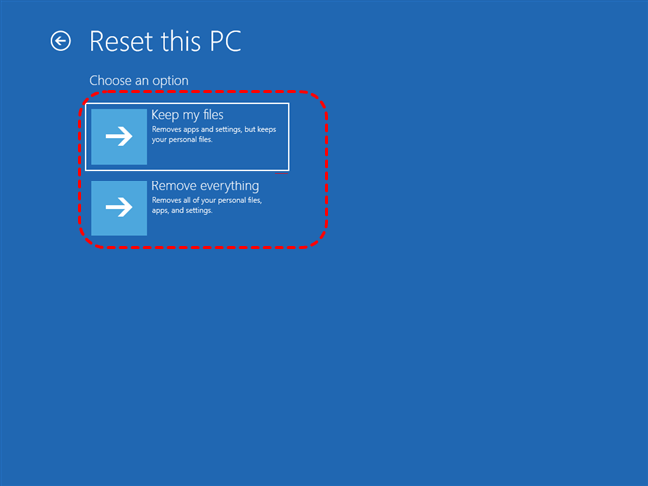
You will then be prompted with two reset options: "Keep my files" and "Remove everything," similar to the first method. Select your preferred option, follow the on-screen instructions to confirm your choice, and allow the system to complete the reset process.
Bonus Tip: How to Restore Dell BIOS or UEFI (System Setup) to Factory
In some cases, you may need to restore the BIOS or UEFI settings on your Dell PC to their factory defaults. This can help resolve issues caused by incorrect system settings or configurations, particularly when troubleshooting boot or hardware-related problems.
Step 1. Power off your Dell PC completely. If the system is on, turn it off.
Step 2. Power the computer back on. As soon as the Dell logo appears, immediately press the F2 key (on some models, you may need to use Esc or F12).This will take you to the BIOS or UEFI Setup screen.
Step 3. Once in the BIOS/UEFI setup, navigate through the menu using the arrow keys to find an option like "Restore Defaults", "Load Defaults", or "Reset to Default".
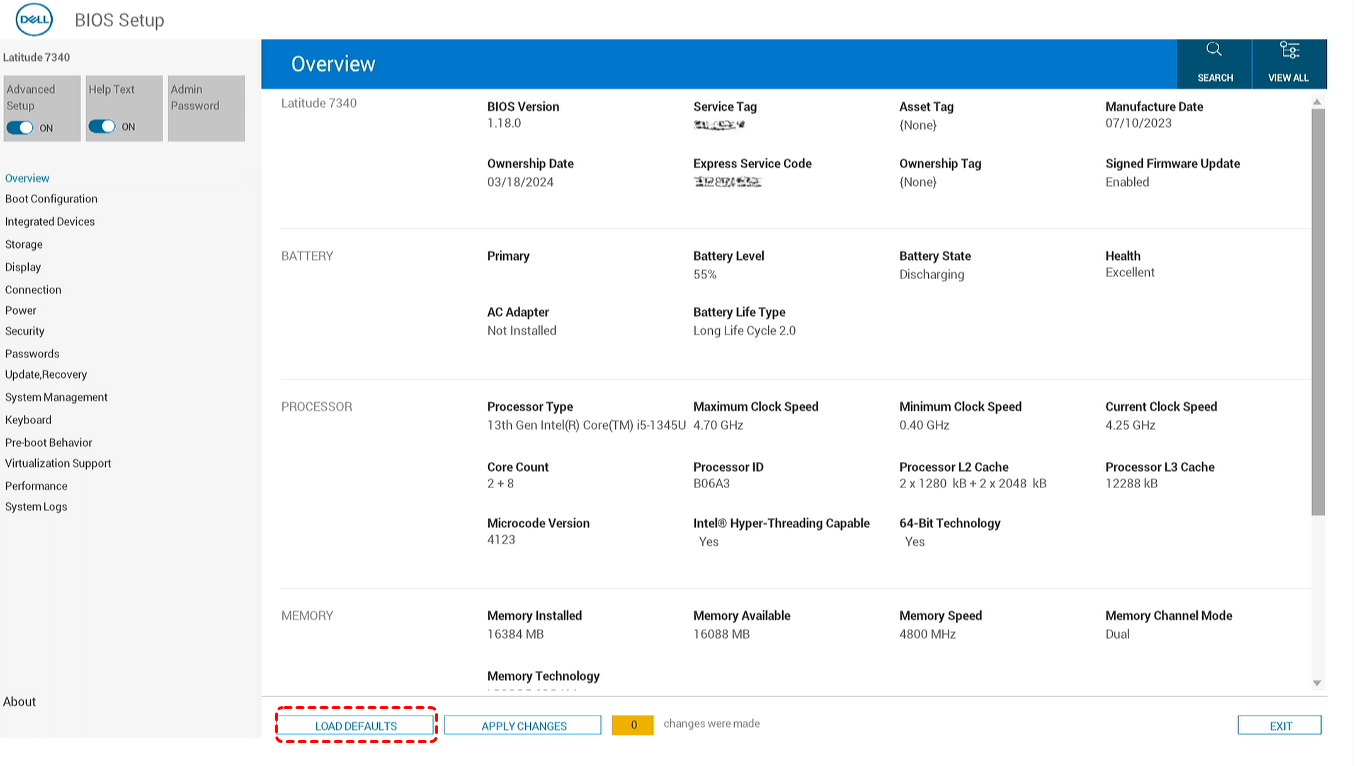
Step 4. Select the option to restore or load default settings. A confirmation prompt may appear, asking you if you are sure you want to reset the BIOS/UEFI to factory settings. Confirm your choice to restore the factory defaults.
Step 5. After confirming the reset, save your changes by selecting "Save & Exit" or "Exit Saving Changes". Your system will restart.
Once your PC restarts, the BIOS/UEFI settings will have been restored to their factory default values, including boot order, CPU settings, and other configurations that may have been modified.
Lost Precious Files After Restoring Dell to Factory Setting? Recover Them Easily
Restoring your Dell PC to factory settings can result in the loss of personal files, documents, photos, and apps. If you’ve accidentally wiped your important data during the reset process, don’t worry—there are ways to recover your files. One of the most reliable solutions is MyRecover, a powerful data recovery tool that can help you restore lost files even after a factory reset.

 MyRecover
- 🌟Recover Without Backup: Restore lost files even if no Windows backup exists.
- 🌟High Success Rate: AI-powered file recognition and recovery algorithms ensure easy use and zero file omission.
- 🌟Wide File Support (1000+): Recover photos, documents, videos, audio, archives, and more.
- 🌟Supports Multiple Devices (500+): Works on HDDs, SSDs, USB drives, SD cards, cameras, and other storage devices.
- 🌟Covers 500+ Data Loss Scenarios: Handles accidental deletion, formatting, system crashes, virus attacks, emptied Recycle Bin, partition loss, and more.
 100% Secure
Step 1. Install the software on a different drive or device to avoid overwriting the data you want to recover. Open MyRecover, choose the drive or partition where your files were lost (e.g., your primary C drive or the recovery partition if applicable). Click the "Scan" button.

Step 2. The software will begin scanning the selected drive for lost or deleted files. This process can take some time, depending on the size of the drive.
Step 3. Once the scan is complete, MyRecover will display a list of recoverable files. You can preview these files to verify which ones you want to restore.
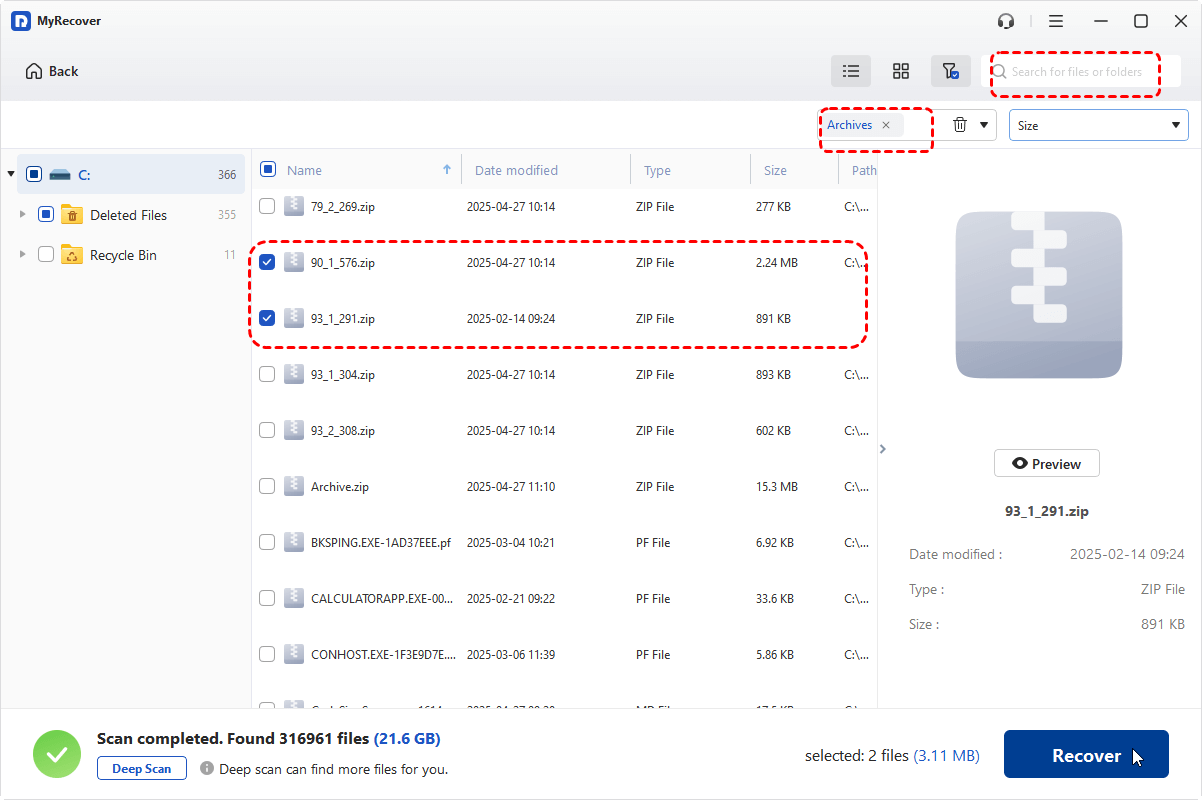
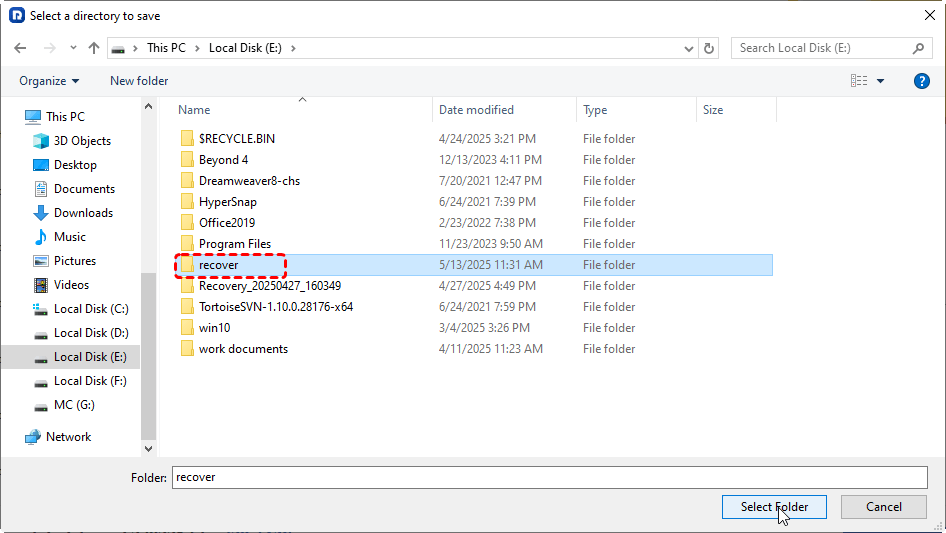
Step 4. Select the files you want to recover, then click "Recover" to restore them. Make sure to save the recovered files to a different drive than the one you’re recovering from to prevent overwriting.
Summary
Restoring your Dell PC to factory settings can be an effective solution for fixing system issues, boosting performance, or preparing your device for resale. However, it’s important to remember that this process can result in the loss of personal files and apps. If you’ve lost important data during the reset, don’t panic—tools like MyRecover can help you recover those precious files quickly and easily.
Even if your Windows cannot boot up normally, MyRecover can still help you recover your files. It permits you to create a bootable data recovery USB and then retrieve files from unbootable PC.

Stay Updated With Our
Latest Tips
Add us as a preferred source on Google to never miss helpful guides.
 Add as preferred source >>