 MyRecover



Does Resetting Windows Wipe All Drives? Clear Answers to Your Most Common Questions
Wondering does resetting Windows wipe all drives or only the system drive? This guide explains whether resetting a PC wipes all drives, how Windows handles data on non-system partitions, and what happens to files during a factory reset. Learn when Windows may clear, clean, or format all drives and how to recover your important data when necessary.

By Emma / Updated on December 9, 2025


What Is"Resetting Windows" ?
"Resetting Windows" (often called a "PC Reset" or "Fresh Start") is a built-in recovery tool that reinstalls Windows while giving you options on what to keep and what to remove. It's designed to solve major software problems without needing installation media.
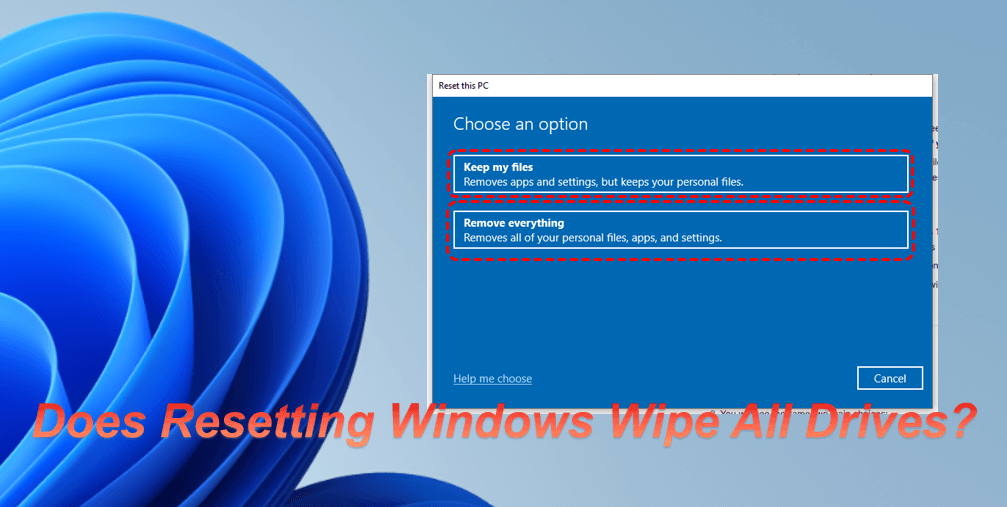
Think of it as a "factory reset" for your operating system. Instead of just deleting files, the process consists of:
✔️Boots into the Windows Recovery Environment.
✔️Wipes the system drive (usually C:) according to your chosen options.
✔️Reinstalls a fresh copy of Windows from files stored on a dedicated recovery partition on your hard drive or downloads them from Microsoft's servers.
✔️Restarts into a fresh Windows setup, much like on a brand-new PC.
What Windows Reset Actually Does to Your System (C:) Drive?
The reset process fundamentally reconstructs your C: drive in a systematic way. For a clear answer to "does resetting PC wipe all drives," check out the following breakdown of what happens at the file system level.
Phase 1: Preparation in WinRE
When the reset begins from Windows Recovery Environment:
- C: drive is "unmounted" - The running Windows installation is completely offline. WinRE sees it as just another storage volume, not as the active OS.
- The Windows.old folder is created (if you choose "Keep my files").
- Check also: is it safe to delete Windows.old
Phase 2: File System Transformation in Different Situations
Does resetting PC clean all drives? The outcome depends entirely on the options you select during the process. The operation does not automatically format every disk; its scope is determined by your instructions. In the following sections, we will detail exactly what happens to your drives when you choose "Keep my files" versus "Remove everything."
When Choosing "KEEP MY FILES"
| What Happens | Technical Detail | User Impact |
| User Profile Migration | Windows scans C:\Users\[YourUsername]\ for personal files. These are copied to a temporary cache in WinRE's memory/storage. | Your Documents, Photos, Downloads, Desktop, etc., are preserved. |
| System Partition Wipe | The C:\Windows\, C:\Program Files\, and C:\Program Files (x86)\ directories are completely deleted. | All installed programs, Windows updates, and system settings are removed. |
| Windows Reinstallation | A fresh Windows image is extracted to C:\Windows\ from either the recovery partition or cloud download. | A clean OS core replaces the old one. |
| User Data Restoration | Your personal files from the temp cache are copied back to the new user profile at C:\Users\[YourUsername]\. | Your files reappear in their usual folders. |
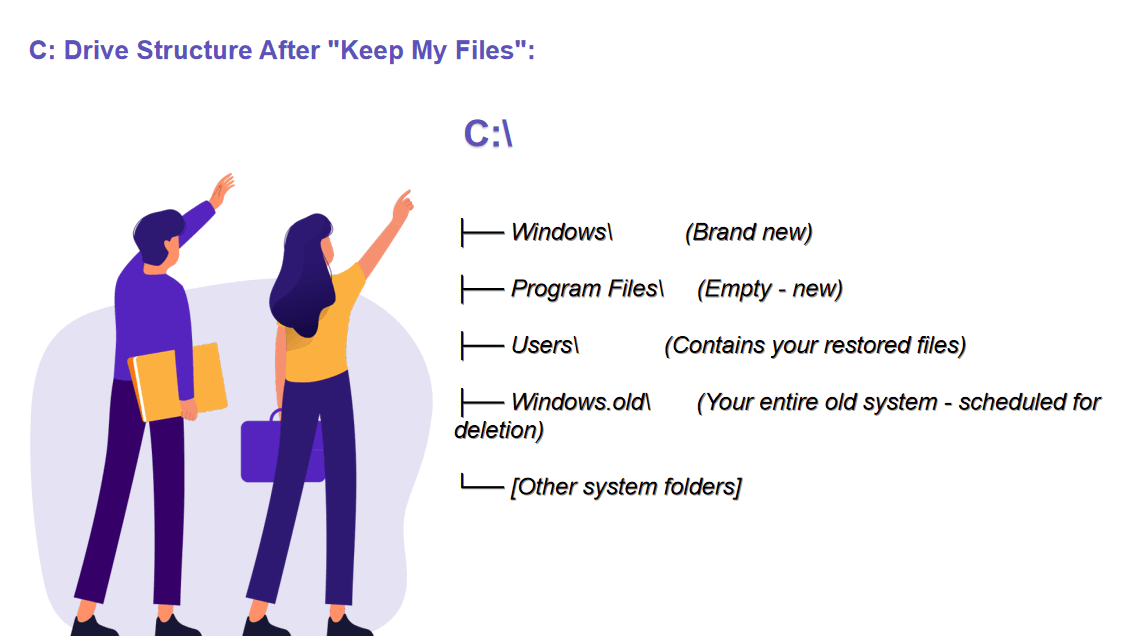
| Windows.old Creation | The old Windows installation (before migration) is moved to C:\Windows.old\. This contains your old Windows, Program Files, and even your previous user profile. | You have 10 days to recover anything missed before Windows automatically deletes this folder. |
Disk Structure After "Keep My Files":
When Choosing "REMOVE EVERYTHING"
| What Happens | Technical Detail | User Impact |
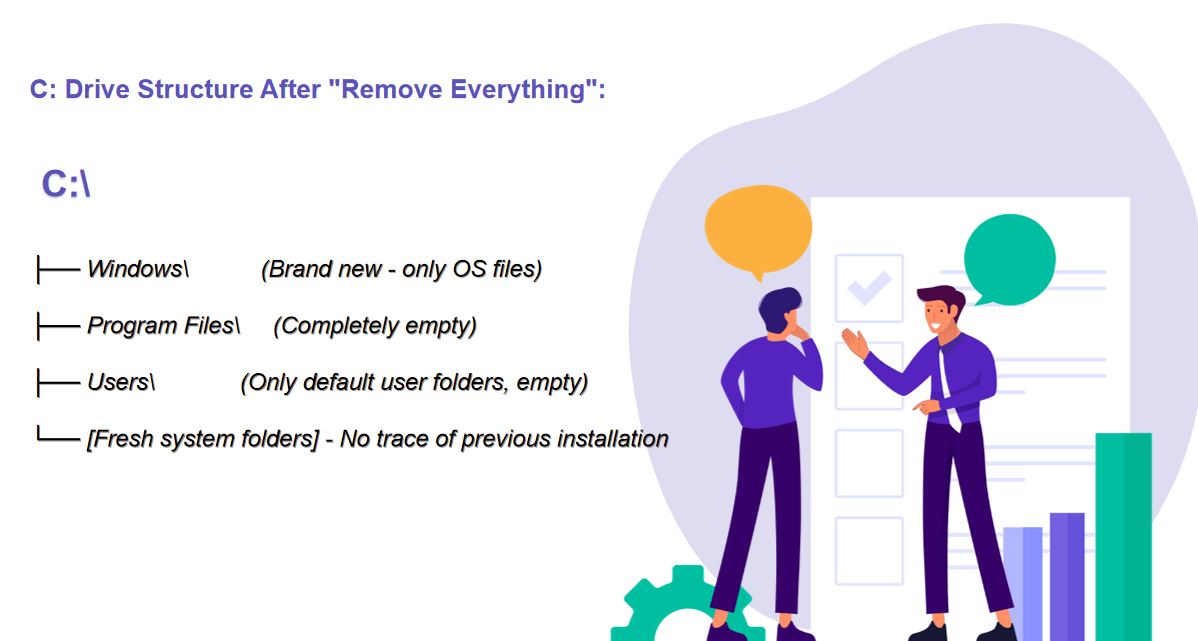
| System Partition FORMAT | The entire C: drive partition is formatted. This erases the file table (NTFS MFT), marking all space as "available." | Everything is gone: Windows, programs, user files, settings. |
| Optional: Secure Wipe | If you choose "Clean the drive": Random data is written over all sectors multiple times (DoD 5220.22-M standard). | Makes data recovery difficult. Takes hours. |
| Fresh Windows Install | Windows installs to a completely blank C: drive. A new file system is created. | Like a brand-new PC from the factory. |
| No Windows.old | No backup is kept. Everything is permanently gone. | Tough to recover anything unless you had external backups or using professional tool. |
Disk Structure After "Remove Everything":
Does Resetting Windows Affect Other Drives (D:, E:, etc.)?
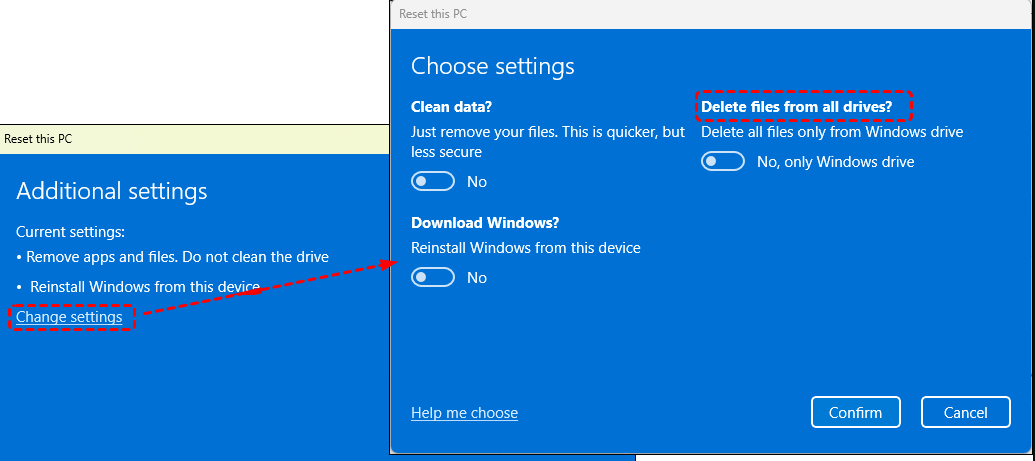
By default, the reset ONLY affects the C: drive. Partitions like D: or E: remain untouched UNLESS:
💡You're using BitLocker encryption on other drives (may require recovery keys)
💡During "Remove everything," if you choose the option "Delete files from all drives" through "Change setting"- this will wipe ALL partitions on ALL drives in the PC.
💡You have apps/games installed on other drives - these will still exist as files but will lose their registry entries and won't run without reinstallation.
FAQs About "Resetting Windows"
Q1: Will I lose my Windows license/product key if I reset?
A: No. Your Windows license is digitally tied to your device's motherboard. The reset process preserves this activation. After resetting, Windows will automatically reactivate once connected to the internet.
Q2: What's the difference between "Reset this PC" and a "Clean Install" from a USB drive?
A: Reset this PC uses recovery files already on your PC (or downloads them) and automates the entire process. A Clean Install requires you to create bootable USB media, manually delete partitions, and perform a more thorough, manual installation. A clean install is often considered the "cleanest" method but is more complex.
Q3: What’s the Difference between "Local reinstall" and "cloud download"?
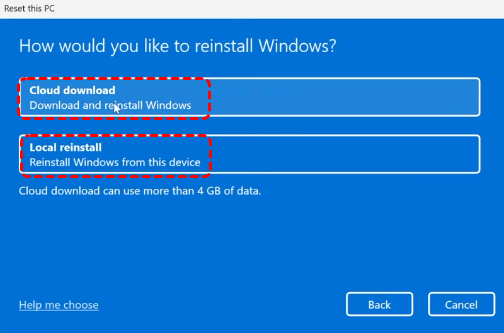
A: "Local reinstall" uses recovery files already stored on your PC's hard drive (in a hidden partition), so it works offline and is generally faster with no internet dependency. "Cloud Download" fetches the latest Windows installation files directly from Microsoft's servers over the internet, ensuring you get the most current version of Windows with the latest updates, but it requires a stable internet connection and more time to download.
Q4: How long does resetting Windows take?
A: It typically takes between 30 minutes to 2 hours, depending on:
- Your choice: "Remove everything" (especially with drive cleaning) takes longer than "Keep my files."
- Your hardware: Faster SSDs complete the process more quickly than older HDDs.
- Your source: "Cloud Download" adds time for downloading the Windows image (several gigabytes).
Q5: Can I cancel a reset once it has started?
A: It is strongly discouraged. Interrupting the process (by cutting power, forcing a shutdown, or unplugging the PC) can corrupt the Windows installation and leave your PC unbootable, requiring a USB drive to recover. Only cancel if the process is clearly stuck for many hours.
Q6: Will resetting Windows remove viruses or malware?
A: Yes, in most cases. Since it replaces your core Windows files and removes all installed applications, most malware will be eradicated. However, sophisticated malware that infects firmware or recovery partitions might persist. For severe infections, a clean install from external media is more secure.
Q7: I chose "Keep my files," but my programs are gone. Is that normal?
A: Yes, completely normal. The "Keep my files" option only preserves your personal data in the Users folder (documents, pictures, etc.). All your installed software, games, and desktop applications will be removed and must be reinstalled manually.
Q8: Is it possible to recover personal files missing after resetting windows?
A: Yes, but your chances depend entirely on which reset option you chose. Act quickly, as the opportunity to recover files can be time-sensitive.
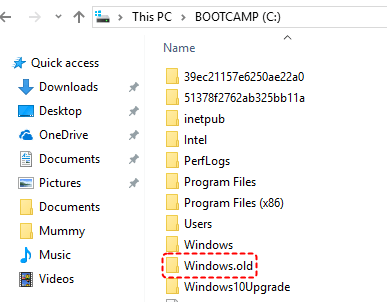
If you chose "Keep my files": Your files should be in your user folders (C:\Users\[YourName]). If they are missing, they may have been moved to a backup folder called C:\Windows.old. You have about 10 days to retrieve files from thee Windows.old before Windows deletes it permanently.
If you chose "Remove everything": Recovery is much more difficult and but still possible using specialized data recovery software like MyRecover. It can handle 500+ easy and complex data loss scenarios, including emptied Recycle Bin, system crashes, file transfer failures, partition deletion, drive formatting, power outages, and more.

 MyRecover
- 🌟Recover Without Backup: Restore lost files even if no Windows backup exists.
- 🌟AI Empowered Recovery: AI-embedded file recognition & recovery algorithm makes easy use and 0 file omission.
- 🌟Wide File Support (1000+): Recover photos, documents, videos, audio, archives, and more.
- 🌟Supports Multiple Devices (500+): Works on HDDs, SSDs, USB drives, SD cards, cameras, and other storage devices.
- 🌟Covers 500+ Data Loss Scenarios: Handles accidental deletion, formatting, system crashes, virus attacks, emptied Recycle Bin, partition loss, and more.
 100% Secure
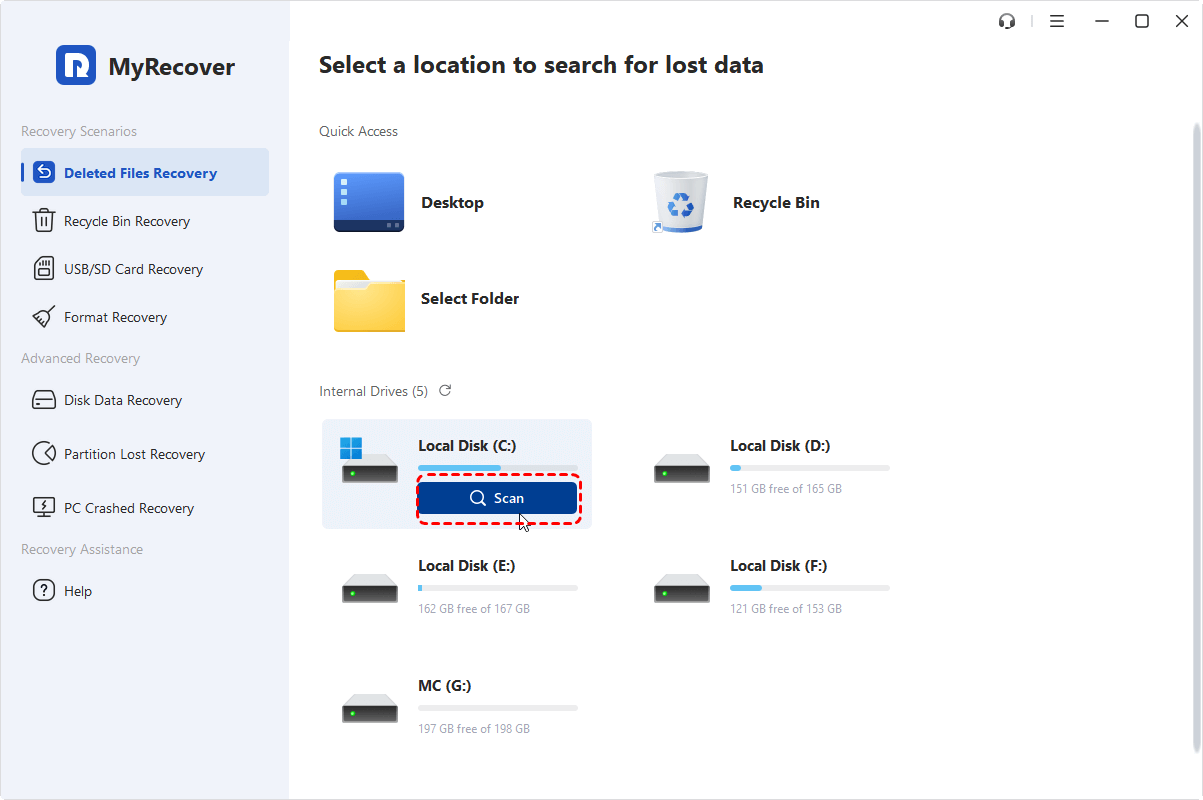
Step 1. Run the software and select the target drive, click "Scan" button.
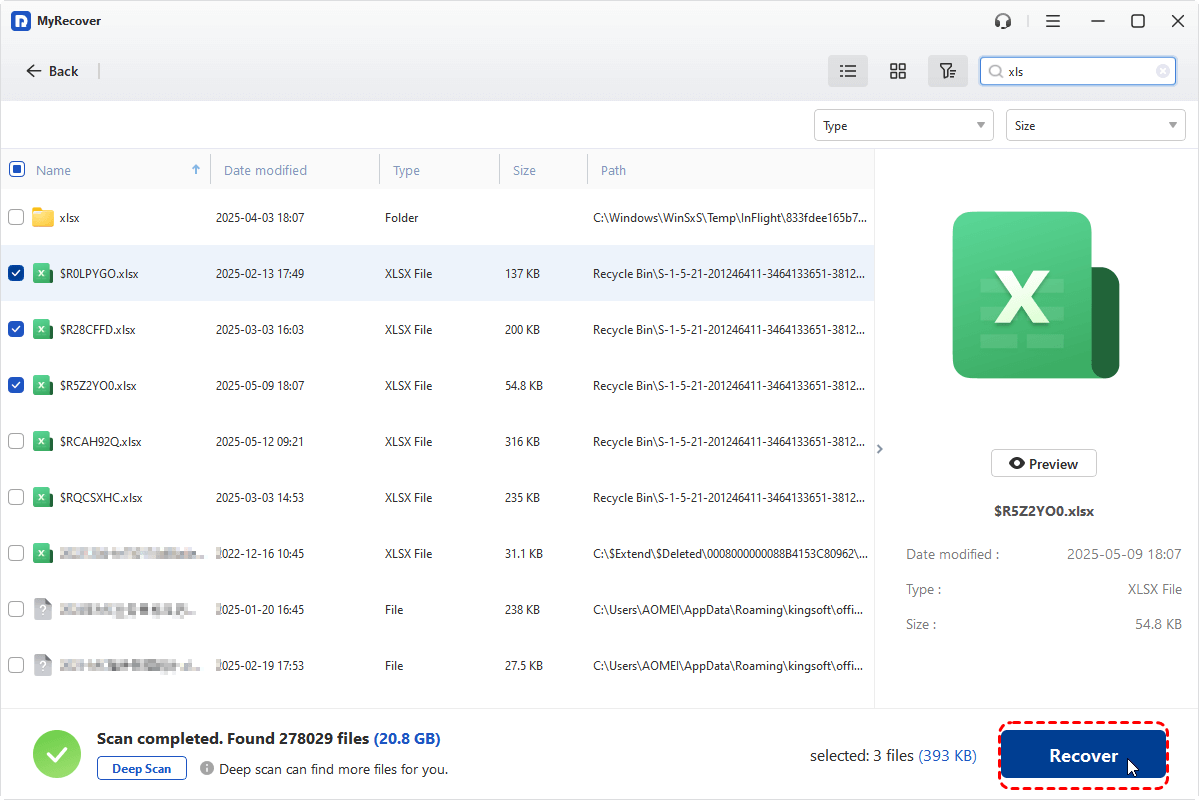
Step 2. After the scanning is completed, check what you need and click on "Recover".
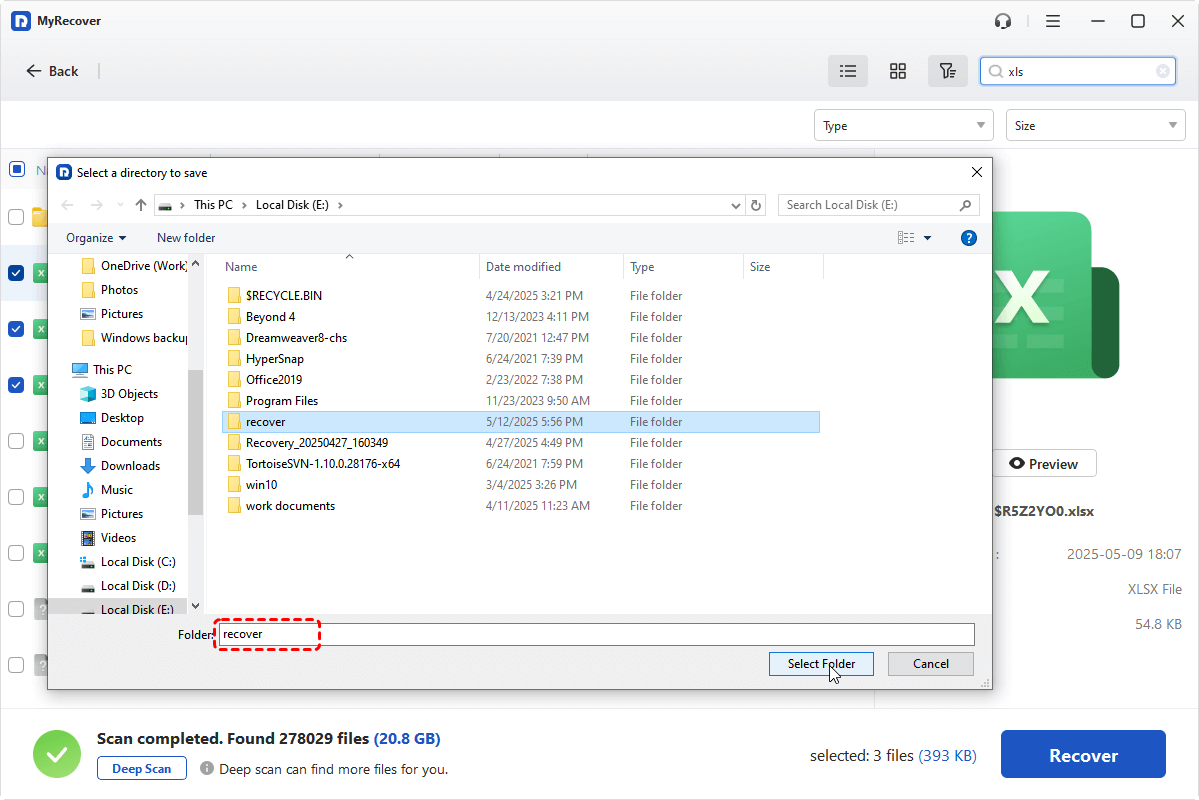
Step 3. Choose another safe location to save the recovered files.
If you cannot boot into Windows normally, use MyRecover first to create a bootable media via the "PC Crashed Recovery" on another working computer, boot the problematic computer from the bootable media and then perform data recovery without accessing Windows operating system.


Stay Updated With Our
Latest Tips
Add us as a preferred source on Google to never miss helpful guides.
 Add as preferred source >>