 MyRecover



SanDisk Extreme Portable SSD Not Working: Complete Troubleshooting Guide
Facing issues with your SanDisk SSD not working? Explore practical methods to fix connection problems, recover lost data, and optimize your SSD performance easily.

By Vera / Updated on December 5, 2025


Introduction
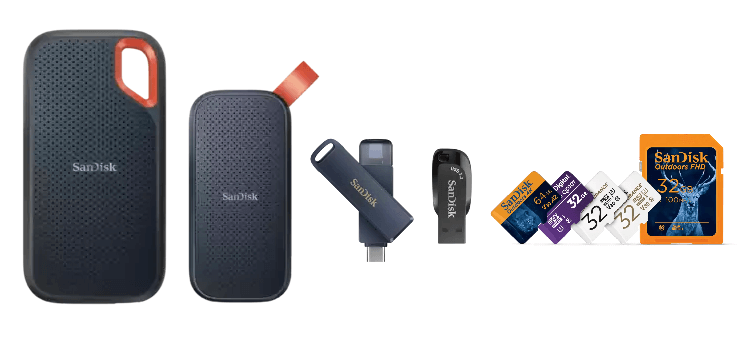
The SanDisk Extreme Portable SSD is celebrated for its speed, durability, and reliability. But even the most dependable gadgets can run into trouble. Maybe it’s not showing up on your computer, or the file transfers are painfully slow. Sometimes, your SSD may disconnect randomly, or worse, you might hear strange noises coming from it. Whatever the problem, understanding the root cause and how to troubleshoot it can save you both time and headaches.
Common Symptoms of a Malfunctioning SanDisk Extreme SSD
Before diving into solutions, it’s important to identify the symptoms. Here are the most common signs that your SSD might be having issues:
SSD Not Detected by Computer
The most obvious sign is when your computer refuses to recognize the drive. You plug it in, but nothing happens—no pop-up, no drive letter, no Finder icon. This can point to anything from a connection problem to a more serious hardware issue.
Slow Data Transfer Speeds
If copying or moving files feels like watching paint dry, your SSD may be struggling. This is often caused by internal errors, outdated firmware, or a USB connection that can’t handle high-speed data transfer.
Unexpected Disconnections
Randomly disconnecting drives are a nightmare. This is usually caused by a faulty cable, USB port, or the drive itself struggling with power delivery. It’s more than an annoyance—it can also corrupt your files.
SSD Making Strange Noises
While SSDs are generally silent, any unusual buzzing or electronic clicking is a red flag. Hearing these sounds is a strong indicator that the drive may be physically damaged.
Why Your SanDisk Extreme Portable SSD Might Not Be Working
Understanding why your SSD fails can help you fix it faster. Common causes include:
Hardware Issues
Even high-quality SSDs can suffer from defects, drops, or exposure to extreme temperatures. Internal components can fail, causing the drive to malfunction.
Software or Driver Conflicts
Outdated, missing, or incompatible drivers often prevent your computer from recognizing external drives. Sometimes, operating system updates conflict with the SSD firmware.
File System Corruption
Abrupt ejections or system crashes can corrupt the SSD’s file system, making data inaccessible.
Faulty USB Cables or Ports
A damaged USB cable or port is one of the most common culprits. Always rule this out before assuming your SSD is broken.
Step-by-Step Fixes for "SanDisk Extreme Portable SSD Not Working"
Let’s break down the steps to fix your SanDisk Extreme Portable SSD:
Fix 1. Check the USB Cable and Port
A damaged cable or port is the most common cause of SSD issues.
1. Inspect your USB cable for damage.
2. Try a different USB cable.
3. Connect to another USB port (avoid hubs).
4. If it works, the cable or port was the problem.
Fix 2. Try Another Computer
Sometimes, the issue isn’t the SSD itself but the computer’s software or hardware.
1. Safely eject the SSD from your current computer.
2. Connect it to another computer.
3. If it works there, the issue is your original computer.
4. If it doesn’t, the SSD may have a hardware or file system problem.
Fix 3. Update or Reinstall Drivers
Outdated or corrupted drivers can prevent your SSD from being recognized.
Steps for Windows:
1. Open Device Manager > Disk Drives.
2. Right-click your SSD > Update driver.

3. Restart your PC and reconnect the SSD.
Steps for Mac:
1. Go to Apple Menu > System Report > USB.
2. Check if the SSD is listed.
3. Update macOS if needed.
Fix 4. Use Disk Management Tools
Sometimes the SSD is detected but not accessible because it needs initialization, repair, or formatting.
Steps for Windows:
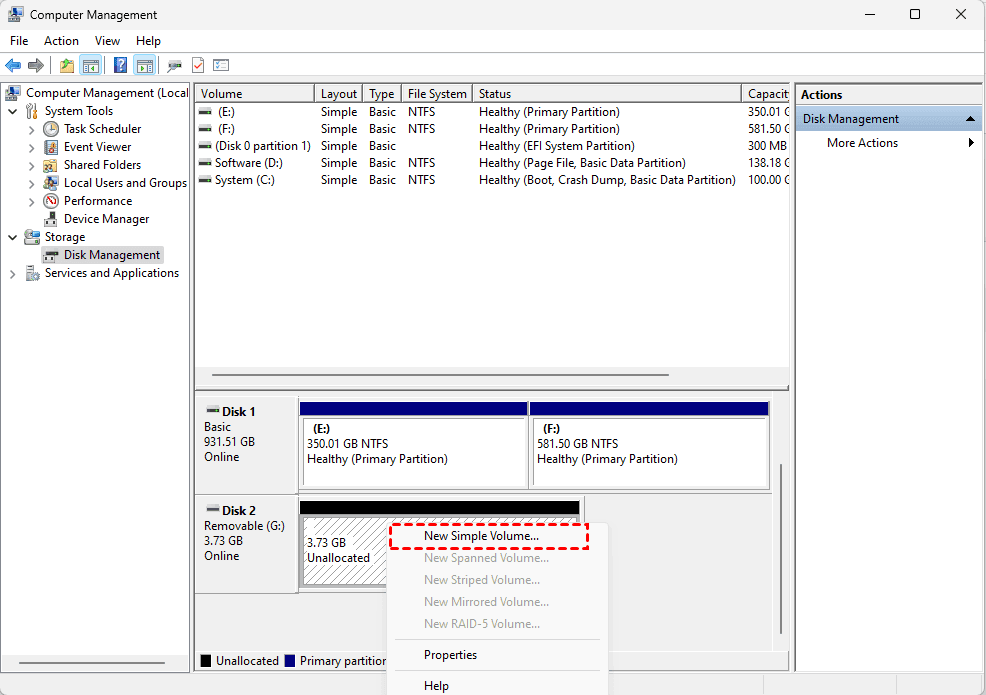
1. Open Disk Management.
2. Look for your SSD (might say "Unallocated" or "RAW").
3. Right-click > New Simple Volume to format (if unallocated).
Steps for Mac:
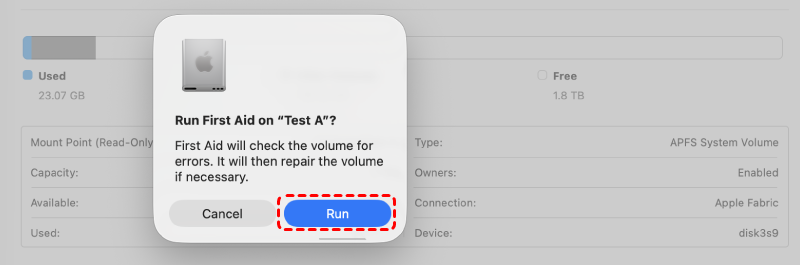
1. Open Disk Utility.
2. Select the SSD > First Aid to repair.
Fix 5. Scan and Repair with CHKDSK (Windows)
CHKDSK is a built-in Windows tool that can repair file system errors.
Steps:
1. Open Command Prompt (Admin).
2. Type chkdsk X: /f /r (replace X with your SSD letter).
3. Press Enter and wait for it to finish.

4. Reconnect your SSD.
Fix 6. Format the SSD as a Last Resort
If none of the above methods work, formatting the SSD can restore functionality.
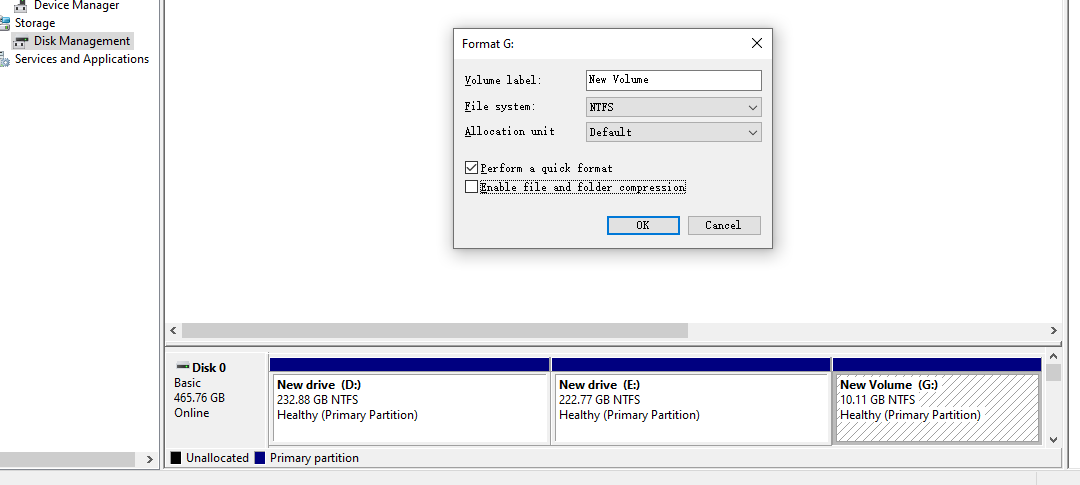
Windows: Right-click SSD in Disk Management > Format > choose NTFS or exFAT > OK.
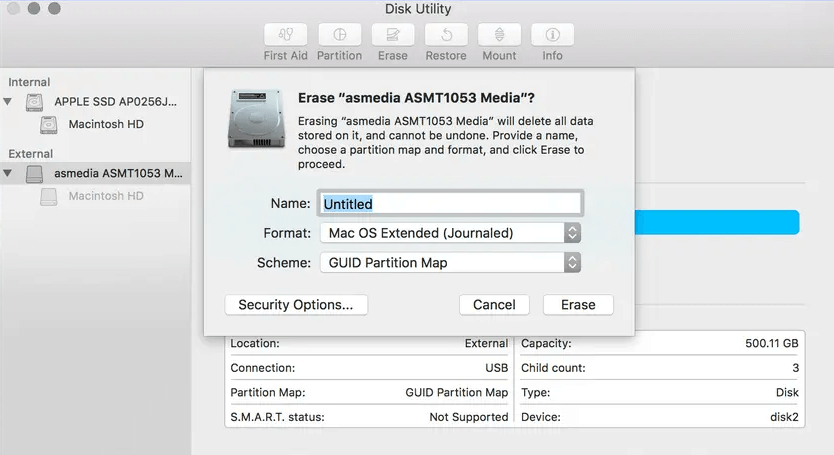
Mac: Open Disk Utility > Erase > choose format (Mac OS Extended or exFAT) > Erase.
Using MyRecover to Restore Data from SSD
If the SSD becomes unusable due to data or partition loss, MyRecover is a great tool to help you restore your data safely and efficiently. It’s specifically designed for recovering lost or deleted files from drives without overwriting existing data.
Why Choose MyRecover?
- Simple interface suitable for beginners
- High recovery rate for various file types
- Can recover data from accidental deletion, formatting, or file system corruption
 100% Secure
Steps to Recover Your Data Safely
1. Download and install MyRecover on a different drive (not the SSD you want to recover).
2. Launch the software and select your SanDisk Extreme SSD from the list of available drives.
3. Scan the SSD – MyRecover will search for deleted or lost files.

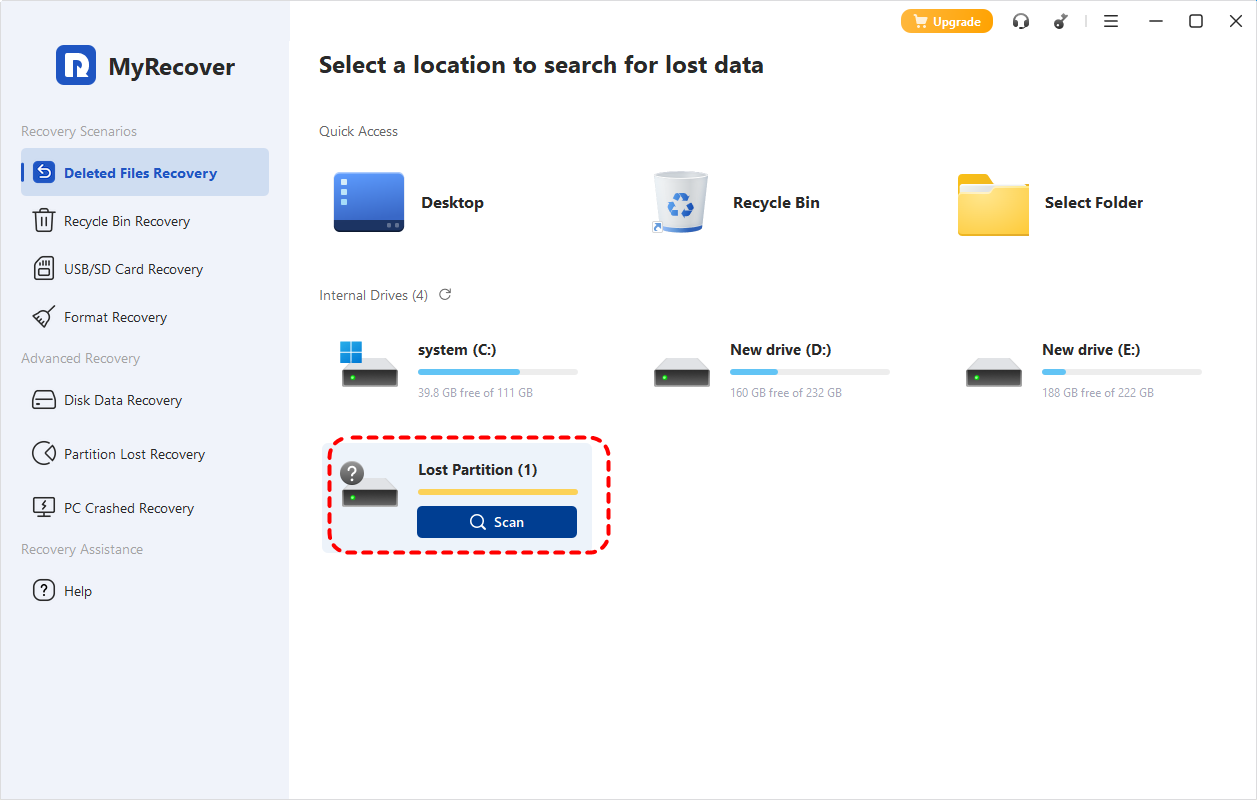
4. Preview and select files you want to recover.
5. Save recovered files to another drive to avoid overwriting data on your SSD.

Using MyRecover ensures your precious files remain safe while giving you the best chance to restore everything you’ve lost.
If your SSD is still under warranty and none of the fixes work, reach out to SanDisk support. They can guide you through advanced troubleshooting or provide a replacement if necessary.
Preventive Measures to Avoid SSD Issues
Prevention is better than cure. Here’s how to keep your SSD in top shape:
Proper Ejection of SSD
Always eject your SSD safely before unplugging it. Abrupt removal can lead to file system corruption.
Regular Firmware Updates
Check SanDisk’s website for firmware updates. Updates often fix bugs, improve performance, and enhance drive compatibility.
Backup Your Data Regularly
Even the best SSDs can fail. Keep a backup on another drive or cloud storage to avoid permanent data loss.
Conclusion
A non-working SanDisk Extreme Portable SSD is frustrating, but most issues can be solved with a systematic approach. Start by checking cables and ports, update drivers, and use recovery tools wisely. Prevention is key—eject safely, keep firmware updated, and maintain regular backups. With these steps, your SSD can continue to serve you reliably for years.

Stay Updated With Our
Latest Tips
Add us as a preferred source on Google to never miss helpful guides.
 Add as preferred source >>