 MyRecover



Fix 'SD Card Is Blank or Has Unsupported File System' Error: Step-by-Step Guide
The 'SD Card Is Blank or Has an Unsupported File System' error can prevent Windows from recognizing or accessing the files on your SD card. This article examines the underlying causes of this problem and outlines structured troubleshooting steps to resolve it. By following the guidance provided, you can diagnose file system issues, regain access to your SD cards, and reduce the risk of future errors.

By Aria / Updated on January 23, 2026


Introduction
SD Card Blank Card or Unsupported File System. Can I revive it?
I mistakenly set my phone's SD card to "can only read in this phone" and factory reset my phone without disabling the "can only read this SD card in this phone only". And now whenever I'm using the SD card it says that it is a Blank Card or Unsupported File System. I already tried formatting it but nothing really happens. Also tried to insert it to my netbook and it said that driver successfully installed but I can't see the drive. Is there anyway of reviving this SD card? I don't care about the files and all I care is whether I can use it again or not.
- Question from Kryptonaaayt
When you insert an SD card into a computer, camera, or phone and receive the message "SD card is blank or has unsupported file system", it usually indicates that the device cannot correctly read the file system on the card. This issue is common on Windows, smartphones, digital cameras, and even drones.
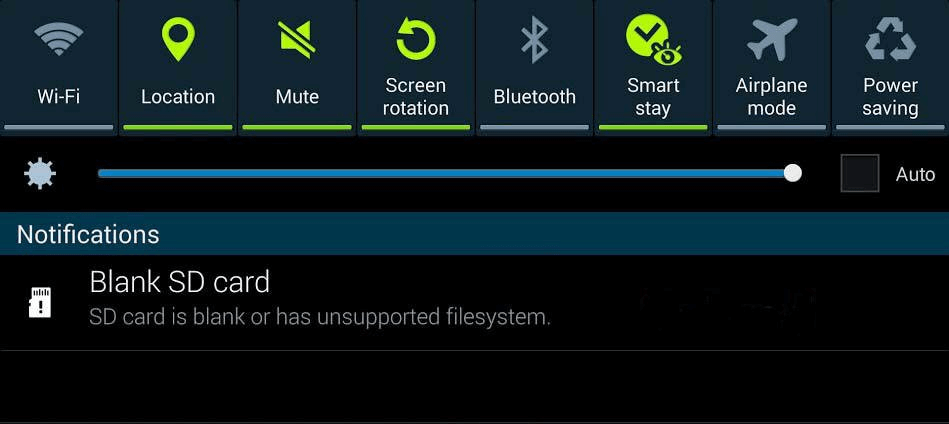
If you check the SD card on your computer, you might find that it doesn’t show up in File Explorer, and you won’t be able to access the files stored on it either. This will render your SD card completely unusable. The common reasons behind the "SD card is blank or has unsupported file system" error:
- File system corruption is one of the most common causes of this error,
- Unsupported or incompatible file system format,
- An incomplete format leaves the file system header or partition table in an inconsistent state,
- Bad sectors affecting critical file system areas,
- Using the same SD card across multiple devices without reformatting can cause file system inconsistencies.
How to Recover Files from the Blank SD Card
The good news is that this problem does not always mean your files are permanently lost. With the right approach, you can often fix the error and more importantly, recover your data safely. Before applying any fix, if the data on the card is important, you should prioritize recovery before performing irreversible actions like formatting.
When an SD card appears blank or unreadable, files are often still present but inaccessible due to file system corruption. This is where professional recovery software like MyRecover becomes essential. MyRecover can scan the SD card sector by sector, bypass file system errors, and extract recoverable files such as photos, videos, compressed files, and documents, even when Windows cannot open the card.

 MyRecover
- 500+ Devices Supported | SSD, HDD, USB Flash Drive, SD Sard, etc.
- 1000+ File Formats Supported | PNG, MP4, MP3, TXT, ZIP, MSG, etc.
- 500+ Data Loss Scenarios | Deletion, Format, System Crash, Virus Attack, etc.
 100% Secure
Step 1. Remove the SD card from camera or smartphone and connect it to your Windows computer with correct card reader or slot.
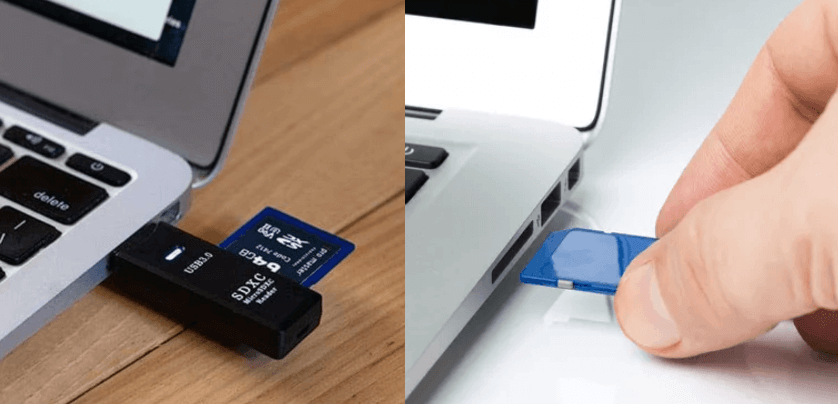
Step 2. Download and install MyRecover on your PC from Microsoft Store or its official site.
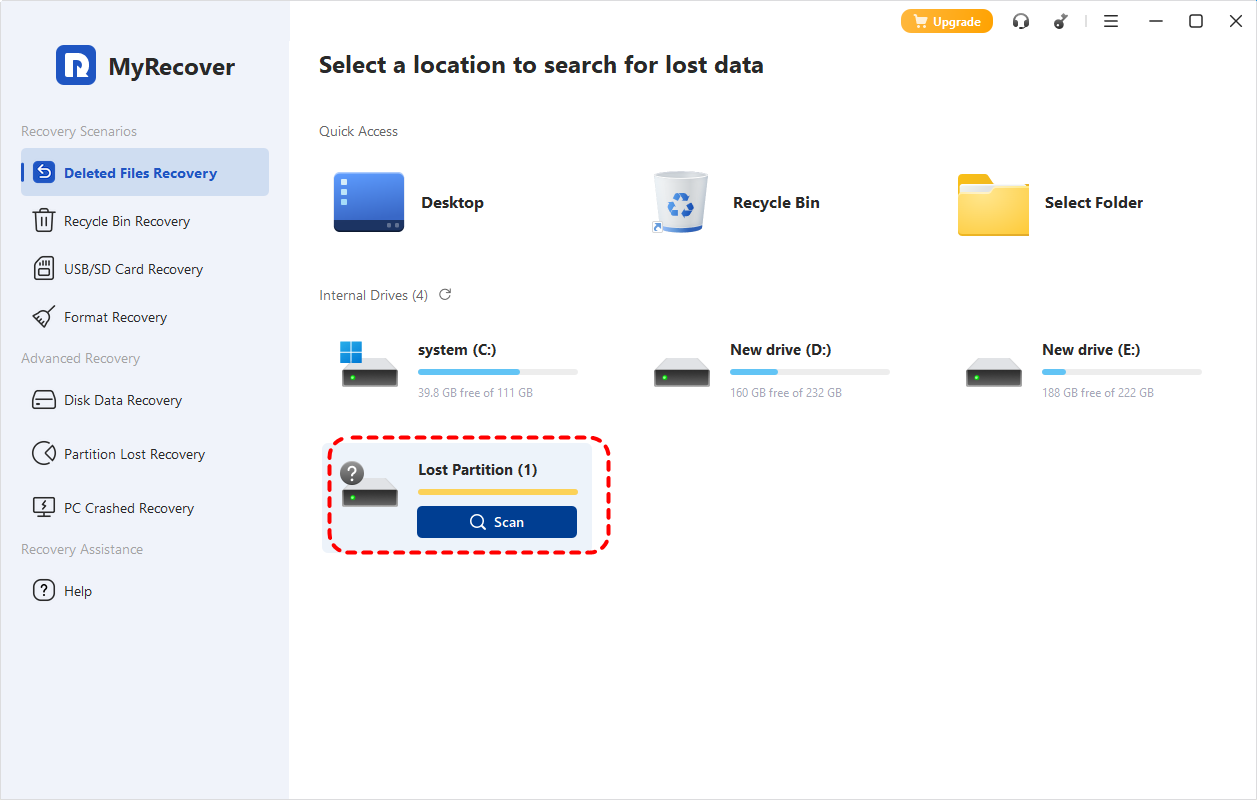
Step 3. Run the app and select the SD card to scan, then click "Scan" to search for recoverable files.

- Notes:✎...
- If you can’t locate your SD card, it may show up as a "Lost Partition". You can figure out which one is your SD card by checking the storage capacity.
-

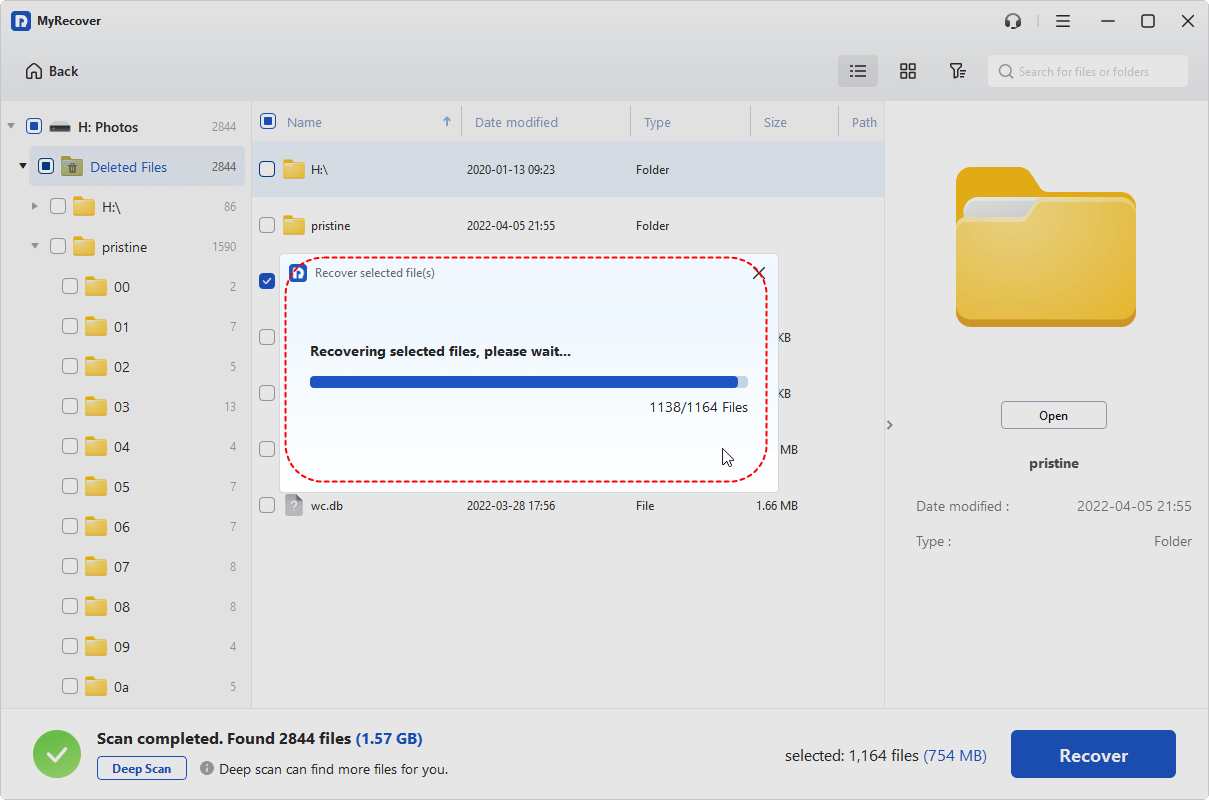
Step 4. After the scan is finished, choose the files you wish to recover from the recoverable lists and click "Recover".

Step 5. Select a safe location (not the original SD card) to save the recovered files.

When the process is done, the message "Files have been recovered successfully" will pop up. Then, you can access the recovered files in the destination folder by clicking on the "Browse" button.
How to Fix the "SD Card Blank or Has Unsupported File System" Error
Once you’ve ensured your files are safe, it’s time to try fixing the "SD card is blank or has unsupported file system" error. This section provides 8 methods to help you restore your SD card to normal working order. You can test them one by one until the problem is resolved. Let's dive into the detailed steps.
Restart the Device
Sometimes, the error is caused by a temporary system glitch rather than actual SD card damage. Restarting your computer, phone, or camera can refresh the system’s connection to the card and resolve minor recognition issues. This step is quick, risk-free, and should always be tried first when encountering the "SD card blank unsupported file system" error.
Check the Connection and Card Reader
If restarting doesn’t help, the next logical step is to verify the physical connection. A faulty card reader, loose USB port, or adapter incompatibility can easily cause the error. Try connecting the SD card with a different card reader, plugging into another USB port, testing the SD card on another computer or device. If the card works elsewhere, the issue is likely not with the SD card itself.
Run CHKDSK on SD Card
If Windows detects the SD card but cannot open it, file system errors may be the cause. You can try to run CHKDSK command to scan and repair file system errors. It is a way with high possibility to fix the "SD card is blank or has unsupported file system" error without formatting.
Step 1. Locate Command Prompt in the Start menu and run it as administrator.

Step 2. Enter the following command "chkdsk G: /f /r" and press the "Enter" key. Replace the drive letter "G" with your actual SD card drive letter.

Step 3. Wait for the command to complete, check if the error persists.
Show Hidden Files
In some cases, files are not deleted but simply hidden due to virus activity or system errors. The card may appear completely empty even though data still exists beneath the surface. Before you format the SD card, use the methods below to check if your files have been hidden.
Step 1. Open File Explorer and go to "View" > "Options" > "Change folder and search options" to open "Folder Options".

Step 2. In the "Folder Options" window, check the "Show hidden files, folders, drives" option and click "Apply" and "OK" to save the change.
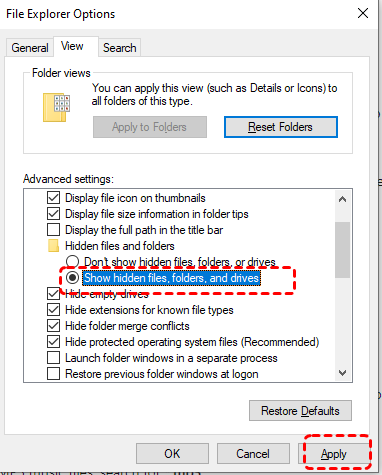
Step 3. Access the SD card to verify if the files are visible.
Reinstall the SD Drivers
Driver-related issues can prevent Windows from interpreting the file system correctly. Reinstalling drivers refreshes the communication between the system and the SD card. Here's how:
Step 1. Press "Win" + "X" and choose "Device Manager" to open it.

Step 2. Expand "Disk drives" or "Portable devices", right click on your SD card and choose "Uninstall device".

Step 3. Restart your computer and reconnect the SD card to your PC. Windows will automatically reinstall it. Then check whether the "SD card blank or has unsupported file system" error continues.
Remove Virus or Malware
Malware can damage the file system or hide files, making the SD card appear blank. Running a full antivirus scan using Microsoft Defender or a reliable anti-virus software helps rule out infection-related causes. Here takes Microsoft Defender as an example:
Step 1. Locate the SD card in File Explorer and right click on it, then choose "Scan with Microsoft Defender" from the context menu.
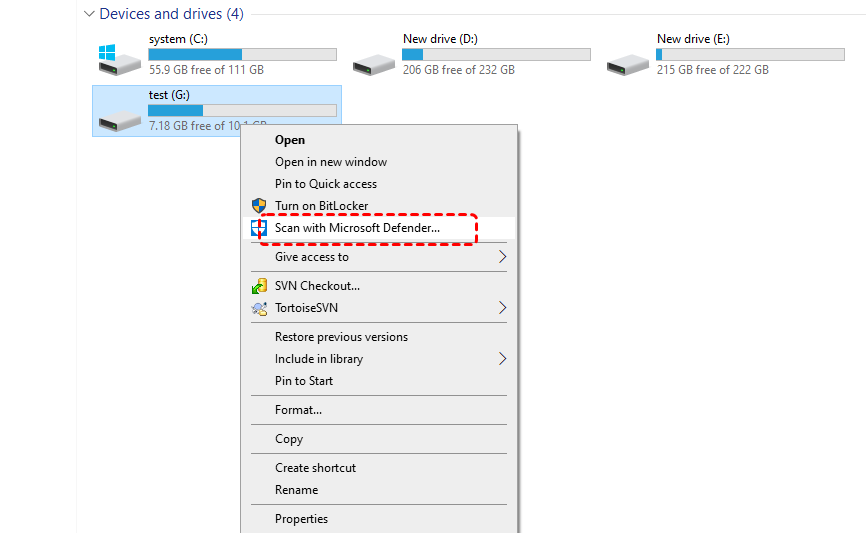
Step 2. It will automatically perform a quick scan for blank SD card. If threats are found and removed, reinsert the SD card and check if it becomes accessible again.
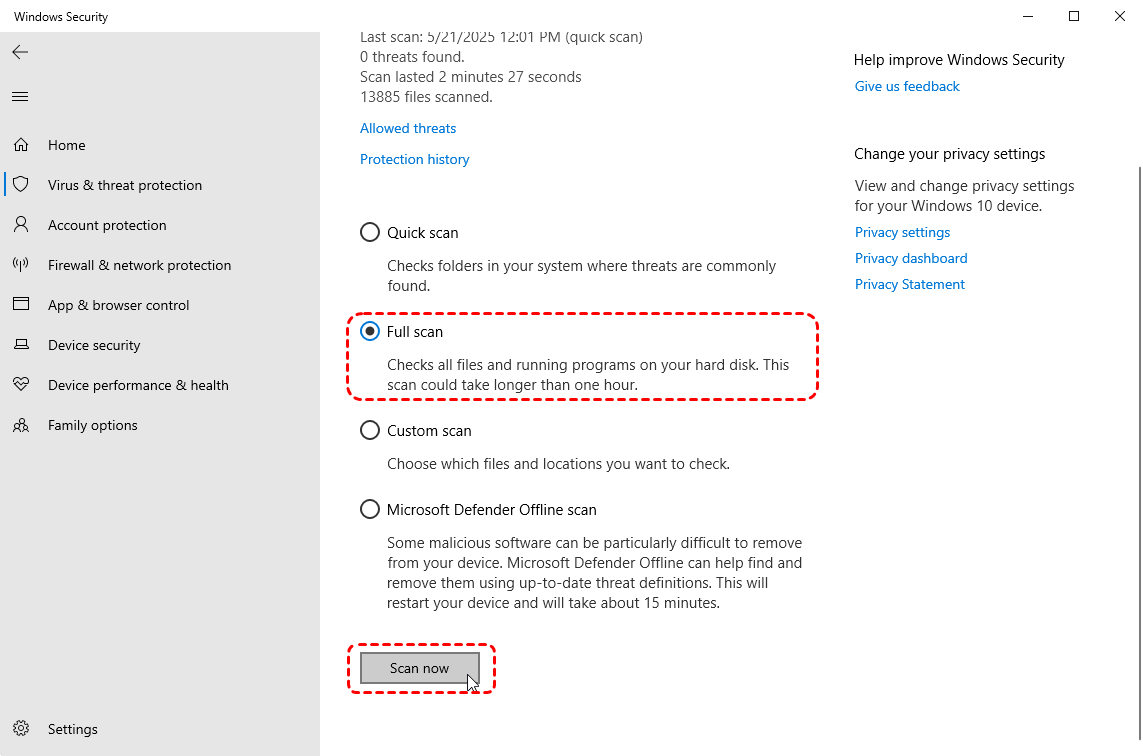
Step 3. If needed, you can run a more comprehensive scan by clicking on "Full scan" and "Scan now".
Format the SD Card (After Data Recovery)
If none of the above solutions work, this is likely because an incompatible file system prevents your computer or phone from recognizing the files on the SD card. Formatting may be required to make the SD card usable again. But this will erase all of the existing data on the SD card. This is why data recovery should always come first when dealing with "SD card blank unsupported file system" issues.
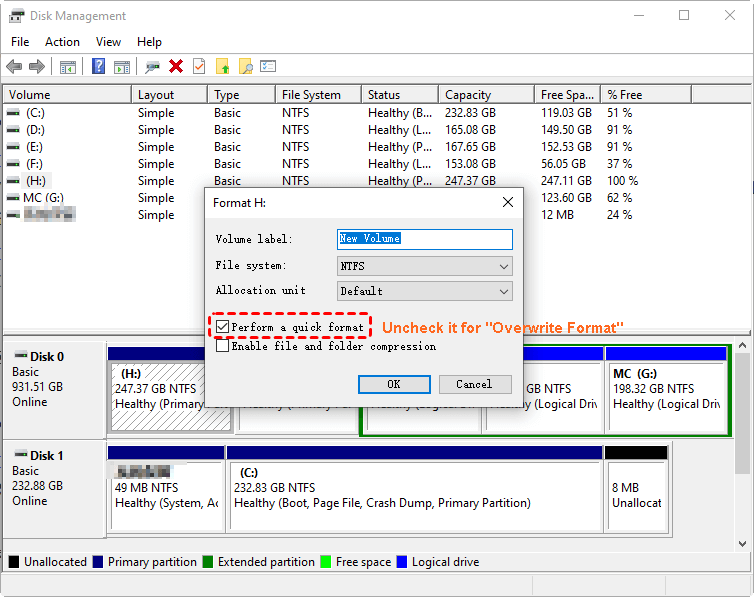
Step 1. Press "Win" + "X" and choose "Disk Management" to open it.

Step 2. Locate the SD card in the lists and right click on it, then choose "Format".
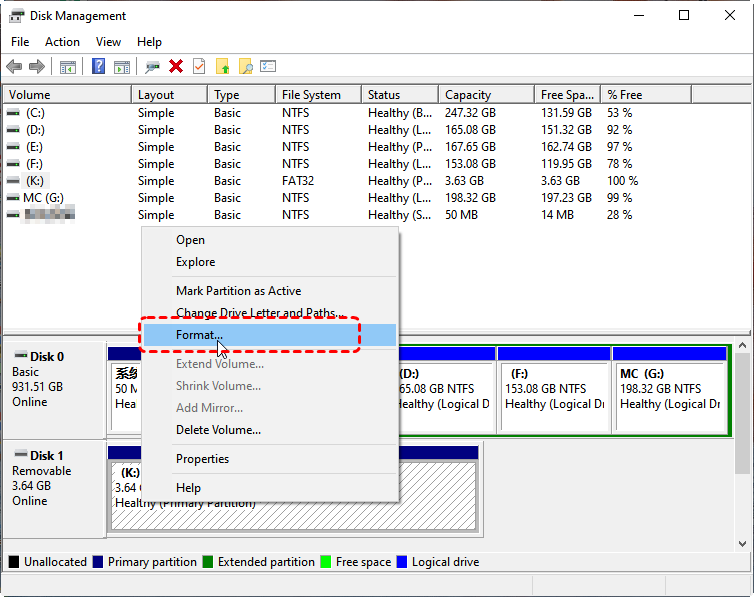
Step 3. Select a Windows (or your smartphone) supported file system like NTFS and check the "Perform a quick format" option, then click "Start".
Replace the SD Card with a New One
If the SD card continues to fail after formatting, it may have physical damage or worn-out memory cells. At this point, replacing the card is the safest long-term solution.
The End
Facing the "SD card is blank or has unsupported file system" error can be stressful, but in most cases, the situation is far from hopeless. By using the solutions mentioned above and recovering data with MyRecover before drastic fixes, you significantly improve your chances of success.
If you have more advanced recovery needs, such as unlimited data recovery capacity and the ability to preview files in advance, the Professional edition of MyRecover is a worthwhile investment.

Stay Updated With Our
Latest Tips
Add us as a preferred source on Google to never miss helpful guides.
 Add as preferred source >>