 MyRecover



USB Access Denied: How to Fix the Error on Windows 10/11 [2026 Guide]
The 'USB Access Denied' error on Windows 10/11 can prevent users from opening, copying, or modifying files on a USB drive. This article analyzes the common causes behind this restriction and presents structured solutions to resolve it. By following the methods outlined in this guide, users can regain normal access to their USB devices while minimizing the risk of data loss.

By Aria / Updated on January 13, 2026


Access Denied When Accessing to USB Drive
I have been trying to access a USB drive on Windows 10, but have been greeted with the 'Access Denied' message.
- Question from Luciano
Encountering an "Access Denied" error when trying to open a USB drive is a common yet frustrating problem for Windows users. Whether you are using Windows 11, 10, 8, or 7, this issue can prevent you from viewing, copying, or modifying files stored on the USB flash drive. In many cases, the drive is detected by the system, but Windows blocks access due to permission conflicts, file system errors, or security restrictions.
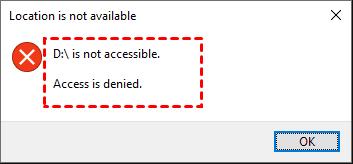
In this article, we will analyze why the USB access denied error occurs, explain how to recover your data safely before making risky changes, and provide step-by-step solutions to help you resolve "USB access denied" error in Windows.
Why the USB Access Denied Error Shows up
Understanding the reasons behind "USB access denied" helps you to choose the safest solution. This error can be triggered by several factors, including:
🧿Insufficient Permissions
The most common reason is incorrect file or folder permissions. If the USB drive was created or modified under a different user account, Windows may deny access.
📂File System Corruption
Improper removal of the USB drive or power interruptions can corrupt the file system, causing Windows to block access.
🔌Write Protection Enabled
Some USB drives have physical or logical write protection enabled, which may restrict access.
💡Group Policy Restrictions
In managed or work environments, Local Group Policy settings can disable USB access entirely.
🛠️Incompatible File System
USB drives formatted with unsupported or damaged file systems may trigger access denied errors.
⚙️Driver or System Conflicts
Outdated USB drivers or system-level security features such as UAC can interfere with normal access.
How to Recover Data from the Inaccessible USB Drive
Before applying fixes that may modify the USB drive, it is strongly recommended to recover your data first. Some solutions, such as formatting, can result in permanent data loss. This is where MyRecover becomes essential. MyRecover is designed to scan inaccessible or write-protect USB drives and recover files without relying on Windows Explorer access. It supports various file systems and works even when the USB drive shows "RAW" or "Unallocated".

 MyRecover
- Recover Windows data for free in just 3 simple steps.
- Recover 1000+ file types, including Word, Excel, PPT, images, videos, archive, emails, etc.
- Restore from HDD, SSD, external hard drive, USB drive, SD card, etc.
-
Recover from deleted or formatted partition, emptied Recycle Bin, system crash, virus attack, etc.
 100% Secure
Step 1. Download and install MyRecover on your computer from Microsoft Store. Connect the USB drive to your computer, making sure it can be detected correctly.
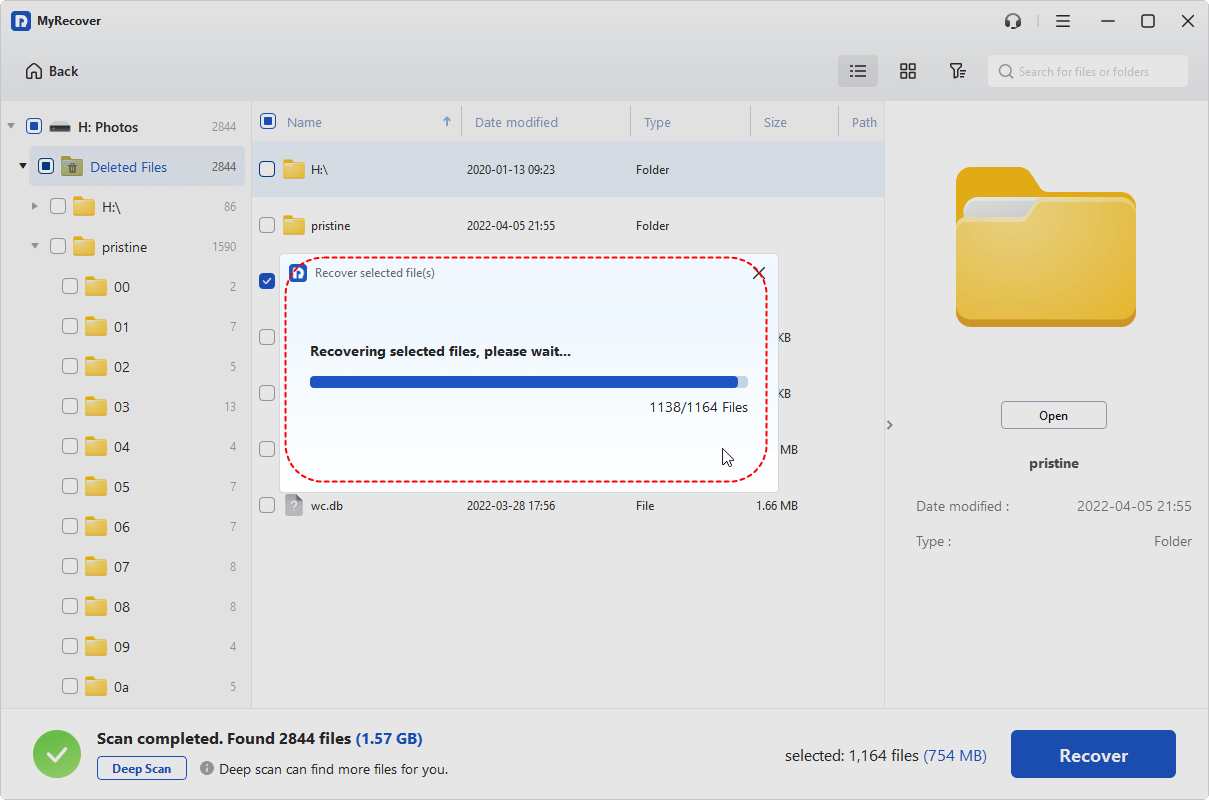
Step 2. Run the program and select the USB drive to scan, then click "Scan" to search for lost files. After that, you can also perform a more comprehensive scan by clicking on "Deep Scan".

Step 3. Choose the files you wish to recover from the recoverable lists and click "Recover". You can also locate your files using the "Filter" function in the right upper corner.

Options in the Filter feature:
- Type: Different file types, such as images, videos, documents, mails, webpage, compressed files, etc. are included.
- Data Modified: Sort files by modification time—you can choose to list them from most recent to oldest or from oldest to most recent
- Size: It allows you to filter file size from less than 512KB to 512KB ~10MB to 10MB~100MB and above.
- Keyword: Type the keywords of the file name you want to recover into the search box.
Step 4. Select a safe folder to save the recovered files.

When the process is completed, you can check the recovered files by clicking on the destination folder path or the "Browse" button.
How to Fix USB Access Denied on Windows 11/10/8/7
After securing your data, you can begin resolving the access denied issue using the methods below. Each solution addresses a different underlying cause, so you can choose the appropriate method based on your actual situation.
Change Drive Permission
Permission conflicts are the most frequent cause of access denial. You can manually grant full control to your user account by adjusting the security settings of the USB drive. This method is often effective when the drive was previously used on another system.
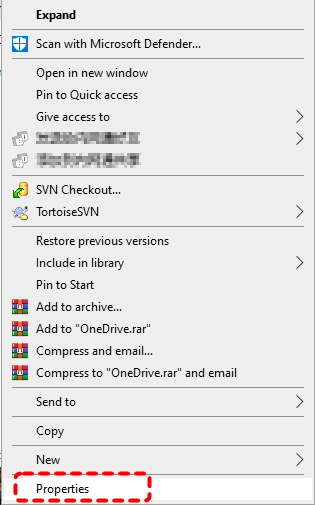
Step 1. Locate the USB drive in File Explorer and right click on it, then choose "Properties" from the context menu.
Step 2. Under the "Security" tab, click "Edit".
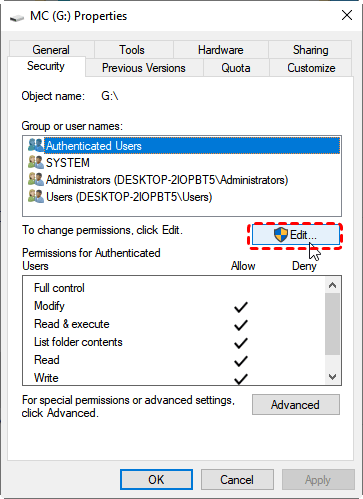
Step 3. Select your user account and check "Allow" for "Full control".

Run CHKDSK Command
If the file system is corrupted, Windows may block access. Running the CHKDSK utility can detect and fix logical errors on the USB drive, potentially restoring normal access. Follow these steps:
Step 1. Type "Command Prompt" in the Start menu and right click on it, then choose "Run as administrator".

Step 2. Input the following command "chkdsk G: /f /r" and hit the "Enter" key. Replace the drive letter "G" with your actual USB drive letter.

Step 3. Wait for the command to complete, access the USB drive again to check if the issue persists.
Remove Write Protection
If the USB drive is write-protected, either via a physical switch or software-level configuration, you won’t be able to modify or move any files on it, no matter which user account you use. Removing write protection can resolve USB access restrictions and restore usability.
Step 1. Open Command Prompt and run it as administrator.
Step 2. Enter the following command and press "Enter" after each one:
- diskpart
- list disk
- select disk X (replace X with the number of your USB drive)
- attributes disk clear readonly
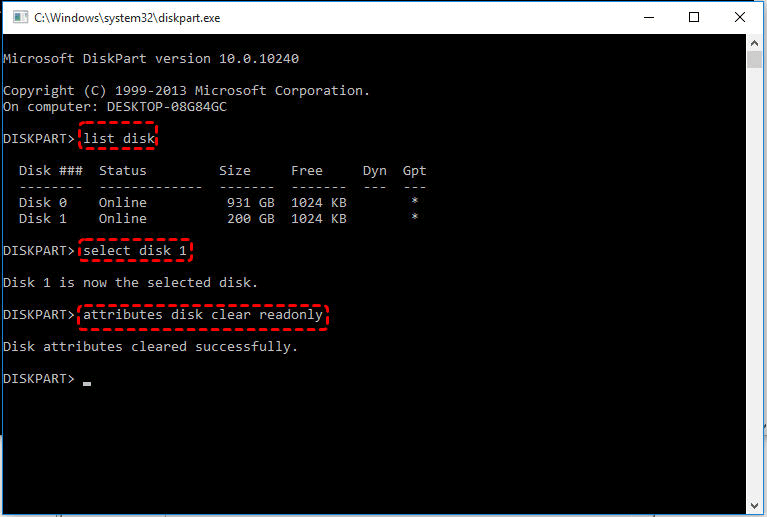
Once done, close the Command Prompt by typing "exit". Try to move or add files in the USB drive to verify if the error continues.
Update USB Driver
Outdated or corrupted USB drivers can cause communication issues between Windows and the USB device. Updating or reinstalling the driver ensures proper recognition and access. Follow these steps to fix "USB access denied" error:
Step 1. Press "Win" + "X" and choose "Device Manager" to open it.

Step 2. Expand the "Disk drives" and right click on your USB drive, then choose "Update driver".

Step 3. Select "Search automatically for updated driver software" to continue the process.
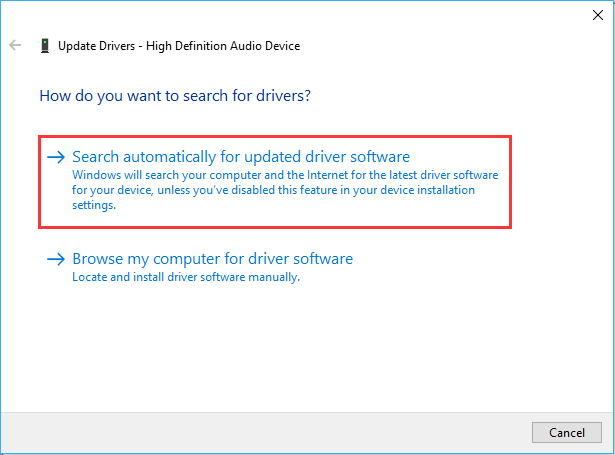
If there's no updates, you can choose "Uninstall driver" and restart your computer. When you insert the USB into the PC next time, Windows will automatically reinstall the drive.

Scan for Virus or Malware
Sometimes viruses or malware can also cause the "USB Access Denied" error. They may force the USB drive into read-only mode or prevent any user account from accessing it. You can scan for and remove them using Windows Defender or your trusted antivirus software.
Step 1. Navigate to the USB drive in File Explorer and right click on it, then choose "Scan with Microsoft Defender".
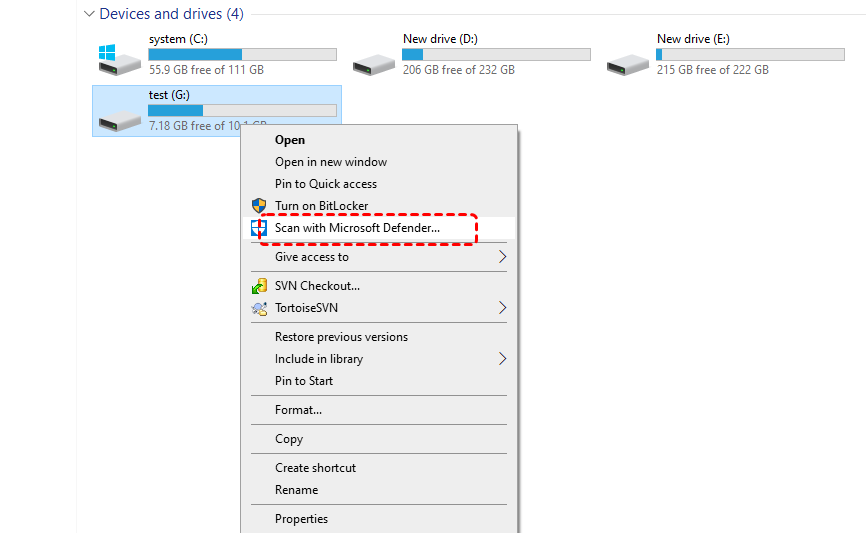
Step 2. This will automatically perform a quick scan for the USB. If needed, you can perform a more thorough scan by clicking on "Full Scan".
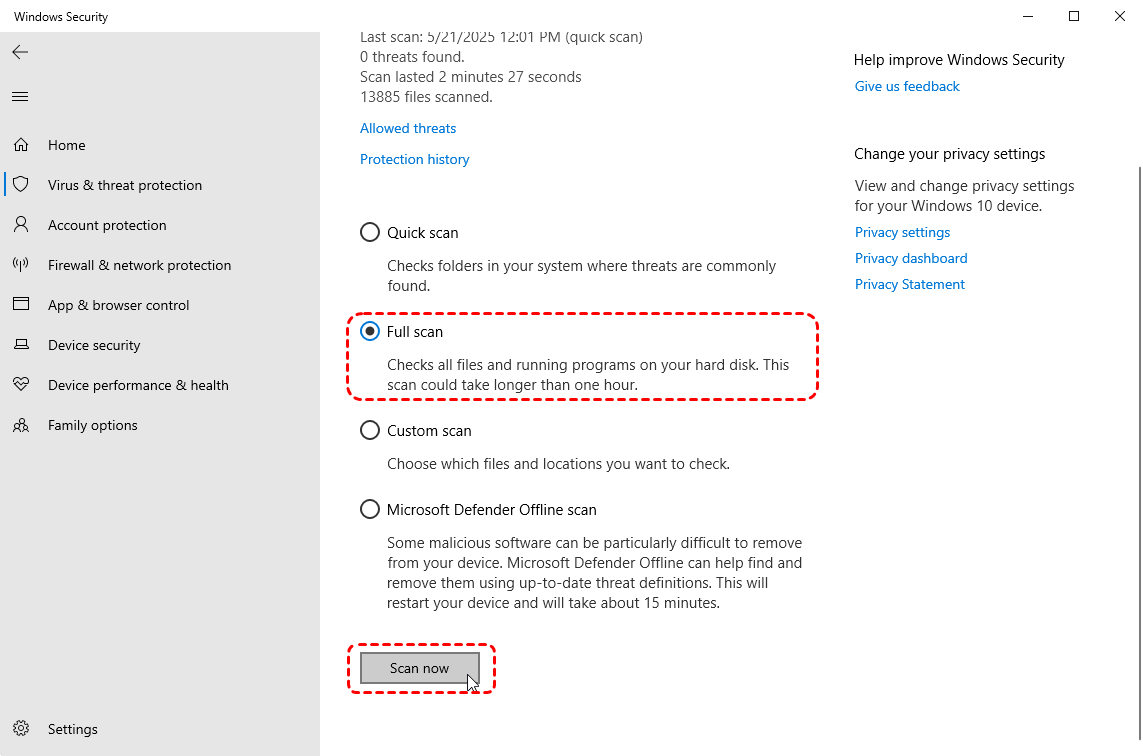
Step 3. If any suspicious files were detected, remove or quarantined them.
Edit Local Group Policy
In certain Windows editions, especially in enterprise environments, USB access may be disabled through Group Policy. Adjusting these settings can re-enable USB storage access system-wide.
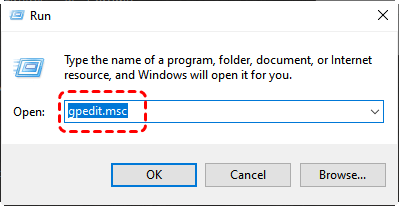
Step 1. Press "Win" + "R" and type "gpedit.msc" in the Run dialog, then press "Enter" to open the Local Group Plicy Editor.
Step 2. Locate the following path in the left panel:
Computer Configuration > Administrative Templates > System > Removable Storage Access.
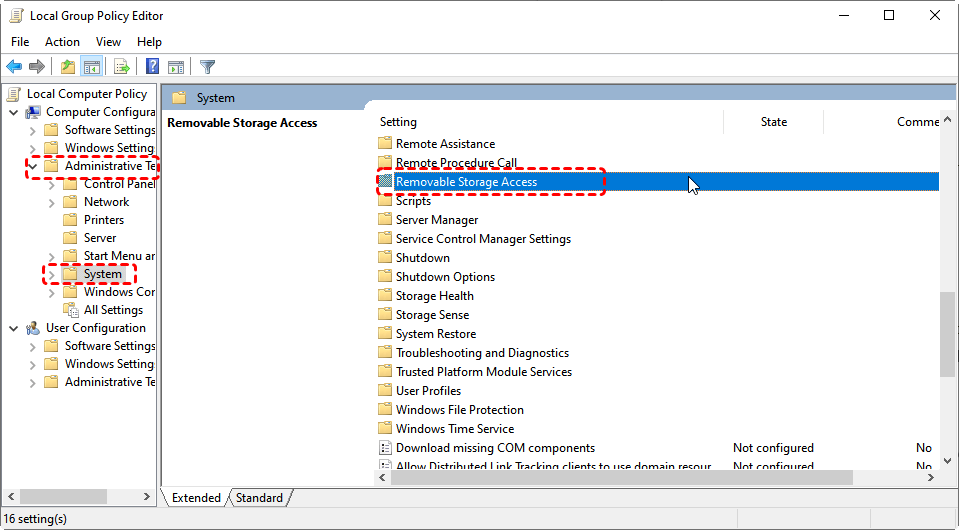
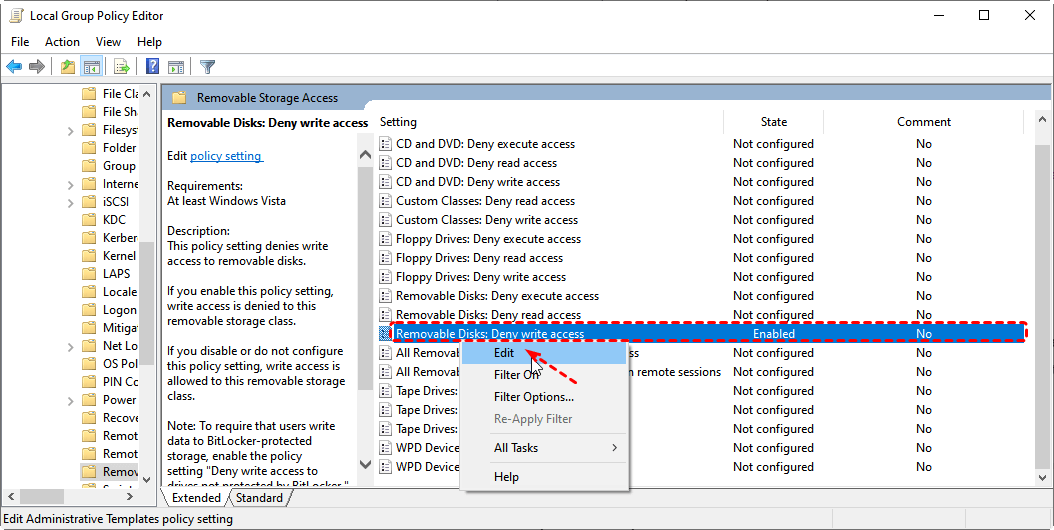
Step 3. Open "Removeable Storage Access" and locate "Removeable Disks: Deny write access", right click on it and choose "Edit".
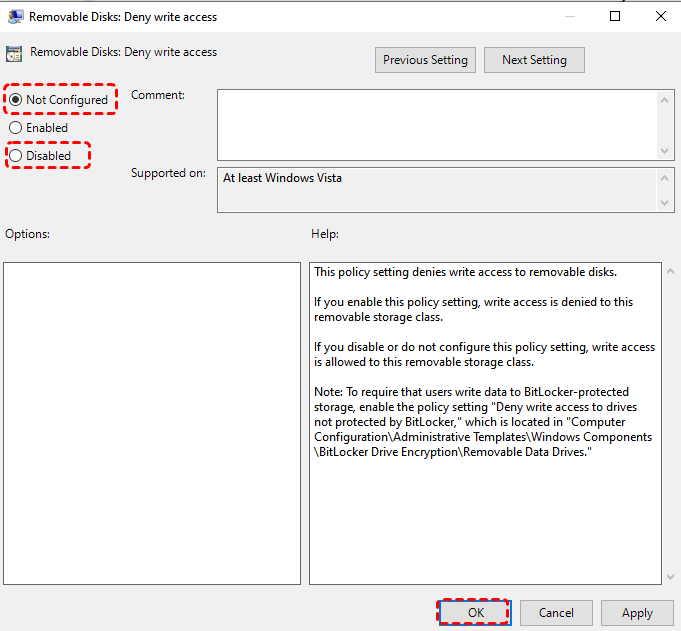
Step 4. Select "Disable" or "Not Configured" and click "Apply" to save the change.
Restart your computer and access the USB drive again to check if the access is denied.
Format the Drive
If the USB drive uses an incompatible like Ext3, Ext4, Windows cannot recognize this file system, so you won’t be able to access the data on the USB drive either. In such a case, formatting is the last resort. However, please note that formatting the USB drive will delete all files, making sure you have recovered the data from the storage device using tools like MyRecover first.
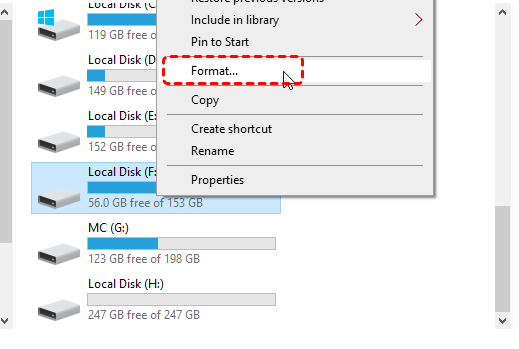
Step 1. Right click on the USB in File Explorer and choose "Format" from the context menu.
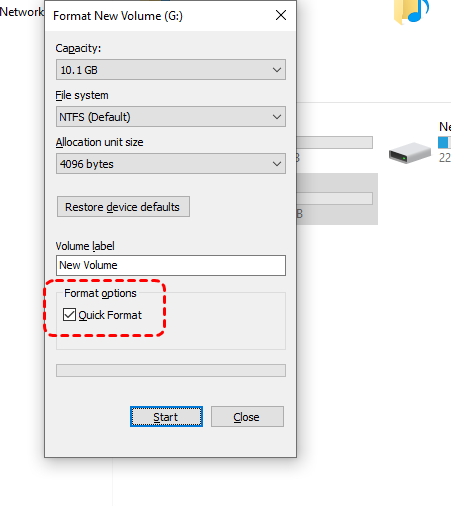
Step 2. Choose a Windows supported file system like NTFS and check the "Quick Format" option, then click "Start" to begin the process.
Conclusion
The USB access denied error can stem from permission issues, file system corruption, or system-level restrictions. While the problem may seem serious, it is usually fixable with the right approach. The key is to recover your data first, then apply targeted solutions based on the underlying cause.
MyRecover’s Professional edition offers more advanced recovery capabilities, including unlimited data recovery quota and preview before recovery. With the right tools and a structured troubleshooting process, resolving USB access denied error becomes far less stressful, and your data remains safe throughout the process.

Stay Updated With Our
Latest Tips
Add us as a preferred source on Google to never miss helpful guides.
 Add as preferred source >>